Passkeys vs Passwords vs 2FA: Which Authentication Method Actually Protects You?
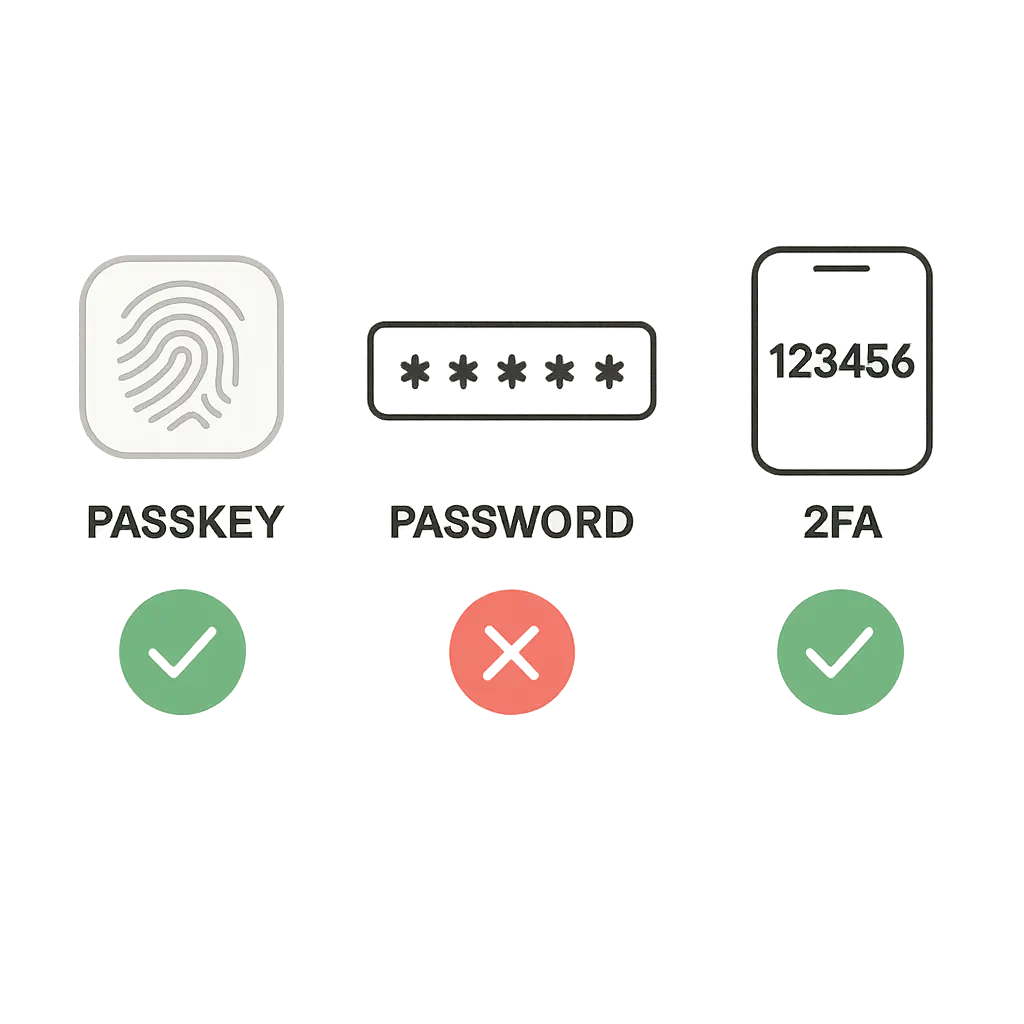
You type your password. You wait for a code. You scan your fingerprint. Three different ways to prove you're you, and the security industry can't agree on which one matters.
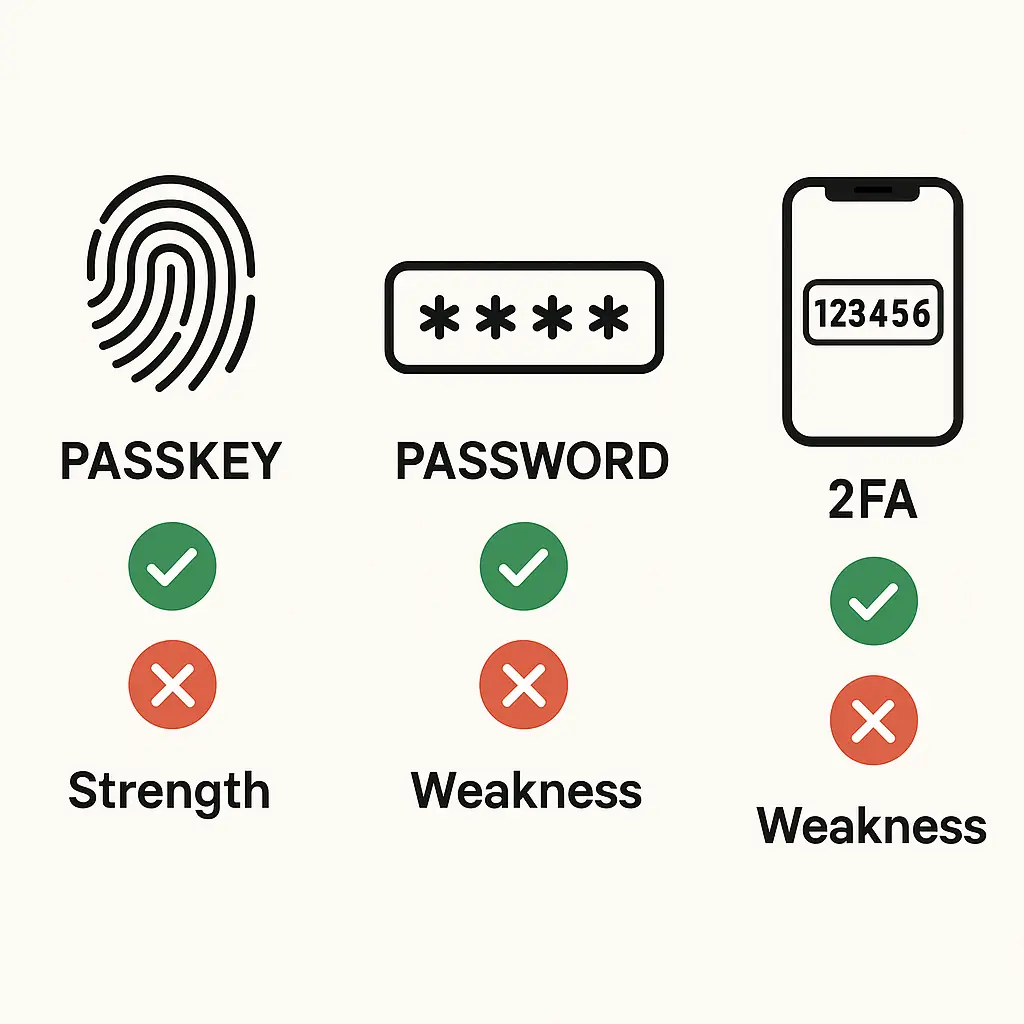
Passkeys promise to replace passwords entirely. Two-factor authentication adds a second check. Passwords remain the default everywhere. Each method claims to solve the authentication problem, but they work differently, fail differently, and protect different things.
Here's how passkeys, passwords, and two-factor authentication compare on the security that actually matters.
What Passwords Actually Do
A password is a shared secret. You know it. The server knows it. When you log in, you type what you know, the server checks it against what it has stored, and if they match, you're in.
The mechanism is simple, which is why passwords have survived since the 1960s. But simplicity creates vulnerabilities.
When you type your password on a fake login page, you've just handed it to an attacker. When a site stores your password insecurely and gets breached, attackers get the plaintext. When you reuse the same password across sites, one breach turns into a skeleton key.
Passwords fail because they're knowledge-based. If someone else learns what you know, they become you. The entire security model depends on keeping a secret that you type into dozens of sites, on devices you don't control, over networks you don't trust.
NIST's authentication guidance acknowledges this. Passwords work when they're long, unique, and never reused. Most passwords are none of those things.
The average person has around 100 online accounts. Creating 100 unique passwords and remembering them all is not realistic. So people reuse. They simplify. They write passwords down or store them in browsers without encryption.
This is not a failure of users. This is a failure of the authentication model.
How Two-Factor Authentication Changes the Equation
Two-factor authentication (2FA) adds a second requirement: something you have. You type your password (something you know), then prove you have your phone, a hardware key, or access to a specific app.
The underlying mechanism varies. Authenticator apps generate time-based codes using a shared secret and the current time. Hardware keys use cryptographic challenges. SMS sends a code to your phone number.
What they all do is break the single point of failure. If an attacker phishes your password, they still can't log in without the second factor.
This works well against credential stuffing. Stolen passwords from one breach don't grant access to accounts protected by 2FA. The attacker would need both the password and the second factor, and the second factor changes every 30 seconds or requires physical possession.
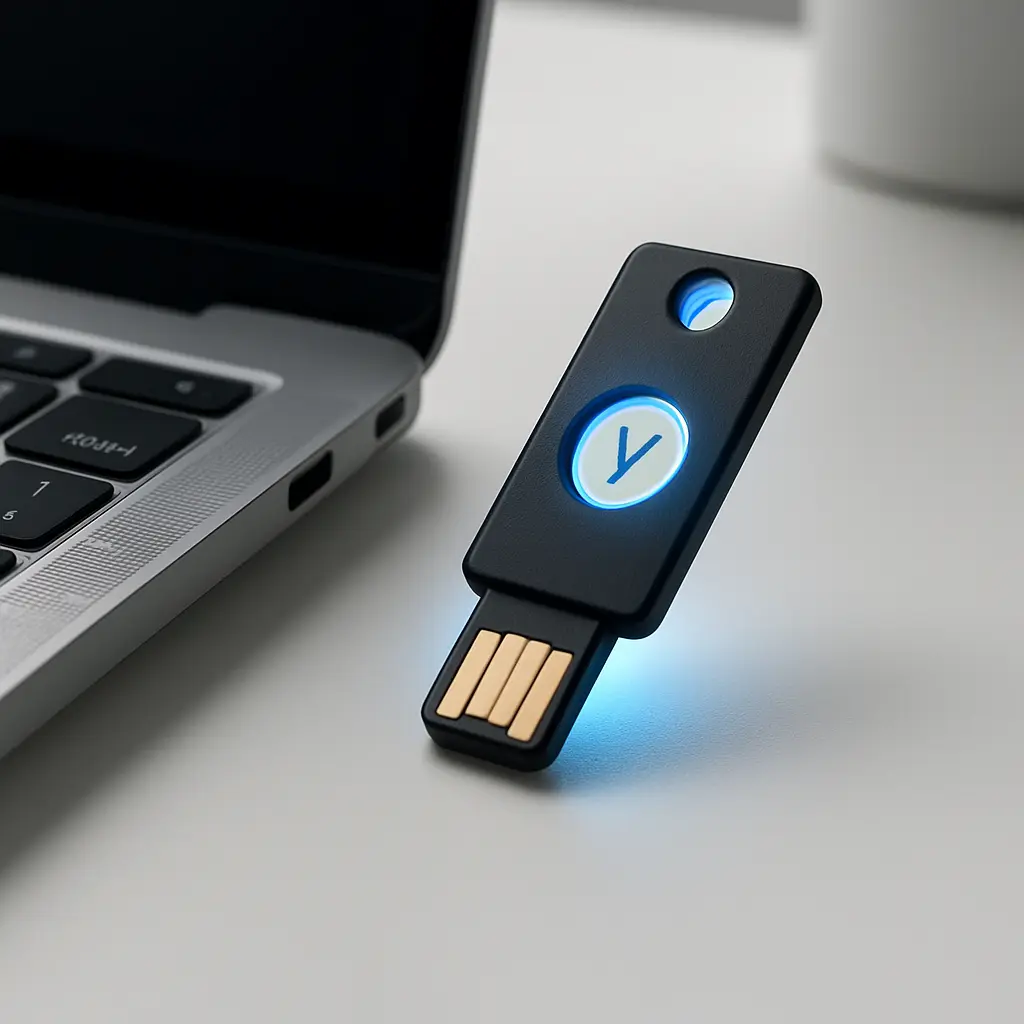
But 2FA isn't uniform. SMS 2FA is the weakest option because attackers can intercept texts through SIM swaps or SS7 exploits. Authenticator apps are stronger because the codes generate locally on your device. Hardware security keys are strongest because they use public-key cryptography and resist phishing entirely.
The problem is adoption. Not every site supports 2FA. Among those that do, many default to SMS. Users who enable 2FA often choose the weakest method because it's the easiest.
And even strong 2FA has a failure mode: social engineering. If an attacker convinces you to type the code into a fake site, you've just bypassed your own protection. The code is valid. The site is fake. You've authenticated the attacker.
This is where passkeys come in.
What Makes Passkeys Different
Passkeys use public-key cryptography. When you create a passkey, your device generates two keys: a private key that stays on your device, and a public key that goes to the server.
When you log in, the server sends a challenge. Your device signs the challenge with the private key. The server verifies the signature with the public key. If it matches, you're in.
The private key never leaves your device. You can't type it into a phishing site because you never see it. The server never stores a secret that could be stolen in a breach.
This is the same cryptographic mechanism behind hardware security keys, but passkeys sync across your devices through your Apple, Google, or Microsoft account. You create a passkey on your phone, and it's available on your laptop. You unlock it with biometrics or a PIN.
NIST describes this as phishing-resistant authentication. The private key is bound to the specific domain. A fake site can't trick your device into signing a challenge for the real site. The cryptography enforces the domain check.
In The Return of the King, Aragorn proves his identity not by reciting a password, but by presenting the reforged sword Andúril, a physical artifact that can't be duplicated or stolen through trickery. Passkeys work the same way. They're not a secret you know; they're a cryptographic proof of possession that attackers can't replicate by fooling you.
From a security standpoint, passkeys are stronger than passwords and stronger than most 2FA. They resist phishing. They resist credential stuffing. They can't be reused across sites because each passkey is domain-specific.
But they're not a complete replacement yet.
Where Each Method Fails
Passwords fail when they're reused, phished, or stored insecurely. The failure modes are well-documented. CISA recommends strong, unique passwords for every account, but compliance depends on user behavior, and user behavior defaults to convenience.
Two-factor authentication fails when the second factor is weak or when users are tricked into providing it. SMS codes can be intercepted. Authenticator app codes can be phished if you type them into a fake site. Push notifications can be approved by fatigued users who click "yes" without checking.
CISA's phishing-resistant guidance addresses this by recommending hardware keys or passkeys, which don't rely on user judgment to verify authenticity.
Passkeys fail when you lose access to all your devices. If your phone is stolen, your laptop dies, and you don't have a backup, you're locked out. Most platforms offer recovery mechanisms, backup codes, account recovery, secondary devices, but those mechanisms reintroduce the same vulnerabilities passkeys are designed to eliminate.
Passkeys also fail when sites don't support them. Adoption is growing, but passwords remain the default. You can't live on passkeys alone in 2026.
And passkeys require platform trust. Your private key syncs through Apple, Google, or Microsoft. If you don't trust those companies with your authentication credentials, passkeys don't solve your problem.
Comparing Security in Practice
Against phishing, passkeys win. The cryptographic binding to the domain means a fake site can't steal your passkey. Passwords lose because typing them into a fake site hands them over. Two-factor authentication loses if the second factor is SMS or if you're tricked into typing the code.
Against credential stuffing, passkeys and strong 2FA both win. Passkeys can't be reused because they're domain-specific. Two-factor authentication blocks reused passwords because the second factor is required. Passwords lose unless they're unique across every site, which they rarely are.
Against breaches, passkeys win because the server only stores the public key. Even if the database leaks, attackers get nothing useful. Passwords lose if they're stored as plaintext or with weak hashing. Two-factor authentication doesn't protect the password itself, but it limits the damage if the password is stolen.
Against account recovery attacks, passwords and 2FA both have vulnerabilities. Attackers who compromise your email can reset passwords. Attackers who SIM-swap your phone can intercept SMS codes. Passkeys reduce this risk because recovery typically requires access to a trusted device, not just knowledge of an email address.
Against usability, passwords win on familiarity but lose on management. Most people can't remember 100 unique passwords without a password manager. Two-factor authentication adds friction: you type your password, then wait for a code. Passkeys reduce friction once they're set up, but setup requires platform support and user understanding.
What to Use Where
For email, banking, and work accounts, use passkeys if the site supports them. If passkeys aren't available, use an authenticator app or hardware key for 2FA. Never rely on SMS 2FA for high-value accounts.
For social media and shopping sites, use 2FA with an authenticator app. Passkeys are better if available, but 2FA is the baseline. A unique password alone is not enough.
For low-value accounts, forums, newsletters, one-time purchases, a unique password is sufficient. Use a password manager to generate and store it. Don't reuse passwords from high-value accounts.
For shared accounts, family streaming services, shared work tools, passwords remain the practical choice. Passkeys and 2FA complicate sharing. If you share a password, make sure it's unique to that account and stored securely.
For accounts you access on public or shared devices, avoid saving passkeys or passwords on those devices. Use a password manager that requires re-authentication, or use a hardware key that you remove after logging in.
The Transition Period
We're in a transition. Passkeys are the future, but passwords are the present. Two-factor authentication bridges the gap.
The EFF's 2FA guide walks through enabling 2FA on major platforms. Most sites support authenticator apps. Fewer support hardware keys. Even fewer support passkeys.
The friction comes from managing multiple methods. You have passkeys for some accounts, 2FA for others, and passwords for everything. You need a password manager to handle the passwords, an authenticator app for the codes, and a recovery plan in case you lose access to your devices.
This is not simple. But it's realistic.
The goal is not to eliminate passwords overnight. The goal is to reduce reliance on passwords as the sole authentication factor. Every account you move to 2FA or passkeys is one less account vulnerable to credential stuffing. Every password you make unique is one less account compromised when a site you've never heard of gets breached.
Setting Up Each Method
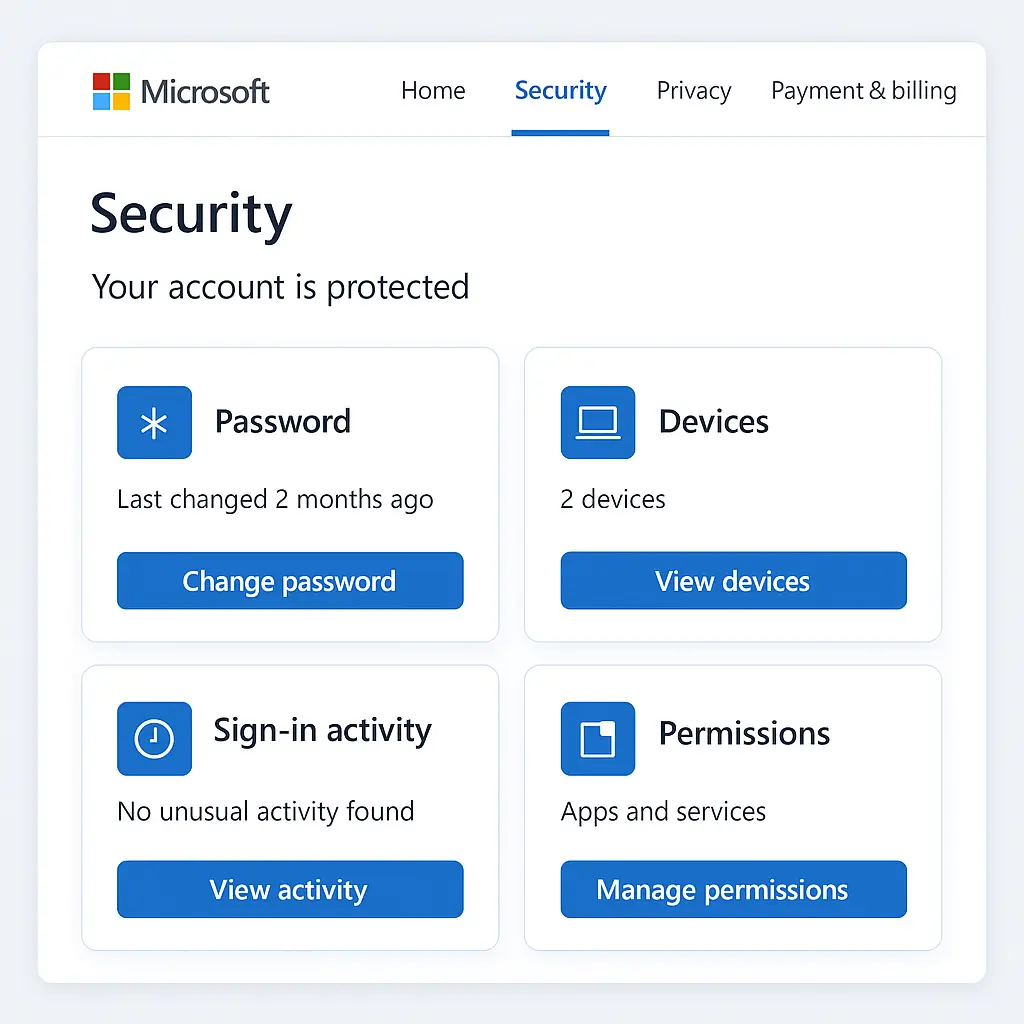
To set up a passkey, go to the account's security settings and look for "passkeys," "security keys," or "passwordless login." The site will prompt you to authenticate with your device's biometrics or PIN. Your device generates the key pair and stores the private key. The public key goes to the server. Done.
To set up two-factor authentication, go to security settings and enable 2FA. Choose "authenticator app" if available. Scan the QR code with an app like Authy, Google Authenticator, or Microsoft Authenticator. Save the backup codes somewhere secure, not in the same place as your passwords.
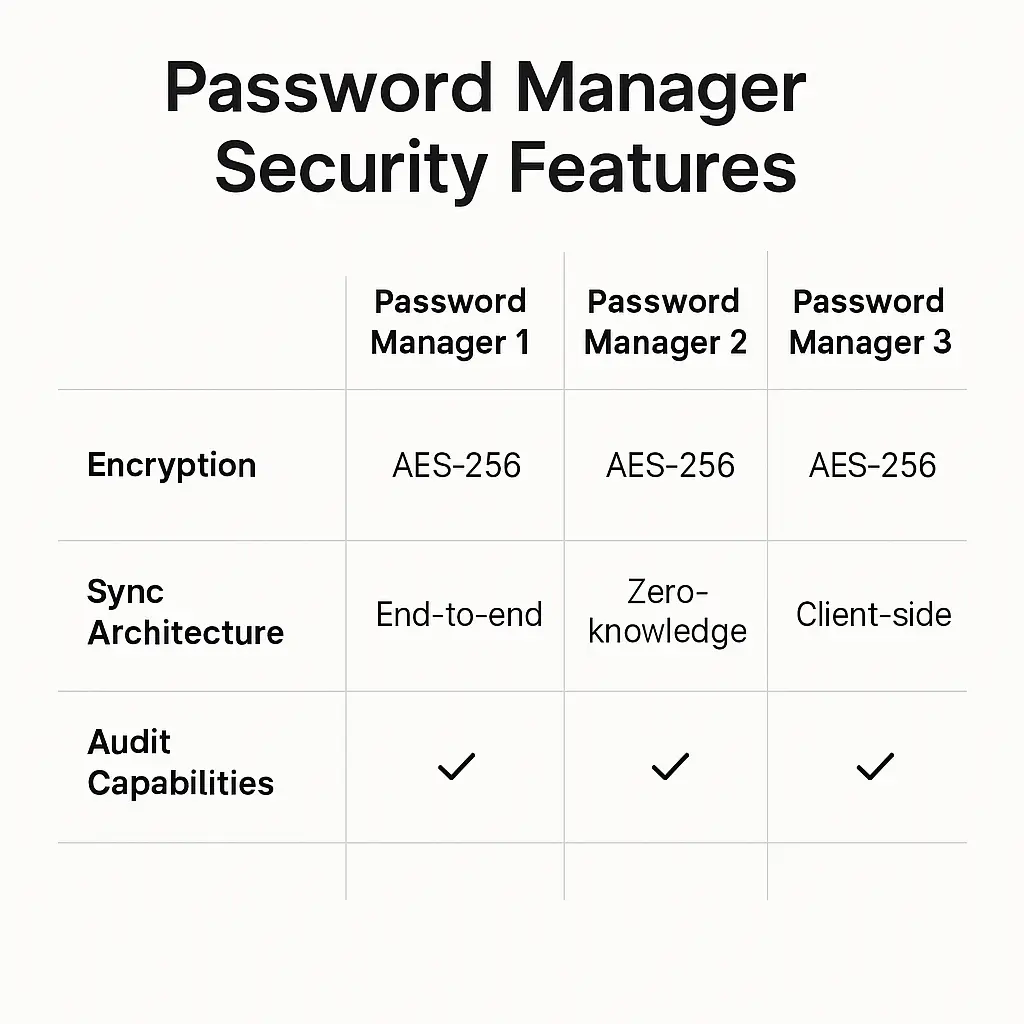
To manage passwords, use a password manager. NordPass generates unique passwords, stores them encrypted, and fills them automatically. The master password is the only one you need to remember. Make it long. Make it unique. Don't reuse it anywhere.
If you forget your master password, you're locked out. There's no reset. This is by design. The encryption depends on your master password. No one can recover it for you.
Backup codes are your failsafe for 2FA. Print them. Store them somewhere offline. If you lose your phone, you can still log in.
What Happens When You Lose Access
If you lose your phone with your passkey, you still have access from your other devices. Passkeys sync through your platform account. Log in on your laptop, and the passkey is there.
If you lose all your devices, you'll need account recovery. Most platforms offer recovery through a trusted device, a recovery key, or a secondary authentication method. This is where the security model weakens. Recovery mechanisms reintroduce the same risks passkeys are designed to eliminate.
If you lose your 2FA device, use your backup codes. If you don't have backup codes, you'll go through account recovery, which typically involves verifying your identity through email, phone, or support tickets.
If you forget your password and don't have a password manager, you'll reset it. This is why unique passwords matter. If you reuse passwords and forget the pattern, you're resetting dozens of accounts.
The Real Comparison
Passkeys are stronger than passwords and stronger than most 2FA. They resist phishing, credential stuffing, and breaches. But they require platform trust, device access, and site support.
Two-factor authentication is stronger than passwords alone. It blocks credential stuffing and limits phishing damage. But it depends on the second factor. SMS is weak. Authenticator apps are better. Hardware keys are best.
Passwords are the weakest option, but they're universal. Every site accepts them. The problem is not the existence of passwords. The problem is relying on passwords as the only authentication factor.
The answer is not "use passkeys" or "use 2FA" or "use passwords." The answer is layered security. Use passkeys where available. Use 2FA everywhere else. Use a password manager to generate unique passwords for every account. Store backup codes offline. Have a recovery plan.
This is not simple. But it's what actually works.