Authenticator Apps Explained: How Time-Based Codes Protect Your Accounts
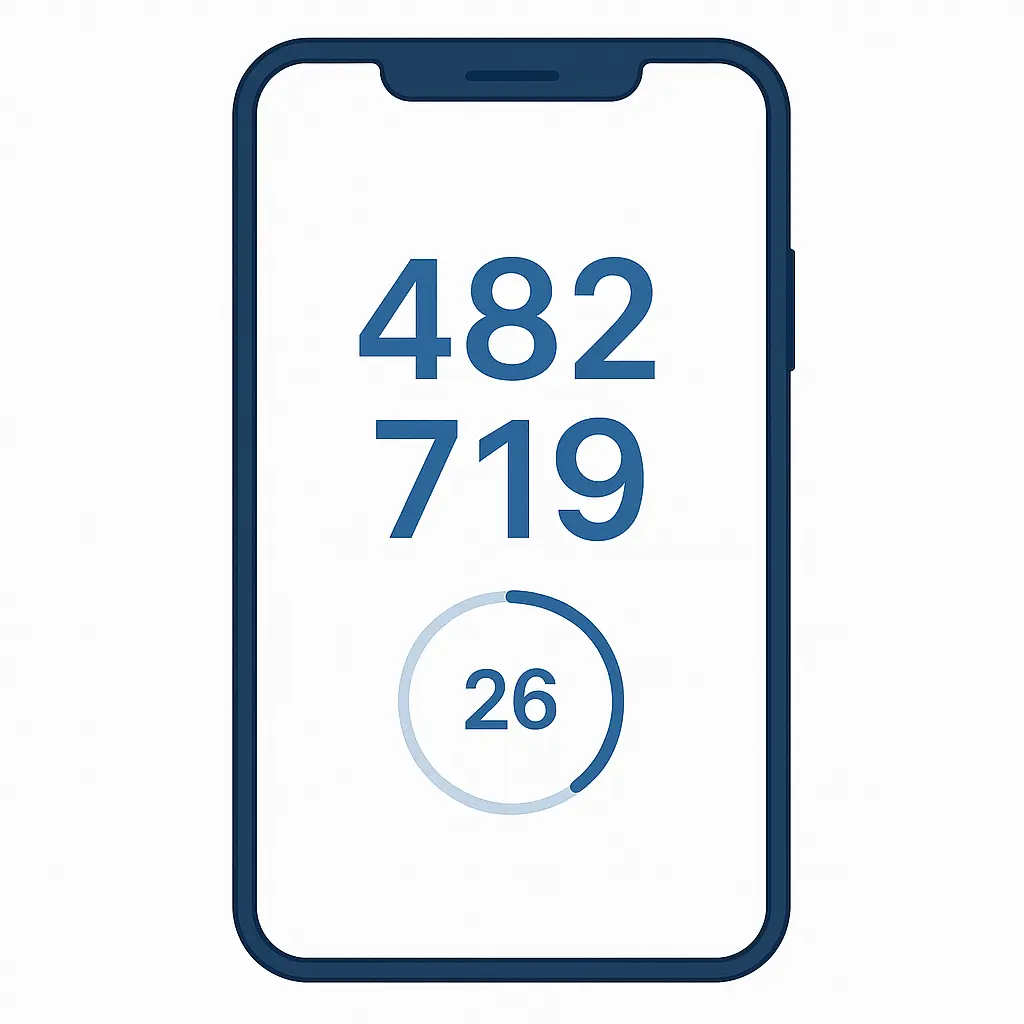
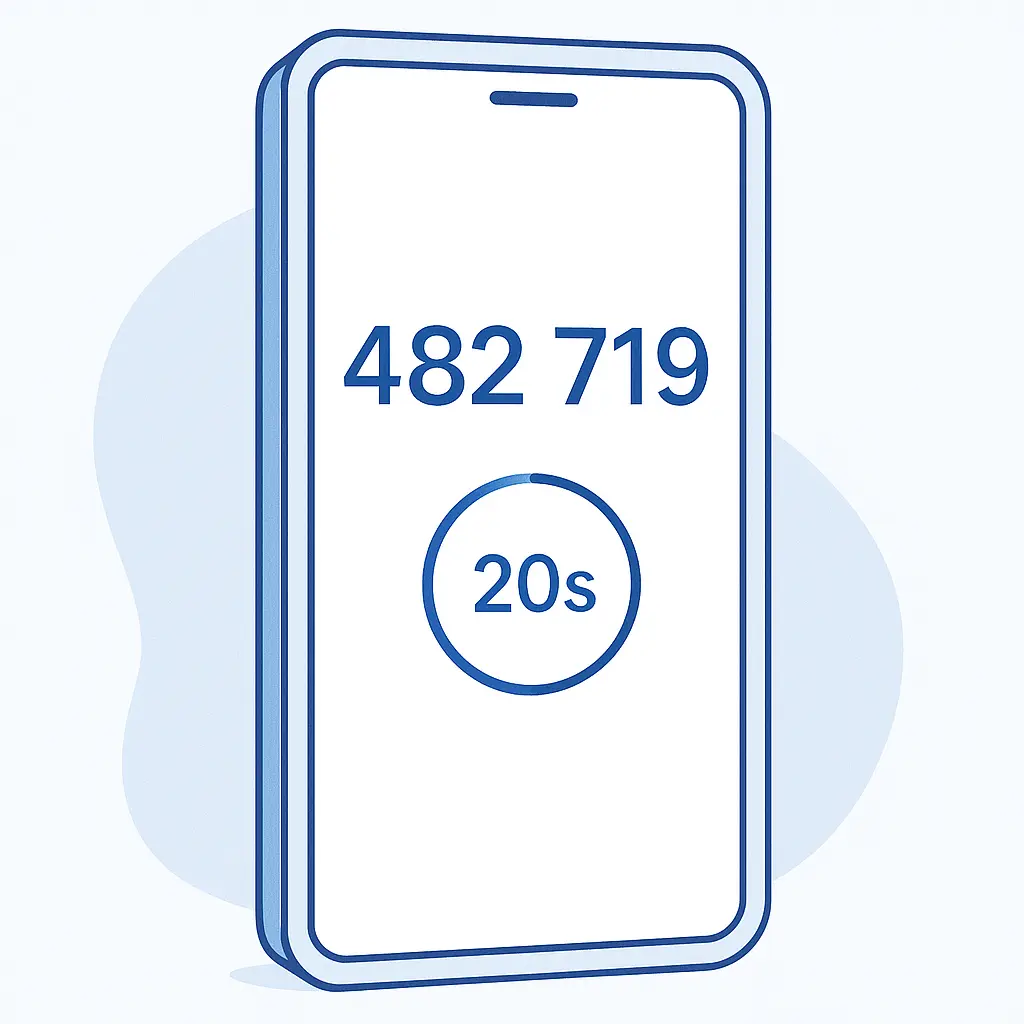
You type your password. The site asks for a six-digit code. You open an app on your phone. A number appears. It changes every 30 seconds. You type it in. You're logged in.
That's an authenticator app. It's the second factor in two-factor authentication, and it works differently than SMS codes, email links, or hardware tokens. The mechanism is specific, mathematical, and surprisingly elegant.
Here's how it works, why it's stronger than the alternatives, and how to set one up.
The Core Mechanism: Time-Based One-Time Passwords
Authenticator apps use an algorithm called TOTP (Time-Based One-Time Password). NIST defines TOTP as a cryptographic protocol that generates codes based on a shared secret and the current time.
The setup happens once. When you enable two-factor authentication on a service, the server generates a random secret key. It displays this key as a QR code. You scan the QR code with your authenticator app. The app stores the key locally on your device.
From that moment forward, your device and the server both know the same secret. Neither ever transmits it again.
When you need to log in, both the app and the server perform the same calculation. They take the shared secret, combine it with the current time (rounded to the nearest 30-second window), and run it through a cryptographic hash function. The output is a six-digit number.
Because both sides have the same secret and the same time, they produce the same code. The server compares the code you type to the code it just calculated. If they match, you're authenticated.
The code expires after 30 seconds. The next time window produces a different code. An attacker who intercepts a code can't reuse it. By the time they try, the window has closed.
This is why authenticator apps work offline. The calculation happens entirely on your device. No network connection required. The app doesn't contact the server. It doesn't send data anywhere. It just does math.
Why Authenticator Apps Beat SMS Codes
SMS two-factor authentication sends a code to your phone via text message. It's better than nothing, but the mechanism has known vulnerabilities.
SMS codes travel through the cellular network. Attackers can intercept them through SIM swapping (convincing your carrier to transfer your number to a SIM card they control) or through SS7 exploits (vulnerabilities in the signaling protocol that routes text messages between carriers). CISA has documented these attacks and recommends phishing-resistant alternatives.
Authenticator codes never leave your device. There's nothing to intercept in transit. An attacker would need physical access to your unlocked phone to see the codes. SIM swapping doesn't help them. Network-level attacks don't help them. The code generation happens locally, independent of any infrastructure they could compromise.
SMS also creates a dependency on your carrier. If you're traveling internationally, if your phone is broken, if you've switched carriers and the number hasn't fully transferred, SMS codes might not arrive. Authenticator apps work as long as your device's clock is reasonably accurate.
The EFF's guide to two-factor authentication ranks authenticator apps above SMS for these reasons. SMS is acceptable when it's the only option. Authenticator apps are better when the service supports them.
How Setup Works: The QR Code Exchange
Enabling two-factor authentication with an authenticator app follows the same pattern across most services.
You go to your account security settings. You find the two-factor authentication section. You select "authenticator app" as your method. The service displays a QR code.
The QR code encodes the secret key, the name of the service, and your account identifier. You open your authenticator app. You tap "add account" or the equivalent. You point your phone's camera at the QR code. The app scans it, extracts the secret, and saves it.
Some services also display the secret as a text string. If your phone's camera doesn't work or you're setting up on a device without a camera, you can type the secret manually. The secret is usually a long string of random letters and numbers. You type it exactly as shown. The app stores it the same way it would from a QR code.
At this point, the app immediately starts generating codes. You'll see a six-digit number and a countdown timer showing how much time remains in the current 30-second window. The service asks you to enter the code to confirm setup. You type it in. If it matches, setup is complete.
The service usually provides backup codes at this point. These are one-time-use codes you can use if you lose access to your authenticator app. Download them. Store them somewhere safe. Not on the same device as the authenticator app. If your phone breaks, you'll need these to regain access.
The Math Behind the Codes
The TOTP algorithm is public. It's defined in RFC 6238, an open standard. Anyone can implement it. That's why multiple authenticator apps exist and they all work with the same services.
The calculation starts with the shared secret. This is a random string of bytes, usually around 20 bytes long. The server generates it during setup. Your app stores it.
Next, the algorithm calculates the current time step. It takes the current Unix timestamp (seconds since January 1, 1970), divides by 30, and discards the remainder. This produces a number that changes every 30 seconds but stays constant within each window.
The algorithm combines the secret and the time step using HMAC-SHA1, a cryptographic hash function. The output is a 20-byte hash. The algorithm extracts a portion of this hash and converts it to a six-digit number.
The same inputs always produce the same output. If your device and the server are within the same 30-second window and both have the same secret, they'll generate the same code.
The server usually accepts codes from the current window and the immediately adjacent windows (the previous 30 seconds and the next 30 seconds). This accounts for minor clock drift between your device and the server. If your phone's clock is off by a few seconds, the code still works.
If your phone's clock is badly wrong, say, set to the wrong time zone or the wrong date, the codes won't match. The algorithm depends on synchronized time. Most devices sync their clocks automatically via NTP (Network Time Protocol). As long as automatic time is enabled, this isn't a problem.
Common Authenticator Apps and How They Differ
Multiple apps implement TOTP. They're interchangeable at the protocol level. Any TOTP app can generate codes for any service that supports TOTP. The differences are in features, interface, and backup mechanisms.
Google Authenticator is the original. It's simple, free, and works. For a long time, it didn't support cloud backup, which meant losing your phone meant losing access to all your accounts. Recent versions added Google account sync, so codes back up to your Google account if you enable it.
Microsoft Authenticator does TOTP and also integrates with Microsoft accounts for passwordless login. It backs up to your Microsoft account. If you're already in the Microsoft ecosystem, it's a reasonable choice.
Authy backs up your secrets to the cloud, encrypted with a password you set. If you lose your phone, you install Authy on a new device, log in, and your codes reappear. The tradeoff: your secrets exist in Authy's cloud, encrypted but present. Some people prefer this convenience. Others prefer keeping secrets entirely local.
1Password, Bitwarden, and other password managers have added TOTP support. If you're already using a password manager, storing your TOTP secrets there consolidates everything in one place. The tradeoff: if someone compromises your password manager, they get both your passwords and your second factor. That's less secure than keeping them separate, but more secure than not using two-factor authentication at all.
Open-source options like FreeOTP and Aegis Authenticator exist for people who prefer auditable code and local-only storage. Aegis, in particular, supports encrypted local backups that you control.
The choice depends on your threat model. If you're worried about losing access, cloud-synced options make sense. If you're worried about cloud storage of secrets, local-only apps make sense. All of them generate the same codes for the same accounts.
What Happens When You Lose Your Phone
Losing your phone with your authenticator app is a recovery scenario you should plan for during setup.
Most services provide backup codes when you enable two-factor authentication. These are one-time-use codes you can enter instead of an authenticator code. Download them. Print them. Store them in a password manager. Store them somewhere other than the phone with the authenticator app.
If you lose your phone and you have backup codes, you use one to log in. Then you immediately disable two-factor authentication and re-enable it with a new device. This generates a new secret and invalidates the old one.
If you lose your phone and you don't have backup codes, account recovery becomes harder. Some services let you recover through email or SMS if you've set those up. Some require you to contact support and prove your identity. Some don't have a recovery path at all. You're locked out.
This is why backup codes matter. Losing your phone is inconvenient. Losing access to your accounts permanently is worse.
Cloud-synced authenticator apps reduce this risk. If your authenticator backs up to Google, Microsoft, or Authy's cloud, you install the app on a new device, log in, and your codes reappear. The tradeoff is that your secrets exist in someone else's infrastructure.
Some password managers with TOTP support also sync across devices. If you store your TOTP secrets in 1Password or Bitwarden and you use those apps on multiple devices, losing one device doesn't lock you out.
The right approach depends on how you balance convenience and security. The wrong approach is not thinking about it until after you've lost the phone.
Authenticator Apps vs. Hardware Tokens
Hardware tokens like YubiKeys are physical devices that generate or store authentication credentials. They're more secure than authenticator apps in some ways, less convenient in others.
A YubiKey plugs into your computer's USB port or taps against your phone via NFC. It stores secrets in hardware that's extremely difficult to extract. Even if malware infects your computer, it can't read the key's secrets. The key performs cryptographic operations internally and only outputs the result.
Authenticator apps store secrets in software on your phone. If malware compromises your phone, it could theoretically extract those secrets. In practice, modern phones use hardware-backed keystores that make this difficult, but it's not impossible.
The tradeoff is convenience. An authenticator app is always with you if you have your phone. A hardware token is a separate object you have to carry, plug in, and not lose. Some people prefer the security of hardware. Some prefer the convenience of software.
CISA recommends phishing-resistant authentication methods, which include hardware tokens and passkeys but not TOTP. TOTP codes can be phished. If you type a code into a fake login page, the attacker can use that code immediately (within the 30-second window) to log into the real site.
Hardware tokens using FIDO2/WebAuthn protocols are phishing-resistant because they verify the domain before responding. If you're on a phishing site, the token refuses to authenticate. TOTP apps don't have this protection. They generate codes regardless of where you type them.
For most people, authenticator apps are a significant improvement over SMS and a practical balance between security and usability. For high-value targets or people with sophisticated threat models, hardware tokens make sense. The best setup is often both: hardware tokens for critical accounts, authenticator apps for everything else.
Setting Up Your First Authenticator App
Here's the step-by-step process for setting up an authenticator app and enabling it on an account.
Choose an authenticator app. If you're not sure, start with Google Authenticator, Microsoft Authenticator, or Authy. All are free. All work with any service that supports TOTP. If you already use a password manager that supports TOTP, use that.
Install the app. Open it. Grant it camera permissions if it asks. You'll need the camera to scan QR codes.
Pick an account to secure. Start with something important but not critical. Your email is a good choice. Your bank is also a good choice. Don't start with your only access to your password manager; if setup goes wrong, you could lock yourself out.
Log into the account on a computer. Go to security settings. Look for "two-factor authentication," "two-step verification," "2FA," or similar. The exact wording varies by service.
Select "authenticator app" as your method. The service will display a QR code. It might also show a text version of the secret key. Leave this screen open.
Open your authenticator app. Tap "add account" or the plus icon. Point your camera at the QR code. The app scans it and adds the account. You'll see a six-digit code appear with a countdown timer.
Type the code into the service's confirmation field. If it's accepted, two-factor authentication is now enabled. The service will usually display backup codes. Download them. Store them securely.
Test it. Log out of the account. Log back in. Enter your password. The service asks for a code. Open your authenticator app. Type the current code. You should be logged in.
If the code doesn't work, check your phone's clock. Make sure automatic time is enabled. If the clock is wrong, the codes won't match.
Repeat this process for other accounts. Prioritize email, financial accounts, and anything with access to sensitive data. The FTC recommends enabling two-factor authentication wherever it's available.
The Cultural Reference: Friends and Monica's Apartment Key
In Friends, Monica keeps a spare key to her apartment under the mat in the hallway. It's a running element across multiple episodes. The key is there for emergencies, for when someone gets locked out, for when someone needs access while she's gone.
The problem is obvious: anyone who knows about the key can use it. The security is based on the secret location, not on anything Monica controls. Once you know where the key is, you have the same access Monica has.
Passwords work like Monica's key. They're secrets. If someone learns the secret, they have access. Two-factor authentication is like Monica changing her security model entirely. Instead of just hiding a key under the mat, she installs a lock that requires both the key and her thumbprint. Knowing the key's location doesn't help anymore. You need the second factor.
Authenticator apps are the thumbprint. They're something you have, not something you know. An attacker who steals your password still can't log in without the code from your device. The secret under the mat isn't enough anymore.
What Services Support Authenticator Apps
Most major services support TOTP authenticator apps. The list includes email providers, financial institutions, social media platforms, cloud storage services, and password managers.
Google, Microsoft, Apple, and Yahoo all support authenticator apps for email accounts. Enabling two-factor authentication on your email is one of the highest-impact security steps you can take. Email is the recovery mechanism for most other accounts. If someone compromises your email, they can reset passwords elsewhere.
Banks and financial institutions increasingly support authenticator apps. Some require you to call to enable it. Some make it available only through their mobile app's settings. The EFF has published guides for enabling two-factor authentication on specific financial institutions.
Social media platforms (Facebook, Instagram, Twitter, LinkedIn) support authenticator apps. These accounts are frequent targets for account takeover and impersonation.
Cloud storage (Dropbox, Google Drive, OneDrive) and productivity suites (Google Workspace, Microsoft 365) support authenticator apps. If someone gains access to your cloud storage, they gain access to potentially years of documents, photos, and personal data.
Password managers (1Password, Bitwarden, LastPass, Dashlane) support authenticator apps for securing the password manager itself. This is critical. If someone compromises your password manager, they compromise everything. Securing it with two-factor authentication is non-negotiable.
Gaming platforms (Steam, PlayStation Network, Xbox Live, Epic Games) support authenticator apps. Account takeovers on gaming platforms are common, often targeting accounts with valuable in-game items or payment methods on file.
The pattern is consistent: if the account is valuable, if it has payment information, if it controls access to other accounts, it probably supports authenticator apps. Enable them.
Common Problems and How to Fix Them
Authenticator apps are reliable, but specific problems come up.
Codes don't work. The most common cause is clock drift. Your phone's clock is out of sync with the server's clock. Fix: enable automatic date and time in your phone's settings. The codes should start working immediately.
Lost phone, no backup codes. You're in account recovery. Contact the service's support. Be prepared to prove your identity. This might involve answering security questions, providing identification documents, or waiting through a recovery period. Some services don't have a recovery path. You're locked out permanently. This is why backup codes matter.
Accidentally deleted the authenticator app. If the app was cloud-synced (Google Authenticator with Google account sync, Microsoft Authenticator with Microsoft account sync, Authy), reinstall the app and log in. Your codes will sync back. If the app was local-only (FreeOTP, older versions of Google Authenticator), you've lost the secrets. Use backup codes to access your accounts, then disable and re-enable two-factor authentication to generate new secrets.
Switched phones, forgot to transfer authenticator. If the app was cloud-synced, install it on the new phone and log in. If it wasn't, you'll need backup codes or account recovery. Some apps support manual export and import of secrets. If you planned ahead, you exported before switching phones. If you didn't, you're in recovery mode.
Service asks for a code but you don't have the app anymore. Use a backup code if you have them. If you don't, go through account recovery. This is the scenario backup codes exist to prevent.
Multiple devices, want codes on all of them. Some authenticator apps sync across devices (Google Authenticator, Microsoft Authenticator, Authy, password managers with TOTP support). Some don't. If your app doesn't sync, you can scan the same QR code with multiple devices during setup. Both devices will generate the same codes because they both have the same secret. The service doesn't care which device generated the code you type in.
Authenticator Apps and Password Managers: One Place or Two?
Storing TOTP secrets in your password manager is convenient. You open one app, it fills your password and generates your two-factor code. You're logged in with two taps instead of switching between apps.
The security tradeoff is real. Two-factor authentication is supposed to require two independent factors: something you know (password) and something you have (device generating codes). If both factors are in the same app, protected by the same master password, you've reduced two factors to one.
If someone compromises your password manager, through a weak master password, through malware, through a breach of the password manager itself, they get both your passwords and your second factors. You've lost the independence that makes two-factor authentication effective.
The counterargument: most people who don't use a password manager at all reuse passwords. Reused passwords are a worse risk than consolidated two-factor authentication. Storing TOTP in your password manager is better than not using two-factor authentication because the password manager is too inconvenient.
The best practice is separation. Passwords in a password manager, TOTP codes in a separate authenticator app. This maintains the independence of factors. If one is compromised, the other still protects you.
The practical compromise: use your password manager for most accounts, use a separate authenticator app for the password manager itself and other critical accounts (email, financial accounts). This balances convenience and security for the bulk of your accounts while maintaining strong protection for the accounts that matter most.
What's Next: Passkeys and the Future of Authentication
Authenticator apps are a significant improvement over passwords alone, but they're not the final form of authentication. The industry is moving toward passkeys.
Passkeys are cryptographic credentials stored on your device. They use public-key cryptography. Your device stores a private key. The service stores a public key. When you log in, your device signs a challenge with the private key. The service verifies the signature with the public key. No password is transmitted. No code is typed.
Passkeys are phishing-resistant. They're tied to the specific domain of the service. If you're on a phishing site, your device refuses to authenticate. TOTP codes don't have this protection.
Microsoft and Apple have both published guidance on passkeys. The technology is standardized as WebAuthn and FIDO2. Major platforms (Apple, Google, Microsoft) support passkeys across devices. Major services (Google, Microsoft, Apple, PayPal, and others) have started accepting passkeys as a login method.
Passkeys will eventually replace both passwords and authenticator apps for many use cases. But that transition will take years. In the meantime, authenticator apps remain the most practical second factor for most people on most services.
Enable them. Use them. Back up your codes. You're significantly more secure than you were with passwords alone.
Related reading: