Browser Password Managers vs Dedicated Apps: Which One Actually Protects You
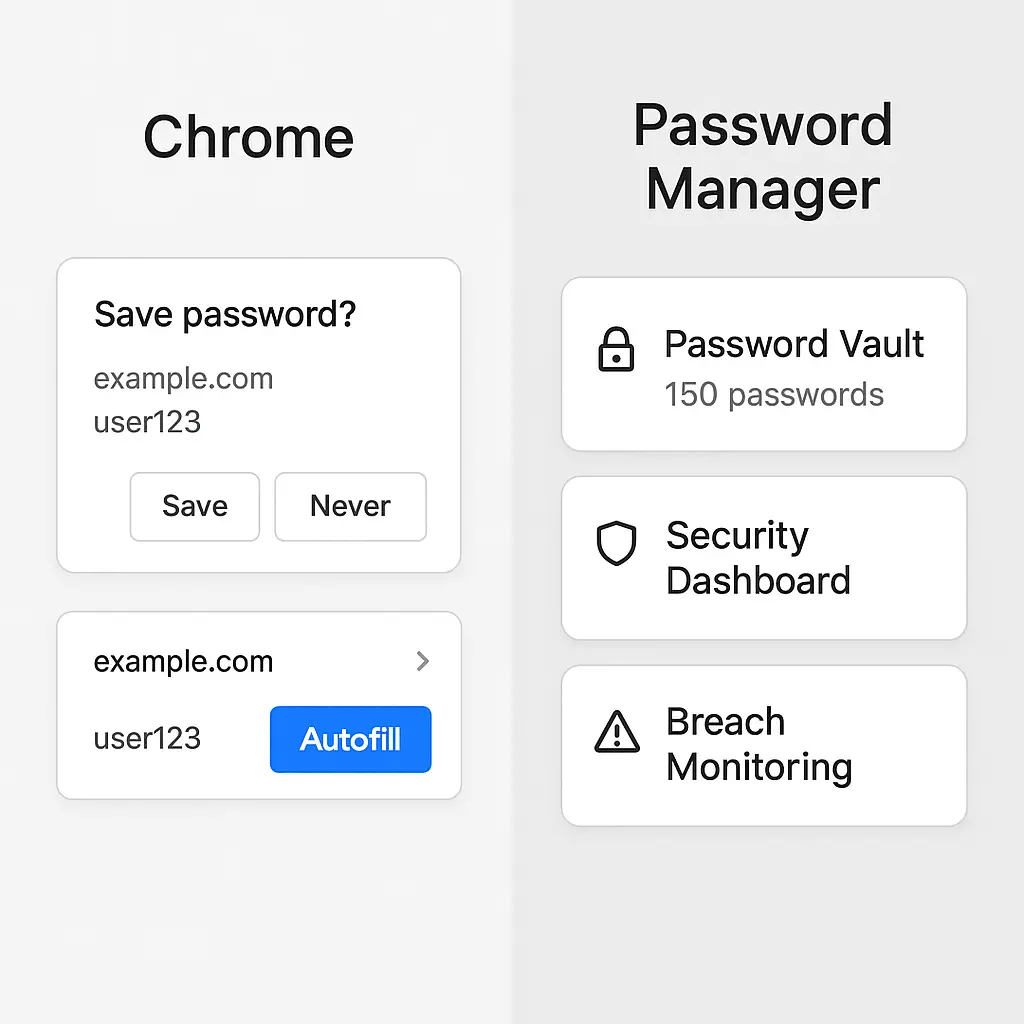
You already have a password manager. It came with your browser. Chrome asks if you want to save passwords. Firefox remembers your logins. Safari syncs them across your Apple devices. The question is not whether you use a password manager, but whether the one you're using actually does the job.
Browser password managers work. They generate passwords, store them, fill them automatically. For many people, they're good enough. For others, they're a starting point that stops short of real protection. The difference is not marketing. It's mechanism.
Here's how browser-based and dedicated password managers compare on encryption, cross-platform support, breach monitoring, security audits, emergency access, and the threat model they're designed to handle.
What Browser Password Managers Actually Do
When you save a password in Chrome, Firefox, Safari, or Edge, the browser encrypts it and stores it locally. On Chrome, if you're signed into a Google account, it syncs the encrypted vault to Google's servers. Firefox syncs to Mozilla's servers if you use Firefox Sync. Safari syncs through iCloud Keychain. Edge syncs through your Microsoft account.
The encryption key is derived from your operating system login on desktop or your device PIN on mobile. On Chrome, if you set a passphrase in the sync settings, that passphrase becomes the encryption key instead. Without the passphrase, the vault encrypts with credentials tied to your Google account.
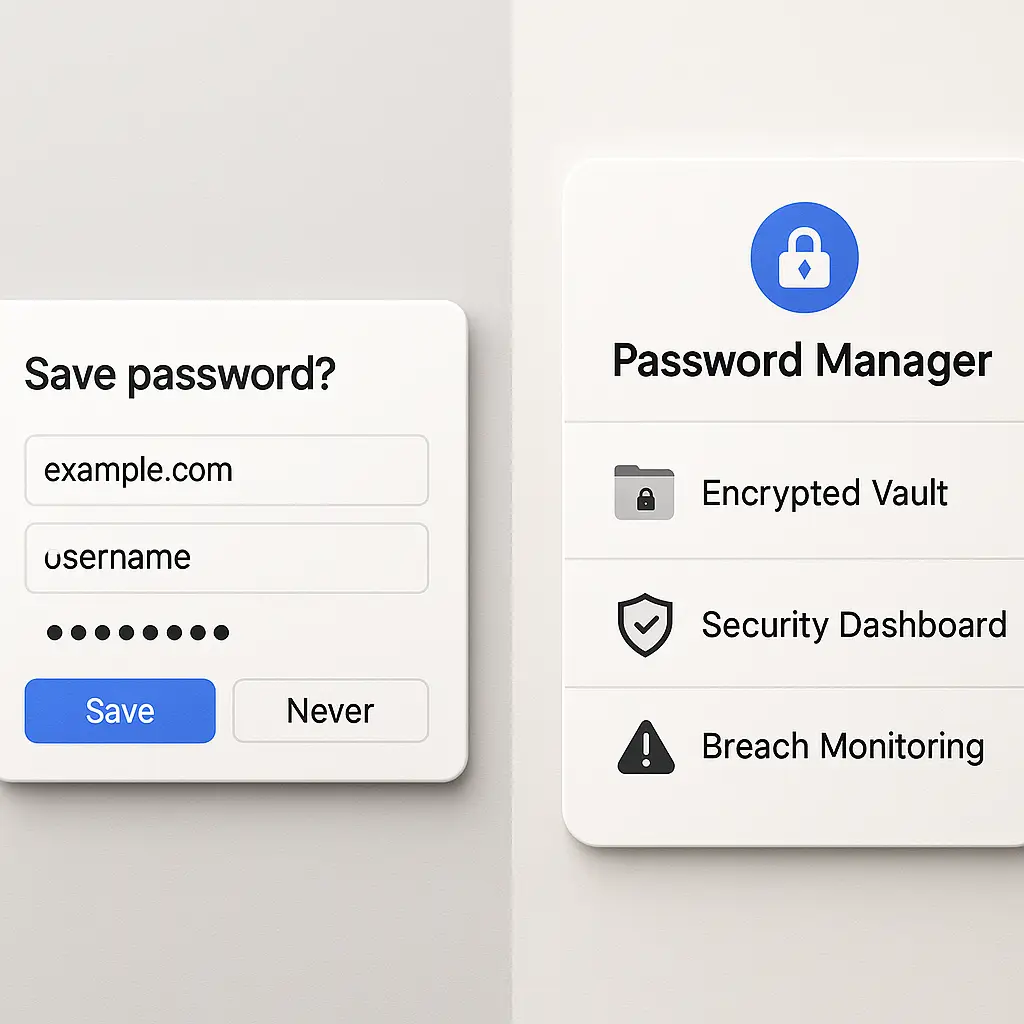
Browser password managers generate random passwords when you create new accounts. They autofill saved credentials when you return to a site. They warn you when you reuse a password across multiple sites. Chrome and Edge check saved passwords against known breach databases and alert you if a credential appears in a leak.
They do not, in most configurations, use zero-knowledge encryption. Google can access your Chrome password vault if you do not set a separate sync passphrase. Apple can access your iCloud Keychain under certain conditions. Mozilla's Firefox Sync uses end-to-end encryption by default, which means Mozilla cannot decrypt your vault, but the encryption key is still tied to your Firefox account recovery mechanism.
The convenience is the design goal. You sign into your browser once. Passwords sync automatically. No separate app. No additional login. No friction.
The tradeoff is that your passwords are protected by the same credentials that unlock your email, your cloud storage, and every other service tied to that account. If someone gets into your Google account, they get into your Chrome password vault unless you've set a sync passphrase. If someone gets into your Apple ID, they can access iCloud Keychain through account recovery.
What Dedicated Password Managers Actually Do
A dedicated password manager is a separate application. You install it. You create a master password. That master password is the only key to your encrypted vault. The company running the service never has access to your master password or the decryption key derived from it.
This is zero-knowledge encryption. The server stores an encrypted blob. The client (your device) decrypts it locally using a key that never leaves your device. If the company's servers are breached, attackers get encrypted vaults they cannot open without your master password.
1Password, Bitwarden, Dashlane, Keeper, and NordPass all use zero-knowledge architecture. The company cannot recover your master password. If you forget it, you lose access to your vault. There is no "reset password" link that emails you a recovery token. The design prevents that.
Dedicated managers generate passwords, store them, autofill them. They also store secure notes, credit card numbers, identity documents, and two-factor authentication codes. They include breach monitoring that checks your email addresses and saved credentials against known leaks. They audit your vault for weak passwords, reused passwords, and old passwords you have not changed in years.
They work across platforms. You install the app on Windows, macOS, Linux, iOS, Android. You install the browser extension in Chrome, Firefox, Safari, Edge, Brave. The vault syncs across all of them. You are not locked into one browser or one operating system.
They include emergency access features. You designate a trusted contact. If you become incapacitated, that contact can request access to your vault. After a waiting period you configure (24 hours, 7 days, 30 days), they receive access unless you deny the request. This solves the "what happens to my accounts when I die" problem that browser managers do not address.
They include family sharing. You create a shared vault. Your spouse or kids can access shared credentials without seeing your personal vault. You can grant and revoke access. You can see who accessed what and when.
The tradeoff is friction. You have to remember one very strong master password. You have to install software. You have to configure the browser extension. You have to trust a third-party company with your encrypted data, even though they cannot decrypt it.
Encryption: How the Two Models Differ
Chrome's default encryption ties your password vault to your Google account credentials. If you enable a sync passphrase, Chrome uses that passphrase to derive an encryption key, and Google cannot decrypt your vault. But sync passphrases are an opt-in feature most users never configure.
Safari's iCloud Keychain uses end-to-end encryption, but Apple holds escrow keys that can decrypt your vault if you enable iCloud account recovery. If you disable account recovery and lose access to all your trusted devices, you lose your Keychain. The encryption is strong, but the recovery mechanism creates a potential access point.
Firefox Sync encrypts your vault with a key derived from your Firefox account password. Mozilla cannot decrypt it. But if you reset your Firefox account password through the recovery process, you lose access to your synced data, including your password vault. The encryption is zero-knowledge, but the account recovery process is not designed for password manager-level security.
Dedicated managers use a master password you create. That password never transmits to the server. The server stores your encrypted vault. The app on your device decrypts it locally. The company cannot reset your master password. They cannot recover your vault. They cannot comply with a government request to hand over your passwords in plaintext, because they do not have the decryption key.
This is the difference between "encrypted in transit and at rest" and "zero-knowledge encrypted." Browser managers encrypt your data. Dedicated managers encrypt your data in a way that makes it inaccessible to everyone except you, including the company running the service.
Cross-Platform Support: Where Browser Managers Break Down
Chrome works on Windows, macOS, Linux, Android, iOS. Your passwords sync if you're signed into Chrome on all those platforms. But Chrome on iOS is not the default browser. Safari is. If you use Safari on your iPhone and Chrome on your laptop, your passwords do not sync unless you manually copy them or use iCloud Keychain, which only works if you're in the Apple ecosystem.
Safari works on macOS and iOS. iCloud Keychain syncs between them. It does not work on Windows, Linux, or Android. If you use a Mac at home and a Windows machine at work, iCloud Keychain does not help you.
Firefox Sync works across platforms, but only if you use Firefox everywhere. If you use Firefox on your desktop and Safari on your iPhone, your passwords do not sync.
Edge syncs through your Microsoft account. It works on Windows, macOS, Linux, Android, iOS. But Edge is not the default browser on macOS or iOS, and many people do not use it outside of Windows.
Dedicated managers work everywhere. You install the app. You install the browser extension. You log in with your master password. Your vault syncs. You can use Chrome on your laptop, Safari on your iPhone, Firefox on your Linux machine, and Edge on your work PC. The password manager works in all of them.
Breach Monitoring and Security Audits
Chrome and Edge check your saved passwords against known breach databases. If a credential you saved appears in a public leak, you get an alert. This is useful, but it is reactive. It tells you after your password has already leaked.
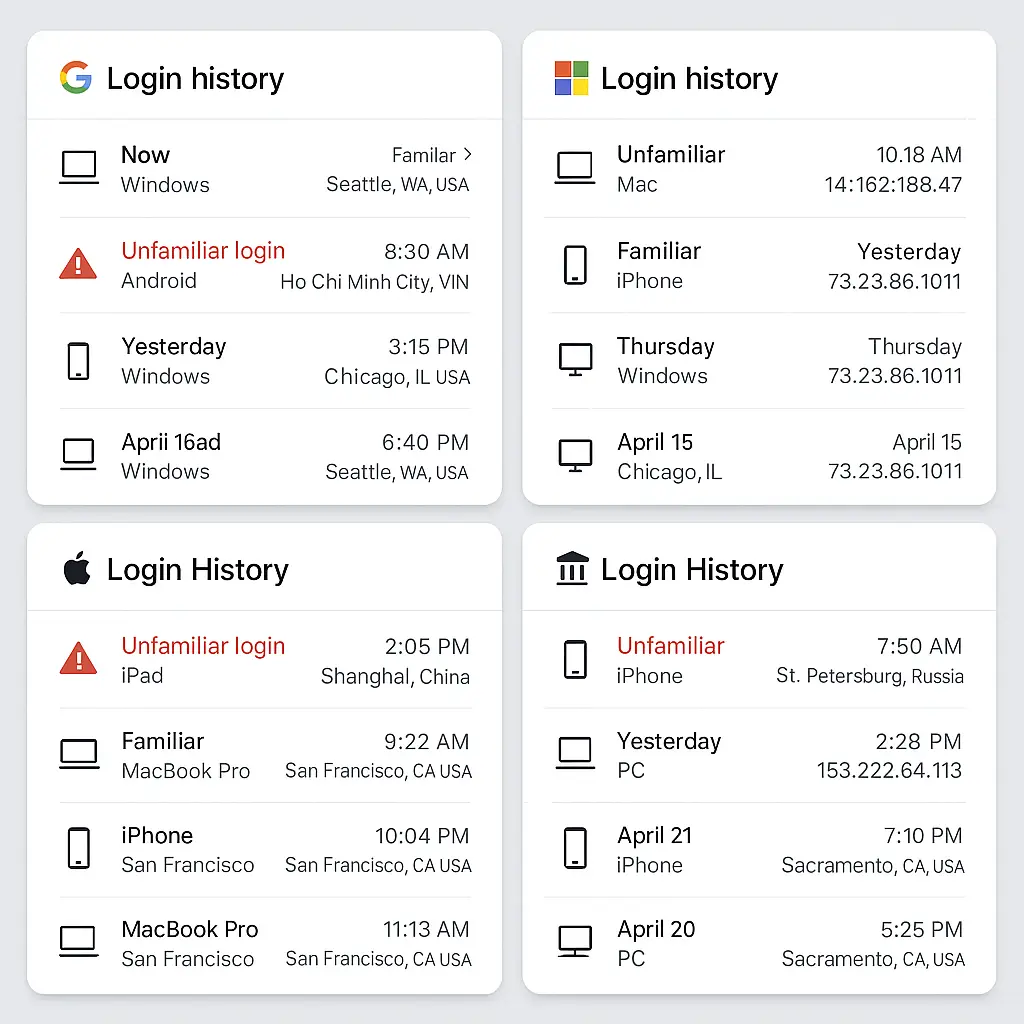
Dedicated managers do the same, but they also monitor your email address. If your email appears in a breach, you get an alert even if the breached site is not in your vault. They scan the dark web for your credentials. They alert you when a service you use discloses a breach, even if your specific account was not confirmed as compromised.
They audit your vault. They flag weak passwords (short, common, dictionary words). They flag reused passwords. They flag old passwords you have not changed in two years. They give you a security score and a prioritized list of accounts to fix.
Browser managers tell you when you reuse a password, but they do not give you a dashboard that shows all your weak credentials in one place. They do not prioritize which accounts to fix first. They do not track whether you've acted on previous warnings.
This is the difference between a smoke detector and a fire marshal. Browser managers detect problems. Dedicated managers give you a checklist and a plan.
Emergency Access and Family Sharing
If you die, what happens to your passwords?
Browser managers do not answer this. Chrome passwords are tied to your Google account. If your family does not have your Google password, they do not have your passwords. If they do have your Google password, they have access to your email, your photos, your documents, everything. There is no way to grant password-only access.
Safari's iCloud Keychain has Legacy Contact, which lets you designate someone to access your iCloud data after you die. But Legacy Contact requires your death certificate. It is not designed for temporary incapacitation or for granting access to specific vaults while you're alive.
Dedicated managers include emergency access. You designate a contact. You set a waiting period. If you become incapacitated, your contact requests access. After the waiting period, they receive access to your vault unless you deny the request. You can configure this for a spouse, a sibling, an adult child, a trusted friend. You can grant them access to your full vault or to a shared vault with only the credentials they need.
They include family plans. You create separate vaults for each family member. You create shared vaults for joint accounts (streaming services, bank accounts, insurance). Each person controls their own vault. You can revoke access. You can see audit logs.
Browser managers do not do this. You can share your Google password with your spouse, but that gives them access to everything. You can manually send them specific passwords, but there is no vault structure, no audit log, no revoke mechanism.
The Threat Model Question
Browser password managers protect you from password reuse and weak passwords. They protect you from typing your bank password into a phishing site, because they only autofill on the legitimate domain. They protect you from forgetting passwords.
They do not protect you from someone who compromises your primary account. If an attacker gets into your Google account, they get into your Chrome passwords unless you've set a sync passphrase. If an attacker gets into your Apple ID, they can access iCloud Keychain through account recovery.
Dedicated managers protect you from that scenario. Your master password is separate from your email password. If someone compromises your email, they do not get your password vault. If someone compromises the password manager company's servers, they get encrypted blobs they cannot decrypt.
The question is: what are you protecting against?
If you are protecting against password reuse, weak passwords, and phishing, a browser manager works. If you are protecting against account takeover, targeted attacks, or a scenario where your email account is compromised, a browser manager is not enough.
In Seinfeld, Jerry's apartment door is never locked. It works because the show is not about home invasions. It's about social dynamics. Browser managers work if your threat model is convenience and basic hygiene. They do not work if your threat model includes someone specifically targeting you.
When a Browser Manager Is Good Enough
You use one browser across all your devices. You stay in one ecosystem (all Apple, all Google, all Microsoft). You do not share accounts with family members. You do not need emergency access planning. You trust the company running your ecosystem with your encrypted data. You are willing to set a sync passphrase and remember it.
If all of those are true, a browser manager works. Chrome with a sync passphrase is zero-knowledge. Firefox Sync is zero-knowledge by default. Safari with account recovery disabled and iCloud Keychain is end-to-end encrypted.
The browser manager is already installed. It is already configured. It already works. You do not have to install anything, remember another password, or pay a subscription fee.
When You Need a Dedicated Manager
You use multiple browsers. You use multiple operating systems. You share accounts with family members. You need emergency access planning. You want breach monitoring that scans your email and the dark web. You want a security audit dashboard. You want to store secure notes, credit card numbers, identity documents, or two-factor codes in the same vault as your passwords.
If any of those are true, a dedicated manager is worth the friction. The master password is one password to remember. The app works everywhere. The vault is zero-knowledge encrypted. The company cannot access it, even if they want to.
NordPass is one option worth looking at: cross-device sync, breach monitoring, zero-knowledge architecture, and a clean interface that doesn't get in the way. We earn a commission on purchases through this link, at no extra cost to you.
Bitwarden is open-source and offers a free tier. 1Password is closed-source and subscription-only, but it has the most polished interface and the longest track record. Dashlane, Keeper, and NordPass are subscription services with strong reputations. All of them use zero-knowledge encryption. All of them work across platforms. All of them include breach monitoring and security audits.
The choice depends on whether you value the convenience of a built-in solution or the additional features and stronger threat model of a dedicated app.
The Hybrid Approach Some People Use
Some people use both. They keep low-risk passwords (streaming services, forums, shopping sites) in their browser manager. They keep high-risk passwords (email, banking, work accounts, password manager master password) in a dedicated manager.
This works if you can maintain the mental separation. It does not work if you forget which password is where. It does not work if you start putting high-risk passwords in the browser manager because it is easier.
If you can maintain the boundary, the hybrid approach gives you convenience for low-risk accounts and strong protection for high-risk accounts. If you cannot, you end up with passwords scattered across two systems and no clear sense of which is which.
Making the Decision
Ask yourself:
- Do I use one browser, or do I switch between browsers and devices?
- Do I stay in one ecosystem (Apple, Google, Microsoft), or do I mix platforms?
- Do I share accounts with family members, and do I need a structured way to manage that?
- Do I need emergency access planning for my passwords?
- Do I trust my email provider with access to my encrypted password vault, or do I want a separate layer of protection?
If the answers are one browser, one ecosystem, no sharing, no emergency access, and yes I trust my email provider, use your browser's password manager. Set a sync passphrase if your browser supports it. Turn on breach alerts. Turn on password reuse warnings.
If the answers are multiple browsers, multiple platforms, family sharing, emergency access needed, or no I do not trust my email provider with my passwords, use a dedicated manager. Pick one with zero-knowledge encryption, cross-platform support, and a track record. Pay the subscription fee. Remember the master password.
The browser manager is good enough for many people. The dedicated manager is better for people who need more than good enough.
I use a dedicated manager. I switched five years ago after realizing I had 200+ accounts, half of them with reused passwords, scattered across three browsers and two operating systems. The browser managers worked individually, but they did not work together. The dedicated manager does. I remember one password. Everything else is 20+ characters of random nonsense. The vault syncs everywhere. I can share credentials with my partner without giving her my email password. If I get hit by a bus, she can access the accounts we share after a 48-hour waiting period.
Your situation determines your answer. The comparison above gives you the criteria. The decision is yours.