Backup Codes and Why You Should Print Them
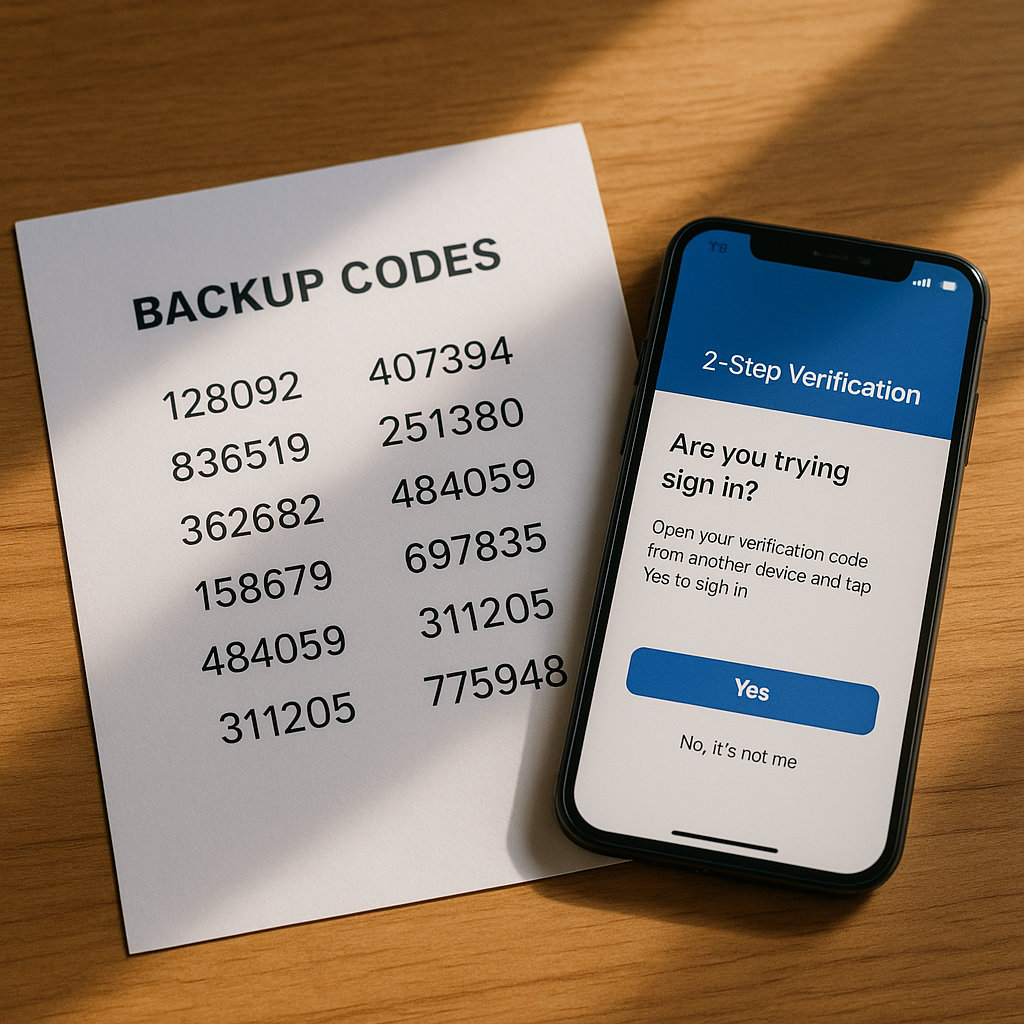
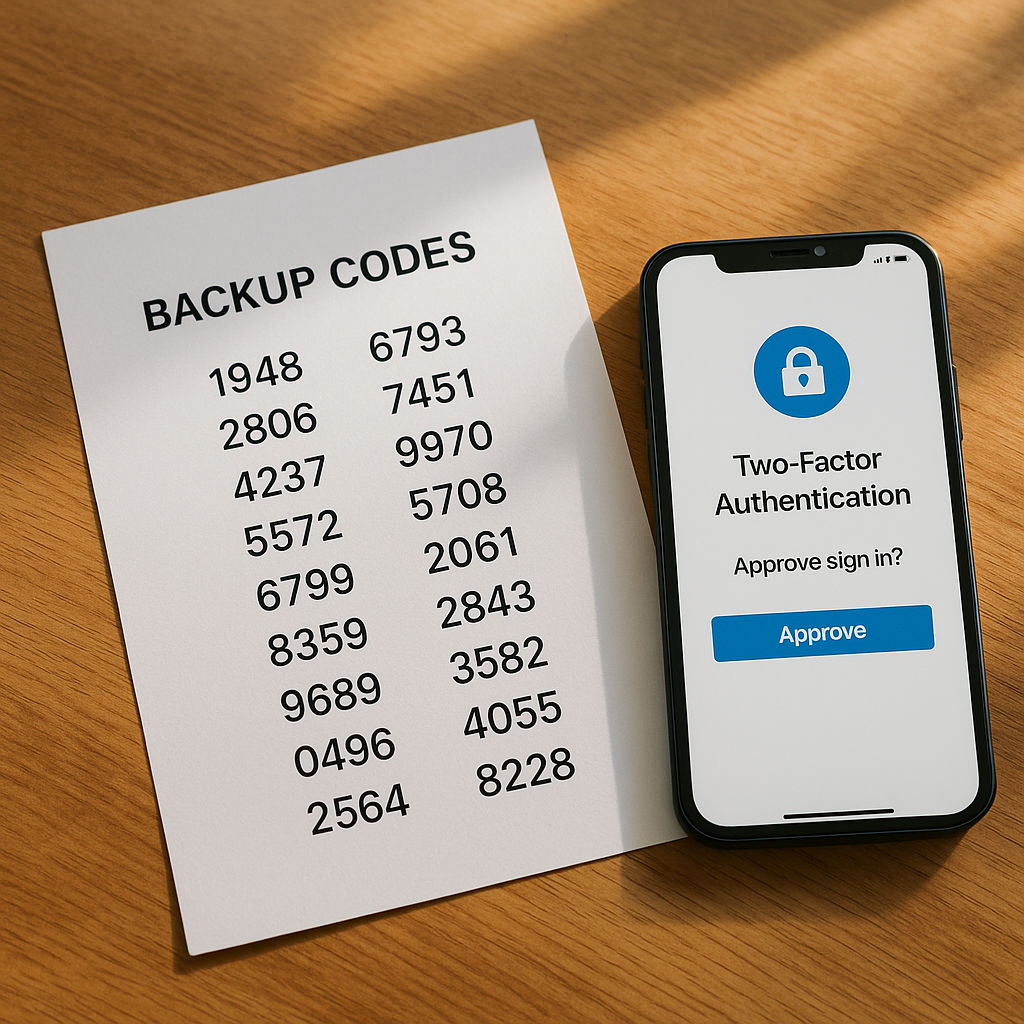
You enabled two-factor authentication. You downloaded an authenticator app. You scanned the QR code. Then the service showed you a list of backup codes, and you probably did one of three things: screenshot them, save them to a note, or click past them entirely.
Here's the problem with all three: when you actually need backup codes, you won't have access to the device where you stored them.
Backup codes exist to solve a specific failure scenario. Your phone is lost, stolen, broken, or factory-reset. Your authenticator app is gone. You're locked out of the account that two-factor authentication is supposed to protect. The backup codes are your way back in, but only if you can actually reach them when everything else has failed.
That's why you print them. Not screenshot. Not save to cloud storage. Not store in your password manager. Print them on paper and put that paper somewhere physical that you can access when your digital life has collapsed.
This is the practical guide to backup codes: what they are, how they work, why printing matters, and where to store them so they're actually useful when you need them.
What backup codes are and how they work
When you enable two-factor authentication on an account, the service generates a set of one-time-use codes. Most services give you 8-10 codes. Each code is a random string of letters and numbers, typically 8-12 characters long.
These codes function as a second authentication factor, just like the time-based codes from your authenticator app. The difference: backup codes don't expire every 30 seconds, and each one works exactly once.
When you use a backup code to log in, the service marks that code as consumed. It won't work again. You cross it off your list and move to the next one.
The mechanism is straightforward. The service stores the backup codes in your account settings, hashed the same way passwords are hashed. When you enter a code during login, the service hashes your input and compares it to the stored hashes. If there's a match and the code hasn't been used yet, you're in.
NIST's authentication guidelines classify backup codes as a memorized secret, the same category as passwords. The security depends on keeping the codes secret and ensuring they're not reused across accounts.
Backup codes bypass your primary 2FA method entirely. That's the point. If you've lost your phone, you can't generate time-based codes. If your hardware security key is gone, you can't tap it. Backup codes are the failsafe that assumes your primary method has failed.
The circular dependency problem with digital storage
Most people store backup codes the same way they store everything else: in their password manager, in a cloud note, in a screenshot folder, or in an email they sent to themselves.
This creates a dependency loop that breaks exactly when you need it most.
Scenario: your phone is stolen. You're trying to log into your email from a borrowed laptop. Email requires 2FA. Your authenticator app was on the stolen phone. You need a backup code.
Where are your backup codes? In your password manager. Where's your password manager? On your phone, or locked behind the same email account you're trying to access, or both.
Or: you stored the codes in Google Keep. Google Keep requires you to log into your Google account. Your Google account requires 2FA. Your 2FA device is gone. You need a backup code to access the account that stores your backup codes.
Or: you screenshotted the codes and saved them to iCloud Photos. iCloud Photos requires you to log into your Apple ID. Your Apple ID requires 2FA. You need a backup code to access the cloud storage that contains your backup codes.
The loop is everywhere. Digital storage assumes you have access to your digital life. Backup codes exist for the moment when you don't.
Some people solve this by storing backup codes in a password manager on a different device. That works if you lose your phone but still have your laptop. It doesn't work if you lose both, or if the laptop is the device you're locked out of, or if the password manager itself is behind 2FA that you can't satisfy.
The fundamental issue: digital storage creates a dependency on the infrastructure you're trying to recover access to. Backup codes are supposed to break you out of that dependency, but only if you store them somewhere that doesn't require the same authentication you're trying to bypass.
Why printing actually solves this
Paper doesn't require authentication. Paper doesn't require internet. Paper doesn't require a charged battery or a working screen. Paper exists independent of the digital systems you're locked out of.
When you print backup codes and store them physically, you create a recovery path that doesn't loop back to the accounts you're trying to access. You can reach the codes without logging in, without unlocking a device, without satisfying 2FA on another service.
The practical scenario: your phone is gone. You're at a library computer or a friend's laptop. You need to log into your email to start the recovery process for everything else. You go home, open the drawer where you keep important documents, pull out the printed backup codes, and use one to get back in.
That's the scenario backup codes are designed for. It's not common, but when it happens, the stakes are high. Losing access to your primary email can cascade into losing access to banking, work accounts, social media, cloud storage, and anything else tied to that email address.
Printing breaks the dependency. It trades digital convenience for physical reliability.
Some people worry about physical security. What if someone breaks into your house and finds the codes? That's a valid concern, but it's the wrong threat model for most people. The far more common risk is losing access to your accounts because you stored backup codes somewhere you can't reach when you need them.
If you're genuinely concerned about physical security, you can split the difference: print the codes, store them in a locked safe or a secured location, and accept that you've added one physical step to the recovery process. That's still better than a circular dependency that leaves you permanently locked out.
How to generate and print backup codes
Every major service that supports two-factor authentication offers backup codes. The location varies, but the process is similar across platforms.
Google: Log into your Google account. Go to Security. Under "2-Step Verification," click "Show codes" or "Get backup codes." Google generates 10 codes. Click "Download" or "Print." If you download, open the file and print it immediately.
Microsoft: Log into your Microsoft account. Go to Security, then Advanced security options. Under "Additional security," find "Recovery code." Microsoft generates a single recovery code that works multiple times until you replace it. Print it or write it down.
Apple: On an iPhone or iPad, go to Settings, tap your name, then Password & Security, then "Get Verification Code." Apple doesn't offer traditional backup codes; instead, you set up a trusted device or phone number. For account recovery, you'll need access to a trusted device or the account recovery process, which can take days. This is one of the weaker backup systems among major platforms.
GitHub: Log into GitHub. Go to Settings, then Password and authentication. Under "Two-factor authentication," click "View" next to "Recovery codes." GitHub generates 16 codes. Click "Download" or print the page.
Dropbox: Log into Dropbox. Go to Settings, then Security. Under "Two-step verification," click "Get backup codes." Dropbox generates 10 codes. Print them or save them to a text file, then print that file.
The process is consistent: navigate to your account security settings, find the 2FA or backup code section, generate codes, and print them. Don't screenshot. Don't save to a note app. Print.
If your printer isn't working, write the codes down by hand on a piece of paper. Handwriting is slower, but it achieves the same goal: physical storage independent of your digital infrastructure.
After printing, test one code to confirm it works. Most services let you use a backup code to log in even when your primary 2FA method is functioning. Try it. If the code works, cross it off your printed list. Now you know the remaining codes are valid and you know where to find them.
Where to store printed backup codes
The storage location matters. The codes need to be secure enough that a casual intruder won't find them, but accessible enough that you can reach them when you need them.
Fireproof safe: If you own a small fireproof safe for important documents, store the backup codes there alongside your passport, birth certificate, and other critical papers. This protects against both theft and physical disaster.
Locked desk drawer: A locked drawer in your home office works if you don't have a safe. The lock doesn't need to be high-security; it just needs to keep the codes out of sight and add one barrier to access.
Filing cabinet with important documents: If you keep a filing system for taxes, insurance, and legal documents, create a folder labeled "Account Recovery" or "Digital Access" and file the backup codes there. This keeps them organized and retrievable.
Safe deposit box: If you use a bank safe deposit box for valuables, you can store backup codes there. The tradeoff: you can't access the box outside banking hours, and you need to travel to the bank. This works for people who rarely need backup codes and want maximum physical security.
Where not to store them: taped to the back of your router, hidden under your keyboard, stuck to your monitor, or anywhere else in your immediate workspace. If someone gains physical access to your devices, they shouldn't also gain immediate access to your backup codes.
The goal is separation. Your devices are in one location. Your backup codes are in another location within your home. An attacker who steals your laptop doesn't automatically get your backup codes. An attacker who gets your backup codes still needs your password to do anything with them.
Some people store backup codes in two places: one set at home, one set in a safe deposit box or with a trusted family member. This adds redundancy. If your house burns down, you still have access. If you're traveling and get locked out, a family member can read you a code over the phone.
The two-location strategy works, but it introduces a new risk: now two locations need to stay secure. For most people, one well-chosen location is sufficient.
What to do when you use a backup code
You've lost your phone. You're locked out of your account. You retrieve your printed backup codes, enter one, and regain access. Now what?
First: cross off the code you just used. It's consumed. It won't work again. If you don't cross it off, you might try to use it again later and waste time wondering why it's not working.
Second: regenerate your backup codes immediately. Most services let you generate a new set of backup codes from your account security settings while logged in. When you do this, the old codes stop working. Print the new codes and destroy the old printed sheet.
Regenerating codes after every use isn't strictly necessary if you have 9 unused codes remaining, but it's good practice. It ensures you always have a full set and reduces the risk of someone else using a code from an old printed sheet you forgot about.
Third: set up your 2FA method on your new device. If you lost your phone, get a new phone, install your authenticator app, and re-scan the QR codes for your accounts. If you're using a hardware security key and you lost it, order a replacement and register it with your accounts. Backup codes are the bridge to get you back in; your primary 2FA method is what you use going forward.
Fourth: review your account activity. Check recent logins, recent password changes, and any account settings that might have been modified. If you lost your phone to theft rather than accidental loss, there's a non-zero chance someone tried to access your accounts. Look for anything unfamiliar.
If you used a backup code because your authenticator app was deleted or reset rather than because your phone was lost, the recovery process is simpler: regenerate codes, print them, and continue using your existing device.
The one scenario where printing doesn't help
Printing backup codes solves the lost-device problem. It doesn't solve the lost-password problem.
Backup codes are a second factor. They prove you have something (the code). They don't replace the first factor, which is your password. If you've forgotten your password and you've also lost access to your 2FA device, backup codes won't help. You'll need to go through the account recovery process, which typically involves answering security questions, verifying your identity through email or SMS, or waiting for a manual review.
This is why password managers matter. If you're using a password manager, you have your password even when you've lost your phone. If you're not using a password manager and you've forgotten your password, backup codes can't save you.
The combination that works: password manager for your passwords, printed backup codes for your 2FA recovery, and a recovery email or phone number that you control and can access independently.
Some services offer account recovery codes in addition to 2FA backup codes. These are different. Account recovery codes let you reset your password if you've forgotten it. 2FA backup codes let you log in when you can't satisfy the second factor. Both serve different failure scenarios. Both should be printed and stored.
How backup codes compare to other recovery methods
Backup codes aren't the only way to recover access when you lose your 2FA device. Different services offer different fallback mechanisms.
SMS fallback: Some services let you receive a 2FA code via text message if your authenticator app isn't available. This works if you still have access to your phone number. It doesn't work if your phone is lost or your SIM is deactivated. CISA recommends against SMS-based 2FA as a primary method because of SIM-swapping attacks, but it's better than nothing as a fallback.
Trusted devices: Apple's ecosystem uses trusted devices for recovery. If you lose your iPhone but still have your iPad or Mac, you can use the trusted device to verify your identity and regain access. This works well if you own multiple Apple devices. It doesn't work if all your devices are lost or stolen at once.
Recovery email or phone number: Many services let you set a backup email address or phone number for account recovery. If you lose access to your primary email, you can receive a recovery link at your backup email. This works if the backup email is independent and accessible. It doesn't work if your backup email is also locked behind 2FA that you can't satisfy.
Hardware security keys with backup key: If you use hardware security keys like YubiKey, best practice is to register two keys with each account: one you carry daily and one you store securely at home. If you lose your primary key, you use the backup key to regain access. This is the most robust recovery method, but it requires buying and managing multiple hardware keys.
Account recovery process: If all else fails, most services offer a manual account recovery process. You submit a request, verify your identity through documentation or waiting periods, and eventually regain access. This can take days or weeks. It's the last resort.
Backup codes sit in the middle of this spectrum. They're more reliable than SMS fallback, more accessible than trusted devices, simpler than hardware key backup, and faster than manual recovery. They work for the scenario where you've lost your phone but still have access to your passwords and your physical storage location.
The best strategy: use multiple recovery methods. Set up backup codes and print them. Register a backup email address. If you use hardware keys, register two. Redundancy protects against different failure modes.
When to regenerate backup codes
You should regenerate backup codes in three scenarios.
After you use one: Every time you use a backup code, regenerate the full set. This ensures you always have a complete set of unused codes and eliminates the risk of someone else using a code from an old printed list.
When you suspect compromise: If someone gains physical access to your backup codes or you lose track of where you stored them, regenerate immediately. The old codes stop working the moment you generate new ones.
During routine security audits: Once or twice a year, review your account security settings. Check which devices are logged in, which apps have access, and whether your recovery methods are still valid. Regenerate backup codes as part of this review, even if you haven't used any. Print the new codes, shred the old ones.
Regenerating codes is fast. Most services let you generate a new set with two clicks. The effort is minimal. The protection is significant.
Some people worry about regenerating too often. What if you regenerate codes while traveling and can't print them immediately? That's a valid concern. If you're away from your printer, wait until you're home to regenerate. There's no urgency if your current codes are still secure and you haven't used any.
The exception: if you've used a code or you suspect compromise, regenerate immediately even if you can't print right away. Write the new codes down by hand if necessary. You can print them properly when you're back home.
Why this matters more than you think
Account lockout is one of those low-probability, high-impact events. It doesn't happen often. When it does, the consequences cascade.
You lose your phone. You can't log into your email. You can't reset passwords for other accounts because the reset links go to that email. You can't access your bank because your bank sends 2FA codes to your phone. You can't access your password manager because it's locked behind the email you can't access. You can't work because your work accounts require 2FA through an app that was on your phone.
The entire structure of your digital life depends on access to a few core accounts, and those accounts depend on devices that can be lost in seconds.
Backup codes are the circuit breaker. They let you regain access to one critical account, which lets you reset access to everything else. But they only work if you can actually reach them when your phone is gone and your laptop is locked and you're sitting at a library computer trying to salvage your week.
That's why you print them. Not because it's convenient. Because when everything else has failed, paper still works.
In The Lord of the Rings, Galadriel gives Frodo the phial of light to use in dark places when all other lights go out. Backup codes are the same idea. You don't use them every day. You might never use them. But when the moment comes, you'll be glad they're there, in a form you can actually reach.
Print your backup codes. Put them somewhere safe. Cross them off when you use them. Regenerate them when you need to. It's ten minutes of work that protects against a failure mode you don't want to experience without a failsafe.