Setting Up Google's Inactive Account Manager: Step-by-Step Protection
Your Google account holds years of email, photos, documents, and calendar entries. When you stop using it, those files sit dormant with no plan for access or deletion. Google's Inactive Account Manager lets you decide what happens next.
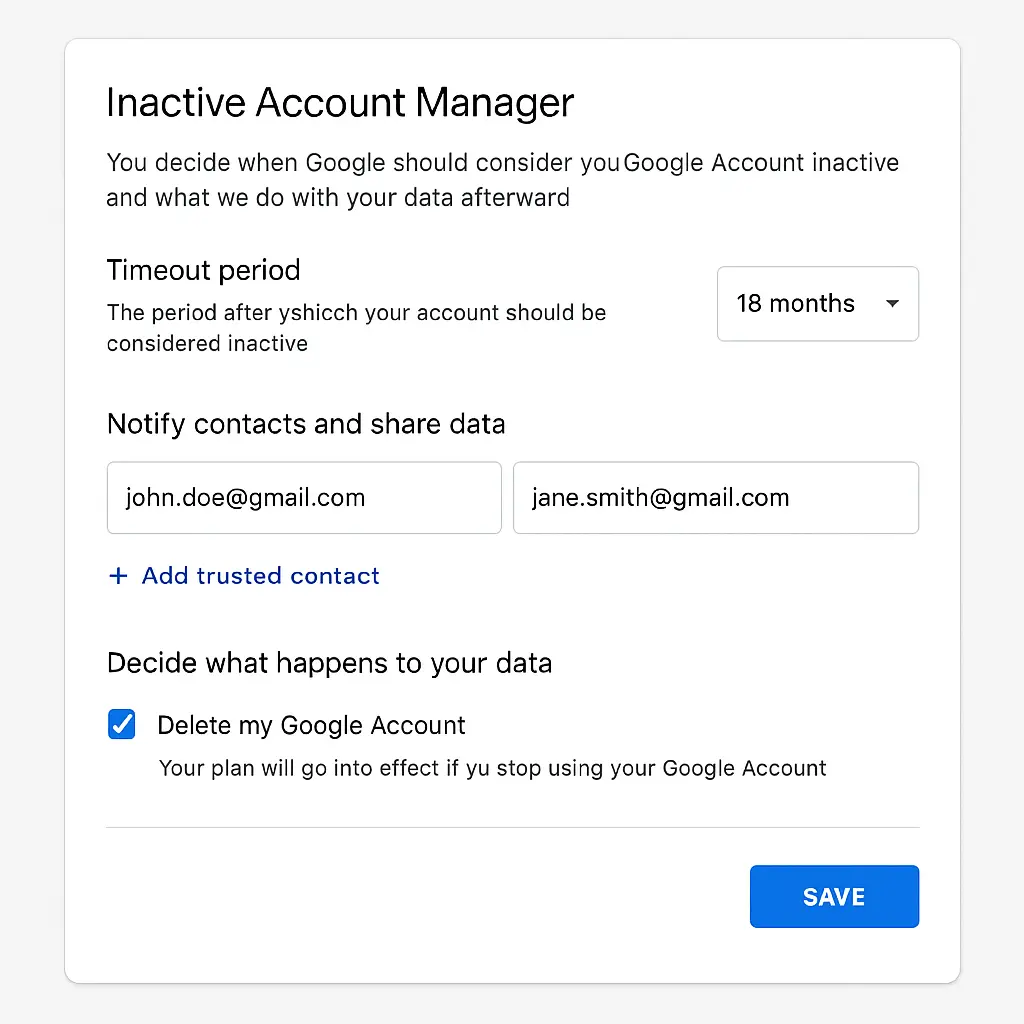
The tool triggers after a period of inactivity you define. It can notify people you trust, share specific data with them, and delete your account entirely. The setup takes around fifteen minutes and runs silently until it's needed.
Here's the step-by-step process to configure it, what each setting controls, and why the decisions matter.
What Inactive Account Manager Actually Does
Google's Inactive Account Manager monitors your account for activity. When you stop signing in, checking email, using Google Drive, watching YouTube, or connecting through an Android device, a countdown starts. After the timeout period you set passes with no activity, Google takes the actions you specified.
The tool can send notifications to up to ten people you designate. These contacts receive an email and text message telling them your account is inactive. You control what data they can access: email, contacts, calendar, photos, Drive files, YouTube content, or specific combinations.
You can also instruct Google to delete your account entirely after the timeout. This removes all data permanently and cannot be reversed.
The system exists because accounts outlive their owners more often than people expect. Google's terms of service allow the company to delete inactive accounts, but the timeline is vague and subject to change. Configuring Inactive Account Manager puts you in control of the process instead of leaving it to corporate policy.
Before You Start: What You Need
You need a Google account and access to a phone number Google can text. The setup process sends a verification code to confirm your identity before allowing changes.
You also need to decide who receives notification and what they can access. Choose people who will actually respond to an unexpected message from Google. A sibling who checks email daily is better than a friend who ignores automated messages.
Think through what data matters. Email might contain account recovery information your family needs. Photos might hold memories you want preserved. Drive files might include financial records, passwords, or legal documents. Calendar entries might show upcoming obligations others need to handle.
Consider whether you want the account deleted. Deletion is permanent and affects every Google service: Gmail, Drive, Photos, YouTube, Play Store purchases, and more. If you're uncertain, you can configure notification without deletion and let your contacts decide what to preserve.
Step 1: Access Inactive Account Manager
Open a web browser and go to myaccount.google.com. Sign in if prompted.
In the left sidebar, click "Data & privacy." Scroll down to the section labeled "Data from apps and services you use." Look for "Make a plan for your digital legacy" or "Inactive Account Manager." The label varies by account age and settings history.
Click the option. Google may ask you to verify your identity by entering your password or confirming a code sent to your phone. This happens because Inactive Account Manager modifies security-sensitive settings.
Step 2: Set the Timeout Period
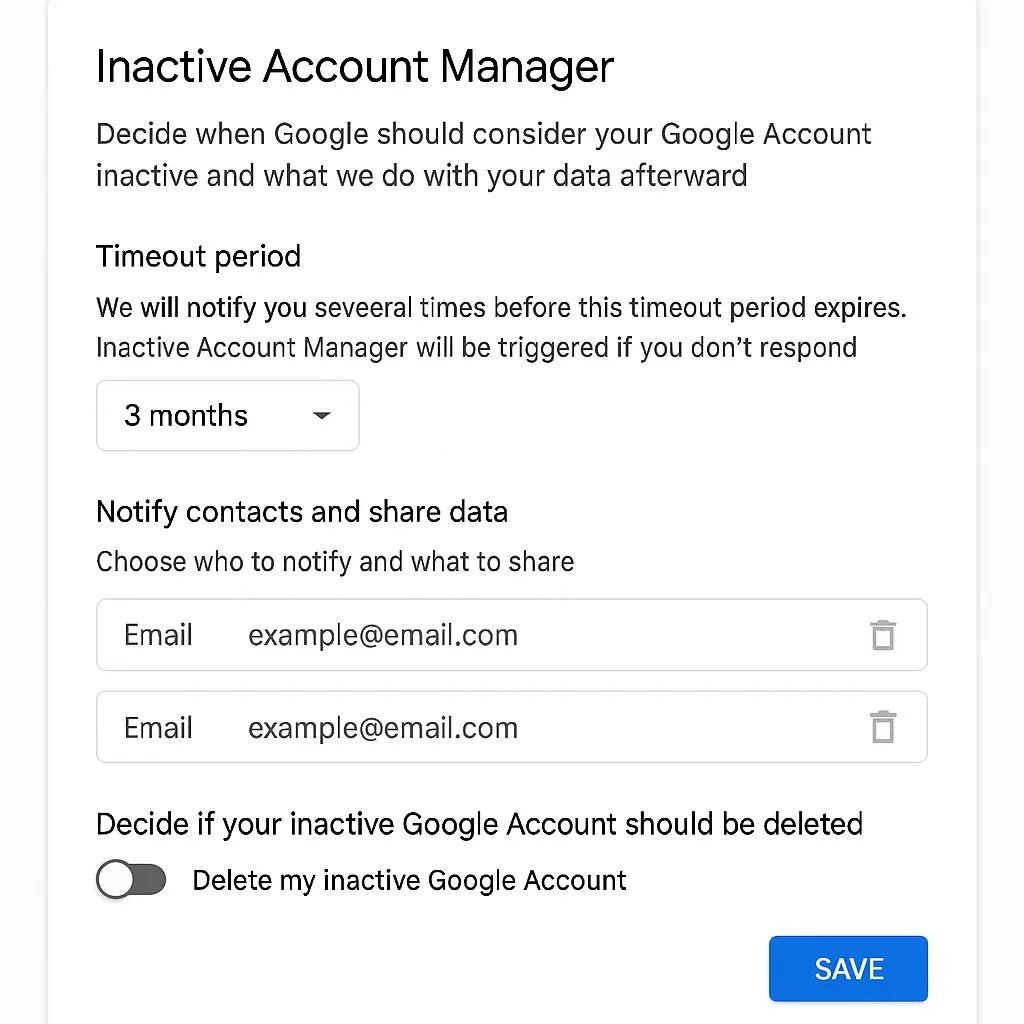
The first screen asks how long Google should wait before considering your account inactive. The options are three months, six months, twelve months, or eighteen months.
Three months catches sudden disappearance but risks false positives if you take a long trip without internet access. Eighteen months reduces false positives but delays action if something happens to you.
I think twelve months balances the risks. It's long enough to avoid triggering during extended travel or a digital detox, but short enough that your data doesn't sit unmanaged for years.
Select your timeout period and click "Next."
Step 3: Add Trusted Contacts
Google lets you designate up to ten people who receive notification when your account becomes inactive. You need at least one. Each contact needs a phone number and email address.
Enter the first contact's name, email, and phone number. Google sends them a verification message immediately to confirm they can receive notifications. The contact must click a link in that message to activate. If they don't verify, they won't receive the actual inactivity notification later.
You can add more contacts by clicking "Add person." Each one goes through the same verification process.
Choose people who will recognize your name and take the notification seriously. A work colleague might ignore a message about your personal Google account. A family member or close friend is more likely to respond.
Click "Next" after adding all contacts.
Step 4: Choose What to Share
Google presents a list of services: Gmail, Contacts, Calendar, Drive, Photos, YouTube, and others depending on what you use. Check the boxes next to the services you want your trusted contacts to access.
Sharing Gmail gives contacts access to your inbox, sent mail, and archived messages. They can read everything but cannot send email as you or change account settings.
Sharing Drive gives access to all files and folders you own. This includes documents, spreadsheets, presentations, and uploaded files. It does not include files others shared with you, which remain controlled by the original owners.
Sharing Photos gives access to all photos and videos in Google Photos, including albums and shared libraries. It does not include photos stored only in Drive.
Sharing Calendar gives access to all calendar entries, including private events. Contacts can see dates, times, locations, and notes.
You can share everything, nothing, or specific combinations. If you're uncertain, start with Gmail and Photos. These typically hold the most personal and irreplaceable content.
Google also asks if you want to send contacts an automated message. You can write a custom note explaining why they're receiving access and what you want them to do with the data. This message sends with the inactivity notification.
Click "Next" after making your selections.
Step 5: Configure Account Deletion
Google asks if you want your account deleted after the timeout period. This is separate from sharing data with contacts. You can share data and still delete the account, or share data and leave the account active indefinitely.
If you enable deletion, Google waits three additional months after sending notifications to your contacts. This gives them time to download anything they need before the account disappears. After three months, Google deletes everything: email, files, photos, YouTube content, Play Store purchases, and all associated data.
Deletion is permanent. There is no recovery process. If you change your mind after the three-month window closes, the data is gone.
Some people enable deletion to ensure their data doesn't sit unmanaged forever. Others leave the account active so contacts can access it long-term. The right choice depends on whether you value data minimization or long-term access.
If you enable deletion, you can also request that Google notify one additional person about the deletion itself. This person does not get access to your data. They simply receive a message saying your account was deleted. This might be useful for an executor of your estate or someone handling your affairs who doesn't need access to your files.
Make your selection and click "Next."
Step 6: Review and Confirm
Google shows a summary of your settings: timeout period, trusted contacts, shared services, and deletion status. Review each section carefully. Once you confirm, the settings go live.
If something looks wrong, click "Back" to change it. If everything looks correct, click "Confirm plan."
Google sends a final verification code to your phone. Enter the code to activate Inactive Account Manager.
The system is now running. Google monitors your account activity and will trigger notifications if you stop using the account for your chosen timeout period.
What Happens After You Set It Up
Inactive Account Manager runs silently in the background. You don't receive reminders or periodic confirmations. The system simply watches for activity.
Google counts activity broadly. Signing in to Gmail, checking Google Calendar, uploading a photo, watching a YouTube video, or using an Android device all reset the timeout clock. You don't need to use every service. Any activity across any Google service restarts the countdown.
If you stop using your account entirely, the timeout period begins. Three months before the timeout completes, Google sends you a warning. The warning goes to your recovery email address and phone number if you've configured them. It also appears as a notification when you next sign in.
The warning gives you a chance to cancel the process if you're still around but haven't been using your account. Signing in after receiving the warning resets the timeout and cancels the notification to your contacts.
If you don't respond to the warning, Google waits the remaining three months. When the full timeout period passes, Google sends notifications to all your trusted contacts. They receive an email and text message explaining that your account is inactive and they now have access to the data you specified.
Your contacts can download the data immediately. Google provides links to export email, Drive files, photos, and other content. The export process uses Google Takeout, the same tool you can use to download your own data while alive.
If you enabled account deletion, Google waits three additional months after notifying your contacts. This gives them time to download what they need. After three months, Google deletes the account and all associated data. Your contacts lose access at that point.
How to Test Your Settings
You cannot trigger Inactive Account Manager manually to test it. The system only activates after real inactivity for the full timeout period you set. Testing would require abandoning your account for months, which defeats the purpose.
You can verify that your trusted contacts received their verification messages. Ask them to check their email and text messages for a message from Google asking them to confirm they're willing to be a contact for your account. If they didn't receive the message or didn't click the link, they won't get the actual notification when your account becomes inactive.
You can also review your settings at any time. Go back to myaccount.google.com, navigate to "Data & privacy," and click "Inactive Account Manager." The summary screen shows your current timeout period, contacts, shared services, and deletion status.
Common Mistakes to Avoid
Setting the timeout too short. Three months sounds reasonable until you take a long trip, get sick, or simply stop checking email for a while. Twelve months or eighteen months reduces the risk of false positives.
Choosing contacts who won't respond. Google sends the notification once. If your contact ignores it, deletes it, or doesn't recognize your name, they won't access your data. Choose people who check email regularly and will take the message seriously.
Sharing everything without thinking. Your Gmail might contain sensitive messages you don't want others reading. Your Drive might hold work files covered by confidentiality agreements. Your Photos might include images you'd rather keep private. Review what you're sharing and consider whether your contacts actually need access to all of it.
Forgetting to update settings. Your life changes. You add new contacts, lose touch with old ones, accumulate new data, and develop new priorities. Review your Inactive Account Manager settings every year or two to make sure they still reflect your current situation.
Assuming contacts know what to do. The automated message Google sends is generic. It tells contacts they have access but doesn't explain what you want them to do with your data. Use the custom message field to leave instructions. Tell them which files matter, who else might need access, and whether you want anything preserved or deleted.
What Inactive Account Manager Doesn't Do
Inactive Account Manager only affects your Google account. It doesn't touch other services: Microsoft, Apple, Facebook, Amazon, banking, or anything else. Each service requires separate planning.
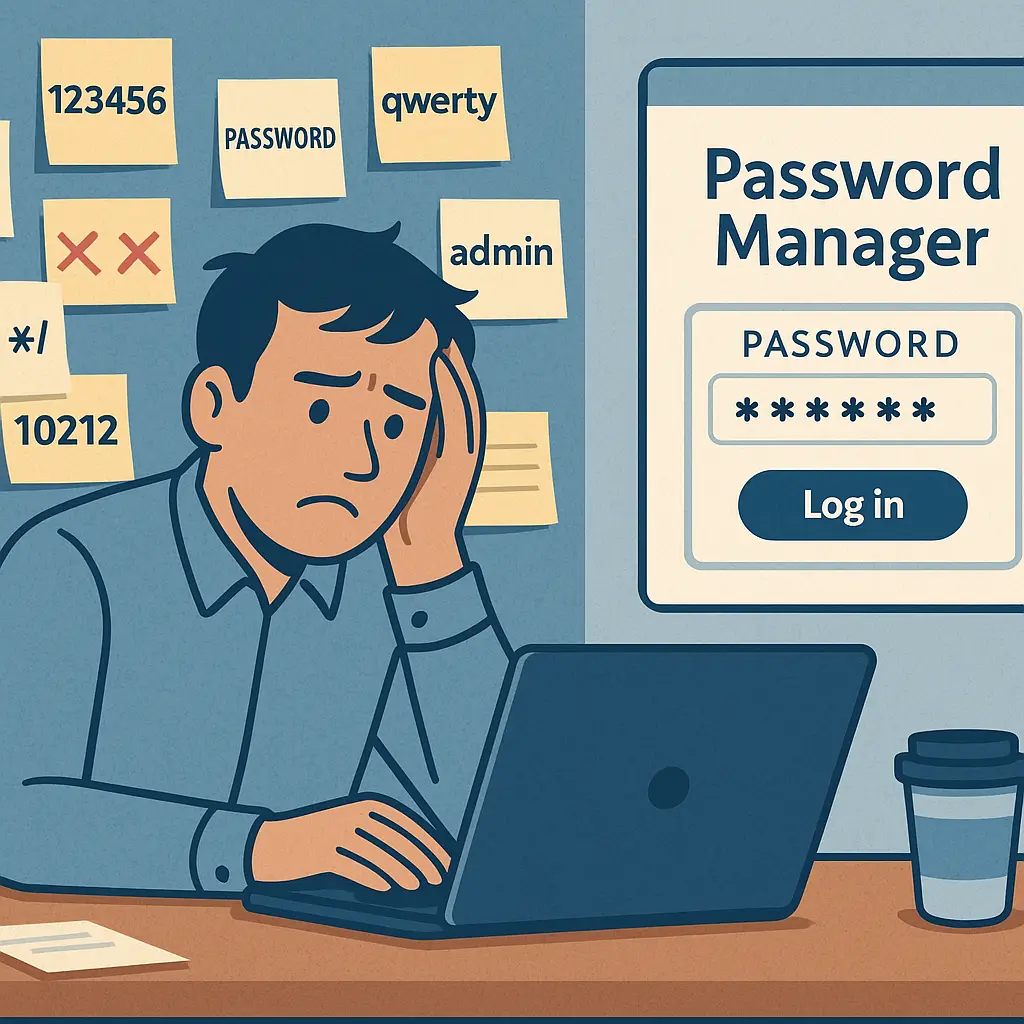
It doesn't handle passwords. If your contacts need to access accounts you linked to your Google email, they'll need your passwords. Inactive Account Manager shares your email content but not your authentication credentials. Consider using a password manager with its own emergency access feature to handle this separately.
It doesn't notify anyone about your physical condition. The system triggers based on account inactivity, not death or incapacity. If you're alive but unable to access your account, your contacts receive the same notification as if you'd died. The message doesn't distinguish between the scenarios.
It doesn't guarantee your contacts will act. Google sends the notification and provides access, but your contacts must choose to download the data. If they ignore the message, forget about it, or don't understand what to do, your data sits unaccessed until deletion (if you enabled it) or indefinitely (if you didn't).
When to Review Your Settings
Review your Inactive Account Manager settings when:
- You add or lose important contacts
- You move and your phone number changes
- Your priorities shift and different data becomes important
- You accumulate significant new content (photos from a major life event, documents from a big project)
- You read news about Google changing its inactive account policies
An annual review is reasonable for most people. Set a calendar reminder for the same date each year. Spend fifteen minutes checking that your contacts are still appropriate, your timeout period still makes sense, and your data-sharing choices still reflect what matters to you.
The Cultural Reference That Fits
In You've Got Mail, Kathleen Kelly's bookstore is a legacy business passed through generations, holding not just inventory but family history, customer relationships, and decades of accumulated knowledge. When the store closes, all of that context disappears unless someone actively preserves it.
Your Google account works the same way. It's not just email and files. It's years of conversations, decisions, memories, and connections. Without a plan, that context vanishes when you stop using the account. Inactive Account Manager is the mechanism that lets you decide what gets preserved and who receives it.
The analogy holds because both situations involve the gap between what exists and what survives. Kathleen's store held value beyond its balance sheet, but that value required someone to recognize and preserve it. Your Google account holds value beyond its storage quota, but that value requires configuration to survive your absence.
What This Protects and What It Doesn't
Inactive Account Manager protects your data from permanent loss due to inactivity. It ensures that people you trust can access what you've accumulated and make decisions about preservation.
It does not protect your account from compromise while you're alive. If someone steals your password, they gain access immediately. Inactive Account Manager only triggers after prolonged inactivity, which means it won't help with active account takeover.
It does not protect your data from Google's own policies. If Google decides to delete inactive accounts on a shorter timeline than your timeout period, your settings might not matter. The company's terms of service give them broad authority over account management.
It does not protect data you don't control. Files others shared with you through Drive remain owned by those people. Photos in shared albums controlled by someone else stay under their management. Inactive Account Manager only affects content you own.
Final Considerations
Google's Inactive Account Manager is free, built into every Google account, and takes around fifteen minutes to configure. The alternative is leaving your account unmanaged, which means your data either sits dormant indefinitely or gets deleted according to Google's internal policies without input from you or your contacts.
The tool isn't perfect. It requires you to predict who will be around and responsive when the notification triggers. It requires you to decide now what data will matter later. It requires you to trust Google to honor the settings when the time comes.
But those limitations don't negate the value. Configuring Inactive Account Manager is better than doing nothing. It gives your contacts a path to access what you've accumulated and makes your preferences explicit instead of leaving everything to chance.
The setup process walks you through the decisions step by step. The interface is clear, the options are straightforward, and the consequences are explained at each stage. You can change your settings at any time, which means your first attempt doesn't need to be perfect.
If you have a Google account, you should configure Inactive Account Manager. The fifteen minutes you spend now might save your contacts months of frustration and uncertainty later.