Cleaning Browser Cookies and Cache: Step-by-Step Guide for Chrome, Firefox, Safari, and Edge
Your browser stores two kinds of data that accumulate over time: cookies and cache. Cookies track your login state, preferences, and behavior across sites. Cache stores copies of images, scripts, and page elements to speed up loading. Both serve legitimate purposes, but both create privacy and performance issues when they pile up.
Clearing them is straightforward, but the options vary by browser and the consequences aren't always obvious. This guide walks through the process for Chrome, Firefox, Safari, and Edge. You'll see what each action removes, what it preserves, and when clearing data actually solves a problem versus creating new ones.
What cookies and cache actually do
Cookies are small text files that sites store in your browser. When you log into a site, it writes a cookie containing your session token. The next time you visit, your browser sends that cookie back, and the site recognizes you without requiring another login. Cookies also store preferences like language settings, shopping cart contents, and whether you've dismissed a banner. Third-party cookies track you across sites, building profiles of your browsing behavior for advertisers.
Cache is your browser's local storage for website assets. When you visit a site, your browser downloads images, stylesheets, JavaScript files, and fonts. Instead of re-downloading those files on every visit, the browser saves copies in cache. The next time you load the page, it pulls from cache instead of the network. This speeds up page loads and reduces bandwidth use. Cache expires based on rules set by the website, but it can persist for weeks or months.
Both systems work invisibly until they don't. Cookies can track you across the web, leak information to third parties, or cause login loops when they conflict. Cache can serve outdated versions of pages, break site functionality when files change, or consume gigabytes of disk space over time.
When to clear cookies
Clear cookies when you want to reset your relationship with a website. This includes logging out of all sessions, resetting site permissions, or stopping cross-site tracking. You'll also clear cookies when troubleshooting login issues, especially when a site keeps redirecting you or claims you're already logged in when you're not.
Some people clear cookies on a schedule, treating it as routine privacy maintenance. This approach has merit if you browse sensitive topics or want to limit tracking. But it comes with friction. Every site you visit regularly will treat you as a new visitor. You'll re-enter preferences, dismiss cookie banners again, and potentially trigger security alerts from services that notice your session disappeared.
Clearing cookies doesn't delete your saved passwords. Those live in a separate part of the browser. But it does log you out, which means you'll need those passwords to log back in. If you don't remember them or they're stored in a password manager you haven't opened in a while, clearing cookies becomes a forcing function to verify you still have access.
When to clear cache
Clear cache when pages display incorrectly, load outdated content, or break after a site updates. Developers call this a "hard refresh" problem. Your browser serves a cached version of a file that no longer matches the live version on the server. The page looks broken because the old JavaScript is trying to interact with new HTML, or the old stylesheet is styling elements that no longer exist.
Cache issues often surface after major site redesigns or when you're troubleshooting technical problems. If a page worked yesterday and doesn't today, cache is a likely culprit. Clearing it forces your browser to fetch fresh copies of everything, which usually resolves the mismatch.
Cache also accumulates over time. Browsers set size limits (typically a few gigabytes), but cache can still consume noticeable disk space on older devices with limited storage. Clearing cache periodically reclaims that space, though modern browsers manage this automatically by evicting old files when the cache fills up.
You don't need to clear cache on a schedule. It's a diagnostic tool, not routine maintenance. If your browser is working fine, leave cache alone. It's doing its job.
Chrome: clearing cookies and cache
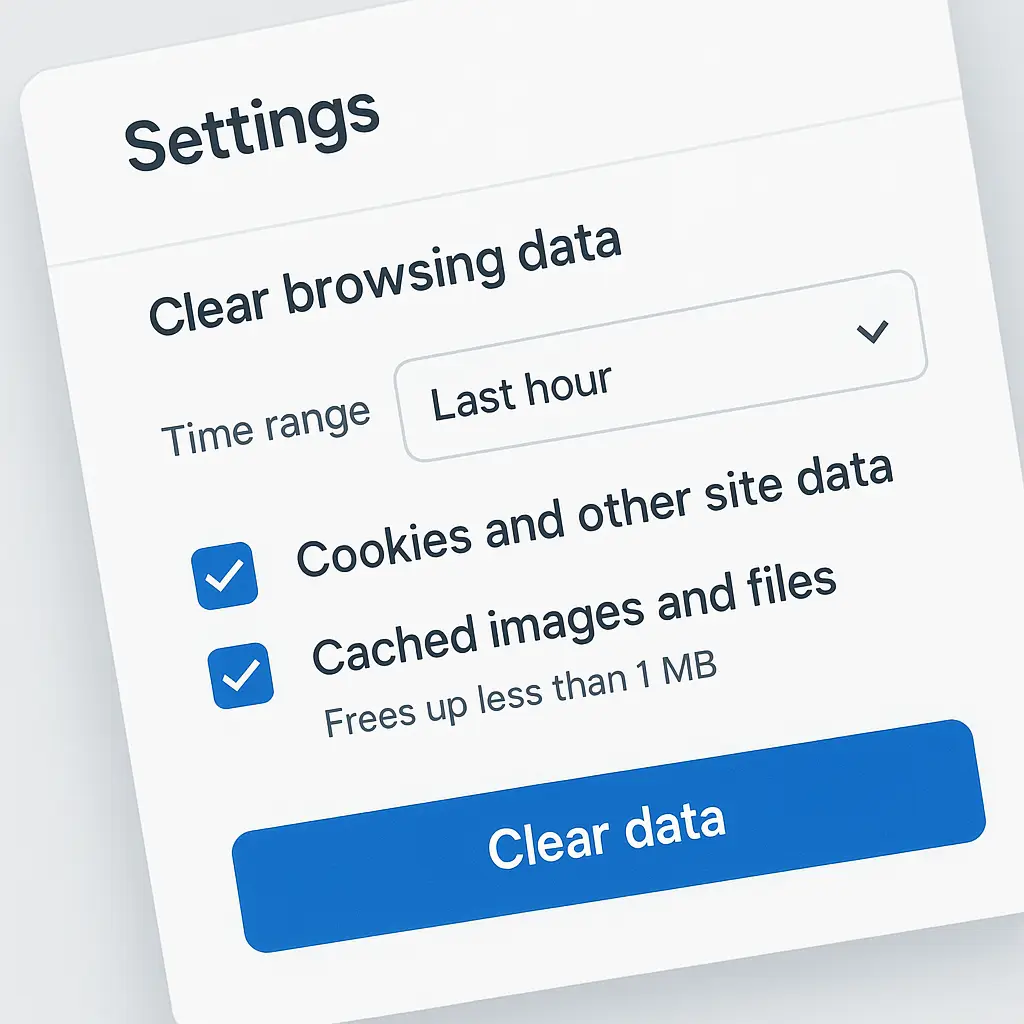
Open Chrome and click the three-dot menu in the top-right corner. Select "Clear browsing data" or press Ctrl+Shift+Delete (Windows/Linux) or Cmd+Shift+Delete (Mac). A dialog appears with two tabs: Basic and Advanced.
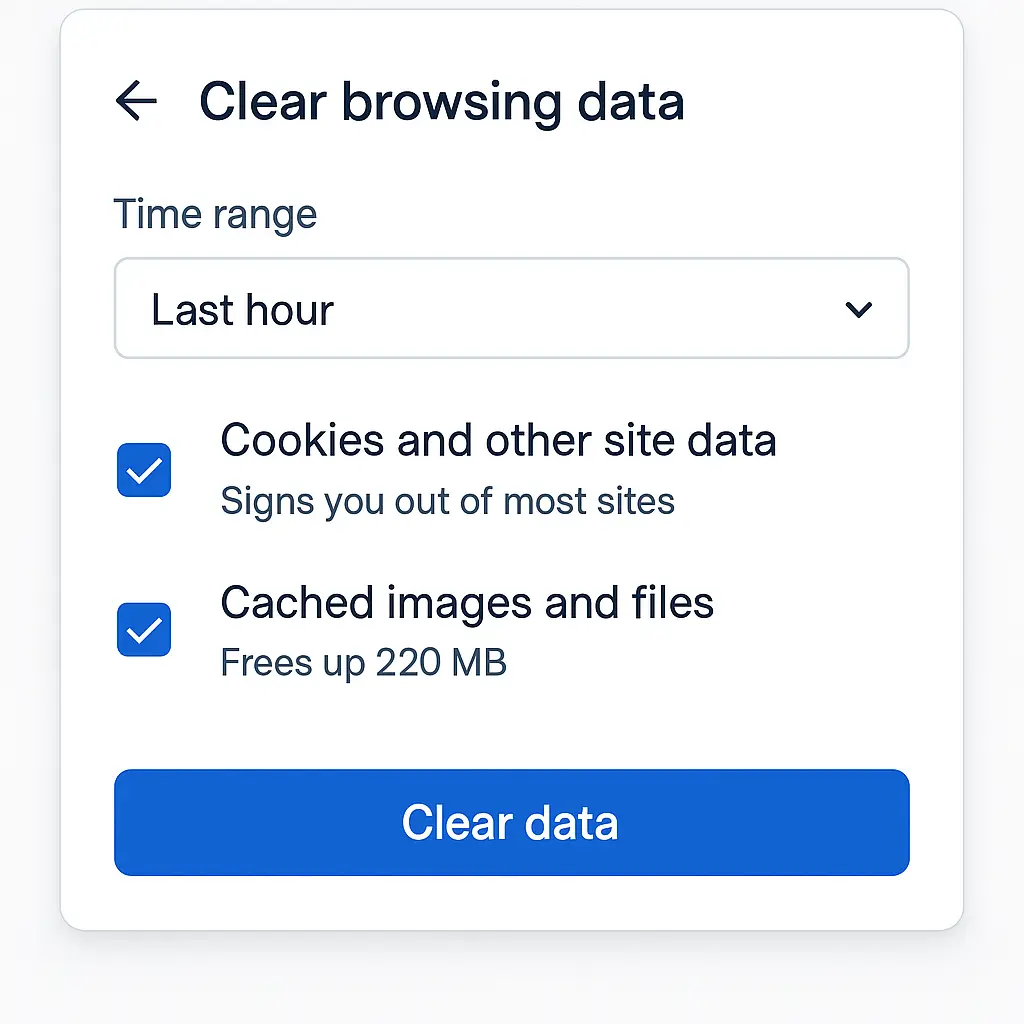
The Basic tab offers three checkboxes: Browsing history, Cookies and other site data, and Cached images and files. At the top, a dropdown lets you choose a time range: Last hour, Last 24 hours, Last 7 days, Last 4 weeks, or All time.
To clear only cookies, check "Cookies and other site data" and uncheck the others. To clear only cache, check "Cached images and files." To clear both, check both. Select your time range, then click "Clear data."
The Advanced tab adds more options: Saved passwords, Autofill form data, Site settings, and Hosted app data. Unless you're troubleshooting a specific issue, stick with the Basic tab. Clearing saved passwords or autofill data is rarely necessary and creates more work when you need to log back in or refill forms.
After clearing, Chrome logs you out of all sites if you cleared cookies. Pages may load slower on the first visit if you cleared cache, but subsequent visits return to normal speed as the cache rebuilds.
Chrome also offers site-specific clearing. Click the lock icon (or "Not secure" warning) in the address bar, then "Cookies and site data." You'll see a list of cookies for the current site. Click "Remove" next to individual cookies or "Remove all shown" to clear everything for that domain. This approach lets you reset one site without affecting others.
Firefox: clearing cookies and cache
Open Firefox and click the three-line menu in the top-right corner. Select "Settings," then "Privacy & Security" in the left sidebar. Scroll to the "Cookies and Site Data" section and click "Clear Data."
A dialog appears with two checkboxes: Cookies and Site Data, and Cached Web Content. Check the boxes for what you want to clear, then click "Clear." Firefox doesn't offer a time range selector in this dialog. It clears everything.
For more granular control, use Firefox's history clearing tool. Press Ctrl+Shift+Delete (Windows/Linux) or Cmd+Shift+Delete (Mac). A dialog appears with a time range dropdown and checkboxes for Browsing & Download History, Form & Search History, Cookies, Cache, Active Logins, and Site Preferences.
Check "Cookies" to clear cookies, "Cache" to clear cache, or both. Select your time range, then click "Clear Now." This approach lets you clear recent data without wiping everything.
Firefox also supports site-specific clearing. Click the shield icon in the address bar, then "Clear Cookies and Site Data." Firefox lists cookies for the current site. Click "Remove All Shown" to clear them. This method preserves cookies for other sites.
Firefox's Enhanced Tracking Protection blocks many third-party cookies by default, which reduces the need for manual clearing. But first-party cookies (set by the site you're visiting) still accumulate. If you want to limit those, Firefox offers a "Delete cookies and site data when Firefox is closed" option in Privacy & Security settings. Enable it, and Firefox clears everything on exit.
Safari: clearing cookies and cache
Safari's approach differs from Chrome and Firefox. Open Safari and go to Preferences (Safari menu → Preferences, or Cmd+,). Click the "Privacy" tab.
To clear all cookies, click "Manage Website Data." Safari displays a list of sites storing data. Click "Remove All" to clear everything, or select individual sites and click "Remove." Removing data logs you out of those sites and deletes stored preferences.
Safari doesn't offer a built-in time range selector for cookies. It's all or nothing unless you manually select sites from the list.
To clear cache, enable Safari's Develop menu first. Go to Preferences → Advanced and check "Show features for web developers" at the bottom. The Develop menu appears in the menu bar. Click Develop → Empty Caches. Safari clears cached files immediately without confirmation.
You can also clear cache through Safari's history tool. Click History → Clear History. A dialog appears with a dropdown for time range: the last hour, today, today and yesterday, or all history. Select your range and click "Clear History." This clears browsing history, cookies, and cache together. Safari doesn't let you clear cache independently through this dialog.
Safari's Intelligent Tracking Prevention blocks cross-site tracking cookies automatically, which reduces the need for manual clearing. But if you're troubleshooting login issues or want to reset a site's stored data, the Manage Website Data dialog is your tool.
Edge: clearing cookies and cache
Edge shares Chrome's codebase, so the process is nearly identical. Open Edge and click the three-dot menu in the top-right corner. Select "Clear browsing data" or press Ctrl+Shift+Delete (Windows/Linux) or Cmd+Shift+Delete (Mac).
A dialog appears with two tabs: Basic and Advanced. The Basic tab offers three checkboxes: Browsing history, Cookies and other site data, and Cached images and files. At the top, a dropdown lets you choose a time range: Last hour, Last 24 hours, Last 7 days, Last 4 weeks, or All time.
Check "Cookies and other site data" to clear cookies, "Cached images and files" to clear cache, or both. Select your time range, then click "Clear now."
The Advanced tab adds options for Saved passwords, Autofill form data, Site permissions, and more. Stick with the Basic tab unless you're troubleshooting a specific issue.
Edge also supports site-specific clearing. Click the lock icon in the address bar, then "Cookies and site data." Edge lists cookies for the current site. Click "Remove" next to individual cookies or "Remove all shown" to clear everything for that domain.
Edge's tracking prevention (Settings → Privacy, search, and services → Tracking prevention) blocks many third-party cookies by default. The default setting is "Balanced," which blocks trackers from sites you haven't visited. You can switch to "Strict" for more aggressive blocking, but some sites may break.
What clearing data doesn't remove
Clearing cookies and cache doesn't delete your saved passwords, bookmarks, or browser extensions. Those live in separate storage areas. Your browsing history persists unless you explicitly check the "Browsing history" box during clearing. Autofill data (addresses, credit card numbers) also remains unless you clear it separately.
Clearing cookies doesn't stop sites from tracking you going forward. It resets your current tracking profile, but the mechanisms that enable tracking (third-party cookies, fingerprinting, pixels) remain active. If you want ongoing protection, use your browser's built-in tracking prevention or a privacy-focused browser.
Clearing cache doesn't free up all disk space used by your browser. Browsers store data in multiple locations: cache, cookies, local storage, IndexedDB, service workers, and more. Cache is usually the largest, but clearing it doesn't touch the others. If you're trying to reclaim disk space, check your browser's storage settings for a complete breakdown.
The Friends apartment key problem
In Friends, Monica keeps a spare key under the hallway mat. Everyone knows it's there. It's convenient until someone you don't want in your apartment also knows where to look. Cookies work the same way. They're convenient authentication tokens that let you skip logging in, but they're also accessible to anyone with access to your device or network traffic (if the site doesn't use HTTPS).
Clearing cookies is like changing where you hide the key. It doesn't stop people from looking for it, but it forces them to start over. The tracking companies, the ad networks, the sites you visit, they'll write new cookies as soon as you browse again. But those new cookies don't connect to your old browsing history unless the site uses other tracking methods (like fingerprinting or account-based tracking).
This analogy breaks down when you consider that Monica's key unlocks one door. Your cookies unlock dozens or hundreds of doors. Clearing them all at once logs you out of every site simultaneously, which is either liberating or annoying depending on how many accounts you actively use.
When clearing data solves problems (and when it doesn't)
Clearing cookies fixes login loops, session conflicts, and tracking resets. If a site keeps redirecting you to the login page even after you've logged in, stale cookies are often the cause. Clearing them forces the site to issue a fresh session token. If you're trying to limit cross-site tracking, clearing third-party cookies disrupts the profiles advertisers have built.
Clearing cache fixes display issues, outdated content, and broken functionality after site updates. If a page looks wrong or buttons don't work, cache is serving old files that don't match the current site. Clearing it forces your browser to fetch fresh copies.
Clearing data doesn't fix malware, compromised accounts, or phishing. If someone has your password, clearing cookies doesn't lock them out. They'll just log back in. If you've clicked a phishing link and entered credentials, clearing cookies won't undo that. You need to change your password and enable two-factor authentication.
Clearing data also doesn't fix slow browsing caused by network issues, overloaded servers, or device performance problems. If your browser is slow because your laptop has 2GB of RAM and 47 tabs open, clearing cache won't help. Close tabs, restart the browser, or upgrade your hardware.
Automating cookie clearing (and why you might not want to)
Chrome, Firefox, Safari, and Edge all offer settings to clear cookies automatically when you close the browser. Chrome calls it "Clear cookies and site data when you close all windows" (Settings → Privacy and security → Cookies and other site data). Firefox calls it "Delete cookies and site data when Firefox is closed" (Settings → Privacy & Security → Cookies and Site Data). Safari and Edge have similar options.
Enabling this setting treats every browsing session as temporary. You start fresh each time you open the browser, which limits tracking and prevents cookie accumulation. But it also logs you out of every site on every close. If you browse with 20 tabs open and frequently close and reopen your browser, this becomes tedious fast.
A middle-ground approach is to use your browser's private/incognito mode for sensitive browsing and leave normal mode for everyday use. Private mode automatically clears cookies and cache when you close the window, but it doesn't affect your normal browsing session. This lets you compartmentalize without forcing a full reset every time.
Browser extensions like Cookie AutoDelete (Firefox, Chrome, Edge) offer more granular control. They clear cookies automatically when you close a tab or after a set time period, but they let you whitelist sites you want to stay logged into. This approach reduces tracking without the friction of constant re-authentication.
Mobile browsers: iOS and Android
Mobile browsers handle clearing differently due to operating system constraints and touch interfaces. On iOS Safari, go to Settings → Safari → Clear History and Website Data. This clears browsing history, cookies, and cache together. iOS doesn't offer granular options through the Settings app. If you want to clear only cookies or only cache, use Safari's desktop-style settings (tap the AA icon in the address bar → Website Settings → Advanced → Website Data → Remove All Website Data).
On Android Chrome, tap the three-dot menu → History → Clear browsing data. The dialog matches desktop Chrome: Basic and Advanced tabs, time range selector, and checkboxes for cookies, cache, and history. Android Firefox follows the same pattern as desktop: three-line menu → Settings → Delete browsing data.
Mobile Safari and Chrome also support private/incognito modes. On iOS Safari, tap the tabs icon and select "Private." On Android Chrome, tap the three-dot menu → New Incognito tab. Private mode clears cookies and cache automatically when you close all private tabs.
What to do after clearing
After clearing cookies, you'll need to log back into every site. If you use a password manager, this is straightforward. Open the site, click the login field, and your password manager fills the credentials. If you don't use a password manager, you'll need to remember or reset passwords manually. This is a good time to audit your accounts and enable two-factor authentication on anything important.
After clearing cache, pages will load slower on the first visit as your browser re-downloads files. This is temporary. Subsequent visits return to normal speed as the cache rebuilds. If a site still displays incorrectly after clearing cache, try a hard refresh: Ctrl+F5 (Windows/Linux) or Cmd+Shift+R (Mac). This forces the browser to bypass cache entirely for that one page load.
If you cleared data to troubleshoot a problem and the problem persists, the issue isn't cookies or cache. Check for browser extensions that might interfere, try a different browser, or contact the site's support team. Some issues require changes on the server side that clearing local data can't fix.
The privacy tradeoff
Clearing cookies and cache improves privacy by resetting tracking profiles and removing stored data. But it doesn't make you invisible. Sites still see your IP address, browser fingerprint, and behavior patterns. If you log into an account after clearing cookies, the site reconnects your new session to your account history. The tracking continues, just with a brief interruption.
For meaningful privacy improvements, combine clearing data with other measures: use tracking prevention features in your browser, enable HTTPS-only mode, avoid logging into accounts when browsing sensitive topics, or use a VPN to mask your IP address. Privacy is a system, not a single action.
Clearing data also trades convenience for control. Every logout, every re-entered preference, every dismissed banner is friction you're accepting in exchange for limiting tracking. Whether that tradeoff makes sense depends on your threat model and tolerance for inconvenience. Some people clear cookies weekly and accept the friction. Others never clear them and rely on browser-level tracking prevention instead. Both approaches are valid.
When to clear everything versus selective clearing
Clearing all browsing data (cookies, cache, history, autofill, passwords, and more) is a nuclear option. It resets your browser to a near-fresh state, removing everything except bookmarks and extensions. This makes sense when selling or giving away a device, troubleshooting persistent browser issues, or starting over after a malware infection.
For routine use, selective clearing is more practical. Clear cookies when you want to reset tracking or fix login issues. Clear cache when pages display incorrectly. Leave everything else alone unless you have a specific reason to remove it.
Browsers also support clearing data for individual sites. This is the most surgical approach. If one site is misbehaving, clear its cookies and cache without affecting others. This preserves your logged-in state everywhere else while resetting the problem site.
The reality of browser maintenance
Most people never clear cookies or cache manually. Browsers handle this automatically through expiration rules, size limits, and built-in tracking prevention. Manual clearing is a troubleshooting tool, not a routine task.
If you're clearing data more than once a month, you're either dealing with specific privacy concerns, troubleshooting technical issues, or following outdated advice. Modern browsers are designed to manage cookies and cache without user intervention. The defaults work for most people most of the time.
That said, knowing how to clear data manually gives you control when the defaults don't work. Login loops happen. Sites break after updates. Tracking feels invasive. When those moments arrive, clearing cookies and cache is a tool that solves real problems. You just don't need to use it every week.