What to Do After Clicking a Phishing Link: Step-by-Step Recovery
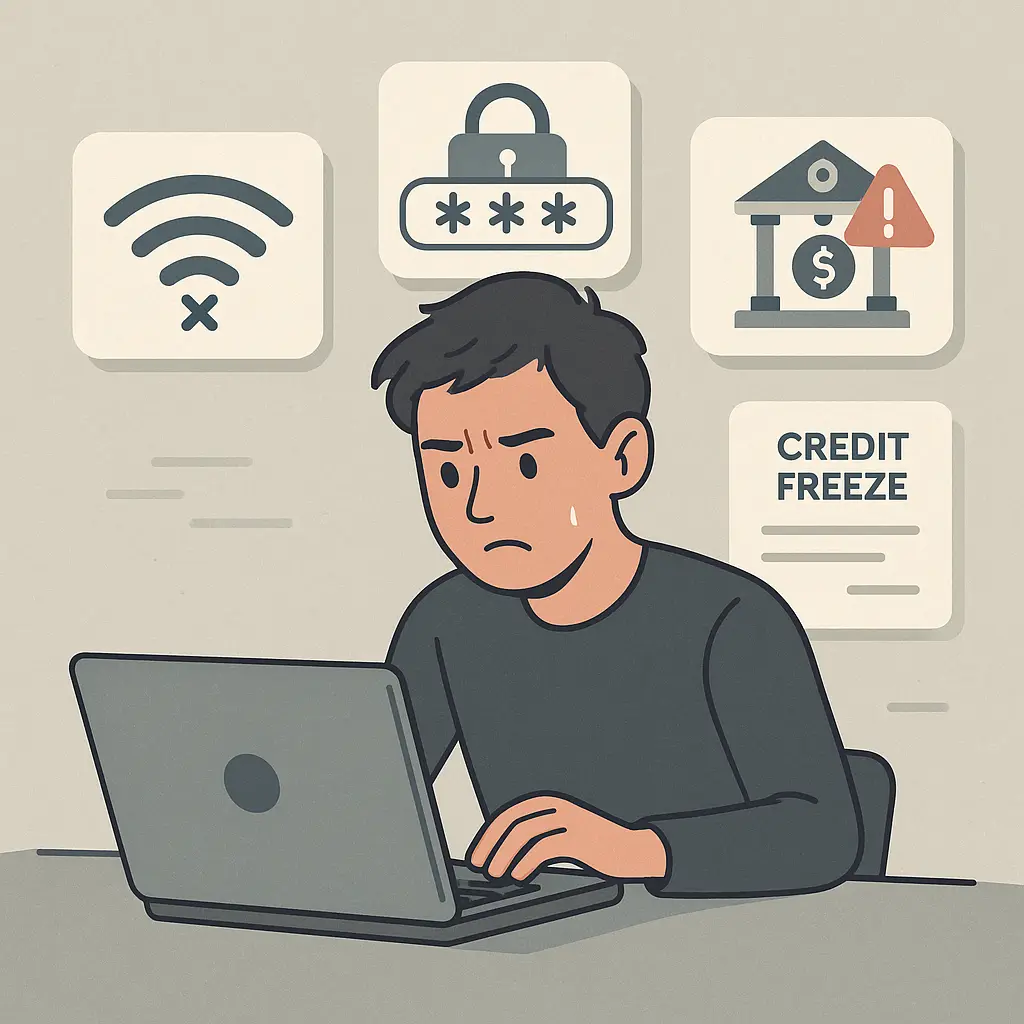
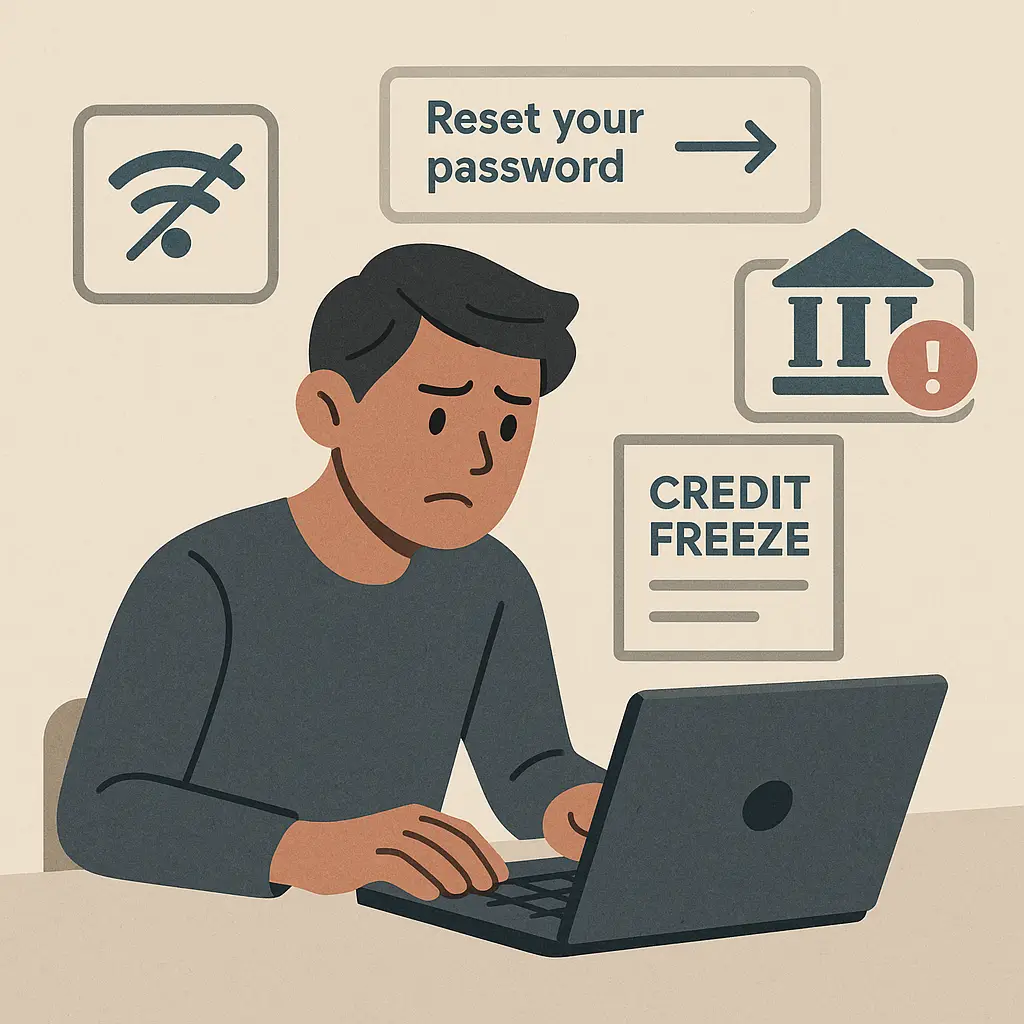
You clicked a phishing link. The moment of realization hits hard, that email wasn't from your bank, that urgent message wasn't from IT, that shipping notification was fake. Now what?
The answer depends on what you clicked and what happened next, but the first 30 minutes matter more than the next 30 days. Attackers move fast once they have access. Your goal is to contain the damage before it spreads.
This is a practical guide. No lectures about how you should have known better. You're here because you need to know what to do right now, in order, with reasons for each step. Here's the sequence.
Disconnect from the internet immediately
The first action is physical: disconnect your device from the internet. If you're on WiFi, turn off WiFi. If you're on ethernet, unplug the cable. If you're on cellular data, enable airplane mode.
Why this matters: if the phishing link installed malware or initiated a data exfiltration process, disconnecting stops the transmission. If the link directed you to a fake login page and you entered credentials, disconnecting limits how much additional information the attacker can gather about your device, browser, or network while you're still connected.
This step buys you time. Attackers automate credential testing and account takeovers, often within minutes of capture. Disconnecting doesn't undo what already happened, but it stops what might happen next.
Once you're offline, assess what you clicked. Did the link take you to a page that asked for credentials? Did you enter a username and password? Did you download a file? Did you see a fake error message prompting you to call a number or install software?
The FTC's phishing guidance describes common phishing patterns, but your immediate concern is narrower: what information did you give, and what actions did you take after clicking.
If you only clicked the link but didn't enter information or download anything, your risk is lower. Modern browsers sandbox web content, and visiting a malicious site alone rarely compromises a device unless the site exploited an unpatched browser vulnerability. Still, proceed through the remaining steps as a precaution.
If you entered credentials, downloaded a file, or called a number, the risk is higher. The steps below address both scenarios.
Change passwords on affected accounts
Reconnect to the internet using a different device if possible, or reconnect the same device if it's your only option. You need internet access to change passwords, but you need to do it fast.
Start with the account the phishing email targeted. If the phishing email impersonated your bank, change your bank password first. If it impersonated Microsoft and you entered your Microsoft account credentials, change that password first. If you're not sure which account was targeted, start with your primary email account, because email is the skeleton key to everything else.
Use a strong, unique password for each account. If you don't have a password manager yet, now is the time to install one. NordPass generates strong passwords and stores them encrypted, so you never reuse credentials across accounts. Password reuse is what turns one phishing incident into a cascade of compromised accounts.
If you entered the same password on the fake phishing page that you use for other accounts, change those passwords too. Attackers test stolen credentials across dozens of sites using automated tools, a process called credential stuffing. If you reused passwords, they'll find the matches.
For critical accounts, email, banking, cloud storage, social media, enable two-factor authentication immediately after changing the password. CISA's MFA guidance explains the options, but the short version is: use an authenticator app or hardware key, not SMS. SMS codes can be intercepted through SIM swaps, and attackers who compromised your email may already have access to your phone number.
Check each account's login history. Most services show recent login locations and devices. Look for unfamiliar activity: logins from cities you've never visited, devices you don't recognize, access times that don't match your routine. If you see suspicious logins, log out all sessions and change the password again.
Some phishing attacks target specific high-value accounts. If the phishing email mentioned a package delivery, check your retail accounts (Amazon, eBay, and similar). If it mentioned a payment issue, check PayPal, Venmo, Zelle. If it mentioned a security alert, check your email provider and any cloud services linked to that email.
Run a full antivirus scan
If you downloaded a file after clicking the phishing link, or if the link redirected you through multiple pages with pop-ups or fake error messages, run a full antivirus scan.
Use reputable antivirus software. Windows Defender (built into Windows) is sufficient for most users. If you don't have third-party antivirus installed, don't download one from a random search result, that's another phishing vector. Stick with known names: Bitdefender and Malwarebytes both have strong independent test results.
Run the scan in safe mode if the software offers that option. Safe mode loads only essential system processes, which makes it harder for malware to hide or interfere with the scan.
If the scan detects malware, follow the software's removal instructions. Most modern antivirus tools quarantine detected threats automatically. If the malware can't be removed, rare but possible, you may need to wipe the device and restore from a clean backup.
If the scan finds nothing, you're not necessarily in the clear. Some malware is designed to evade detection, and phishing attacks increasingly focus on credential theft rather than malware installation. Continue through the remaining steps.
Monitor financial accounts
Log into your bank and credit card accounts. Check recent transactions for anything unfamiliar: small test charges, large unauthorized purchases, transfers you didn't initiate.
Attackers often make small test transactions first to verify that stolen payment information works. A $1 charge from an unfamiliar merchant is a red flag. So is a subscription charge you didn't authorize, or a purchase from a retailer you've never used.
If you see unauthorized transactions, contact your bank or card issuer immediately. Most financial institutions have 24-hour fraud hotlines. Report the specific transactions, explain that you clicked a phishing link, and ask them to freeze the card and issue a replacement.
Krebs on Security reports that some banks resist refunding account takeover victims, particularly when the victim authorized the initial access (even unknowingly). Document everything: save the phishing email, take screenshots of your account activity, and keep records of your communications with the bank. You may need this documentation if the bank disputes your fraud claim.
Set up account alerts if your bank offers them. Many banks send text or email notifications for transactions over a certain amount, foreign purchases, or any ATM withdrawal. These alerts won't stop fraud, but they'll tell you about it faster.
Consider placing a fraud alert on your credit reports. A fraud alert tells lenders to verify your identity before opening new accounts in your name. You can place a fraud alert by contacting one of the three major credit bureaus (Equifax, Experian, TransUnion). The bureau you contact is required to notify the other two.
If you entered Social Security number, date of birth, or other identity information on the phishing page, consider a credit freeze instead. A credit freeze blocks lenders from accessing your credit report entirely, which prevents new account openings. Freezing and unfreezing is free, and you can do it online through each bureau's website.
Check email forwarding and filter rules
Attackers who gain access to your email often set up forwarding rules to monitor your incoming messages without your knowledge. They're looking for password reset emails, bank statements, and two-factor authentication codes.
Log into your email account and check for unfamiliar forwarding rules. In Gmail, go to Settings → Forwarding and POP/IMAP. In Outlook, go to Settings → Mail → Forwarding. In Yahoo, go to Settings → More Settings → Mailboxes → [your email address].
Look for forwarding addresses you don't recognize. Attackers sometimes use addresses that look similar to yours (one letter different, extra dots, and similar). Delete any unfamiliar forwarding rules immediately.
Check filter rules too. Attackers create filters to automatically delete or archive certain incoming emails, often password reset notifications or security alerts from services they're actively compromising. In Gmail, go to Settings → Filters and Blocked Addresses. In Outlook, go to Settings → Mail → Rules. Delete anything suspicious.
While you're in your email settings, review connected apps and services. Many email providers allow third-party apps to access your inbox. Revoke access for anything you don't recognize or no longer use. Attackers sometimes use legitimate-looking app integrations to maintain persistent access even after you change your password.
Review account recovery settings
Your email account's recovery settings are the backup keys to your digital life. If an attacker changes your password, the recovery email or phone number determines who can reset it.
Check your recovery email address. If it's been changed to an address you don't recognize, change it back immediately. If you can't change it because the attacker locked you out, contact your email provider's support team. Most providers have account recovery processes for compromised accounts, though the process can take days.
Check your recovery phone number. If it's been changed or if an unfamiliar number has been added, remove it. Attackers use recovery phone numbers to intercept password reset codes.
Check security questions if your email provider still uses them (many have phased them out). If the answers have been changed, update them. Use answers that aren't guessable from your social media profiles or public records.
Some email providers offer account activity logs that show recent changes to settings. Gmail calls this "Recent security activity." Outlook calls it "Recent activity." Review the log for unfamiliar changes: password updates, recovery setting modifications, connected app additions.
If you use iCloud, Google, or Microsoft accounts, check linked devices. Attackers sometimes add their own devices to your account to maintain access. Remove any devices you don't recognize.
Report the phishing attack
Forward the phishing email to the FTC at spam@uce.gov. The FTC uses these reports to track phishing patterns and pursue enforcement actions against large-scale operations.
Report the phishing email to the organization it impersonated. Most companies have dedicated phishing report addresses: Amazon uses stop-spoofing@amazon.com, Apple uses reportphishing@apple.com, Microsoft uses phish@office365.microsoft.com. Check the legitimate company website for their specific reporting address.
If the phishing attack involved financial loss, file a complaint with the FBI's Internet Crime Complaint Center (IC3). Include the phishing email, screenshots of any fake websites, and documentation of financial transactions. IC3 complaints feed into federal investigations of organized cybercrime operations.
If you entered personal information that could lead to identity theft, Social Security number, driver's license number, passport number, file a report at IdentityTheft.gov. The site generates a personalized recovery plan based on what information was compromised.
Reporting doesn't guarantee recovery or prosecution, but it creates a paper trail. If you later discover unauthorized accounts or fraudulent charges, the reports establish that you acted promptly after the incident.
Document everything
Before you move on, document what happened. Save the phishing email (don't delete it). Take screenshots of the fake website if it's still accessible. Save any confirmation emails or receipts from password changes, card replacements, or fraud reports.
This documentation serves two purposes. First, it protects you if the attack leads to disputed charges or identity theft. Banks, credit bureaus, and law enforcement may ask for evidence that you were targeted by phishing. Second, it helps you remember what you did, which matters if you need to retrace your steps or if additional compromised accounts surface weeks later.
Create a simple timeline: when you clicked the link, what information you entered, which accounts you secured, which institutions you contacted. Store this timeline somewhere you can access it later, a note on your phone, a document in cloud storage, an email to yourself.
What happens next
The immediate crisis is over, but monitoring continues for weeks. Attackers don't always act immediately. Sometimes they sit on stolen credentials, waiting for attention to fade before attempting account access or fraudulent purchases.
Check your financial accounts daily for the next two weeks, then weekly for the next month. Look for unfamiliar transactions, new accounts opened in your name, or credit inquiries you didn't authorize.
Monitor your email for password reset requests you didn't initiate. If you receive reset emails for accounts you haven't touched, someone may be attempting to access those accounts using your email address. Don't click the reset links, go directly to the service's website and change your password there.
If you placed a fraud alert or credit freeze, remember that you'll need to lift the freeze temporarily when you apply for credit, rent an apartment, or open certain types of accounts. Keep the PIN or password the credit bureau provided for unfreezing.
Consider signing up for identity theft monitoring if you entered sensitive personal information on the phishing page. Monitoring services scan data breach databases and dark web markets for your information and alert you if it appears. They also provide recovery assistance if identity theft occurs.
In The Hunt for Red October, Captain Ramius tells his crew that one ping from a submarine's sonar reveals their position to everyone listening. Clicking a phishing link is that ping, it tells attackers you're a viable target. The recovery steps above close that window, but the attention you attracted doesn't disappear overnight. Stay alert.
The next time you receive an urgent email demanding immediate action, pause. Check the sender's address character by character. Hover over links without clicking to see the real URL. Open a new browser tab and navigate to the service directly rather than clicking email links. These habits feel paranoid until the day they stop an attack.
You clicked a phishing link. You took the right steps to contain it. Now you know what to watch for, what to do if it happens again, and why speed matters more than perfection when responding to compromise.
Related reading: