How to audit your Google account in fifteen minutes
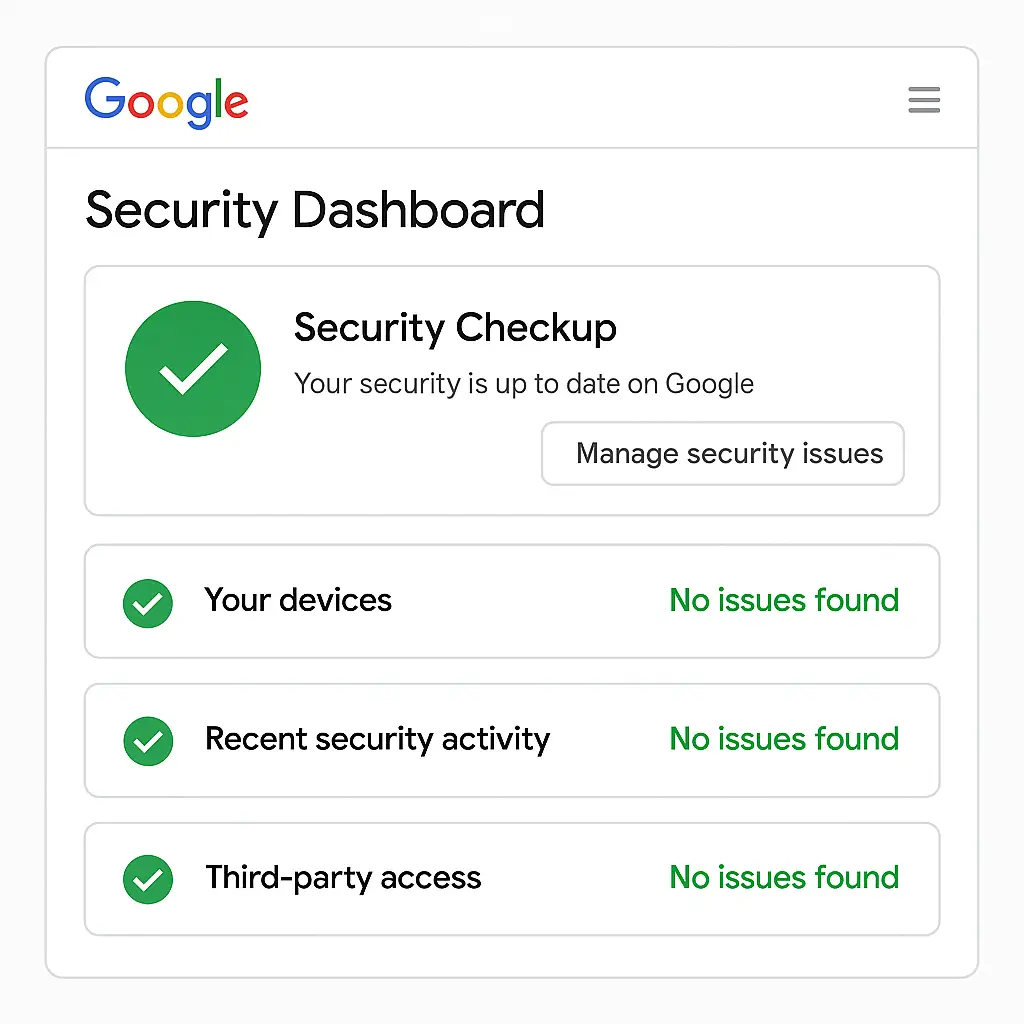
Your Google account holds your email, calendar, photos, documents, and the keys to dozens of other services through single sign-on. You probably set it up years ago and haven't looked at the security settings since. That's normal. It's also fixable in fifteen minutes.
This is a practical walkthrough of Google's Security Checkup. You'll review what's connected, who has access, and where your account can be recovered if something goes wrong. No technical background required. Just open a browser and follow along.
Why audit your Google account
Google accounts are high-value targets. They authenticate you to other services. They store years of communication. They hold recovery codes for password managers and financial accounts. A compromised Google account gives an attacker access to everything downstream.
Most people configure their Google account once and never revisit the settings. Apps accumulate. Old devices stay authorized. Recovery phone numbers go stale. Two-factor authentication sits disabled because it seemed complicated at setup.
An audit catches these gaps. It takes fifteen minutes. You do it every few months. The return is disproportionate to the effort.
Step 1: Open the Security Checkup
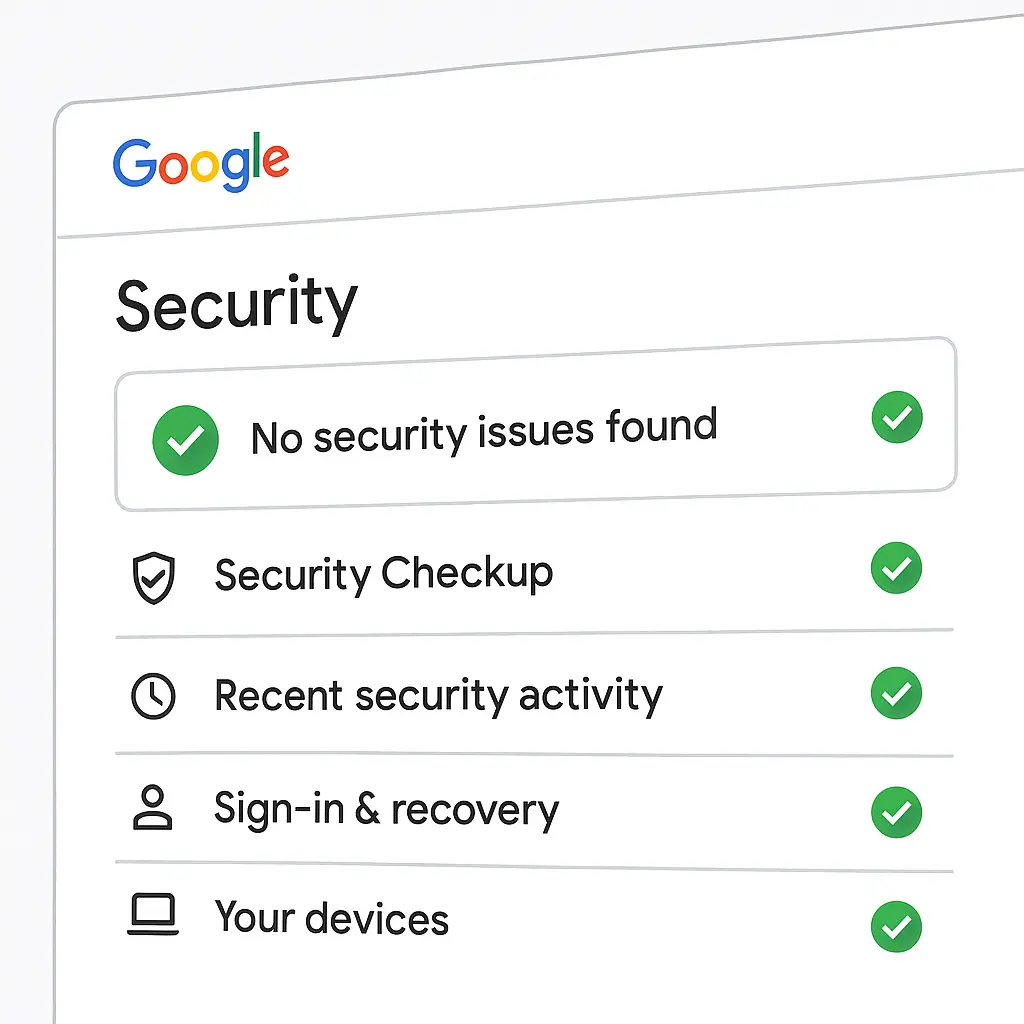
Log into your Google account. Navigate to myaccount.google.com/security-checkup. Google will walk you through a series of cards, each covering one aspect of your account security. You'll see your password status, recent activity, connected devices, third-party app permissions, and recovery settings.
The interface is designed for non-technical users. Each card shows a status (secure, needs attention, or action required) and a brief explanation. You click through, review, and make changes where needed.
Start at the top. Work through each card in order. Don't skip. The whole process takes around fifteen minutes if you read carefully and make decisions as you go.
Step 2: Review your password
The first card shows your password status. Google checks whether your password appears in known breach databases and whether you've reused it on other accounts. If either is true, you'll see a warning.
If Google flags your password, change it. Use a passphrase (four or more random words) or let a password manager generate one. The goal is a password that's unique to Google and not in any breach database. NIST's guidance recommends length over complexity. A 16-character passphrase defeats attackers faster than an 8-character string of symbols.
If your password is clean, move on. Routine password changes without cause create more risk than they prevent. You're rotating credentials you have to remember, which pushes you toward weaker choices or reuse.
Step 3: Enable two-factor authentication
This is the most important step. If two-factor authentication is off, turn it on before you do anything else.
Two-factor authentication requires a second piece of evidence beyond your password. Even if an attacker has your password, they can't log in without the second factor. It's the single most effective defense against account takeover.
Google offers several methods. In order of strength:
Security keys (hardware tokens like YubiKey): These are phishing-resistant. An attacker can't intercept or replay them. CISA recommends security keys as the gold standard for two-factor authentication.
Google Prompt (push notification to your phone): You get a notification asking you to confirm the login. Convenient, but vulnerable to prompt fatigue (attackers spam you with prompts until you approve one by accident).
Authenticator app (time-based codes): Apps like Google Authenticator or Authy generate six-digit codes that rotate every 30 seconds. Stronger than SMS, weaker than security keys.
SMS codes: The weakest option. Vulnerable to SIM swapping and interception. Use this only if nothing else works.
Choose the strongest method you can sustain. If you're not sure, start with an authenticator app. You can upgrade to a security key later.
The setup process takes around two minutes. Google will ask you to verify your phone number, then guide you through enabling your chosen method. Follow the prompts. Don't skip the backup codes. Write them down and store them somewhere secure (not in your Google account).
Step 4: Review recent account activity
Google shows you recent logins, including location, device, and timestamp. Look for anything you don't recognize.
If you see a login from a location you've never been or a device you don't own, that's a red flag. Click "Secure your account" and follow Google's recovery process. Change your password immediately. Revoke access to all devices you don't recognize.
If everything looks normal, move on. This step is about pattern recognition. You know where you log in and from what devices. Anything outside that pattern deserves scrutiny.
In The Bear, Sydney keeps a notebook of every dish she's ever made. She reviews it constantly, looking for patterns and gaps. The same principle applies here. You're looking for deviations from your normal behavior.
Step 5: Audit connected devices
Google lists every device that's currently signed into your account. You'll see phones, tablets, laptops, smart TVs, and anything else you've logged into over the years.
Go through the list. If you see a device you no longer use, remove it. Old phones, borrowed laptops, devices you've sold , all of these create unnecessary risk. An attacker who gains physical access to an old device can use it to access your account if it's still authorized.
Click "Manage devices." Review each one. If you recognize it and still use it, leave it. If you don't recognize it or haven't used it in six months, remove it. You can always re-authorize a device later if you need to.
This is also where you'll find smart home devices, streaming sticks, and other Internet-of-Things gadgets. These accumulate over time. A Chromecast you set up in 2019 and threw away in 2023 is probably still on this list. Remove it.
Step 6: Review third-party app permissions
Apps and services you've connected to your Google account appear here. Every time you click "Sign in with Google," you're granting that app some level of access to your account. Most apps request basic profile information (name, email). Some request access to your Drive files, calendar, or contacts.
Go through the list. For each app, ask yourself: do I still use this? Do I remember authorizing it? Does it need the permissions it has?
If the answer to any of those questions is no, revoke access. Click the app name, then "Remove access." You can always re-authorize it later if you need to.
Pay attention to apps that request broad permissions. An app that needs to read and write your Drive files should have a clear reason for doing so. If you can't remember why you authorized it, revoke it.
This is where old productivity experiments and abandoned side projects accumulate. You tried a new to-do app in 2022, used it for three days, and forgot about it. It's still authorized. Remove it.
Step 7: Verify recovery information
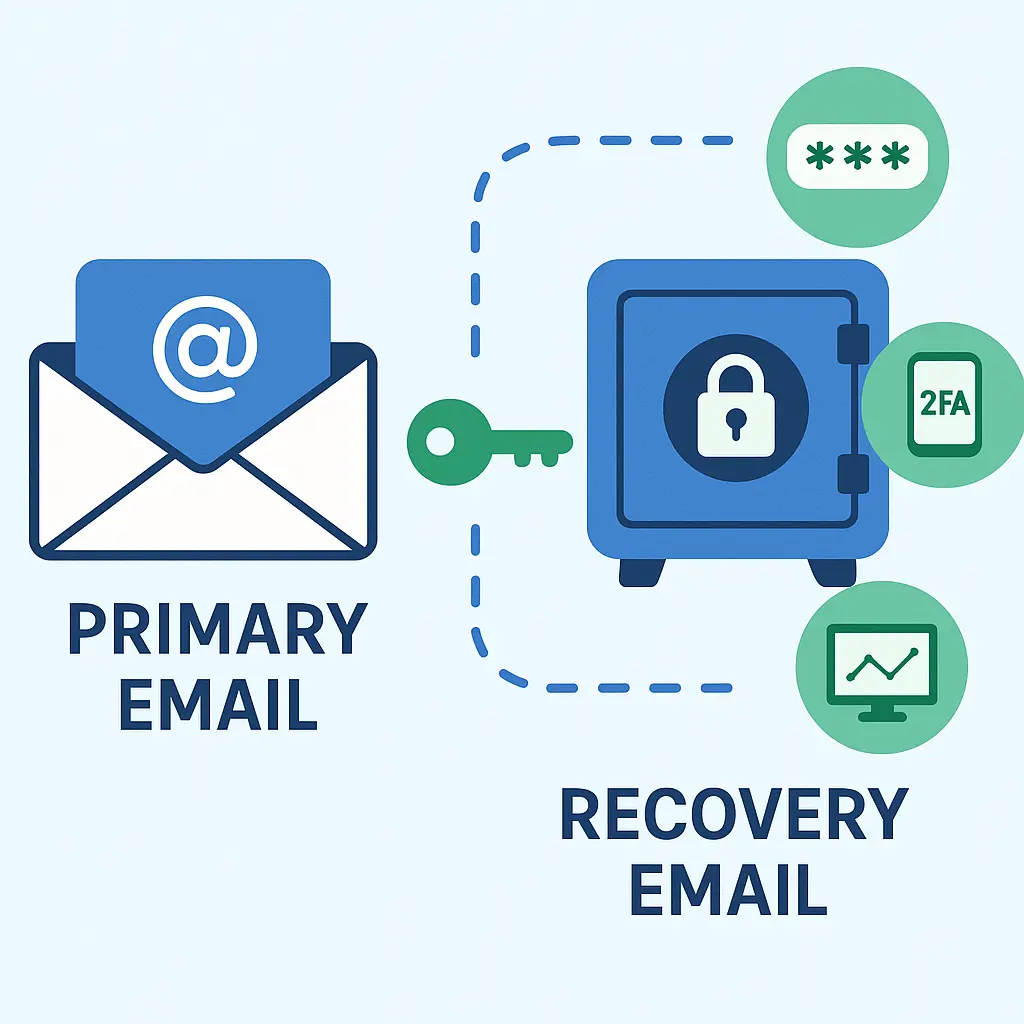
Google uses your recovery email and phone number to verify your identity if you get locked out. If these are outdated, you can't recover your account.
Check both. If your recovery email is an old address you no longer use, update it. If your recovery phone number is a landline you disconnected in 2018, update it.
Add a backup recovery email if you don't have one. This gives you a second path to recovery if your primary email is compromised.
Google also offers the option to add a recovery contact , someone who can help you regain access if you're locked out. This is useful if you're worried about losing access entirely, but it also creates a social engineering vector. Choose someone you trust and who understands they should never share recovery codes over email or phone without verifying your identity first.
Step 8: Review account permissions and data sharing
Google's "Data & privacy" section shows what information you're sharing and with whom. This isn't strictly a security audit, but it's worth reviewing while you're here.
Check your activity controls. Google tracks your search history, location history, and YouTube watch history by default. If you're uncomfortable with that, turn these off. The trade-off is that Google's services become less personalized, but that's a reasonable trade for some people.
Review your ad settings. Google builds a profile based on your activity and uses it to target ads. You can turn off ad personalization entirely or remove specific interests from your profile.
This step is optional. It's about privacy, not security. But since you're already in the settings, it takes two minutes.
Step 9: Check for security alerts
Google sends alerts when it detects suspicious activity. These appear in the Security Checkup and in your email. If you have unresolved alerts, address them now.
Common alerts:
- New device sign-in: Google detected a login from a device it doesn't recognize. If it was you, confirm it. If it wasn't, secure your account.
- Password changed: Someone changed your password. If it wasn't you, this is a critical alert. Follow Google's recovery process immediately.
- Recovery information changed: Someone updated your recovery email or phone number. If it wasn't you, this is also critical.
Most alerts are false positives. You logged in from a new laptop or a hotel WiFi network, and Google flagged it as unusual. But you can't assume that. Check every alert.
Step 10: Enable advanced protection (optional)
Google offers an Advanced Protection Program for high-risk users. It requires security keys for two-factor authentication, restricts third-party app access, and adds extra verification steps for account recovery.
This is overkill for most people. It's designed for journalists, activists, and public figures who face targeted attacks. If you're not in that category, standard two-factor authentication is sufficient.
If you are in that category, enroll. The program is free. It adds friction to your daily workflow, but that's the point. The extra steps make your account much harder to compromise.
Step 11: Download your data (optional)
Google Takeout lets you download a copy of everything in your account: emails, photos, documents, calendar events, and more. This isn't part of the security audit, but it's worth doing while you're here.
Go to takeout.google.com. Select what you want to download. Google will prepare an archive and email you a link when it's ready. This usually takes a few hours to a few days, depending on how much data you have.
Why download your data? Two reasons. First, it's a backup. If your account gets compromised or locked, you have a local copy. Second, it's a reminder of what you're protecting. Seeing 15 years of email and 10,000 photos in one archive makes the stakes concrete.
Step 12: Set a calendar reminder
Security audits work only if you do them regularly. Set a calendar reminder for three months from now. When it fires, run through this checklist again.
Three months is frequent enough to catch problems before they compound, but not so frequent that it becomes a chore you ignore. If you notice suspicious activity or get a security alert from Google, audit immediately. Don't wait for the reminder.
What to do if you find something wrong
If you find an unauthorized device, an app you don't recognize, or a login from a location you've never been, don't panic. Follow these steps in order:
- Change your password immediately. Use a strong, unique password or passphrase.
- Revoke access to any devices or apps you don't recognize.
- Enable two-factor authentication if it's not already on.
- Review your recent account activity for any changes you didn't make (emails sent, files deleted, settings changed).
- Check your connected accounts (any service you've signed into with Google) for unauthorized activity.
- If you find evidence of ongoing access, contact Google's account recovery team.
Most security issues are not sophisticated attacks. They're old devices you forgot to remove, apps you authorized years ago and stopped using, or weak passwords you never updated. The audit catches these before they become problems.
Why fifteen minutes matters
You spend hours securing your house: locks, alarms, cameras. Your Google account holds more than your house does. Fifteen minutes every three months is a reasonable investment.
The audit is not about paranoia. It's about maintenance. You change your car's oil. You replace your smoke detector batteries. You audit your Google account. Same principle.
Most people never audit their accounts. They set them up once and assume Google handles everything. Google does a lot, but it can't remove old devices for you. It can't revoke access to apps you no longer use. It can't update your recovery information when you change phone numbers.
That's your job. Fifteen minutes. Every three months. Set the reminder now.
Related reading: