Zoom Safe in 2026? Reality Check on Video Call Security
Your boss schedules a Zoom call. A client sends you a meeting link. Your kid's teacher invites you to a virtual parent conference. You click the link without thinking about it.
Most of us joined hundreds of video calls in the past few years without asking whether the platform was safe. Now, in 2026, you're wondering: is Zoom actually secure? Should you worry about who's listening? Does it matter which video platform you use?
The answer isn't simple. Zoom's security depends less on the technology and more on how you configure it. The platform offers strong protections, but most people never enable them. Meanwhile, the risks that actually matter, recording, screen sharing, meeting infiltration, come from choices you make when scheduling and hosting calls, not from Zoom's encryption architecture.
Here's the reality check on Zoom security in 2026, what actually protects your calls, and what doesn't.
What Zoom Actually Encrypts
Zoom offers two types of encryption: transport encryption and end-to-end encryption. The difference matters.
Transport encryption is the default. Your video, audio, and chat travel encrypted between your device and Zoom's servers, then encrypted again between Zoom's servers and other participants. This protects your data from interception on public WiFi or by your internet provider. But Zoom's servers can decrypt and access the content. The company can theoretically see your meeting, though Zoom's privacy policy states they don't monitor or record meetings unless legally required.
End-to-end encryption (E2EE) is optional. When enabled, Zoom encrypts your meeting so only participants can decrypt it. Zoom's servers can't access the content. The company can't comply with a subpoena for meeting content because they don't have the keys to decrypt it.
E2EE sounds better, right? It is. But it comes with tradeoffs. You lose cloud recording, live transcription, breakout rooms, polling, and some third-party integrations. For many meetings, those features matter more than theoretical server-side access.
The reality: most Zoom meetings use transport encryption, not E2EE. That's fine for most use cases. If you're discussing confidential client data, trade secrets, or sensitive personal information, enable E2EE. If you're coordinating a team project or catching up with colleagues, transport encryption is sufficient.
To enable E2EE, you need to turn it on in your account settings, then enable it for each individual meeting when scheduling. It's not a one-click default. That friction means most people never use it. For more on how end-to-end encryption actually works, see our detailed explanation.
The Waiting Room Problem
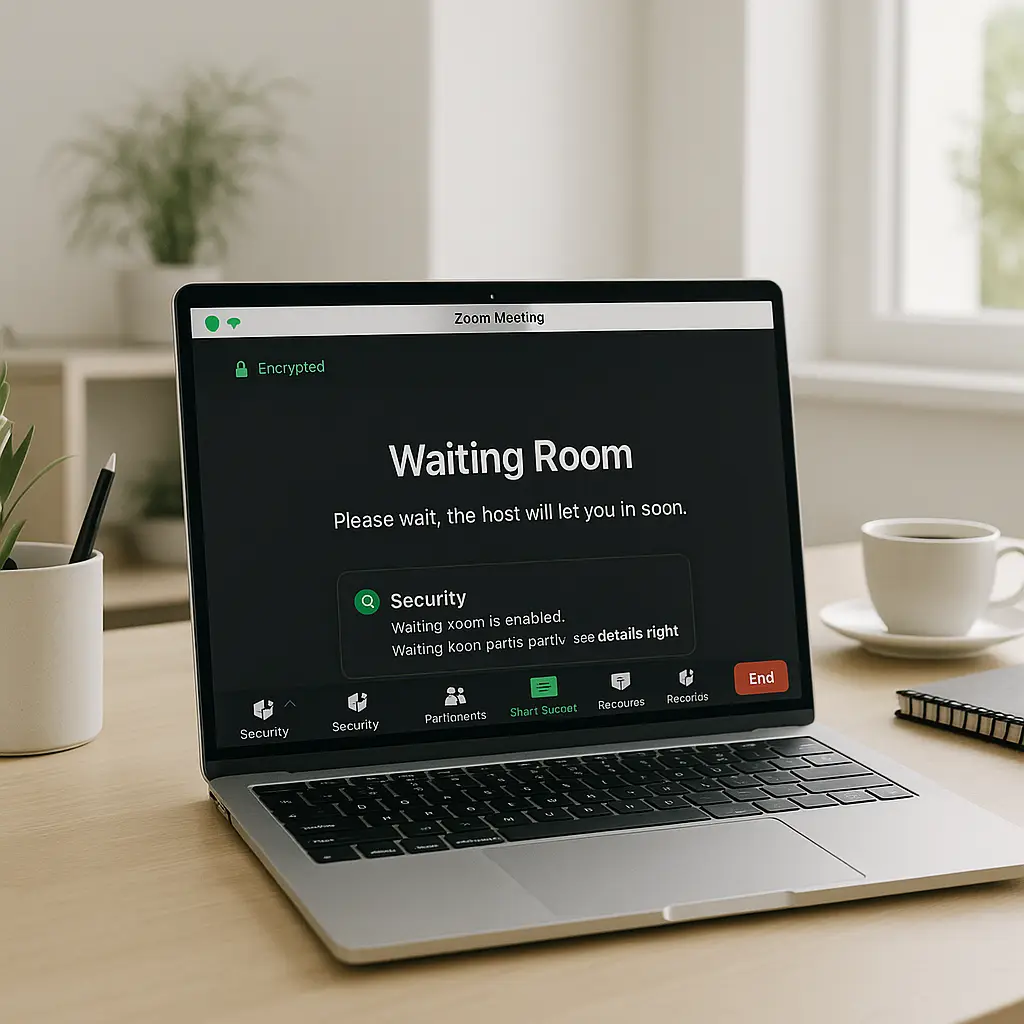
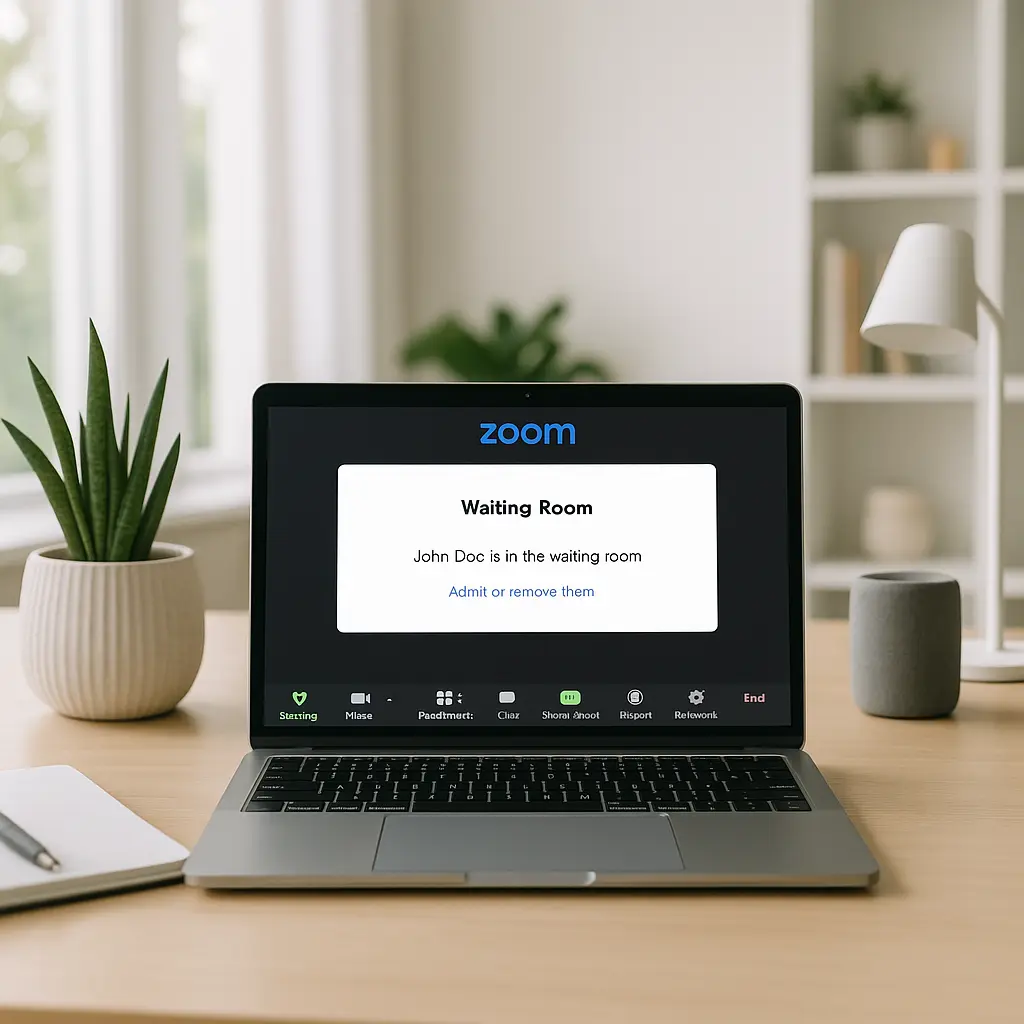
Zoom's waiting room feature holds participants in a virtual lobby until the host admits them. It's one of the most effective security controls Zoom offers, and it's often disabled.
When you schedule a meeting without a waiting room, anyone with the link can join immediately. If you post that link on social media, email it to a large group, or share it in a Slack channel, you lose control over who enters. Strangers can join, lurk, record, or disrupt the call.
The waiting room gives you visibility. You see each participant's name before they enter. You can verify they belong in the meeting. You can reject unknown attendees before they see or hear anything.
In Star Trek: The Next Generation, the Enterprise bridge crew doesn't just beam anyone aboard who requests it. They identify the incoming transport, verify credentials, and make a decision. The waiting room is your transporter room. Use it.
Waiting rooms add friction. Participants sit in the lobby for a few seconds while you admit them. Some hosts find this annoying. But the alternative, open meetings where anyone can join, creates far more risk than a few seconds of delay.
To enable waiting rooms, check the box when scheduling a meeting. If you're hosting recurring meetings, enable it in your default settings so every future meeting starts with a waiting room.
Meeting Passwords and Link Sharing
Zoom generates random meeting IDs and allows you to set passwords. Both are optional. Both matter.
A meeting without a password is accessible to anyone who has the ID. If you post the link publicly or forward it through multiple channels, you can't control who joins. Random strangers scanning for open meetings can enter, and you won't know until they're already there.
Passwords add a layer of authentication. Even if someone intercepts your meeting link, they need the password to join. Zoom can embed the password in the link itself, so participants don't have to type it manually. This balances security and convenience.
The risk isn't theoretical. In 2020, "Zoombombing" became common enough to earn its own term. Attackers joined open meetings, shared offensive content, and disrupted calls. The solution wasn't better encryption, it was requiring passwords and waiting rooms.
To protect your meetings, enable passwords by default. Share meeting links through private channels, email, direct messages, password-protected documents, not public posts. Treat meeting links like you'd treat a key to your office: don't leave them lying around.
Screen Sharing Permissions
Zoom allows hosts to control who can share their screen. The default setting varies by account type, but many configurations allow any participant to share.
When everyone can share, anyone can broadcast whatever they want to the entire meeting. That includes offensive images, confidential documents they shouldn't have access to, or malicious content designed to phish other participants.
Host-only screen sharing prevents this. Only the meeting host can share their screen. Participants can request permission, and the host can grant it selectively. This control matters more in large meetings, public webinars, or calls with external participants.
In smaller team meetings where you trust everyone, open screen sharing is fine. In client calls, all-hands meetings, or sessions with people you don't know well, restrict it.
To configure screen sharing, check your meeting settings. Choose "Host Only" or "Host and Participants" based on the meeting context. Don't leave it on the default without thinking about who's in the room.
Recording Indicators and Consent
Zoom displays a recording indicator when someone records a meeting. A red dot appears in the top-left corner, and participants receive a notification. This is a technical control, not a legal one.
In most U.S. states, recording a conversation requires consent from all parties. In some states, only one party needs to consent. Workplace policies often allow employers to record work-related calls without individual consent. Zoom's recording indicator tells you recording is happening, but it doesn't enforce consent laws.
If you're hosting a meeting, decide whether to allow recording and communicate that decision clearly. If you're joining a meeting and see the recording indicator, you can leave if you're uncomfortable. But once you stay, you've implicitly consented in many jurisdictions.
Cloud recordings store on Zoom's servers. Local recordings save to the host's device. Cloud recordings are easier to share and manage, but they live on Zoom's infrastructure. Local recordings give you more control over the file, but they require storage space and manual sharing.
The reality: if you're discussing sensitive information, assume the meeting could be recorded. Participants can use external screen recording tools that bypass Zoom's indicator entirely. The recording indicator is a courtesy, not a guarantee of privacy. For more on what happens when video calls are recorded, see our legal breakdown.
What Zoom Can Actually See
Even with transport encryption, Zoom's servers handle your meeting data. The company can see metadata: who joined, when they joined, how long they stayed, whether they shared their screen, and whether they sent chat messages. With transport encryption, Zoom can also technically access the content, video, audio, and chat, though the company states they don't monitor meetings.
With end-to-end encryption, Zoom can't see the content. They still see metadata. They know a meeting happened, who participated, and how long it lasted. But they can't decrypt the video, audio, or chat.
This distinction matters for compliance, legal, and privacy-sensitive contexts. If you're a lawyer discussing client matters, a healthcare provider discussing patient information, or a journalist protecting sources, E2EE reduces the risk of third-party access. For most other use cases, transport encryption is sufficient.
Zoom's privacy policy outlines what data they collect and how they use it. The company doesn't sell personal data to advertisers, but they do share data with service providers, analytics partners, and law enforcement when legally required. Read the policy if you're handling regulated data or operating in a jurisdiction with strict privacy laws.
Platform Comparisons: Zoom vs. Meet vs. Teams
Zoom, Google Meet, and Microsoft Teams all offer similar security features. They all support encryption, waiting rooms, passwords, and host controls. The differences are marginal.
Google Meet integrates tightly with Google Workspace. If you're already using Gmail, Calendar, and Drive, Meet fits seamlessly into that ecosystem. Microsoft Teams does the same for Microsoft 365 users. Zoom is platform-agnostic, which makes it easier to use across organizations with different infrastructure.
All three platforms have faced security scrutiny. Zoom's early 2020 vulnerabilities led to widespread criticism and rapid fixes. Google and Microsoft have had their own incidents. No platform is immune to bugs, but all three invest heavily in security and respond to vulnerabilities quickly.
The choice between platforms depends more on your existing tools and workflows than on security differences. If your organization uses Microsoft 365, Teams makes sense. If you're in Google Workspace, use Meet. If you need cross-platform compatibility or work with external clients who use different systems, Zoom's neutrality is an advantage.
For a deeper comparison of video call platforms, see FaceTime vs. Google Meet vs. Zoom.
VPNs and Video Calls
A VPN encrypts your internet traffic between your device and the VPN server. When you join a Zoom call over a VPN, your connection to Zoom's servers is encrypted twice: once by the VPN, once by Zoom.
This adds a layer of protection on untrusted networks, coffee shop WiFi, hotel internet, airport connections. It prevents local eavesdroppers from seeing that you're on a Zoom call or intercepting your traffic. But it doesn't change what Zoom itself can see. Zoom still receives your video, audio, and chat. The VPN just hides your IP address and encrypts the path to Zoom's servers.
If you're joining calls from public WiFi regularly, use a VPN. If you're on your home network or a trusted corporate network, the VPN adds minimal security benefit for video calls.
For more on when VPNs actually matter, see VPN Myths Versus Reality: Do You Really Need One?
The Bigger Risk: Configuration, Not Technology
Zoom's encryption is solid. The platform offers strong security controls. But most security failures come from misconfiguration, not from Zoom's architecture.
Meetings without passwords. Waiting rooms disabled. Screen sharing open to everyone. Public links posted on social media. These choices create more risk than Zoom's server-side access ever will.
Security isn't about picking the perfect platform. It's about using the tools the platform gives you. Enable waiting rooms. Require passwords. Restrict screen sharing. Think about who's in the meeting before you share the link.
The technology works. The question is whether you configure it correctly.
What to Do Right Now
If you host Zoom meetings regularly, audit your default settings. Log into your Zoom account, navigate to Settings, and review the following:
- Waiting room: Enable it by default for all meetings.
- Passwords: Require passwords for all meetings. Embed the password in the link for convenience.
- Screen sharing: Set to "Host Only" by default. Change it to "Host and Participants" for specific meetings where you trust everyone.
- End-to-end encryption: Enable it for meetings where you discuss confidential information. Understand the tradeoffs, no cloud recording, no live transcription.
- Recording: Decide whether to allow participants to record. Disable local recording if you want to prevent unauthorized recordings.
If you join Zoom meetings as a participant, pay attention to the recording indicator. If you see it and you're uncomfortable, leave. Ask the host whether the meeting is being recorded before you say anything sensitive.
If you're discussing regulated data, healthcare, legal, financial, check whether your organization's Zoom configuration meets compliance requirements. HIPAA, GDPR, and other regulations have specific rules about data handling. Zoom offers business associate agreements (BAAs) for healthcare providers and compliance features for regulated industries, but you need to enable them.
The Bottom Line
Zoom is as safe as you configure it to be. The platform offers strong encryption, robust access controls, and transparency about what data it collects. But those protections only work if you enable them.
Most people click the default settings and never think about it. That's fine for casual calls. It's not fine for confidential client meetings, sensitive HR discussions, or conversations involving regulated data.
The real risk isn't Zoom's encryption. It's the meeting link you posted on Twitter, the password you didn't set, the waiting room you disabled because it felt like extra work. Security is a series of small decisions. Make them deliberately.