Travel Laptops: What to Take, What to Leave at Home
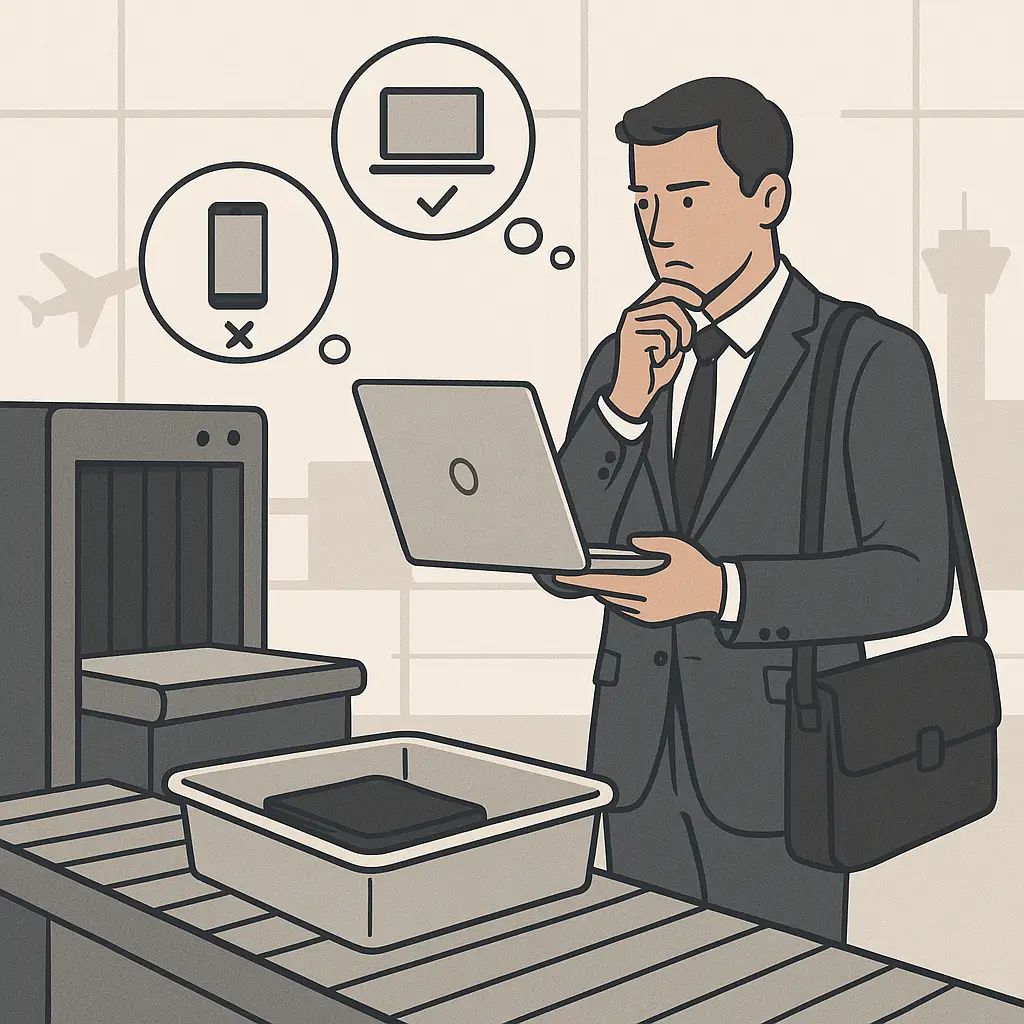
You're packing for a trip. Work laptop or clean device? Your own machine with years of accumulated access, or a borrowed laptop with nothing on it? The decision matters more than the TSA-approved luggage you're shoving it into.
The question isn't really about the laptop. It's about what's on it, where you're going, and what happens if someone else gets their hands on it. Let me walk you through the decision framework, then the practical steps for whichever path you choose.
The Core Question: What's Actually on This Device?
Start by listing what your laptop can access. Not what's stored locally, what it can reach.
Your work laptop probably has:
- Saved credentials to email, file servers, internal tools, cloud services
- VPN configurations that bypass your company's perimeter security
- SSH keys, API tokens, or certificates for production systems
- Browser sessions that stay logged in across reboots
- Local copies of client data, source code, or confidential documents
- Password manager with your entire credential library
A breach of your laptop during travel isn't just a breach of the files on the disk. It's a breach of everything those credentials unlock. That's the threat model.
Now ask: do you need all of that for this trip?
When to Leave the Work Laptop Home
Bring a clean travel device if any of these apply:
You're crossing borders where device searches are routine. U.S. Customs and Border Protection can search devices at borders without a warrant. So can border agents in most countries. If your laptop contains client data, proprietary code, or access to regulated systems, a search isn't just inconvenient, it's a compliance incident.
Your laptop contains data you're legally required to protect. HIPAA-covered health information, FERPA-protected student records, attorney-client privileged documents, or classified government material. Crossing borders with this data creates legal exposure even if nothing goes wrong. Some industries prohibit it outright.
You're traveling to a country with aggressive surveillance. China, Russia, and several other countries are known to target business travelers with sophisticated device compromise. If your laptop connects to systems that would be valuable to a foreign intelligence service, assume it will be targeted.
The laptop is your only copy of critical data. If you lose it, drop it, or have it stolen, you lose the data. Laptops get left in taxis, knocked off tables, stolen from hotel rooms. If you haven't tested your backup recently, don't travel with the only copy.
You don't actually need most of what's on it. You're attending a conference. You need email, Slack, and a browser. You don't need SSH access to production, your tax returns, or three years of client files. A clean device with just the essentials is faster, lighter, and lower-risk.
When the Work Laptop Makes Sense
Bring your regular work laptop if:
You need access to systems that require specific configurations. Your company's VPN, internal tools, or development environment might not work on a fresh device without significant IT support. If you're traveling for work and need to actually work, a clean device that can't connect to anything isn't useful.
You're traveling domestically within a country with strong legal protections. U.S. domestic flights don't involve border searches. Hotel room theft is a risk anywhere, but the legal and surveillance risks are lower.
Your company has a formal travel security policy you're following. Some organizations issue travel-specific devices. Others have hardened configurations for international travel. If IT has already thought this through and given you a device configured for travel, use it.
The trip is short and you can maintain physical control. A three-day domestic conference where the laptop stays in your sight is different from a two-week international trip where you're leaving it in hotel rooms.
Step-by-Step: Preparing Your Laptop for Travel
You've decided to bring your work laptop. Here's what to do before you leave.
Two Weeks Before Departure
Run a full backup. Not just your documents, everything. Use your company's backup system if you have one, or a personal encrypted backup to an external drive you leave at home. Test the restore process. Around half of people who think they have backups discover during a crisis that they don't.
Update everything. Operating system, applications, firmware. Microsoft's April 2026 Patch Tuesday fixed 167 vulnerabilities, including two actively exploited zero-days. Traveling with unpatched systems is asking for trouble.
Enable full-disk encryption. FileVault on macOS, BitLocker on Windows. This should already be enabled on a work device, but verify it. Encryption protects data if the device is lost or stolen. It does not protect against border searches where you're compelled to unlock the device.
Document your device. Write down the serial number, model, and any identifying marks. Take photos of the laptop from multiple angles. If it's stolen and recovered, you'll need proof it's yours. If it's damaged during travel, you'll need documentation for insurance claims.
Review what's actually on the device. Open your Downloads folder. Check your Desktop. Look at recent files. Delete anything you don't need for this trip. Old client presentations, expired contracts, personal tax documents, if you don't need it, remove it. Every file is a potential exposure.
One Week Before Departure
Test your remote access. If you're planning to VPN into the office, connect from a different network and verify it works. If you're using remote desktop, test it. If you need to access specific internal tools, confirm they're reachable. Don't discover on day three of your trip that the VPN doesn't work from your destination country.
Set up Find My Device tracking. Enable Find My Mac or Find My Device for Windows. This won't stop a professional thief, but it might help you locate a laptop you left in a conference room or taxi.
Configure a firmware password. On Macs, this prevents someone from booting into recovery mode or from external drives. On Windows, configure a BIOS password. This adds a layer of protection if someone tries to bypass your login.
Review your browser's saved passwords. Your browser probably has dozens of saved credentials. If you're using a password manager, that's fine, it's encrypted. If you're using the browser's built-in password storage without a master password, anyone who gets past your login screen has all your credentials. Either set a master password or migrate to a dedicated password manager.
Check your email and cloud storage settings. Are you syncing your entire email archive locally? Do you need to? Consider switching to IMAP with a shorter sync window, or using webmail for the trip. Same with cloud storage, if you're syncing terabytes of Dropbox or OneDrive, consider pausing sync for the trip.
The Day Before You Leave
Log out of accounts you won't need. If you're not going to use Slack, log out. If you're not accessing the company wiki, log out. If you're not deploying code, log out of GitHub. Every active session is a liability if the device is compromised.
Clear your browser cache and history. This won't protect you from a sophisticated adversary, but it reduces the surface area of what's immediately visible if someone gains access. In Firefox, go to Settings → Privacy & Security → Cookies and Site Data → Clear Data. In Chrome, Settings → Privacy and security → Clear browsing data.
Charge your devices fully. Obvious, but I'm including it because I've watched people arrive at the airport with 12% battery and no charger. You'll need power for the flight, for clearing security if they want to inspect the device powered on, and for your first work session after landing.
Pack your charger and adapters in your carry-on. Checked bags get lost. If your laptop is in your carry-on but your charger is in a checked bag that goes to the wrong city, you have a brick.
At the Border: What Happens During Device Searches
U.S. border agents can search your devices without a warrant. This is true for U.S. citizens, permanent residents, and foreign visitors. It's true at airports, land borders, and seaports. The Fourth Amendment protections that apply to searches inside the country do not apply at the border.
What this means in practice:
They can ask you to unlock the device. You can refuse, but refusal has consequences. For U.S. citizens, the device may be seized for forensic examination, and you may face significant delays. For non-citizens, refusal can result in denial of entry.
They can examine files, photos, emails, and browsing history. They can search locally stored data. They can look at your browser history. They can read your emails if they're synced locally. They cannot compel you to unlock cloud accounts or provide passwords to online services, but they can examine anything already on the device.
They can copy data from the device. Border agents can image your hard drive or copy specific files. You won't know what was copied unless they tell you.
They cannot install malware or modify your device. At least not legally. But you have no way to verify what happened to the device while it was in their possession.
In Alasaad v. Mayorkas, a federal court ruled that border agents need reasonable suspicion to conduct forensic searches of devices, but not for basic searches. A basic search is looking through files manually. A forensic search uses specialized tools to recover deleted data or access encrypted containers. The distinction matters legally, but from your perspective, both involve someone going through your device.
If you're selected for a device search:
Comply. You're not going to win this argument at the border. If you have legal grounds to object, document what happened and consult a lawyer afterward.
Do not lie. If they ask if you have a laptop and you say no, then they find one, you've created a bigger problem. If they ask what's on it, answer truthfully. "Work files, email, and personal documents" is accurate and sufficient.
Do not volunteer information. Answer the questions you're asked. Don't elaborate. Don't explain your company's security policies. Don't mention that you have access to sensitive systems.
Ask if you're free to go. If the search is taking a long time, politely ask if you're being detained or if you're free to proceed. This establishes a timeline if you need to report the incident later.
Document the incident. As soon as you're through, write down what happened. Who searched the device, what they looked at, how long it took, what questions they asked. If you're traveling for work, report it to your IT and legal teams immediately.
Working Securely While Traveling
You've made it through the border. Now you need to actually use the laptop. Here's how to minimize risk while working abroad.
Network Security
Use your phone's hotspot instead of hotel WiFi. Hotel networks are shared infrastructure with dozens or hundreds of other guests. Your phone's hotspot is a private network between your phone and laptop. If you need sustained internet access, the cost of a larger data plan is worth it. (If you travel internationally often, consider an eSIM service for local data rates.)
If you must use hotel WiFi, use ethernet. Many hotels still have wired ethernet in rooms. It's not perfectly secure, but it's better than WiFi. Fewer people can passively monitor a wired connection.
Use a VPN. Your company probably requires it. If not, use a reputable VPN service. This encrypts your traffic between your laptop and the VPN server, which protects against local network monitoring. It does not protect you from malware, phishing, or physical device theft. VPNs solve one problem, not all problems.
Avoid public WiFi in cafes, airports, and coworking spaces. If you're working from a coffee shop, use your phone's hotspot. If you're in an airport, use your hotspot. If you're in a coworking space, ask about network segmentation before connecting to their WiFi.
Turn off automatic WiFi connection. Your laptop will try to connect to any network it recognizes. If you've ever connected to a network called "Free Airport WiFi," your laptop will happily connect to any network with that name, even if it's an attacker's honeypot. Disable auto-connect and choose networks manually.
Physical Security
Never leave your laptop unattended in a hotel room. Hotel room safes are not secure. They're opened with override codes that hotel staff have, and many models have well-documented bypasses. If you can't take the laptop with you, use the hotel safe as a deterrent against opportunistic theft, but assume anything in that room could be accessed.
Use a privacy screen in public spaces. A privacy screen is a film that narrows the viewing angle of your display. Someone sitting next to you on a plane can't read your screen. This is basic operational security. You can pick one up for around $30.
Lock your screen every time you step away. Even if you're just walking to the bathroom. Even if you're in a secure office. Even if you're only gone for 30 seconds. Set your laptop to require a password immediately after sleep or screen saver. On macOS, System Settings → Lock Screen → Require password immediately. On Windows, Settings → Accounts → Sign-in options → Require sign-in → When PC wakes up from sleep.
Be aware of your surroundings when entering passwords. Shoulder surfing is real. If someone is standing behind you in a coffee shop line and you're unlocking your laptop, they can see your password. Turn your body. Use your hand to shield the keyboard. Wait until they're not looking.
Software Security
Only install software from trusted sources. If you need a tool for work, download it from the official website or your company's internal software repository. Do not download random utilities from third-party sites. Do not click on ads promising free software. Malware often masquerades as legitimate tools.
Keep your software updated throughout the trip. Security patches don't stop when you leave home. If your laptop prompts you to install updates, do it. If you're on a metered connection and worried about data usage, connect to WiFi briefly to download updates, then disconnect and install them offline.
Be extra cautious with email and links. Phishing attacks often target travelers. "Your flight has been canceled, click here to rebook" emails are common. So are "Your hotel reservation has a problem" messages. If you get an unexpected email, don't click the link. Go directly to the airline's or hotel's website and check your reservation there.
Log out of accounts when you're done working. Don't leave your email, Slack, or VPN connected overnight. Log out, close the laptop, and put it somewhere you'll notice if someone moves it.
What to Do If Your Laptop Is Lost or Stolen
Despite your best efforts, laptops get stolen. Here's the immediate response.
Remotely lock or wipe the device. If you enabled Find My Device, use it immediately. Lock the device with a message displaying your phone number. If the device contains sensitive data and you're confident it's not coming back, wipe it remotely. This deletes everything and makes the device unusable.
Change your passwords. All of them. Start with email, then your password manager, then anything else the laptop could access. If you're using a password manager, this is faster, you're changing one master password and rotating credentials from your phone or another device. If you're not using a password manager, this is going to take hours.
Notify your IT team immediately. They need to revoke VPN access, deactivate certificates, and lock down any systems the laptop could reach. If you wait, you're giving an attacker time to use those credentials.
File a police report. You'll need it for insurance claims. You'll also need it if the laptop turns up later. Get a copy of the report for your records.
Monitor your accounts for suspicious activity. Check your email for password reset requests. Check your bank accounts for unauthorized transactions. Check your credit report for new accounts. Identity thieves often move quickly after stealing devices.
Report the theft to your company's legal and compliance teams. If the laptop contained client data, regulated information, or intellectual property, your company may have legal obligations to notify affected parties. This isn't optional.
The Clean Travel Device Option
If you've decided not to bring your work laptop, here's how to set up a clean travel device.
Borrow or buy a basic laptop. You don't need a powerful machine. A refurbished Chromebook or an older MacBook Air is fine. The goal is a device with no existing data, no saved credentials, and no access to systems you don't explicitly configure.
Set it up with a new user account. Don't log in with your primary Apple ID or Microsoft account. Create a new account specifically for travel. This prevents the device from syncing your photos, documents, and browser history.
Install only the software you need for this trip. Email client, browser, Slack, maybe a VPN. Nothing else. No password manager if you can avoid it, use a browser's built-in password storage with a strong master password, and only save credentials you need for this trip.
Use webmail instead of a desktop email client. This keeps your email on the server, not on the device. If the device is lost or stolen, you haven't lost your email archive.
Enable two-factor authentication on everything. This is non-negotiable. If someone gets past your login, 2FA is the last line of defense. Use an authenticator app on your phone, not SMS. SMS 2FA is the weakest option.
Wipe the device when you return. Factory reset it. Don't keep using it as a secondary device with your travel credentials still saved. Wipe it, then either store it for the next trip or repurpose it with a fresh setup.
The Operational Reality
In The Spy Who Came In from the Cold, Alec Leamas spends the entire novel managing information compartmentalization. He knows things. Other people know things. The operation succeeds or fails based on who knows what, when, and whether that information leaks. Traveling with a laptop is the same problem at a smaller scale. You're carrying information across a border, through hotels, into public spaces. The question isn't whether you trust the laptop's encryption. It's whether you trust every link in the chain between you leaving home and you returning.
I've traveled with work laptops. I've traveled with clean devices. I've traveled with no devices at all, working entirely from borrowed machines and webmail. The right answer depends on the trip, the data, and the consequences if something goes wrong. But the wrong answer is always the same: assuming it'll be fine and not thinking it through until you're standing at customs with a laptop full of client data and an agent asking you to unlock it.
Your laptop is a key ring. Every credential, every saved session, every VPN configuration is a key. When you travel, you're carrying that key ring across borders, through hotels, into public spaces. The question isn't whether you need your laptop. It's whether you need all those keys, and what happens if someone else gets a copy.