What 'sign out everywhere' actually does — and what it misses
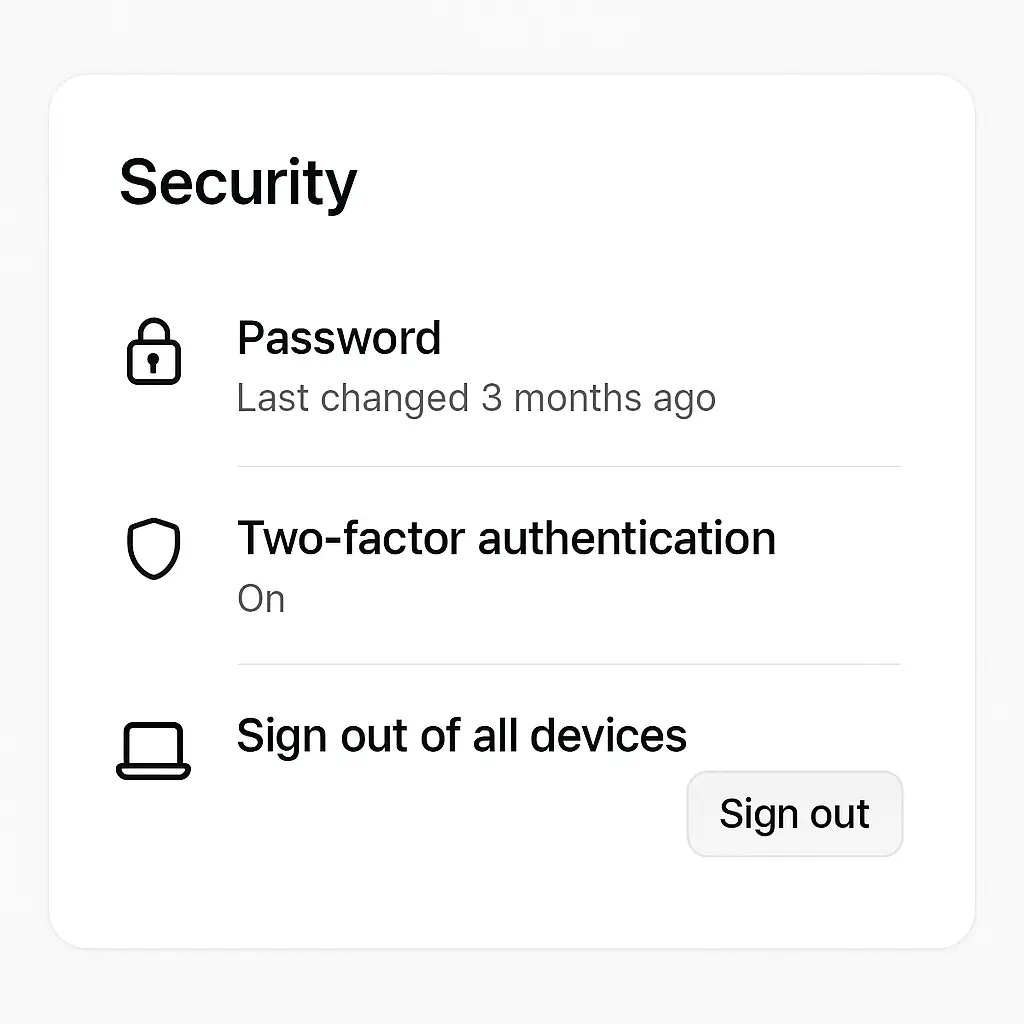
You suspect someone's in your account. Maybe you left yourself logged in on a friend's laptop. Maybe your password leaked. Maybe you just want to start fresh. You find the security settings, locate the button labeled "Sign out of all devices" or "Sign out everywhere," and click it.
The confirmation message appears. "You've been signed out of all devices." Relief.
But you're still logged in on your phone. Your email app didn't blink. The Spotify session on your smart speaker keeps playing. And that third-party app you connected two years ago? Still has access.
The button did something. It didn't do everything.
Here's what "sign out of all devices" actually terminates, what it leaves running, and the step-by-step process to close the gaps.
What the button actually does
When you click "sign out of all devices," the service invalidates most of your active web sessions.
A session is the connection between your browser and the service's servers that keeps you logged in. When you sign in to Gmail or Facebook or your bank, the service creates a session token, a long random string that proves you already authenticated. Your browser stores that token and sends it with every request. The server checks the token, recognizes you, and lets you through without asking for your password again.
The "sign out everywhere" button tells the server to mark all your session tokens as invalid. The next time any browser or app tries to use one of those tokens, the server rejects it and forces a new login.
This works well for web sessions. If you were logged in on Chrome, Firefox, Safari, or Edge on any device, those sessions die. The next time you open Gmail on that browser, you see the login screen.
But session tokens aren't the only way services maintain access. And not all sessions are created equal.
What survives the sign-out
Third-party app access persists.
When you connect a third-party app to your Google account, a calendar sync tool, an email client, a productivity app, you're granting an OAuth token. OAuth is the protocol that lets one service access another on your behalf without sharing your password. The third-party app stores its own token, separate from your browser sessions.
Clicking "sign out of all devices" doesn't revoke OAuth tokens. Those apps keep running. They still have access to your email, calendar, contacts, or whatever permissions you granted. You have to revoke them manually.
Google, Microsoft, Apple, and most major platforms have a separate section in settings for "connected apps" or "third-party access." That's where you revoke OAuth tokens. It's a different list, a different process, and it doesn't happen automatically when you sign out everywhere.
Mobile app sessions often survive.
Many mobile apps don't use the same session tokens as web browsers. Email apps, social media apps, messaging apps—they authenticate once and store their own credentials locally. Some use refresh tokens that last for weeks or months. Some use device-specific authentication that bypasses the standard session system entirely.
When you sign out of all devices on the web, your phone app might not even notice. It depends on how the app was built and how the service handles mobile authentication.
Some platforms, like Google, do terminate mobile app sessions when you sign out everywhere. Others don't. The only way to know for sure is to check your phone after you click the button. If the app still works without asking you to log in again, the session survived.
App-specific passwords persist.
If you've ever set up an email client that doesn't support two-factor authentication, you might have generated an app-specific password, a long random string the service creates for you to paste into the app instead of your real password.
App-specific passwords are separate credentials. They're not tied to your browser sessions or your main password. Signing out of all devices doesn't revoke them. You have to delete them manually in the same settings section where you created them.
Some services call them "app passwords." Others call them "application-specific passwords" or "device passwords." The name varies, but the mechanism is the same: they're independent credentials that survive the sign-out.
Active recovery sessions sometimes persist.
If you recently went through account recovery, resetting your password, verifying your identity, regaining access after a lockout, the service might have created a temporary recovery session to help you complete the process.
Recovery sessions use different authentication mechanisms than standard sessions. They're designed to work even when your normal credentials are compromised. Some platforms terminate recovery sessions when you sign out everywhere. Some don't.
If you're in the middle of account recovery and you sign out of all devices, you might lock yourself out. The recovery flow expects continuity. Breaking that continuity can force you to start over.
The session types that matter
Not all sessions are browser tabs.
A persistent session is one that survives browser restarts. When you check "keep me signed in" or "remember this device," the service stores a long-lived token that lasts for weeks or months. Those tokens usually live in cookies, and they're usually the first thing "sign out everywhere" kills.
But some services use multiple token types. A short-lived access token handles your immediate requests. A long-lived refresh token renews the access token when it expires. The access token might die when you sign out, but the refresh token might not.
Mobile apps rely heavily on refresh tokens. So do desktop apps. So do some browser extensions. The sign-out button targets access tokens. Refresh tokens sometimes require separate revocation.
Device-bound sessions complicate the picture further.
Some platforms tie sessions to specific devices using hardware identifiers or device fingerprints. When you sign in on your phone, the service remembers that phone. When you sign out of all devices, the service might preserve device-bound sessions because they're considered more secure than generic browser sessions.
Apple does this. Google does this. Microsoft does this. The logic is that if you've previously verified a device, signing out everywhere shouldn't break that device's access unless you explicitly tell it to.
The problem is that "previously verified device" might include a laptop you no longer own or a phone you sold two years ago. Device-bound sessions can persist long after you've forgotten the device exists.
What happens in the first 60 seconds
You click the button. The confirmation message appears. Then what?
Most services process the sign-out immediately for web sessions. Within seconds, your browser sessions are invalid. If you try to refresh Gmail or Facebook or Twitter in another tab, you'll see the login screen.
Mobile apps take longer. Some check session validity every few minutes. Some check only when you open the app. Some check only when they need to fetch new data. If your phone app was idle when you signed out, it might not realize the session is dead until you try to use it.
Third-party apps can take hours. OAuth tokens don't expire on a fixed schedule. Some services notify third-party apps when you revoke access. Some don't. The third-party app might keep working until its token naturally expires or until it tries to refresh and gets rejected.
In The Bourne Identity, Jason Bourne's old access codes get revoked, but the systems he's already inside keep running until they phone home for verification. The delay between revocation and enforcement is the gap where things still work even though they shouldn't.
The same dynamic applies here. Signing out everywhere is the revocation. Enforcement happens when each session checks in.
How to verify what actually signed out
After you click "sign out of all devices," you need to check.
Open the account security page. Most platforms have a section labeled "Where you're signed in" or "Active sessions" or "Devices." Google calls it "Your devices." Microsoft calls it "Account activity." Apple calls it "Devices."
That list shows every session the platform knows about. If the list is empty after you sign out everywhere, the feature worked. If the list still shows devices, those sessions survived.
Look for entries you don't recognize. An old laptop. A phone you sold. A browser in a city you've never visited. Those are the sessions that matter.
Some platforms show session details: device type, operating system, browser, IP address, last active timestamp. Use those details to identify which sessions are yours and which aren't.
If you see a session you don't recognize and it's still active after you signed out everywhere, you have two options. Some platforms let you terminate individual sessions. Click the session, find the "sign out" button, and revoke it manually. If the platform doesn't offer that option, change your password. That forces a new authentication for every session, including the ones that survived the initial sign-out.
Check your connected apps next. Find the section for third-party access. Google puts it under "Security" → "Third-party apps with account access." Microsoft puts it under "Security" → "Manage how you sign in to Microsoft" → "Apps & services." Apple puts it under "Sign-In & Security" → "Apps Using Apple ID."
Review every app. If you don't recognize it, revoke it. If you do recognize it but haven't used it in months, revoke it. OAuth tokens don't expire automatically. Apps you connected years ago still have access until you manually remove them.
Check your app-specific passwords. Google puts them under "Security" → "2-Step Verification" → "App passwords." Microsoft puts them under "Security" → "Advanced security options" → "App passwords." If you see passwords you don't remember creating, delete them.
Check your email for login notifications. Most platforms send an email when someone signs in from a new device or location. Review your inbox for those emails over the past few weeks. If you see logins you don't recognize, those sessions might still be active.
Some platforms offer a "sign out and require re-authentication" option that's stronger than the standard sign-out. Google calls it "Secure your account." It signs you out everywhere, forces a password change, and revokes third-party app access in one action. If you suspect unauthorized access, use that option instead of the basic sign-out.
When signing out everywhere isn't enough
If someone has your password, signing out everywhere buys you seconds.
They can sign back in immediately. The sign-out terminates active sessions, but it doesn't change your credentials. If the attacker knows your password, they walk right back in.
You need to change your password. Immediately. Before they notice the sign-out. Before they realize you're onto them.
The sequence matters. Sign out everywhere first. Then change your password. Then enable two-factor authentication if you haven't already.
If you change your password first, the attacker might still have an active session. They'll see the password change notification, realize you're locking them out, and race to change the password back or modify account recovery settings before their session expires.
If you sign out everywhere first, their session dies. They lose access. Then you change the password, and they can't get back in without the new credentials.
Two-factor authentication stops them from signing back in even if they have your password. CISA recommends enabling 2FA on every account that supports it. SMS-based 2FA is weaker than app-based codes or hardware keys, but it's better than nothing.
If the platform supports it, use an authenticator app like Google Authenticator, Authy, or Microsoft Authenticator. If the platform supports hardware security keys, use those. NIST's digital identity guidelines rank authentication methods by strength. Hardware keys are strongest. Authenticator apps are second. SMS is third. Email-based 2FA is weakest.
Check your account recovery settings next. If someone compromised your account, they might have added their own recovery email or phone number. Review your recovery options. Remove anything you don't recognize. Add your own if they're missing.
Review recent account activity. Most platforms log actions like password changes, recovery email updates, privacy setting changes, and security option toggles. Google puts this under "Security" → "Recent security activity." Microsoft puts it under "Security" → "Activity log." If you see changes you didn't make, reverse them.
If you can't reverse them, if the attacker changed settings you can't access or locked you out of recovery options, contact support immediately. Most platforms have an account recovery process for compromised accounts. It's slow, it requires identity verification, and it's frustrating, but it works.
The platforms that handle this differently
Google signs you out everywhere, including mobile apps, when you click the button. Third-party OAuth apps stay connected unless you revoke them separately. App-specific passwords survive. Device-bound sessions on previously verified devices sometimes survive.
Microsoft signs you out of web sessions and most mobile apps. Xbox and Windows device sessions sometimes persist because they use different authentication systems. Third-party apps stay connected. App-specific passwords survive.
Apple signs you out of iCloud web sessions. iOS and macOS device sessions survive if they're using iCloud Keychain or device-bound authentication. Third-party apps using "Sign in with Apple" stay connected until you revoke them in settings.
Facebook signs you out of web sessions and Messenger on the web. The Facebook and Messenger mobile apps sometimes stay signed in because they use app-specific tokens. Instagram and WhatsApp sessions aren't affected because they're separate apps with separate authentication systems, even though they're owned by the same company.
Amazon signs you out of web sessions. The Amazon mobile app, Kindle devices, Fire TV, and Alexa devices stay signed in. Each device type uses its own authentication system. You have to deregister devices manually under "Content and Devices" → "Devices."
Twitter (or X, or whatever it's called this week) signs you out of web sessions and most mobile app sessions. Third-party apps using the Twitter API stay connected until you revoke them under "Settings" → "Security and account access" → "Apps and sessions."
The pattern is consistent: web sessions die, mobile apps sometimes die, third-party apps almost never die, and hardware devices rarely die. You have to revoke those separately.
What to do instead of signing out everywhere
Prevention works better than containment.
Use a password manager. EFF recommends password managers because they generate unique passwords for every account. If one password leaks, it doesn't compromise your other accounts. You don't need to sign out everywhere because the leaked password only unlocks one door.
Enable two-factor authentication on every account that supports it. CISA's multifactor authentication guidance explains why 2FA stops most account takeovers. Even if someone has your password, they can't sign in without the second factor.
Review active sessions regularly. Don't wait until you suspect a problem. Check your active sessions once a month. Sign out of devices you don't recognize. Revoke third-party apps you don't use.
Review connected apps quarterly. OAuth tokens don't expire. Apps you connected years ago still have access. Go through the list every few months and revoke anything you don't actively use.
Delete app-specific passwords you don't need. If you generated a password for an email client you no longer use, delete it. Orphaned credentials create risk.
Monitor login notifications. When you get an email about a new sign-in, check it. If you don't recognize the device or location, act immediately. Sign out everywhere, change your password, enable 2FA.
Use different passwords for different account tiers. Your email password should be unique and strong because email is the recovery mechanism for everything else. Your bank password should be unique and strong because money. Your throwaway forum account password can be weaker because the stakes are lower.
Don't check "keep me signed in" on shared devices. Public computers, library computers, friend's laptops—sign out manually when you're done. Don't rely on the automatic sign-out timer.
The recovery gap nobody mentions
Between the moment you sign out everywhere and the moment you change your password, there's a window.
If the attacker is online when you sign out, they notice immediately. Their session dies. They try to refresh. They see the login screen. They know you're locking them out.
If they're fast, they can request a password reset before you change your password. Most platforms send password reset links to the registered email address. If they still have access to your email, either because you didn't sign out of email everywhere or because they added their own recovery email, they can intercept the reset link and change your password before you do.
The defense is speed. Sign out everywhere, then change your password within seconds. Don't wait. Don't check other things first. Sign out, change password, enable 2FA, then verify everything else.
If you're worried the attacker might have access to your recovery email, change your email password first. Sign out of email everywhere, change the email password, then move to your other accounts.
If you're worried they've added their own recovery options, check those before you sign out. Remove unauthorized recovery emails and phone numbers first. Then sign out everywhere. Then change passwords.
The sequence depends on what you think they've compromised. If it's just one account, sign out and change that password. If it's multiple accounts, start with email because email controls recovery for everything else.
When the button doesn't exist
Some platforms don't offer a "sign out of all devices" button.
Smaller services, older platforms, and some enterprise tools don't have the feature. You have to sign out of each session manually. Find the active sessions list, click each session, and revoke it individually.
If there's no active sessions list, change your password. That forces re-authentication for every session. It's slower than a bulk sign-out, but it works.
If there's no way to force re-authentication, contact support. Explain that you suspect unauthorized access and need all sessions terminated. Most platforms can do this manually even if they don't offer a self-service option.
If support can't help, delete the account and create a new one. It's drastic, but if you can't secure the existing account, starting fresh is safer than leaving it compromised.
The myth of the clean slate
"Sign out of all devices" sounds like a reset button. It's not.
It terminates most active sessions. It doesn't revoke long-term access grants. It doesn't change your password. It doesn't remove unauthorized recovery options. It doesn't delete your data. It doesn't notify you about which sessions were active when you clicked it.
It's a containment tool, not a fix. It stops the bleeding. You still have to treat the wound.
If you suspect unauthorized access, signing out everywhere is step one. Changing your password is step two. Enabling 2FA is step three. Reviewing and revoking third-party app access is step four. Checking recovery options is step five. Monitoring account activity for the next few weeks is step six.
The button helps. It doesn't solve.