App Passwords Explained: The Temporary Key Your Email Needs
You turned on two-factor authentication for your email. Smart move. Then you tried to add your email to your phone's mail app, and it failed. You entered your password correctly. You double-checked. Still failed.
The error message says something about "app-specific password" or "sign in with app password." You didn't set up an app password. You don't know what an app password is. You just want your email on your phone.
Here's what's happening: your email provider now requires two-factor authentication, but your phone's mail app doesn't know how to handle the second factor. It can't show you a prompt for your authenticator code. It can't text you. It just sits there, waiting for a password that will work.
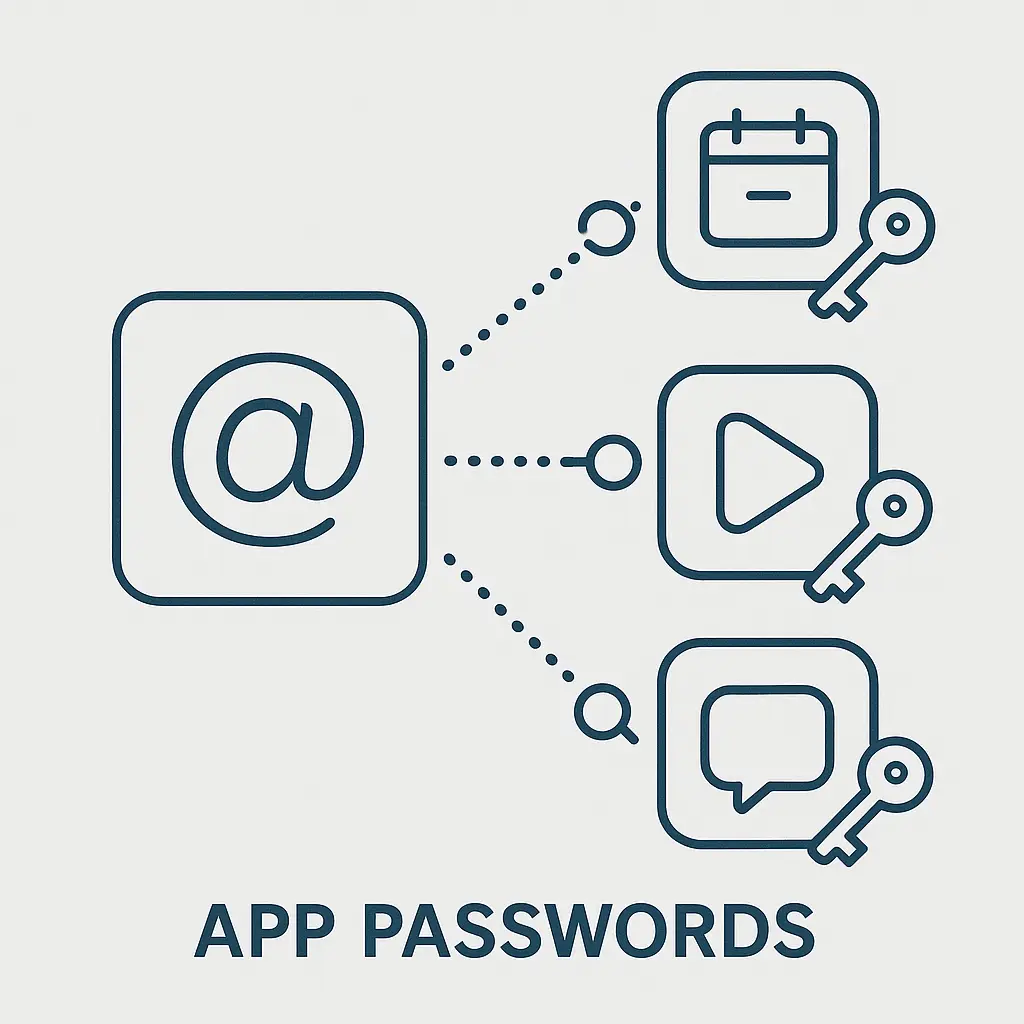
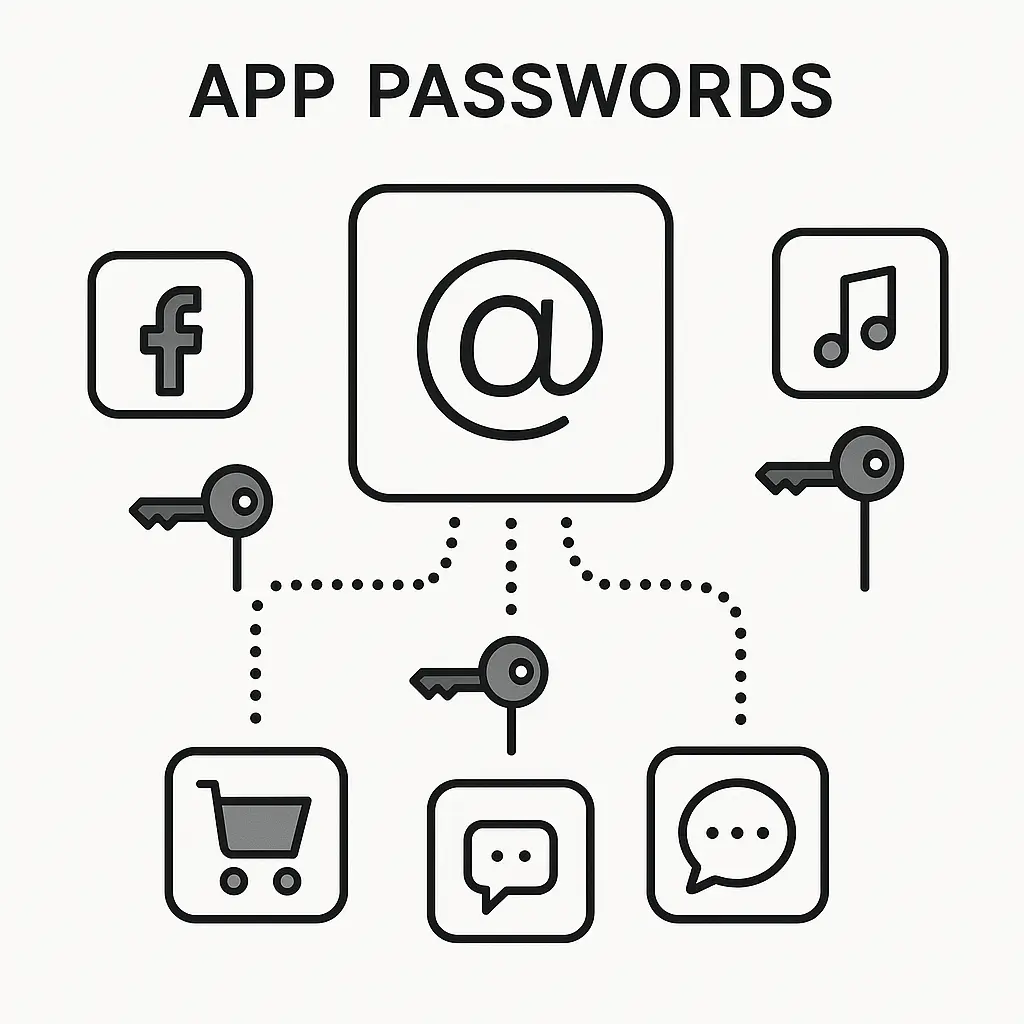
That's where app passwords come in. They're a workaround for the authentication gap between your secure email account and third-party apps that predate modern security systems.
What an app password actually is
An app password is a randomly generated string of characters that acts as a substitute for your real password when logging into third-party apps. It looks like gibberish: 16 characters, no spaces, usually lowercase letters and numbers. Something like xkcd2048horsebattery.
Your email provider generates it. You copy it once. You paste it into the app where you'd normally type your password. The app stores it. You never see it again.
The app password grants access to your email, but it's limited. It can't change your account settings. It can't add recovery options. It can't disable two-factor authentication. It just lets the app read and send email on your behalf.
Think of it as a hotel key card. Your real password is the master key that opens every door, changes locks, and accesses the safe. The app password is a key card that opens one room. If you lose the key card, the hotel deactivates it and issues a new one. Your master key stays secure.
Why app passwords exist
Two-factor authentication adds a second step after you enter your password. You type your password, then you enter a code from your phone, or approve a push notification, or plug in a hardware key. The system verifies you control both factors.
Modern apps and websites handle this flow. When you log into Gmail in a browser, Google can show you a second screen asking for your 2FA code. When you log into your bank's app, it can send you a push notification. The app controls the interface, so it can guide you through the steps.
But third-party apps don't control your email provider's interface. Your phone's built-in mail app, your desktop email client, your smart speaker, they authenticate through a protocol called IMAP or POP3. These protocols were designed in the 1980s and 1990s. They expect a username and a password. That's it. No second screen. No push notification. No way to show you a 2FA prompt.
When you enable two-factor authentication on your email account, these old-protocol apps break. They send your username and password. Your email provider says, "Okay, but I also need your 2FA code." The app says, "I don't know what that is." The connection fails.
Email providers could have said, "Too bad. Use our app or use a browser." Some did. But most recognized that people rely on third-party apps for work, for accessibility, for integration with other tools. The solution: app passwords.
An app password bypasses the two-factor authentication step for that specific app. Your email provider generates a unique password that works only for IMAP/POP3 access. The app uses that password instead of your real one. Your account stays protected by 2FA when you log in through a browser or official app, but the third-party app gets a working credential.
When you need an app password
You need an app password when three conditions align:
- You've enabled two-factor authentication on your email account.
- You're trying to access that email through a third-party app.
- The app uses IMAP, POP3, or SMTP protocols instead of OAuth.
Common scenarios: adding your Gmail account to Apple Mail on a Mac. Adding your Outlook account to Thunderbird. Connecting your email to a CRM tool that syncs messages. Setting up email on an older Android phone that doesn't support modern authentication.
You don't need an app password for apps that use OAuth. OAuth is a newer protocol that lets apps authenticate through your email provider's login page. When you add a Gmail account to a modern app, the app opens a browser window, you log into Google directly (with 2FA if enabled), and you grant the app permission. Google gives the app a token, not your password. The app never sees your credentials.
Apps that support OAuth don't need app passwords. Apps that don't support OAuth can't function without them once you enable 2FA.
How to generate an app password
The process varies by email provider, but the pattern is consistent. You generate the app password through your account's security settings, not through the app you're trying to connect.
For Gmail:
- Go to your Google Account security settings.
- Find the section labeled "Signing in to Google."
- Click "2-Step Verification."
- Scroll down to "App passwords."
- Click "Generate" and select the app and device you're setting up.
- Google displays a 16-character password. Copy it.
- Paste it into the app where it asks for a password.
For Outlook/Microsoft 365:
- Go to your Microsoft account security page.
- Click "Advanced security options."
- Under "App passwords," click "Create a new app password."
- Microsoft displays a password. Copy it.
- Paste it into the app.
For Yahoo Mail:
- Go to your Yahoo Account Security page.
- Click "Generate app password."
- Select the app you're using.
- Yahoo displays a password. Copy it.
- Paste it into the app.
Some providers, like Apple, don't call them "app passwords." Apple uses the term "app-specific password." Same concept, different label.
You generate a new app password for each app. Don't reuse the same one across multiple apps. If you need to connect three different apps to your email, generate three separate app passwords. This lets you revoke access to one app without affecting the others.
What app passwords protect (and what they don't)
An app password protects your main password from exposure. When you type your real password into a third-party app, that app stores it. If the app gets breached, your password leaks. If the app developer is careless, your password might sit in a database in plaintext. If the app is malicious, it could use your password to access other services where you've reused it.
With an app password, the third-party app never sees your real password. It stores a randomly generated string that works only for email access. If the app gets breached, the attacker gets a credential that can read your email but can't log into your account through a browser, can't change your settings, and can't disable your two-factor authentication.
App passwords also let you revoke access without changing your main password. If you stop using an app, or if you suspect an app has been compromised, you go to your email provider's settings and delete that app password. The app stops working immediately. You don't have to change your password across every service where you use it.
But app passwords don't protect your email content. An app password grants full read and send access to your email. An attacker with your app password can read every message in your inbox, send emails as you, and download attachments. They just can't change your account settings or access other services.
This is the tradeoff. App passwords solve the authentication problem for old-protocol apps, but they create a credential that bypasses two-factor authentication. If someone steals your app password, they don't need your 2FA code to access your email through IMAP.
Managing app passwords over time
App passwords accumulate. You generate one for your phone. One for your desktop email client. One for that CRM tool you tried last year. Six months later, you have five app passwords, and you've forgotten what two of them are for.
Your email provider's security settings show a list of active app passwords. Check it every few months. If you see an app password labeled "iPhone" and you replaced that iPhone a year ago, revoke it. If you see one labeled "Thunderbird" and you stopped using Thunderbird, revoke it.
Revoking an app password doesn't affect your account. It just stops that specific credential from working. The app will fail to connect the next time it tries to sync. If you're still using the app, you'll notice immediately and can generate a new app password. If you're not using the app, nothing breaks.
Some email providers let you name your app passwords when you generate them. Use descriptive names: "Work iPhone Mail," "Home Thunderbird," "CRM Sync Tool." A year from now, you'll know exactly which password belongs to which app.
App passwords don't expire automatically. They stay active until you revoke them. This is different from session tokens, which many services expire after a period of inactivity. An app password you generated three years ago still works today unless you've explicitly deleted it.
The security tradeoff you're making
Using app passwords is less secure than using OAuth-based authentication. OAuth doesn't expose any password-like credential to the third-party app. The app gets a token that your email provider can revoke at any time, and the token is scoped to specific permissions. An OAuth token might grant read-only access, or access to email but not contacts, or access that expires after 30 days.
App passwords grant full email access with no expiration and no granular permissions. They're a blunt instrument.
But the alternative is worse. Without app passwords, you'd have three options:
- Disable two-factor authentication entirely so old-protocol apps can use your real password.
- Stop using third-party apps and switch to your email provider's official app or web interface.
- Use your real password in the third-party app and accept that it's stored there.
Option 1 removes your best defense against account takeover. Option 2 might not be practical if you rely on specific features of a third-party app. Option 3 exposes your real password, which is worse than exposing an app password because your real password likely works on other services too.
App passwords are the least-bad option when you need to connect a third-party app that doesn't support OAuth. They're not ideal. They're a patch for a decades-old authentication system that predates modern security practices. But they let you keep two-factor authentication enabled while still using the tools you need.
When app passwords aren't the answer
If an app supports OAuth, use OAuth. Don't generate an app password just because it's easier. OAuth is more secure. It gives you better control. It lets your email provider revoke access without you having to do anything.
How do you know if an app supports OAuth? When you add an account, the app will either ask for your email and password directly (old-protocol, needs app password) or open a browser window where you log in through your email provider's site (OAuth, doesn't need app password).
If the app opens a browser and you see your email provider's login page, use that flow. Don't generate an app password. If the app asks for your email and password in its own interface, check whether it supports OAuth under a different setting. Some apps default to IMAP but offer OAuth as an advanced option.
And if you're choosing between two apps that do the same thing, pick the one that uses OAuth. It's a signal that the developer is keeping up with modern authentication standards.
The Office reference that fits
In The Office, Jim Halpert sets up a second desk for Dwight Schrute as a prank. Dwight's real desk is in the main office. The second desk is in the annex. Jim puts a phone on the second desk and forwards Dwight's calls to it. Dwight ends up running between two desks all day, never quite sure which one is "real."
App passwords create a similar dynamic. Your real password is the main desk. App passwords are the annex desks. Each one works, but they're not interchangeable. You can't use an app password to log into your email through a browser. You can't use your real password in an app that requires an app password. Each credential works in its designated space.
The difference is that Jim's prank was chaos. App passwords are controlled chaos. You set up the second desk deliberately. You know why it exists. And when you don't need it anymore, you can take it down.
What happens when you change your main password
Changing your main password doesn't invalidate your app passwords. They're independent credentials. If you change your password because you suspect your account has been compromised, you also need to revoke all your app passwords and generate new ones.
This is a common mistake. You get a security alert. You change your password. You think you're safe. But if an attacker already had an app password, they still have access to your email through IMAP. Changing your main password doesn't cut them off.
After you change your password, go to your account's security settings and delete all app passwords. Then reconnect your legitimate apps one by one, generating fresh app passwords for each. It's tedious. It's necessary.
Some email providers handle this automatically. When you change your password, they prompt you to review active app passwords and revoke any that look suspicious. If your provider doesn't prompt you, do it manually.
The future of app passwords
App passwords are a transitional technology. They exist because old protocols are still in use. As more apps adopt OAuth, the need for app passwords will shrink.
Google has been pushing developers to move away from "less secure app access" (their term for IMAP with a regular password) since around 2014. They've been pushing developers to move away from app passwords since around 2021. The goal is to get every app using OAuth.
But the transition is slow. There are still email clients that don't support OAuth. There are still devices that use old protocols. There are still enterprise systems that authenticate through IMAP because that's what they've always done and no one has funding to rewrite them.
So app passwords persist. They'll persist for years. Maybe another decade. Eventually, email providers will stop offering them. When that happens, apps that rely on IMAP and POP3 will stop working. Developers will have to update their apps or lose users.
Until then, app passwords are the bridge. They let you use modern security practices (two-factor authentication) with legacy tools (IMAP clients). They're not elegant. They're functional.
Setting up your first app password
If you've never generated an app password before, start with the app you use most often. For most people, that's the mail app on their phone.
Go to your email provider's security settings. Find the app password section. Generate a password. Copy it. Open your phone's mail app. Add your email account. When it asks for a password, paste the app password. Save.
The app will connect. Your email will sync. It will feel anticlimactic. That's good. Security measures that work well don't create drama.
Then label the app password in your email provider's settings. "iPhone Mail" or "Android Mail" or whatever describes the device and app. Six months from now, when you're reviewing your active app passwords, you'll know what this one is for.
Repeat the process for each app that needs access to your email. One app password per app. Descriptive labels. Revoke old ones when you stop using an app or replace a device.
That's the system. It's not complicated. It's just unfamiliar the first time.