Review Third-Party App Access to Your Accounts: Step-by-Step Guide
You installed a fitness app three years ago. Gave it access to your Google account to sync calendar entries. Stopped using it after two weeks. Deleted it from your phone.
The app still has access to your Google account. Right now. Reading your calendar. Possibly more.
Third-party app connections persist until you revoke them. Deletion doesn't sever the OAuth token. The app retains whatever permissions you granted during setup, whether you're using it or not, whether it's installed or not, whether you remember it or not.
This guide walks you through auditing connected apps on Google, Microsoft, and Apple accounts. You'll see what has access, what each app can do, and how to revoke permissions you no longer need.
What third-party app access actually means
When you click "Sign in with Google" or "Connect with Microsoft," you're creating an OAuth connection. The app requests specific permissions. You approve. The platform issues a token that lets the app access your data within the scope you authorized.
The token doesn't expire on its own. It remains valid until you revoke it or the app's developer invalidates it. Most apps never invalidate tokens. They have no incentive. More access means more data, more engagement, more retention.
The permissions you granted determine what the app can do. Common scopes include reading email, accessing calendar, viewing contacts, managing Drive files, posting to social feeds. Some apps request broad permissions they don't strictly need. You approved them anyway because the app wouldn't work otherwise.
Years pass. You forget the app exists. The token still works. The app can still read, write, or modify whatever you authorized in 2023.
Why this matters more than you think
Connected apps create persistent access points that outlive your active use. Each connection is a potential entry point if the app gets compromised, goes rogue, or sells to a new owner with different priorities.
Security professionals call this "credential sprawl." The more services with access to your core accounts, the larger your attack surface. One compromised third-party app can become a backdoor to everything that app touches.
The risk isn't theoretical. Third-party apps have been breached. Developers have sold apps to data brokers. Legitimate apps have pivoted to ad-supported models that monetize your connected data in ways you didn't anticipate when you clicked "Allow."
You can't control what happens to the app after you connect it. You can control whether it stays connected.
Audit your Google account connected apps
Google's security settings show every app with access to your account. Start here.
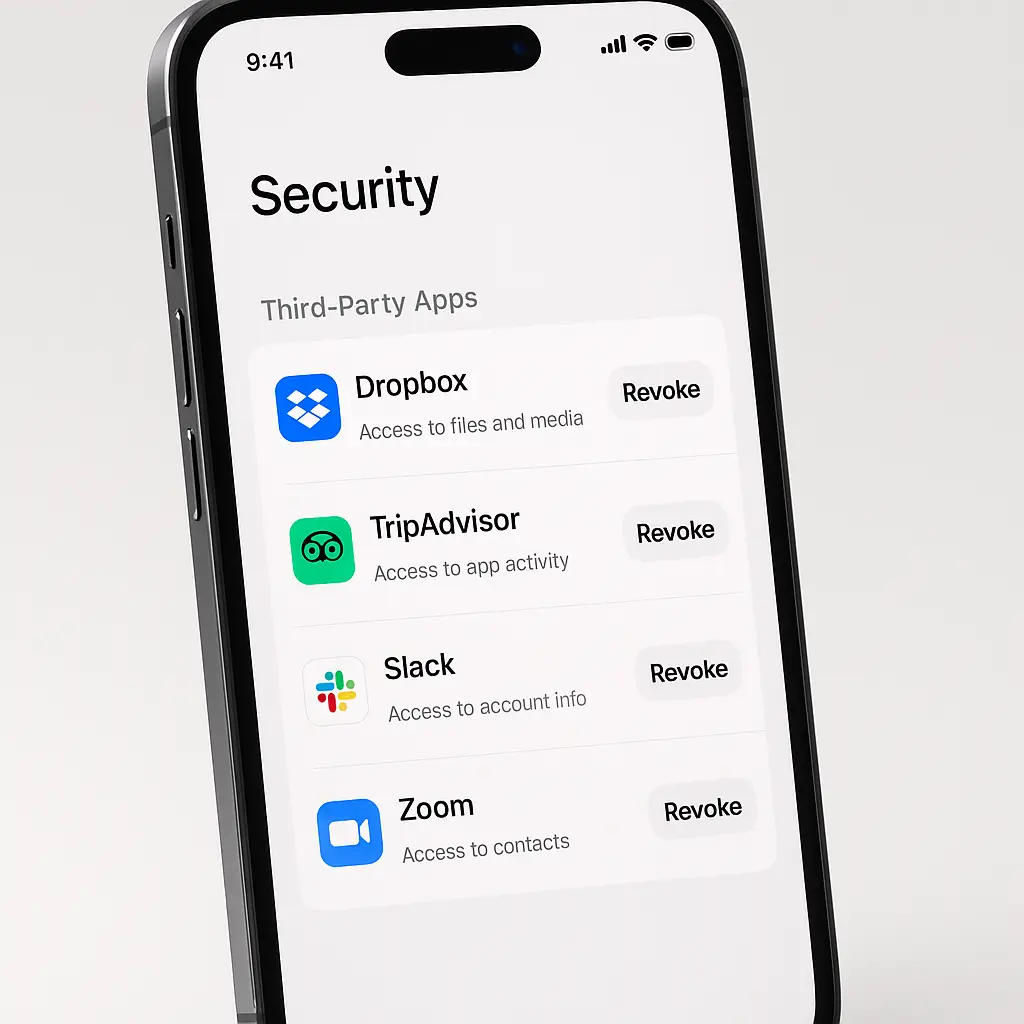
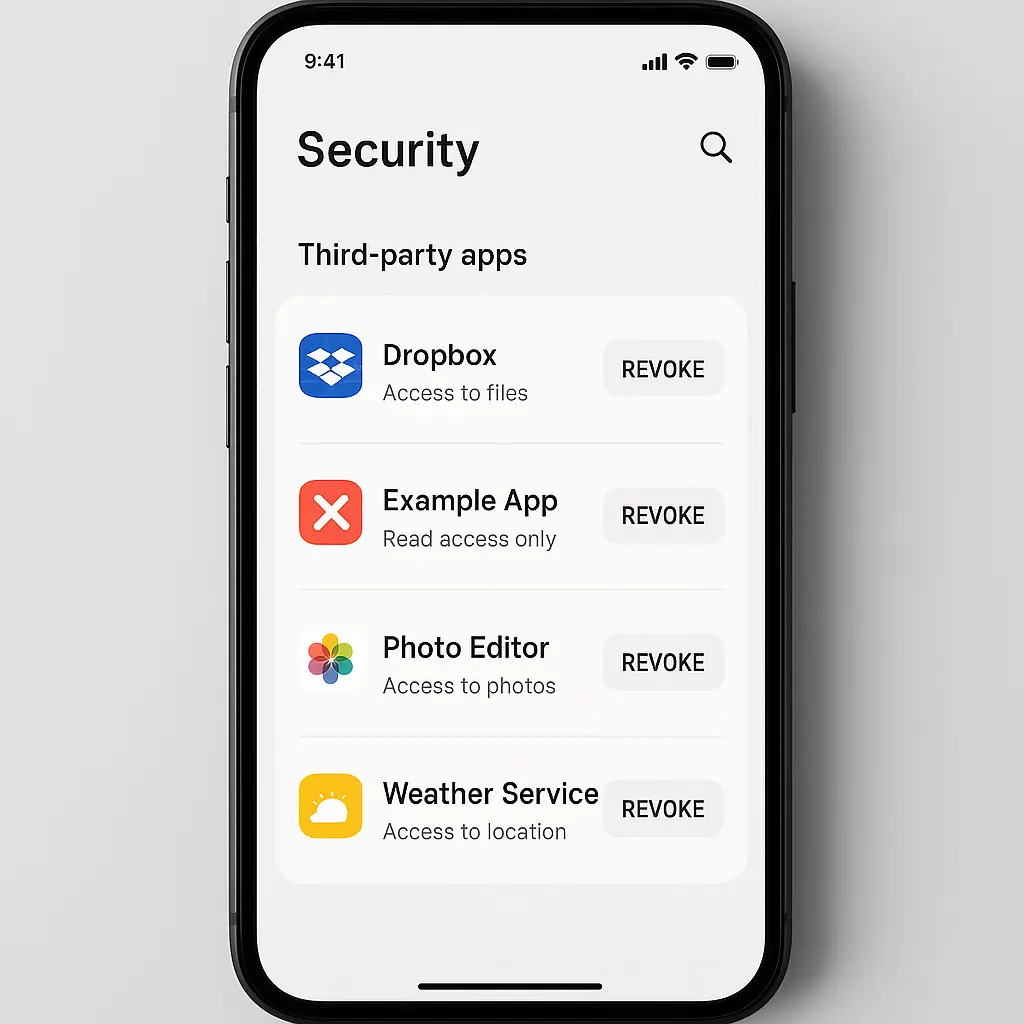
Go to myaccount.google.com/permissions. You'll see a list of third-party apps and services with access. Each entry shows the app name, when you connected it, and what permissions it has.
Click any app to see details. Google shows the specific data scopes: "Read, compose, send, and permanently delete all your email from Gmail" or "See, edit, create, and delete all your Google Drive files." The language is precise. Read it.
Look for apps you don't recognize. Look for apps you haven't used in over a year. Look for apps with broad permissions that seem excessive for what the app does. A weather app doesn't need Gmail access. A to-do list doesn't need full Drive control.
To revoke access, click the app name, then click "Remove Access." Google confirms the action. The token invalidates immediately. The app loses access. If you're still using the app, it will prompt you to reconnect next time you open it.
Go through the entire list. This takes around 15 minutes for most people. Revoke anything you don't actively use. Revoke anything with permissions that feel too broad. You can always reconnect later if you need to.
Audit your Microsoft account connected apps
Microsoft's process is similar but organized differently. You're looking for the same thing: apps with persistent access you no longer need.
Go to account.microsoft.com/privacy/app-access. Microsoft lists apps under "Apps and services." Each entry shows the app name and the date you granted access.
Click an app to see permissions. Microsoft's language is less granular than Google's, but you'll see categories like "Read your profile," "Access your email," "Read and write to your OneDrive." Some apps list specific API permissions in technical terms. If you don't understand a permission, that's a reason to revoke, not a reason to leave it.
Remove access by clicking "Remove these permissions." Microsoft confirms. The token invalidates. The app stops working until you reconnect.
Microsoft also shows "Apps with delegated permissions" separately. These are apps acting on your behalf in organizational contexts. If you use a work or school Microsoft account, check this section carefully. Apps here can interact with SharePoint, Teams, or other enterprise services. Revoke anything that doesn't belong.
Audit your Apple account connected apps
Apple's ecosystem handles third-party access differently. Apps use "Sign in with Apple" for authentication, but ongoing data access depends on the app's design. Some apps request read access to iCloud data. Others only use Apple ID for login.
Go to appleid.apple.com and sign in. Click "Sign-In and Security," then "Apps Using Apple ID." You'll see apps that use Sign in with Apple.
Apple shows whether each app can see your email address or uses a private relay address. Apps using relay addresses can't see your real email. Apps with "Share My Email" can.
To revoke access, click "Stop using Apple ID." The app loses authentication. You'll need to create a new account or use a different login method if you want to use the app again.
Apple's model limits data access by design, but third-party apps can still request iCloud permissions separately. Check Settings > [Your Name] > iCloud on your iPhone or iPad. Scroll to "Apps Using iCloud." This shows apps with access to iCloud Drive, Photos, or other iCloud services. Toggle off anything you don't use.
What to revoke and what to keep
Not every connected app deserves removal. Some serve legitimate ongoing purposes. The goal is informed control, not scorched earth.
Keep apps you actively use. Your email client needs Gmail access. Your calendar app needs calendar access. Your password manager needs whatever it needs to sync across devices. These are tools you chose, tools you rely on, tools you'd notice if they stopped working.
Keep apps with narrow, appropriate permissions. A note-taking app with read-only access to one specific folder in Google Drive is fine if you're using it. A weather app with location access but nothing else is fine. The permission matches the function.
Revoke apps you don't recognize. If you can't remember installing it, you don't need it connected. Revoke apps you haven't used in over a year. If it's been that long, you won't miss it. Revoke apps with excessive permissions relative to their function. A simple game doesn't need full email access.
Revoke apps from companies you no longer trust. Ownership changes. Privacy policies change. If an app you connected in 2022 got acquired by a data broker in 2025, revoke it.
When in doubt, revoke. The worst-case outcome is you have to reconnect an app you actually use. That's a minor inconvenience. The alternative is leaving access open indefinitely to something you don't need.
What happens after you revoke access
The app stops working immediately for any function that relied on the connected account. If you revoked a calendar app's Google Calendar access, it can't sync your calendar anymore. If you revoked an email client's Gmail access, it can't read your email.
The app might show an error message. It might prompt you to reconnect. It might fail silently. Behavior varies by app.
Your data stays where it is. Revoking access doesn't delete emails the app sent, calendar events it created, or files it uploaded. It just stops future access. If you want to remove data the app created, you'll need to do that separately in the relevant Google, Microsoft, or Apple service.
Some apps store local copies of data they pulled while they had access. Revoking the token doesn't erase those copies. The app can't pull new data, but it still has whatever it downloaded before. If that's a concern, uninstall the app entirely and clear its data.
The cultural reference that fits
In How I Met Your Mother, Ted keeps a box of mementos from past relationships. It's harmless clutter until it becomes a problem when his current relationship discovers it. The box isn't doing anything. It's just sitting there. But its presence creates complications he didn't anticipate.
Connected apps are the digital equivalent. Each one is a memento from a time you thought you needed that service. They're not actively causing harm, but they're sitting there with access, waiting to become a problem. The longer you leave them, the more you forget why you connected them in the first place.
Review connected apps every six months
This isn't a one-time task. New apps accumulate. Old apps linger. Permissions you granted last year might not make sense this year.
Set a calendar reminder for every six months. Go through Google, Microsoft, and Apple accounts. Revoke anything you're not actively using. The process takes around 30 minutes if you're thorough.
If you install apps frequently or work with sensitive data, review quarterly. If you rarely install new apps, twice a year is fine. The cadence matters less than the consistency.
Each review gets faster. You'll recognize the apps you use. You'll develop a sense for what permissions are reasonable. You'll catch new connections before they accumulate into a long list of forgotten authorizations.
What about mobile app permissions
Mobile operating systems handle app permissions separately from OAuth connections. An app on your phone can have local permissions (camera, location, contacts) without being connected to your Google or Microsoft account. Those permissions live in your phone's settings, not in the web-based account security panels.
Check those too. On iPhone, go to Settings > Privacy & Security. On Android, go to Settings > Privacy > Permission manager. Both show which apps have access to sensitive phone features.
Revoke permissions for apps you don't use. Revoke location access for apps that don't need it. Revoke camera and microphone access unless the app's core function requires it.
Mobile permissions and OAuth connections are separate attack surfaces. Review both. They don't overlap, but they both matter.
The apps you should never revoke
A few categories deserve permanent connections, assuming you're actively using them.
Password managers need access to sync encrypted vaults across devices. Revoking access breaks sync. Don't do it unless you're switching to a different password manager.
Email clients need email access. Calendar apps need calendar access. Cloud storage apps need storage access. These are core functions. If you're using the app, it needs the permission.
Two-factor authentication apps don't usually require account connections, but if you've set up cloud backup for your 2FA codes, that backup mechanism needs access. Don't revoke it unless you have an alternative backup method.
Work-required apps fall into a gray area. If your employer mandates a specific app for timesheets, expense reports, or internal communication, you probably can't revoke it without breaking your ability to do your job. Check with IT before removing access to anything work-related.
What this doesn't protect against
Revoking third-party app access reduces your attack surface, but it doesn't prevent every risk.
It doesn't stop phishing. If you get tricked into entering your Google password on a fake login page, revoking old app connections won't help. Use two-factor authentication on all major accounts.
It doesn't stop breaches of the primary account. If someone gets your Google password and your 2FA codes, they have full access regardless of how many third-party apps you've revoked. Use a password manager to generate strong unique passwords.
It doesn't stop first-party tracking. Google, Microsoft, and Apple still have access to everything in their own ecosystems. Revoking third-party apps limits external access, not internal data collection.
It doesn't prevent future connections. You'll install new apps. Some will request account access. You'll grant it because the app won't work otherwise. That's fine. Just review those connections periodically so they don't accumulate unchecked.
The FTC's guidance on app permissions
The FTC advises consumers to review app permissions and revoke access to apps they no longer use. The agency frames this as part of basic digital hygiene, alongside strong passwords and two-factor authentication.
Consumer-protection literature commonly advises checking connected apps at least annually. Some security professionals recommend quarterly reviews. The exact frequency depends on how often you install new apps and how sensitive your data is.
The underlying principle is the same: minimize persistent access points. Every connected app is a potential vulnerability. Reduce the number of vulnerabilities by removing connections you don't need.
How to prevent this from happening again
You can't prevent app connections entirely. Some apps legitimately need access to function. But you can make better decisions about what to connect and when.
Before clicking "Sign in with Google," check what permissions the app requests. Google shows a consent screen listing the specific scopes. Read it. If the app asks for more than it needs, don't connect it.
Use "Sign in with Apple" when available. Apple's relay email feature hides your real address from the app. If the app later gets breached or sold, your actual email isn't in their database.
Avoid connecting apps you're just trying out. If you're not sure you'll use an app long-term, create an account with a separate email address instead of linking your primary Google or Microsoft account. You can always connect it later if the app proves useful.
Keep a list of apps you've connected. A simple note in your password manager works. When you review connected apps six months later, the list reminds you what each app does and why you connected it. If you can't remember why, revoke it.
Start with Google
If you only do one thing after reading this, audit your Google account. Google is the most common OAuth provider. Most people have more Google-connected apps than Microsoft or Apple combined.
Go to myaccount.google.com/permissions right now. Scroll through the list. Revoke anything you don't recognize or haven't used in over a year. It takes around 15 minutes.
Then set a calendar reminder for six months from now. Do it again. Make it routine.
Third-party app access isn't inherently dangerous, but it's persistent and easy to forget. Forgetting creates risk. Reviewing creates control.