Account Recovery: Getting Back Into a Locked Account
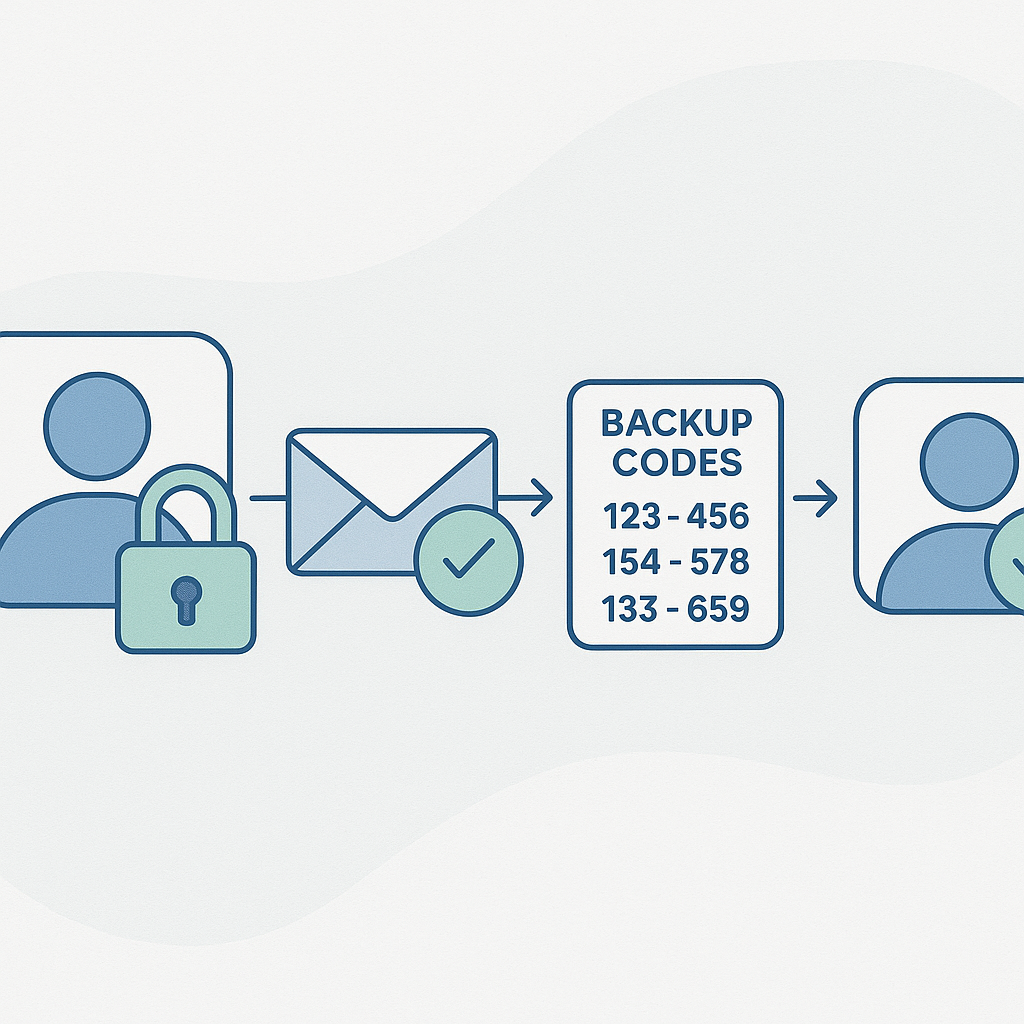
You're locked out. The password you're certain is correct gets rejected. The two-factor code won't arrive. The account you've used for years suddenly treats you like a stranger.
Account lockout happens to everyone eventually. Sometimes it's a forgotten password. Sometimes it's a lost phone with your authenticator app. Sometimes it's a security system that decided you look suspicious. The panic is the same: your email, your bank account, your work login, suddenly inaccessible.
Here's the step-by-step process to get back in, organized by what went wrong and which type of account you're trying to recover.
Why Accounts Lock You Out
Accounts lock for three main reasons, and the recovery path differs for each.
Forgotten credentials. You don't remember the password. You're not sure which email address you used. You changed your username years ago and forgot the old one. This is the simplest lockout and usually the fastest to fix.
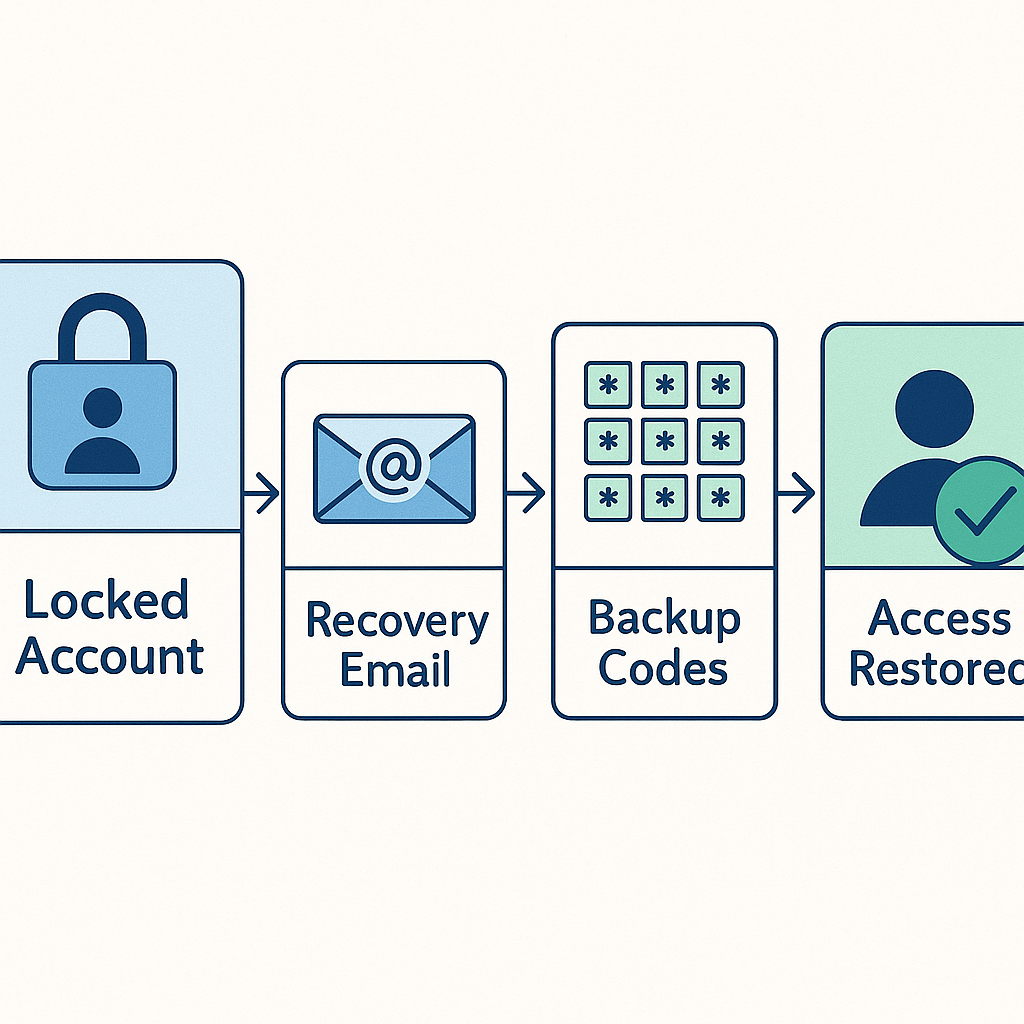
Lost two-factor authentication access. You enabled 2FA, then lost your phone, switched devices, or uninstalled the authenticator app. The password works, but you can't complete the second step. Recovery depends entirely on whether you saved backup codes.
Security triggers. The platform detected something unusual: a login from a new location, too many failed attempts, suspicious activity on your account, or a breach of a linked service. The system locked you out as a precaution. Recovery here requires proving you're the legitimate owner, which takes longer.
Each scenario needs a different approach. Using the wrong recovery method wastes time and sometimes makes things worse.
Email Account Recovery
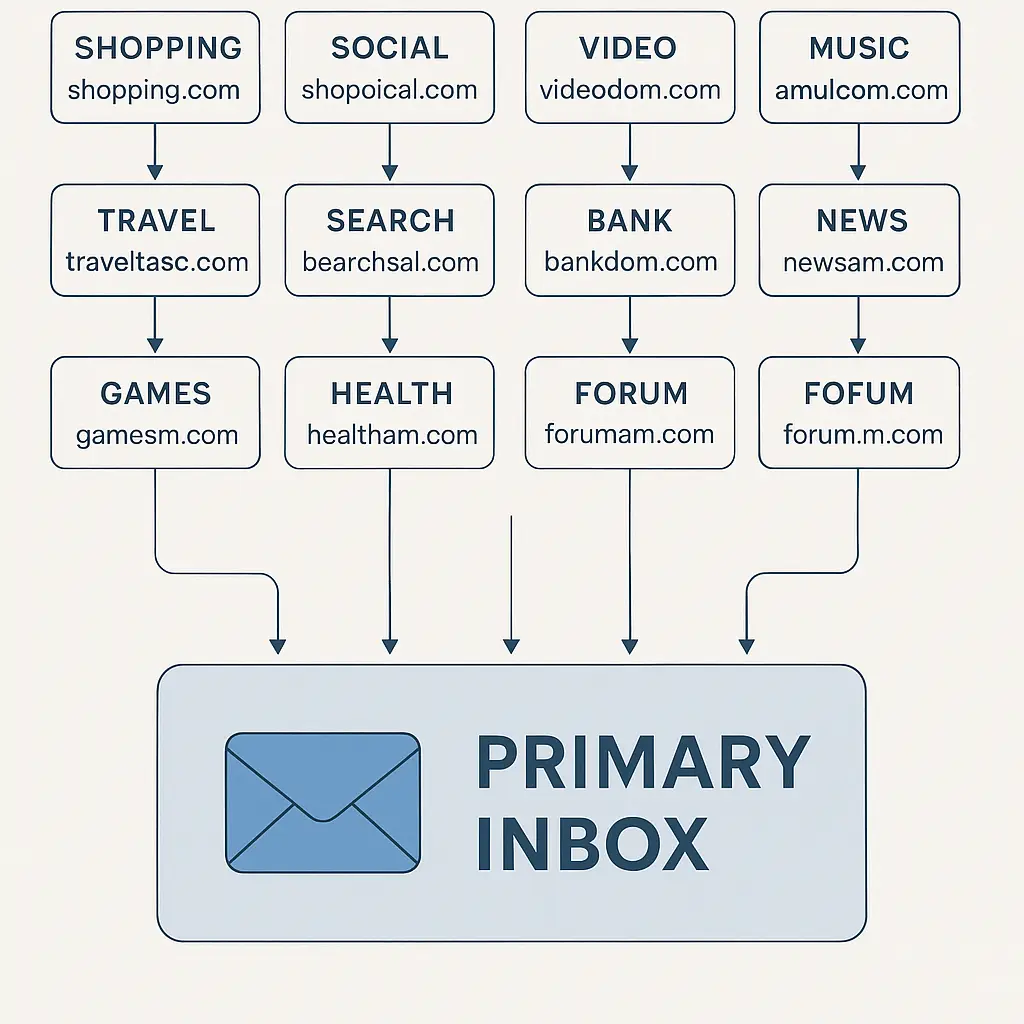
Email is the foundation. If you lose access to your primary email, you lose password reset capability for everything else. Recover this first.
Gmail Recovery
Go to the Google account recovery page. Google asks for the last password you remember. If you can't provide one, it asks for the month and year you created the account.
Google then sends a verification code to your recovery email or phone number. If you don't have access to either, you're routed to account verification, which asks security questions, previous passwords, and device history. This process can take 24 to 48 hours.
If you have a backup phone number on file, use it. Google trusts phone verification more than email in lockout scenarios.
Microsoft Account Recovery
Microsoft uses a similar flow. Start at the Microsoft account recovery page. You'll need either your recovery email, phone number, or an authenticator app still logged into the account.
Microsoft's verification process asks for recent email subject lines, contacts you've emailed, or folders you've created. These questions trip people up. If you can't answer them, you'll need to wait for manual review, which takes three to five business days.
Yahoo Mail Recovery
Yahoo recovery starts at the sign-in helper page. Yahoo asks for your phone number or recovery email first. If you don't have access to either, Yahoo routes you to a verification form that requires account details: when you created it, what you used it for, recent subject lines.
Yahoo's manual review process is slower than Google's or Microsoft's. Expect five to seven days.
Recovery Email and Phone Number
If your recovery email or phone number is outdated, you're in a harder position. You'll need to contact support with identity verification. For email providers, this means:
- Government-issued ID matching the name on the account
- Details about account creation (approximate date, original password if you remember it, recovery questions you set up)
- Recent account activity (emails you sent, people you contacted, purchases linked to the account)
The more detail you provide, the faster support can verify you. Vague requests ("I forgot my password") without supporting information get rejected or delayed.
Banking and Financial Account Recovery
Banks treat lockouts differently than email providers. Financial institutions prioritize security over convenience, which means recovery takes longer but follows a more predictable process.
Online Banking Password Reset
Most banks allow password reset through their website or app. You'll need:
- Your account number or username
- The last four digits of your Social Security number or full SSN
- Answers to security questions you set up during account creation
- Access to your registered phone number or email for verification codes
If you don't remember your security question answers, you'll need to call customer support. Have your government ID ready. The representative will verify your identity through a series of questions: recent transactions, deposit amounts, account balance, linked accounts.
Some banks require you to visit a branch in person for password reset if you can't verify over the phone. This is more common with credit unions and smaller regional banks.
Two-Factor Authentication Lockout for Banking
If you lose access to your 2FA device, contact your bank immediately. Most banks have a process to temporarily disable 2FA after identity verification.
You'll need to:
- Call the bank's customer service number (not a number from a web search, use the number on your card or statement)
- Verify your identity through security questions and account details
- Request 2FA reset
- Set up 2FA again on a new device
This process usually takes one business day. Some banks require a waiting period (24 to 72 hours) before re-enabling 2FA to prevent social engineering attacks.
Credit Card Account Recovery
Credit card issuers follow similar verification processes. If you're locked out of your online account, call the number on the back of your card. You'll verify through:
- Full card number
- Billing address
- Recent transactions
- Security questions
Credit card companies are generally faster than banks at account recovery because they have dedicated fraud departments used to handling urgent access issues.
Social Media Account Recovery
Social media platforms vary widely in recovery support. Some have robust processes; others leave you stranded.
Facebook and Instagram Recovery
Facebook owns Instagram, and both use similar recovery flows. Start at the Facebook account recovery page or Instagram help center. You'll need:
- The email address or phone number linked to your account
- Access to that email or phone to receive a verification code
- Friends who can verify your identity (Facebook only)
If you don't have access to your email or phone, Facebook offers a "trusted contacts" feature. You designate friends in advance who can send you recovery codes if you get locked out. If you didn't set this up before lockout, you're stuck with the support ticket process, which can take weeks.
Instagram recovery without email or phone access is harder. Instagram's support is notoriously slow. If you have a business account, you'll get faster support than personal accounts.
Twitter/X Account Recovery
Twitter recovery starts at the account access page. Twitter sends a verification code to your email or phone. If you don't have access to either, Twitter asks you to submit a support request with:
- The username or email address on the account
- A phone number or email address you currently control
- A description of the problem
Twitter's support response time varies from days to weeks. Verified accounts (blue checkmarks) get faster support.
LinkedIn Recovery
LinkedIn recovery is straightforward if you have access to your email or phone. Go to the LinkedIn sign-in page and click "Forgot password?" LinkedIn sends a reset link to your email.
If you don't have email access, LinkedIn offers phone verification. If both fail, you'll submit a support ticket with identity verification, which takes three to five business days.
Work Account Recovery
Work accounts, email, Slack, Microsoft Teams, VPNs, require contacting your IT department. The process is faster than consumer account recovery because IT has administrative access.
Corporate Email Recovery
If you're locked out of your work email, contact your IT help desk immediately. Provide:
- Your employee ID or username
- Your manager's name and contact information
- The last time you successfully logged in
IT can reset your password remotely within minutes to hours, depending on their workload. Some companies require manager approval before resetting passwords, which adds delay.
VPN and System Access Recovery
VPN lockouts usually happen after too many failed login attempts. IT can unlock your account remotely, but you may need to verify your identity in person or through a video call, especially if you're working remotely.
If you've lost your hardware token or smart card, you'll need to request a replacement. This process takes longer, usually one to three business days, because physical devices need to be shipped or picked up.
Multi-Factor Authentication Lockout at Work
Work accounts often use authenticator apps or hardware tokens for 2FA. If you lose access, IT can disable 2FA temporarily after verifying your identity. The process is similar to banking: you'll answer security questions, verify recent activity, and possibly meet with IT in person.
Some companies require a waiting period before re-enabling 2FA to prevent social engineering. Expect 24 to 48 hours.
Password Manager Lockout
If you forget your password manager master password, recovery depends on which service you use and what you set up in advance.
Password Managers With Recovery Options
Some password managers offer account recovery through emergency contacts, recovery keys, or biometric verification:
- 1Password: Offers a Secret Key and Emergency Kit. If you saved these during setup, you can recover access. Without them, 1Password cannot recover your account, this is by design.
- Bitwarden: Allows account recovery if you've enabled it in settings and designated a recovery contact. Without this setup, Bitwarden cannot help you.
- Dashlane: Offers account recovery through email verification if you've enabled it. Check your email for recovery instructions.
Password Managers Without Recovery
Some password managers use zero-knowledge architecture, meaning the company cannot access your vault even if you forget your master password:
- KeePass: Stores your vault locally. If you lose the master password, the vault is unrecoverable. There is no customer support to contact.
- NordPass: Cannot recover your master password. If you forget it, you'll need to create a new account and start over.
If you're locked out of a zero-knowledge password manager without recovery options, you'll need to reset every account manually using the "forgot password" flow for each service. This is why backup codes matter.
In The Fellowship of the Ring, Gandalf spends seventeen years researching how to unlock the One Ring's secrets before finally discovering the answer was written in plain sight all along. Account recovery without preparation is harder. The time to set up recovery options is before you need them, not after you're locked out.
Two-Factor Authentication Recovery
Two-factor authentication lockout is one of the most common and most preventable account access problems.
Using Backup Codes
When you enable 2FA on any account, the service generates backup codes, usually 8 to 10 single-use codes you can use instead of your authenticator app. If you saved these codes, use one now.
Backup codes work for:
- Google accounts
- Microsoft accounts
- Facebook and Instagram
- Twitter/X
- GitHub
- Most banking apps
- Most password managers
Enter the backup code when prompted for your 2FA code. The code works once, then becomes invalid. You'll still have access to the remaining codes.
If you didn't save backup codes, you'll need to go through the service's account recovery process, which varies by platform and can take days.
Authenticator App Recovery
If you lost your phone but still have access to the old device, you can transfer your authenticator app to a new phone:
- Google Authenticator: Requires exporting codes from the old device. If you don't have the old device, you'll need to reset 2FA for each account individually.
- Authy: Backs up codes to the cloud. Install Authy on your new device and log in with your phone number. Your codes sync automatically.
- Microsoft Authenticator: Backs up codes if you enabled cloud backup. Install the app on a new device and sign in with your Microsoft account.
If you can't access your old device and didn't enable cloud backup, you'll need to disable 2FA through each service's recovery process.
SMS-Based 2FA Recovery
If you use SMS for 2FA and lost access to your phone number, you'll need to:
- Contact your mobile carrier to transfer your number to a new SIM card or device
- Use account recovery options (email, security questions, support tickets) to regain access
- Update your phone number on all accounts once you have access again
SMS 2FA is the weakest 2FA method because of SIM swap attacks, but it's still better than no 2FA. If you're locked out, the recovery process is the same as losing access to any other 2FA method.
Government and Institutional Account Recovery
Government accounts, IRS, Social Security, state benefits, healthcare portals, have stricter verification processes than commercial services.
IRS Account Recovery
If you're locked out of your IRS account, you'll need to verify your identity through ID.me or Login.gov, depending on which system the IRS is using. Both require:
- Government-issued photo ID
- Social Security number
- Phone number or email address
- Selfie verification (for ID.me)
The verification process takes 10 to 15 minutes if everything goes smoothly. If the system flags your ID or selfie, you'll need to schedule a video call with a verification agent, which can take several days.
Social Security Account Recovery
Social Security accounts use Login.gov for authentication. If you're locked out, go to the Login.gov help center and follow the account recovery process. You'll need:
- The email address associated with your account
- Access to that email to receive a verification code
- Your authentication method (phone, authentication app, or security key)
If you don't have access to your email or authentication method, you'll need to create a new Login.gov account with a different email address, then contact Social Security to link it to your benefits.
Healthcare Portal Recovery
Healthcare portals (MyChart, patient portals, insurance accounts) vary by provider. Most allow password reset through email or phone verification. If you're locked out:
- Try the "forgot password" link on the login page
- Verify through email or phone
- If that fails, call the provider's patient services number
Healthcare providers are required to give you access to your records, so if online recovery fails, you can request records in person or by mail.
Preventing Future Lockouts
Account recovery is stressful. Here's how to make it less likely.
Document Recovery Options Now
For every important account, write down:
- The email address or username you use to log in
- The recovery email address on file
- The recovery phone number on file
- Security question answers (if applicable)
- Where you stored backup codes
Store this information in a secure location: a password manager, a physical safe, or an encrypted file. Don't store it in the account itself, if you're locked out, you can't access it.
Update Recovery Information Regularly
Check your recovery email and phone number at least once a year. If you've changed phone numbers or email addresses, update your accounts immediately. This is especially important for:
- Banking and financial accounts
- Email accounts
- Password managers
- Government accounts
Save Backup Codes When Enabling 2FA
Every time you enable two-factor authentication on an account, the service offers backup codes. Save them. Print them. Store them in your password manager. Don't skip this step.
If you've already enabled 2FA but don't have backup codes, most services let you regenerate them. Log into your account, go to security settings, and look for "backup codes" or "recovery codes." Generate a new set and save them.
Use a Password Manager
A password manager eliminates the most common cause of lockout: forgotten passwords. If you use a password manager, you only need to remember one master password. Everything else is stored securely.
If you don't have a password manager yet, NordPass offers cross-device sync, breach monitoring, and zero-knowledge architecture. Set it up, save your master password in a secure physical location, and enable recovery options.
Test Your Recovery Process
Once a year, test your account recovery process:
- Try to reset your password using the "forgot password" link
- Verify you can receive codes at your recovery email and phone number
- Make sure your backup codes are accessible and valid
Testing recovery before you need it reveals problems when you still have access to fix them.
What to Do If Recovery Fails
If you've exhausted all recovery options and still can't access your account, you have three choices.
Create a new account. For non-critical accounts (social media, forums, shopping sites), it's often faster to create a new account than to fight with customer support for weeks. You'll lose your history, but you'll regain access to the service.
Contact support with documentation. For critical accounts (email, banking, work), gather every piece of documentation you have: government ID, account statements, screenshots of previous logins, emails from the service. Submit a detailed support ticket explaining the situation. Be patient. Manual review takes time.
Accept the loss. Some accounts are unrecoverable. If you've lost access to a zero-knowledge password manager without recovery options, or a cryptocurrency wallet without your seed phrase, the data is gone. No amount of support tickets will change that. Learn from it, move on, and set up better recovery options for your new accounts.
Account lockout is frustrating, but it's rarely permanent. Most services want you to regain access, they just need to verify you're the legitimate owner first. The recovery process takes time, but following the steps above will get you back in.