What to Do If You Lose Your 2FA Device: Recovery Steps That Actually Work
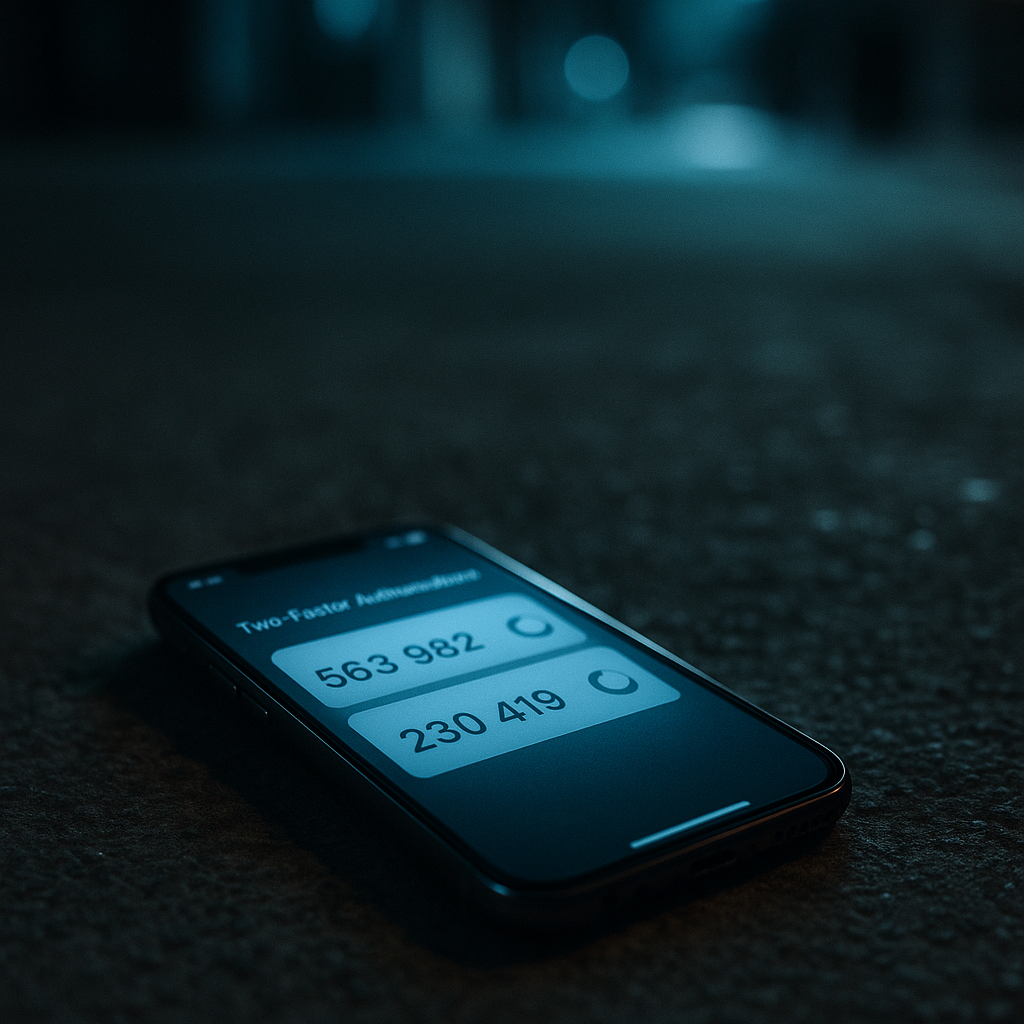
You've lost your phone. Or dropped it in water. Or had it stolen. And on that phone was your authenticator app with two-factor authentication codes for your email, bank, password manager, and everything else that matters.
You are now locked out.
This is the nightmare scenario that makes people hesitate to enable two-factor authentication in the first place. The fear is reasonable. The solution is not to skip 2FA. The solution is to prepare for device loss before it happens and know exactly what to do when it does.
Here's the step-by-step recovery process, what each action accomplishes, and how to prevent this situation next time.
What Happens When You Lose Your 2FA Device
When you lose the device running your authenticator app, you lose access to the time-based codes that prove you control that device. Those codes expire every 30 seconds and cannot be recovered from the lost device. The codes are generated locally using a secret key that was stored on your phone. That key is gone.
Your accounts are not compromised. Your passwords still work. But most services will not let you log in with password alone if you have 2FA enabled. The system is working as designed. The problem is that you are now on the wrong side of that security boundary.
Services differ on what happens next. Some let you use backup codes. Some require identity verification through support. Some lock you out until you can prove ownership through a lengthy process. A few offer SMS fallback, which is weaker but functional. The specifics depend on how each service implemented their 2FA system.
There is no universal "I lost my device" button. Recovery is account-by-account, service-by-service.
Step 1: Use Backup Codes If You Have Them
Backup codes are the fastest way out. These are one-time-use passwords generated when you first enabled 2FA on an account. Each code works exactly once as a substitute for your authenticator app. If you saved them, you can log in immediately.
Most services generate around 10 backup codes when you enable 2FA. You should have printed them, saved them to a password manager, or stored them somewhere secure. If you did, retrieve them now.
Log in to the account using your password and one backup code. Once inside, go directly to security settings and disable 2FA temporarily or re-enroll a new device. Do not log out until you have reconfigured 2FA with your new device or replacement phone.
If you used all your backup codes or never saved them, move to Step 2.
Step 2: Check for SMS or Email Fallback
Some services allow SMS or email as a fallback 2FA method. If you configured this when you set up 2FA, the service will send a code to your phone number or email address instead of requiring the authenticator app.
This option is less secure than app-based codes, SMS can be intercepted through SIM swapping, and email access depends on whether your email account itself requires the lost 2FA device, but it works for recovery.
Attempt to log in. If the service offers "Use a different method" or "Send code via SMS," select it. Enter the code when it arrives. Once inside, reconfigure 2FA with your new device.
If no fallback exists, move to Step 3.
Step 3: Contact Account Recovery Support
You are now in manual recovery. This means contacting the service's support team and proving you own the account through identity verification.
The process varies by service:
-
Email providers (Gmail, Outlook, Yahoo) typically ask security questions, alternate email addresses, phone numbers, or account activity history. Google's process can take several days. Microsoft and Yahoo have similar timelines.
-
Financial institutions (banks, credit cards, investment accounts) require identity verification through customer service. Call the number on your card or statement. You will answer security questions, provide personal information, and possibly visit a branch in person. This process usually resolves within 24 hours.
-
Password managers (1Password, Bitwarden, Dashlane) have emergency access features or account recovery contacts. If you configured these in advance, recovery takes hours. If not, you may be permanently locked out depending on the service's zero-knowledge architecture. NordPass offers account recovery options that balance security with recoverability.
-
Social media (Facebook, Instagram, Twitter, LinkedIn) use identity verification through government ID uploads, trusted contacts, or account activity confirmation. Timelines range from hours to weeks depending on the platform and whether you have verified identity information on file.
-
Cryptocurrency exchanges and wallets often have no recovery process by design. If you lose 2FA access and have no backup codes, your funds may be permanently inaccessible. This is an intentional security tradeoff.
Gather everything you need before contacting support: account username, associated email addresses, phone numbers, recent transaction history, and any government ID the service might request. The more information you provide upfront, the faster recovery proceeds.
Step 4: Prioritize Accounts by Risk
You cannot recover everything at once. Some accounts matter more than others. Focus on these first:
Email is the highest priority. Your email account is the recovery mechanism for almost everything else. If you lose email access, you lose the ability to reset passwords, receive verification codes, and prove ownership of other accounts. Recover email first, even if it takes days.
Password manager is second. If your passwords are stored in a password manager and you are locked out, you cannot access the credentials needed to log into other accounts. Recover this immediately after email.
Financial accounts (bank, credit cards, investment) are third. Unauthorized access to these accounts creates immediate financial harm. Contact your bank as soon as you realize you are locked out.
Work accounts depend on your employer's policies and IT infrastructure. Contact your IT department immediately. They can disable 2FA, reset your account, or provide temporary access while you reconfigure your device.
Everything else (social media, shopping accounts, subscriptions) can wait. These accounts are lower risk and easier to recover or replace.
Step 5: Re-Enroll 2FA on Your New Device
Once you regain access to an account, do not log out until you have reconfigured 2FA. Go directly to security settings and re-enroll your new device.
The process for most services:
- Open security settings
- Find two-factor authentication or multi-factor authentication section
- Select "Add authenticator app" or "Reconfigure 2FA"
- Scan the QR code with your authenticator app on your new device
- Enter the verification code to confirm enrollment
- Generate and save new backup codes
Do this for every account before moving to the next one. If you log out without reconfiguring 2FA, you will be locked out again.
How to Prevent This Next Time
Device loss is inevitable. Preparation is not.
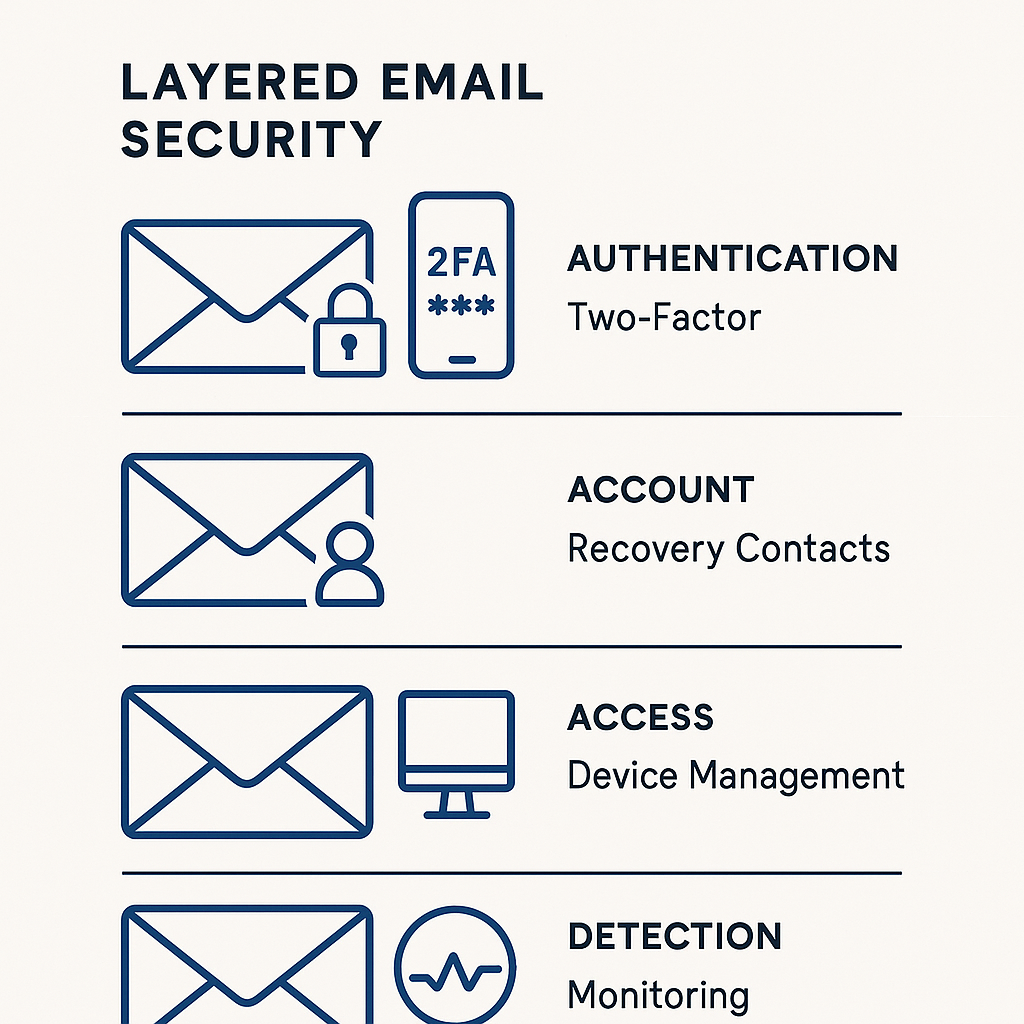
Save backup codes immediately. When you enable 2FA on any account, the service generates backup codes. Do not skip this step. Print them, store them in your password manager, or write them down and keep them somewhere secure. These codes are the fastest recovery method.
Use a password manager with encrypted backup code storage. Most password managers let you store backup codes as secure notes attached to the login entry. This keeps codes accessible from any device where you have your password manager installed. NordPass includes secure note storage for exactly this purpose.
Configure account recovery contacts. Some services (Google, Apple, Facebook) let you designate trusted contacts who can help you recover your account. Set this up in advance. It takes five minutes and works faster than support tickets.
Enable SMS fallback where available. SMS 2FA is weaker than authenticator apps, but it works as a recovery method when you lose your device. If the service offers SMS as a secondary option, enable it. You are not replacing app-based 2FA; you are adding a fallback.
Use an authenticator app with cloud sync. Some authenticator apps (Authy, Microsoft Authenticator, Google Authenticator with cloud backup enabled) sync codes across devices. If you lose your phone, you can install the app on a new device and retrieve your codes. This convenience creates a tradeoff: cloud-synced codes are slightly less secure than device-only codes because they rely on the security of your cloud account. For most people, this tradeoff is worth it.
Store a backup device with 2FA enrolled. If you have an old phone or tablet, enroll it as a secondary 2FA device for critical accounts. Keep it at home, powered off, in a drawer. If you lose your primary phone, you have immediate access to codes without waiting for recovery.
Document your accounts. Keep a list of which accounts have 2FA enabled and where you stored backup codes. This list does not need to include passwords, just account names and recovery information. Store it in your password manager or a secure physical location.
The Schitt's Creek Problem
In Schitt's Creek, the Rose family loses everything overnight, mansion, cars, fortune, because they never prepared for catastrophic loss. They assumed their wealth was permanent. When it vanished, they had no backup plan, no safety net, no documentation of what they even owned.
Two-factor authentication creates the same dynamic. You assume your phone will always be in your pocket. You skip backup codes because recovery seems theoretical. Then your device is gone, and you are locked out of your entire digital life with no plan.
The difference is that preparing for 2FA device loss takes 10 minutes, not millions of dollars. You save backup codes. You configure recovery contacts. You store a secondary device. And when loss happens, and it will, you have a path back in.
The Rose family had to rebuild from nothing. You do not.
What Happens If You Never Recover Access
Some accounts are unrecoverable. If you lose 2FA access, have no backup codes, cannot verify your identity, and the service has no recovery process, the account is gone.
This happens most often with:
- Cryptocurrency wallets and exchanges with no customer support
- Self-hosted services where you control the infrastructure
- Accounts where you provided fake information during signup and cannot verify identity
- Services that have shut down or been acquired and no longer offer support
If you are permanently locked out, your options are limited. You can attempt to contact support repeatedly with more detailed identity verification. You can search for any saved backup codes in old email, cloud storage, or password manager notes. You can check whether you enrolled a secondary device you forgot about.
If none of that works, the account is gone. This is the cost of strong security. The same mechanisms that protect you from attackers also protect attackers from you if you lose your credentials.
Recovery Is Not Optional
Two-factor authentication is not optional for accounts that matter. Email, banking, password managers, work accounts, these need 2FA enabled regardless of device loss risk. The risk of account takeover through password breaches and phishing is far higher than the risk of permanent lockout from device loss.
But preparation is not optional either. Enabling 2FA without saving backup codes or configuring recovery methods is security theater. You have added friction without adding resilience.
The correct approach: enable 2FA everywhere it is offered, save backup codes immediately, configure recovery contacts, and store a secondary device if the account is critical. Then, when you lose your phone, you have a plan.
You will lose a device eventually. The question is whether you will have prepared for it.