Setting Up Two-Factor Authentication on Your Most Important Accounts
Two-factor authentication adds a second verification step beyond your password. When someone tries to log into your account, they need both something they know (your password) and something they have (your phone, a hardware key, or access to your email). This guide walks through enabling 2FA on the accounts that matter most: email, banking, social media, and your password manager.
The FTC recommends two-factor authentication as one of the most effective protections against account takeover. CISA calls it essential for anyone with accounts containing personal information or financial access. You'll set up 2FA once per account, save backup codes somewhere secure, and then rarely think about it again unless you're logging in from a new device.
Why These Accounts Come First
Not all accounts carry equal risk. Email controls password resets for everything else. If someone compromises your email, they can request password resets for your banking, social media, shopping accounts, and anything else tied to that address. Email is the skeleton key.
Banking holds your money. Social media accounts contain years of personal information, contacts, and private messages. Your password manager stores credentials for everything else. These four categories get 2FA first.
Everything else can wait. Your streaming services, shopping accounts, and forum logins matter less. Focus on the accounts that would cause immediate damage if compromised.
Choosing Your Second Factor
You have three practical options for most accounts: authenticator apps, SMS codes, or hardware security keys. Each works differently.
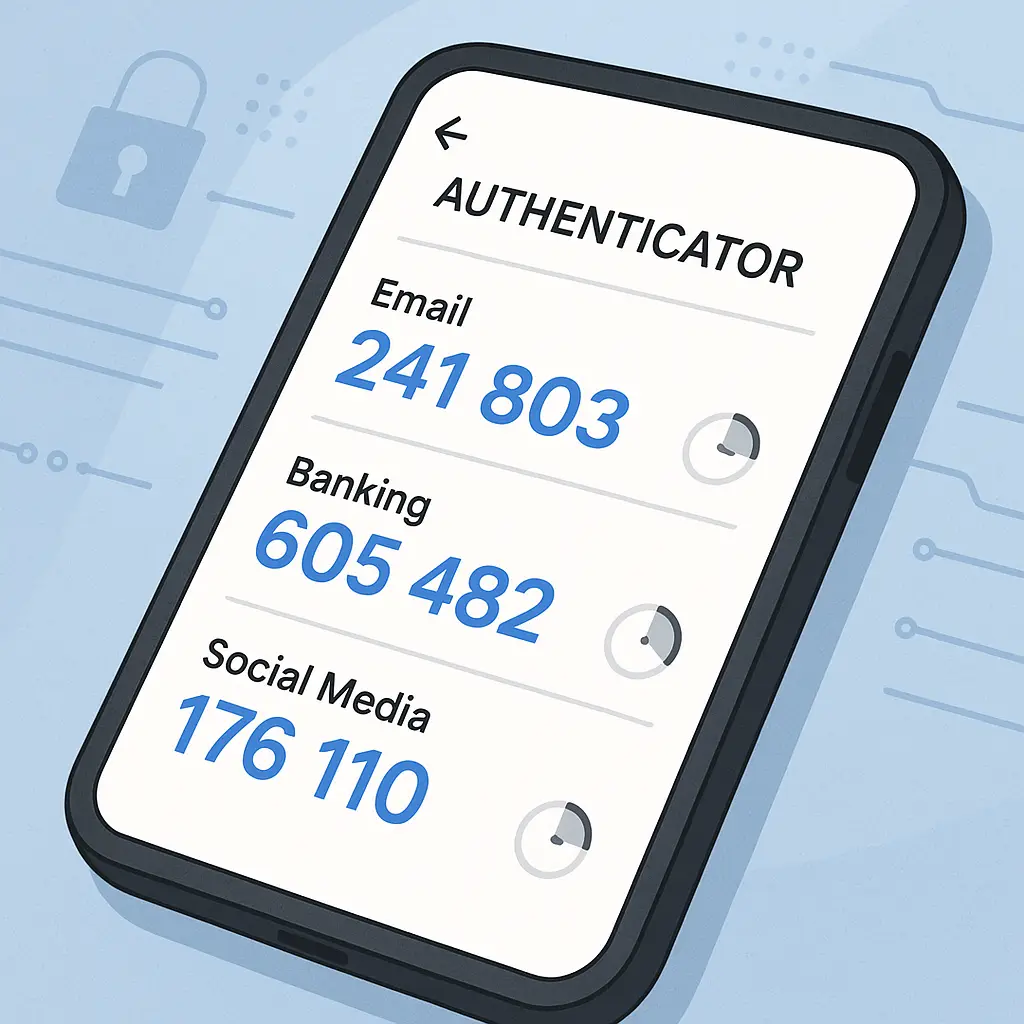
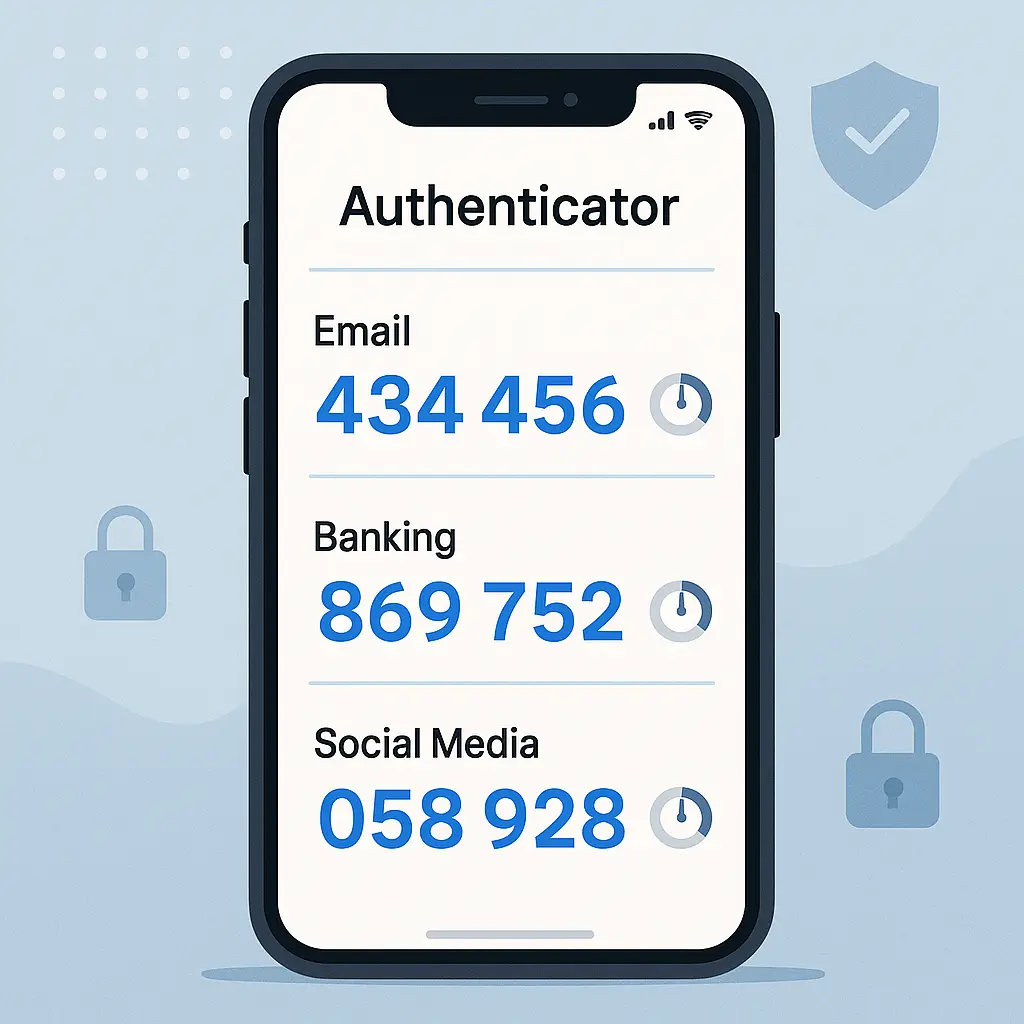
Authenticator apps generate six-digit codes that change every 30 seconds. The codes are created locally on your phone using a cryptographic algorithm synchronized with the service you're logging into. Google Authenticator, Microsoft Authenticator, and Authy all work this way. No internet connection required once the app is set up.
SMS codes arrive as text messages. The service sends a code to your phone number, you type it in, you're authenticated. SMS is vulnerable to SIM swap attacks and SS7 interception, but it's still better than password-only authentication. If SMS is your only option, use it.
Hardware security keys are physical devices you plug into your computer or tap against your phone. They use cryptographic protocols that make phishing nearly impossible. YubiKey is the most common brand. Hardware keys are the strongest option, but they cost money and require you to carry them. For most people, authenticator apps hit the right balance of security and convenience.
NIST's authentication guidance ranks these methods by resistance to phishing and interception. Hardware keys top the list. Authenticator apps come next. SMS is the weakest option that still qualifies as two-factor authentication.
Setting Up an Authenticator App
Download an authenticator app before you start enabling 2FA on individual accounts. Google Authenticator, Microsoft Authenticator, and Authy are all free and work with any service that supports time-based one-time passwords. Pick one. Install it. Open it once to confirm it works.
The app will be empty until you add your first account. Each service you enable 2FA on will give you a QR code or a text string. You'll scan the QR code with your authenticator app or manually type in the text string. The app stores that information and immediately starts generating codes for that account.
You don't need separate apps for different services. One authenticator app can hold codes for dozens of accounts. Each account gets its own entry in the app with its own rotating six-digit code.
Email: Google
Log into your Google account. Navigate to your account settings by clicking your profile picture in the upper right corner, then selecting "Manage your Google Account." Click "Security" in the left sidebar.
Scroll down to "How you sign in to Google." Click "2-Step Verification." Google will ask you to confirm your password. Enter it.
Google will suggest adding your phone number for SMS codes. You can accept this as a backup method, but you'll want to add an authenticator app as your primary method. Click "Show more options" or "Try another way" until you see "Authenticator app."
Select "Authenticator app." Google will display a QR code. Open your authenticator app on your phone and use its scanning function to capture the QR code. The app will add Google to its list and immediately start generating codes.
Type the six-digit code currently displayed in your authenticator app into the field on Google's website. Click "Verify." Google confirms the connection and enables 2FA.
Scroll down to "Backup codes." Click it. Google generates ten single-use codes. Save these somewhere secure. If you lose your phone, these codes let you regain access to your account. Store them in your password manager or write them down and keep them in a safe place. Do not skip this step.
The EFF's guide to enabling 2FA on Gmail provides additional detail on Google's specific interface and options.
Email: Microsoft (Outlook, Hotmail)
Log into your Microsoft account. Navigate to the Security section by clicking your profile picture, selecting "My Microsoft account," then clicking "Security" in the top navigation.
Click "Advanced security options." Scroll to "Two-step verification" and click "Turn on."
Microsoft will ask you to choose a verification method. Select "Use an app." Microsoft displays a QR code. Open your authenticator app and scan the code. Your app adds Microsoft to its list and starts generating codes.
Enter the current six-digit code from your app into Microsoft's verification field. Click "Verify." Microsoft enables 2FA.
Scroll down to find the option to generate recovery codes. Microsoft calls them "recovery codes" instead of backup codes, but they serve the same purpose. Generate them. Save them securely. You'll need one if you lose access to your authenticator app.
The EFF's Microsoft 2FA guide covers the specific steps for Microsoft accounts.
Email: Yahoo
Log into your Yahoo account. Click your profile icon in the upper right corner and select "Account Info." You may need to re-enter your password.
Click "Security" in the left sidebar. Scroll down to "Two-step verification" and click "Get started."
Yahoo will ask you to add a phone number for SMS codes. Enter your number and verify it by entering the code Yahoo texts you. This becomes your backup method.
After SMS is enabled, look for the option to add an authenticator app. Yahoo calls it "Authenticator app" or sometimes "Third-party app." Click it. Yahoo displays a QR code.
Scan the QR code with your authenticator app. Yahoo gets added to your app's list. Enter the six-digit code currently showing in your app into Yahoo's verification field. Click "Verify."
Yahoo generates backup codes. Save them. You know the drill by now.
The EFF's Yahoo 2FA guide walks through Yahoo's interface in detail.
Banking: General Process
Every bank implements 2FA differently. Some call it two-factor authentication. Others call it multi-factor authentication, two-step verification, or enhanced security. The underlying mechanism is the same.
Log into your bank's website or app. Navigate to security settings. This is usually under "Profile," "Settings," or "Security." Look for language about two-factor, multi-factor, or two-step verification.
Most banks default to SMS codes. Some support authenticator apps. A few support hardware keys. Use the strongest method your bank offers. If your bank only offers SMS, use SMS. If they offer an authenticator app option, use that instead.
The setup process mirrors what you just did for email. The bank will display a QR code or text string. You'll scan it with your authenticator app or type it in manually. You'll verify by entering a code. The bank will give you backup codes or alternative verification methods. Save them.
Banks often require 2FA only for logins from new devices or after a certain time period. You might mark your home computer as trusted and only need codes when traveling or using a different device. This is normal.
The EFF's Bank of America 2FA guide provides an example of one bank's specific interface, though your bank's settings will differ.
Social Media: Facebook
Log into Facebook. Click the downward arrow in the upper right corner and select "Settings & Privacy," then "Settings." Click "Security and Login" in the left sidebar.
Scroll down to "Two-Factor Authentication." Click "Use two-factor authentication." Facebook will ask you to choose a security method.
Facebook offers three options: text message (SMS), authentication app, or security key. Select "Authentication app." Facebook displays a QR code.
Open your authenticator app and scan Facebook's QR code. Facebook gets added to your app. Enter the six-digit code currently displayed in your app into Facebook's verification field. Click "Continue."
Facebook generates recovery codes. Save them. Facebook also asks you to add a backup phone number in case you lose access to your authenticator app. Add one if you want the extra safety net.
Social Media: Instagram
Instagram's 2FA setup lives in the app. Open Instagram and tap your profile picture in the lower right corner. Tap the three horizontal lines in the upper right corner, then tap "Settings and privacy."
Tap "Account Center" at the top. Tap "Password and security." Tap "Two-factor authentication."
Instagram shows you all accounts connected to your Account Center. Select the Instagram account you want to protect. Tap "Get started."
Instagram offers authentication app or text message. Select "Authentication app." Instagram displays a QR code. Scan it with your authenticator app. Enter the code. Instagram enables 2FA.
Instagram generates backup codes. Screenshot them or write them down. Store them securely.
Social Media: X (Twitter)
Log into X on the web. Click "More" in the left sidebar, then "Settings and privacy." Click "Security and account access," then "Security."
Click "Two-factor authentication." X offers three options: text message, authentication app, or security key. Select "Authentication app."
X displays a QR code. Scan it with your authenticator app. Enter the code X requests. X enables 2FA.
X generates a backup code. It's a single long code, not multiple short ones like other services provide. Save it somewhere secure. You'll need it if you lose access to your authenticator app.
The EFF's Twitter 2FA guide covers the basic process, though X's interface has changed since publication.
Password Manager: The Account That Protects Everything Else
Your password manager holds credentials for every other account you have. If someone compromises your password manager, they get everything. 2FA on your password manager is non-negotiable.
The setup process depends on which password manager you use. 1Password, Bitwarden, Dashlane, and NordPass all support authenticator apps. Some also support hardware security keys.
Log into your password manager's web interface. Navigate to account settings or security settings. Look for two-factor authentication, two-step verification, or multi-factor authentication.
Enable it using an authenticator app. The password manager will display a QR code. Scan it. Enter the code. Save the backup codes the password manager generates.
Here's the catch: you can't store your password manager's backup codes inside the password manager itself. That's circular. Save them somewhere else. Write them down and keep them in a safe place. Store them in a separate notes app. Put them in a file on an encrypted USB drive. Just don't put them in the vault they're meant to unlock.
Backup Codes: The Safety Net You'll Probably Never Use
Every service that supports 2FA generates backup codes during setup. These are single-use codes that work when your primary second factor isn't available. If you lose your phone, break it, or can't access your authenticator app for any reason, backup codes let you regain access to your account.
You need to save these codes somewhere secure but accessible. Your password manager is a good option for most accounts. Write them down and store them in a safe or locked drawer. Put them in an encrypted file on your computer. The method matters less than the fact that you actually save them.
Do not store backup codes in the account they protect. Do not email them to yourself unless that email account has its own separate 2FA setup. Do not leave them in your downloads folder or on your desktop.
Most services generate between 5 and 10 backup codes. Each code works once. After you use a backup code to log in, generate new ones immediately. The old codes stop working once they're used.
What Happens When You Log In From a New Device
After you enable 2FA, the login process changes. You'll enter your username and password as usual. Then the service will ask for your second factor.
If you're using an authenticator app, you'll open the app, find the entry for that service, and type in the six-digit code currently displayed. The code changes every 30 seconds, but you don't need to rush. As long as you enter the code within that 30-second window, it works.
If you're using SMS, you'll wait for a text message to arrive, then type in the code from that message.
If you're using a hardware security key, you'll plug it into your computer or tap it against your phone when prompted.
Most services let you mark a device as trusted. When you do this, you won't need to enter a code every time you log in from that device. The trust period varies. Some services trust a device for 30 days. Others trust it for 90 days. A few trust it indefinitely until you explicitly remove the trust.
You'll still need your second factor when logging in from new devices, new browsers, or after clearing your cookies.
Common Problems and How to Fix Them
The authenticator app generates a code, but the service rejects it. This usually means the time on your phone is slightly off. Authenticator apps use time-based algorithms, and if your phone's clock is wrong by even a few seconds, the codes won't match. Fix: go into your phone's settings and enable automatic time synchronization.
You lost your phone and can't access your authenticator app. This is why you saved backup codes. Find the backup codes you stored during setup. Use one to log in. Immediately set up 2FA again on your new phone or a replacement device. Generate new backup codes.
You're traveling internationally and can't receive SMS codes. Authenticator apps don't require cellular service or internet once they're set up. They generate codes locally. If you're using SMS as your second factor and traveling, consider switching to an authenticator app before you leave.
A service asks for a code but you never set up 2FA. Someone else set up 2FA on your account without your knowledge. This is a sign your account is compromised. Use the account recovery process to regain access. Change your password immediately. Review account activity for unauthorized actions.
How 2FA Stops the Attacks That Matter
Two-factor authentication defends against specific, common attacks. Someone steals your password in a data breach. They try to log into your account. They can't, because they don't have your phone or your authenticator app. The stolen password is useless by itself.
Someone phishes your password by sending you a fake login page. You enter your credentials. The attacker captures your username and password. They try to log in. They can't, because they don't have your second factor. Phishing still works against 2FA if the attacker sets up a real-time proxy that forwards your authentication code immediately, but this requires more sophistication than most phishing operations deploy.
Someone guesses your password through brute force. They get in. They can't, because even a correct password isn't enough without the second factor.
CISA's guidance on phishing-resistant authentication explains how different 2FA methods perform against various attack types. Hardware security keys provide the strongest protection against phishing. Authenticator apps resist credential stuffing and brute force. SMS codes are the weakest option but still block automated attacks.
The One Thing You Must Remember
In Friends, Monica keeps a spare key to her apartment under the mat in the hallway. Everyone knows where it is. It's a shared secret, a backup plan for when someone gets locked out. The key works because it's both accessible and protected by the building's outer door. The analogy maps directly to 2FA backup codes.
Your backup codes are the spare key. They sit somewhere accessible but protected. When your primary authentication method fails, the backup codes get you back in. But if you lose them or never write them down in the first place, you're locked out permanently.
Save your backup codes during setup. This is the step most people skip. Don't skip it.
What to Do Next
You've enabled 2FA on email, banking, social media, and your password manager. You've saved backup codes for each account. You've verified that your authenticator app generates codes correctly.
Now add 2FA to secondary accounts as time permits. Shopping sites that store payment information. Cloud storage services. Any account that would cause inconvenience or embarrassment if compromised.
Check your 2FA settings once a year. Remove trusted devices you no longer use. Regenerate backup codes if you've used any. Verify that your phone number and recovery email are current.
If you're using SMS as your second factor because a service doesn't support authenticator apps, check back every six months. Services add authenticator app support over time. When they do, switch.
Two-factor authentication isn't perfect. It's not impenetrable. But it raises the cost of attacking your accounts high enough that most attackers move on to easier targets. That's the point.