Email Account Security Beyond Two-Factor: The Full Defense Stack
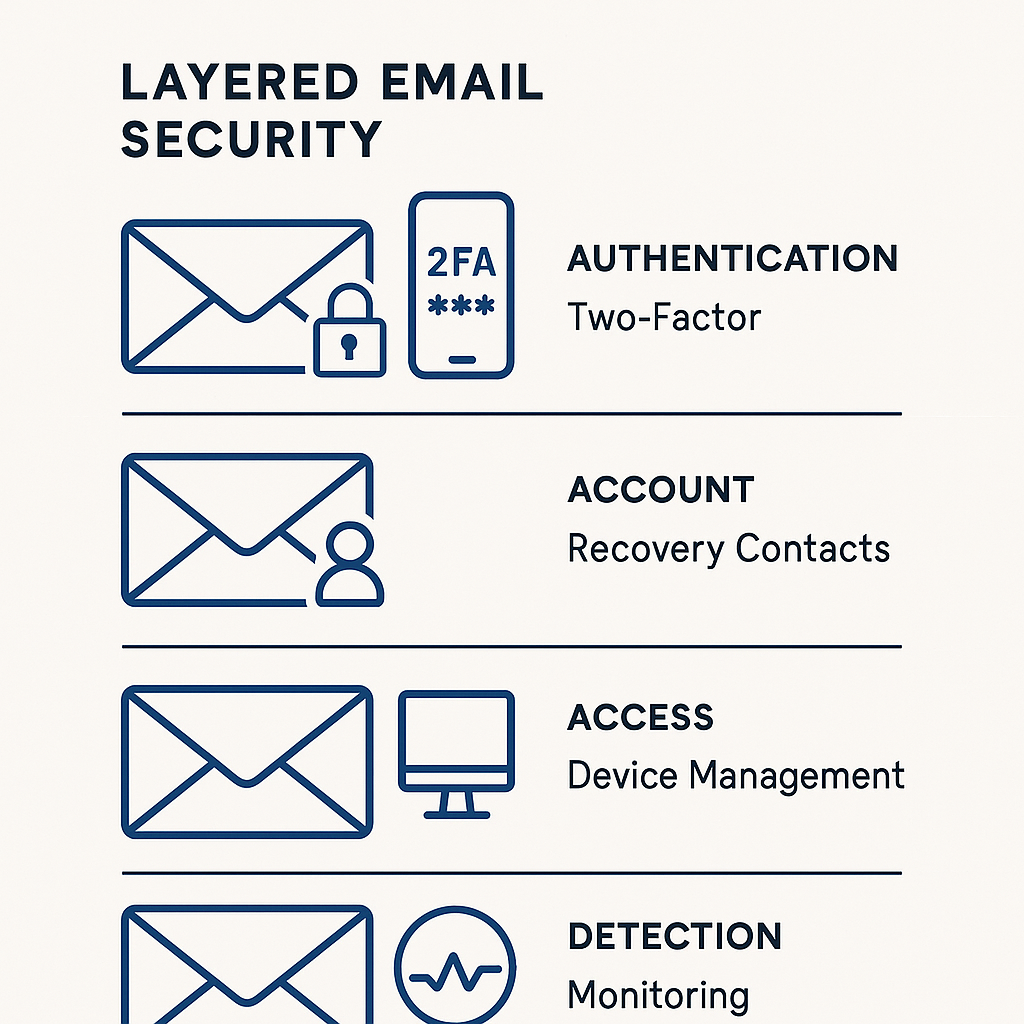
Two-factor authentication is the baseline. If you're not using it on your email account, stop reading and enable it now. But 2FA secures the login, not the account. Your email has other doors, and most of them stay unlocked.
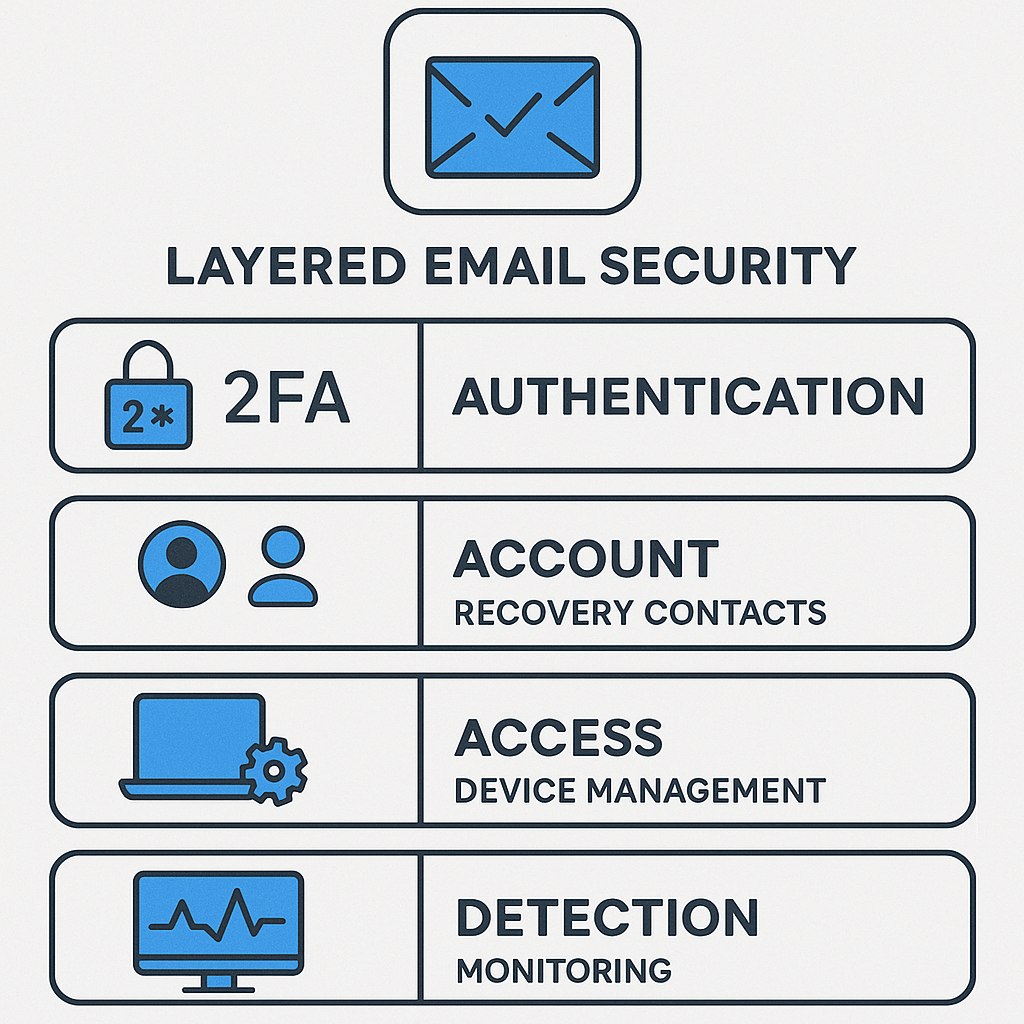
Here's the full defense stack: what to configure beyond 2FA, what each layer protects, and why email accounts need deeper security than almost anything else you own online.
Why Email Is the Skeleton Key
Your email account is the recovery mechanism for everything else. Banks, social media, cloud storage, work accounts, shopping sites, they all send password reset links to your inbox. Compromise the email, and you compromise the empire.
Attackers know this. Business email compromise scams generated over $2.9 billion in losses in 2024, according to the FBI's Internet Crime Complaint Center. The attack starts with email access, then pivots to financial accounts, vendor relationships, and internal systems. Your personal email might not move millions, but the principle is identical: email is the master key.
That's why email security can't stop at the login. You need defense in depth, multiple layers that protect different attack surfaces. 2FA is layer one. Here's the rest.
Layer Two: Recovery Settings
Recovery contacts are the settings you configure once and forget. That's the problem. Attackers who compromise your recovery email or phone number can reset your password and bypass 2FA entirely. CISA's guidance on multi-factor authentication emphasizes securing recovery mechanisms as part of the authentication chain, but most people never audit them.
Walk through your email provider's account recovery settings now. Here's what to check:
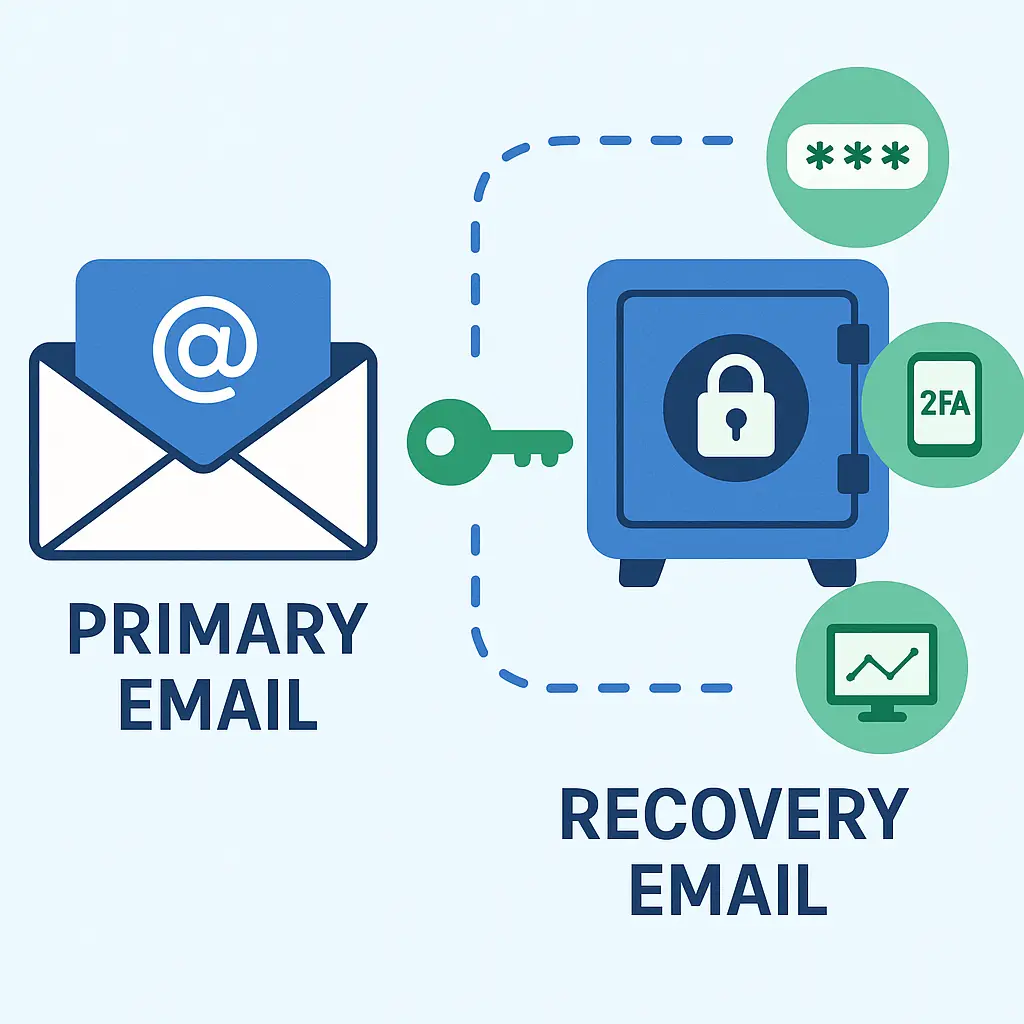
Recovery email address. This should be a separate email account you actively use and secure with its own 2FA. Not your work email. Not an old Yahoo account from 2003 that you haven't logged into in a decade. A current, separate account under your control.
If you don't have a second email account, create one. Use it only for account recovery, not for day-to-day communication. Secure it with a strong unique password stored in your password manager and enable 2FA with an authenticator app.
Recovery phone number. Your phone number is vulnerable to SIM swap attacks, where attackers convince your carrier to transfer your number to a SIM card they control. Once they have your number, they receive your SMS codes and password reset links.
Use your phone number as a backup recovery method, not the primary. If your email provider forces you to add a phone number, add it, but also add a recovery email and backup codes. Don't rely on SMS alone.
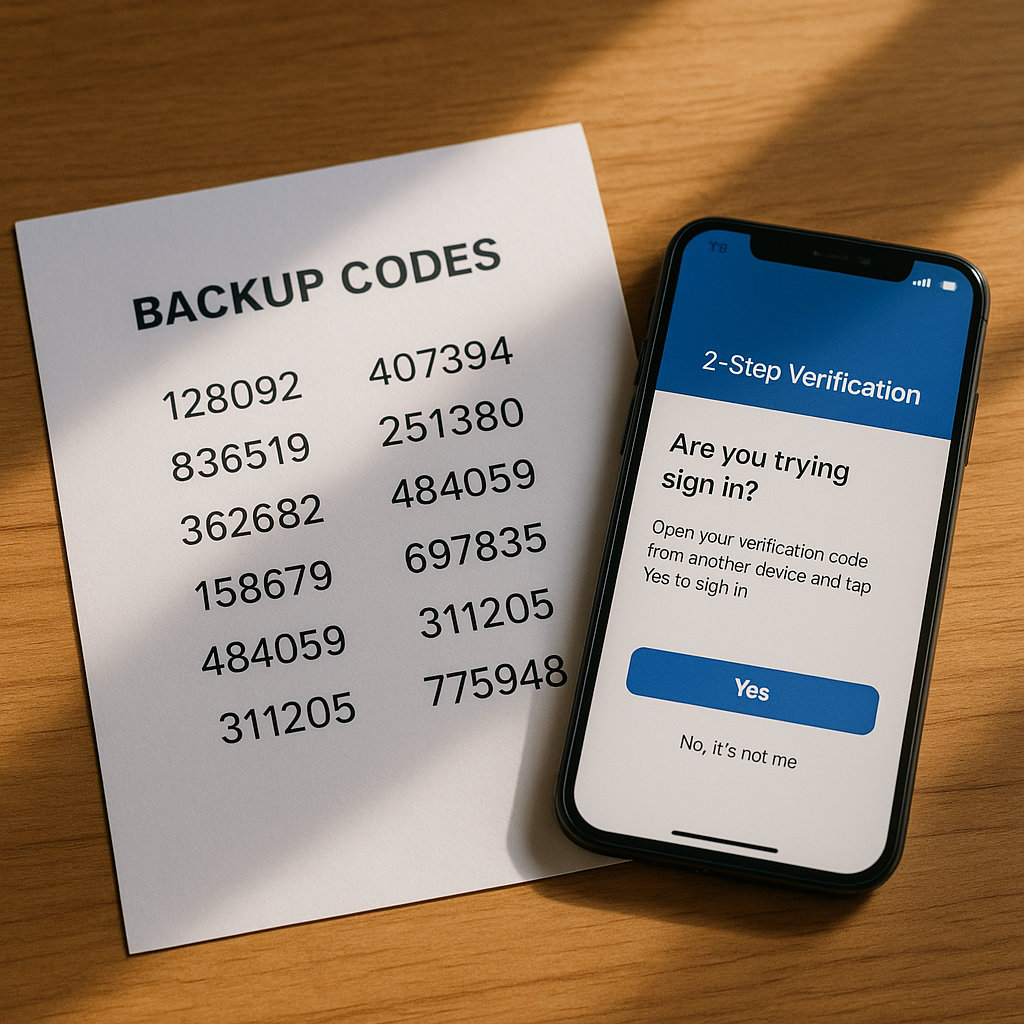
Backup codes. These are one-time-use codes that let you log in when you don't have access to your 2FA device. Most email providers generate a set of 10-12 codes when you enable 2FA. Print them and store them physically, in your wallet, your safe, your filing cabinet. Not in a document on your desktop. Not in your password manager (if you lose access to the password manager, you've lost access to the codes too).
Backup codes are your failsafe when everything else breaks. Treat them like the spare key under the mat, except don't put them under the mat. Put them somewhere only you can access.
Layer Three: Device Management
Every device logged into your email has persistent access to your inbox. That includes your phone, your laptop, your tablet, your old phone from two years ago that's sitting in a drawer, and that work computer you used once in 2022. Each logged-in device is a door. Most people have no idea how many doors are open.
Check which devices are currently logged into your email account. Here's where to find the list:
- Gmail: Click your profile picture → Manage your Google Account → Security → Your devices → Manage all devices
- Outlook/Microsoft: Sign in at account.microsoft.com → Security → My devices
- Apple/iCloud: Settings → [your name] → scroll down to see devices signed in with your Apple ID
Look for devices you don't recognize. Unknown manufacturer names, locations you've never visited, last access dates that don't match your usage. These are signs of compromise. Remove them immediately.
Even if you recognize every device, remove the ones you no longer use. That old iPad sitting in a drawer is still logged in. If someone steals it, they have full access to your email without needing your password or 2FA code. Persistent sessions bypass authentication.
Some email providers let you require re-authentication after a certain period, 30 days, 60 days, 90 days. Enable this if it's available. It forces devices to log in again periodically, which gives you regular opportunities to audit access.
Layer Four: Third-Party App Permissions
Third-party apps can connect to your email with permissions that range from "read your messages" to "send email on your behalf" to "delete everything." Most people grant these permissions once, during setup, and never think about them again.
Here's how to audit third-party app access:
- Gmail: Manage your Google Account → Security → Third-party apps with account access
- Outlook/Microsoft: account.microsoft.com → Privacy → Apps and services
- Apple/iCloud: appleid.apple.com → Sign-In and Security → Apps Using Apple ID
Look for apps you no longer use. Look for apps you don't recognize. Look for apps with broad permissions ("Full account access," "Read and send email," "Manage your mail") that don't need them.
Revoke access to anything you're not actively using. If you're unsure whether you still need an app, revoke it. If you need it later, you can reconnect it. The default should be no access unless you're certain you need it.
Some apps request OAuth tokens that don't expire. These tokens persist even if you change your password. Revoking them is the only way to cut off access. EFF's guide to managing your digital footprint covers OAuth tokens and app permissions in detail.
Layer Five: Forwarding Rules and Filters
Forwarding rules are the silent exfiltration method. An attacker who gains access to your email can create a filter that forwards every incoming message to an external address. You keep receiving your mail. You see no obvious signs of compromise. Meanwhile, the attacker reads everything in real time.
Check your email filters and forwarding rules now:
- Gmail: Settings → See all settings → Filters and Blocked Addresses, and also Forwarding and POP/IMAP
- Outlook/Microsoft: Settings → Mail → Forwarding, and also Rules
- Apple/iCloud: iCloud Mail settings → Rules
Look for forwarding addresses you didn't set up. Look for filters that auto-forward messages containing specific keywords (bank, invoice, statement, verification code). Look for rules that mark messages as read or move them to trash automatically.
Delete any rule you don't recognize. If you use legitimate forwarding (forwarding work email to your personal account, for example), document it. Write down what you set up and why. That way, when you audit six months from now, you'll know which rules are yours.
Some attackers create rules that forward only specific types of messages, password reset emails, for example, so the victim never notices the broader compromise. Audit your rules completely. Don't stop at the first page.
Layer Six: Breach Monitoring
Your email address appears in breaches. That's not a possibility; it's a certainty. The question is whether you know about it when it happens.
Have I Been Pwned is the public breach database that tracks compromised credentials. Enter your email address to see which breaches have exposed it. If your address appears, the data from those breaches is circulating in credential-stuffing lists, phishing campaigns, and criminal markets.
Enable breach notifications so you get an alert when your email appears in a new breach. This gives you a head start: you can change passwords, enable 2FA on newly vulnerable accounts, and watch for targeted phishing before attackers move.
Some email providers offer built-in breach monitoring. Google's Password Checkup, for example, alerts you when your saved passwords appear in known breaches. Microsoft has similar features in the Microsoft Authenticator app. Use these if they're available, but also use Have I Been Pwned, it's independent, comprehensive, and doesn't require you to trust your email provider's detection.
If your email appears in a breach, assume attackers have your password. Change it immediately. Enable 2FA if you haven't already. Audit your account for unauthorized access using the steps above: devices, third-party apps, forwarding rules.
Layer Seven: Password Hygiene
Your email password should be unique, long, and stored in a password manager. You know this. But here's what most people miss: your email password should also be different from your password manager's master password.
If you use the same password for both, an attacker who cracks one has both. Your email is the recovery mechanism for most accounts; your password manager holds the keys to all accounts. Separating these two passwords creates a firewall. Compromise one, and the other stays protected.
Use a passphrase for your email password, four or five random words, easy to remember, hard to crack. NIST's digital identity guidelines recommend length over complexity. A 20-character passphrase beats an 8-character password with symbols every time.
Store your email password in your password manager anyway, even though you've memorized it. That way, if you forget it, you can retrieve it without triggering account recovery. And if someone gains access to your password manager, they still need your master password to decrypt it.
Never reuse your email password on any other account. Email is the skeleton key. Treat the password accordingly.
The Analogy: Magic's Thursday Night Deck Box
I play Magic: The Gathering on Thursdays. My deck box holds around $800 worth of cards, not a fortune, but enough that I'd notice if it disappeared. I don't just lock the box. I lock the box, keep it in my bag, keep my bag in sight, and know which friends have touched it. That's not paranoia; that's proportional security for something that unlocks access to my weekly game.
Your email account is the deck box, except it unlocks access to your bank account, your medical records, your work files, your family photos, and every other account you own. Locking the box (2FA) is essential. But you also need to know who has keys (device management), what's inside (breach monitoring), where the spare key is (recovery settings), and whether someone's quietly copying your cards while you're not looking (forwarding rules).
When to Audit
Set a recurring calendar reminder to audit your email security every three months. Walk through the checklist:
- Recovery contacts: still current?
- Devices: recognize all of them?
- Third-party apps: still using them?
- Forwarding rules: all legitimate?
- Breach monitoring: any new alerts?
- Password: still unique and strong?
Three months is short enough that you'll catch problems before they metastasize. Long enough that it's not a weekly burden. If you've experienced a security event, phishing attempt, device theft, breach notification, audit immediately, not at the next scheduled review.
What This Doesn't Protect
This guide assumes your email provider is trustworthy and competent. It doesn't protect you from a compromised email provider, a government subpoena, or an insider threat at the company that runs your email. Those risks exist, but they're outside your control. What you can control is your account's configuration and your own behavior.
This also doesn't protect you from sophisticated targeted attacks. If a well-resourced attacker wants access to your email badly enough, they'll find a way. But most attacks aren't sophisticated. Most attacks are opportunistic: credential stuffing, phishing, SIM swaps, unpatched devices. The defenses above stop opportunistic attacks cold.
The Affiliate Recommendation
If you're not using a password manager yet, NordPass handles email passwords, recovery credentials, and backup codes in one encrypted vault. It syncs across devices, fills passwords automatically, and monitors breaches. I'm linking it because password managers are non-negotiable for email security, and NordPass is a solid option. (Affiliate link, I earn a commission if you subscribe, but the recommendation stands regardless.)
The Closing Reality
Two-factor authentication is essential, but it's not sufficient. Email accounts have multiple attack surfaces: recovery mechanisms, persistent device sessions, third-party app permissions, forwarding rules, and breach exposure. Each surface needs separate configuration. Each configuration needs regular auditing.
Security isn't a switch you flip once. It's a checklist you revisit. Set the reminder. Walk through the steps. Your email account is the skeleton key to everything else you own online. Treat it accordingly.