What Recovery Email Address Should You Use: The Step-by-Step Setup That Actually Protects Your Accounts
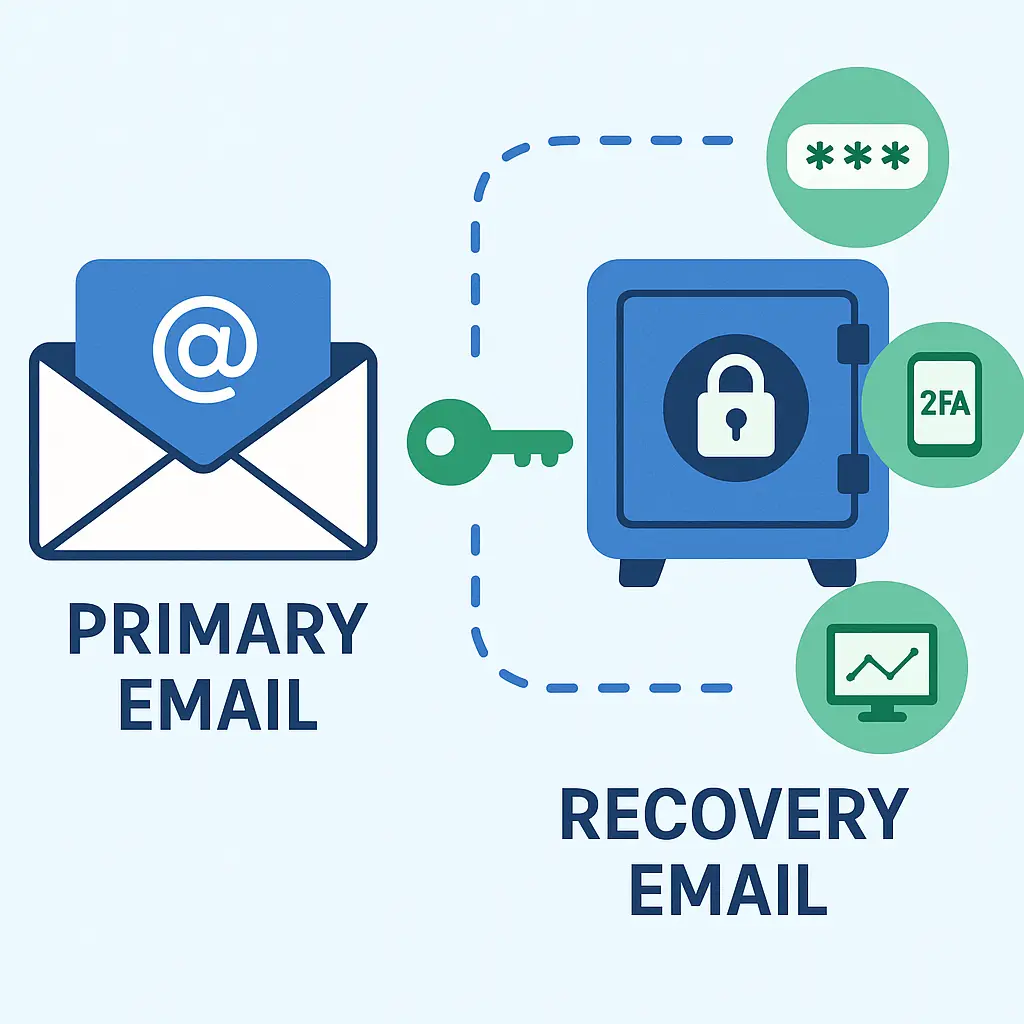
Your recovery email is the skeleton key to your digital life. When you lose access to your primary email, the recovery address is what gets you back in. When you forget a password, the reset link goes there. When someone tries to hijack your account, the security alert lands in that inbox.
Most people set up recovery emails once, during account creation, and never think about them again. The address sits there for years, often pointing to an old email you barely check or an account secured with a password you reused everywhere. Then one day you need it, and you discover the recovery email itself is compromised, abandoned, or locked behind credentials you can't remember.
Here's the practical guide to choosing a recovery email that actually protects you, setting it up correctly, and maintaining it so it works when you need it. This is step-by-step, from scratch.
What Makes a Good Recovery Email
A recovery email needs to be reliable, secure, and separate from your primary account. Those three requirements eliminate most of the obvious choices.
Reliability means the account stays active. Email providers deactivate accounts after extended periods of inactivity. The threshold varies: Gmail gives you around two years of inactivity before deletion, Yahoo gives you twelve months, Outlook gives you around one year. If you set up a recovery email and never log in, it might not exist when you need it.
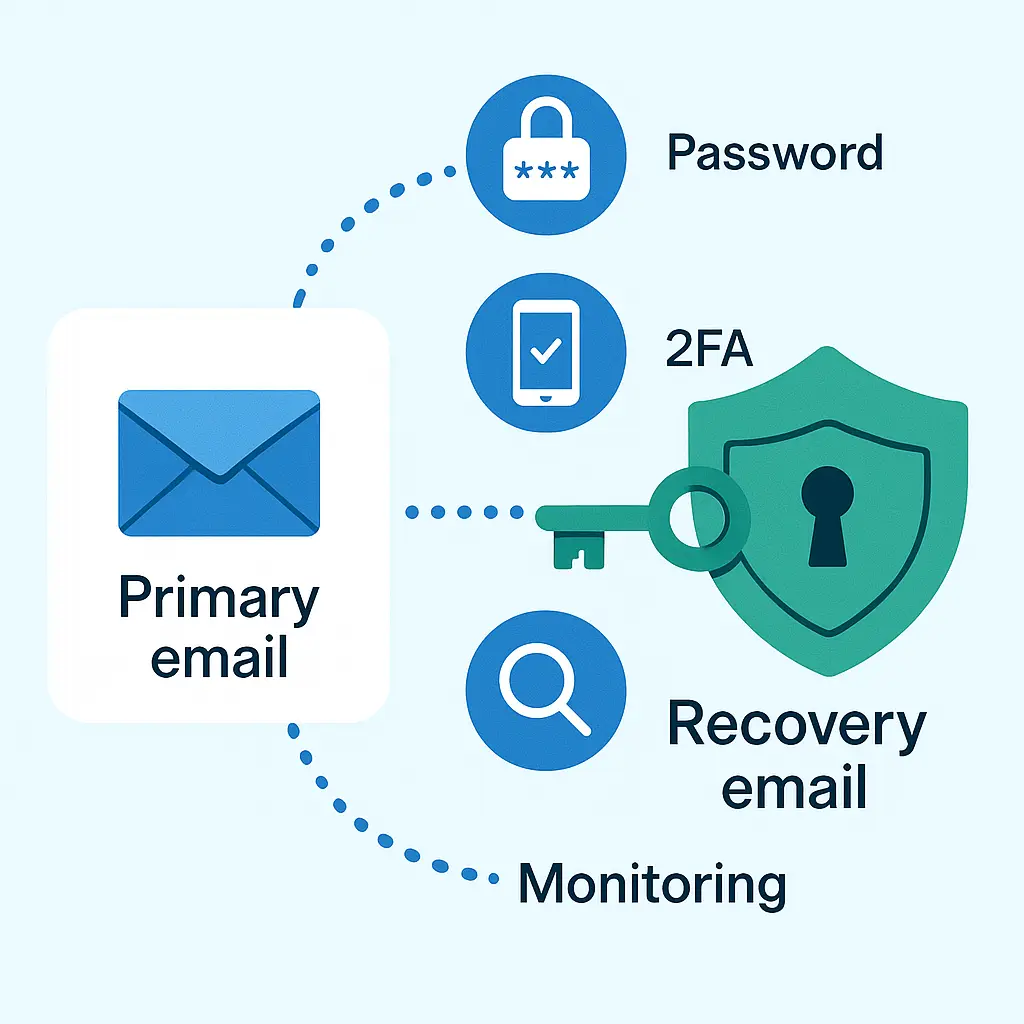
Security means the account is harder to compromise than your primary email. If both accounts use the same password, a breach of one gives attackers access to both. If the recovery email has weaker security than the primary account, it becomes the easier target. Your recovery email needs its own strong password, two-factor authentication, and monitoring.
Separation means the accounts are isolated. Using your work email as recovery for your personal Gmail creates dependencies you don't control. When you leave that job, you lose access to the recovery address. Using a family member's email as your recovery address ties your security to their practices. If their account gets breached, yours follows.
The best recovery email is a dedicated account you create specifically for recovery purposes. You don't use it for newsletters, shopping confirmations, or regular correspondence. It exists to receive security alerts and password reset links, and nothing else.
Step 1: Create a Dedicated Recovery Email Account
Open a new email account with a provider you trust. Gmail, Outlook, and Proton Mail are the most common choices for recovery accounts. The provider matters less than how you secure it.
Choose an address that's memorable but not obvious. Avoid patterns like yourname.recovery@gmail.com or yourname.backup@outlook.com. Those patterns signal to attackers that this is a high-value target. Use something neutral: a combination of words, numbers, or initials that means something to you but nothing to anyone else.
Do not reuse an existing email address. This is a new account, created today, with no history and no other purpose.
During account creation, the provider will ask for a recovery email for this new account. This creates a circular problem: you're setting up a recovery email, and now that account needs its own recovery email. You have two options.
Option one: skip the recovery email for your recovery account. This leaves the recovery email unrecoverable if you lose access, but it also eliminates the circular dependency. If you choose this option, you must store the password and backup codes for the recovery account in a secure location. More on that in a moment.
Option two: use your primary email as the recovery address for your recovery account. This creates a mutual dependency: your primary email recovers your recovery email, and your recovery email recovers your primary email. It works as long as you maintain access to at least one of the two accounts. If you lose both simultaneously, you're locked out of everything. This is the setup I use, and I consider the risk acceptable because I monitor both accounts actively.
Step 2: Secure the Recovery Email with a Strong, Unique Password
Your recovery email needs a password that's different from every other password you use. Not similar. Not a variation. Completely different.
Generate the password using a password manager. If you don't have a password manager yet, now is the time to set one up. A password manager generates long, random passwords and stores them encrypted. You remember one master password; the manager remembers everything else.
The password for your recovery email should be at least 16 characters. Longer is better. Use the password manager's generator with maximum length and complexity settings enabled. The password will look like random nonsense. That's correct.
Store the password in your password manager. Do not write it on paper unless you store that paper in a locked safe. Do not store it in a text file on your computer. Do not email it to yourself. The password manager is the single source of truth.
If you're using option one from Step 1 and skipped the recovery email for your recovery account, you need an offline backup of this password. Write it down, put it in an envelope, and store it somewhere secure. A locked filing cabinet, a safe deposit box, or a fireproof safe at home. This is your last-resort recovery method if the password manager itself fails.
Step 3: Enable Two-Factor Authentication on the Recovery Email
Two-factor authentication adds a second layer beyond the password. Even if someone steals or cracks your password, they can't log in without the second factor.
The FTC recommends enabling two-factor authentication on every account that offers it. Your recovery email is the most important account to protect this way, because it unlocks everything else.
Log into your new recovery email account. Navigate to security settings. The exact path varies by provider, but you're looking for options labeled "two-factor authentication," "two-step verification," or "multi-factor authentication."
Choose an authenticator app as your second factor. Google Authenticator, Microsoft Authenticator, and Authy are the most common options. All three work. Authenticator apps generate time-based codes that expire every 30 seconds. You enter your password, then the app shows you a six-digit code, and you enter that code to complete login.
SMS-based two-factor authentication is weaker because attackers can intercept text messages through SIM swaps and SS7 exploits. Use an authenticator app instead.
During setup, the email provider will show you a QR code. Open your authenticator app and scan the code. The app adds your recovery email account and starts generating codes. Test the setup by logging out and logging back in. You should be prompted for a code after entering your password.
The provider will also generate backup codes. These are one-time codes you can use if you lose access to your authenticator app. Download the backup codes and store them in your password manager. Treat them like passwords: they're secrets that grant access.
Step 4: Set Your Primary Accounts to Use the Recovery Email
Now that your recovery email is secured, you can configure your primary accounts to use it.
Log into your primary email account. Navigate to account settings, then security or recovery options. Look for fields labeled "recovery email," "alternate email," or "backup email." Enter the address of your dedicated recovery account.
The provider will send a verification email to the recovery address. Log into your recovery email, find the verification message, and click the link. This confirms you control both accounts.
Repeat this process for every critical account: your primary email, banking, financial services, work accounts, social media, and any other account where losing access would create serious problems.
Some services let you add multiple recovery emails. If that option exists, consider adding a second recovery address. This creates redundancy: if one recovery email fails, the other still works. The second recovery email should be as secure as the first, which means you're maintaining two dedicated recovery accounts instead of one. This is more work, but it's also more resilient.
Step 5: Document the Setup
You now have a recovery email that's secured with a strong password and two-factor authentication. You've connected it to your primary accounts. The system works, but only if you remember how it's configured.
Write down the following information and store it with your other important documents:
- The email address of your recovery account
- The password manager where the recovery email password is stored
- The authenticator app where the recovery email 2FA codes are generated
- The location of backup codes (in your password manager, in a safe, etc.)
- A list of which primary accounts use this recovery email
This document is not a security risk if stored properly. It doesn't contain passwords or codes. It's a map that tells you where to find the actual credentials when you need them.
If you're using a password manager with an emergency access feature, configure that now. Emergency access lets a trusted contact request access to your vault after a waiting period. If something happens to you, your designated contact can recover your accounts without needing your master password.
Step 6: Set a Calendar Reminder to Check the Recovery Email Monthly
Inactive accounts get deleted. To keep your recovery email active, you need to log in regularly.
Set a recurring calendar reminder for the first of every month. The reminder should say "Check recovery email account." When the reminder fires, log into your recovery email, scan for any messages, and log out. This takes under two minutes and ensures the account stays active.
While you're logged in, check for security alerts. If you see password reset requests you didn't initiate, login attempts from unfamiliar locations, or other suspicious activity, someone is targeting your recovery account. Change the password immediately and review which devices are authorized to access the account.
If you see legitimate security alerts from your primary accounts, act on them. A password reset notification means someone tried to reset your password. A login alert from an unfamiliar location means someone accessed your account. These alerts are why the recovery email exists. Don't ignore them.
What About Using a Family Member's Email as Recovery?
This is common, and it's a bad idea.
Using a family member's email as your recovery address ties your account security to their security practices. If their email gets breached, attackers can reset your passwords. If they reuse passwords, a breach of their account becomes a breach of yours. If they don't use two-factor authentication, your recovery method is weaker than your primary account.
Family members also change email addresses, switch providers, or stop checking old accounts. If your recovery email points to an address your mother stopped using three years ago, you don't have a recovery method. You have a dead link.
The only exception is if you're setting up shared account access intentionally, using a password manager's shared vault feature. In that case, you're not using their email as your recovery address. You're sharing credentials through an encrypted vault that both of you control. That's different, and it's fine.
What About Using Your Work Email as Recovery?
Don't.
Your work email is controlled by your employer. When you leave the job, you lose access to that address. Any account that uses your work email as recovery becomes unrecoverable the moment you're no longer employed.
Work email is also subject to your employer's monitoring, retention, and access policies. Your employer can read your recovery emails. IT administrators can access your account. If your company gets acquired, your email might migrate to a new system with new administrators. You don't control any of this.
Use a personal email account you own and control as your recovery address. Your work email is for work. Your recovery email is for recovery.
What If You Forget the Password to Your Recovery Email?
This is the nightmare scenario, and it's why the setup process matters.
If you forget the password to your recovery email and you don't have it stored in a password manager, you're relying on the recovery method you configured for that account. If you chose option one in Step 1 and skipped the recovery email for your recovery account, you need the offline backup password you wrote down and stored securely. If you can't find that backup, you're locked out.
If you chose option two and used your primary email as the recovery address for your recovery email, you can recover access through your primary account. Log into your primary email, initiate a password reset for the recovery email, and follow the link that arrives in your primary inbox.
This is why the two-account mutual recovery setup works. As long as you maintain access to one of the two accounts, you can recover the other.
What If You Lose Access to Your Authenticator App?
This is why backup codes exist.
When you enabled two-factor authentication on your recovery email, the provider generated a list of backup codes. Each code works once. If you lose your phone, break your device, or uninstall your authenticator app, you can use a backup code to log in.
After logging in with a backup code, you can reconfigure two-factor authentication on a new device. Scan the QR code with your new authenticator app, generate new backup codes, and store them in your password manager.
If you lose access to your authenticator app and you don't have backup codes, you're locked out. The email provider's account recovery process is your only option, and those processes are slow, frustrating, and often unsuccessful. This is why storing backup codes matters.
The Reality of Recovery Email Security
In Schitt's Creek, Moira Rose loses access to her email account and spends an entire episode trying to recover it through increasingly absurd customer service interactions. The show plays it for comedy, but the underlying situation is real: once you lose access to your primary email, recovery is only as reliable as the backup you configured years ago.
Your recovery email is the backup. It's the account that receives the password reset link when you can't log in. It's the address that gets the security alert when someone tries to hijack your account. It's the failsafe that keeps you from being permanently locked out of your digital life.
Most people set up recovery emails carelessly, pointing them to old accounts they no longer check or using addresses they don't control. Then they forget about it until they need it, at which point they discover the recovery method doesn't work.
A dedicated recovery email, secured with a strong password and two-factor authentication, maintained through regular logins, is the difference between recovering your account in five minutes and spending weeks trying to prove your identity to a customer service team that may or may not help you.
The setup takes around twenty minutes. The monthly check-in takes two minutes. That's the entire maintenance cost for a system that protects every account you own.
What This Looks Like in Practice
You create a new Gmail account. The address is something neutral, not obviously a recovery account. You generate a 20-character random password using your password manager and store it there. You enable two-factor authentication using Google Authenticator. You download the backup codes and store them in your password manager.
You log into your primary Gmail account and add the recovery email address in security settings. Google sends a verification email to the recovery account. You log into the recovery account, click the link, and confirm. Your primary Gmail now has a recovery method.
You repeat this process for your bank account, your Microsoft account, your Apple ID, and your social media accounts. Each service sends a verification email to the recovery address. You verify each one.
You set a calendar reminder for the first of every month. When it fires, you log into the recovery email, check for messages, and log out. The account stays active. You see the occasional security alert from your primary accounts, and you act on them.
Three years later, you forget your primary Gmail password. You click "Forgot password," and Google sends a reset link to your recovery email. You log into the recovery email, click the link, set a new password, and you're back in. The entire process takes five minutes because you set up the recovery email correctly three years ago.
That's what this looks like when it works.
The Ongoing Maintenance
Recovery email security is not a one-time setup. It's an ongoing practice.
Every month, log in. Every year, review which accounts use the recovery email and update any that have changed. Every time you change your primary email password, consider whether you should also rotate the recovery email password. Every time you get a new phone, make sure your authenticator app is backed up or transferred.
If you notice suspicious activity in your recovery email, act immediately. Change the password, review authorized devices, check for forwarding rules, and audit which accounts use that recovery address. A compromised recovery email is a compromised everything.
If you stop using an account that's configured to use your recovery email, remove the recovery email from that account's settings. Reducing the number of accounts tied to your recovery address reduces the attack surface.
When You Need a Second Recovery Email
Some people maintain two recovery emails: a primary recovery account and a secondary backup. This creates redundancy. If one recovery email fails, the other still works.
The tradeoff is maintenance. Two recovery emails means two accounts to secure, two sets of passwords to manage, two authenticator app entries, two monthly check-ins. It's more resilient, but it's also more work.
I recommend a second recovery email if you're securing high-value accounts: business email, financial services, accounts tied to significant assets. For most people, one well-maintained recovery email is sufficient.
If you do set up a second recovery email, follow the same process: dedicated account, strong password, two-factor authentication, regular logins. Do not cut corners on the backup account just because it's the backup.
Your recovery email is the master key to your digital identity. It's the account that unlocks every other account when something goes wrong. Most people set it up once and forget about it, which turns a critical security measure into a single point of failure.
A dedicated recovery email, secured properly and maintained actively, is the difference between recovering your accounts in minutes and losing access permanently. The setup process is straightforward. The ongoing maintenance is minimal. The protection is comprehensive.
If you haven't reviewed your recovery email setup in the last year, do it now. If you're using an old email address you barely check, change it. If you're reusing passwords, stop. If you don't have two-factor authentication enabled, enable it.
Your recovery email is the failsafe. Make sure it works before you need it.