How to See Who Is Logged Into Your Account: Step-by-Step Device Audit
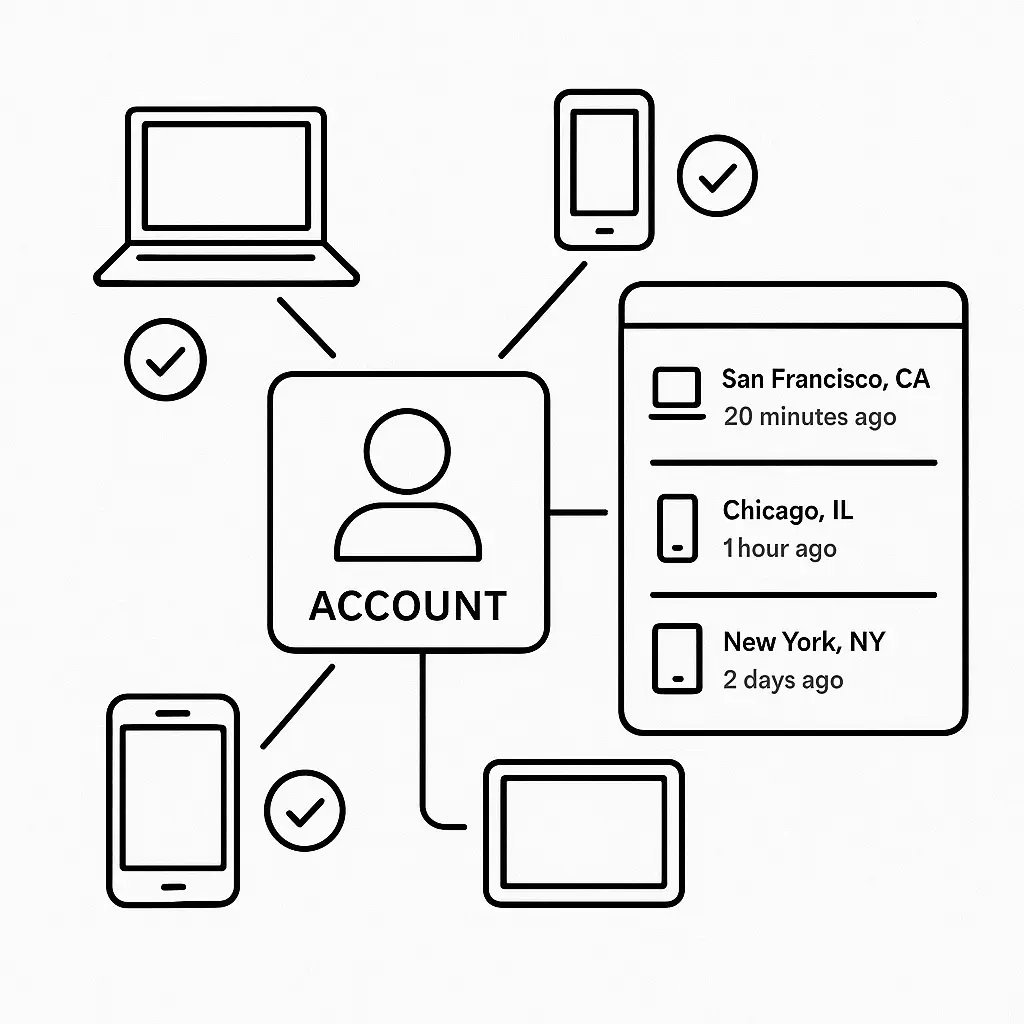
You probably have more devices logged into your accounts than you remember. That old laptop you sold. The phone you replaced two years ago. The browser session from the airport lounge in 2024. Every active session is a potential entry point if credentials leak or a device gets compromised.
Most major platforms let you see which devices are currently logged in and where they last connected from. The process takes around 15 minutes per account. Here's the step-by-step walkthrough for Google, Microsoft, Apple, Facebook, Instagram, and X, what to look for in each list, and when to sign everything out.
Why Active Session Lists Matter
When you log into an account, the service creates a session. That session persists until you explicitly log out, the session expires (usually after weeks or months of inactivity), or you change your password. Some services keep sessions active indefinitely.
Every active session has access to your account with the permissions you had when you logged in. If someone gets physical access to a device with an active session, they don't need your password. If malware infects a device with an active session, it can act as you without triggering login alerts.
The FTC recommends reviewing account access regularly as part of basic account hygiene. Active session lists show you what's actually connected, not what you think is connected.
What You'll See in a Session List
Most platforms show:
- Device type (iPhone, Windows PC, Chrome browser, and similar)
- Operating system and browser version
- Approximate location based on IP address (city or region, not street address)
- Last activity timestamp
- Sometimes: IP address, whether two-factor authentication was used
Location accuracy varies. IP-based geolocation can be off by hundreds of miles, especially for mobile devices or VPNs. A session showing a different city doesn't automatically mean compromise. A session showing a different country you've never visited does.
Some services label the current device. Others don't, so you'll need to identify it by matching device type and recent activity.
Google Account: Device Activity
Google's interface is at myaccount.google.com/device-activity.
You'll see a list of every device where you're currently signed into any Google service: Gmail, Drive, YouTube, Chrome sync, Android, and similar. Each entry shows device name, type, last used timestamp, and location.
Steps:
- Go to myaccount.google.com and sign in
- Click "Security" in the left sidebar
- Scroll to "Your devices" and click "Manage all devices"
- Review the list
For each device, you can click the three-dot menu and select "Sign out" to terminate that session remotely. Google also shows you when two-factor authentication was last used on each device.
If you see a device you don't recognize:
- Click "Don't recognize a device?" at the top
- Follow the prompts to secure your account (which will force a password change and sign out all devices)
Google automatically signs out devices that haven't been used in around 28 days, but this varies by service. Don't rely on automatic expiration.
Microsoft Account: Device List
Microsoft's interface is at account.microsoft.com/devices.
This shows devices where you're signed into Microsoft services: Outlook, OneDrive, Office, Windows, Xbox, and similar. The list includes device name, type, and last activity.
Steps:
- Go to account.microsoft.com and sign in
- Click "Devices" in the top navigation
- Review the list of devices
For devices you no longer use, click "Remove device." This doesn't sign you out of active sessions immediately on all services. To force sign-out across all Microsoft services:
- Go to account.microsoft.com/security
- Click "Advanced security options"
- Under "Additional security," find "Review recent activity"
- Click "Sign out everywhere"
This terminates all active sessions, including your current one. You'll need to log back in.
Apple ID: Device List
Apple's interface is at appleid.apple.com or through Settings on your iPhone.
This shows every device signed into iCloud, iMessage, FaceTime, App Store, and similar Apple services.
Steps (web):
- Go to appleid.apple.com and sign in
- Scroll to "Devices"
- Review the list
Steps (iPhone):
- Open Settings
- Tap your name at the top
- Scroll down to see device list
Each entry shows device name, model, and whether Find My is enabled. Click a device to see more details. To remove a device:
- Click the device
- Click "Remove from Account"
Removing a device signs it out of iCloud and associated services. It doesn't wipe the device unless you use Find My to erase it separately.
Apple doesn't show location or last activity timestamp in the device list. You'll see only the devices you've explicitly signed into with your Apple ID.
Facebook: Where You're Logged In
Facebook's interface is in Settings under Security and Login.
Steps:
- Open Facebook and click your profile picture (top right)
- Select "Settings & privacy," then "Settings"
- Click "Security and login" in the left sidebar
- Find "Where you're logged in"
You'll see a list of active sessions with device type, location, browser, and whether the session is currently active or was active recently. Facebook distinguishes between "Active now" and "Active [time] ago."
For each session, you can click the three-dot menu and select "Log out." To sign out all sessions except your current one:
- Scroll to "Where you're logged in"
- Click "See all" if the list is long
- Click "Log out of all sessions"
Facebook sessions persist for weeks without activity. The "Active now" label means activity in the last few minutes.
Instagram: Login Activity
Instagram's interface is in Settings under Security.
Steps (mobile app):
- Open Instagram and go to your profile
- Tap the three-line menu (top right)
- Tap "Settings and privacy"
- Tap "Account Center" at the top
- Tap "Password and security"
- Tap "Where you're logged in"
You'll see devices logged into Instagram and other Meta accounts if you've linked them. Each entry shows device type, location, and last activity.
To log out a session:
- Tap the session
- Tap "Log out"
Instagram doesn't have a single "log out everywhere" button in the app. You need to log out each session individually, or change your password (which forces logout on most sessions).
X (formerly Twitter): Active Sessions
X's interface is in Settings under Security and account access.
Steps:
- Open X and click "More" in the left sidebar
- Click "Settings and privacy"
- Click "Security and account access"
- Click "Security"
- Click "Apps and sessions"
- Click "Sessions"
You'll see current sessions with device type, location, and last activity. X labels your current session.
To log out a session:
- Click the three-dot menu next to the session
- Select "Log out"
To log out all sessions except your current one:
- In the Sessions list, click "Log out all other sessions"
X sessions expire after around 30 days of inactivity, but this isn't guaranteed. Manually logging out is more reliable.
What to Look For
When reviewing any session list, flag:
- Devices you no longer own or use
- Locations you've never been to (accounting for VPN use and IP geolocation error)
- Device types you don't recognize (an Android session when you only use iPhones, a Windows session when you only use Macs)
- Sessions with very old "last activity" timestamps still showing as active
- Multiple sessions from the same location when you only use one device there
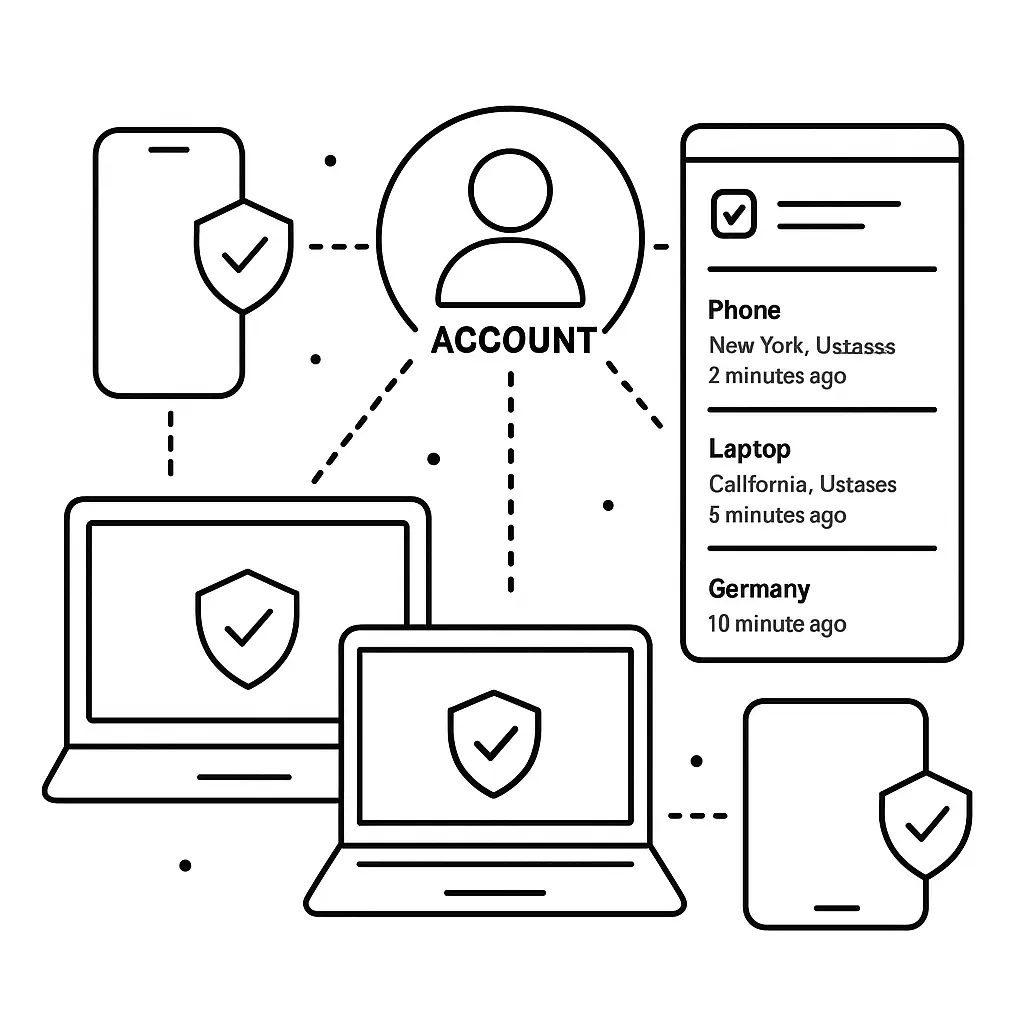
In The Usual Suspects, Verbal Kint tells the story backward, revealing crucial details only at the end. Active session lists work the same way: the full picture emerges when you see all the pieces together. One unfamiliar session might be a VPN or a forgotten login. Three unfamiliar sessions from three different countries is a pattern that demands action.
One session in a city 200 miles away isn't necessarily compromise. IP geolocation is rough. One session in a country you've never visited is.
If you use a VPN, your sessions will show VPN server locations, not your actual location. If you recently traveled, you'll see sessions from those locations even after you've returned home.
When to Sign Out Everything
Sign out all sessions (not just unfamiliar ones) when:
- You suspect unauthorized access
- You've used a public or shared computer and forgot to log out
- Your password appeared in a breach (check Have I Been Pwned)
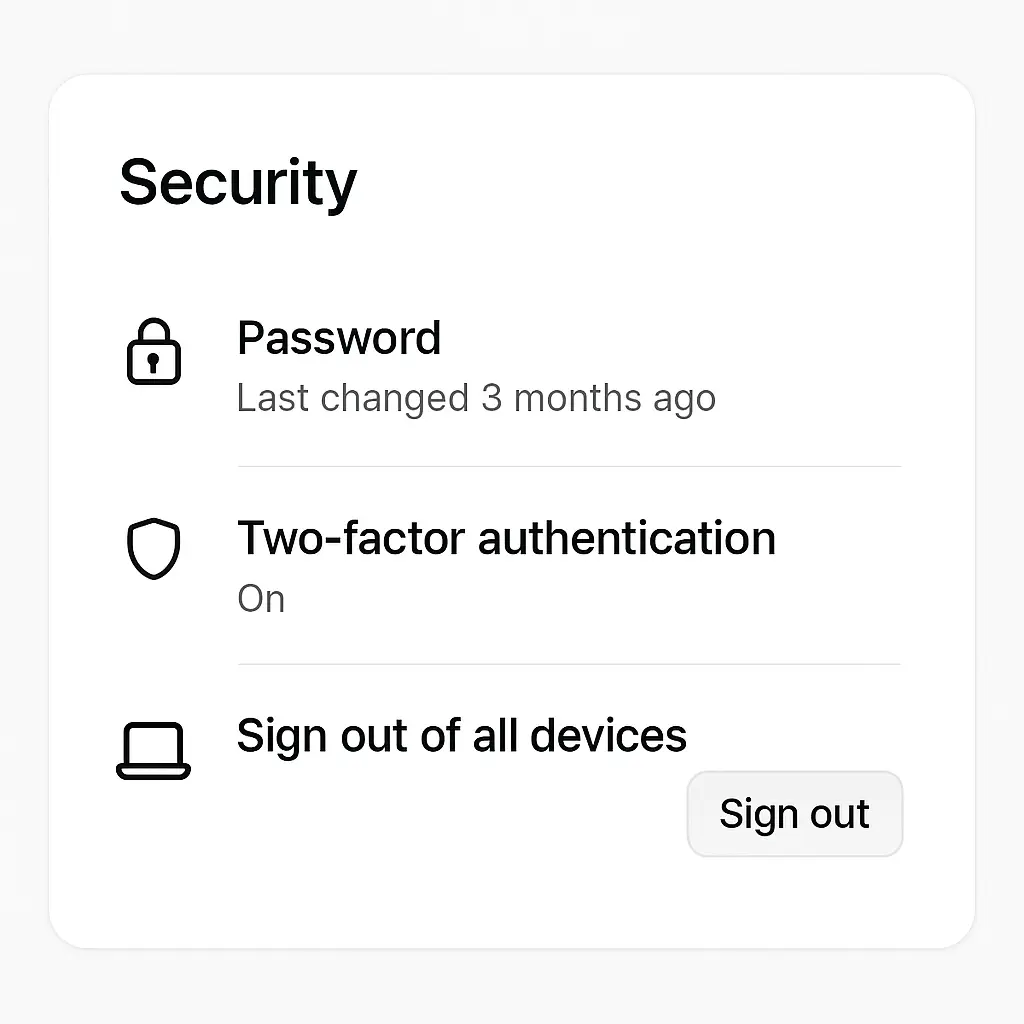
- You're about to change your password (doing both ensures no old sessions persist)
- You haven't reviewed sessions in over six months and see devices you don't immediately recognize
Signing out all sessions logs you out of your current device too. Have your password ready. If you use two-factor authentication, have your second factor ready.
Some services sign you out automatically when you change your password. Others don't. Manually signing out all sessions first ensures nothing slips through.
After You Sign Out
If you signed out an unfamiliar session:
- Change your password immediately
- Enable two-factor authentication if you haven't already
- Review recent account activity (emails sent, files shared, settings changed, purchases made)
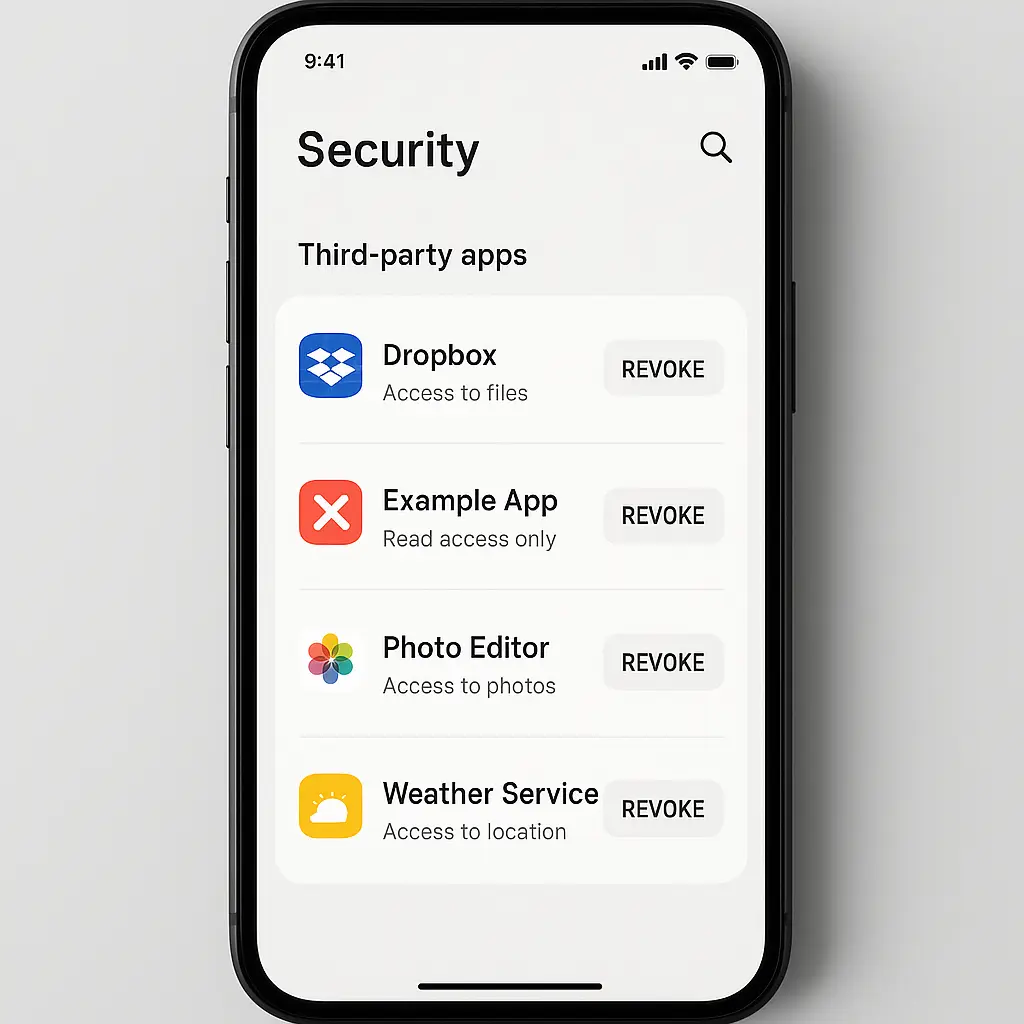
- Check connected apps and revoke access to anything you don't recognize
If you signed out everything as routine maintenance, you're done. Log back in on the devices you use regularly.
Session Lists Don't Show Everything
These lists show devices where you're actively logged in. They don't show:
- Login attempts that failed
- Devices that were logged in but have since been signed out
- Password reset requests
- Changes to account settings
For a fuller picture, check:
- Recent activity logs (most platforms have these under Security settings)
- Login alerts sent to your email
- Password reset emails you didn't request
- Two-factor authentication codes you didn't request
CISA recommends enabling login alerts and two-factor authentication on all accounts that support them. Session lists are one tool. Alerts and 2FA are the others.
Mobile Apps vs. Browser Sessions
Mobile apps often show as separate sessions from browser logins, even on the same device. Your iPhone might show two active sessions: one for Safari and one for the Gmail app.
This is normal. Apps maintain their own authentication tokens. Logging out of the browser doesn't log you out of the app, and vice versa.
If you want to sign out everywhere, you need to sign out both the browser sessions and the app sessions, or use the platform's "sign out all sessions" option (which covers both).
How Often to Review
Check active sessions:
- Every three to six months as routine maintenance
- Immediately after using a public or shared computer
- Immediately if you receive unexpected login alerts or password reset emails
- Before and after international travel
- After selling, giving away, or losing a device
Reviewing sessions takes around 5 minutes per account once you know where to look. Fifteen minutes every few months covers your major accounts.
What Happens to Old Sessions
Most platforms eventually expire inactive sessions, but the timeout varies:
- Google: around 28 days for some services, longer for others
- Microsoft: varies by service, can be months
- Apple: no automatic expiration for trusted devices
- Facebook: several weeks
- Instagram: several weeks
- X: around 30 days
Don't rely on automatic expiration. Manually signing out is faster and more certain.
Some platforms treat "trusted devices" differently and keep those sessions active indefinitely. The definition of "trusted" varies. Usually it means a device where you've enabled two-factor authentication or explicitly marked it as trusted during login.
Session Management Is Not Access Control
Signing out old sessions doesn't revoke access to third-party apps you've connected to your account. Those require separate revocation.
To review third-party app access:
- Google: myaccount.google.com/permissions
- Microsoft: account.microsoft.com/privacy/app-access
- Apple: appleid.apple.com, then "Sign-In & Security," then "Apps Using Apple ID"
- Facebook: Settings, "Security and login," "Apps and websites"
- Instagram: Account Center, "Password and security," "Apps and websites"
Third-party apps can access your account even when you're not actively logged in on any device. Revoke access to apps you no longer use.
If You Find an Unfamiliar Session
Don't panic. Work through the checklist:
- Could this be a VPN server location?
- Could this be a recent trip you forgot about?
- Could this be a family member using a shared account?
- Could this be a device you used once and forgot (friend's computer, library, hotel business center)?
If the answer to all four is no:
- Sign out that session immediately
- Change your password
- Enable two-factor authentication if it's not already on
- Review recent account activity for anything you didn't do
- Check your email for login alerts from around the time that session started
If you see evidence of unauthorized access (emails you didn't send, files you didn't share, settings you didn't change), follow the platform's account recovery process. Most platforms have a "My account was hacked" flow that walks you through securing it.
Active Sessions and Two-Factor Authentication
Two-factor authentication doesn't prevent old sessions from staying active. If you logged in before enabling 2FA, that session persists until you sign out or it expires.
Enabling 2FA protects future logins. It doesn't invalidate current sessions. If you're enabling 2FA for the first time, sign out all sessions afterward to ensure every future login requires the second factor.
Some platforms show whether a session was authenticated with 2FA. Google does this. Most others don't. If you see a session that wasn't authenticated with 2FA and you've since enabled it, that session predates your 2FA setup.
The Fifteen-Minute Audit
Here's the full routine for your major accounts:
- Google: myaccount.google.com/device-activity , review, sign out unfamiliar devices
- Microsoft: account.microsoft.com/devices , review, remove old devices
- Apple: appleid.apple.com , review device list, remove devices you no longer use
- Facebook: Settings, Security and login, Where you're logged in , review, log out old sessions
- Instagram: Account Center, Password and security, Where you're logged in , review, log out old sessions
- X: Settings, Security, Apps and sessions, Sessions , review, log out old sessions
For each account, flag anything unfamiliar. If you're not sure, sign it out. The worst case is you need to log back in on a device you actually use.
Do this every few months. The list gets shorter each time because you'll recognize your regular devices and won't need to investigate them.
What This Doesn't Protect Against
Reviewing active sessions catches unauthorized access that's already happened. It doesn't prevent:
- Phishing attacks (those bypass session management entirely by stealing credentials)
- Keyloggers on your device (those capture your password before you even log in)
- Compromised password managers (if your password manager is breached, session management won't help)
- Social engineering attacks that trick you into giving access
Session management is one layer. Password hygiene, two-factor authentication, and phishing awareness are the others.
When Session Lists Fail
Some platforms don't provide session lists at all. Many smaller services, older platforms, and niche apps don't expose this information to users.
If a service doesn't show active sessions, your options are:
- Change your password periodically (this usually forces logout on most sessions)
- Enable two-factor authentication (this limits damage from stolen credentials)
- Contact support and ask them to terminate all sessions
Lack of a session list is a sign of weak account security infrastructure. Consider whether you want to keep using that service.
Final Thoughts
Active session lists exist because platforms know people forget where they're logged in. The feature is there. Most people don't use it.
Checking your session list every few months takes around 15 minutes total across all major accounts. It's not exciting. It's not urgent. It's just maintenance. Like checking your bank statement or changing your smoke detector batteries.
The unfamiliar session you find might be nothing. It might be a VPN server or a trip you forgot. But if it's not, you'll catch it before it turns into a bigger problem. And if everything looks clean, you'll know your accounts are locked down the way you think they are.