What your phone reveals when it's locked: the reality check
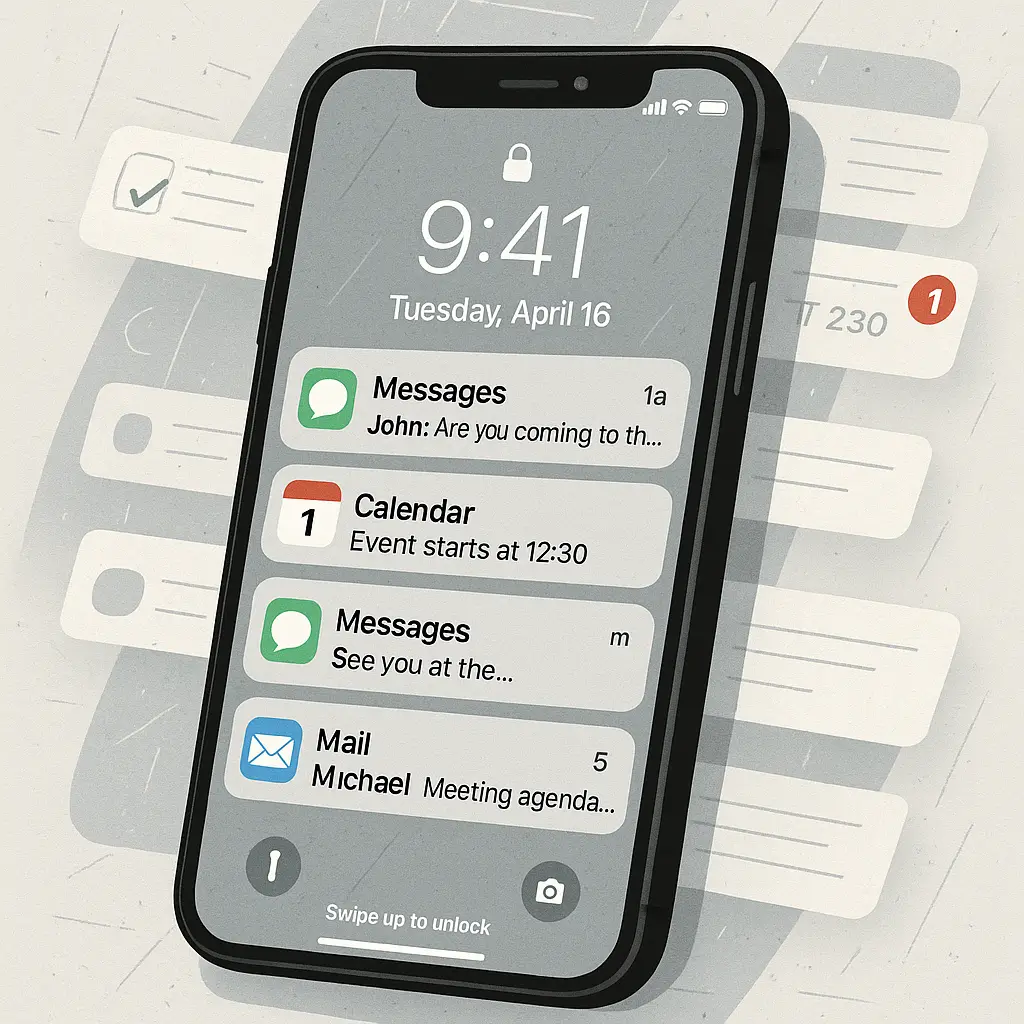
You lock your phone. You set a strong passcode. You enable Face ID or fingerprint unlock. You assume that means your data is secure when the device is in your pocket or sitting on a table.
That assumption is wrong in ways that matter.
Your locked phone leaks information constantly. Some of it is by design. Some of it is default behavior you never changed. Some of it is features you forgot existed. The lock screen is not a wall. It's a filter, and the mesh is coarser than you think.
Here's what actually happens when your phone is locked, what data flows through that filter, and what you can do about it.
What appears on the lock screen by default
Pick up an iPhone or Android phone fresh out of the box, set a passcode, and lock it. Now hand it to someone else. What can they see?
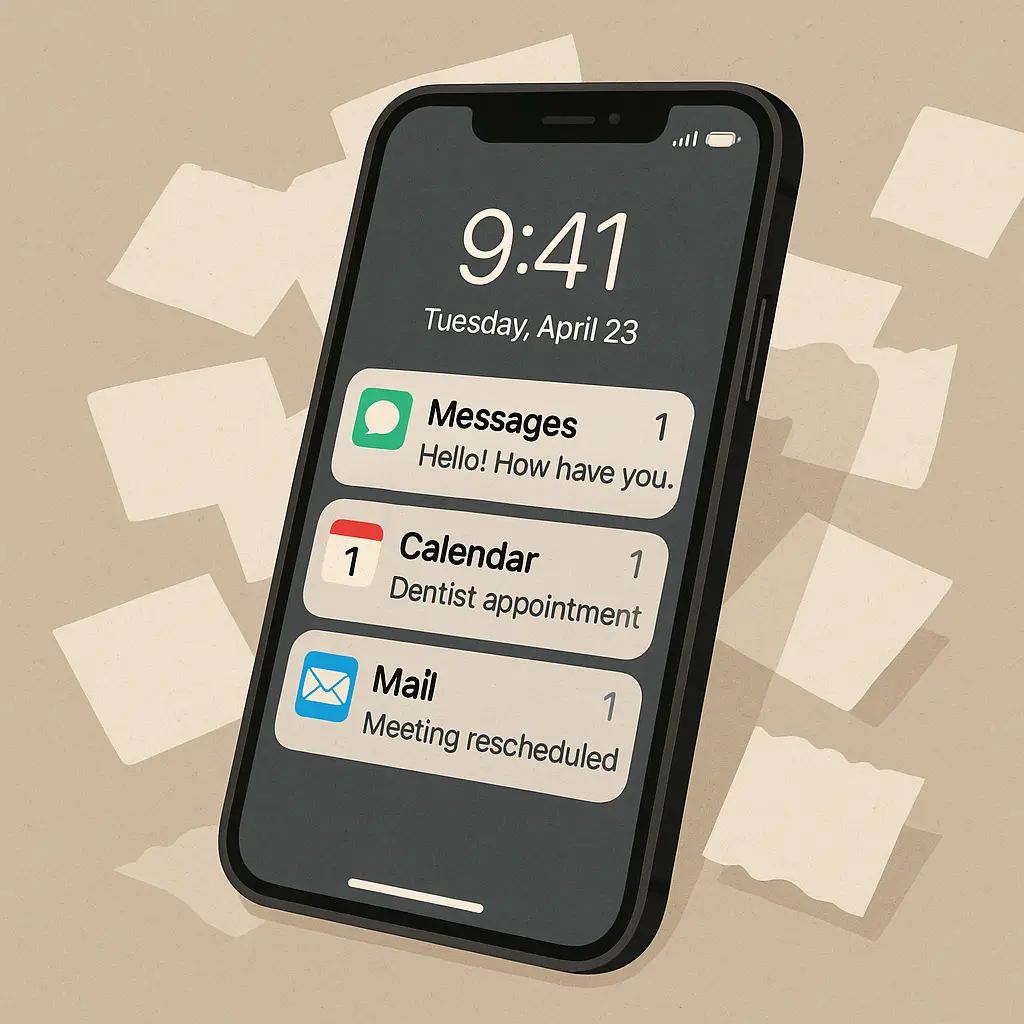
Notification previews. Every text message, email subject line, app alert, and calendar reminder displays on the lock screen as it arrives. The sender's name appears. The first few lines of the message appear. If you use a messaging app, the content of the conversation appears. If you get a calendar notification, the meeting title and time appear.
This is default behavior on both iOS and Android. Apple's lock screen notification settings allow full previews by default. Android does the same. The assumption is that you want to see your notifications without unlocking your phone. That assumption creates exposure.
Someone who picks up your locked phone can read your most recent messages, see who's contacting you, browse your calendar, and scan your email subjects. They can't reply. They can't open the apps. But they can read what's visible, and what's visible is often enough.
Notification history compounds this. On iOS, you can swipe down to see older notifications. On Android, the notification shade persists. A locked phone displays not just the most recent alert but a scrollable list of recent activity. That list includes message previews, email subjects, app alerts, and calendar reminders from the last several hours.
App badges appear on the lock screen if you use widgets. Unread message counts, pending emails, calendar appointments, and other app-specific data display without unlocking. Some widgets show more. Calendar widgets display your schedule. Weather widgets show your location. News widgets show headlines. All of this is visible on a locked device.
Voice assistants respond to queries without unlocking. Siri on iOS and Google Assistant on Android both answer questions from the lock screen by default. You can ask about calendar appointments, contacts, recent calls, messages, reminders, and location. The assistant reads the information aloud. No passcode required.
The camera is accessible from the lock screen on both platforms. Swipe left on iOS or double-tap the power button on many Android phones, and the camera opens. You can take photos. You can record video. You can browse the photos you just took. You cannot access the main photo library, but you can see what was captured in that session.
Emergency information displays on the lock screen if you've configured it. Medical ID on iOS and emergency info on Android both show without unlocking. This includes your name, medical conditions, medications, emergency contacts, and blood type. That's by design. First responders need it. But it's also visible to anyone who picks up your phone and taps the emergency button.
Control Center on iOS and Quick Settings on Android are accessible from the lock screen. You can toggle WiFi, Bluetooth, airplane mode, flashlight, and other system functions. You can't change settings deeply, but you can disable connectivity, which creates its own risks if someone wants to prevent you from tracking a stolen device.
What USB access reveals when locked
Plug a locked iPhone into a computer. What happens?
If the phone has been locked for less than an hour, the computer can access some data. Photos sync. Backups run. File transfer works. This is called USB Restricted Mode, and it's a security feature introduced by Apple in iOS 11.4.1. But the key detail is the one-hour window. If your phone was unlocked recently, USB access works even though the screen is locked.
After one hour of being locked, USB Restricted Mode kicks in. The phone stops responding to data requests over USB. It will charge, but it won't sync, back up, or transfer files. This protects against forensic tools that attempt to extract data from locked devices.
Android's behavior varies by manufacturer and settings. USB debugging is a developer feature that allows deep access to the phone over USB. If it's enabled, a locked Android phone can respond to commands from a computer. Many phones ship with USB debugging disabled, but some users enable it for app development or troubleshooting and forget to turn it off.
Even with USB debugging disabled, some Android phones allow file transfer when locked if the screen was unlocked recently. The exact behavior depends on the manufacturer's implementation. Samsung, Google Pixel, and OnePlus devices handle this differently. Check your phone's USB settings to see what's exposed.
Accessories connected via USB or Bluetooth also interact with locked phones. Headphones, car systems, and smart displays can trigger Siri or Google Assistant, play music, make calls, and send messages. The phone treats these accessories as trusted, even when locked. If someone has physical access to your phone and a compatible accessory, they can interact with it without unlocking the screen.
What law enforcement tools can access
Forensic tools designed for law enforcement can extract data from locked phones in specific circumstances. These tools exploit vulnerabilities in the lock screen, USB protocols, or encryption implementation. The tools are expensive, require physical access, and don't work on every device or OS version.
CISA's mobile device security guidance acknowledges that locked phones are not impervious to sophisticated attacks. The guidance recommends enabling the strongest available lock screen protections, including biometric authentication, automatic lock timers, and USB restrictions.
GrayKey and Cellebrite are two widely known forensic tools. GrayKey targets iPhones. Cellebrite targets both iOS and Android. Both tools attempt to bypass the lock screen by exploiting vulnerabilities in the operating system or by brute-forcing the passcode. Success rates vary by device model, OS version, and how quickly the phone was locked after the last unlock.
These tools are not available to the general public. They're sold to law enforcement agencies and cost tens of thousands of dollars. But they exist, and they work in some cases. If your threat model includes nation-state actors or law enforcement with physical access to your device, a locked phone with a strong passcode is not sufficient protection on its own.
The defense against forensic tools is layered. A strong alphanumeric passcode is harder to brute-force than a six-digit PIN. Biometric authentication (Face ID or fingerprint) adds convenience but doesn't replace passcode strength. Enabling USB Restricted Mode on iOS and disabling USB debugging on Android limits what forensic tools can do. Rebooting your phone after extended periods without use forces it into a higher security state called Before First Unlock (BFU), which is harder to crack than After First Unlock (AFU).
What the Before First Unlock state actually means
Your phone operates in two security states: Before First Unlock (BFU) and After First Unlock (AFU). The difference matters for what's accessible when the device is locked.
Before First Unlock is the state immediately after you reboot your phone. The device is on, but you haven't entered your passcode or used biometric authentication yet. In this state, the encryption keys that protect most of your data are not loaded into memory. Apps can't run in the background. Notifications don't appear. Calls and messages don't come through. The phone is locked down tightly.
After First Unlock is the state after you've unlocked your phone at least once since booting. The encryption keys are now in memory. Apps can run in the background. Notifications appear. Calls and messages come through. The lock screen still requires authentication to access the home screen, but more of the phone's functionality is active.
Forensic tools have a much harder time extracting data from a phone in BFU state. The encryption keys aren't in memory, so even if the tool bypasses the lock screen, it can't decrypt the data. AFU state is more vulnerable because the keys are present, even though the screen is locked.
You can force your phone into BFU state by rebooting it. On iOS, hold the power button and volume button until the "slide to power off" screen appears, then slide. On Android, hold the power button and tap "Restart." This is a practical step if you're crossing a border, attending a protest, or in any situation where you expect your phone might be taken from you.
Some people reboot their phones nightly as a security habit. It's not necessary for most threat models, but it's also not paranoid. The BFU state is significantly more secure than AFU, and rebooting takes ten seconds.
The Sherlock Holmes problem with lock screen data
In The Adventure of the Copper Beeches, Sherlock Holmes tells Watson that data is meaningless without context, but with context, scattered details form a complete picture. That's the problem with lock screen data.
A single notification preview might seem harmless. But a week's worth of notifications tells a story. Message previews reveal who you talk to and when. Calendar alerts show where you'll be and when. Email subjects hint at work projects, financial activity, and personal relationships. App alerts reveal which services you use.
An attacker with physical access to your locked phone for even a few minutes can photograph the lock screen, scroll through notification history, and capture enough information to build a profile. They don't need to unlock the device. They just need to see what's already visible.
This isn't a theoretical attack. Domestic abusers use lock screen data to monitor partners. Thieves use calendar notifications to learn when you'll be away from home. Stalkers use message previews to identify contacts and relationships. The lock screen is a surveillance surface, and most people never think about what it exposes.
The fix is straightforward but requires deliberate configuration. You can disable notification previews entirely, or you can disable them selectively for sensitive apps. You can turn off lock screen widgets. You can restrict what Siri or Google Assistant can access without unlocking. These settings exist on both iOS and Android, but they're not enabled by default.
How to actually secure your lock screen
Start with notification previews. On iOS, go to Settings > Notifications > Show Previews and change it to "When Unlocked" or "Never." On Android, go to Settings > Apps & notifications > Notifications > On lock screen and select "Hide sensitive content" or "Don't show notifications at all."
You can configure this per app. On iOS, tap into each app under Settings > Notifications and adjust the lock screen behavior individually. On Android, long-press a notification on the lock screen and tap the settings icon to adjust that app's behavior.
Disable lock screen widgets if you use them. On iOS, swipe right on the lock screen to see the widget panel, scroll to the bottom, tap "Edit," and remove widgets you don't need. On Android, the process varies by manufacturer, but most phones let you disable lock screen widgets in Settings > Lock screen.
Restrict voice assistant access. On iOS, go to Settings > Face ID & Passcode (or Touch ID & Passcode) and toggle off Siri under "Allow Access When Locked." On Android, open the Google app, tap your profile icon, go to Settings > Google Assistant > Lock screen, and disable personal results.
Check USB settings. On iOS, USB Restricted Mode is enabled by default, but you can verify it under Settings > Face ID & Passcode > USB Accessories. On Android, go to Settings > Developer options (you may need to enable this first) and make sure USB debugging is off.
Set your phone to lock quickly. On iOS, go to Settings > Face ID & Passcode > Require Passcode and set it to "Immediately." On Android, go to Settings > Security > Screen lock and set the lock timer to the shortest interval your phone allows.
Use a strong passcode. Six-digit PINs are better than four-digit PINs, but alphanumeric passwords are better still. On iOS, go to Settings > Face ID & Passcode > Change Passcode and select "Custom Alphanumeric Code." On Android, go to Settings > Security > Screen lock and choose "Password."
Enable biometric authentication if your phone supports it. Face ID and fingerprint sensors are convenient and reasonably secure for everyday use. They don't replace a strong passcode, but they reduce the friction of unlocking your phone frequently, which makes you more likely to keep it locked.
Disable lock screen camera access if you don't need it. On iOS, go to Settings > Face ID & Passcode and toggle off Camera under "Allow Access When Locked." On Android, the option is usually under Settings > Lock screen > Lock screen shortcuts.
Review your emergency information. On iOS, open the Health app, tap your profile icon, and check Medical ID. On Android, go to Settings > About phone > Emergency information. Make sure you're comfortable with what's visible there, because it displays without unlocking.
Reboot your phone when it matters. If you're in a situation where physical access to your phone is a concern, power it off or reboot it to force BFU state. This is particularly relevant at border crossings, protests, or any scenario where law enforcement or other actors might take your device.
What you can't control
Some lock screen exposure is unavoidable if you want your phone to function as a phone. Incoming calls display the caller's name or number. Emergency calls work without unlocking. The flashlight and camera are accessible by design. These features exist for usability, and disabling them entirely makes the phone less functional.
The tradeoff is real. A completely locked-down phone that displays nothing on the lock screen, disables all voice assistant access, and requires unlocking for every interaction is more secure. It's also more annoying to use. Most people won't tolerate that level of friction.
The goal is not perfect security. The goal is to reduce exposure to a level that matches your threat model. If you're worried about a stolen phone, disabling notification previews and enabling USB restrictions makes sense. If you're worried about domestic surveillance, restricting voice assistant access and disabling lock screen widgets makes sense. If you're worried about forensic tools, using a strong alphanumeric passcode and rebooting regularly makes sense.
You don't need to do all of this. You need to do the parts that address the risks you actually face.
The reality check
Your locked phone is not a vault. It's a device with a lock screen that filters access, and the filter is configurable. Out of the box, the filter is loose. Notification previews leak information. Voice assistants respond to queries. USB access works for an hour after unlocking. Emergency information displays without authentication.
None of this is a bug. It's all by design. The defaults prioritize convenience over security because most people prioritize convenience over security. That's a reasonable tradeoff for many threat models. But it's a tradeoff, not a guarantee.
If you want your locked phone to actually protect your data, you need to configure it. Disable notification previews. Restrict voice assistant access. Check your USB settings. Use a strong passcode. Reboot when it matters. These steps take ten minutes to configure and zero ongoing effort to maintain.
The alternative is assuming the lock screen does more than it actually does, and discovering the gap when it's too late.
Related reading: