Apps you should delete from your phone: the practical guide to cleaning up
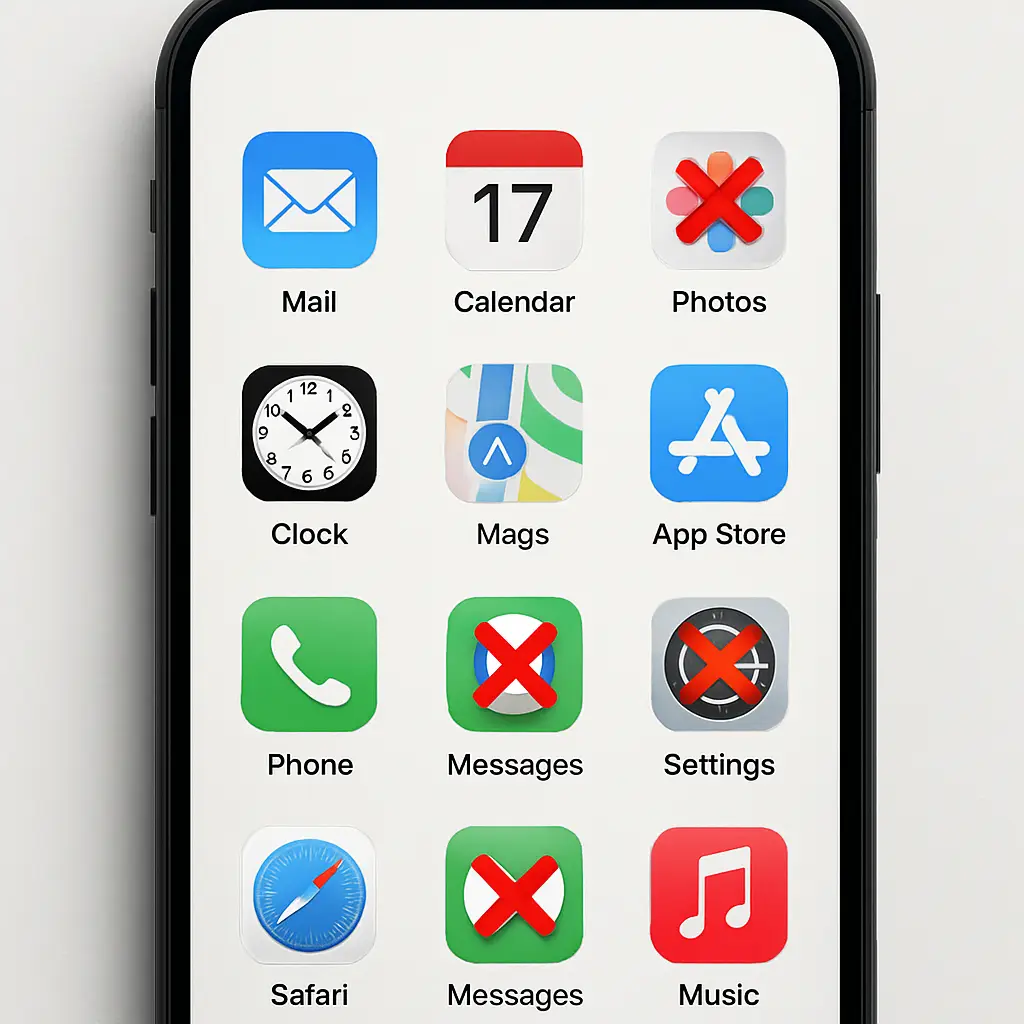
Your phone probably has 80 apps installed. You use around 9 of them regularly. The rest sit there, collecting data, draining battery, and cluttering your home screen.
This is the practical guide to cleaning up. I'll walk you through the categories of apps worth deleting, the step-by-step process to remove them on iPhone and Android, and what actually happens when you hit delete. No fear-mongering about surveillance. No claims that deleting apps will transform your life. Just a clear method for reducing the junk.
Why app bloat matters
Every app you install gets permissions. Location. Contacts. Camera. Microphone. Photos. Most apps request more access than they need, and most people grant it without reading.
Those permissions persist even when you're not using the app. A shopping app you opened once in 2023 might still be tracking your location. A game you played for two days might still have access to your contacts. The app isn't malicious. It's just sitting there, doing what you gave it permission to do.
Apps also run background processes. They sync. They check for updates. They refresh content you'll never see. Each process uses battery, bandwidth, and processing power. The impact from one app is small. The cumulative impact from 40 unused apps is real.
Then there's the data collection. Apps send usage data, device identifiers, and behavioral information back to their servers. Some of this is functional. Some of it feeds advertising profiles. When you delete an app, the company keeps the data they already collected, but they stop collecting new data from your device.
CISA's mobile device guidance recommends regular app audits as part of basic device hygiene. The goal isn't paranoia. It's reducing unnecessary exposure.
Category 1: Apps you haven't opened in three months
This is the easiest category. If you haven't used it in 90 days, you don't need it installed.
Your phone tracks this. On iPhone, go to Settings > Screen Time > See All Activity > scroll down to Most Used. On Android, go to Settings > Digital Wellbeing > Dashboard > scroll to see app usage.
Look at the apps with zero minutes in the last week. Then check the last month. If an app shows zero usage for multiple weeks, it's a deletion candidate.
Common examples: airline apps you installed for one trip, restaurant apps you used once, retail apps you downloaded for a single purchase, games you played for three days and forgot about, productivity apps you tried and abandoned.
The test is simple: when did I last open this? If the answer is "I don't remember," delete it.
You can always reinstall. App stores keep your purchase history. Deleting a paid app doesn't erase your license. You're not losing anything except the installation.
Category 2: Duplicate functionality apps
You don't need three weather apps. You don't need two calculators. You don't need four note-taking apps.
Walk through your home screen and app drawer. Look for apps that do the same thing. Keep the one you actually use. Delete the rest.
This includes:
- Multiple email clients when you only check one
- Multiple map apps when you default to one
- Multiple messaging apps when most of your contacts use one platform
- Multiple photo editing apps when you only use one
- Multiple fitness trackers when you only log to one
The exception is when you genuinely use different apps for different purposes. Two email clients for work and personal makes sense. Three email clients when you only use Gmail does not.
In Friends, Monica keeps her apartment obsessively organized. One spatula for flipping, one for serving, one for omelets. Each tool has a specific job. But she doesn't keep three of the same spatula just because they came with different kitchen sets. Same principle here. If the apps do identical jobs and you only use one, the others are clutter.
Category 3: Pre-installed bloatware you never use
Your phone came with apps you didn't choose. Manufacturer apps. Carrier apps. Partner apps that exist because of a business deal, not because you need them.
Some of these you can't delete. They're baked into the system. But many of them you can disable, which stops them from running, updating, or collecting data.
On Android, go to Settings > Apps > See all apps. Tap the app you want to remove. If you see a "Disable" button, use it. If you see "Uninstall," even better.
On iPhone, Apple's pre-installed apps (Stocks, Tips, Compass, Measure) can be deleted like any other app. Long-press the icon, tap Remove App, tap Delete App.
Common bloatware targets:
- Carrier-branded apps (My Verizon, T-Mobile Tuesdays, AT&T apps)
- Manufacturer apps (Samsung Health when you use Apple Health, Bixby when you use Google Assistant)
- Pre-installed games you never opened
- News apps you don't read
- Voice assistants you don't use
The goal isn't to delete everything pre-installed. Some of it is useful. The goal is to remove what you don't use so it stops running in the background.
Category 4: Apps with excessive permissions
Go through your app list and check what permissions you've granted. Some of what you'll find will surprise you.
On iPhone: Settings > Privacy & Security > scroll through each category (Location Services, Contacts, Camera, Microphone, Photos). Each category shows which apps have access. Tap any app to change its permission level.
On Android: Settings > Privacy > Permission manager. Each category shows which apps have access. Tap any app to revoke permissions.
Look for apps that have permissions they don't need:
- A flashlight app with access to your contacts
- A game with access to your location
- A shopping app with access to your microphone
- A wallpaper app with access to your photos
If the permission doesn't make sense for the app's function, revoke it. If the app stops working without that permission, consider whether you actually need the app.
NIST's mobile device security guidelines emphasize permission management as a core security practice. Apps request broad permissions because users usually grant them. You're allowed to say no.
This category isn't about deleting apps outright. It's about identifying apps that are overreaching and deciding whether they're worth keeping. If an app demands unnecessary permissions and refuses to work without them, that's a red flag. Delete it.
Category 5: Social media apps you don't actively use
Social media apps are resource-intensive. They run background refresh. They track your location. They access your camera, microphone, and contacts. They send constant notifications.
If you're actively using the platform, that's a tradeoff you've chosen. If you're not actively using it, you're paying the cost without getting the benefit.
Walk through your social media apps. When did you last post? When did you last check it? If the answer is "months ago," delete the app. You can still access the platform through a web browser if you need to check something.
This includes:
- Facebook if you only use Messenger (delete Facebook, keep Messenger)
- Instagram if you scroll once a month
- Twitter/X if you stopped posting in 2024
- LinkedIn if you only update your profile during job searches
- TikTok if you watched it heavily for two weeks and haven't opened it since
- Snapchat if all your friends moved to Instagram
Deleting the app doesn't delete your account. Your profile, posts, and data stay on the company's servers. You're just removing the app's access to your device.
If you're worried about losing access, use the web version for a week. If you don't miss the app, you don't need it installed.
Category 6: Shopping and retail apps
You installed the Target app to check if an item was in stock. You installed the Starbucks app to earn rewards. You installed the airline app to check in for a flight. Now they're sitting on your phone, sending notifications about sales you don't care about.
Retail apps are designed to keep you engaged. Push notifications. Location-based offers. Loyalty program updates. If you're not actively using the rewards program, you don't need the app.
Delete:
- Retail apps for stores you visit once a year
- Restaurant apps you used once for a discount code
- Airline apps when you fly that carrier once every two years
- Hotel apps when you book through a third-party site
- Delivery apps you used once and didn't like
Keep:
- Apps for stores you visit weekly where the app genuinely saves time (mobile checkout, loyalty rewards you actually use)
- Delivery apps you use regularly
- Apps with payment methods you rely on
The browser works fine for occasional purchases. You don't need a dedicated app for every retailer.
Category 7: Old messaging apps
Messaging apps multiply. You install WhatsApp for one group chat. You install Signal because a friend insisted. You install Telegram for a community. You install Discord for a gaming group. Now you have six messaging apps and you only check two of them.
If you're not actively participating in conversations on a platform, you don't need the app. Delete it. If someone needs to reach you, they'll find another way.
This includes:
- WhatsApp if all your contacts moved to Signal
- Signal if you only installed it once and never used it
- Telegram if you joined one channel and never check it
- Discord if you left the gaming group
- Slack if you left the job
- GroupMe if the group chat died
The exception is if you're keeping the app specifically for one important conversation. A family group chat on WhatsApp. A work channel on Slack. If you're actively using it, keep it. If you're ignoring notifications from it, delete it.
Category 8: Fitness and health apps you abandoned
January is when fitness apps proliferate. By March, most of them are unused. If you're not logging workouts, tracking steps, or recording meals, the app is just sitting there with access to your health data.
Delete:
- Calorie tracking apps you used for two weeks
- Workout apps you opened three times
- Meditation apps you tried once
- Sleep tracking apps that didn't change your behavior
- Step counters when your phone already tracks steps
Keep:
- Apps you genuinely use multiple times per week
- Apps connected to hardware you own (fitness tracker, smart scale)
- Apps your doctor asked you to use for medical monitoring
Health apps often request access to Apple Health or Google Fit, which means they can see data from other sources. If you're not using the app, revoke that access. On iPhone: Settings > Health > Data Access & Devices. On Android: Open the Fit app > Profile > Settings > Manage connected apps.
Category 9: Apps that are just mobile websites
Some apps are thin wrappers around a website. They don't offer additional functionality. They don't work offline. They're just a browser view with a custom icon.
If the mobile website works fine, you don't need the app. Add a bookmark to your home screen instead.
Common examples:
- News apps that just load the news site
- Recipe apps that just display web content
- Event apps that just show a schedule you could view in a browser
- Reference apps that just load a mobile site
To add a website to your home screen on iPhone: Open Safari, tap the share button, tap "Add to Home Screen." On Android: Open Chrome, tap the three-dot menu, tap "Add to Home Screen."
The bookmark loads faster, uses less storage, and doesn't request permissions.
Category 10: Apps you're keeping "just in case"
This is the hardest category because it requires honest assessment of hypothetical future use.
You're keeping the app because you might need it someday. You might travel to that country again. You might take up that hobby again. You might need to reference that information.
The reality: if you haven't used it in six months, you won't use it in the next six months. And if you do need it, reinstalling takes 30 seconds.
Delete:
- Translation apps for languages you studied once
- Transit apps for cities you visited two years ago
- Hobby apps for hobbies you stopped pursuing
- Reference apps you've never actually referenced
- Utility apps you thought would be useful but never were
The test: if I delete this right now, what's the worst that happens? Usually the answer is "I spend 30 seconds reinstalling it if I ever need it again." That's not a real cost.
How to actually delete apps
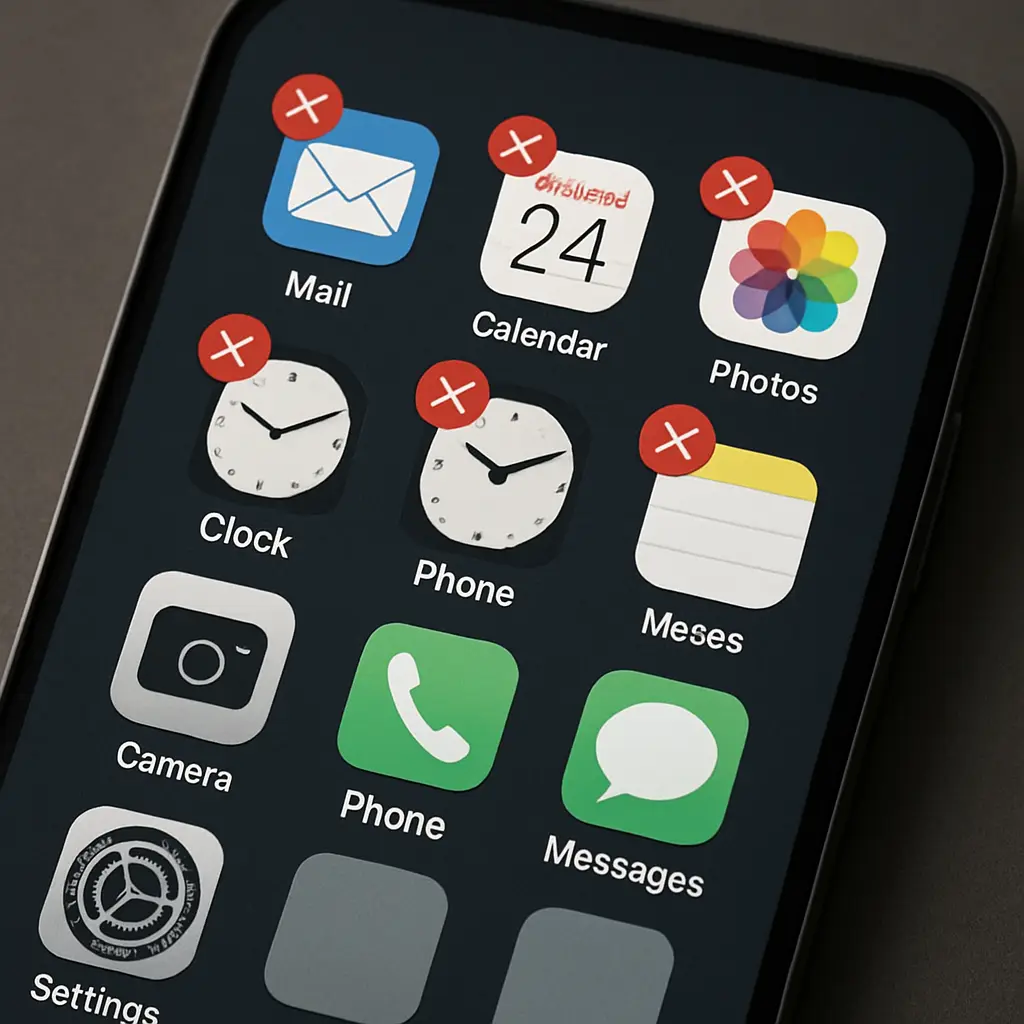
On iPhone: Long-press the app icon until a menu appears. Tap "Remove App." Tap "Delete App" to confirm. This removes the app and its data from your device.
Alternatively: Settings > General > iPhone Storage > scroll to the app > tap "Delete App."
On Android: Long-press the app icon, drag it to "Uninstall" at the top of the screen, confirm. Or: Settings > Apps > See all apps > tap the app > tap "Uninstall."
When you delete an app, your phone removes the app and its local data. This includes cached files, downloaded content, and app-specific settings. It does not remove data stored on the company's servers. Your account, purchase history, and any content you uploaded stays with the company.
If you're unsure about deleting an app, use the "Offload App" feature on iPhone (Settings > General > iPhone Storage > tap the app > Offload App). This removes the app but keeps its data. If you reinstall later, your settings and data restore. Android doesn't have an equivalent feature, but you can disable apps instead of uninstalling them.
What happens to your data when you delete an app
Deleting an app from your phone removes the app's access to your device. It stops the app from collecting new data, running background processes, and sending information to the company's servers.
It does not delete data the company already collected. If you used the app for two years, the company has two years of usage data, device identifiers, and whatever information you provided. That data stays on their servers unless you specifically request deletion through the company's privacy settings or account deletion process.
Some apps let you delete your account from within the app. Do this before deleting the app if you want to remove server-side data. Once the app is gone, you'll need to log into the company's website to request account deletion.
The FTC's mobile privacy guidance notes that app deletion and account deletion are separate actions. One removes the app from your device. The other removes your data from the company's servers. If you want both, you need to do both.
For apps where you don't care about the server-side data (a weather app, a calculator, a game), just delete the app. For apps where you do care (social media, shopping apps with saved payment methods, health apps), delete your account first, then delete the app.
Apps you should probably keep
Not every app deserves deletion. Some apps genuinely improve security, provide essential functionality, or save significant time.
Keep:
- Your password manager (if you use one)
- Two-factor authentication apps (Google Authenticator, Authy, Microsoft Authenticator)
- Banking apps from institutions you actively use
- Your primary email client
- Maps and navigation apps you rely on
- Messaging apps you check daily
- Apps required for work
- Apps connected to hardware you own (smart home, fitness trackers)
The distinction is active use versus installed-and-forgotten. If you open it weekly, keep it. If you forgot it was installed, delete it.
How to prevent app bloat from returning
Set a recurring calendar reminder every three months: "Review installed apps." It takes 15 minutes. Go through your app list. Delete apps you haven't used. Revoke unnecessary permissions. Check for apps you don't recognize.
Before installing a new app, ask: do I need this, or does the mobile website work fine? Will I actually use this more than once? Does this app request permissions that make sense for its function?
Enable automatic app offloading on iPhone (Settings > App Store > Offload Unused Apps). This automatically removes apps you haven't used in a while but keeps their data in case you reinstall.
On Android, use the "Remove permissions if app isn't used" feature (Settings > Privacy > Permission manager > three-dot menu > Remove permissions if app isn't used). This automatically revokes permissions from apps you haven't opened recently.
The goal isn't a minimalist phone with five apps. The goal is a phone where every installed app serves a purpose you remember.
What this actually accomplishes
Deleting unused apps won't make your phone twice as fast. It won't double your battery life. It won't eliminate privacy concerns.
What it does:
- Reduces background processes that drain battery and bandwidth
- Limits the number of companies collecting data from your device
- Decreases the attack surface if your phone is lost or stolen
- Simplifies your home screen and app drawer
- Frees up storage space for things you actually use
The impact is incremental, not transformative. But incremental improvements compound. A phone with 30 apps you actually use is easier to manage than a phone with 80 apps you've forgotten about.
Apple's security documentation and CISA's mobile security checklist both recommend regular app audits as basic device hygiene. This isn't advanced security. It's maintenance.
The next time you unlock your phone, look at what's installed. If you see apps you don't recognize, apps you haven't opened in months, or apps you installed for a one-time purpose, delete them. It takes five minutes. Your phone will thank you.