Browser Extensions: The Security Risk Most People Ignore
You install a browser extension to block ads, save passwords, or check grammar. The browser asks for permission. You click "Add Extension" without reading what you just granted. A week later, you've forgotten the extension exists.
That extension is still running. It sees every website you visit. It reads every form you fill out. It watches every keystroke. And you have no idea what it's doing with that data.
Browser extensions are useful. They're also one of the least-examined security risks in everyday computing. The problem isn't that extensions are inherently malicious. The problem is that the permission model gives them extraordinary access, the average person has no framework for evaluating that access, and the consequences of a bad installation are nearly invisible until something breaks.
Here's what browser extensions can actually do, how the risks work, and what you can do about it without giving up functionality.
What browser extensions actually see
When you install a browser extension, you're granting it permissions. Those permissions determine what the extension can access. The permission model varies slightly across browsers, but the core categories are consistent.
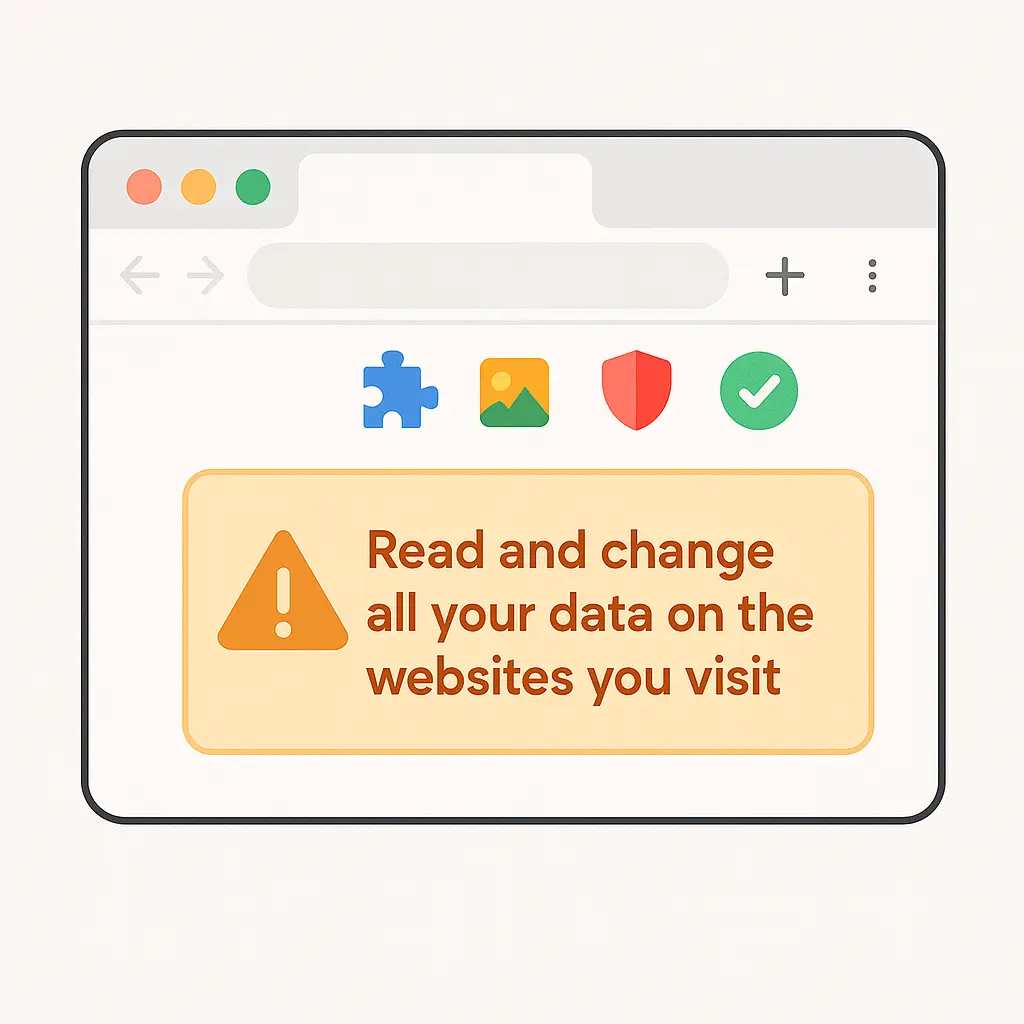
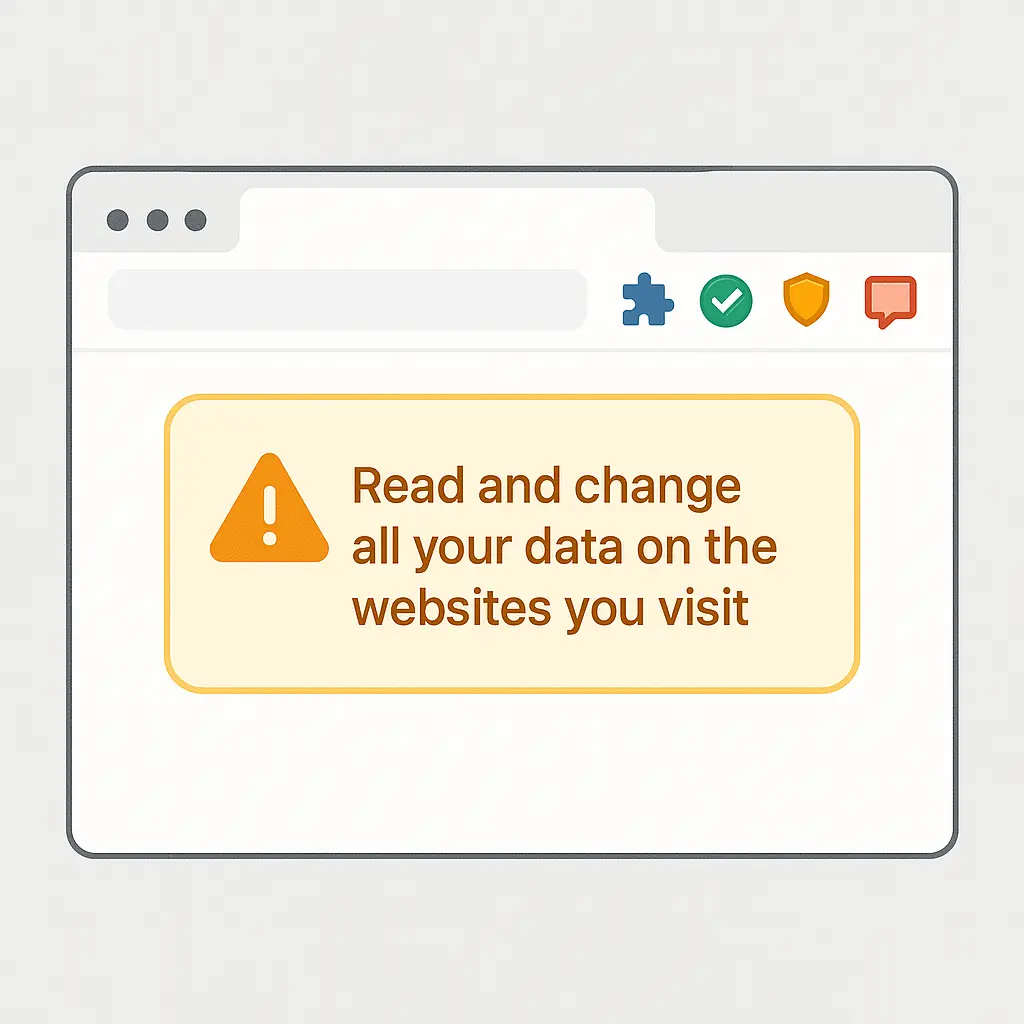
The most common permission is "Read and change all your data on the websites you visit." This is the big one. An extension with this permission can:
- See every URL you visit
- Read the content of every page you load
- Modify the content of pages before you see them
- Intercept form data, including passwords, credit card numbers, and personal information
- Track your browsing history across all sites
- Inject scripts into pages to change behavior or appearance
This isn't theoretical. This is what the permission grants. Whether the extension uses that access responsibly is a separate question.
Other common permissions include:
- "Read your browsing history" , exactly what it sounds like
- "Access your data for [specific sites]" , limited version of the broad permission, scoped to named domains
- "Communicate with cooperating websites" , allows the extension to send data to external servers
- "Display notifications" , can show pop-ups outside the browser window
- "Manage your downloads" , can see, modify, or initiate file downloads
Some extensions request access to your clipboard, your location, or your camera and microphone. Most don't need any of this. But the permission request appears in a dialog box during installation, you're focused on getting the extension working, and you click through.
The EFF's Surveillance Self-Defense guide covers browser security broadly, but the extension-specific guidance boils down to this: assume any extension with broad permissions can see everything you do in that browser. If that assumption makes you uncomfortable, don't install the extension.
How malicious extensions work
Malicious browser extensions fall into a few categories. Some are malicious from the start. Some start legitimate and turn malicious after a developer sells the extension to a new owner. Some are legitimate but poorly coded, creating vulnerabilities that attackers exploit.
The most common malicious behavior is data exfiltration. The extension collects browsing data, form inputs, or login credentials, then sends that data to a remote server. The data gets sold, used for targeted advertising, or fed into credential-stuffing attacks.
Ad injection is another common pattern. The extension modifies web pages to insert ads, affiliate links, or fake reviews. You think you're reading organic content. You're not. The extension has rewritten the page.
Some extensions hijack search results, redirecting queries to affiliate sites or injecting sponsored links at the top of the results page. Others modify cookie behavior to claim credit for purchases you make, funneling affiliate revenue to the extension developer.
A smaller number of extensions install additional malware, redirect traffic through attacker-controlled proxies, or participate in click fraud schemes. These are less common but more damaging.
The challenge is that most of this behavior is invisible. The extension runs in the background. You don't see the data leaving your browser. You don't see the page modifications unless you're looking for them. By the time you notice something wrong, the extension has been running for weeks or months.
Research teams periodically scan browser extension stores for malicious extensions. They find them regularly. In my experience, the gap between "extension goes malicious" and "extension gets removed from the store" can be days, weeks, or longer. During that window, the extension keeps running on every browser where it's installed.
The ownership-change problem
Here's a pattern that repeats: a developer builds a useful extension, grows a user base, then sells the extension to a new owner. The new owner pushes an update that adds tracking, ad injection, or data collection. Users who installed the original extension now have the modified version, and most of them never notice.
Browser stores don't require prominent disclosure when an extension changes ownership. The update arrives like any other update. Unless you're actively monitoring extension behavior, you won't know the code changed hands.
This happened with several high-profile extensions over the last few years. Legitimate privacy tools turned into data-collection engines after acquisition. The user base stayed roughly the same. The behavior changed completely.
The FTC has written about data security practices that apply to companies handling consumer data, but browser extensions exist in a gray zone. They're not always treated as data handlers, even when they're collecting and transmitting browsing data at scale.
What "reviewed by Google" actually means
The Chrome Web Store, Firefox Add-ons site, and Edge Add-ons store all review extensions before listing them. That review process catches some malicious extensions. It doesn't catch all of them.
Reviewers look for obvious malware signatures, policy violations, and code that matches known malicious patterns. They don't do deep behavioral analysis of every extension. They don't reverse-engineer obfuscated code. They don't monitor what the extension does after installation.
Some malicious extensions use time delays, triggering malicious behavior only after the extension has been installed for a certain period. Others use remote code execution, downloading malicious scripts from external servers after passing the initial review. The review process doesn't catch these techniques reliably.
Browser vendors also rely on user reports. If an extension behaves badly and enough users report it, the vendor investigates and potentially removes it. But that process takes time. The extension keeps running while the investigation proceeds.
The presence of an extension in an official store is not a security guarantee. It's a baseline filter. Treat it as such.
The permission creep problem
Extensions request permissions during installation. But they can also request additional permissions in updates. You install an extension that only needs access to one site. Six months later, an update requests access to all sites. The browser shows a notification. You click "Accept" without reading it.
I've seen this pattern in multiple extensions. The initial permission set is narrow. Updates gradually expand the permissions. By the time the extension has broad access, you've forgotten what you originally installed it for.
Some browsers allow you to decline permission updates, which disables the extension until you grant the new permissions. Most people don't use this option. They accept the update to keep the extension working.
The best defense is periodic auditing. Every few months, open your browser's extension settings and review what's installed. Check the permissions for each extension. If an extension has permissions you don't remember granting, investigate. If you can't justify the permissions, uninstall the extension.
Extensions and password managers
Here's a specific case worth examining: password manager extensions. These extensions need broad permissions to function. They need to read form fields, detect login pages, and autofill credentials. That means they need "Read and change all your data on the websites you visit."
This creates a trust problem. You're giving the extension access to every password you use. If the extension is malicious or gets compromised, your entire password vault is at risk.
The major password managers, 1Password, Bitwarden, Dashlane, LastPass, and others, have strong security track records, but they're not immune to vulnerabilities. LastPass had a significant breach in 2022 that exposed encrypted vault data. The encryption held, but the incident demonstrated that even well-established extensions face real risks.
The tradeoff is clear. Password managers provide enormous security value by enabling unique passwords for every account. That value outweighs the risk for most people. But the risk is real, and it's worth understanding what you're granting when you install the extension.
If you use a password manager extension, use one from a company with a public security track record, regular third-party audits, and a transparent incident-response history. Don't use a password manager extension from an unknown developer, no matter how good the reviews look.
The browser-native alternative
Browsers now include built-in password managers. Chrome, Firefox, Safari, and Edge all offer native password storage and autofill. These built-in managers don't require extensions. They're part of the browser itself.
The security model is different. The browser vendor controls the code. There's no third-party extension with broad permissions. The password data stays within the browser's security boundary.
The tradeoff is functionality. Built-in password managers are less feature-rich than dedicated tools. They don't always sync across platforms. They don't offer the same level of organizational features or breach monitoring.
I've written about browser-native versus dedicated password managers in more depth. The short version: if you're comfortable with the feature limitations, the built-in option reduces your extension attack surface.
How to audit your extensions
Open your browser's extension management page. In Chrome, type chrome://extensions in the address bar. In Firefox, type about:addons. In Edge, type edge://extensions. Safari users go to Preferences > Extensions.
You'll see a list of installed extensions. For each one, ask:
- Do I use this regularly?
- What does this extension do?
- What permissions does it have?
- Do I trust the developer?
- When was it last updated?
If you can't answer these questions, or if the answers make you uncomfortable, uninstall the extension.
Pay specific attention to extensions with "Read and change all your data" permissions. These extensions have the broadest access. If you don't have a strong reason to trust the developer, remove the extension.
Check the update date. Extensions that haven't been updated in over a year are often abandoned. Abandoned extensions don't get security patches. Uninstall them.
Look for extensions you don't remember installing. Sometimes extensions get installed as part of software bundles or through deceptive download prompts. If you didn't intentionally install it, remove it.
This audit should take around 10 minutes. Do it every few months. It's the single most effective step you can take to reduce extension-related risk.
The ad blocker dilemma
Ad blockers are among the most popular browser extensions. They also require broad permissions. An ad blocker needs to see every page you visit and modify the content to remove ads. That means "Read and change all your data on the websites you visit."
This creates the same trust problem as password managers. You're granting broad access to an extension. If the extension is compromised or turns malicious, it can see everything.
The major ad blockers, uBlock Origin, Privacy Badger, AdBlock Plus, have strong reputations. They're also open source, which means the code is publicly reviewable. That doesn't eliminate risk, but it reduces it.
The alternative is browser-native ad blocking. Brave blocks ads and trackers by default without requiring extensions. Safari offers content blockers that run in a more restricted sandbox. These options reduce the attack surface but come with their own limitations.
I use uBlock Origin. I've made the judgment that the privacy and security benefits of blocking ads and trackers outweigh the risk of granting the extension broad permissions. But I also audit the extension regularly, verify that it's still maintained by the original developer, and watch for any signs of ownership changes.
That's the calculation you have to make for every extension with broad permissions. The risk is real. The benefits might justify the risk. But you need to make that decision consciously, not by default.
What browsers could do differently
The current permission model is binary. An extension either has access to all sites or to specific sites. There's no middle ground. There's no way to grant temporary access, revoke access for specific sessions, or limit access to certain types of data.
Some researchers have proposed more granular permission models. Instead of "Read and change all your data," the permission could be scoped to "Read form fields" or "Modify page layout." Instead of permanent access, permissions could expire after a set period.
Browsers could also do more to surface extension behavior. Right now, there's no easy way to see what an extension is actually doing. You grant permissions during installation, and then the extension runs invisibly. A transparency log showing what data the extension accessed, what modifications it made, and what network requests it sent would give users more information to make trust decisions.
None of this exists yet. The permission model hasn't changed substantially in years. Until it does, the responsibility falls on you to evaluate extensions before installing them and audit them regularly after installation.
The Friends problem
In the show Friends, Monica's apartment becomes the central gathering place for the group. Everyone has a key. They come and go freely. The open-door policy works because Monica trusts everyone with a key.
Browser extensions are the opposite. You're handing out keys to your digital apartment, often to developers you've never heard of, for tools you barely use. Some of those keyholders are trustworthy. Some aren't. And unlike Monica's apartment, you can't see who's coming and going.
The solution isn't to stop using extensions entirely. It's to be selective about who gets a key, audit the guest list regularly, and revoke access when you're no longer sure why someone has it.
Specific steps you can take today
Here's what I recommend:
-
Open your browser's extension page and count how many extensions you have installed. If it's more than five, you probably have extensions you don't need.
-
For each extension, check the permissions. If you see "Read and change all your data on the websites you visit" and you don't have a strong reason to trust the developer, uninstall it.
-
Search for each extension by name and check recent news. If the extension changed ownership, had a security incident, or has been flagged by security researchers, consider alternatives.
-
Uninstall any extension you haven't used in the last 30 days. If you need it again later, you can reinstall it.
-
For extensions you keep, verify that they're still actively maintained. Check the last update date. If it's been over a year, the extension is likely abandoned.
-
Set a recurring calendar reminder to audit your extensions every three months. It takes 10 minutes and catches problems before they escalate.
-
Before installing a new extension, ask yourself: Do I need this enough to grant it access to all my browsing data? If the answer is no, don't install it.
These steps won't eliminate risk. They'll reduce it to a manageable level. Extensions are useful. They're also a significant attack surface. Treat them accordingly.
Related reading: