Unusual sign-in attempt emails: what they mean and what to do next
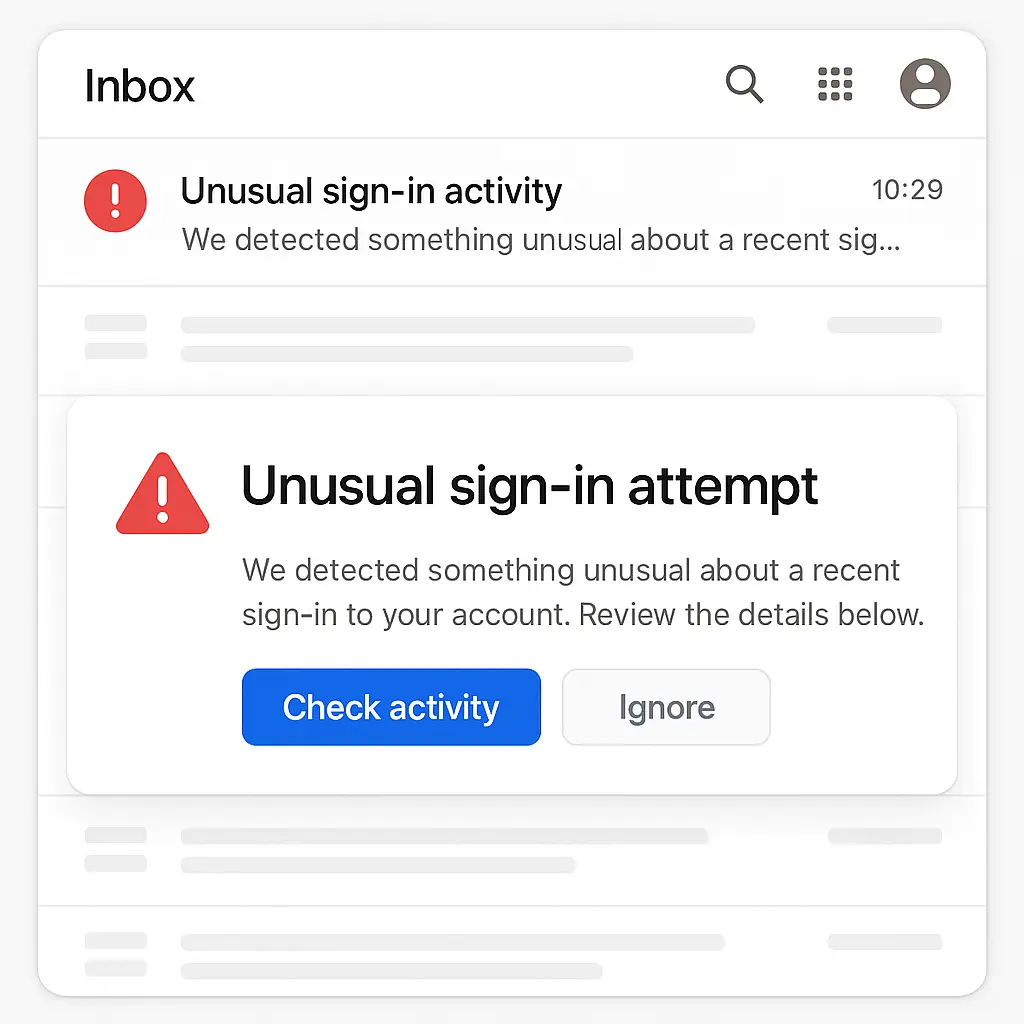
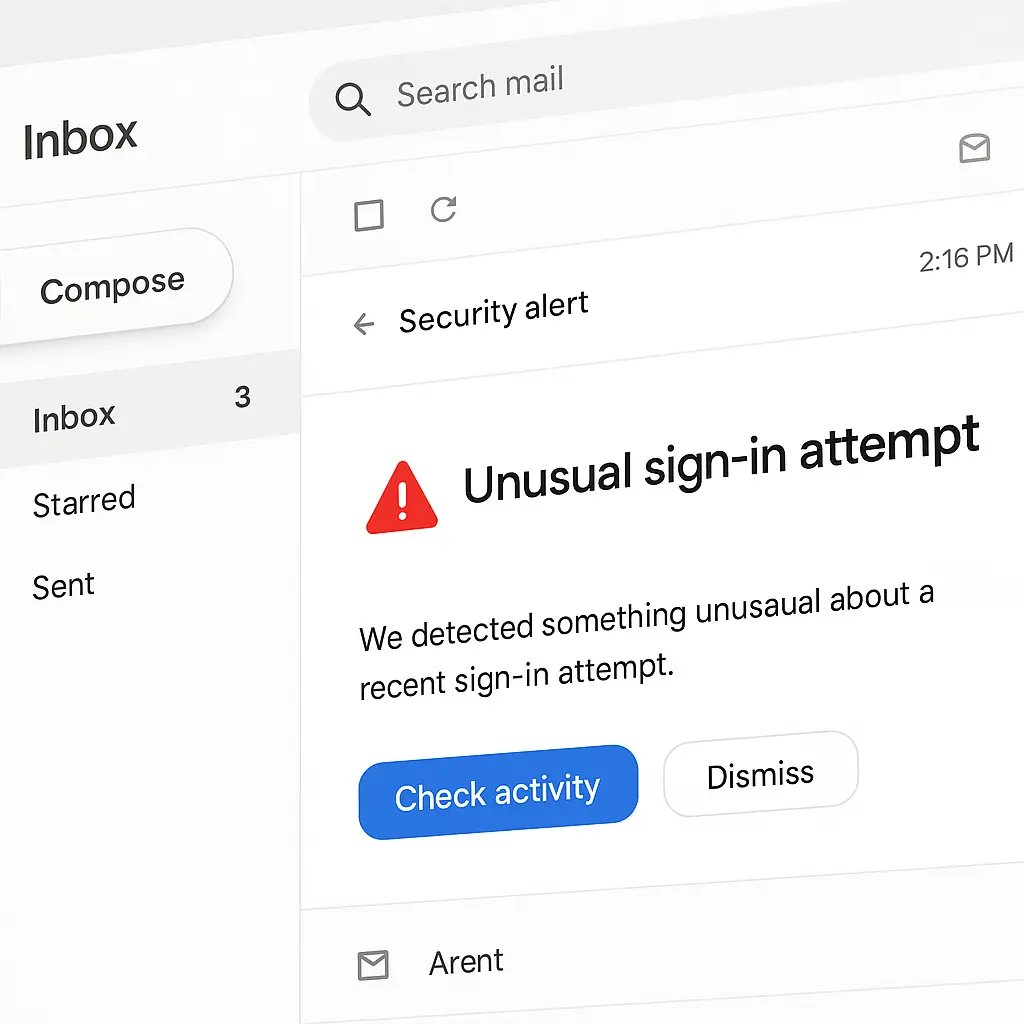
You check your phone and see an email from Google, Microsoft, or your bank: "We detected an unusual sign-in attempt on your account." Your stomach drops. Was it you? Was it someone else? Should you click the link? Change your password? Panic?
Here's what that email actually means, what triggered it, and the exact steps to take next, whether the login was yours or someone else's.
What triggers an unusual sign-in attempt alert
Your account provider watches for patterns. Every time you log in, the system records your location, device type, IP address, time of day, and behavioral signals like how fast you type or how you navigate the interface. When a login deviates from your established pattern, the provider flags it as potentially suspicious.
Specific triggers include:
Geographic anomalies. You logged in from Chicago yesterday. Today, someone logs in from Singapore. The system notices. Even domestic travel can trigger alerts, if you normally log in from Denver and suddenly authenticate from Miami, the provider flags it.
New devices. You've always used an iPhone. A login from an Android tablet appears. The system doesn't recognize the device fingerprint, browser version, screen resolution, installed fonts, time zone settings, and sends an alert.
IP address changes. Your home IP address is stable. A login from a data center IP, a VPN exit node, or a residential IP in another country looks wrong. The provider flags it.
Unusual timing. You log in every weekday between 8 a.m. and 6 p.m. A login at 3 a.m. on a Sunday breaks the pattern. The system notices.
Behavioral signals. The way you type, move your mouse, and navigate the interface creates a behavioral fingerprint. A login that behaves differently, typing speed, navigation patterns, error rates, can trigger an alert even if the device and location match.
Failed attempts before success. Multiple failed login attempts followed by a successful one suggests someone guessed your password. The provider flags it.
Impossible travel. You logged in from New York at 2 p.m. Another login from London appears at 2:15 p.m. You can't fly that fast. The system flags the second login as suspicious.
Not every unusual login is malicious. You might be traveling, using a new device, or connecting through a VPN. The alert doesn't mean your account is compromised, it means the system noticed something different and wants you to verify.
What happens after the system flags a login
When your provider detects an unusual sign-in attempt, the response depends on the severity of the deviation and your account's security settings.
Low-risk flags. The system sends an email notification but allows the login to proceed. You get an alert saying "We noticed a new sign-in" with details about the device, location, and time. If it was you, no action needed. If it wasn't, you can secure your account immediately.
Medium-risk flags. The system blocks the login and requires additional verification. The person trying to log in sees a message: "We need to verify it's you." They must enter a code sent to your phone, email, or authenticator app. If they can't provide the code, they can't access the account.
High-risk flags. The system blocks the login, locks the account temporarily, and sends urgent notifications to all your recovery contacts. You must verify your identity through multiple channels before regaining access. This happens when the system detects credential stuffing, brute force attempts, or logins from known malicious infrastructure.
Account with two-factor authentication enabled. If you've turned on two-factor authentication, the system requires a second verification step for every login, even from recognized devices. An attacker with your password still can't access your account without the second factor. The unusual login alert becomes less urgent because the additional layer already stopped the attempt.
The alert email itself contains details: timestamp, location (based on IP address), device type, browser, and sometimes the IP address itself. These details help you determine whether the login was yours.
How to verify whether the login was actually you
Don't trust the email alone. Attackers send fake security alerts that mimic real provider notifications. The goal: trick you into clicking a malicious link, entering your password on a phishing site, or calling a fake support number.
Here's the verification process:
Step 1: Don't click anything in the email. Not the "Secure your account" button. Not the "Review activity" link. Not the "Change password" prompt. Nothing. Close the email.
Step 2: Open a new browser tab. Type your account provider's URL directly into the address bar. For Google, that's google.com. For Microsoft, it's microsoft.com. For your bank, type the URL from your bank's official materials, not from memory, not from a search result.
Step 3: Log in through the official site. Use your normal credentials. If the provider requires two-factor authentication, complete that step.
Step 4: Navigate to your account's security settings. Every major provider has a section showing recent activity. For Google, it's "Security" → "Recent security activity." For Microsoft, it's "Security" → "Sign-in activity." For Apple, it's "Settings" → "Sign-In and Security" → "Devices." For banks, look for "Recent activity" or "Login history."
Step 5: Review the login details. Check the timestamp, location, device type, and IP address. Compare them to the alert email. Do they match? If yes, the email is real. If no, the email might be phishing.
Step 6: Determine whether the login was yours. Ask yourself:
- Were you traveling when this login occurred?
- Did you use a new device, browser, or VPN?
- Does the location match where you were at that time?
- Does the device type match what you used?
If the answers are yes, the login was probably yours. The system flagged it because it looked different from your normal pattern, but it's legitimate. No further action needed.
If the answers are no, you weren't in that location, didn't use that device, and don't recognize the login, someone else accessed your account.
What to do if the login wasn't you
An unauthorized login means someone has your password. The priority is securing your account before they can do more damage.
Immediate actions:
Change your password. Do it now, through the official site, not through any link in the email. Create a strong, unique password you've never used anywhere else. If you're not sure how to create one, here's the method that works.
Sign out of all sessions. Most providers offer a "sign out everywhere" option. Use it. This kills every active session, including the attacker's. They'll need to log in again, and your new password will block them.
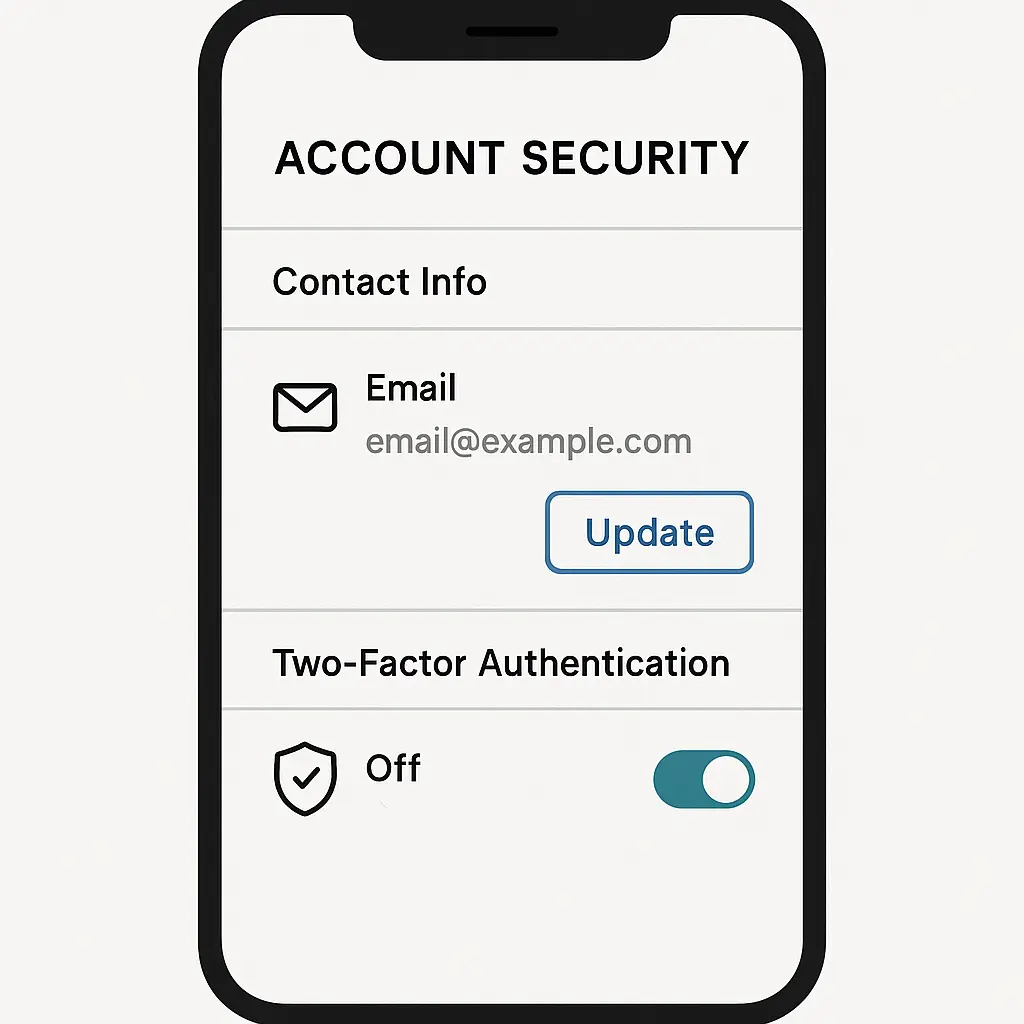
Enable two-factor authentication. If you haven't already, turn it on immediately. Two-factor authentication requires a second verification step, a code from your phone, an authenticator app, or a hardware key, making it far harder for attackers to access your account even if they have your password.
Review account activity. Check sent emails, recent purchases, password changes, recovery contact updates, and any other actions taken since the unauthorized login. Attackers often change recovery settings to lock you out permanently.
Check for forwarding rules. In email accounts, attackers sometimes create forwarding rules that silently copy your messages to their address. Go to your email settings and look for any forwarding rules you didn't create. Delete them.
Review connected apps and services. Attackers sometimes grant access to third-party apps to maintain a backdoor into your account. Check your account's connected apps section and revoke access to anything you don't recognize.
Notify your contacts if necessary. If the attacker sent emails or messages from your account, warn your contacts. Attackers often use compromised accounts to send phishing messages to people who trust you.
Check linked accounts. If the compromised account is your primary email, attackers can use it to reset passwords on other services. Review your banking, social media, shopping, and work accounts for suspicious activity.
Document everything. Take screenshots of the unauthorized login details, any suspicious activity, and the steps you took to secure your account. If the breach leads to financial fraud or identity theft, this documentation becomes evidence.
What to do if the login was you but you're concerned
Sometimes the login was yours, but the alert makes you realize your account security isn't strong enough. Here's what to improve:
Enable two-factor authentication. If you haven't already, turn it on. It's the single most effective defense against unauthorized access.
Use a password manager. Stop reusing passwords. A password manager generates unique, strong passwords for every account and stores them securely. If one site gets breached, the damage stays contained. Here's why you need one.
Review your recovery contacts. Make sure your backup email address and phone number are current. If an attacker locks you out, these contacts are your only way back in.
Check your recent activity regularly. Don't wait for an alert. Review your account's login history every few weeks to catch unauthorized access early.
Revoke access from old devices. If you no longer use a device, an old phone, a work laptop you returned, a shared computer, sign it out of your account. Every active session is a potential entry point.
Be cautious with public WiFi. Logging in from coffee shops, airports, or hotels increases your exposure. Use a VPN if you're accessing sensitive accounts on public networks.
When unusual sign-in attempt emails are actually phishing
Attackers send fake security alerts to trick you into compromising your own account. The email looks real, same logo, same formatting, same urgent tone, but the goal is to steal your credentials.
Here's how to spot the fake:
The sender address is wrong. Real alerts come from official domains: no-reply@accounts.google.com, account-security-noreply@accountprotection.microsoft.com, or your bank's verified domain. Fake emails come from addresses that look close but aren't quite right: security@googIe.com (capital I instead of lowercase L), accounts-security@gmail.com (wrong subdomain), or noreply@secure-bank-alerts.com (not your bank's domain).
The email contains urgent threats. "Your account will be closed in 24 hours unless you verify immediately." Real providers don't threaten account closure in security alerts. They notify you of suspicious activity and give you time to respond.
The email asks for your password. Real providers never ask for your password in an email. Ever. If the email asks you to "confirm your password" or "verify your credentials," it's phishing.
The links go to the wrong domain. Hover over any link in the email (don't click it). Look at the URL that appears. Does it match your provider's official domain? accounts.google.com is real. accounts-google-verify.com is fake. microsoft-account-security.net is fake. secure.bankofamerica.com is real. bankofamerica-secure.com is fake.
The email contains grammatical errors or awkward phrasing. Professional security teams proofread their automated emails. Phishing emails often contain typos, strange capitalization, or sentences that don't quite sound right.
The email asks you to download an attachment. Real security alerts don't include attachments. If the email says "Download this security certificate" or "Open the attached verification form," it's phishing.
When in doubt, ignore the email entirely. Go directly to your account provider's official site, log in, and check your security settings there. If there's a real problem, you'll see it in your account dashboard.
Why providers flag some legitimate logins
Not every alert means an attack. Providers err on the side of caution, which means some legitimate logins get flagged.
Common false positives:
You're traveling. You flew from Seattle to Tokyo. Your first login from Japan triggers an alert because the system hasn't seen you there before. Once you verify it's you, the provider updates your pattern and stops flagging logins from that location.
You're using a VPN. VPNs route your traffic through servers in other countries, making it look like you're logging in from somewhere you're not. If you connect through a VPN server in Germany, your provider sees a login from Germany and flags it.
You switched devices. You bought a new phone, tablet, or laptop. The first login from that device looks suspicious because the system doesn't recognize the hardware fingerprint. After you verify it's you, the device gets added to your trusted list.
You're using a shared or public computer. Logging in from a library, hotel business center, or friend's computer triggers an alert because the device isn't associated with your account. The system can't tell whether it's you or someone else using that computer.
Your IP address changed. Internet service providers sometimes reassign IP addresses. If your home IP changes, the next login might look like it's coming from a different location. The system flags it until you verify.
You're using mobile data instead of WiFi. Mobile carriers assign different IP addresses than your home network. Logging in through your phone's data connection can trigger an alert if you normally use WiFi.
These false positives are annoying but not dangerous. Verify the login was yours, and the system learns. Future logins from that device, location, or network won't trigger alerts.
The relationship between unusual login alerts and two-factor authentication
Two-factor authentication changes how unusual login alerts work. Without 2FA, an attacker with your password can log in immediately. The unusual login alert is your only warning. With 2FA enabled, the attacker hits a wall. They can't complete the login without the second factor, a code from your phone, an authenticator app, or a hardware key.
When 2FA is active:
Unusual login alerts become less urgent. The system still sends them, but the threat is contained. The attacker can't access your account without the second factor, so you have time to respond.
The alert includes information about the failed 2FA attempt. You'll see that someone tried to log in but couldn't complete the second verification step. This tells you someone has your password but can't get in.
You get a second alert when someone tries to use your second factor. If the attacker somehow intercepts your 2FA code, through a phishing site, SIM swap, or social engineering, you'll receive an alert about the code being used. This gives you a second chance to secure your account.
The attacker's options narrow. Without 2FA, an attacker with your password owns your account. With 2FA, they need to compromise your second factor too. That's harder. They might try phishing, SIM swapping, or social engineering, but each method adds friction and risk of detection.
If you haven't enabled two-factor authentication yet, do it now. It's the most effective defense against unauthorized access, and it makes unusual login alerts far less frightening.
What happens if you ignore an unusual sign-in attempt alert
Ignoring a legitimate alert, one that flags an actual unauthorized login, gives the attacker time to dig deeper into your account.
Here's what they might do:
Change your password. Once inside, attackers often change your password immediately to lock you out. You lose access to your own account.
Update recovery contacts. They replace your backup email and phone number with their own. When you try to recover your account, the reset codes go to them, not you.
Enable forwarding rules. In email accounts, they set up rules to silently forward your messages to their address. Even after you regain access, they keep receiving copies of your emails.
Access linked accounts. If the compromised account is your primary email, they use it to reset passwords on your banking, social media, shopping, and work accounts. One breach cascades into many.
Send phishing messages to your contacts. Attackers use compromised accounts to send malicious links to people who trust you. Your friends, family, and colleagues are more likely to click because the message comes from your account.
Steal sensitive information. They search your emails, messages, and files for financial data, personal information, passwords, and anything else valuable. This information gets sold, used for identity theft, or leveraged in future attacks.
Monitor your activity. Even if they don't lock you out immediately, they watch your account to learn your patterns, gather more information, and wait for the right moment to strike.
The longer you wait, the more damage they can do. If you get an unusual sign-in attempt alert and you're not sure whether it was you, check immediately. Don't assume it's a false alarm.
Why some services are better at detecting unusual logins than others
Not all providers invest equally in anomaly detection. The quality of unusual login alerts varies widely.
Large tech companies like Google, Microsoft, and Apple have sophisticated systems. They analyze billions of logins daily, building detailed behavioral models for each user. Their alerts are usually accurate, with few false positives and fast detection of real threats.
Banks and financial institutions prioritize security but often lag behind tech companies in detection sophistication. Their systems focus more on transaction monitoring than login behavior. You might not get an alert for an unusual login until after the attacker makes a suspicious transaction.
Smaller services often lack the resources to build advanced anomaly detection. They might send generic alerts for any login from a new device or location, leading to alert fatigue. Users start ignoring the notifications, which defeats the purpose.
Social media platforms vary. Facebook and Instagram have decent detection systems, but smaller platforms often rely on basic checks, new device, new location, without the behavioral analysis that makes alerts meaningful.
E-commerce sites rarely send unusual login alerts unless the attacker attempts a purchase. By the time you get notified, the damage is done.
The lesson: don't rely entirely on your provider's alerts. Monitor your accounts regularly, enable two-factor authentication, and use unique passwords for every service. The provider's detection system is a helpful backup, not your primary defense.
When to escalate beyond changing your password
Most unusual login incidents resolve with a password change and enabling two-factor authentication. But sometimes the breach is deeper, and you need to escalate.
Escalate if:
The attacker changed your recovery contacts. If they replaced your backup email and phone number with their own, you might not be able to recover your account through normal channels. Contact the provider's support team immediately. Be prepared to verify your identity through other means, government ID, account history, purchase records.
You see evidence of identity theft. If the attacker used your account to open credit cards, file tax returns, or commit fraud in your name, you're dealing with identity theft, not just account compromise. File a report with the FTC, freeze your credit, and follow the full identity theft recovery process.
Financial accounts were accessed. If the compromised account is linked to your bank, credit cards, or investment accounts, contact those institutions immediately. Dispute unauthorized transactions, freeze affected accounts, and request new account numbers.
Work accounts were breached. If the compromised account is tied to your employer, notify your IT or security team immediately. The breach might expose company data, client information, or internal systems. Don't try to handle it alone.
The attacker is persistent. If you've changed your password, enabled 2FA, and signed out all sessions, but the attacker keeps getting back in, they've found another entry point. They might have installed malware on your device, compromised your phone through a SIM swap, or gained access through a linked service. You need professional help, contact your provider's security team or hire a security professional.
You're being targeted specifically. If the attack feels personal, someone you know, an ex-partner, a former colleague, document everything and consider involving law enforcement. Targeted harassment often escalates beyond account compromise.
Don't hesitate to escalate when the situation warrants it. The cost of waiting is higher than the cost of asking for help.
The cultural reference that explains unusual login alerts
In The Fellowship of the Ring, Gandalf arrives at the Mines of Moria and speaks the password to open the doors: "Mellon," the Elvish word for "friend." The doors swing open because the password is correct. But if Gandalf had arrived with the wrong word, or if someone unfamiliar had tried to enter, the doors would have stayed shut, or worse, triggered a defense mechanism.
Unusual login alerts work the same way. Your password is the word that opens the door. But the system also checks whether the person speaking the word is who they claim to be. If Gandalf arrived at Moria riding a horse he'd never used, wearing clothes he'd never worn, at an hour he'd never traveled, the doors might hesitate. The password is correct, but something about the context is wrong.
That hesitation, that moment of "Wait, is this really you?", is what unusual login alerts represent. The password opened the door, but the system noticed the context didn't match your pattern. It's not saying the login is definitely malicious. It's saying: "This looks different. Verify it's you."
The doors of Moria don't care about intent. They care about the word. Your account provider cares about both the password and the pattern. When the pattern breaks, you get an alert. It's your chance to confirm whether the person at the door is you, or someone else who learned the word.