How to Share Passwords with Family Without Compromising Security
You need to share the WiFi password with your teenager. Your spouse needs the streaming service login. Your elderly parent needs help accessing their medical portal. Password sharing happens in families, and pretending it doesn't creates worse security than acknowledging it and doing it right.
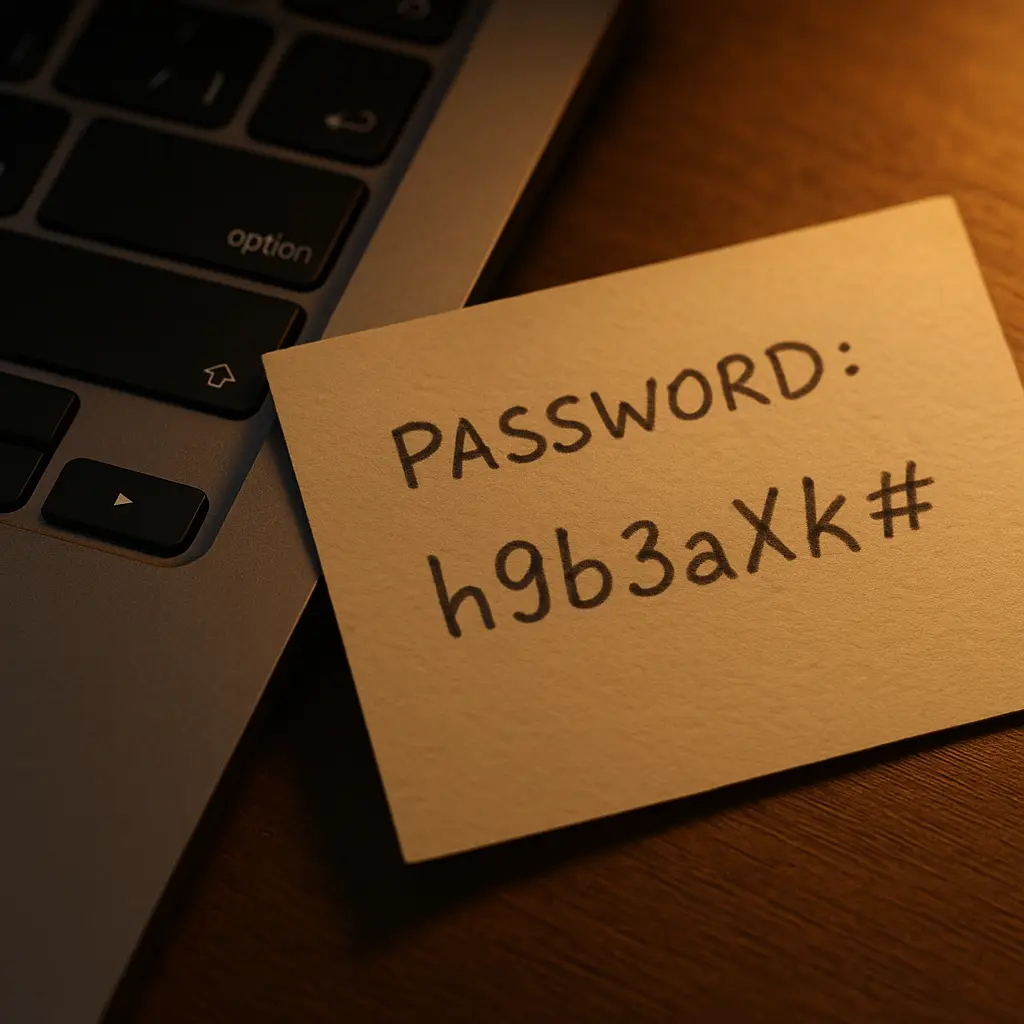
The wrong way is texting passwords, writing them on sticky notes, or using the same password across accounts so everyone can remember it. The right way uses tools designed for this exact problem: password managers with shared vault features that encrypt credentials, control access, and let you revoke sharing when circumstances change.
This is a practical guide. You'll learn the specific steps for setting up secure password sharing, which credentials you should never share, and how to handle the edge cases that come up in real family life.
Why Direct Password Sharing Creates Permanent Risk
When you text a password to someone, that password exists in plaintext on both devices, in message backups, potentially in cloud sync, and in any screenshots or notes either person makes. You cannot delete it from all those locations. You cannot revoke access after the fact. If either phone gets compromised, stolen, or accessed by someone else, that password is exposed.
The same applies to passwords written on paper, stored in shared documents, or dictated over the phone. Once shared directly, you lose control. The only way to regain security is to change the password, which means going through the sharing process again.
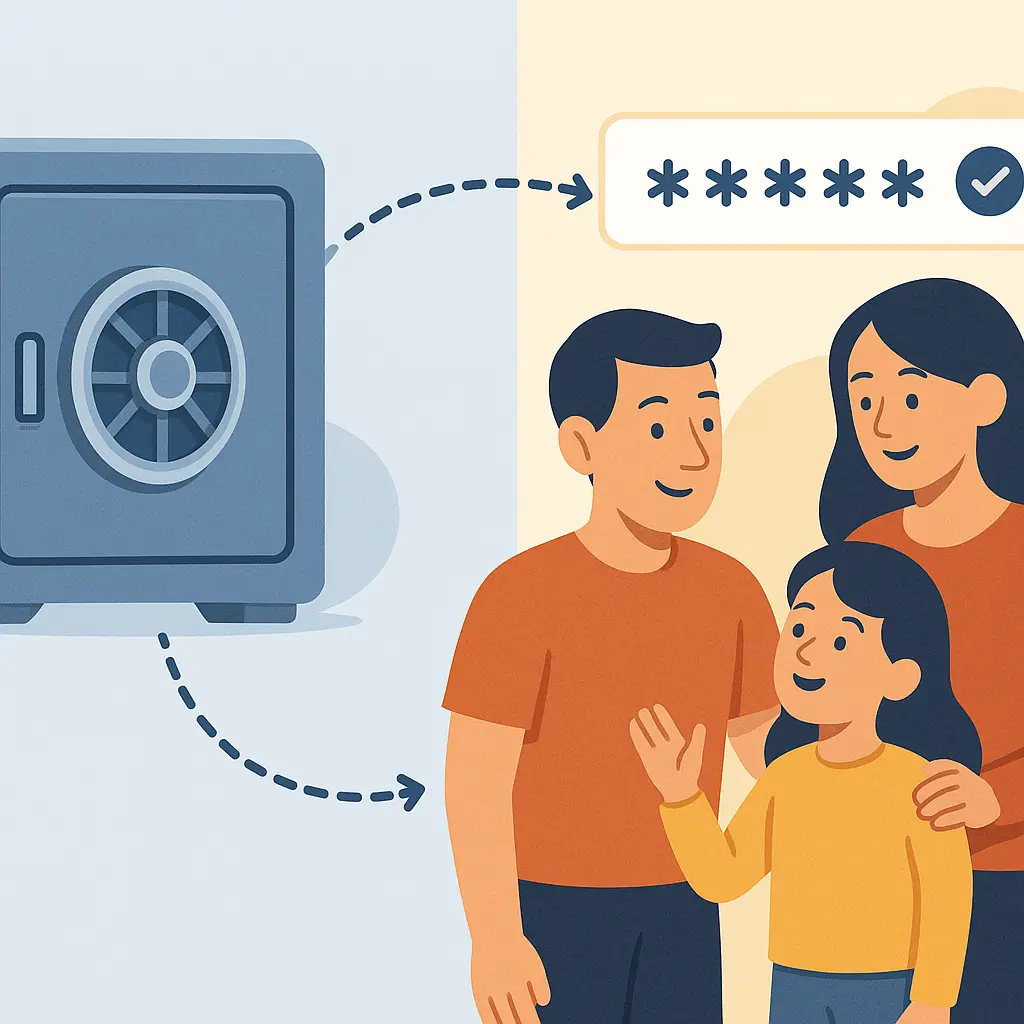
Password managers solve this by encrypting the credential and controlling access through the vault. The other person gets the ability to use the password without the password itself living in their messages, notes, or memory. When you remove them from the vault, they lose access immediately. No password change required unless you suspect they copied it elsewhere.
What Password Managers Actually Do for Families
A password manager's family plan typically supports 4-6 users under one subscription. Each person has their own vault with their own master password. Nobody else can access your individual vault, not even other family members.
The shared vault is separate. You create it, add specific credentials to it, and invite specific family members. They see those credentials in their password manager interface alongside their own passwords. The credentials sync across their devices. When they need to log in to that streaming service or WiFi network, the password manager fills it automatically.
From a technical perspective, the shared vault uses the same encryption as individual vaults. The password manager encrypts each credential with a key, then encrypts that key separately for each authorized user. Removing someone from the vault means deleting their copy of the encryption key. They can no longer decrypt the credentials, even if cached data remains on their device.
CISA recommends using password managers as part of basic password security. The shared vault feature extends that protection to family credential sharing.
Step 1: Choose a Password Manager with Family Sharing
Not all password managers offer family plans. Some that do:
1Password Families: Supports 5 family members, unlimited shared vaults, includes breach monitoring. Roughly $5/month as of 2026.
Bitwarden Families: Supports 6 users, unlimited shared collections, open-source codebase. Around $3-4/month.
NordPass Families: Supports 6 users, includes data breach scanner, owned by Nord Security. Typically $4-5/month. NordPass offers family sharing with cross-platform sync and zero-knowledge architecture.
Dashlane: Supports 6 users, includes VPN and dark web monitoring in some tiers. Around $8-10/month.
Keeper: Supports 5 users, includes encrypted messaging and file storage. Roughly $6-8/month.
If you're already using a password manager individually, check whether they offer a family plan upgrade. Migration is usually straightforward: you keep your existing vault and gain the ability to create shared vaults.
If you're starting from scratch, I think Bitwarden offers the best value for families who want control and transparency, while 1Password has the most polished interface for less technical users. NordPass sits in the middle: easier than Bitwarden, more affordable than 1Password.
Step 2: Set Up Individual Vaults First
Before sharing anything, each family member needs their own vault configured properly. This means:
Create a strong master password. This is the one password they must remember. It should be a passphrase: 4-6 random words, or a sentence they can remember but others couldn't guess. NIST's password guidance emphasizes length over complexity. "correct horse battery staple" beats "P@ssw0rd!" in every scenario that matters.
Enable two-factor authentication on the password manager account. Use an authenticator app, not SMS. The EFF provides setup guides for major services, and the same principles apply to password managers. If someone gets the master password through phishing or shoulder surfing, 2FA blocks them from accessing the vault.
Install the password manager on all their devices. Phone, tablet, laptop, desktop. The vault syncs across devices, so they can access credentials anywhere. The browser extension is critical: it enables autofill, which is how most people will actually use the password manager day-to-day.
Import or create a few passwords. Start with 5-10 accounts they use regularly. This builds the habit before you add shared credentials to the mix.
If you're setting this up for an elderly parent or a child, you might need to walk through each step with them. The initial setup takes 15-30 minutes per person. Budget that time. Rushing creates confusion, and confusion creates workarounds that defeat the security.
Step 3: Create a Shared Vault and Add Credentials
Once everyone has their individual vault working, create the shared vault. The exact interface varies by password manager, but the concept is consistent:
Name the vault something clear. "Family Shared Passwords" works. "Household Accounts" works. Avoid vague names like "Shared" or "Misc" that don't indicate what belongs there.
Add credentials selectively. Not every family password belongs in the shared vault. Start with:
- WiFi network password
- Streaming services (Netflix, Hulu, Disney+, etc.)
- Shared shopping accounts (Amazon, Costco, etc.)
- Home security system login
- Shared cloud storage (Google Drive, Dropbox, etc.)
- Utility company accounts (electric, water, internet)
Do not add:
- Bank accounts (use joint accounts or authorized users instead)
- Individual email accounts
- Work accounts
- Social media accounts
- Any account with financial access or personal data
For each credential you add, include the username, password, URL, and any notes needed for login (like security questions or account numbers). The password manager can generate strong passwords if you're creating new accounts or rotating old ones.
Invite family members to the vault. Most password managers let you send an email invitation or share a link. The recipient accepts the invitation within their password manager app, and the vault appears in their interface.
Set permissions appropriately. Some password managers let you control whether vault members can edit credentials, add new ones, or only view and use existing ones. For young children, view-only makes sense. For adults, full access is usually fine, but consider your family dynamics.
Step 4: Handle Two-Factor Authentication for Shared Accounts
Shared accounts often have 2FA enabled, which creates a practical problem: whose phone receives the code?
The cleanest solution is using authenticator apps instead of SMS. You can set up the same 2FA secret on multiple devices:
- When enabling 2FA on the shared account, the service shows a QR code.
- Scan that QR code with your authenticator app.
- Before confirming, show the same QR code to other family members so they can scan it with their authenticator apps.
- Everyone now generates the same codes on their own devices.
If the service only offers SMS 2FA, you have three options:
Option A: Designate one person as the 2FA recipient. Their phone gets the codes, and they share them when needed. This creates dependency but works for accounts that rarely require 2FA after initial setup.
Option B: Use a shared phone number. Some families have a household Google Voice number or similar. The 2FA codes go there, and anyone with access to that account can retrieve them. This adds complexity but removes the single point of dependency.
Option C: Disable 2FA on truly shared accounts. I don't recommend this, but I acknowledge that some families do it for streaming services and similar low-risk accounts. If you go this route, use a strong unique password and accept the tradeoff.
For high-value accounts like shared cloud storage or home security systems, Option A or B is non-negotiable. The inconvenience of coordinating 2FA is far smaller than the risk of account compromise.
Step 5: Establish Rules for What Gets Shared
Not every password should live in the family vault, even if multiple people need access. Here's how to think through the boundaries:
Financial accounts: Never share credentials. If your spouse needs access to your bank account, the bank offers joint accounts or authorized user features. Use those. Sharing credentials violates most banks' terms of service and creates liability issues if something goes wrong. The same applies to credit cards, investment accounts, and payment services like PayPal or Venmo.
Email accounts: Never share credentials. Email is the master key to password resets, account recovery, and two-factor authentication for most other services. Sharing email access means sharing control of your entire digital identity. If someone needs to check a shared inbox, create a dedicated shared email address (like family@yourdomain.com) instead of sharing personal accounts.
Work accounts: Never share credentials. Your employer's acceptable use policy almost certainly prohibits this. Sharing work credentials can get you fired and create legal liability for data breaches. If your spouse needs access to your work calendar or similar, use the sharing features built into those tools.
Social media accounts: Usually don't share. Social media accounts are tied to individual identity. Sharing credentials means someone else can post as you, read your DMs, and access personal information. If you're managing social media for a family business or similar, create a separate business account with multiple authorized users rather than sharing personal credentials.
Kids' accounts: Share until they're old enough to manage independently. Young children need parental oversight. Store their credentials in the family vault and remove them as the child demonstrates responsibility. The age varies by child; some 12-year-olds are ready, some 16-year-olds aren't. Use your judgment.
Shared services: Good candidates for the vault. Streaming, shopping, utilities, home security, and similar services are designed for household use. Sharing these credentials through a password manager is appropriate and expected.
When in doubt, ask: "Does this service expect and allow sharing?" If yes, the family vault is fine. If no, find the legitimate sharing mechanism the service provides.
Step 6: Rotate Passwords When Access Changes
Life changes. People move out, relationships end, devices get lost. When someone should no longer have access to shared credentials, you have two options:
Remove them from the vault. This revokes their access immediately. They can no longer view or use those credentials. In most password managers, you select the person in the vault settings and delete their access. The change syncs within minutes.
Rotate the passwords. Removing vault access stops them from seeing the credentials going forward, but they might have written down passwords, taken screenshots, or memorized them. If you want absolute certainty, change the passwords after removing their access.
For low-risk accounts like streaming services, removing vault access is usually sufficient. For higher-risk accounts like home security or shared cloud storage, rotate the passwords as well.
Common scenarios:
Child moving out for college: Remove them from the family vault. Create a new shared vault with just the credentials they need for staying connected (family cloud storage, emergency contacts, etc.). Keep financial and home security credentials in the parent-only vault.
Separation or divorce: Remove the ex-spouse from all shared vaults immediately. Rotate every password in those vaults. Change the WiFi password. This is non-negotiable even if the separation is amicable. Circumstances change, and you need clean boundaries.
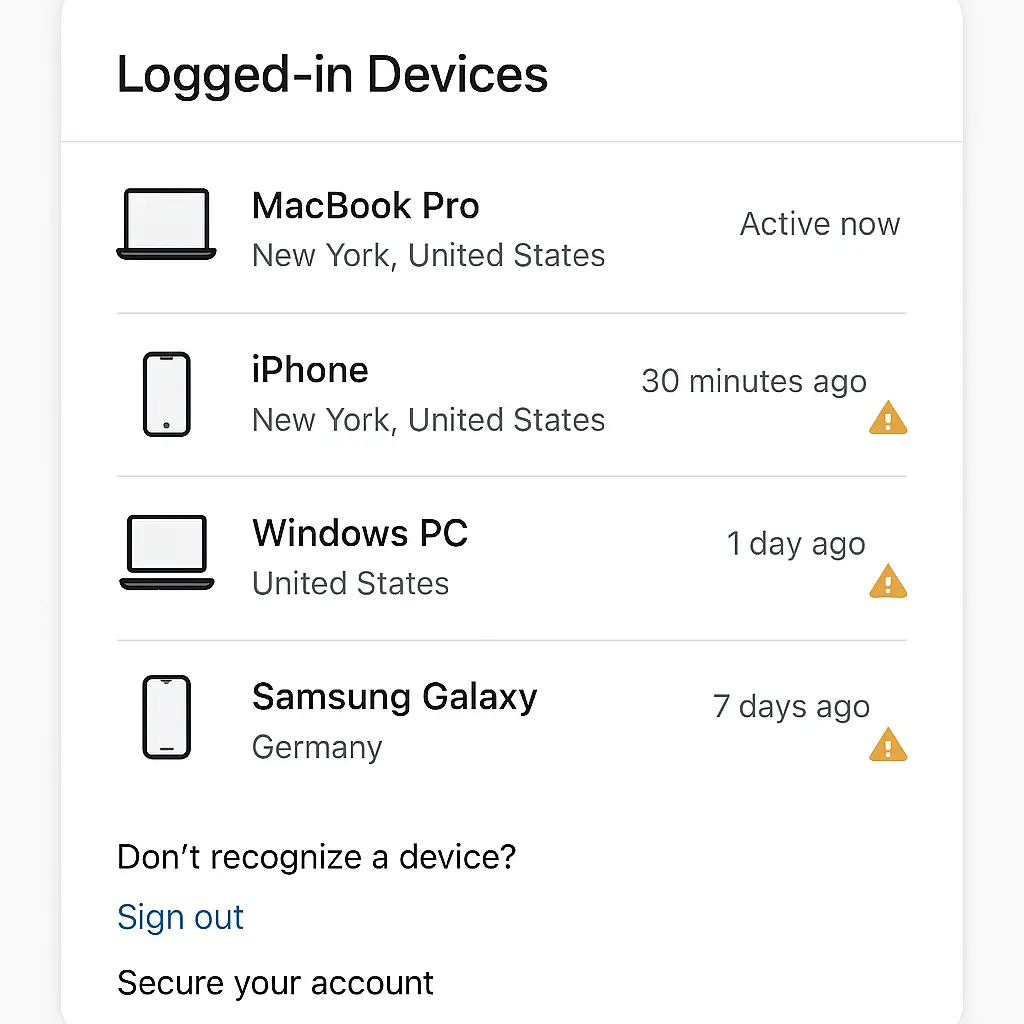
Lost or stolen device: The password manager's encryption protects the vault even if someone gets the device, but you should still review who has access and consider rotating high-value passwords. If the device had biometric unlock enabled and the thief has physical access, that's a bigger problem than the password vault.
Teenager proves untrustworthy: Remove them from the vault. Have a conversation about why. Rebuild trust through smaller steps before restoring access. Security and parenting intersect here; handle both.
Step 7: Back Up the Master Passwords Safely
The master password is the single point of failure. If someone forgets it, they lose access to their entire vault. If everyone in the family forgets their master passwords simultaneously (unlikely but possible), you lose access to all shared credentials.
Most password managers offer emergency access or account recovery features:
Emergency access: You designate a trusted person (often a spouse or adult child) who can request access to your vault. The request triggers a waiting period (typically 24-48 hours). If you don't deny the request during that window, they gain access. This protects against incapacitation or death while preventing immediate unauthorized access.
Account recovery: Some password managers let you generate a recovery code during setup. You print this code and store it somewhere secure (safe deposit box, fireproof safe at home, etc.). If you forget the master password, you can use the recovery code to regain access.
Security questions: A few password managers use security questions as a fallback. I generally don't recommend this approach because security questions are weak and often guessable, but it's better than no recovery option.
For families, I think the best approach is:
- Each adult sets up emergency access pointing to their spouse or another trusted adult family member.
- Each person generates a recovery code and stores it in a shared physical location (like a fireproof safe at home).
- The family has a conversation about where these recovery codes are stored so that if something happens, the information isn't lost.
Write the master passwords down if necessary. Security expert Bruce Schneier has argued for years that writing down passwords is often more secure than memorizing weak ones. A strong master password written on paper in your home safe is more secure than a weak master password memorized and reused across accounts.
Step 8: Teach Everyone How to Actually Use It
The password manager only works if people use it. That means training, not just setup.
Show them how to autofill. Open a website, click the login field, and demonstrate how the password manager suggests the credential. Click it, watch it fill. Do this for 3-4 sites until the pattern is clear.
Show them how to add new passwords. When they create a new account, the password manager should offer to generate a strong password and save it. Walk through this process once so they see how it works.
Show them how to find credentials manually. Sometimes autofill doesn't work (wrong URL, weird login form, etc.). They need to know how to open the password manager, search for the account, and copy the password manually.
Show them how to check if a password has been breached. Most password managers include breach monitoring that alerts you if a password appears in a known data breach. Teach them to take these alerts seriously and change the password immediately.
Show them the shared vault. Explain what's in there, why it's shared, and how to use those credentials. Make clear that they shouldn't share these passwords outside the family.
For kids and less technical adults, write down a simple checklist they can reference:
- When logging in: click the login field, select the password from the manager.
- When creating a new account: let the password manager generate the password.
- If you get a breach alert: change that password immediately.
- If you can't find a password: ask [designated family tech person] for help.
Repeat this training every few months for the first year. People forget. That's normal. Build the habit through repetition, not through a single perfect explanation.
Edge Cases and Practical Problems
"My parent refuses to use a password manager." You can't force it. The fallback is to manage their critical accounts yourself (with their permission) while they continue using weak passwords for low-risk accounts. It's not ideal, but it's better than them writing all passwords on a sticky note or using "password123" everywhere.
"We share an iPad and don't want separate accounts." Shared devices create problems for password managers because the vault is tied to a user account, not a device. The cleanest solution is creating separate user profiles on the device. If that's not feasible, one person's password manager can be the "household" vault, but this means that person has access to everything. Set boundaries accordingly.
"The password manager app keeps logging me out." Check the security settings. Most password managers have a timeout setting that locks the vault after X minutes of inactivity. You can adjust this, but understand the tradeoff: longer timeout means more convenience, but higher risk if you leave the device unattended.
"I want to share a password temporarily." Some password managers offer secure sharing links that expire after one use or 24 hours. This is better than texting the password, but still creates a window of vulnerability. Use it for truly temporary access, then rotate the password afterward if the account matters.
"My teenager keeps sharing Netflix passwords with friends." This is a behavior problem, not a technical one. Remove them from the shared vault. Explain that sharing family credentials outside the family violates the terms of service and creates security risk. Reinstate access when they demonstrate understanding. If they share again, remove access permanently and let them deal with the consequences.
"We got hacked even though we used a password manager." Password managers protect credentials, but they don't protect against phishing, malware, or social engineering. If someone tricks you into entering your password on a fake site, the password manager can't stop that. If malware captures your keystrokes, the password manager can't stop that either. The password manager is one layer of security, not a complete solution.
The Cultural Reference That Fits
In Twin Peaks, Agent Cooper's investigation relies on a specific method: he shares information with the right people at the right time, maintaining boundaries even within his own team. Sheriff Truman gets full access to the investigation. Deputy Hawk gets tactical details. Lucy gets what she needs to coordinate. Cooper doesn't share everything with everyone, but he shares enough that the team functions.
Password sharing works the same way. Your spouse needs access to the streaming services and home security. Your teenager needs the WiFi password and maybe the shared shopping account. Your elderly parent needs help with their medical portal. But nobody needs access to everything, and maintaining those boundaries isn't paranoia, it's basic operational security that protects everyone in the family.
The vault structure in password managers makes this easy: create separate shared vaults for different levels of access, add people to the vaults they need, and remove them when circumstances change. Cooper would approve.
What Actually Matters Here
Families share passwords. That's reality. The question isn't whether to share, but how to share without creating permanent security risks.
Password managers with shared vaults solve this by encrypting credentials, controlling access, and allowing revocation when needed. Setup takes an afternoon. Training takes a few weeks of repetition. The ongoing maintenance is minimal: add new credentials when needed, remove people when circumstances change, rotate passwords occasionally.
The alternative is texting passwords, writing them on sticky notes, or reusing the same password across accounts so everyone can remember it. Those approaches create risks that compound over time and cannot be undone after the fact.
If your family shares passwords (and most do), use a password manager. If you're not sure which one, NordPass offers family sharing with a straightforward interface and reasonable pricing. Bitwarden costs less and gives you more control if you're comfortable with slightly more technical setup. 1Password has the most polished interface if ease of use matters more than cost.
The specific tool matters less than the practice: encrypt the credentials, control access through the vault, and revoke access when circumstances change. That's the whole method.