Post-Travel Device Cleanup: Step-by-Step Security After International Travel
You're home. The trip is over. Your phone and laptop crossed borders, connected to hotel WiFi, and sat in your hotel room while you were out. Now what?
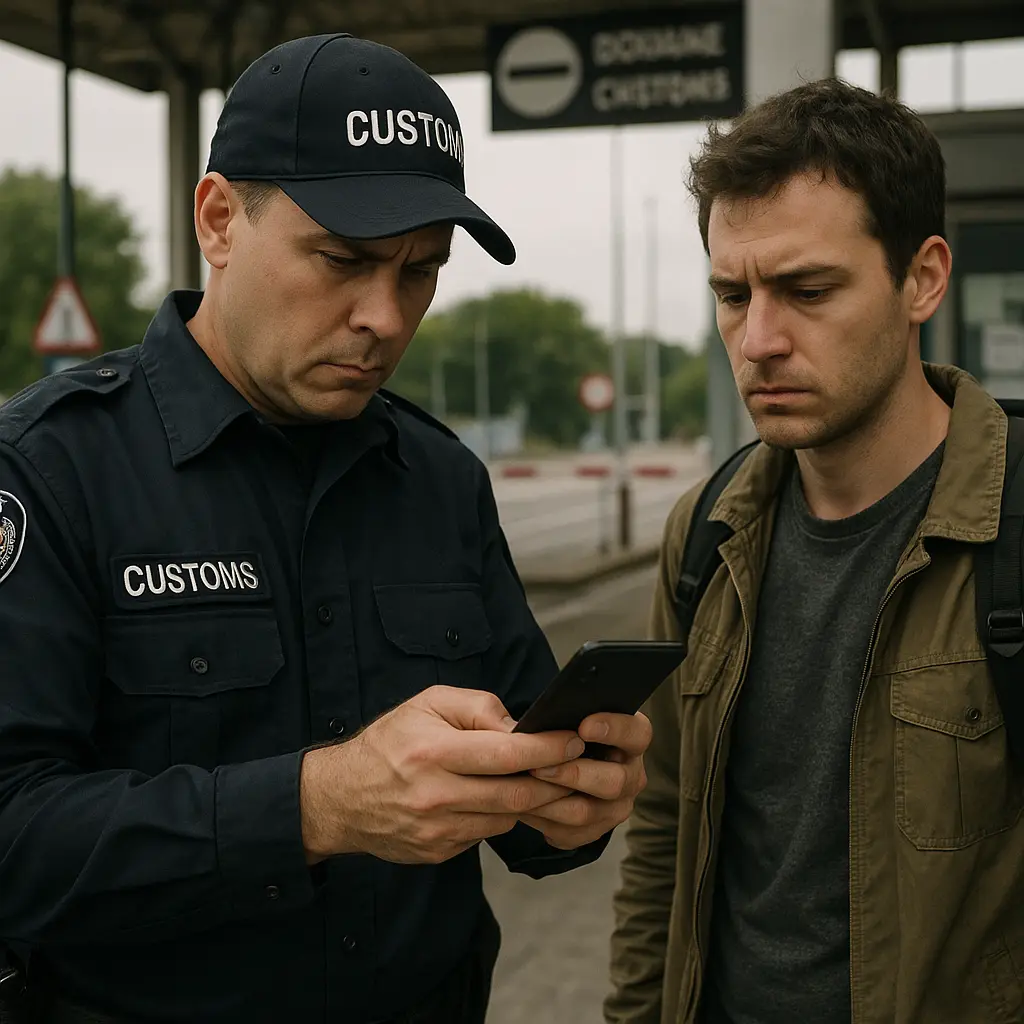
Most travelers treat post-travel security as optional. They plug in their devices, catch up on messages, and move on. But the security posture of a device that's been traveling differs from one that stayed home. Border agents can search devices without warrants. Hotel networks aren't private. Public charging stations exist. The risk isn't paranoia. It's probability over time.
This guide walks through the exact sequence of steps to secure your devices after international travel. You'll review what changed, revoke what shouldn't be there, and reset what matters. The process takes around 30 minutes. You do it once per trip. Then you're done.
Why Post-Travel Cleanup Matters
Your device's security boundary weakened while you traveled. You connected to networks you don't control. You crossed borders where agents can search devices without a warrant. You installed apps you wouldn't normally use. You logged into accounts from IP addresses that look suspicious to fraud detection systems.
None of this means your device is compromised. It means the attack surface expanded. Post-travel cleanup shrinks it back down.
The cleanup process addresses three categories of risk: unauthorized access (someone physically handled your device), network exposure (you connected to untrusted WiFi), and permission creep (you granted access you wouldn't grant at home). Each category requires different actions.
Step 1: Review Logged-In Sessions Across All Accounts
Start with your most sensitive accounts: email, banking, work accounts, password manager, and cloud storage. Every major service maintains a list of active sessions showing where you're currently logged in.
For Google accounts, go to myaccount.google.com/device-activity. You'll see every device and browser session currently authenticated. Look for locations you don't recognize, devices you didn't use, or timestamps that don't match your travel dates.
For Microsoft accounts, visit account.microsoft.com/account/privacy, then click "Manage my sign-in activity." Check for sessions from IP addresses outside your travel route.
For Apple accounts, open Settings → [your name] → scroll down to see devices signed into your Apple ID. Tap any device to see when it last accessed your account.
For banking and financial accounts, the process varies by institution. Most banks show recent login history in account settings or security preferences. Some label this "Recent Activity" or "Login History." Check every financial account you accessed during travel.
If you find a session you don't recognize, sign it out immediately. Most services let you revoke access from the same screen. After revoking, change that account's password. If the unknown session appeared on a high-value account like email or banking, enable two-factor authentication if you haven't already. CISA's MFA guidance explains the setup process.
This step catches unauthorized access early. If someone gained access to your device or accounts during travel, their session will appear in these logs. Catching it now prevents long-term compromise.
Step 2: Check App Permissions on Your Phone
Travel changes how you use your phone. You install navigation apps, translation tools, currency converters, and ride-sharing services. You grant location access to apps that don't normally need it. You approve camera permissions for document scanning. Most of these permissions stay active after you return home.
On iPhone, go to Settings → Privacy & Security. Review each category: Location Services, Camera, Microphone, Contacts, Photos, and Bluetooth. Tap into each one to see which apps have access. Revoke permissions from travel apps you no longer need. For apps you're keeping, downgrade "Always" location access to "While Using" or "Never."
On Android, open Settings → Privacy → Permission manager. Review Location, Camera, Microphone, Contacts, and Files and media. Tap each category to see which apps have access. Remove permissions from apps you installed for travel and won't use at home.
Pay special attention to location permissions. Apps that needed your location abroad don't need it at home. Navigation apps, translation apps, and local transit apps can all lose location access now. If you need them again, you can re-grant permission.
This step reduces your ongoing data exposure. Every app with location access tracks where you go. Every app with camera access can activate your camera. Permissions granted during travel often outlive their usefulness.
Step 3: Delete Travel-Specific Apps
You installed apps for this trip. A local transit app. A currency converter. A translation tool. A messaging app to communicate with people abroad. A VPN you wouldn't normally use. These apps still have access to your device and data.
Go through your app list and delete anything you installed specifically for travel. If you're unsure whether you'll need an app again, delete it. You can reinstall it next trip. The risk of leaving unused apps installed outweighs the convenience of keeping them.
On iPhone, press and hold an app icon until the menu appears, then tap "Remove App" → "Delete App." On Android, press and hold the app icon, then drag it to "Uninstall" or tap the info icon and select "Uninstall."
Before deleting an app, check whether it created an account. If it did, log in through a browser and delete the account. Many travel apps store location history, payment methods, and personal information even after you uninstall the app. Deleting the account removes that data.
For apps you're keeping, review their settings. Turn off notifications you don't need. Disable auto-renewal for any subscriptions you signed up for temporarily. Check what data the app is storing and delete what you don't need.
Step 4: Review Third-Party App Access to Your Accounts
Travel often involves granting third-party apps access to your email, calendar, or cloud storage. You connected a flight tracker to your calendar. You gave a travel planning app access to Gmail. You linked a document scanner to Google Drive. These connections persist after you return.
For Google accounts, go to myaccount.google.com/permissions. You'll see every third-party app and service with access to your Google account. Review the list. Remove anything you don't recognize or no longer need.
For Microsoft accounts, visit account.microsoft.com/privacy, then click "Apps and services" under "Privacy." Review connected apps and revoke access to anything travel-related.
For Apple accounts, go to Settings → [your name] → Sign-In & Security → Apps Using Apple ID. Review the list and remove apps you don't use.
Many services hide third-party access deep in settings. Check your email provider, cloud storage, calendar, and social media accounts. Look for sections labeled "Connected apps," "Third-party access," "App permissions," or "Security." Each service structures this differently, but the concept is the same: apps you connected during travel still have access to your data.
Revoking access doesn't delete your account with that third-party service. It only removes their ability to access your primary account. If you want to fully delete the third-party account, you'll need to do that separately through their website.
Step 5: Update Passwords for Accounts Accessed on Public Networks
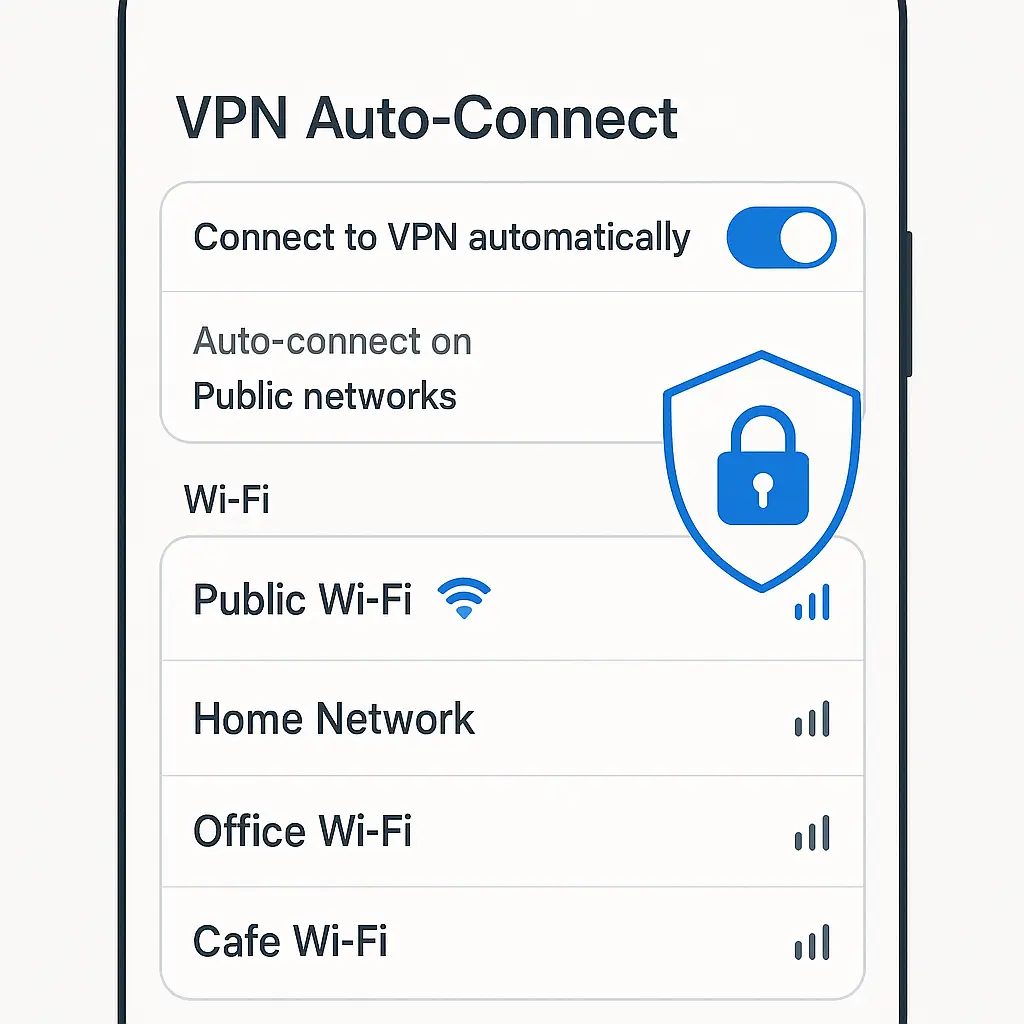
If you logged into accounts on hotel WiFi, airport networks, or internet cafes, those accounts are higher-risk. Public networks aren't private. Other users on the same network can potentially intercept traffic. While most sites use HTTPS encryption, not all do, and not all implementations are perfect.
Change passwords for any account you accessed on public WiFi. Prioritize email, banking, work accounts, and your password manager. If you used a password manager during travel, you only need to change the master password. The password manager will handle updating stored credentials.
When changing passwords, use unique passwords for each account. If you're not using a password manager yet, now is the time to start. EFF's guide to choosing a password manager explains the options.
If you accessed work accounts on public WiFi, notify your IT department. Many organizations have specific protocols for devices that connected to untrusted networks. They may want to run additional security checks or temporarily revoke access until they verify your device is clean.
Don't change passwords for accounts you didn't access during travel. There's no security benefit, and it creates unnecessary work. Focus on accounts you actually used on networks you don't control.
Step 6: Check for Unexpected Battery Drain or Behavior
Your device's behavior tells you whether something is wrong. Unexpected battery drain, overheating, slow performance, or apps crashing more than usual can indicate malware or unauthorized background processes.
Check your battery usage. On iPhone, go to Settings → Battery. Review which apps consumed the most battery over the last 10 days. Look for apps you didn't use much or apps running in the background when they shouldn't be.
On Android, go to Settings → Battery → Battery usage. Review the list. If an app you barely used shows high battery consumption, investigate. Tap the app to see details. If it's running background processes you didn't authorize, consider uninstalling it.
Check your data usage. On iPhone, go to Settings → Cellular → scroll down to see data usage by app. On Android, go to Settings → Network & internet → Data usage → Mobile data usage. Look for apps consuming unexpected amounts of data. Background data usage from apps you didn't actively use is a red flag.
If you notice unexpected behavior, don't panic. Sometimes battery drain comes from legitimate causes: poor cellular signal, background app refresh, or system updates. But if the behavior started during travel and persists after you return, investigate further.
Run a malware scan if you have security software installed. On Android, Google Play Protect scans automatically, but you can trigger a manual scan in the Play Store app under Settings → Play Protect. On iPhone, iOS doesn't allow third-party malware scanners, but Apple's built-in security scans apps automatically. If you suspect compromise on iPhone, back up your data and factory reset.
Step 7: Review and Revoke Location History
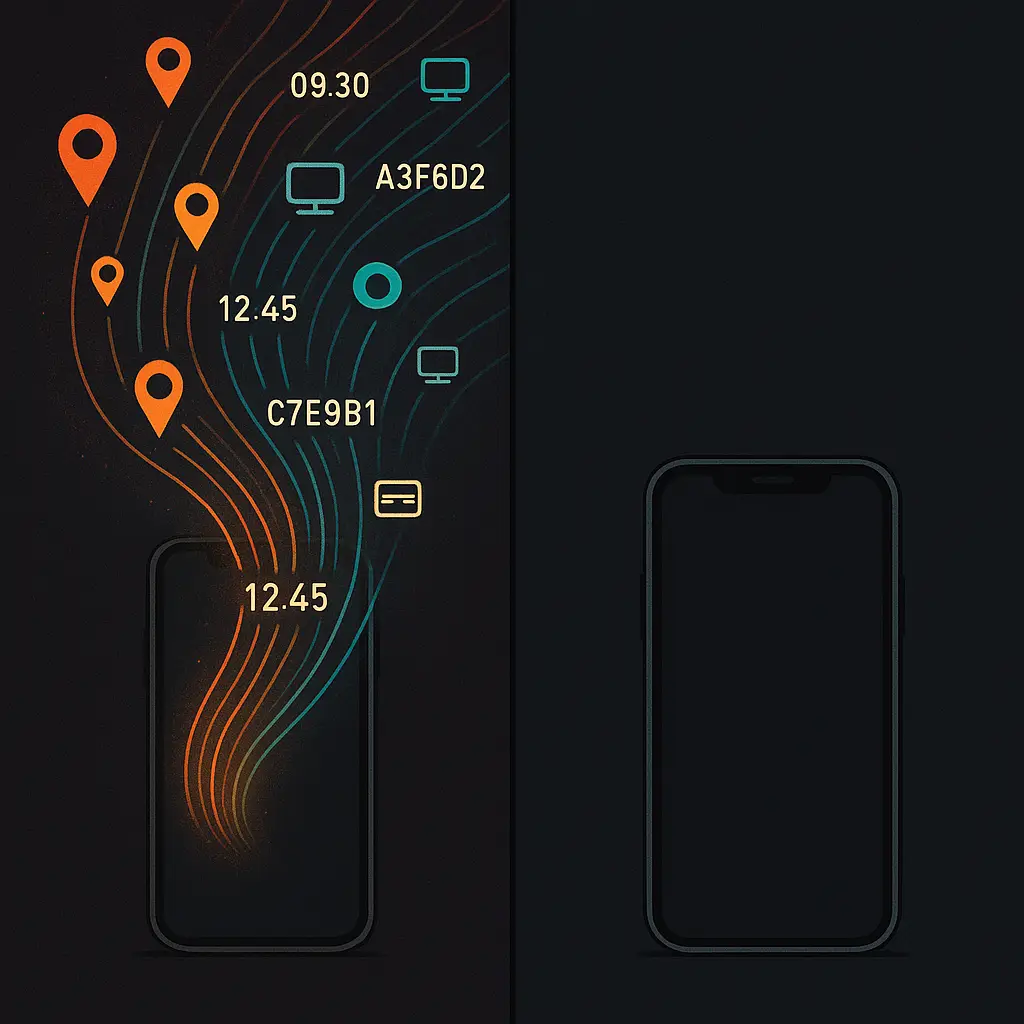
Your phone tracked your location throughout the trip. Google, Apple, and many apps store detailed location history. This data persists after you return home. If you don't want a permanent record of everywhere you went, now is the time to delete it.
For Google accounts, go to myactivity.google.com/myactivity, then click "Location History" in the left sidebar. You'll see a map of everywhere you've been. Click "Delete all Location History" to remove it permanently. You can also delete specific date ranges if you want to keep some data but remove your travel route.
For Apple devices, go to Settings → Privacy & Security → Location Services → System Services → Significant Locations. You'll see recent locations your iPhone tracked. Tap "Clear History" to delete them.
Many apps store their own location history independent of your phone's system-level tracking. Check navigation apps, ride-sharing apps, and any travel apps you used. Most have a setting to view and delete location history. If you can't find it in the app, log into the service's website and check your account settings there.
Location data is valuable to advertisers, data brokers, and anyone else who wants to know where you've been. It's also evidence in legal proceedings, divorce cases, and employment disputes. If you don't need it, delete it.
Step 8: Verify Two-Factor Authentication Settings
Travel sometimes forces you to change 2FA settings. You lost your phone. You couldn't receive SMS codes abroad. You added a backup method. You disabled 2FA temporarily to regain access. Now that you're home, verify your 2FA settings are still secure.
Check every account with 2FA enabled. Make sure your primary authentication method is still active. If you added backup methods during travel, verify they're legitimate. Remove any backup phone numbers or email addresses you don't recognize.
If you used SMS 2FA during travel, consider switching to an authenticator app. CISA recommends authenticator apps over SMS because SMS can be intercepted through SIM swaps. Authenticator apps generate codes locally on your device, which is more secure.
If you disabled 2FA on any account to regain access during travel, re-enable it now. Don't leave accounts unprotected. The inconvenience of 2FA is minor compared to the risk of account takeover.
Check your backup codes. Most services provide one-time-use backup codes when you enable 2FA. If you used backup codes during travel, generate new ones. Store them somewhere safe, preferably printed and kept in a secure location separate from your devices.
Step 9: Update Your Devices
Your devices likely missed security updates while you were traveling. You were on metered connections. You didn't want to burn through battery life. You didn't have time to wait for updates to install. Now that you're home, update everything.
On iPhone, go to Settings → General → Software Update. Install any available iOS updates. On Android, go to Settings → System → System update. Install available updates.
Update your laptop. On Windows, go to Settings → Windows Update. On Mac, go to System Settings → General → Software Update. Install all available updates.
Update your apps. On iPhone, open the App Store, tap your profile icon, then scroll down to see available updates. On Android, open the Play Store, tap your profile icon, select "Manage apps & device," then tap "Update all."
Security updates patch vulnerabilities that attackers actively exploit. Delaying updates extends the window during which your device is vulnerable. The longer you wait, the higher the risk.
Some updates require a restart. Don't postpone the restart. Restart your device now. The update doesn't fully apply until you restart.
Step 10: Back Up Your Devices (Again)
You backed up before travel. Now back up again. This creates a clean snapshot of your device in its post-cleanup state. If something goes wrong later, you can restore to this point without restoring travel data you've already removed.
On iPhone, go to Settings → [your name] → iCloud → iCloud Backup → Back Up Now. On Android, go to Settings → Google → Backup → Back up now.
For laptops, use your regular backup method. Windows users can use File History or Backup and Restore. Mac users can use Time Machine. If you don't have a regular backup system, set one up now. EFF's guide to keeping your data safe explains backup strategies.
Verify the backup completed successfully. Don't assume it worked. Check the backup timestamp and make sure it's recent. If the backup failed, troubleshoot and try again.
A clean backup after travel gives you a restore point that doesn't include temporary travel apps, location history, or potentially compromised data. It's your safety net if something goes wrong in the future.
When to Go Further: Signs of Compromise
Most travelers can stop at step 10. But sometimes the risk is higher. If you crossed borders into countries with aggressive surveillance programs, if border agents took your device for extended periods, if you connected to networks in high-risk locations, or if you notice persistent unusual behavior, consider additional steps.
Factory reset your device. This is the nuclear option. It removes everything and restores the device to factory settings. You'll need to reinstall apps, reconfigure settings, and restore data from backup. But it's the only way to guarantee removal of anything that might have been installed without your knowledge.
Before factory reset, back up your data. Then reset. On iPhone, go to Settings → General → Transfer or Reset iPhone → Erase All Content and Settings. On Android, go to Settings → System → Reset options → Erase all data (factory reset).
After reset, restore from the clean backup you created in step 10. Don't restore from an older backup that includes travel data.
If you suspect your accounts were compromised, not just your device, change passwords for all accounts, not just the ones you accessed on public networks. Enable 2FA everywhere it's available. Review account recovery settings to make sure attackers didn't add their own recovery email or phone number.
Contact your bank if you accessed financial accounts on public networks or if you notice unauthorized transactions. Contact your employer's IT department if you used work devices or accounts. They may have additional security protocols for devices that traveled internationally.
What About Work Devices?
If you traveled with a work laptop or phone, your employer may have specific post-travel requirements. Many organizations require security scans, password changes, or check-ins with IT after international travel.
Check your company's security policy. If you're unsure, ask IT. Don't assume the steps in this guide are sufficient for work devices. Your employer may require additional measures.
If you accessed work accounts on personal devices, notify IT. They may want to revoke those sessions or run additional checks. Some organizations prohibit accessing work accounts from personal devices entirely. If you violated policy during travel, report it now rather than waiting for IT to discover it through logs.
Work devices often have mobile device management (MDM) software that tracks location, app usage, and security status. IT can see where you traveled, what networks you connected to, and what apps you used. This isn't surveillance. It's standard security practice for devices that access sensitive corporate data.
The Realistic Threat Model
Most travelers face minimal risk from international travel. Border searches happen, but they're usually passive reviews of data, not active compromise. Public WiFi is less dangerous than it was a decade ago because most sites use HTTPS. Hotel networks aren't secure, but they're not actively malicious.
The steps in this guide address realistic risks, not paranoid scenarios. You're not defending against nation-state actors. You're cleaning up the expanded attack surface that comes from using devices in unfamiliar environments.
The goal isn't perfect security. It's reasonable security that fits your actual threat model. If you're a journalist traveling to authoritarian countries, your threat model is different. If you're a tourist visiting France, your threat model is different. Adjust these steps accordingly.
Skip steps that don't apply to your situation. If you didn't install any travel apps, skip step 3. If you didn't access banking on public WiFi, skip changing those passwords. The guide is comprehensive, not mandatory. Use what fits.
Making This a Habit
Post-travel cleanup works only if you do it. The best security practice is the one you'll actually follow. If this guide feels overwhelming, start with the high-value steps: check logged-in sessions, review app permissions, delete travel apps, and update passwords for accounts accessed on public networks. Those four steps cover most of the risk.
If you travel frequently, create a checklist. Keep it in your notes app or password manager. Run through it after every trip. The process gets faster with repetition.
If you travel with family, walk them through this process. Kids with phones need post-travel cleanup too. So do partners who aren't tech-savvy. Security is a team effort.
The cleanup doesn't need to happen immediately. You can wait a day or two after returning home. But don't wait a week. The longer you wait, the more likely you'll forget, and the more time any potential compromise has to spread.
What Doesn't Need Cleanup
Not everything requires action after travel. Your device's operating system doesn't need reinstallation. Your files don't need re-encryption. Your photos don't need deletion. Most of your apps don't need updates beyond normal maintenance.
You don't need to change passwords for accounts you didn't access during travel. You don't need to revoke sessions from devices that stayed home. You don't need to factory reset unless you have specific reasons to suspect compromise.
The goal is targeted cleanup, not paranoid scorched-earth security theater. Focus on what changed during travel. Leave everything else alone.
You crossed borders. You connected to networks you don't control. You granted permissions you wouldn't grant at home. Now you've cleaned up. The attack surface is back to normal. Your devices are yours again.
This process isn't optional security theater. It's maintenance. You do it after every international trip, just like you unpack your suitcase and do laundry. It takes 30 minutes. Then you're done until the next trip.