Phishing on iPhone vs Android: What Actually Happens When You Click
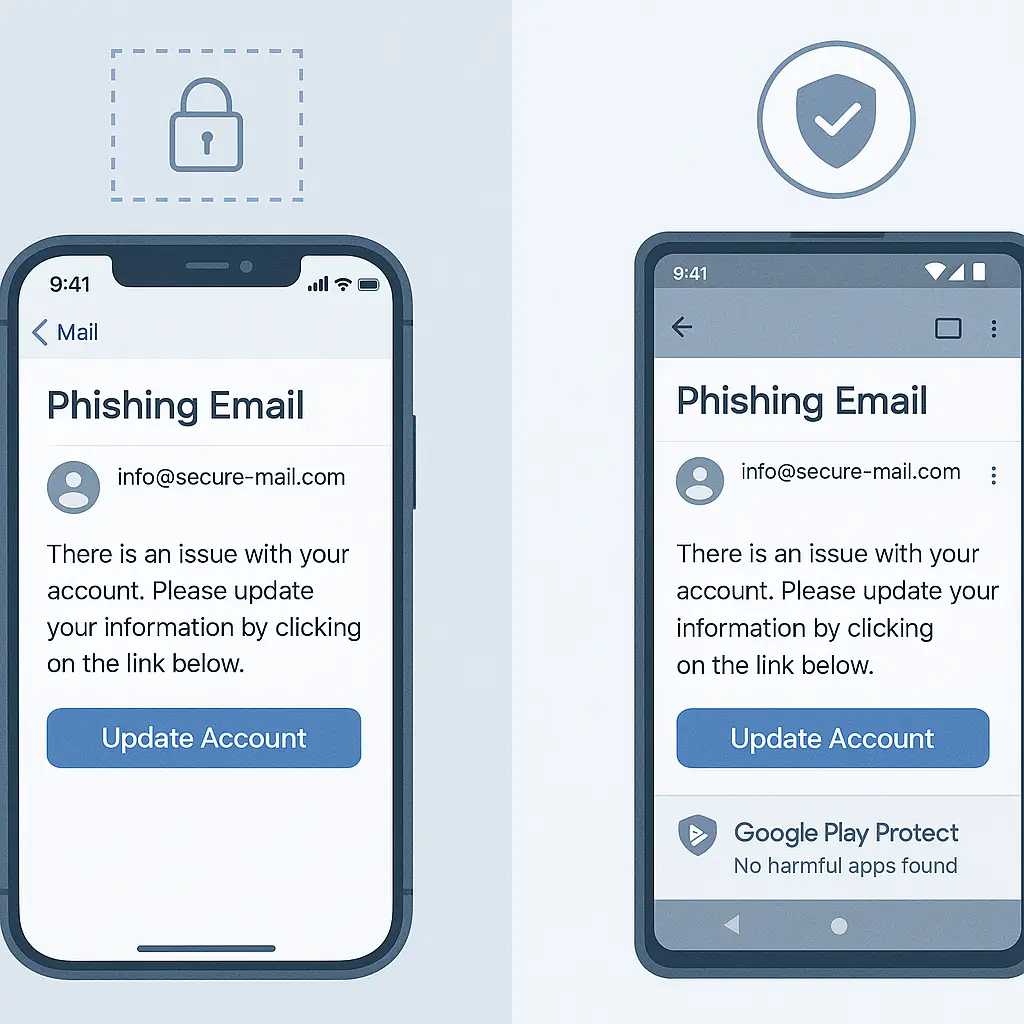
You opened the email on your phone. The link looked legitimate. You tapped it. Now you're wondering what just happened and whether your iPhone or Android device makes any difference in what happens next.
The platform matters, but not in the way most security advice suggests. The real differences show up in what the operating system allows after you click, not in whether clicking itself causes damage. Here's how phishing works on each platform, where the protections diverge, and what you actually need to do.
What Happens When You Click a Phishing Link on iPhone
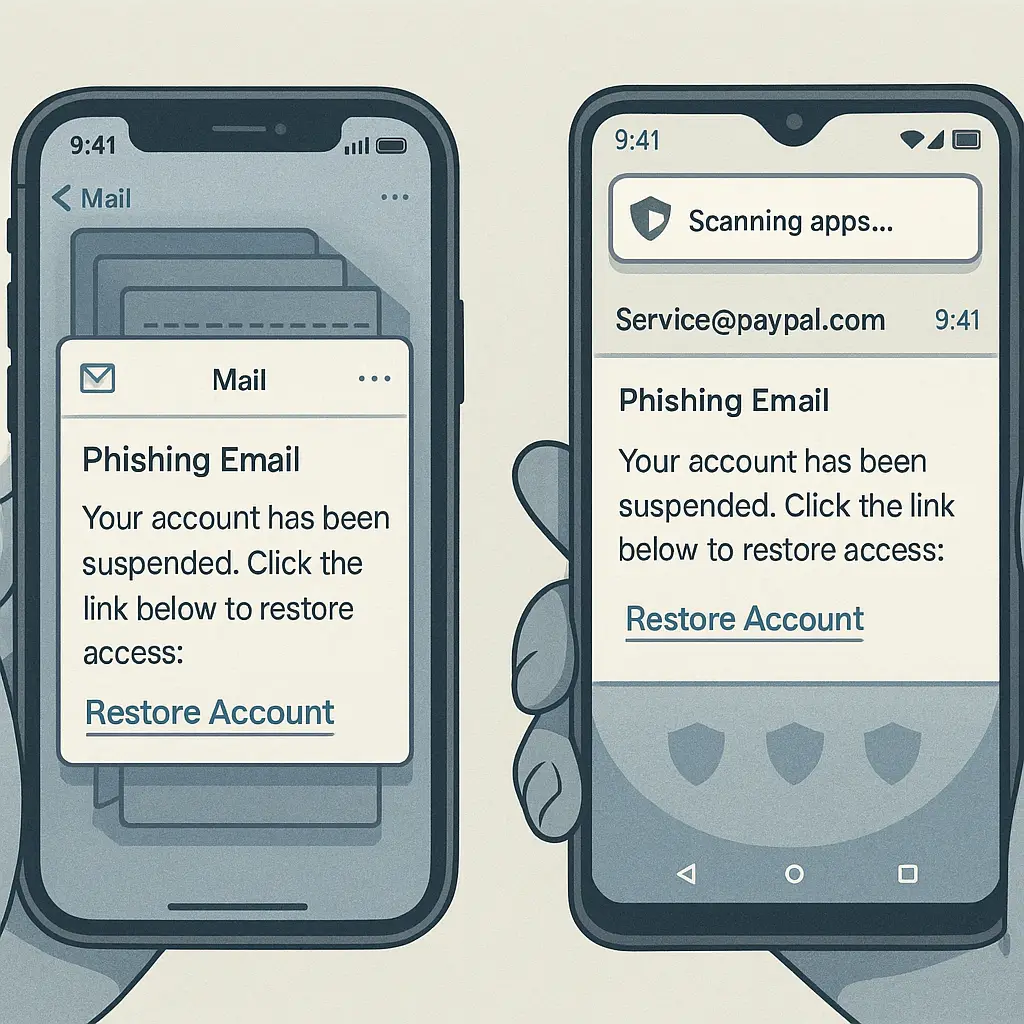
When you tap a phishing link in Mail on an iPhone, the URL opens in Safari by default. Safari runs in a sandbox , an isolated environment that limits what the webpage can access on your device. The phishing site can't read your contacts, access your photos, or install software without your explicit permission through system prompts.
The FTC notes that phishing emails work by tricking you into taking action, not by exploiting technical vulnerabilities in modern mobile browsers. On iPhone, that action typically means entering credentials into a fake login page or installing a malicious configuration profile.
Configuration profiles are where iPhone phishing gets specific. A profile can modify VPN settings, install certificates, or change email configurations. Installing one requires you to navigate to Settings, approve the installation, and often enter your device passcode. It's a multi-step process, but researchers have found that urgent language in phishing emails convinces some users to complete it.
If you clicked but didn't enter any information or install anything, the damage is minimal. Safari's sandboxing means the malicious site saw your IP address and user agent string , the same data any website collects , but couldn't access device data or install anything persistent.
The platform's app sandboxing extends beyond Safari. Even if you clicked a link that opened in a third-party browser like Chrome or Firefox, iOS sandboxes that browser too. Each app runs in isolation, unable to access other apps' data without explicit system permissions that you must approve.
What Happens When You Click a Phishing Link on Android
Android handles phishing clicks differently because of its permission model and app ecosystem. When you tap a link in Gmail on Android, it opens in Chrome by default (or your chosen default browser). Like Safari on iOS, Chrome runs with limited permissions, but Android's architecture allows more flexibility in what apps can request and what users can approve.
The key difference is Android's permission system. Apps request specific permissions , access to contacts, storage, location, camera , and you approve or deny each one. A phishing site opened in Chrome starts with the same limited access as on iPhone: it can see your IP address and user agent, but it can't read your files or contacts without requesting permission through a system dialog.
Where Android phishing gets specific is APK installation. An APK (Android Package Kit) is the file format for Android apps. Phishing campaigns sometimes trick users into downloading and installing malicious APKs by disguising them as security updates or required plugins. This requires two user actions: downloading the file and enabling installation from unknown sources in Settings.
Google Play Protect scans apps before and after installation, even when sideloading from outside the Play Store. It's not perfect , some malware slips through , but it catches many known threats. The real vulnerability is the user approving installation despite warnings.
If you clicked a phishing link on Android but didn't download anything or enter credentials, the exposure is similar to iPhone: the site collected standard web analytics data but gained no persistent access to your device.
The Credential Entry Problem on Both Platforms
The most common phishing success on both iPhone and Android isn't technical exploitation , it's voluntary credential entry. You click the link, land on a page that looks like your bank's login screen, and type in your username and password. The platform doesn't matter at that point. You've given the attacker what they wanted.
CISA's phishing guidance emphasizes that modern phishing relies on social engineering, not software vulnerabilities. The fake login page works the same in Safari on iPhone as in Chrome on Android. Both browsers will auto-fill credentials if you've saved them, making the process feel legitimate.
Two-factor authentication (2FA) adds a layer here, but phishing has adapted. Some attacks use real-time phishing: the fake page immediately forwards your credentials to the real site, captures the 2FA code you enter, and uses both to log in before the code expires. The platform provides no defense against this because you're actively participating in the attack.
The aftermath of credential entry is where platform differences re-emerge, but not in security features , in recovery tools. Both iPhone and Android let you change passwords through their respective password managers (iCloud Keychain on iPhone, Google Password Manager on Android). Both support authenticator apps for stronger 2FA. The mechanics of recovery are similar.
What iPhone Protects That Android Doesn't (and Vice Versa)
iPhone's advantage is consistency. Every iPhone runs the same version of iOS (or a recent one , Apple supports devices for around five years with security updates). Safari's sandboxing is uniform across devices. Configuration profile installation requires the same multi-step approval process on every iPhone.
This consistency means phishing attacks that target iPhone users face predictable defenses. An attack that works on one iPhone will behave the same on another, but it also means the defenses are the same. There's no variation in security posture across the user base.
Android's advantage is Google Play Protect and its integration with the broader Google ecosystem. If you use Gmail, Google Password Manager, and Chrome, Google's cross-service threat detection can spot patterns. A phishing email in Gmail that matches known campaigns gets flagged. A malicious APK download triggers a warning before installation. A suspicious login attempt on your Google account prompts a security alert.
The tradeoff is fragmentation. Not every Android phone receives timely security updates. Some manufacturers add custom security layers; others don't. The baseline protections , app sandboxing, permission controls, Play Protect , exist across Android, but the overall security posture varies by device age, manufacturer, and carrier.
The Two-Factor Authentication Layer
Both platforms support authenticator apps, which generate time-based codes that expire every 30 seconds. Apps like Google Authenticator, Microsoft Authenticator, and Authy work identically on iPhone and Android. The underlying mechanism , TOTP (Time-based One-Time Password) , is platform-agnostic.
Where the platforms differ is in built-in 2FA handling. iPhone's iCloud Keychain can generate and auto-fill 2FA codes starting in iOS 15. Android's Google Password Manager does the same. Both eliminate the need for a separate authenticator app if you're already using the platform's password manager.
The security argument against built-in 2FA is that it reduces two factors to one: if someone steals your device and knows your passcode, they have both your passwords and your 2FA codes. The convenience argument is that most people won't use 2FA at all if it requires a separate app. Both arguments have merit.
Phishing attacks that target 2FA codes work the same on both platforms. The fake login page asks for your code; you enter it; the attacker uses it immediately. The platform can't distinguish between you entering a code into a legitimate site and you entering it into a phishing page. That's a human judgment call, not a technical control.
What to Do After Clicking a Phishing Link on Either Platform
The immediate steps are the same regardless of platform. If you clicked but didn't enter credentials or download anything, the risk is low. Close the browser tab. If you're concerned, clear your browser history and cookies, though this is mostly psychological , the phishing site already collected what it could (your IP address, user agent, referrer if you came from an email app).
If you entered credentials, change the password immediately. Use a different device if possible , if you entered your email password on your phone, change it from a laptop. This ensures you're not changing the password through a session the attacker might still control.
Enable 2FA on the compromised account if it wasn't already active. Use an authenticator app, not SMS. SMS 2FA is vulnerable to SIM swapping, which is a separate attack but one that becomes relevant once an attacker has your password.
Check your account's recent activity. Most services , email, banking, social media , show recent logins with timestamps and locations. Look for logins you don't recognize. If you see any, the attacker has already accessed your account. Change the password again (they might have changed it), revoke active sessions, and contact the service's support team.
On iPhone, check for installed configuration profiles: Settings → General → VPN & Device Management. If you see a profile you don't recognize, delete it. Profiles can modify email settings, install certificates, or route traffic through a malicious VPN.
On Android, check for recently installed apps: Settings → Apps → See all apps → Sort by installation date. If you see an app you didn't intentionally install, uninstall it. Check Settings → Security → Install unknown apps to confirm which apps have permission to install other apps. Revoke this permission for any app that doesn't need it.
Monitor your accounts for unusual activity over the next few weeks. Phishing attackers don't always act immediately. Some wait, hoping you'll forget about the incident. Set up account alerts where available , email notifications for password changes, login alerts for banking apps, transaction notifications for payment services.
The Email Provider Layer That Precedes Platform Security
Both iPhone and Android receive phishing emails through email providers , Gmail, Outlook, iCloud Mail, Yahoo, and others. The provider's spam filtering is the first line of defense, and it's platform-agnostic. Gmail's phishing detection works the same whether you access it on iPhone, Android, or a desktop browser.
EFF's guidance on avoiding phishing emphasizes that email providers use machine learning to identify phishing patterns: suspicious sender domains, known malicious links, unusual sending patterns. These filters catch many phishing attempts before they reach your inbox, regardless of what device you use to check email.
The platform matters when a phishing email gets through the provider's filters and lands in your inbox. At that point, iPhone and Android handle the email identically , it's just text and HTML. The difference emerges when you interact with the email's contents.
Some email apps add their own phishing warnings. Gmail on both iPhone and Android displays a red banner for suspected phishing emails, warning you before you click any links. Outlook does something similar. Apple Mail on iPhone is more conservative, relying on the email provider's filtering without adding its own layer of warnings.
Third-party email apps introduce another variable. If you use Spark, Edison Mail, or another third-party client on either platform, you're trusting that app's security practices in addition to the platform's. These apps run in the same sandbox as other apps, but they handle your email credentials and might implement their own link-checking or warning systems.
The Browser Security Layer
When you click a phishing link, the URL opens in a browser. That browser's security features are the next defense layer, and here the platform differences become technical.
Safari on iPhone uses WebKit as its rendering engine. WebKit includes anti-phishing features: it checks URLs against Google's Safe Browsing list (a database of known phishing and malware sites) and displays a warning if there's a match. This happens before the page loads. If you proceed anyway, Safari loads the page in its sandbox.
Chrome on Android uses Blink (a fork of WebKit) and also checks URLs against Safe Browsing. The warning screens look similar. The difference is in what happens if the phishing site isn't in the Safe Browsing database yet , a zero-day phishing page that just went live.
Both browsers rely on heuristics at that point: Does the URL look like a known legitimate domain but with slight variations (like "paypa1.com" instead of "paypal.com")? Does the page request unusual permissions? Does it try to download a file immediately? These heuristics aren't perfect, and they work roughly the same across browsers.
Firefox on both platforms uses its own Enhanced Tracking Protection, which blocks some phishing techniques but isn't primarily a phishing defense tool. Brave blocks ads and trackers, which can prevent some phishing attacks that rely on malicious ads, but it doesn't fundamentally change the phishing risk compared to Safari or Chrome.
The browser you use matters less than whether you pay attention to the URL bar. Both Safari and Chrome display the domain prominently, making it easier to spot fake domains. Both use HTTPS indicators, though researchers have found that many users don't check these indicators even when they're visible.
The Social Engineering Component
In The Sting (1973), con artists succeed not through technical skill but by understanding human behavior , creating urgency, exploiting trust, building elaborate scenarios that make the target act before thinking. Phishing works the same way. The email claims your account will be suspended unless you verify your information immediately. The link looks legitimate. The page matches your bank's branding. You enter your credentials because the scenario feels real.
The platform can't defend against this. iPhone's sandboxing doesn't stop you from typing your password into a fake login page. Android's permission model doesn't prevent you from voluntarily downloading a malicious APK if you believe it's a required security update. The technical defenses assume you're trying to avoid the attack, but social engineering makes you an active participant.
The best defense is skepticism, which is hard to maintain in the moment. Phishing emails exploit urgency, fear, or curiosity , emotions that override careful URL checking. Security advice says "hover over the link to see the real URL," but on mobile devices, there's no hover. You can long-press a link to see the URL, but that requires remembering to do it when you're already emotionally primed to click.
What Actually Matters in Platform Choice
If you're choosing between iPhone and Android based on phishing protection, you're optimizing for the wrong variable. Both platforms handle phishing well enough that the difference won't be the deciding factor in whether you get phished. The attack succeeds or fails based on whether you recognize it as phishing before you enter credentials.
iPhone's advantage is update consistency. If a new phishing technique exploits a browser vulnerability, Apple patches every supported iPhone simultaneously. Android's advantage is ecosystem integration , if you use Gmail, Chrome, and Google Password Manager, the cross-service threat detection helps.
The real variables are: Do you use a password manager (so you don't reuse passwords across sites)? Do you have 2FA enabled (so stolen credentials aren't enough)? Do you check URLs before entering credentials (so you notice fake login pages)? Do you keep your device updated (so known vulnerabilities are patched)? These habits matter more than platform choice.
Most people reading this already have a phone. The question isn't whether to switch platforms for phishing protection , it's whether you're using the protections your current platform offers. Both iPhone and Android support password managers, authenticator apps, and automatic security updates. The tools exist. The question is whether you've configured them.
Recovery Steps That Work on Both Platforms
If you've determined that you entered credentials into a phishing page, the recovery process is platform-agnostic. First step: change the password on a different device. If you entered your Gmail password on your phone, change it from a laptop or desktop. This ensures you're not changing it through a session the attacker controls.
Second step: enable 2FA if it wasn't already active, or switch to a stronger 2FA method if you were using SMS. Install an authenticator app , Google Authenticator, Microsoft Authenticator, Authy, or another TOTP app , and set it up for the compromised account.
Third step: review account activity. Check recent logins, connected devices, and any account changes (recovery email, phone number, security questions). If the attacker accessed your account, they might have changed these to maintain access even after you change the password.
Fourth step: check for downstream compromises. If you reused the password on other accounts (you shouldn't, but many people do), change it on those accounts too. If the phished account was your email, check sent mail for messages you didn't send , attackers sometimes use compromised email accounts to phish your contacts.
Fifth step: monitor for unusual activity. Set up account alerts where available. Watch for unexpected password reset emails, login notifications from unfamiliar locations, or transaction confirmations you didn't initiate. The attacker might not act immediately.
The FTC's identity theft recovery guide provides a step-by-step checklist that applies regardless of platform. The mechanics of changing passwords, enabling 2FA, and monitoring accounts work the same on iPhone and Android because you're accessing web services that exist independently of your phone's operating system.
The Myth of Platform Immunity
Neither iPhone nor Android makes you immune to phishing. The platforms protect against technical exploitation , malware installation, unauthorized data access, privilege escalation , but phishing succeeds by convincing you to voluntarily hand over credentials. No operating system can prevent that.
Security marketing sometimes implies that choosing the right platform solves the phishing problem. It doesn't. The platform provides a foundation of technical controls, but the attack surface in phishing is human judgment. You can run the most secure operating system on the most locked-down device and still get phished if you enter your password into a convincing fake login page.
The platforms have improved over time. Modern mobile browsers include anti-phishing features that didn't exist a decade ago. Safe Browsing databases are more comprehensive. Permission models are more granular. Sandboxing is more robust. But these improvements address technical vectors, not social engineering.
The practical implication is that platform choice shouldn't be your primary phishing defense. Use the platform you prefer for other reasons (ecosystem, app availability, device preference), then implement the same phishing defenses on that platform: password manager, 2FA, skepticism about urgent requests, URL checking before credential entry.
When the Platform Actually Matters
The platform matters most in edge cases that go beyond typical phishing. If an attacker exploits a zero-day vulnerability in Safari or Chrome to escape the browser sandbox, iPhone and Android respond differently. Apple patches iOS for all supported devices simultaneously. Android patches are fragmented , Google releases updates, then manufacturers adapt them, then carriers approve them. The delay can be weeks or months for some devices.
This matters for sophisticated attacks that combine phishing with technical exploitation. The phishing email gets you to click. The malicious site exploits a browser vulnerability to install malware. On iPhone, the window of vulnerability is shorter because patches arrive faster. On Android, it depends on your device manufacturer and carrier.
But this scenario is rare in practice. Most phishing attacks don't need zero-day exploits. They work because the victim enters credentials voluntarily. The technical sophistication is in the email's social engineering, not in the malicious site's exploit code.
The platform also matters if you're specifically targeted by an attacker with resources. Spear phishing campaigns against high-value targets sometimes include custom malware designed for specific platforms. In those cases, platform choice affects the attack surface, but you're also dealing with attackers who will adapt their tools to whatever platform you use.
For the typical phishing email that lands in your inbox , the fake package delivery notice, the urgent account verification request, the too-good-to-be-true offer , the platform is largely irrelevant to the attack's success. It succeeds or fails based on whether you recognize it as phishing before you act.
What You Can Control
You can't control whether phishing emails reach your inbox. Email providers filter most of them, but some get through. You can't control whether the phishing page is in Safe Browsing databases when you click. Zero-day phishing pages exist specifically because they're not in those databases yet.
What you can control: whether you use a password manager (so each account has a unique password and credential theft on one site doesn't compromise others). Whether you enable 2FA (so stolen credentials aren't sufficient for account access). Whether you check URLs before entering credentials (so you notice fake domains). Whether you keep your device updated (so known vulnerabilities are patched).
These controls work the same on iPhone and Android. The implementation details differ , iCloud Keychain vs Google Password Manager, Face ID vs fingerprint sensor , but the security outcome is equivalent. A unique password is a unique password. A TOTP code is a TOTP code. An up-to-date device is an up-to-date device.
The choice between iPhone and Android should be based on factors other than phishing protection: app ecosystem, device cost, privacy preferences, integration with other devices you own. Both platforms provide adequate phishing defenses if you configure them correctly. Neither provides immunity if you don't.
The real question after clicking a phishing link isn't "which platform protects me better?" It's "did I enter credentials, and what do I do now?" The answer to that second question is the same regardless of what phone you're holding.