MDM (mobile device management) explained: what your employer can see and control on your phone
Your employer hands you a phone for work, or asks you to install an app on your personal device so you can check email remotely. Either way, you're about to interact with mobile device management software. MDM is the mechanism that lets organizations control devices accessing their data, and the extent of that control depends on who owns the phone, what the software is configured to do, and what your employer's policies allow.
This is not theoretical. Around 70 percent of organizations use MDM to manage employee devices, according to industry surveys. The software runs quietly in the background, enforcing policies, monitoring compliance, and sometimes collecting data you didn't know was visible. Here's how it works, what your employer can actually see, and where the boundaries live.
What MDM software does on a technical level
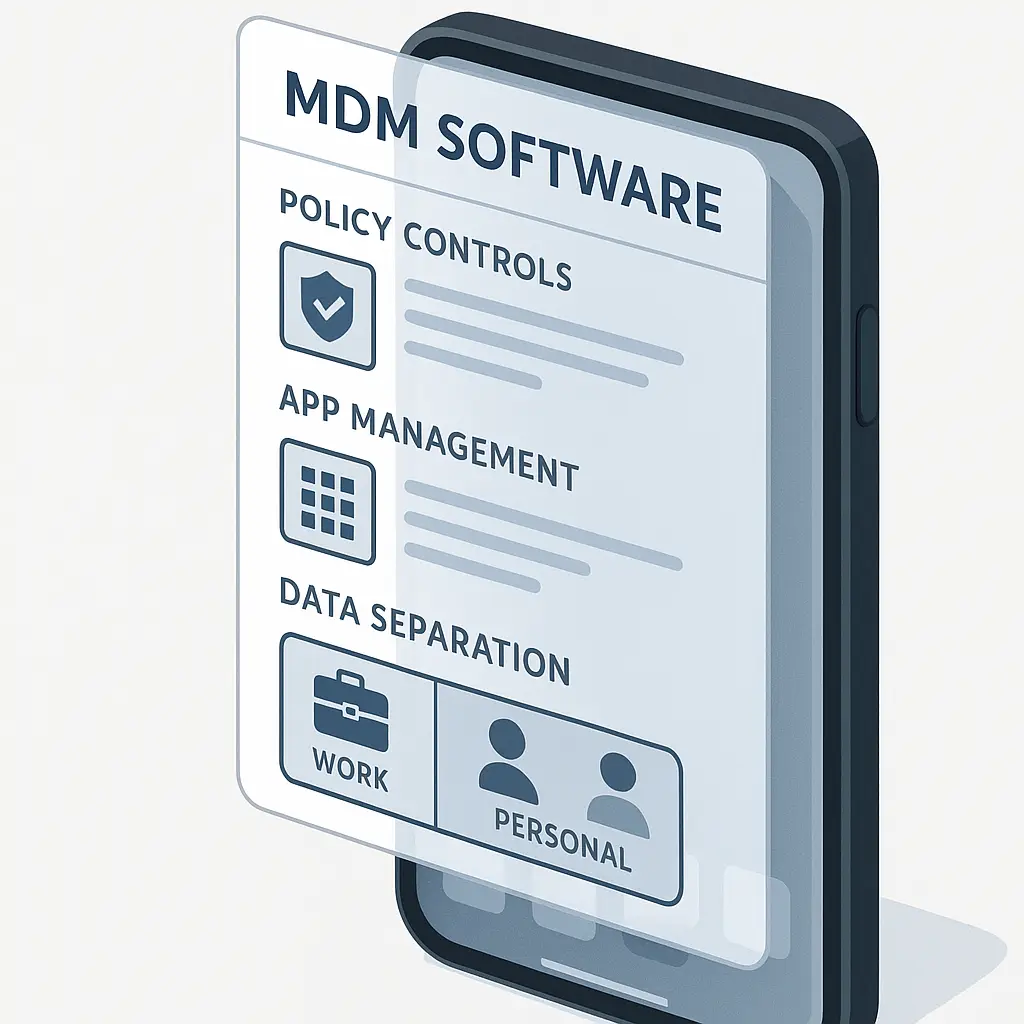
Mobile device management is software that communicates with your phone's operating system to enforce policies set by an administrator. When you enroll a device in MDM, you're granting the organization permission to configure settings, install or remove apps, monitor device status, and in some cases, access data stored on the device.
The mechanism works through a configuration profile. On iOS, this profile integrates with Apple's built-in device management framework. On Android, it uses Android Enterprise or the older Device Administrator API. Once installed, the MDM agent on your phone checks in with the management server at regular intervals, receives policy updates, and reports back on compliance status.
What the MDM software can do depends on how it's configured. A minimal setup might only enforce a passcode requirement and allow remote lock if the device is lost. A maximal setup can track location, monitor app usage, read device logs, access work email and calendar data, and remotely wipe the device with or without warning.
The CISA guidance on mobile device security outlines the technical capabilities MDM platforms typically offer, though the document focuses on what organizations should implement rather than what employees experience. The gap between capability and actual use is where most of the confusion lives.
Company-owned devices vs. personal devices with MDM
The ownership model determines the scope of control. This is the single most important variable.
Company-owned devices are employer property. The organization can configure the device however it wants, monitor everything that happens on it, and access any data stored locally or synced to company accounts. You have no reasonable expectation of privacy on a company-owned phone. If you use it for personal browsing, personal texts, or personal photos, assume your employer can see those things if they choose to look.
Some organizations configure company phones with a light touch, treating them as tools rather than surveillance devices. Others lock them down aggressively, blocking app installations, restricting browser access, and logging activity. The technical capability exists for full visibility regardless of how the policy is written.
Personal devices with MDM operate under a different model, commonly called BYOD (bring your own device). When you install MDM software on your own phone, the extent of employer access depends on the enrollment type.
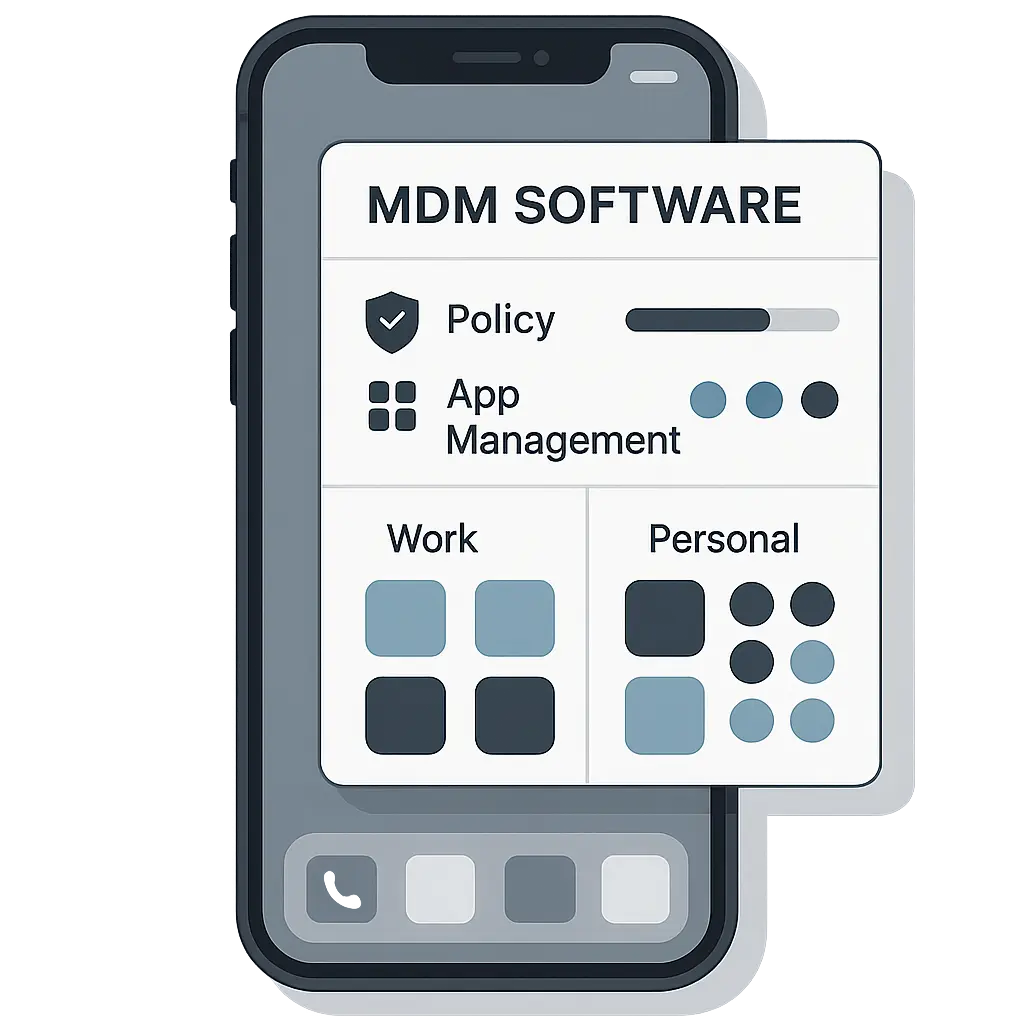
iOS offers two enrollment modes: Device Enrollment (which treats your personal phone almost like a company device) and User Enrollment (which creates a separate work container and limits employer access to that container). Android has similar distinctions through Android Enterprise work profiles.
If your personal phone uses a work profile or User Enrollment, your employer's visibility is limited to the work container. They can see work apps, work email, work documents, and compliance status (passcode enabled, OS version, encryption status), but they typically cannot access your personal photos, texts, browsing history, or location outside of work apps.
If your personal phone is enrolled under full Device Enrollment or the older Android Device Administrator mode, the boundaries blur. The MDM software has broader access, and the line between work and personal becomes harder to enforce technically, even if company policy promises to respect it.
The EFF's Surveillance Self-Defense guide recommends verifying your enrollment type before agreeing to install MDM on a personal device. The difference is not academic.
What your employer can see: the specifics
Here's what MDM software can report back to the management console, broken down by category. This is capability, not guaranteed practice. Your employer may not look at all of this data, but the software makes it available if they choose to access it.
Device information: Make, model, serial number, OS version, storage capacity, battery level, whether the device is jailbroken or rooted. This is visible on both company-owned and personal devices with MDM.
Compliance status: Whether a passcode is set, whether encryption is enabled, whether the OS is up to date, whether unknown sources are allowed (Android), whether developer mode is active. Visible on all managed devices.
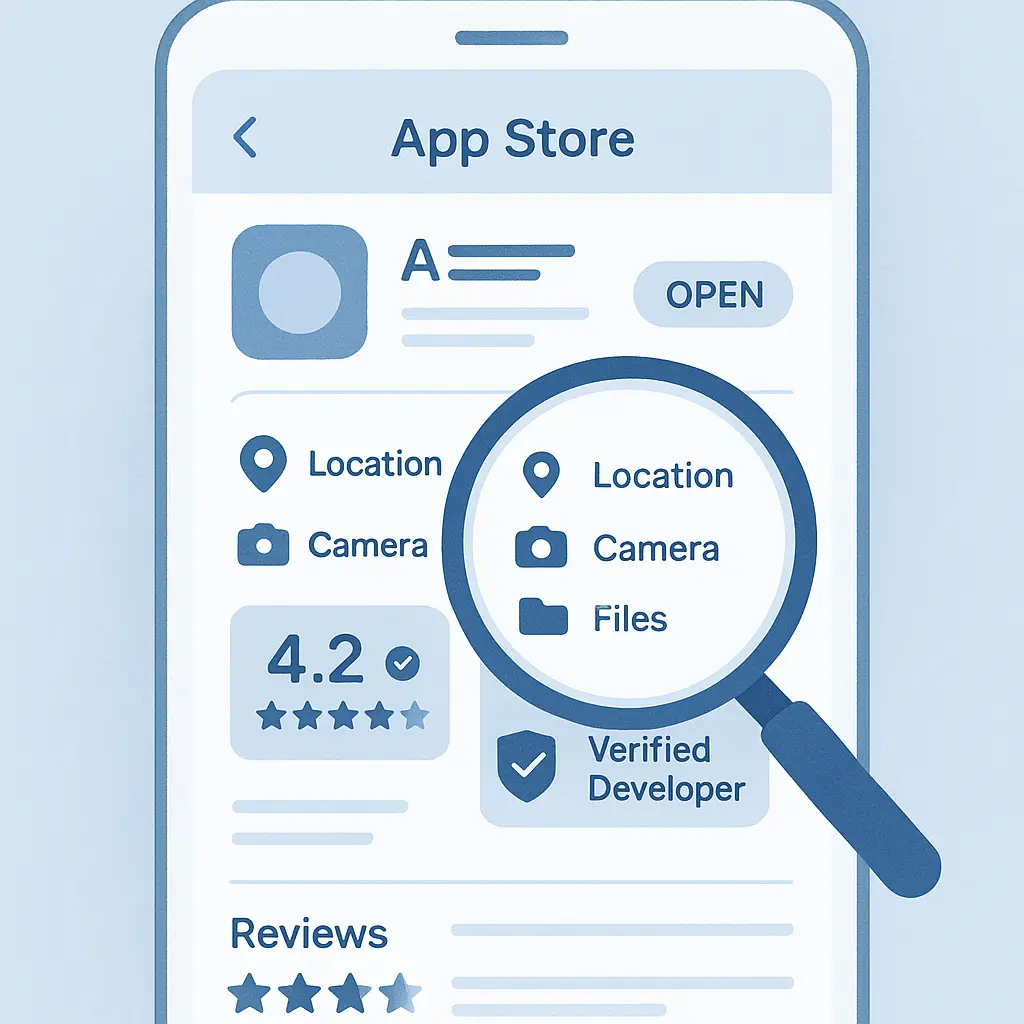
Installed apps: A list of every app installed on the device. On company-owned devices, this is everything. On personal devices with work profiles, this is typically limited to apps in the work container, though some MDM platforms can still enumerate all installed apps for security reasons.
Location: GPS coordinates, WiFi network information, cell tower data. Company-owned devices can have location tracking enabled continuously. Personal devices with MDM can have location tracking limited to work hours or specific apps, but the technical capability exists for broader tracking if the policy allows it. Some MDM platforms log location history, not just current position.
Network activity: WiFi networks the device has connected to, VPN status, data usage by app. On company-owned devices, some MDM platforms can monitor web traffic if a managed VPN or proxy is configured. On personal devices with work profiles, network monitoring is typically limited to work apps, but this varies by platform.
Work email and calendar: Full access. If you use a company email account or calendar synced through MDM, your employer can read those messages, see those appointments, and export that data. This is true even on personal devices. Work email is company property.
Work documents: Any file stored in a managed app or synced to a company cloud account is accessible. On company-owned devices, this extends to the entire file system if the MDM is configured that way. On personal devices with work profiles, it's limited to the work container.
Remote actions: The MDM console allows administrators to lock the device remotely, wipe data remotely, disable specific features (camera, screenshot capability, app installation), and force software updates. On company-owned devices, a remote wipe erases everything. On personal devices with work profiles, a remote wipe should only remove the work container, but implementation varies by MDM platform and OS version.
The FTC's guidance on protecting personal information does not address employer-installed MDM directly, but the principle applies: once you grant access, you lose control over how that access is used.
What your employer typically cannot see (on personal devices with work profiles)
If your personal device is enrolled under iOS User Enrollment or Android Enterprise with a work profile, the following data should remain private:
- Personal text messages (SMS, iMessage, WhatsApp, Signal, etc.)
- Personal photos and videos stored in your camera roll
- Personal browsing history in Safari, Chrome, or other browsers outside the work profile
- Personal app usage and data (social media, banking apps, games, etc.)
- Personal contacts not synced to the work account
- Personal location when work apps are not active (though this depends on MDM configuration)
The boundary is enforced by the operating system, not by trust. iOS and Android create separate cryptographic containers for work and personal data when using these enrollment modes. The MDM software cannot cross that boundary without exploiting a vulnerability or convincing you to grant additional permissions.
However, the boundary is not absolute. If you forward work email to a personal account, or save work documents to your personal cloud storage, you've moved data across the boundary yourself. If you use a work VPN that routes all device traffic through the company network, your employer can monitor that traffic regardless of whether it's work or personal. If you enable location services for a work app, that app can report location even when you're off the clock, depending on its configuration.
The safest assumption is that anything you do while connected to a work network, work VPN, or work app is potentially visible.
The cultural reference: the holodeck safeties in Star Trek: The Next Generation
In Star Trek: The Next Generation, the holodeck is a room that generates realistic simulations. The safety protocols prevent simulated objects from causing real harm, a holographic bullet won't kill you, a holographic fall won't break your bones. The protocols work because the system enforces a boundary between the simulation and reality.
MDM work profiles are similar. The work container is the simulation, isolated from your personal data by OS-level boundaries. As long as the safeties are on, as long as you're using a proper work profile and not full device enrollment, the boundary holds. But if the safeties are disabled (full device enrollment), or if you step outside the holodeck (use work apps on a company-owned device), the protections disappear.
The analogy matters because people assume MDM on a personal phone means the same thing as MDM on a company phone. It doesn't. The enrollment type is the safety protocol. Verify it before you install anything.
How to check your enrollment type
On iOS:
- Open Settings → General → VPN & Device Management
- Look for a profile labeled with your company name
- Tap the profile and check the type
- If it says "User Enrollment," your personal data is isolated
- If it says "Device Enrollment" or "Supervised," your employer has broader access
On Android:
- Open Settings → Security (or Passwords & Security)
- Look for "Work profile" or "Device admin apps"
- If you see a separate work tab in your app drawer (often marked with a briefcase icon), you have a work profile and your personal data is isolated
- If you see an MDM app listed under Device Administrators without a work profile, your employer has broader access
If you're unsure, ask your IT department directly: "Is this device enrolled under a work profile, or is it full device enrollment?" They should be able to answer.
What happens when you leave the company
When you leave a company or stop using a managed device, the organization will typically remove the device from MDM. What happens next depends on ownership and enrollment type.
Company-owned devices: Return the device. If you don't, the organization can remotely wipe it, rendering it unusable. Any personal data you stored on the device is gone.
Personal devices with work profiles: The organization should remove the work profile remotely, which deletes work apps, work email, and work documents but leaves your personal data intact. This is the intended behavior, but it relies on the MDM platform and the administrator executing the removal correctly. In rare cases, a misconfigured wipe command can erase the entire device instead of just the work profile.
Before you leave, back up your personal data. If you have any doubt about whether the wipe will be scoped correctly, remove the work profile yourself before the organization does. On iOS, delete the management profile in Settings → General → VPN & Device Management. On Android, remove the work profile in Settings → Security → Work profile → Remove work profile.
Some organizations require you to keep the MDM software installed until your final day, even if you're no longer accessing work systems. This is a policy choice, not a technical requirement. If you're asked to keep it installed, clarify in writing what will happen when the profile is removed and whether you'll be notified before any remote action is taken.
The risks of BYOD that nobody mentions
Bringing your own device to work creates a convenience-privacy tradeoff that most people accept without thinking through the risks. Here are the ones that matter:
Scope creep: MDM policies change. A work profile that starts with minimal access can expand over time as the organization adds new compliance requirements. You may not be notified when the policy changes, and you may not have the option to decline the new requirements without losing access to work systems.
Accidental data leakage: If you use the same device for work and personal tasks, you will eventually make a mistake. You'll send a personal photo to a work chat, or save a work document to your personal cloud, or forward a work email to a personal account. Each mistake creates a new copy of data that crosses the boundary and may be subject to retention policies, legal holds, or monitoring you didn't anticipate.
Legal exposure: If your employer is sued or investigated, any device used to access work systems can be subject to discovery. Even if your personal data is technically isolated in a separate profile, the device itself may be seized or imaged as part of the legal process. This is rare, but it happens, and it's worth considering if you work in a regulated industry or a litigious environment.
Unclear policies: Many organizations have vague or contradictory policies about what MDM software does and what employees should expect. The IT department may promise that personal data is private, but the legal department may reserve the right to access anything on a device used for work. The written policy may say one thing, but the MDM configuration may allow something else. Employees are left guessing.
The NIST guidance on mobile device security addresses enterprise security requirements but does not focus on employee privacy concerns. The gap is intentional, NIST writes for organizations, not individuals. The result is that employees are expected to trust their employer's implementation without independent verification.
Alternatives to installing MDM on your personal device
If you're uncomfortable with MDM on your personal phone, you have options. They're not always convenient, but they exist.
Use a separate work phone. Ask your employer to provide a company-owned device. If they require mobile access to work systems but won't provide a device, that's a policy problem, not a technical one. Some organizations will provide a stipend for a second device if you push back on BYOD.
Use web-based access only. Many work systems (email, calendar, file sharing) are accessible through a web browser without requiring MDM. You'll lose some convenience (no push notifications, no offline access), but you'll avoid installing management software on your personal device.
Use a dedicated work profile without MDM. Some organizations allow you to access work email and calendar through native apps (Mail, Calendar, Outlook) without enrolling the device in MDM. This gives the organization less control but still allows you to work remotely. Whether this is an option depends on your employer's security requirements.
Negotiate the terms. If your employer requires MDM on your personal device, ask for a written policy that specifies what data they can access, under what circumstances they'll use remote wipe, and how they'll handle the device when you leave. Some organizations will agree to contractual limits on MDM use if you ask.
The default assumption in many workplaces is that employees will accept BYOD without question. You don't have to.
What to do if you've already installed MDM and want to understand your exposure
If you've already enrolled your personal device in MDM and you're not sure what your employer can see, here's how to assess your situation:
-
Check your enrollment type (see instructions above). If you have a work profile (iOS User Enrollment or Android Enterprise work profile), your personal data is likely isolated. If you have full device enrollment, your employer has broader access.
-
Review your company's MDM policy. This is usually available through HR or IT. Look for sections on data access, remote wipe procedures, and employee privacy. If the policy is vague or nonexistent, ask for clarification in writing.
-
Audit your app usage. If you've been using work apps for personal tasks (work email for personal correspondence, work cloud storage for personal files), that data is no longer private. Move it out of the work container if you want to keep it.
-
Check your location settings. On iOS, go to Settings → Privacy & Security → Location Services and review which apps have location access and when. On Android, go to Settings → Location → App permissions. If work apps have "Always" access, they can track your location even when you're not using them.
-
Ask your IT department directly. "What data can you see on my device? Can you access my personal photos, texts, or browsing history?" Most IT departments will answer honestly, and the answer will depend on your enrollment type. If they're evasive or dismissive, that's information too.
If you discover that your employer has more access than you're comfortable with, your options are to remove the work profile (and lose access to work systems), negotiate a different arrangement, or accept the tradeoff. There's no technical fix that gives you full privacy and full work access on the same device under full enrollment.
The difference between capability and practice
MDM software is a tool. What it does depends on how it's configured and how the organization uses it. A company that deploys MDM to enforce basic security (passcode, encryption, remote wipe in case of theft) is using the tool responsibly. A company that uses MDM to monitor employee location, read work email forensically, and track app usage outside of work hours is using the same tool invasively.
The problem is that you can't tell the difference from the outside. The MDM agent on your phone looks the same whether it's configured minimally or maximally. The policies may be written one way and implemented another. The IT department may have access they never use, or they may use access they never disclose.
This is not unique to MDM. Any software that runs with elevated privileges creates the same dynamic, capability exists independent of intent, and intent can change without notice. The FTC's guidance on data security emphasizes minimizing data collection and access, but those principles are written for organizations, not enforced on them.
The practical advice is to assume that any capability the MDM software has will eventually be used, either because policy changes, because the organization is sold, because you're involved in a legal matter, or because someone in IT makes a mistake. Plan accordingly.
The long view: MDM is not going away
Mobile device management is now standard practice in most organizations that handle sensitive data. The CISA guidance on multifactor authentication and device security treats MDM as a baseline control, not an optional add-on. As remote work becomes more common and as work-life boundaries continue to blur, more employees will be asked to install MDM on personal devices or use company-owned devices for tasks that feel personal.
The technology will get more sophisticated. MDM platforms are adding AI-based anomaly detection, behavioral analytics, and automated compliance enforcement. The boundary between monitoring for security and monitoring for productivity is already thin, and it will get thinner.
The legal and regulatory framework is not keeping pace. There is no federal law in the United States that limits what employers can do with MDM software on employee devices, and state laws vary. The FTC's consumer protection guidance does not address employer surveillance of employees. The result is that employees are left to negotiate individually with employers who hold most of the leverage.
The best defense is informed consent. Understand what you're agreeing to before you install MDM. Verify your enrollment type. Read the policy. Ask questions. And if the tradeoff doesn't make sense for your situation, push back. The default is not the only option.
Related reading: