Apple Legacy Contact: The Feature That Lets Someone Access Your Data After You Die
Your Apple account holds decades of photos, messages, notes, and files. When you die, that data doesn't transfer like a bank account. It locks. Permanently.
Apple Legacy Contact is the mechanism that changes that default. It designates someone to access your iCloud data after your death. Not before. Not conditionally. After.
This is the explainer. Here's how the system works, what your designated person can actually see, and the step-by-step process to set it up.
What Apple Legacy Contact Actually Does
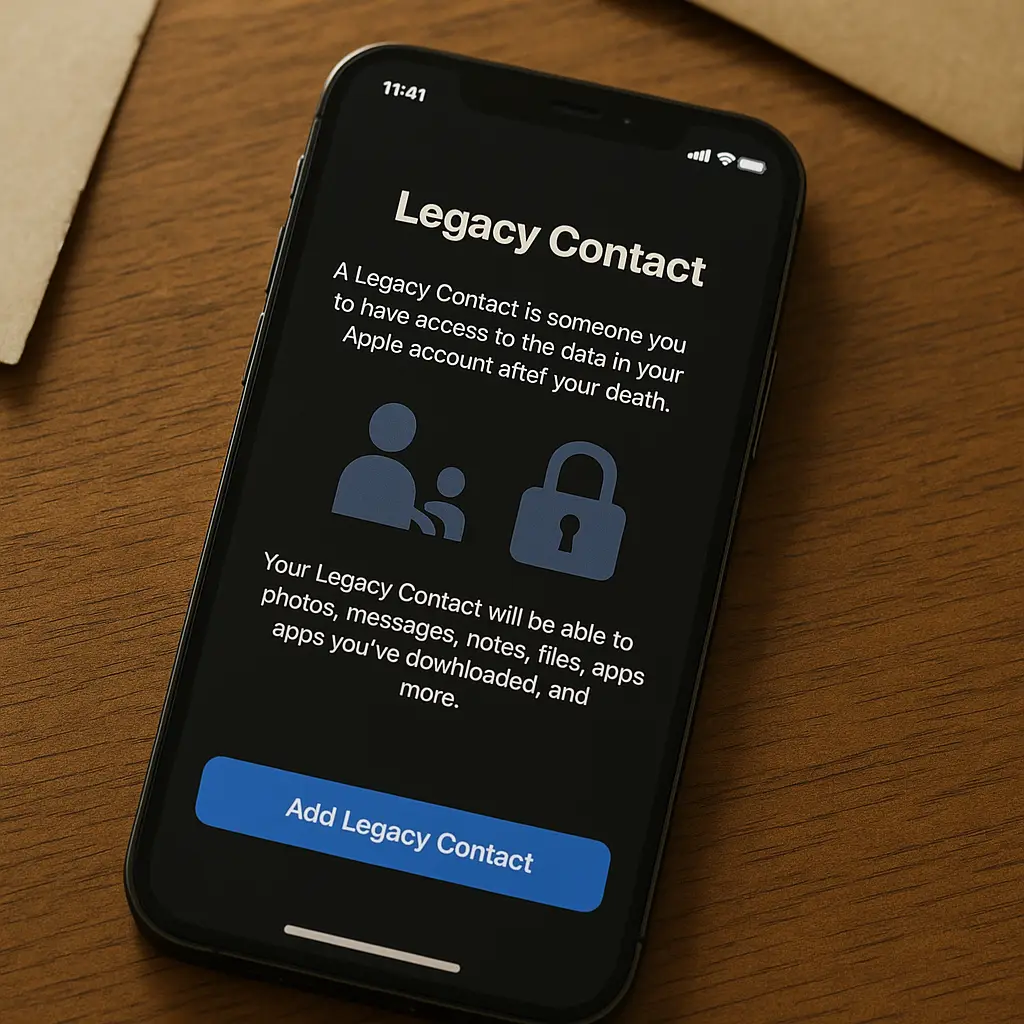
Legacy Contact is a feature built into iOS 15.2 and later, iPadOS 15.2 and later, and macOS Monterey 12.1 and later. It sits in your Apple ID settings as a dormant permission that activates only after your death.
When you designate someone as your Legacy Contact, Apple generates a unique access key. That key, combined with your death certificate, grants your designated person read-only access to most of your iCloud data for three years.
The mechanism has three components:
-
Designation: You choose someone and Apple sends them a notification. They accept. Apple generates an access key and stores it encrypted.
-
Activation: After your death, your Legacy Contact submits your death certificate to Apple. Apple verifies the document, then issues a second access key.
-
Access: Your Legacy Contact combines both keys to unlock a special read-only Apple account that contains your data. They can view, download, and export. They cannot modify, delete, or make purchases.
The system bypasses Apple's standard account recovery process, which requires you to be alive and able to verify your identity. Legacy Contact assumes you're not.
What Your Legacy Contact Can See
Your Legacy Contact gets access to:
- Photos and videos in iCloud Photos
- Messages and iMessage conversations
- Notes and voice memos
- Files stored in iCloud Drive
- Contacts, calendar events, and reminders
- Mail (if you use iCloud Mail)
- Safari bookmarks and reading list
- Health data (if stored in iCloud)
- Device backups
- Apps that store data in iCloud
They get read-only access. They can download everything, but they cannot send messages, edit notes, or make changes to your account.
What Your Legacy Contact Cannot See
The system excludes:
- Passwords stored in iCloud Keychain
- Payment methods and Apple Pay information
- Licensed media (movies, music, books purchased from Apple)
- App Store purchases and subscriptions
- Find My device location history (though they can see your last known location if Find My was enabled)
Apple treats licensed media as non-transferable. You bought a license to use that content. Your Legacy Contact inherits your data, not your purchases.
Passwords stay locked because Apple uses end-to-end encryption for Keychain. Even Apple can't decrypt them. Your Legacy Contact can't either.
The Three-Year Window
Apple grants access for three years after your death. After that, the account closes and all data deletes permanently.
This window exists because data storage costs money and accounts without active users create security risk. Three years gives your family time to download what matters. After that, the data goes away.
If your Legacy Contact doesn't submit your death certificate within that window, they lose access. The clock starts at your death, not at the moment they request access.
How to Set Up a Legacy Contact
You need iOS 15.2 or later, iPadOS 15.2 or later, or macOS Monterey 12.1 or later. The feature doesn't exist on older operating systems.
On iPhone or iPad:
- Open Settings.
- Tap your name at the top.
- Tap Sign-In & Security.
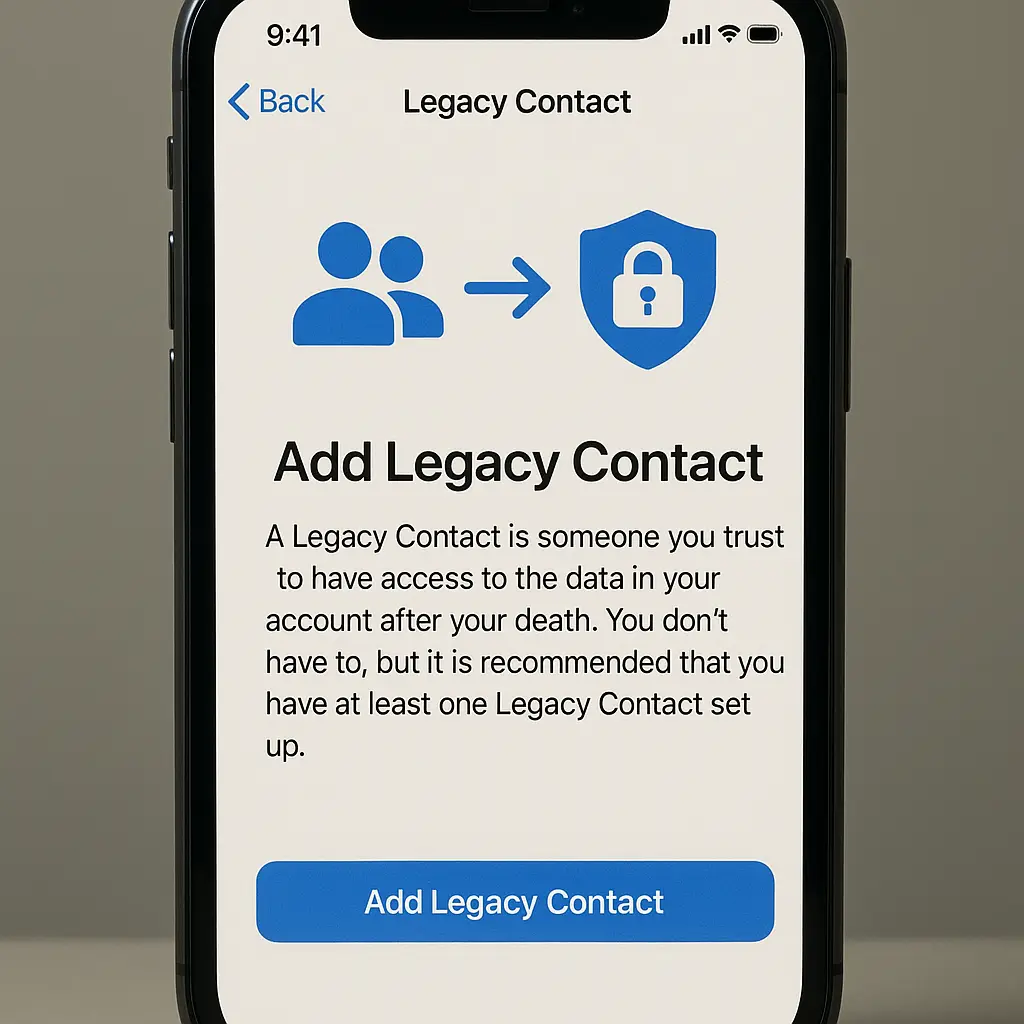
- Tap Legacy Contact.
- Tap Add Legacy Contact.
- Choose someone from your contacts or enter their information manually.
- Apple sends them a notification. They must accept.
- After they accept, Apple generates an access key. You can print it or save it digitally. Give them a copy or keep it somewhere they can find after your death.
On Mac:
- Open System Settings.
- Click your name at the top.
- Click Sign-In & Security.
- Click Legacy Contact.
- Click the plus button to add someone.
- Choose someone from your contacts or enter their information manually.
- Apple sends them a notification. They must accept.
- After they accept, Apple generates an access key. Print it or save it. Give them a copy or store it where they can find it.
You can add up to five Legacy Contacts. Each person gets the same access independently. If you designate three people, all three can access your data separately.
What Your Legacy Contact Needs to Do
When you die, your Legacy Contact needs three things:
- Your death certificate (certified copy, not a photocopy)
- The access key you gave them (or that they can retrieve from their Apple account)
- Access to the Apple website or an Apple device
They go to digital-legacy.apple.com, enter your access key, upload your death certificate, and wait for Apple to verify the documents.
Verification typically takes a few days. Apple checks that the death certificate is legitimate and matches the account holder's information. Once verified, Apple issues a second access key.
Your Legacy Contact combines both keys to access a special Apple account that contains your data. They log in, download what they want, and have three years to finish.
The Setup Conversation
Designating a Legacy Contact means telling someone they'll handle your data after you die. That conversation feels awkward. It is awkward.
Most people avoid it. They add someone in Settings, Apple sends the notification, the other person accepts without fully understanding what they agreed to, and nobody discusses it again.
That creates problems later. Your Legacy Contact might not remember they have this responsibility. They might not know where you stored the access key. They might not know what data you wanted preserved and what you wanted deleted.
The conversation doesn't need to be long. It needs to cover:
- What Legacy Contact is and what it does
- Where you're storing the access key (printed in a safe, saved in a password manager, kept in a file cabinet)
- What data matters to you and what they should prioritize downloading
- Whether there's anything you'd prefer they not access or share with others
If you're designating a parent, sibling, or adult child, they probably understand the responsibility. If you're designating a friend, they might need more context.
The Alternative: Nothing
If you don't set up a Legacy Contact, your Apple account locks when you die and stays locked.
Apple will not grant access to your family, even with a death certificate, a will, or a court order. The company's privacy policy treats your data as yours alone. When you're gone, it stays encrypted.
Your family can request account deletion, but they cannot access the data first. Everything inside disappears.
This is the default. Most people die without designating a Legacy Contact because most people don't know the feature exists or assume Apple will figure it out later.
Apple won't figure it out. The system is designed to protect your privacy by keeping your data inaccessible to everyone, including people who loved you.
Legacy Contact and Other Accounts
Apple Legacy Contact only covers your Apple account. It doesn't touch Google, Microsoft, Facebook, or any other service.
If you want someone to access your Gmail after you die, you need to set up Google's Inactive Account Manager. If you want them to access your Microsoft account, you need a different process. Each company handles digital legacy differently.
Some companies offer similar features. Some don't. Some require court orders. Some delete everything automatically after a period of inactivity.
The broader question of what happens to your accounts when you die is larger than Apple. But Apple Legacy Contact solves the Apple part cleanly.
Why This Matters Now
You're reading this article, which means you're thinking about digital legacy. Most people don't think about it until someone close to them dies and they discover they can't access the deceased person's photos, messages, or files.
At that point, it's too late. The account is locked. The data is gone.
Setting up a Legacy Contact takes five minutes. The conversation with the person you designate takes another ten. Fifteen minutes total.
If you die tomorrow, your family will spend hours trying to access your data, fail, and lose everything. Or they'll spend fifteen minutes downloading it because you set this up today.
The math is simple.
The Broader Context: Digital Estates
Apple Legacy Contact is one piece of a larger problem: most people die without a plan for their digital assets.
Your email holds account recovery links for dozens of services. Your phone holds two-factor authentication codes. Your cloud storage holds tax records, legal documents, and family photos spanning decades. Your password manager holds credentials for everything else.
When you die without a plan, your family inherits a locked system they can't open. They know the data exists. They can't reach it.
Digital estate planning means:
- Designating Legacy Contacts for Apple, Google, and Microsoft
- Storing your password manager master password somewhere your family can find it (not written on a sticky note, but documented in a way that balances security and accessibility)
- Documenting which accounts exist and where they live
- Deciding what you want preserved and what you want deleted
Most people do none of this. They assume someone will figure it out. Someone won't.
Common Objections
"I don't have anything worth preserving."
You have photos. You have messages. You have notes. Someone you love will want those after you're gone.
"I don't want anyone reading my messages."
Then don't designate a Legacy Contact. But understand that means those messages disappear forever. If that's what you want, that's fine. Most people want something in between: preserve some things, delete others. Legacy Contact doesn't offer that granularity. It's all or nothing.
"My family knows my password."
Sharing your password violates Apple's terms of service and creates security risk while you're alive. Legacy Contact is the mechanism Apple built for this exact situation. Use it.
"I'll set this up later."
You might. Most people don't. The feature exists now. The setup takes five minutes. Later is how most people die without a plan.
The Cultural Reference That Fits
In Severance, employees at Lumon Industries undergo a procedure that splits their consciousness into two separate identities: one for work, one for everything else. Their "innie" (work self) has no memory of their "outie" (outside self), and vice versa. Each version lives a complete life, unaware of the other's existence.
When an innie tries to send a message to their outie, the system blocks it. The two selves cannot communicate. The barrier is absolute.
Apple Legacy Contact is the opposite mechanism. It's the bridge you build before you die that lets someone else access the version of you that lived inside your devices. Without that bridge, your digital self becomes an innie: fully formed, completely inaccessible, locked behind a barrier nobody can cross.
The difference is you get to build the bridge. Lumon's employees don't get that choice. You do.
What Happens If You Change Your Mind
You can remove a Legacy Contact at any time. Go back into Settings, tap Legacy Contact, tap the person's name, and tap Remove Legacy Contact. Apple revokes their access key immediately.
You can also add new people, change who has access, or remove everyone and start over. The system is flexible. Nothing locks until you die.
If your relationship with your designated person changes (divorce, estrangement, falling out), remove them. Don't leave old permissions in place out of inertia.
The Step After This One
You've read this article. You understand how Apple Legacy Contact works. The next step is opening Settings and designating someone.
Not later. Now. The feature exists. The setup is simple. The conversation is brief.
If you die tomorrow, someone you love will either spend hours trying to access your data and fail, or they'll spend fifteen minutes downloading it because you did this today.
That's the choice.