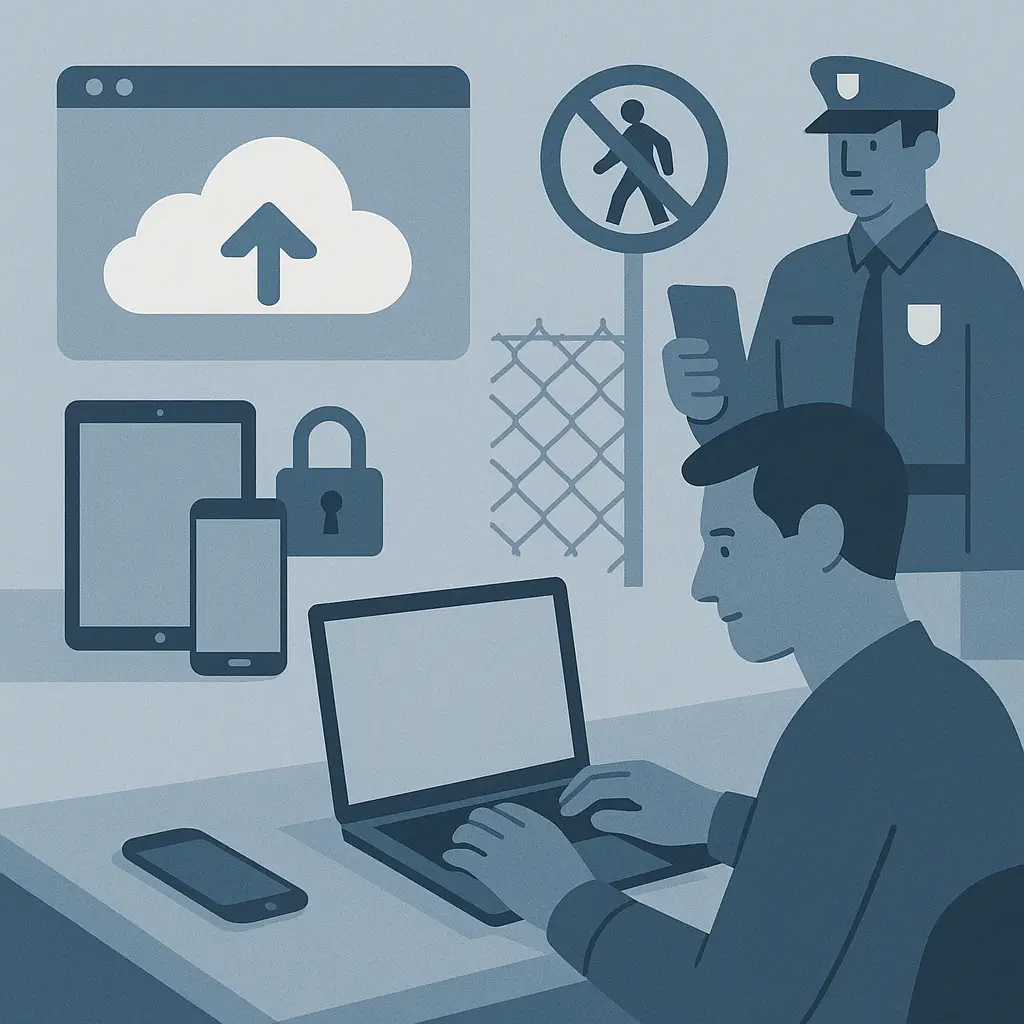
Back Up Before International Travel: Step-by-Step Device Protection
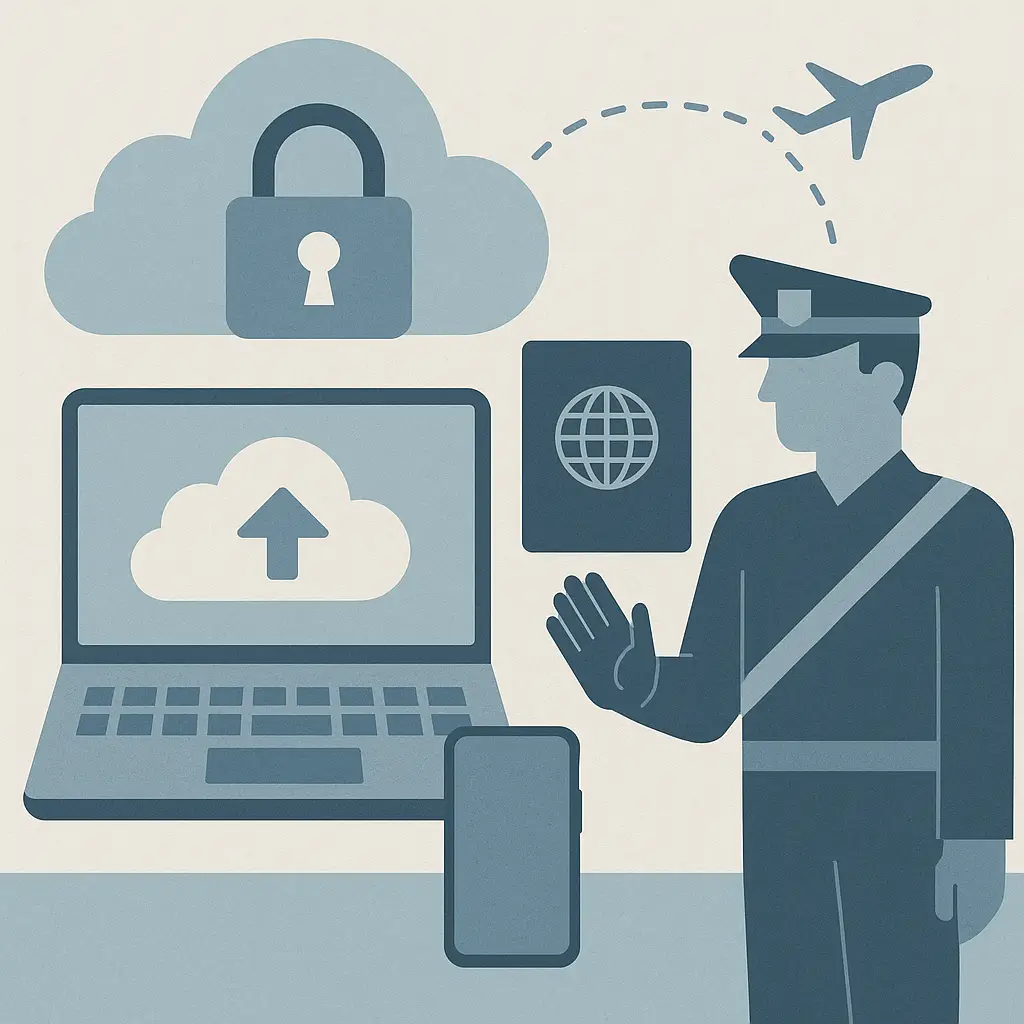
You're standing in the customs line at Heathrow, and the agent asks you to unlock your laptop. You comply. They disappear with it for 20 minutes. When they return it, you have no idea what they copied, what they installed, or whether the device is still trustworthy.
This is not a hypothetical. Border agents in the United States, United Kingdom, Canada, Australia, and dozens of other countries have legal authority to search electronic devices at ports of entry. Some searches are cursory. Some involve forensic imaging. Some result in temporary or permanent seizure.
A backup doesn't prevent the search. It ensures you can recover if the device is confiscated, damaged, or compromised. Here's how to back up before you leave, what to store where, and how to restore when you return.
Why border searches make backups non-negotiable
In the United States, Customs and Border Protection conducts around 40,000 device searches per year at ports of entry. The agency does not need a warrant, probable cause, or suspicion of wrongdoing. The Fourth Amendment's protections against unreasonable search and seizure apply differently at the border.
Other countries operate under similar frameworks. Canada's Border Services Agency can search devices without a warrant. The UK's Schedule 7 of the Terrorism Act allows examination of electronic devices for up to six hours without requiring reasonable suspicion. Australia's Department of Home Affairs can compel you to provide passwords under penalty of imprisonment.
The searches vary in scope. A basic search involves the agent scrolling through your photos, messages, and recent files while you watch. An advanced search involves connecting the device to forensic software that creates a complete image of the drive, including deleted files. Some travelers get their devices back in minutes. Others wait days or weeks. Some never get them back.
If your device is seized and you don't have a backup, you lose access to everything on it until the device is returned, if it's returned. If the device is damaged during the search or in transit, you lose the data permanently. If the device is returned but has been tampered with, you can't trust it anymore.
A backup solves all three problems. You can restore to a new device immediately. You can verify the integrity of a returned device by comparing it to the backup. You can wipe and reinstall if you suspect tampering.
What to back up and what to leave behind
Not everything on your device needs to cross the border with you. The less sensitive data you carry, the less exposure you have during a search.
Start by identifying what you actually need while traveling. Work email and documents you'll reference during the trip stay on the device. Personal photos from the last five years probably don't. Tax returns, medical records, and legal documents almost certainly don't.
For work travel, coordinate with your employer. Some organizations issue travel-specific devices that contain only the minimum data required for the trip. Others provide remote access to internal systems so you can travel with a wiped device and reconnect after clearing customs. If your employer has a policy on cross-border data transfer, follow it. If they don't, ask.
For personal travel, the decision is yours. I travel with a laptop that contains my email client, a web browser, and access to cloud-based tools. I don't carry local copies of financial records, client files, or anything I wouldn't want a stranger to read. Those files live in encrypted cloud storage or on a backup drive at home.
The line between necessary and unnecessary varies by trip. A two-day business conference requires less data than a three-week research project. A vacation to France carries different risks than a work assignment in a country with a history of targeting journalists or activists.
Make the call based on your specific situation, but err on the side of less. You can always restore files remotely if you need them. You can't un-show files to a border agent who's already seen them.
Local backups: secure but inaccessible during travel
A local backup is a complete copy of your device stored on a physical drive at your home or office. It's the most secure option because it never leaves your physical control, but it's also the least convenient because you can't access it while traveling.
For macOS, Time Machine is the default local backup tool. Connect an external drive, enable encryption in Time Machine preferences, and let it run. The first backup takes hours. Subsequent backups are incremental and run in the background. The encryption uses your login password by default, but you can set a separate backup password if you prefer.
For Windows, File History and Windows Backup both support local drives. File History backs up files in your user folders (Documents, Pictures, Music, Desktop). Windows Backup creates a full system image. Both support encryption through BitLocker, which requires a Pro or Enterprise license. If you're running Windows Home, you'll need third-party software like Macrium Reflect or Acronis True Image.
For Linux, rsync and Timeshift are common options. Rsync copies files to an external drive with encryption handled by LUKS or eCryptfs. Timeshift creates system snapshots similar to macOS Time Machine.
Test the restore process before you travel. Disconnect the backup drive, delete a test file from your device, reconnect the drive, and restore the file. If the restore fails, you'll find out now instead of at the airport.
The main limitation of local backups is that they don't help if you need to restore while traveling. If your device is seized in Tokyo and your backup drive is in Chicago, you're stuck until you get home. For that reason, local backups work best as a supplement to cloud backups, not a replacement.
Cloud backups: accessible anywhere, but choose the provider carefully
A cloud backup stores your data on a remote server operated by a third party. You can access it from any device with an internet connection, which makes it useful for restoring while traveling. The tradeoff is that you're trusting the provider to encrypt your data properly and not hand it over to governments or attackers.
The Electronic Frontier Foundation's Surveillance Self-Defense guide recommends cloud services that use zero-knowledge encryption, meaning the provider cannot decrypt your data even if compelled by law enforcement. Backblaze, SpiderOak, and Tresorit all offer zero-knowledge encryption. iCloud, Google Drive, and Dropbox do not.
Zero-knowledge encryption requires you to manage your own encryption key. If you lose the key, the provider cannot recover your data. If you forget your password, there's no reset process that bypasses encryption. This is a feature, not a bug. It's also a risk if you're not disciplined about password management.
For iCloud and Google Drive, the provider holds the encryption keys, which means they can decrypt your data if served with a warrant or if their systems are breached. Apple and Google both publish transparency reports showing how often they comply with government data requests. The numbers are high. In 2025, Apple complied with around 80% of requests from U.S. law enforcement. Google's compliance rate was similar.
If you're traveling to a country with aggressive surveillance practices, a zero-knowledge provider is worth the extra complexity. If you're traveling to France for vacation, iCloud or Google Drive is probably fine.
Set up your cloud backup before you leave. Install the client software, configure the folders you want to back up, and let the initial sync complete. Depending on the size of your data and the speed of your connection, this can take hours or days. Don't wait until the night before your flight.
Enable two-factor authentication on your cloud account. If someone gets your password, they shouldn't be able to access your backup without also having your phone or hardware token. CISA's guidance on multi-factor authentication recommends authenticator apps or hardware tokens over SMS, which is vulnerable to SIM swapping.
Encrypt everything, even if the backup provider does it for you
Encryption protects your data if the backup is intercepted, stolen, or accessed without authorization. Most backup tools offer encryption, but not all enable it by default.
For local backups, enable encryption in the backup software settings. macOS Time Machine and Windows Backup both support AES-256 encryption, which is the current standard. Linux users can encrypt the backup drive with LUKS before running rsync or Timeshift.
For cloud backups, check whether the provider encrypts data in transit and at rest. In transit means the data is encrypted while traveling from your device to the provider's servers. At rest means the data is encrypted while stored on the provider's servers. Both are necessary. If the provider only encrypts in transit, your data is vulnerable to breaches of their storage systems.
Zero-knowledge providers encrypt your data on your device before uploading it, so the data is never transmitted or stored in plaintext. Non-zero-knowledge providers encrypt data on their servers using keys they control, which protects against some threats but not others.
If you're using a non-zero-knowledge provider and you want additional protection, encrypt the files yourself before uploading them. Tools like VeraCrypt and Cryptomator create encrypted containers that you can store in any cloud service. The provider sees encrypted blobs. You see your files after entering the password.
The downside of client-side encryption is that you lose some convenience features. Cloud providers can't index encrypted files for search, generate thumbnails for photos, or scan documents for malware. If those features matter to you, you're trading convenience for security. Make the call based on your threat model.
Test the restore process before you leave
A backup is only useful if you can restore from it. Test the process before you travel so you know it works.
For local backups, disconnect the backup drive, delete a test folder from your device, reconnect the drive, and restore the folder. Time the process. If restoring 100 GB takes six hours, you need to know that before you're trying to do it at a hotel in Singapore.
For cloud backups, log in to the provider's web interface or mobile app from a different device and verify that you can see your files. Download a test file. If the download fails, troubleshoot now.
If you're planning to wipe your device before crossing the border and restore after clearing customs, do a full test run. Wipe the device, reinstall the operating system, and restore from backup. Note any files or settings that don't restore correctly. Some applications store licenses or preferences in locations that backups don't capture. You'll need to reconfigure those manually.
Document the restore process in a note or checklist. Include the backup provider's login URL, your username, and the steps to initiate a restore. Don't include your password in the note. Store the note in a password manager or encrypted file that you can access from another device.
Wiping your device before border crossings: when and how
For high-risk destinations or sensitive work, some travelers wipe their devices before crossing the border and restore from backup after clearing customs. This reduces exposure during searches but requires preparation.
Wiping means erasing all data from the device and reinstalling the operating system. On macOS, you boot into Recovery Mode and use Disk Utility to erase the drive, then reinstall macOS from Apple's servers. On Windows, you use the Reset This PC feature or boot from installation media and perform a clean install. On Linux, you boot from a live USB and use dd or a similar tool to overwrite the drive.
After wiping, the device contains only the operating system and default applications. No email, no documents, no browser history, no saved passwords. If a border agent searches the device, they find nothing.
After clearing customs, you restore from your cloud backup. Depending on the size of your data and the speed of your connection, this can take hours. Plan accordingly. If you land at 8 PM and need to work the next morning, start the restore as soon as you reach your hotel.
The main risk of wiping is that the restore fails. If your backup is incomplete, corrupted, or inaccessible, you're stuck with a blank device in a foreign country. That's why testing the restore process before you leave is non-negotiable.
Wiping also raises questions at the border. If an agent asks why your device is empty, you need an answer. "I wiped it for security reasons" is honest but may prompt additional scrutiny. "I just bought this device and haven't set it up yet" is less likely to raise flags but only works if the device looks new. "I use cloud-based tools and don't store files locally" is accurate for many people and doesn't invite follow-up questions.
I don't wipe my devices for every trip. For travel within the EU or to countries with strong rule-of-law protections, I carry my normal setup. For travel to countries with a history of targeting journalists, activists, or researchers, I wipe. For work travel where my employer requires it, I wipe. The decision depends on the destination, the purpose of the trip, and the sensitivity of the data.
What to do if your device is seized
If a border agent seizes your device, you have limited recourse in the moment. Arguing or refusing to comply can result in detention, denial of entry, or criminal charges depending on the jurisdiction.
Document the seizure. Note the agent's name and badge number if visible. Ask for a receipt. Some agencies provide one automatically. Others require you to request it. The receipt should include a case number, a description of the seized property, and contact information for follow-up.
If you're traveling for work, contact your employer immediately. Many organizations have protocols for device seizures, including legal support and incident response procedures. If your device contains client data, your employer may have notification obligations under data protection laws.
If the device is returned, assume it's compromised. Don't log in to any accounts or connect to your home or work network. Wipe the device and restore from backup. Change all passwords for accounts you accessed from that device. Enable two-factor authentication if you haven't already.
If the device is not returned, file a claim with the agency that seized it. The process varies by country. In the United States, you file a claim with Customs and Border Protection. In the UK, you contact the Border Force. In Canada, you contact the Canada Border Services Agency. The agency may return the device, compensate you for its value, or provide no response at all.
Restore your data to a new device as soon as possible. If you backed up to the cloud, you can restore from anywhere. If you backed up locally, you'll need to wait until you return home.
In The Office, the Scranton branch survives a fire because their data is backed up offsite
In The Office, the Scranton branch of Dunder Mifflin survives a fire because their data is backed up offsite. When the building is temporarily unusable, the team relocates to a backup office and continues working without losing client records or sales data. The backup isn't glamorous, and it doesn't prevent the fire, but it's the reason the branch doesn't collapse.
The same logic applies to travel. A backup doesn't prevent a border search, a device seizure, or a lost laptop. It ensures you can recover when something goes wrong. The fire is the device getting confiscated in Frankfurt. The backup office is the cloud storage you can access from a borrowed laptop at your hotel.
The characters in The Office don't think about the backup until they need it, and then they're grateful it exists. That's the nature of backups. They're boring until they're essential.
Restoring after you return: verify before you trust
When you return from a trip, verify your device before resuming normal use. If the device crossed a border, passed through airport security, or left your sight for any period, treat it as potentially compromised until proven otherwise.
Start by checking for physical tampering. Inspect the case for scratches, dents, or signs of disassembly. Check the ports for debris or damage. If the device was sealed in a bag or case, verify the seal is intact.
Boot the device and check the system logs for unusual activity. On macOS, open Console and review the logs for the dates you were traveling. On Windows, open Event Viewer and check the System and Security logs. On Linux, check /var/log/syslog and /var/log/auth.log. Look for unexpected logins, software installations, or network connections.
Run a malware scan. Even if you don't normally use antivirus software, run a scan after international travel. CISA's cybersecurity best practices recommend using multiple scanners to increase detection rates. Malwarebytes, Bitdefender, and Windows Defender all have free versions.
If you find evidence of tampering or malware, wipe the device and restore from a backup created before the trip. Don't try to remove the malware manually. Sophisticated attackers install rootkits and firmware-level implants that survive operating system reinstalls. If you suspect that level of compromise, replace the device entirely.
If you don't find evidence of tampering, you still can't be certain the device is clean. Advanced malware is designed to evade detection. For high-value targets, nation-state actors have tools that leave no traces in logs or file systems.
The safest approach is to treat any device that crossed a high-risk border as compromised and replace it. For most travelers, that's overkill. For journalists, activists, researchers, or anyone handling sensitive information, it's a reasonable precaution.
Ongoing backup hygiene: don't wait for the next trip
Backing up before travel is a response to a specific threat, but backups protect against dozens of other risks. Hard drives fail. Laptops get stolen. Ransomware encrypts files. Coffee spills on keyboards.
Set up automated backups and let them run continuously. For local backups, connect an external drive and enable Time Machine or File History. For cloud backups, install the client software and configure it to run in the background. Check the backup status once a month to verify it's still running.
Store local backup drives in a different physical location than your primary device. A backup drive sitting next to your laptop doesn't help if your house burns down or gets burglarized. Keep the drive at a friend's house, a family member's house, or a safe deposit box. Rotate drives periodically if you want multiple restore points.
Encrypt all backups, even if you're not traveling. A stolen backup drive with unencrypted data is as bad as a stolen laptop. The FTC's guidance on protecting personal information recommends encryption for any data stored on removable media.
Test your backups periodically. Once a quarter, restore a random file to verify the process still works. If you're using cloud backups, log in from a different device and download a file. If you're using local backups, connect the drive and restore a test folder.
Backups are insurance. You pay a small cost in time and money now to avoid a catastrophic loss later. The cost is low. The benefit is high. The only wrong choice is not having one.
Related reading: