Zoom Security in 2026: What Actually Protects Your Meetings
Zoom became the default video platform during the pandemic, and in 2026 it's still everywhere. Work meetings, therapy sessions, legal consultations, family calls, book clubs, support groups. The question "is Zoom secure?" gets asked constantly, and the answer depends entirely on what you mean by secure and how you're using it.
The platform has real encryption. It has access controls. It has privacy settings. But most people use the default configuration, which leaves meetings more exposed than they realize. The gap between what Zoom can protect and what it actually protects in practice is wide, and that gap is where the risk lives.
This is a reality check. Not a takedown, not a sales pitch for alternatives. Here's what Zoom actually does to secure your meetings, what it can't protect against, and what you need to configure yourself.
What Zoom Encrypts and What That Means
Zoom offers two types of encryption: transport encryption and end-to-end encryption. The difference matters.
Transport encryption is the default. Your video and audio travel encrypted from your device to Zoom's servers, then encrypted again from Zoom's servers to other participants. The content is protected in transit, but Zoom's servers decrypt it temporarily as it passes through. This means Zoom has technical access to the content of your meeting.
End-to-end encryption (E2EE) is optional. When enabled, your meeting content is encrypted on your device and stays encrypted until it reaches other participants' devices. Zoom's servers never decrypt it. This is the stronger protection, but it comes with tradeoffs.
E2EE disables cloud recording, live transcription, and some third-party integrations. You can't dial in by phone. Breakout rooms don't work. If you need those features, you're back to transport encryption.
To enable E2EE, you need to turn it on in your account settings first, then enable it again for each individual meeting. It's not automatic. If you're hosting a meeting and you care about keeping the content away from Zoom's servers, you have to configure it deliberately.
Researchers have found that Zoom's E2EE implementation is solid when enabled. The cryptographic design uses standard protocols, keys are generated on devices, and the architecture prevents Zoom from accessing plaintext. But E2EE is not the default, and most people don't enable it.
Waiting Rooms and Meeting Passwords
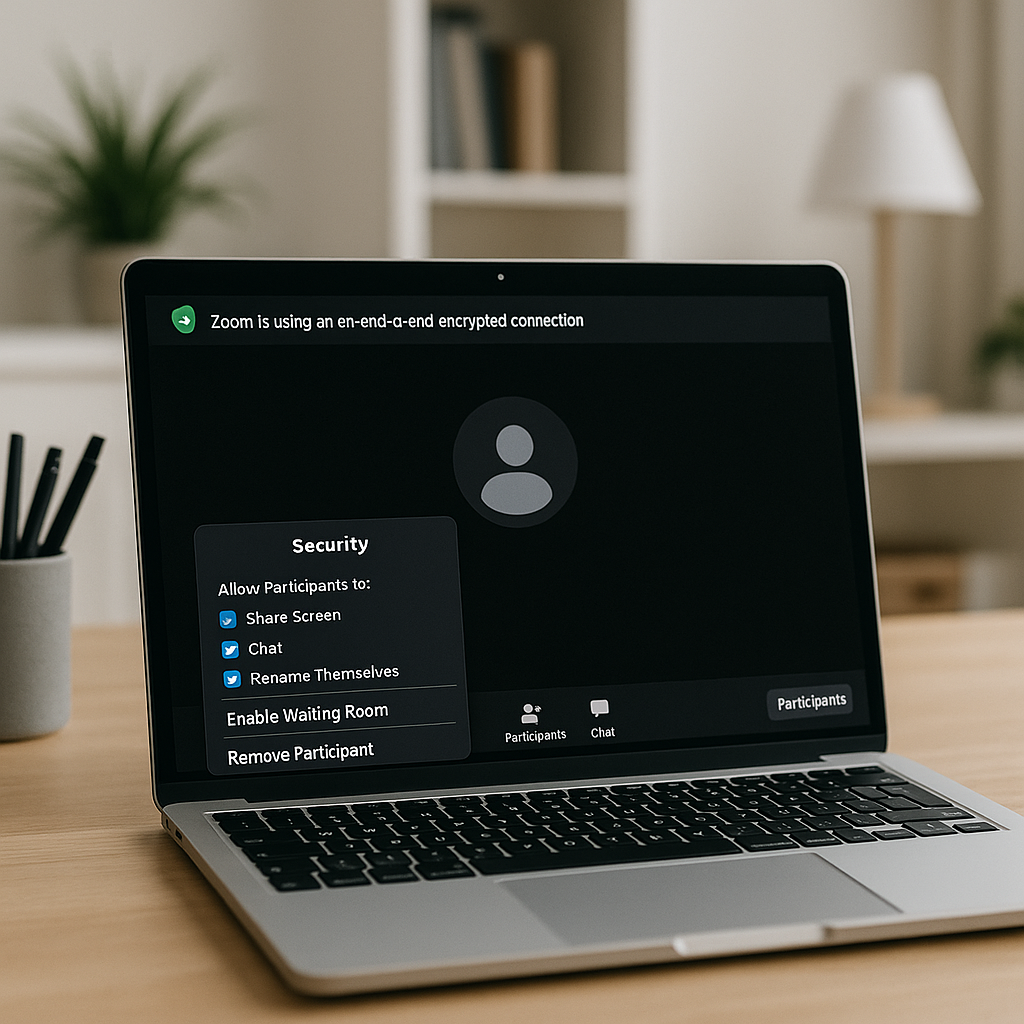
The waiting room is Zoom's primary access control. When enabled, participants land in a virtual lobby when they try to join. The host sees their name and decides whether to admit them.
This stops strangers from walking into your meeting. It stops Zoombombing, the phenomenon from 2020 where uninvited people joined public meetings to disrupt them. It gives you a checkpoint before someone enters.
Without the waiting room, anyone with the meeting link can join immediately. If you've shared that link in an email, a Slack channel, or a calendar invite, you've handed access to everyone who can see those places. Forwarding is easy. Screenshots are easy. Links leak.
Meeting passwords add a second layer. Even if someone has the link, they need the password to join. Zoom can embed the password in the meeting URL, which makes it convenient but also means the password travels with the link. If you want separation, you need to send the password through a different channel.
Some people find waiting rooms and passwords annoying. They slow down the start of meetings. They create friction for recurring calls with the same participants. But that friction is the point. It forces a deliberate decision about who gets in.
If you're running a public event, a webinar, or a meeting where open access is the goal, you might disable these controls intentionally. That's fine. The risk is when you think your meeting is private but you've left the door unlocked.
Screen Sharing and What Participants See
Screen sharing is where people leak information they didn't mean to share. You share your desktop to show a presentation, and participants see your open browser tabs, your desktop files, your notifications, your Slack messages popping up in the corner.
Zoom lets you share your entire screen or share a specific application window. Application sharing is safer. It limits what's visible to just the window you've selected. If you're showing a slide deck, share the slide deck window. If you're demoing software, share that application. Don't share your desktop unless you've closed everything else first.
Even with application sharing, notifications can appear on top of the shared window. macOS and Windows both have Do Not Disturb modes that suppress notifications during screen sharing. Use them.
Some people turn off their camera and microphone during screen sharing to reduce the cognitive load of managing what's visible. That's reasonable. The more you're sharing, the more you need to think about what participants can see.
Hosts can restrict screen sharing to themselves only, or allow all participants to share. If you're running a meeting where you don't want unexpected content on screen, restrict it. If you're in a collaborative session where people need to share, leave it open but set the expectation that people will be careful about what they show.
Recording and Where It Lives
Zoom can record meetings to the cloud or to your local device. Cloud recordings live on Zoom's servers. Local recordings live on your computer.
Cloud recordings are convenient. They're accessible from any device, they can be shared with a link, and they don't take up space on your hard drive. But they also mean Zoom has a copy of the recording, and that copy persists until you delete it.
Local recordings stay under your control. You decide where the file goes, who gets access, and when to delete it. But you're responsible for storing it securely. If your laptop gets stolen or your hard drive fails, the recording goes with it.
Some organizations disable cloud recording for compliance reasons. Legal firms, healthcare providers, and financial services companies often require that meeting recordings stay on company-controlled storage, not third-party servers. If you're in one of those industries, check your organization's policy before you hit record.
Participants should know when a meeting is being recorded. Zoom displays a recording indicator, but it's easy to miss. If you're recording, say so at the start of the meeting. If you're a participant and you see the indicator, you have the option to leave.
Recording consent laws vary by state. Some states require all parties to consent to being recorded. Some require only one party. If you're recording a meeting with participants in multiple states, the strictest law applies. This gets complicated fast. When in doubt, ask for consent.
Participant Controls and What Hosts Can Do
The host has more control than participants realize. Hosts can mute participants, disable their video, remove them from the meeting, lock the meeting to prevent new people from joining, and end the meeting for everyone.
These controls exist to manage disruption, but they also mean the host has unilateral power over what happens in the meeting. If you're a participant, you should know that the host can cut you off at any time.
Hosts can also enable features like attention tracking, which tells them whether participants have Zoom in focus or have switched to another application. This feature is controversial. Some people see it as a reasonable way to gauge engagement. Some people see it as invasive surveillance. Zoom added a notification so participants know when attention tracking is on, but the host still controls whether it's enabled.
If you're hosting a meeting, think about whether you need these controls. If you're managing a large public event, you probably do. If you're running a small team meeting, you probably don't. The more control you enable, the more you signal distrust.
Zoom's Privacy Policy and What Gets Collected
Zoom collects metadata about your meetings. Start time, end time, duration, participant list, device types, IP addresses, and operating systems. This data helps Zoom improve the service, troubleshoot problems, and comply with legal requests.
The privacy policy says Zoom does not sell user data. It does share data with third-party service providers for analytics, customer support, and infrastructure. Those providers are bound by contracts that limit how they can use the data, but the data still leaves Zoom's direct control.
If you're using Zoom's free tier, you're subject to Zoom's consumer privacy policy. If you're using Zoom through your employer or school, you're subject to the organization's agreement with Zoom, which might include different terms. Enterprise customers can negotiate data handling terms that consumer users can't.
Zoom's policy has changed over time. In 2020, the FTC took action against Zoom for misrepresenting its encryption practices. Zoom settled and agreed to implement a stronger security program. The company has since added E2EE, improved its transparency reports, and hired a chief privacy officer. The trajectory is toward better privacy, but the starting point was rough.
What Zoom Can't Protect Against
Zoom can't protect you from participants who screenshot your video, record your audio with external software, or photograph their screen with their phone. If someone in your meeting wants to capture what's happening, they can.
Zoom can't protect you from phishing attacks that impersonate Zoom. Scammers send fake meeting invitations with malicious links. They create fake login pages that steal your credentials. They send emails that look like they're from Zoom but aren't. These attacks exploit your trust in the platform, not a vulnerability in the platform itself.
Zoom can't protect you from social engineering. If someone tricks you into sharing your meeting link publicly, or convinces you to admit them to a meeting they shouldn't be in, the platform's security features don't help. The weakest link is still human judgment.
Zoom can't protect you from malware on your device. If your computer is compromised, an attacker can see everything you see, including your Zoom meetings. Endpoint security matters more than platform security in that scenario.
Configuration That Actually Matters
Here's what to configure if you want to reduce risk:
Enable the waiting room for every meeting. This gives you a checkpoint before people enter.
Require a meeting password. Don't embed it in the URL if you want separation between the link and the password.
Enable E2EE if you need to keep meeting content away from Zoom's servers. Accept the tradeoffs that come with it.
Restrict screen sharing to hosts only, unless you're running a collaborative session where participants need to share.
Disable attention tracking unless you have a specific reason to enable it.
Use application-specific screen sharing instead of full desktop sharing.
Turn on Do Not Disturb before you share your screen.
Record locally instead of to the cloud if you want to keep the recording under your control.
Review your account settings regularly. Zoom updates its features, and defaults change. What was secure last year might not be secure now.
The Office Space Comparison
In Office Space, Peter Gibbons spends his days at Initech moving through a system that's technically functional but practically broken. The company has processes, hierarchies, and rules, but the processes don't match the work people actually do. The gap between what the system is supposed to accomplish and what it accomplishes in practice is the entire joke.
Zoom is like that. The platform has encryption, access controls, and privacy settings. The system is technically functional. But most people use the default configuration, which leaves meetings more exposed than they realize. The gap between what Zoom can protect and what it actually protects in practice is where the risk lives.
The analogy works because the problem isn't that Zoom is broken. The problem is that the default configuration doesn't match the threat model people assume they're operating under. People think their meetings are private because they're using a secure platform. But privacy requires configuration, and configuration requires understanding what the settings actually do.
Peter's solution in Office Space is to stop caring. That's not the solution here. The solution is to close the gap. Enable the features that match your threat model. Understand what Zoom protects and what it doesn't. Don't assume the defaults are sufficient.
Alternatives and When They Matter
Signal offers encrypted video calls for up to 40 participants. The encryption is end-to-end by default, the company has a strong privacy track record, and the platform doesn't collect metadata the way Zoom does. But Signal doesn't scale to large meetings, doesn't offer webinar features, and doesn't integrate with enterprise tools.
Jitsi is open-source and self-hosted. You control the server, you control the data, and you can audit the code. But self-hosting requires technical expertise, and the user experience isn't as polished as Zoom's.
Google Meet and Microsoft Teams are the enterprise alternatives. They offer similar features to Zoom, similar encryption options, and similar privacy tradeoffs. If you're already in the Google or Microsoft ecosystem, they might make sense. If you're not, they don't offer a meaningful security advantage over Zoom.
The right platform depends on your threat model. If you're running a support group and you need to keep participant identities private, Signal might be the better choice. If you're running a 500-person webinar, Zoom is the only realistic option. If you're hosting a small team meeting and you want full control over the infrastructure, Jitsi might work.
What Actually Matters in 2026
Zoom is secure when configured correctly. The platform offers real encryption, real access controls, and real privacy settings. But the defaults leave meetings more exposed than most people realize.
The biggest risk isn't a vulnerability in Zoom's code. The biggest risk is that people assume the platform protects them without understanding what they need to configure themselves. Waiting rooms, passwords, E2EE, screen sharing restrictions, and recording policies all require deliberate decisions.
If you're using Zoom for sensitive conversations, enable E2EE. If you're running meetings with people you don't know, use the waiting room. If you're sharing your screen, use application-specific sharing and disable notifications. If you're recording, get consent and store the recording securely.
The platform is a tool. It works when you use it correctly. It doesn't work when you assume the defaults are sufficient. That's the reality in 2026.