How to vet an app before installing: step-by-step inspection process
You're about to install an app. The interface looks clean, the description sounds useful, and the install button is right there. But you have no idea what this app will actually do once it's on your phone.
Most people tap install and hope for the best. That's how data-harvesting apps, permission-abusing utilities, and outright malware end up on millions of devices. The app stores have review processes, but they're not perfect. Apps that pass initial screening can update later to add tracking, change behavior, or request new permissions.
You need a vetting process you can run in under five minutes. Here's the step-by-step method to inspect an app before you install it, what each check reveals, and how to make a decision you won't regret.
Step 1: Read the permission requests before anything else
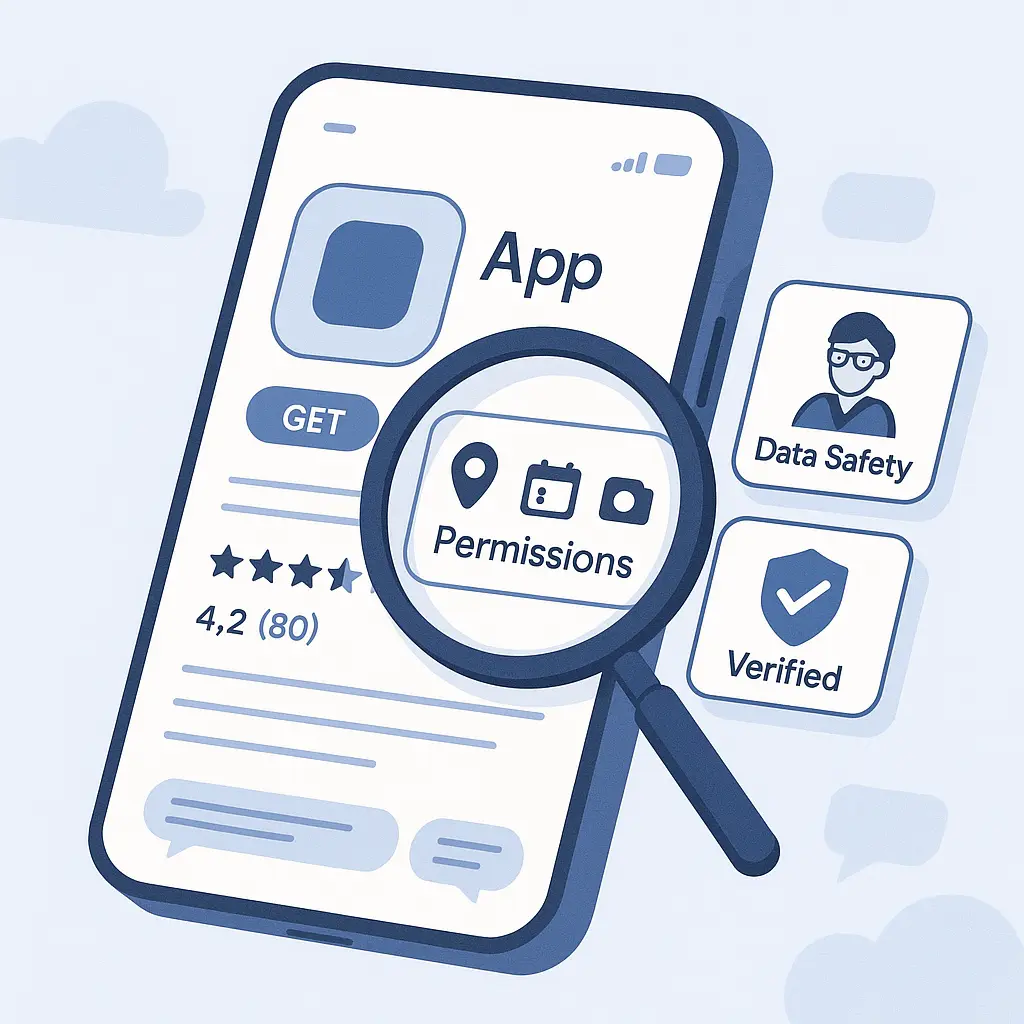
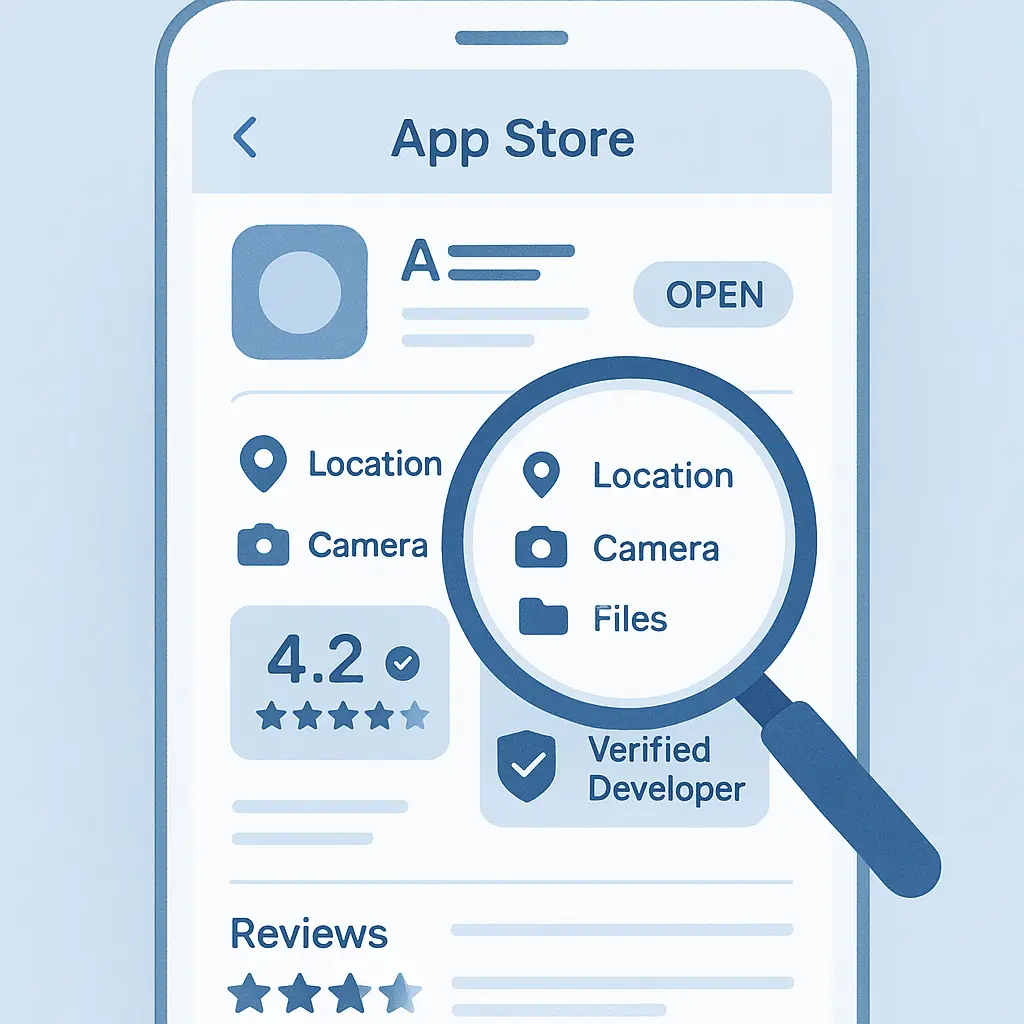
Permissions are the first and most important filter. Every app declares what access it needs before you install. On iOS, you see these in the App Privacy section. On Android, they're listed under "About this app" or "Permissions."
Here's what to look for: does each permission match what the app claims to do?
A navigation app needs location access. A photo editor needs camera and storage access. A meditation app needs audio access for guided sessions. Those permissions make sense.
A flashlight app that wants your contacts, microphone, and location does not make sense. A calculator that requests camera access does not make sense. A weather app that wants to read your text messages does not make sense.
When permissions don't align with function, the app is collecting data for reasons it's not disclosing. That data might fund a free app through ad targeting, or it might feed a surveillance business model you didn't agree to. Either way, you're the product.
Some apps request permissions they technically need but could avoid. A recipe app might ask for location to show nearby grocery stores, but that's a convenience feature, not a core function. You can decide whether the tradeoff is worth it.
Write down which permissions feel justified and which don't. If more than one permission feels excessive, stop here. Don't install.
Step 2: Check the developer's identity and history
The app store listing shows a developer name. That name should lead somewhere real.
Search for the developer's name plus "company" or "website." Legitimate developers have professional web presences. You should find a company site with contact information, a privacy policy, and details about other products. If the search returns nothing, or if you find only sketchy-looking landing pages with no substance, that's a red flag.
Check what other apps this developer has published. In the app store, tap the developer name to see their full catalog. Do they have multiple apps with consistent branding and real reviews? Or is this their only app, published recently, with a generic name?
Established developers build reputations over time. A developer with ten apps, years of history, and professional infrastructure is more trustworthy than a developer who appeared last month with one app and no web presence.
Look for patterns in their other apps. If every app they publish requests excessive permissions, that's their business model. If their apps have consistent complaints about privacy or behavior, believe those complaints.
Some developers use shell companies or change names frequently to avoid accountability. If you can't verify who's behind the app, you're taking a risk.
Step 3: Read recent reviews with a critical eye
App store reviews are noisy, but they contain signal if you know what to look for.
Start with the most recent reviews, not the highest-rated ones. Recent reviews reflect the current version of the app. An app can have a strong overall rating from years ago while the current version is broken, invasive, or compromised.
Look for specific complaints, not vague praise. A review that says "Great app, love it, five stars!" tells you nothing. A review that says "The latest update added a subscription paywall and now requests microphone access for no reason" tells you everything.
Watch for patterns. If multiple recent reviews mention the same issue (crashes, unexpected permission requests, aggressive ads, difficulty canceling subscriptions), that issue is real. One complaint could be an outlier. Ten complaints in the last week are a trend.
Ignore reviews that sound like marketing copy. Fake reviews use generic language, excessive enthusiasm, and no specific details. Real reviews mention features, describe problems, and reference actual use cases.
Check the developer's responses to negative reviews. Do they acknowledge issues and offer solutions? Or do they deflect, blame users, or ignore complaints? How a developer handles criticism reveals how they'll handle your data.
If you can't find any recent reviews, or if the reviews are all generic five-star ratings posted on the same day, the app is either brand new or the reviews are fake. Proceed with caution.
Step 4: Verify the app's purpose matches its requests
Now combine what you've learned. Does the app's stated purpose align with its permissions, developer history, and user feedback?
A productivity app from an established developer with reasonable permissions and positive recent reviews is probably fine. A productivity app from an unknown developer requesting location, contacts, and camera access with no recent reviews is not fine.
Some mismatches are subtle. A free app with no ads and no in-app purchases has to monetize somehow. If it's not charging you money, it's probably selling your data. That's not always a dealbreaker, but you should know it's happening.
Check the app's privacy policy if it has one. Most people don't read privacy policies, but you don't need to read the whole thing. Search for keywords: "third party," "share," "sell," "advertising," "analytics." Those sections tell you where your data goes.
If the privacy policy is missing, vague, or written in a way that obscures what the app actually does, that's intentional. Legitimate apps disclose their data practices clearly because they know transparency builds trust.
Step 5: Search for the app name plus "privacy" or "security"
Before you install, run one more search: the app name plus "privacy," "security," or "breach."
If the app has a history of security problems, data leaks, or privacy scandals, those stories will appear in search results. You'll find news articles, security researcher reports, or forum discussions that the app store reviews won't show.
Not every app will have search results. That's fine. You're looking for red flags, not proof of perfection. If you find nothing alarming, move on. If you find multiple articles about data breaches, unauthorized tracking, or malware, stop.
Some apps have been removed from app stores in the past for policy violations, then reappear under new names or developer accounts. Searching reveals that history.
This step takes 30 seconds and can save you from installing an app with a documented track record of bad behavior.
Step 6: Make the install decision
You've checked permissions, verified the developer, read recent reviews, confirmed alignment between purpose and requests, and searched for red flags. Now decide.
If every check passed, install the app. If one check raised a minor concern but the rest look solid, you can probably proceed. If multiple checks failed, walk away.
Here's the decision framework: would you hand your phone, unlocked, to this developer for an hour? Because that's roughly what you're doing when you install their app. If the answer is no, don't install.
Remember that you can always uninstall later, but some damage is immediate. An app that uploads your contacts in the first 60 seconds has already done it. An app that tracks your location constantly has already built a profile. Uninstalling stops future harm, but it doesn't undo past collection.
If you're on the fence, check whether the app offers a web version. Many apps provide the same functionality through a browser, which limits permissions and makes tracking harder. You lose some convenience, but you gain control.
What to do after installation
Installing the app isn't the end of the vetting process. The app can change.
Apps update regularly. Updates can add features, fix bugs, or introduce new permission requests. When an app updates and requests a new permission, ask the same question you asked before installation: does this permission match what the app does?
If an app that never needed your location suddenly requests it after an update, that's worth questioning. You can deny the permission and see if the app still works. If it refuses to function without the new permission, you can uninstall.
Monitor the app's behavior in your phone's settings. Both iOS and Android let you see which apps are using which permissions. If you notice an app accessing your camera or microphone when you're not actively using it, investigate. Legitimate apps don't run in the background accessing sensors without reason.
Set a reminder to review installed apps every few months. Apps you installed a year ago might have changed developers, updated their privacy policies, or shifted their business models. Periodic audits catch apps that drift toward invasive behavior over time.
If you discover an app you've installed is behaving badly, delete it immediately. Then review what permissions you granted and check your account settings for any connected services. Revoke access where possible.
The cultural reference that fits
In The Fellowship of the Ring, Gandalf warns Frodo about the Ring's power: "Do not tempt me! I dare not take it. Not even to keep it safe." He understands that even good intentions don't justify accepting something whose nature is corrupted.
The same principle applies here. An app might promise useful features, but if its permissions, developer history, and behavior reveal a corrupted foundation, good intentions don't make it safe to install. Some apps, like some rings, are better left alone no matter how appealing they seem.
The parallel holds because both situations involve weighing immediate utility against long-term risk. Frodo could have handed the Ring to Gandalf and hoped for the best. You could install the sketchy app and hope it behaves. But hope isn't a security strategy. Better to recognize the risk and walk away.
When the app you need fails the vetting process
Sometimes you need an app that doesn't pass your vetting process. Maybe it's required for work, mandated by your school, or the only option for a service you have to use.
In that case, you're making a forced tradeoff. You can't refuse, but you can limit damage.
Install the app, but deny as many permissions as possible. See what breaks. Many apps request permissions they don't strictly need and will function fine without them. Grant only what's required for core functionality.
Check whether you can use the app on a separate device. If you have an old phone or tablet, install the app there instead of on your primary device. That isolates the app's access to a device with less sensitive data.
Use the app only when necessary, then close it completely. Don't leave it running in the background. Some phones let you restrict background activity for specific apps, which limits how much they can do when you're not actively using them.
If the app requires account creation, use a secondary email address and provide minimal information. Don't link it to your primary accounts or payment methods unless absolutely required.
Document what you're installing and why. If the app later causes problems, you'll have a record of when you installed it, what permissions you granted, and what forced your hand. That documentation helps if you need to report issues or explain what happened.
The vetting process for kids' apps
Apps marketed to children require extra scrutiny. The FTC enforces specific rules about children's privacy, but enforcement is reactive, not preventive. An app can violate those rules for months before anyone notices.
Check whether the app is labeled as compliant with COPPA (the Children's Online Privacy Protection Act). That's not a guarantee of safety, but it's a minimum baseline. Apps that don't mention COPPA compliance in their privacy policies are probably not compliant.
Look for apps that require parental consent before collecting data. Legitimate kids' apps build consent mechanisms into the signup process. Apps that let kids create accounts without any parental involvement are either not compliant or not actually designed for children despite their marketing.
Be especially wary of "free" kids' apps with in-app purchases. Many use psychological manipulation to encourage spending. Kids don't understand the difference between tapping a button in a game and authorizing a real purchase. If you install these apps, disable in-app purchases at the device level.
Check whether the app includes chat features or user-generated content. Apps that let kids communicate with strangers create risks beyond privacy. Even with moderation, predators find ways into these spaces. If the app includes social features, supervise its use.
Read reviews from other parents, not just generic app reviews. Parent-focused reviews mention issues like unexpected charges, inappropriate content, or difficulty canceling subscriptions. Those concerns won't show up in reviews written by kids or marketing teams.
What app stores don't catch
App store review processes filter out obvious malware and policy violations, but they miss a lot.
Apps can pass review, then update to add tracking or change behavior. The review process for updates is less rigorous than for initial submissions. Developers exploit this by launching clean apps, building a user base, then introducing invasive features in updates.
Apps can technically comply with policies while still behaving unethically. An app might disclose data collection in its privacy policy (satisfying the policy requirement) while making that disclosure so vague or buried that no one actually reads it.
Some apps use third-party SDKs (software development kits) that collect data without the app developer's full knowledge. The developer integrates an SDK for analytics or ads, and that SDK silently harvests contacts, location, or browsing history. The app store review process doesn't always catch this because the behavior is hidden inside the SDK.
Apps can request permissions they technically need but use for purposes beyond what they disclose. A weather app might request location to show local forecasts, then also use that location data to build advertising profiles. Both uses rely on the same permission, but only one is disclosed.
The app stores rely heavily on automated scanning and user reports. If an app's bad behavior is subtle, or if it only affects a small percentage of users, it can stay in the store for months before anyone notices.
Your vetting process catches what the app stores miss because you're evaluating the app in context. You know what you need, what permissions make sense, and what tradeoffs you're willing to accept. The app store's review process is generic. Yours is specific.
When to trust your instincts
Sometimes an app passes every technical check but still feels wrong. The permissions are reasonable, the developer looks legitimate, the reviews are fine, but something about the app's presentation, tone, or promises makes you uneasy.
Trust that instinct.
You're picking up on signals you can't always articulate. Maybe the app's marketing copy is too aggressive. Maybe the developer's website looks professional but feels hollow. Maybe the reviews are positive but lack the specificity you'd expect from real users.
Those signals matter. Scammers and data-harvesting operations have learned to mimic legitimacy. They can fake developer websites, generate plausible reviews, and craft permission requests that technically make sense. What they can't fake is the subtle coherence of a genuinely trustworthy product.
If something feels off, don't install. The worst case if you're wrong is you miss out on an app you didn't need. The worst case if you're right is you avoid an app that would have compromised your privacy, security, or both.
You don't owe apps the benefit of the doubt. There are millions of apps. If one makes you uncomfortable, find an alternative.
Alternatives to installing apps
Not every app is necessary. Many apps replicate functionality you can access through a web browser with fewer permissions and more control.
Before installing an app, check whether the service offers a mobile website. Many companies push their apps aggressively because apps enable more tracking and engagement, but their websites work fine. You lose some convenience (no home screen icon, no push notifications), but you gain privacy.
Mobile browsers limit what websites can access. They can't read your contacts, monitor your location constantly, or access your microphone without explicit permission for each session. Apps can do all of those things once you grant permission during installation.
Some services require apps for core functionality (banking apps with mobile check deposit, authenticator apps for two-factor codes), but many don't. Social media, news, shopping, and productivity tools often work as well or better in a browser.
If you do need an app, consider whether you need it on your phone or whether a tablet or computer would work. Apps on tablets and computers often have the same functionality with less invasive permission models, especially for location tracking.
Progressive web apps (PWAs) are a middle ground. They're websites that behave like apps, with home screen icons and offline functionality, but they run in your browser with browser-level permissions. Not all services offer PWAs, but when they do, they're worth considering.
The vetting process is a habit, not a checklist
Run through this process every time you install an app. It takes five minutes. After a few repetitions, it becomes automatic.
You'll start recognizing patterns. Apps from certain developers always request excessive permissions. Apps in certain categories (flashlight apps, battery savers, file cleaners) are almost always garbage. Apps with certain types of reviews (generic, enthusiastic, posted in clusters) are almost always fake.
Those patterns make future vetting faster. You won't need to research every developer or read every review. You'll spot red flags immediately and move on.
The vetting process also changes how you think about apps. You'll stop seeing them as neutral tools and start seeing them as products with business models, incentives, and tradeoffs. That shift in perspective makes you a harder target for apps that rely on users not asking questions.
Most people install apps impulsively, then regret it later. You're doing the opposite: taking five minutes up front to avoid problems you'd otherwise spend hours cleaning up.
That's not paranoia. That's just being deliberate about what you allow onto your phone.