Working from Coffee Shops Securely: A Step-by-Step Guide
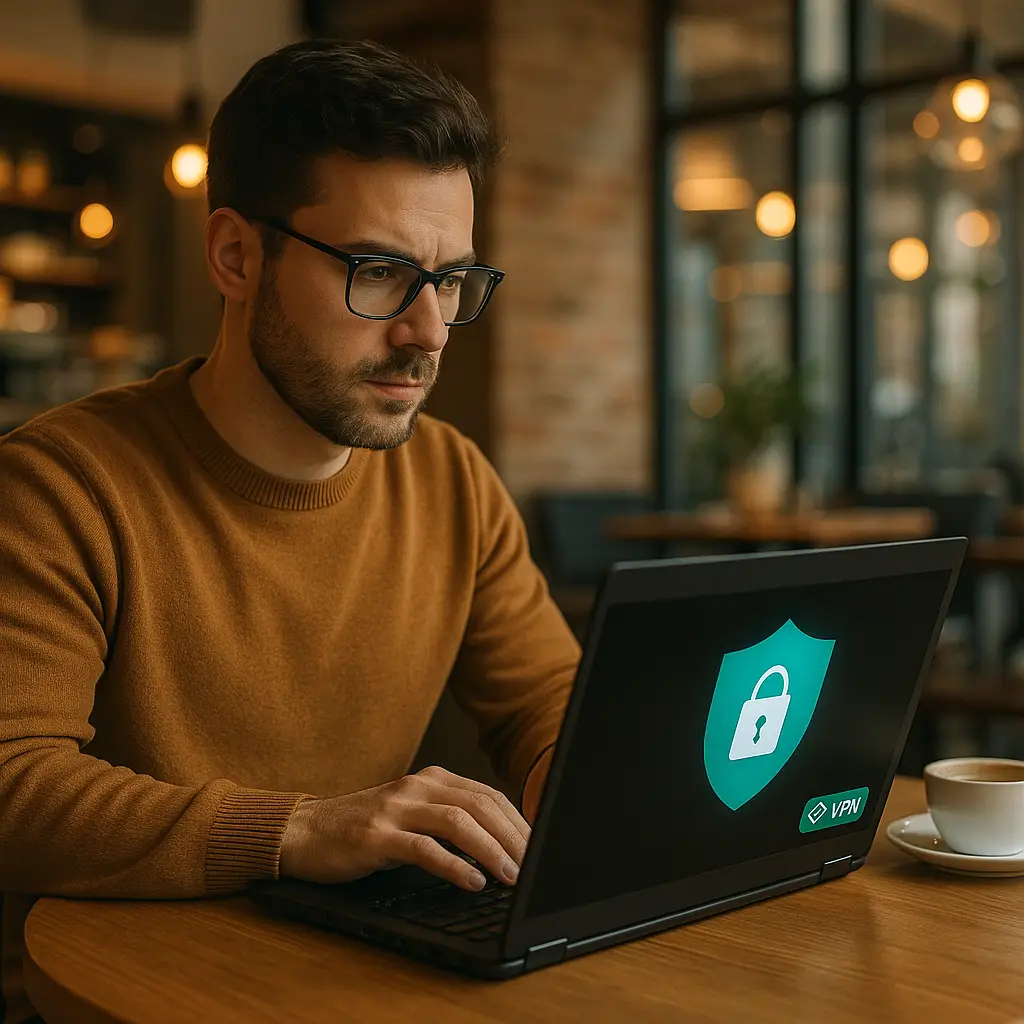
You're at a coffee shop. Laptop open, latte cooling, deadline approaching. The WiFi is free, the table is stable, and you need to get work done. But you're also transmitting data over a network you don't control, in a physical space where anyone can walk past your screen or your unattended bag.
This guide walks through the specific steps to secure your work session in public spaces. Not theory. Not worst-case scenarios. The actual configuration you need before you open your laptop, while you work, and when you pack up to leave.
Before You Leave Home
Security for public work starts at home. Once you're at the coffee shop, your options narrow. Handle these steps before you walk out the door.
Enable full-disk encryption. On Windows, that's BitLocker. On Mac, FileVault. On Linux, LUKS. This encrypts your entire drive so if your laptop is stolen, the thief gets an encrypted brick, not your files. Check now: Windows users search "BitLocker" in settings. Mac users open System Settings → Privacy & Security → FileVault. If it's off, turn it on. The encryption process runs in the background and takes a few hours.
Set a strong lock screen password. Not a PIN. Not a pattern. A password. Biometrics (fingerprint, face unlock) are convenient, but they can be bypassed if someone has physical access to your device. A strong password is your fallback. Set your device to lock after 5 minutes of inactivity. Windows: Settings → Accounts → Sign-in options. Mac: System Settings → Lock Screen.
Update everything. Operating system, browser, work apps, VPN client. Updates patch vulnerabilities. Attackers target unpatched systems. Run updates before you leave, not when you're on public WiFi trying to download a 2GB security patch. Windows Update and macOS Software Update are in your system settings. Check your browser (Chrome, Firefox, Safari) under Help → About.
Install a VPN. A VPN encrypts your internet traffic before it leaves your device. Even on open WiFi, your data travels through an encrypted tunnel to the VPN server, then out to the internet. Choose a reputable provider. NordVPN is a solid option with a large server network and auto-connect features for untrusted networks. Install the client, sign in, and test the connection at home before you rely on it in public.
Enable remote wipe. If your device is stolen, you need the ability to erase it remotely. Windows: Settings → Accounts → Your info → Manage my Microsoft account → Devices → Find My Device (turn it on). Mac: System Settings → Apple ID → Find My → Find My Mac (enable). Test it: log into your account from another device and confirm you can see your laptop's location.
Back up your work. Cloud sync (OneDrive, iCloud, Google Drive, Dropbox) or an external drive. If your laptop is stolen or damaged, you need a recent copy of your files. Automated cloud sync is the most reliable method. Set it up once, verify it's running, and it handles itself.
At the Coffee Shop: Initial Setup
You've arrived. You've ordered. You've claimed a table. Now, before you connect to anything, handle these steps.
Choose your seat strategically. Sit with your back to a wall so no one walks behind you. Avoid seats near windows if you're handling sensitive information (shoulder surfing works from outside, too). Position yourself where you can see your bag and your device at all times. If you need to use the restroom, pack up your laptop or ask someone you trust to watch it. Leaving it unattended, even for two minutes, is a risk.
Verify the network name. Ask a staff member for the exact WiFi network name and password. Attackers create fake networks with names like "CoffeeShop_Guest" or "Starbucks_WiFi_Free" to trick you into connecting. Once you're on their network, they can intercept unencrypted traffic or serve you fake login pages. Verify first. Connect second.
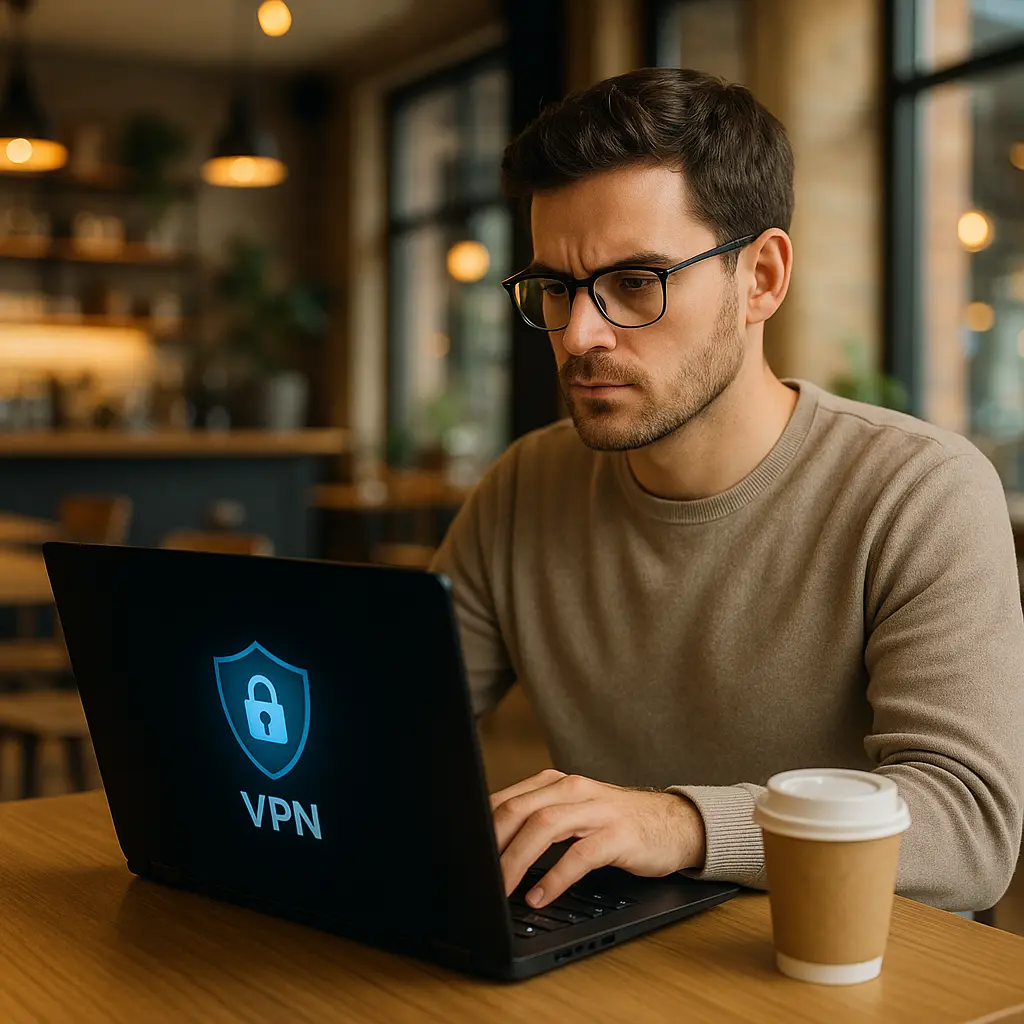
Connect to your VPN before anything else. Open your VPN client and connect before you open a browser or check email. This ensures all your traffic is encrypted from the moment you go online. If your VPN has an auto-connect feature for untrusted networks, enable it. If the VPN fails to connect, do not proceed. Either troubleshoot the connection or move to a different location with better connectivity.
Check for HTTPS. Every site you visit should show a lock icon in the address bar. HTTPS encrypts the data between your browser and the website. Most sites use it by default in 2026, but check. If you land on an HTTP page (no lock icon), do not enter passwords, payment information, or personal data. Navigate away or find the HTTPS version of the site.
Disable file sharing. On Windows: Settings → Network & Internet → Advanced network settings → Advanced sharing settings → Turn off network discovery and file sharing. On Mac: System Settings → General → Sharing → disable all sharing options (File Sharing, Screen Sharing, Remote Login). Public networks are not the place to share files or printers.
Turn off automatic WiFi connections. Your device remembers networks and reconnects automatically. That's convenient at home. In public, it's a vulnerability. If an attacker creates a fake network with the same name as a network your device trusts, your device might auto-connect without asking. Disable auto-join for public networks. On Windows: Settings → Network & Internet → WiFi → Manage known networks → select each public network → uncheck "Connect automatically." On Mac: System Settings → Network → WiFi → Details (next to the network name) → uncheck "Auto-join."
While You Work
You're connected. You're online. You're working. These are the ongoing practices that maintain security throughout your session.
Use a privacy screen. A privacy screen is a physical filter that attaches to your display and narrows the viewing angle. Someone sitting directly in front of you can see your screen. Someone sitting to your left or right sees a dark rectangle. If you work with confidential information (financial data, legal documents, client records, HR files, proprietary code), a privacy screen is non-negotiable. They cost around $30-60 depending on screen size. Install it once and leave it on.
Lock your screen when you step away. Every time. Even for 30 seconds. Windows: Win + L. Mac: Control + Command + Q. Or close the lid. An unlocked screen in a public space is an open invitation. Someone can access your email, your files, your accounts, your work systems in the time it takes you to walk to the counter and back.
Avoid logging into high-risk accounts. Banking, tax software, health portals, anything involving Social Security numbers or financial credentials. If you must access these, use your phone's cellular connection, not public WiFi. Even with a VPN, reducing exposure is smart. Save high-risk logins for home or a trusted private network.
Watch for fake login prompts. Attackers on public networks sometimes inject fake login pages that look like Google, Microsoft, or your company's portal. Check the URL carefully. If you're asked to log in again unexpectedly, close the tab and navigate to the site manually by typing the URL. Do not click links in emails or pop-ups while on public WiFi.
Keep your device in sight. Your laptop, your phone, your tablet, your bag. If you're working with headphones on, you might not notice someone reaching for your bag or your device. Position your belongings where you can see them without turning around. If you need to take a call and step outside, pack up your laptop first.
Limit what you say aloud. Phone calls, video meetings, conversations with colleagues. You're in a public space. People around you can hear account numbers, project names, client details, passwords (if you're reading them aloud to someone), internal company information. If the conversation is sensitive, take it outside or postpone it.
Logging Into Work Systems
If you're accessing company resources (VPN, remote desktop, cloud apps, internal tools), these steps apply.
Use your company VPN. If your employer provides a VPN, use it. It routes your traffic through your company's network and applies their security policies. If you're using a personal VPN (like NordVPN) for general browsing, you may need to disconnect it before connecting to your company VPN. Some systems allow both (split tunneling), but many do not. Follow your IT department's guidance.
Enable two-factor authentication. If your work accounts support 2FA, use it. Even if an attacker intercepts your password on public WiFi, they can't log in without the second factor (usually a code from an app or a hardware token). CISA recommends multi-factor authentication as a baseline security measure for remote access.
Use a password manager. Do not type passwords manually, especially on public WiFi. A password manager autofills credentials only on the legitimate site, which protects you from fake login pages. If you're using a browser's built-in manager, that's better than typing. A dedicated manager (like NordPass) is better still, with stronger encryption and cross-device sync.
Verify your connection is encrypted. Check for HTTPS in the address bar. If you're using a remote desktop tool (RDP, VNC, TeamViewer, etc.), confirm it's configured to use encryption. Unencrypted remote desktop sessions on public WiFi expose everything on your screen to anyone monitoring the network.
Log out when you're done. Do not just close the browser tab or let the session time out. Log out explicitly. This ends the session on the server side and reduces the window of vulnerability if someone gains access to your device.
When You Pack Up
You're finished. You're ready to leave. These are the final steps before you walk out.
Disconnect from WiFi. Manually disconnect from the coffee shop network. Do not leave it connected while you pack up. On Windows: click the WiFi icon in the taskbar and select Disconnect. On Mac: click the WiFi icon in the menu bar and select Disconnect. This prevents your device from sending or receiving data while you're distracted.
Close all work applications. Email, browsers, remote desktop sessions, cloud storage, messaging apps. Close them. Do not minimize them. Closing ensures nothing is actively transmitting data when you're not looking.
Clear your browser history if necessary. If you're on a shared or borrowed device (not your own laptop), clear your browsing history, cookies, and saved passwords before you close the browser. On your own device, this is optional but some people prefer to clear public WiFi sessions as a habit. Chrome: Settings → Privacy and security → Clear browsing data. Firefox: Settings → Privacy & Security → Clear Data. Safari: History → Clear History.
Shut down or sleep your device. Shutting down fully encrypts the drive again (if you're using BitLocker or FileVault). Sleep mode locks the screen but keeps the system running. Either is fine for transport, but shutdown is slightly more secure if the device is stolen while powered off. The attacker has to bypass your login screen, not just your lock screen.
Take everything with you. Laptop, charger, phone, headphones, dongles, external drives, notebooks, pens. Check the table, check the floor, check the seat next to you. I once left a USB drive with client files under a napkin. I realized it 20 minutes later and drove back. It was gone. Learn from my mistake.
What About Hotspots?
Your phone's cellular hotspot is more secure than coffee shop WiFi. You control the network. You set the password. No one else is on it. If you have unlimited data or a generous plan, use your hotspot instead of public WiFi.
Enable hotspot security. Use WPA3 if your phone supports it (most phones from 2020 onward do). If not, use WPA2. Set a strong password (16+ characters, random). Do not use the default password your phone generates. Change it to something unique.
Turn off hotspot when not in use. Leaving your hotspot on drains your battery and creates an open network that others can see (even if they can't connect without the password). Turn it on when you need it, turn it off when you don't.
Monitor your data usage. Hotspots consume cellular data. Video calls, large file downloads, cloud sync, and software updates add up quickly. Check your plan's data limits and track your usage. Most phones show this in Settings → Cellular (iOS) or Settings → Network & Internet → Data usage (Android).
What About Hotel WiFi?
Hotel WiFi is public WiFi with a login page. The same principles apply. Verify the network name with the front desk. Use a VPN. Enable HTTPS. Lock your screen. The difference is that hotel rooms give you physical privacy, which coffee shops do not. You can leave your device on the desk while you shower. You cannot leave your device on a coffee shop table while you step outside.
One additional consideration: hotel networks sometimes block VPN traffic to prevent bandwidth abuse. If your VPN won't connect, try a different server or protocol (OpenVPN, WireGuard, IKEv2). If that fails, use your phone's hotspot instead.
The Cultural Reference: Sherlock Holmes and Observation
In Arthur Conan Doyle's "The Adventure of the Copper Beeches," Holmes tells Watson that the most dangerous place to commit a crime is in a public space where everyone sees but no one pays attention. Coffee shops are exactly that environment. Dozens of people around you, all absorbed in their own work, their own screens, their own conversations. The perfect cover for shoulder surfing, device theft, or network attacks.
Holmes would tell you to observe your surroundings. Who's sitting near you? Who's walking past? Who's lingering without ordering? Is someone's screen angled toward yours? Is someone's phone pointed at your keyboard? Most people are harmless. But the ones who aren't rely on your assumption that everyone is harmless.
The same principle applies to your digital environment. Observe your network connection. Observe your browser's address bar. Observe your VPN status. Observe your lock screen timeout. The details matter. Attackers exploit the gaps between what you think is secure and what actually is.
What This Guide Does Not Cover
This guide focuses on the practical steps you take before, during, and after working in a public space. It does not cover:
- Advanced network attacks (man-in-the-middle, DNS spoofing, packet sniffing) in technical depth. Those are real threats, but your defense is the same: VPN, HTTPS, strong authentication.
- Physical security beyond the basics. If you're working with classified or highly sensitive information, coffee shops are not appropriate work locations.
- Compliance requirements for specific industries (healthcare, finance, legal, government). Your employer's policies override this guide. Follow them.
- Mobile device security in detail. Phones and tablets have different threat models. This guide focuses on laptops.
When Public Work Isn't Worth the Risk
Some work does not belong in public spaces. If you're handling:
- Unencrypted sensitive data (Social Security numbers, credit card numbers, health records, legal documents)
- Proprietary code or trade secrets
- Confidential client information
- Financial transactions above routine purchases
- HR or personnel files
- Anything your employer explicitly prohibits from public networks
Then do not work on it at the coffee shop. Wait until you're on a trusted private network. The convenience of working from anywhere does not outweigh the risk of a data breach, a compliance violation, or a fired employee.
The Bottom Line
Working from coffee shops is secure if you configure your device correctly, verify your connections, and maintain awareness of your physical and digital surroundings. The risks are specific: shoulder surfing, device theft, fake networks, unencrypted connections. The defenses are specific: privacy screens, VPNs, HTTPS, strong authentication, physical vigilance.
Most attacks succeed because someone skipped a step. They connected without verifying the network. They left their laptop unattended. They typed a password on an HTTP page. They assumed the lock icon meant safety without checking the URL. They ignored the VPN connection failure and worked anyway.
You will not make those mistakes. You will verify the network name with staff. You will connect to your VPN before opening a browser. You will lock your screen every time you step away. You will use a privacy screen if you handle confidential information. You will log out explicitly when you finish. You will pack up everything before you leave.
And you will get your work done, in a public space, without compromising your security or your employer's data. That's the goal. That's what this guide delivers.