Work Email on Personal Phone: Step-by-Step Setup for Safe Access
You're standing in line at the grocery store. Your phone buzzes. Work email. You unlock, read, reply. The line moves. You put the phone away. Fifteen minutes later, you're unloading groceries and your boss sends a follow-up. You answer from the kitchen counter. By the time you're done, you've spent twenty minutes on work during your personal time, and you didn't even notice the boundary dissolve.
Adding work email to your personal phone makes you more responsive. It also makes you more available, more monitored, and more vulnerable to both security risks and burnout. The convenience is real. So are the tradeoffs.
This isn't an article about whether you should do it. That decision depends on your job, your employer's policies, and your personal tolerance for mixed boundaries. This is a practical guide to the configuration process if you've already decided to proceed. Here's what to set up, what each setting protects, and how to maintain some separation when work and personal life share the same device.
What Happens When You Add Work Email to Your Phone
When you configure work email on your personal phone, you're not just adding another inbox. You're granting your employer varying levels of access to your device, depending on the method they require.
The simplest method is adding your work email account directly to your phone's native mail app or installing a third-party email client like Outlook or Gmail. This gives the app access to your email, calendar, and contacts, but typically nothing else. Your employer can see when you read messages and whether you've replied, but they can't access your personal texts, photos, or browsing history through the email app alone.
The more invasive method is Mobile Device Management software. MDM gives employers control over security settings, app installations, and device configurations. Some MDM systems can remotely wipe your entire phone if you leave the company or if the device is reported lost. Others create a separate work profile or container that isolates work data from personal data, limiting the employer's access to the work partition only.
The difference matters. If your employer requires MDM enrollment, you need to know exactly what they can see and control before you agree. Most IT departments will provide a policy document explaining their monitoring capabilities. Read it. If it's vague or missing, ask specific questions: Can you see my location? Can you read my personal messages? Can you wipe my entire device or just the work profile? What happens when I leave the company?
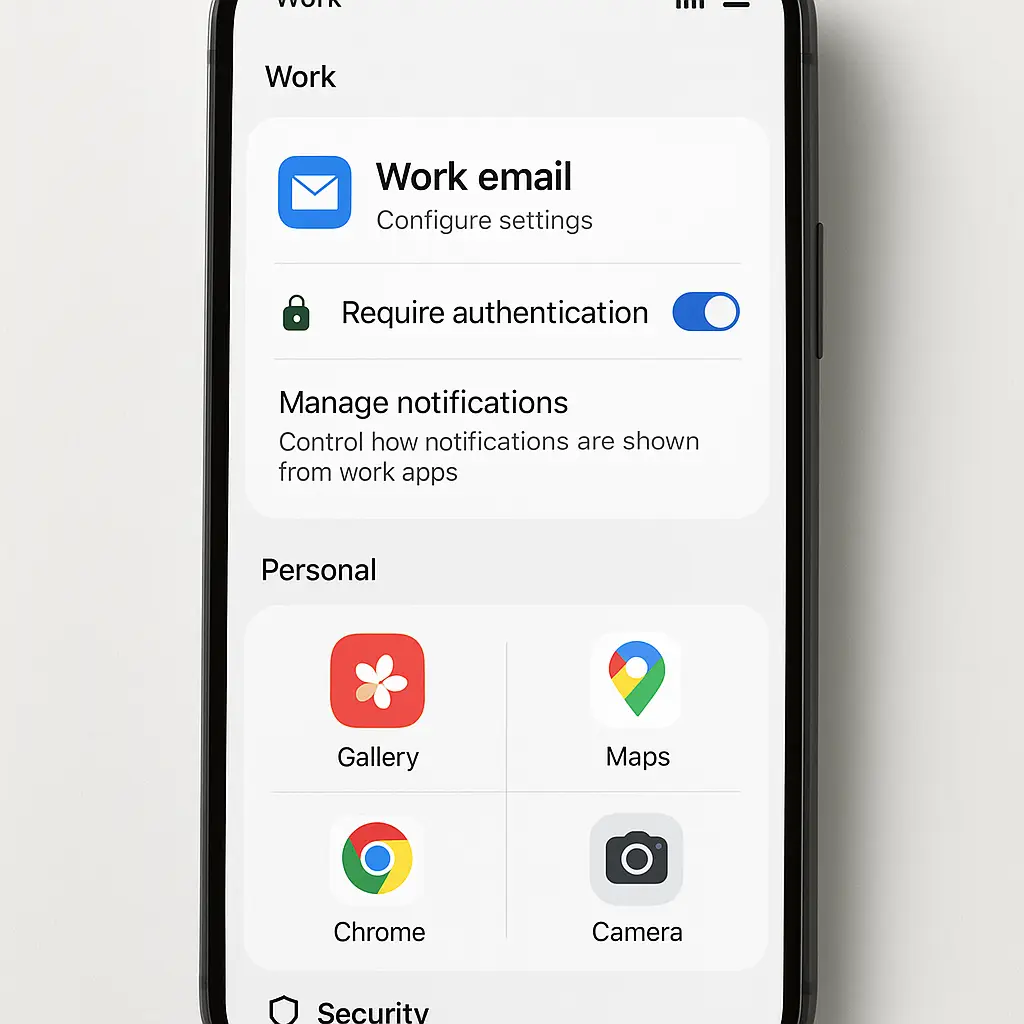
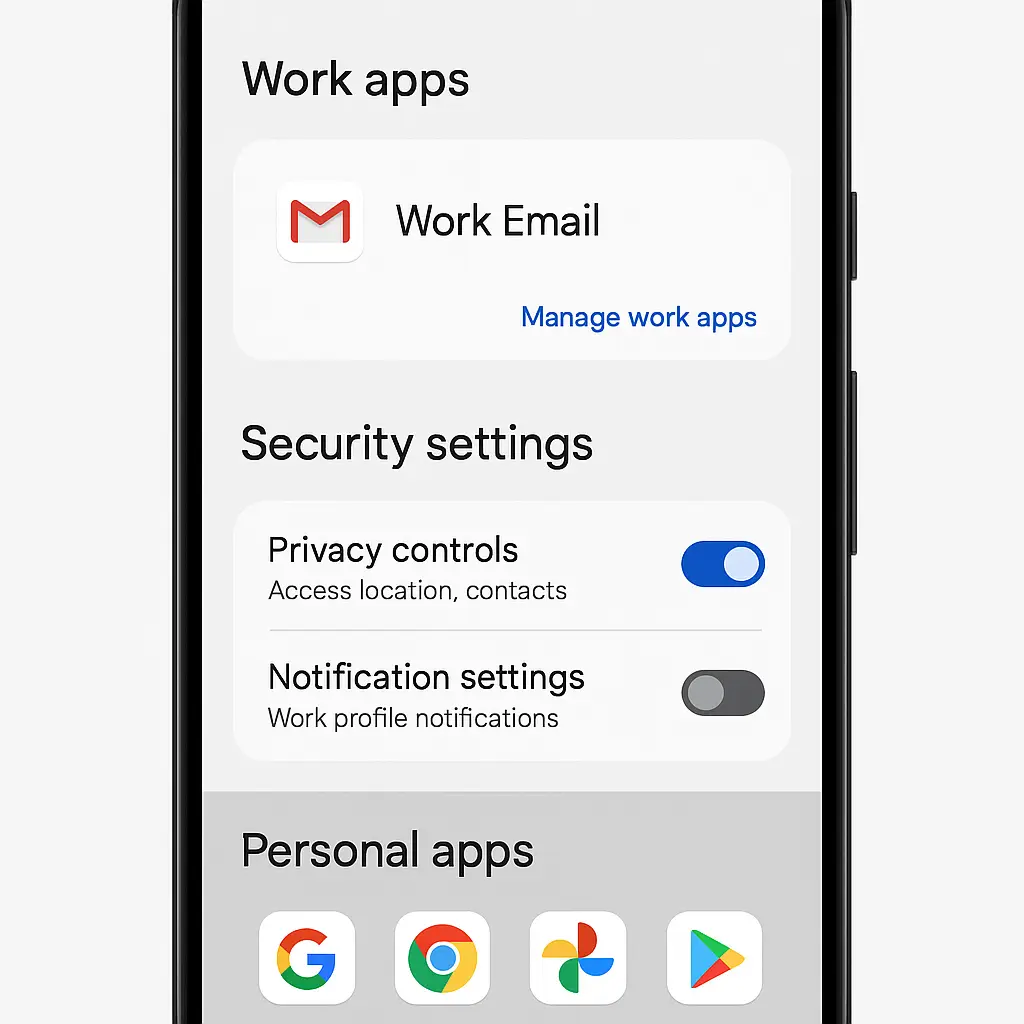
Some organizations offer a compromise: work profiles on Android or Managed Apple IDs on iOS. These create a separate, sandboxed environment for work apps and data. Your employer can manage the work profile without touching your personal apps, photos, or messages. When you leave, they wipe the work profile and your personal data stays intact.
If your employer doesn't require MDM and allows you to use a standard email app, you have more control. You're still mixing work and personal on the same device, but the access is limited to the email app itself.
The Security Risks You're Actually Taking
Work email on a personal phone creates attack surface that didn't exist before. Your phone now holds credentials, sensitive documents, and access to corporate systems. If someone steals your phone or tricks you into installing malware, they potentially gain access to both your personal accounts and your employer's network.
Phishing becomes more dangerous. A fake email that looks like it's from your boss can arrive while you're distracted, standing in line, half-focused. You're more likely to click a malicious link on a small screen where it's harder to inspect URLs. Phishing attacks succeed because they exploit predictable human responses under time pressure. Your phone, always with you, always interrupting, creates more opportunities for that pressure.
If your employer requires a VPN to access internal resources, that VPN runs on your personal phone. Depending on the configuration, it may route all your traffic through your employer's network, not just work-related connections. That means your employer could theoretically see your personal browsing, app usage, and location data while the VPN is active. Most organizations don't monitor this aggressively, but the technical capability exists.
Lost or stolen phones become a bigger problem. If your phone disappears and you haven't enabled remote wipe, someone now has access to your work email, potentially your company's internal systems, and your personal data. If your employer does enable remote wipe and you don't have backups, you could lose everything.
Two-factor authentication complicates things. If your work accounts use your phone number for 2FA and you lose the device, you're locked out until IT resets your access. If you use an authenticator app for work accounts, make sure you have backup codes stored somewhere other than the phone itself.
Step-by-Step: Configuring Work Email Safely
Start by checking your employer's requirements. Some organizations provide a configuration profile you install. Others require you to download a specific app. Some mandate MDM enrollment. Know what you're agreeing to before you start.
If your employer allows it, use a separate email app for work. Don't add your work account to the same app you use for personal email. This creates a clear boundary and makes it easier to disable work notifications outside business hours. Outlook, Gmail, and Nine are common options that support Exchange and IMAP accounts.
When you install the work email app, review the permissions it requests. Email apps typically need access to contacts, calendar, and storage. They don't need access to your camera, microphone, or location unless your job specifically requires those features. Deny permissions that aren't necessary for email functionality.
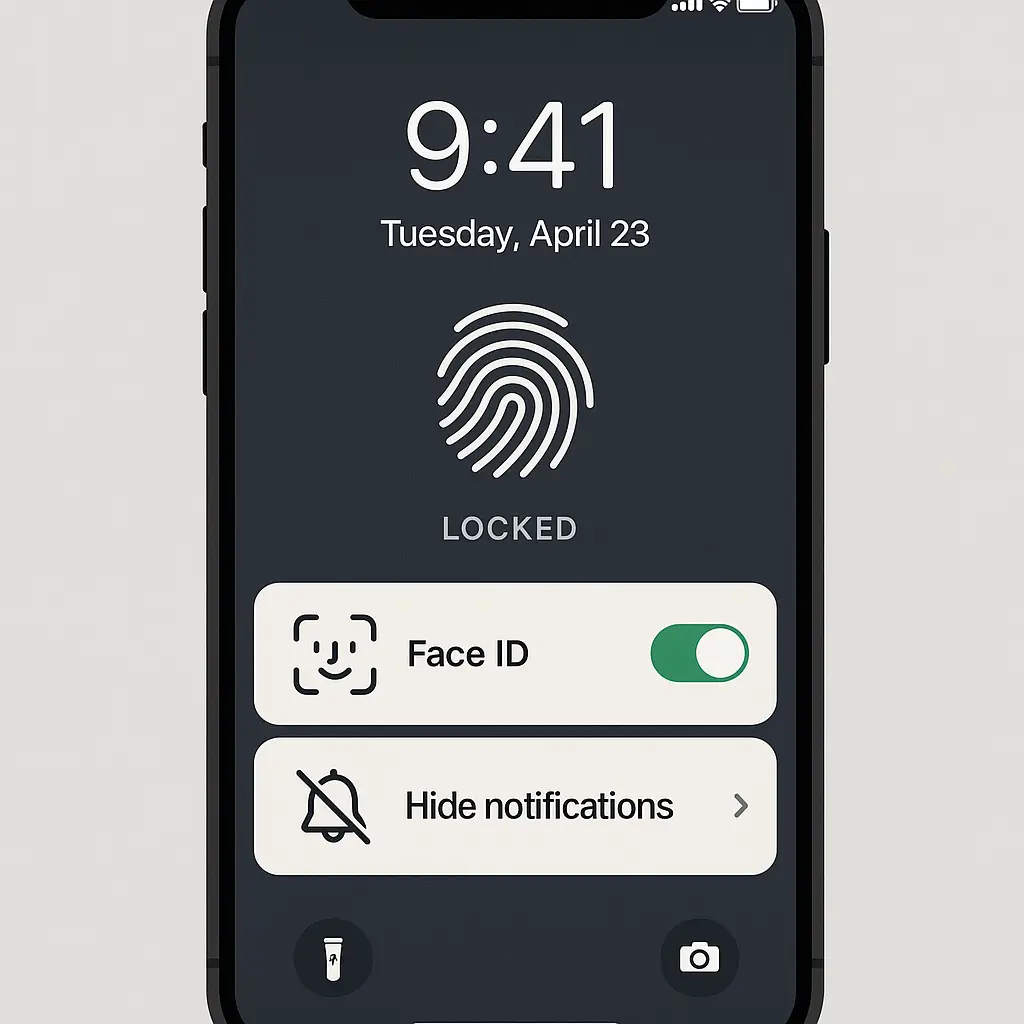
Enable a strong lock screen. If you didn't have one before, you need one now. Use a six-digit PIN at minimum, or biometric authentication if your phone supports it. Lock screens are the first line of defense against physical access. Set the auto-lock timeout to one minute or less.
Configure your work email to require authentication when opening the app, separate from your phone's lock screen. Many email apps support this through app-specific PINs or biometric unlock. This adds a second layer of protection if someone gains access to your unlocked phone.
Adjust notification settings to protect sensitive information. Work email notifications often display message previews on your lock screen. Turn off previews entirely, or configure the app to show sender and subject only, not message content. This prevents anyone glancing at your phone from reading confidential information.
Set up remote wipe capability if your employer hasn't already required it. Both iOS and Android support Find My Device features that let you remotely lock or erase your phone if it's lost or stolen. Enable this before you add work email. Test it to make sure it works.
Review your backup strategy. If your employer can remotely wipe your device, you need recent backups of your personal data. Use iCloud, Google Drive, or a local backup to your computer. Schedule automatic backups weekly at minimum. Verify that backups actually complete and that you can restore from them.
If your employer requires MDM, ask whether they support work profiles or containerization. On Android, this is called a work profile. On iOS, it's Managed Apple IDs or app-specific management. These features isolate work data from personal data, limiting what your employer can access and wipe. If your employer supports this, use it.
Managing Notifications Without Losing Your Mind
Work email notifications are designed to demand attention. Every message triggers a sound, a vibration, a banner. You're trained to respond immediately. This is by design. It's also exhausting.
Configure notification schedules if your email app supports them. Some apps let you silence work notifications outside specific hours. Set a schedule that matches your actual work hours, not the hours you feel obligated to be available. If your app doesn't support scheduled quiet hours, use your phone's Do Not Disturb feature and create exceptions for personal contacts only.
Disable VIP or priority inbox notifications unless you have a genuine on-call responsibility. Most work email can wait until you're actually working. The illusion of urgency is not the same as actual urgency.
Turn off notification previews entirely. You don't need to see the first line of every email the moment it arrives. Seeing the preview creates pressure to respond even when you've decided not to check work email. The notification badge is enough.
Use separate notification tones for work and personal email. This lets you identify the source without looking at your phone. If you hear the work tone outside work hours, you can make a conscious decision about whether to check it, rather than reflexively unlocking your phone.
Consider disabling push notifications for work email entirely and switching to fetch mode. Instead of the server pushing new messages to your phone instantly, your phone checks for new mail on a schedule you control. Checking every 15 or 30 minutes reduces interruptions while keeping you reasonably current.
If your employer expects instant responses outside business hours, that's a workplace culture problem, not a technical problem. The phone configuration can't fix that. But it can give you the tools to create boundaries if your employer respects them.
What Your Employer Can Actually See
This depends entirely on the access method. If you're using a standard email app without MDM, your employer can see email metadata: when you opened messages, when you replied, whether you forwarded or deleted them. They can see your calendar availability and meeting responses. They can't see your personal texts, photos, calls, or browsing history through the email app.
If your employer installed MDM software, the access expands significantly. MDM can monitor device location, installed apps, network traffic, and system settings. Some MDM systems log every app you open, how long you use it, and what data it accesses. Others are configured more narrowly and only manage the work profile or work-related apps.
The only way to know what your specific employer monitors is to ask. IT departments are usually willing to explain their MDM policies if you ask directly. If they're evasive or refuse to answer, that's a red flag.
Location tracking is common but not universal. Some employers track location during work hours to verify remote workers are where they claim to be. Others track continuously. Some don't track at all. If your employer requires location access, ask whether it's continuous or limited to specific apps or work hours.
VPN monitoring depends on configuration. If your employer requires a VPN to access internal resources and that VPN routes all traffic, they can theoretically see every website you visit and every app you use while the VPN is active. In practice, most organizations don't log this data aggressively, but the capability exists. If you're concerned, disconnect the VPN when you're not accessing work resources.
Screen recording and keystroke logging are rare on mobile MDM but technically possible. If your employer has installed software that does this, they're required to disclose it in most jurisdictions. Ask.
Separating Work and Personal on the Same Device
Physical separation is impossible when both exist on the same phone, but functional separation is achievable with deliberate configuration.
Use separate apps for work and personal email. Don't mix accounts in the same app. This creates a clear visual and functional boundary. You can disable the work app outside work hours without affecting personal email.
Create separate home screen pages or folders. Put work apps on one screen, personal apps on another. This reduces the chance of accidentally opening a work app during personal time and creates a mental separation between contexts.
Use different wallpapers for work and personal profiles if your phone supports work profiles. Android work profiles display a briefcase icon on work apps and can use separate wallpapers. This visual cue reminds you which context you're in.
Disable work app notifications on weekends and evenings using Do Not Disturb schedules. If your employer expects you to be available 24/7, that's a compensation and boundaries conversation, not a technical one. The phone can enforce boundaries you've agreed to; it can't create boundaries your employer doesn't respect.
Log out of work apps when you're off the clock if your employer allows it. Some MDM configurations prevent this, but if you're using a standard email app, logging out creates a deliberate friction that makes checking work email require conscious effort rather than reflexive habit.
Use separate browsers for work and personal browsing if you access work systems through a web browser. Chrome supports multiple profiles. Safari on iOS doesn't, but you can use Safari for personal browsing and a different browser for work. This prevents work cookies and session data from mixing with personal browsing.
When You Leave the Company
Your employer will revoke access to your work email account. If you used a standard email app, this means the account stops syncing and you can delete it manually. If your employer used MDM, they'll remotely wipe the work profile or, in some cases, the entire device.
Before your last day, back up everything personal. Photos, contacts, messages, app data. Assume the worst-case scenario: your employer wipes the entire phone. If you have recent backups, this is an inconvenience. If you don't, it's a disaster.
Remove the work email account manually if your employer hasn't already done it remotely. Go into your phone's settings, find the work account, and delete it. This removes the email, calendar, and contacts associated with that account.
Uninstall work apps. Email clients, VPN apps, authentication apps configured for work accounts. If your employer required MDM, uninstalling the MDM profile removes their access to your device. On iOS, this is in Settings > General > VPN & Device Management. On Android, it's in Settings > Security > Device admin apps.
Change your personal passwords. If you used the same device for work and personal accounts, there's a non-zero chance that work-related malware or monitoring software captured personal credentials. Changing passwords after you leave eliminates that risk.
Check for residual MDM profiles or certificates. Sometimes uninstalling the MDM app doesn't remove the underlying profile. On iOS, check Settings > General > VPN & Device Management for any remaining configuration profiles. On Android, check Settings > Security > Trusted credentials for work-related certificates.
If your employer wiped your entire device instead of just the work profile, restore from your most recent backup. Verify that everything came back. Check photos, contacts, messages, app data. If something's missing, you'll need to recover it from an older backup or accept the loss.
The Analogy Nobody Asked For
In The Good Place, Eleanor spends the entire first season trying to maintain the illusion that she belongs in the Good Place while actually being a selfish disaster who earned the Bad Place. She's constantly code-switching, monitoring her behavior, trying to remember which version of herself she's supposed to be in any given moment. It's exhausting. It's unsustainable. And it only works because she's in a sitcom where the consequences are philosophical rather than practical.
Work email on your personal phone is a bit like that. You're trying to maintain two identities on the same device. Professional Eleanor and personal Eleanor. Work you and off-the-clock you. The device doesn't care about context. Notifications arrive whenever they want. Your boss's email sits three icons away from your text messages. The boundary exists only in your head, and the phone is actively working against your ability to maintain it.
The difference is that Eleanor eventually gets caught and has to face the consequences. With work email on your phone, the consequences are slower and harder to see. You don't get caught. You just gradually stop noticing when you're working and when you're not. The boundary erodes one notification at a time until you're answering emails from the couch at 9 PM and calling it normal.
The configuration steps in this article create technical boundaries. They don't create cultural boundaries. If your employer expects instant responses at all hours, the phone settings won't fix that. But they give you the tools to enforce boundaries if your employer respects them. And if your employer doesn't respect them, the phone configuration at least makes the violation visible instead of letting it happen invisibly in the background.
What You Can't Control
Some risks are inherent to mixing work and personal on the same device, and no amount of careful configuration eliminates them.
You can't prevent your employer from seeing when you're active on email. If you open the app at 11 PM on a Saturday, that metadata exists. If your employer uses it to set expectations about your availability, that's a management problem, not a technical one.
You can't fully isolate work and personal data on a device that holds both. Even with work profiles and containerization, you're still carrying both contexts in your pocket. If the device is compromised, both are at risk.
You can't prevent your employer from remotely wiping your device if they have MDM access and they decide to use it. You can back up your data. You can use work profiles to limit the scope of the wipe. But if they have the capability and they use it, your personal data is gone unless you've backed it up recently.
You can't make work email feel less intrusive by changing notification settings. You can reduce the frequency and visibility of interruptions, but you can't eliminate the psychological weight of knowing work is always three taps away.
You can't prevent burnout through phone configuration. If your job expects constant availability, the solution is to renegotiate expectations or find a different job. The phone is just the delivery mechanism.
The Real Question You're Not Asking
The question isn't whether you can configure work email safely on your personal phone. You can. The question is whether you should, and that depends on factors this article can't answer for you.
Do you trust your employer to respect boundaries? Do you have the leverage to enforce them? Are you comfortable with the monitoring and access you're granting? Can you afford a separate work device if your employer won't provide one?
The technical steps are straightforward. The human decisions are harder. Configure carefully. Back up religiously. Know what you're giving up. And if the tradeoffs don't feel worth it, ask for a company-owned device instead.