VPN auto-connect: why you should turn it on
You're at the airport. You connect to the public WiFi. You open your email.
Did you turn on your VPN first?
If the answer is "I don't remember," you're not alone. Most people forget. The VPN sits installed on their phone, ready to protect them, but it never activates because remembering to click a button before browsing is one cognitive step too many when you're rushing to a gate.
VPN auto-connect solves this by removing the decision entirely. When you join an untrusted network, the VPN activates automatically. No button to remember. No manual intervention. Your traffic gets encrypted before you have a chance to forget.
Here's how the feature works, what it actually protects, and the exact steps to configure it on your device.
What VPN auto-connect actually does
VPN auto-connect monitors your network connections. When you join a WiFi network, the feature checks whether that network appears on your trusted list. If it doesn't, the VPN activates automatically and routes your traffic through an encrypted tunnel before any data leaves your device.
The process happens in seconds. You connect to WiFi. The VPN detects the new network. It establishes an encrypted connection to a VPN server. Your traffic flows through that tunnel instead of directly to the internet.
From your perspective, nothing changes. Your apps work normally. Websites load. Email syncs. The only difference is that your internet service provider, the WiFi operator, and anyone monitoring the network see encrypted traffic instead of readable data.
The CISA guidance on network security recommends encrypting traffic on untrusted networks, and auto-connect is the mechanism that makes that happen without requiring you to remember.
Why manual activation fails
Manual VPN activation creates a gap between connection and protection. You join the network. Your phone immediately starts background processes: email checks, app updates, cloud sync, push notifications. All of that happens in the first few seconds after you connect, before you've had time to open the VPN app and tap the connect button.
That window is where data leaks. Your email client sends credentials to the mail server. Your messaging apps ping for new messages. Your browser checks for updates. All of it flows unencrypted if the VPN isn't already active.
Auto-connect closes that gap. The VPN activates before your apps start transmitting, which means your first packet of data travels encrypted.
The other failure mode is simpler: you forget. You're distracted, tired, or in a hurry. You connect to WiFi and start browsing without thinking about the VPN. By the time you remember, you've already sent login credentials, browsed sensitive sites, or synced files.
Auto-connect removes the cognitive load. You don't have to remember because the feature remembers for you.
How to configure auto-connect on iPhone
Open your VPN app. The exact interface varies by provider, but the setting usually lives under preferences, settings, or network options.
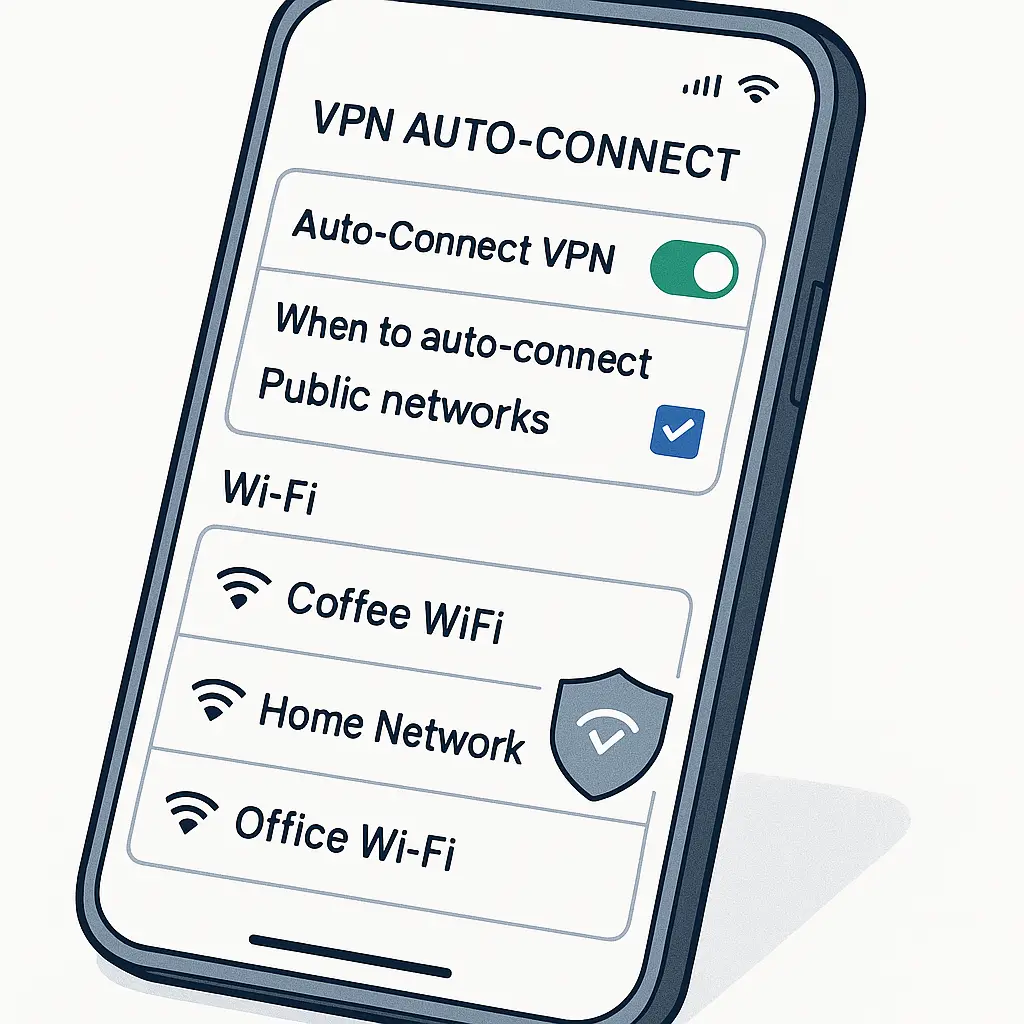
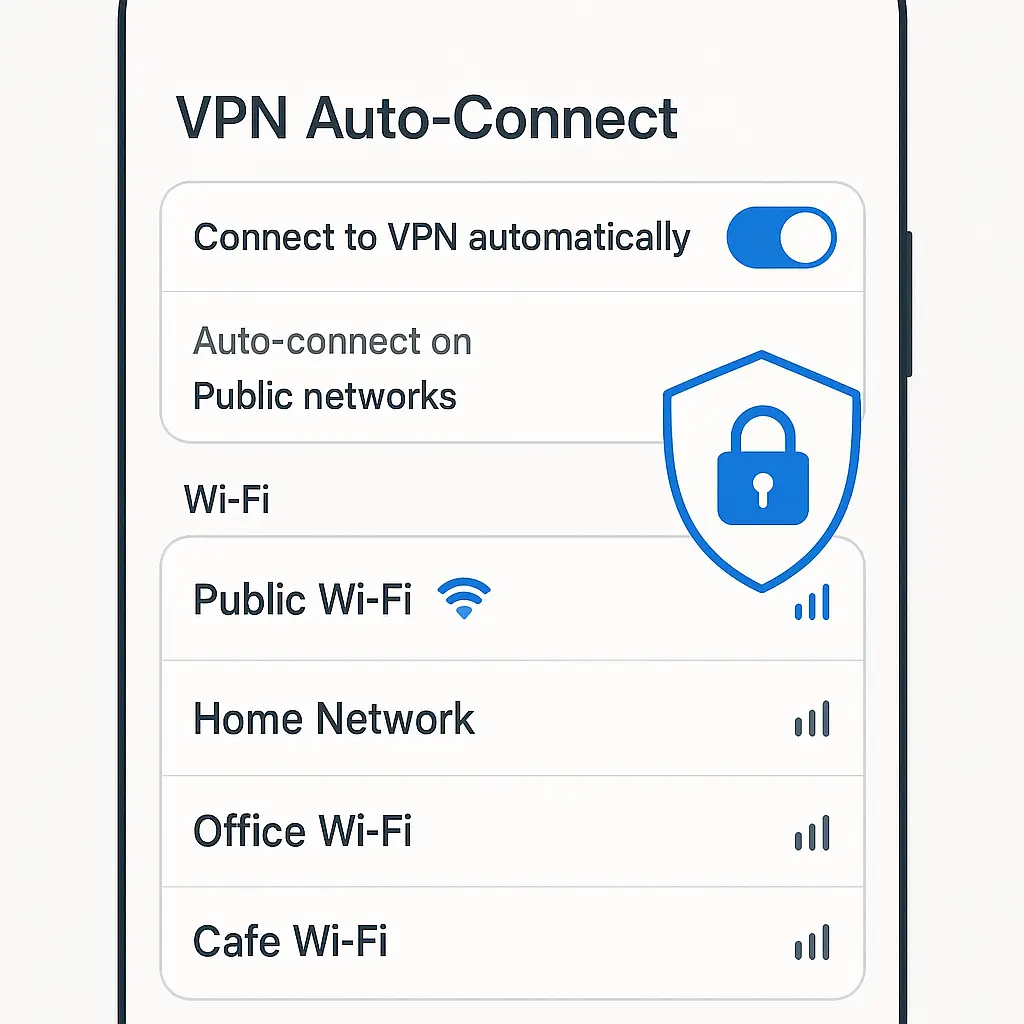
Look for a toggle labeled "auto-connect," "connect on untrusted networks," "automatic protection," or similar. Enable it.
Next, configure your trusted networks. Most VPN apps let you mark specific WiFi networks as safe, which tells the app not to activate on those networks. Your home WiFi, your office WiFi, and any other networks you control should go on this list.
To add a trusted network, connect to it first. Then open the VPN app and find the trusted networks section. The current network should appear as an option. Mark it as trusted.
Repeat this process for every network you trust. Once configured, the VPN will activate automatically on every other network you join.
Some VPN apps offer additional granularity. NordVPN, for example, lets you configure auto-connect separately for WiFi and cellular networks. If you want protection on public WiFi but not on cellular data, you can configure that.
Test the setup by connecting to a public network. The VPN should activate within a few seconds. You'll see a notification or a status indicator showing the VPN is active. If it doesn't activate, check the settings and make sure auto-connect is enabled and the network isn't on your trusted list.
How to configure auto-connect on Android
Open your VPN app. Navigate to settings or preferences. Look for "auto-connect," "always-on VPN," "connect automatically," or similar.
Android offers two mechanisms for automatic VPN activation. The first is app-level auto-connect, which works the same way as on iPhone. The VPN app monitors your network connections and activates when you join an untrusted network.
The second is system-level always-on VPN, which is a more aggressive form of protection. To enable it, go to Settings > Network & Internet > VPN. Tap the gear icon next to your VPN app. Enable "Always-on VPN" and "Block connections without VPN."
This configuration forces all traffic through the VPN at all times. If the VPN can't connect, your internet access stops entirely. It's the most secure option, but it also means you lose connectivity if the VPN fails.
For most people, app-level auto-connect is the better choice. It provides protection on public networks without blocking your connection if the VPN has issues.
Configure trusted networks the same way you would on iPhone. Connect to a network you trust, open the VPN app, and mark it as safe. The VPN will skip those networks and activate everywhere else.
What auto-connect protects and what it doesn't
Auto-connect encrypts your traffic between your device and the VPN server. That encryption protects you from anyone monitoring the WiFi network, including the network operator, other users on the same network, and attackers running packet sniffers.
What it doesn't protect: your traffic after it leaves the VPN server. Once your data exits the VPN tunnel, it travels to its destination in whatever form the destination site uses. If you're visiting an HTTP site, that traffic is unencrypted. If you're visiting an HTTPS site, it's encrypted end-to-end.
The EFF guidance on HTTPS explains how site-level encryption works and why it matters even when you're using a VPN.
Auto-connect also doesn't protect you from phishing, malware, or social engineering. If you click a malicious link, the VPN won't stop the attack. It encrypts the connection, not the content.
And it doesn't make you anonymous. Your VPN provider can see your traffic, and many providers log connection timestamps, bandwidth usage, and originating IP addresses. The Mozilla VPN documentation describes what minimal logging looks like, but even minimal logging creates a record.
Battery and performance tradeoffs
VPNs consume battery because encryption requires processing power. Modern implementations are efficient, but the overhead is real. Researchers have found that VPN usage adds around 5-10% battery drain on typical smartphones under normal use.
Auto-connect doesn't change that math. The battery impact comes from the VPN being active, not from how it activated. Whether you turn it on manually or let auto-connect do it, the drain is the same.
The difference is frequency. If you only connect to public WiFi occasionally, auto-connect activates occasionally, and the battery impact stays minimal. If you connect to untrusted networks constantly, the VPN runs constantly, and the drain accumulates.
Performance also takes a hit. VPNs add latency because your traffic takes a longer path: device to VPN server to destination, then back the same way. The encryption and decryption process also slows things down slightly.
In practice, you'll see download speeds drop by around 10-30% depending on your VPN provider, server location, and network conditions. Auto-connect doesn't make that worse. The slowdown is the same whether you activate manually or automatically.
When auto-connect isn't enough
Auto-connect protects you on WiFi, but it doesn't protect you on cellular networks unless you configure it to. Most VPN apps treat cellular data as trusted by default, which means the VPN stays off when you're using 4G or 5G.
That's usually fine. Cellular networks encrypt traffic between your phone and the tower, which protects you from local eavesdropping. But your cellular carrier can still see your traffic, and in some countries, carriers log browsing history or sell data to third parties.
If you want VPN protection on cellular networks, configure auto-connect to activate on all connections, not just WiFi. The tradeoff is battery drain and slower speeds on cellular data, which some people find unacceptable.
Auto-connect also assumes you've configured trusted networks correctly. If you mark a public network as trusted by mistake, the VPN won't activate on that network, and your traffic flows unencrypted.
Review your trusted network list periodically. Remove networks you no longer use or networks you're not sure about. When in doubt, leave a network off the trusted list. The VPN activating unnecessarily is less risky than the VPN failing to activate when you need it.
The kill switch option
Some VPN apps offer a kill switch, which blocks all internet traffic if the VPN connection drops. This prevents your data from leaking unencrypted if the VPN fails mid-session.
Kill switches work differently depending on the platform. On iOS, the feature lives in the VPN app settings and is usually called "kill switch" or "network protection." On Android, the system-level "Block connections without VPN" setting serves the same purpose.
The tradeoff is connectivity. If the VPN can't connect, you lose internet access entirely until you disable the kill switch or fix the VPN connection. That's inconvenient if you're trying to check email at the airport and the VPN server is down.
For most people, auto-connect without a kill switch is the right balance. You get automatic protection on public networks without risking total connectivity loss if the VPN fails. If you handle sensitive data regularly or work in a high-risk environment, the kill switch makes more sense.
Configuring auto-connect on desktop
Desktop VPN apps offer auto-connect, but the feature works slightly differently than on mobile devices. Most desktop VPNs let you configure auto-connect on a per-network basis, similar to mobile apps, but some also offer a "connect on startup" option that activates the VPN every time you boot your computer.
That's useful if you want VPN protection at all times, but it also means the VPN runs constantly, even when you're on your home network. The battery drain on a laptop is less of an issue than on a phone, but the performance impact is the same.
To configure auto-connect on a desktop VPN, open the app and navigate to settings. Look for "auto-connect," "network rules," or "connection preferences." Enable the feature and configure your trusted networks the same way you would on mobile.
Test the setup by disconnecting from your current network and connecting to a different one. The VPN should activate automatically if the new network isn't on your trusted list.
What to do if auto-connect isn't available
Not all VPN apps support auto-connect. If your provider doesn't offer the feature, you have three options.
First, switch to a VPN that does. NordVPN, ExpressVPN, and Surfshark all support auto-connect on both iOS and Android. If automatic protection matters to you, choosing a provider that offers it is the simplest solution.
Second, configure your device's always-on VPN setting if you're on Android. This forces all traffic through the VPN at all times, which achieves the same result as auto-connect but with less flexibility. You lose the ability to mark trusted networks, and you risk connectivity loss if the VPN fails.
Third, build the habit of activating the VPN manually before you connect to public WiFi. This is the least reliable option because it depends on you remembering every time, but it's better than nothing.
In The Good Place, Eleanor learns that doing the right thing requires removing the friction that stops you from doing it
She spends the entire first season trying to become a better person through willpower and conscious effort. It doesn't work. She forgets, gets distracted, or gives up when the effort feels too hard.
What finally works is changing the environment so the right choice becomes the default. She doesn't have to remember to be good. The system remembers for her.
VPN auto-connect is that same principle applied to network security. You don't have to remember to protect yourself on public WiFi. The feature remembers for you. You connect to the network, and the protection activates automatically, before you have a chance to forget.
Configure it once. Let it run. Your traffic stays encrypted on every untrusted network you join, without requiring you to think about it every time you sit down at a coffee shop.