Your Phone Tracks Location Even When Location Is Off: The Reality Behind 'Disabled' GPS
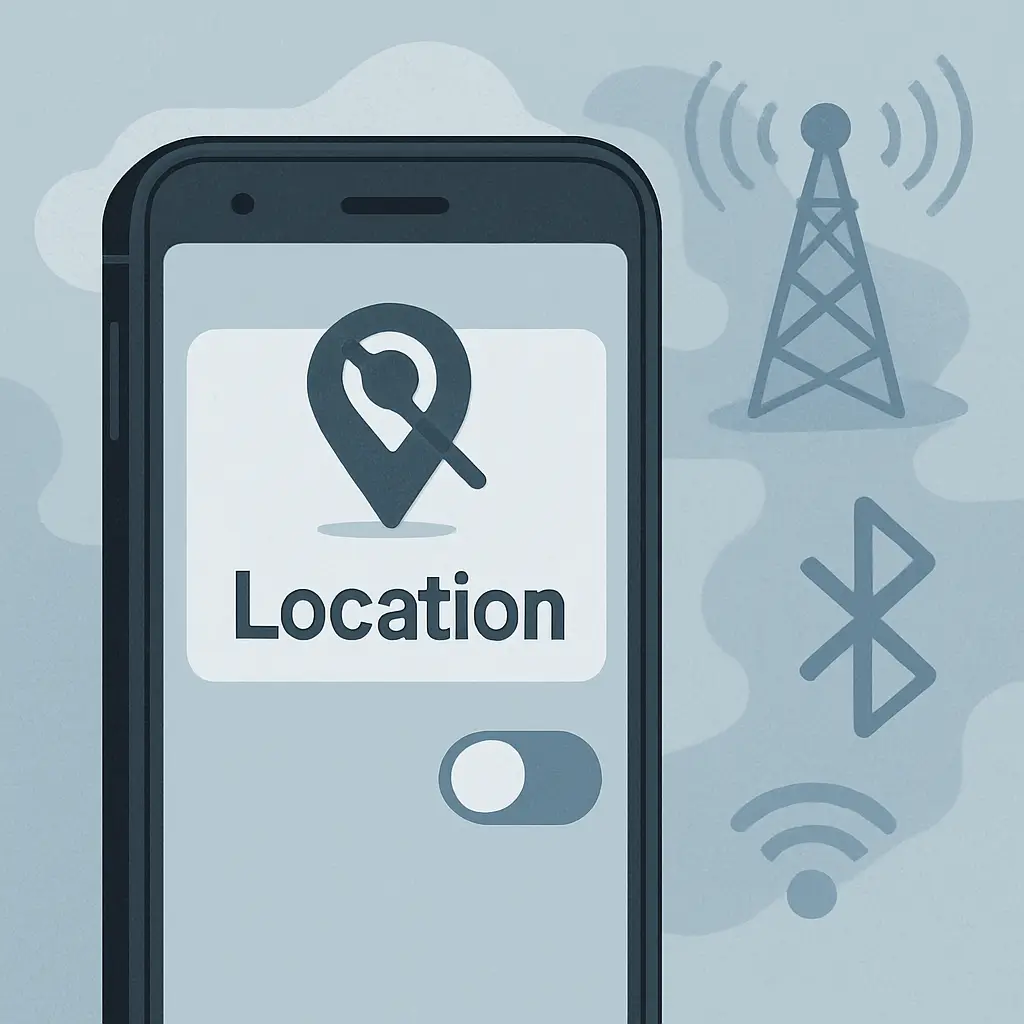
You turned off location services. You checked the toggle. You verified it's disabled in settings. You assume your phone has stopped tracking where you are.
It hasn't.
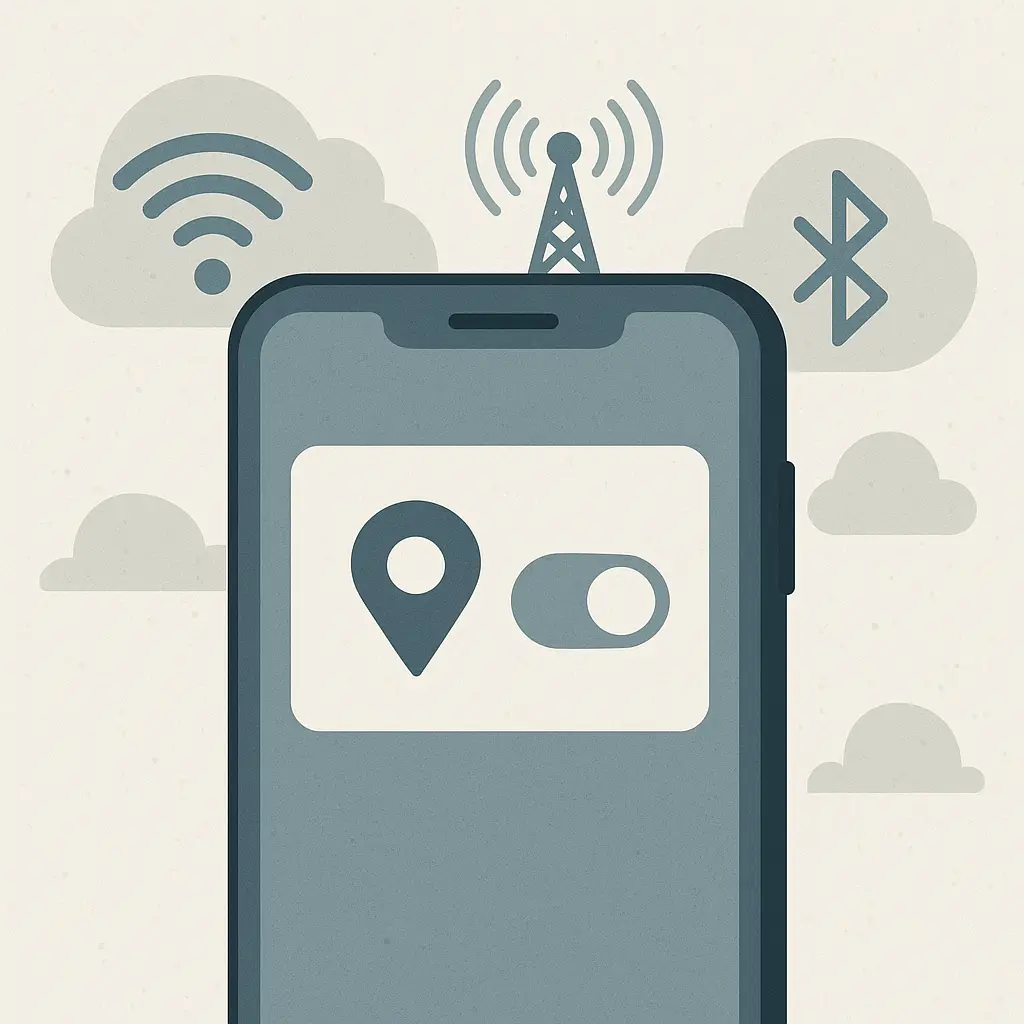
The location toggle controls one narrow slice of a much larger tracking system. Your phone continues collecting location data through multiple channels that operate independently of the setting you just disabled. The mechanism isn't hidden, exactly. It's just distributed across systems that most people don't connect.
Here's what actually happens when you flip that switch, what keeps running, and why the promise of "location off" is narrower than it appears.
What the Location Toggle Actually Controls
When you disable location services on iOS or Android, you're controlling app access to GPS coordinates and stored location history. The toggle acts as a permission gate: apps can no longer request your precise latitude and longitude, and they lose access to the location database your phone maintains.
This matters. Apps like Instagram, Facebook, and weather services rely on location permissions to function or serve targeted content. Disabling location services cuts off that access. An app that previously knew you were at 41.8781° N, 87.6298° W now gets nothing when it asks.
But the toggle doesn't control the underlying data collection systems. Your phone still determines where you are. It still logs cell tower connections, WiFi network scans, and Bluetooth beacon proximity. The location toggle is a gate on the highway to your apps, not a shutdown of the highway itself.
The distinction matters because people hear "location off" and assume comprehensive protection. The FTC has documented that consumer understanding of privacy controls consistently lags behind what those controls actually do. The gap between expectation and reality creates a false sense of security.
Cell Tower Triangulation Runs Continuously
Your phone connects to cell towers to function as a phone. That connection is mandatory. You can't disable it without disabling cellular service entirely, which means no calls, no texts, no mobile data.
Every time your phone connects to a tower, the carrier logs that connection. The carrier knows which tower you're connected to, when the connection happened, and how long it lasted. With multiple tower connections over time, the carrier can triangulate your approximate location with accuracy that varies from a few hundred feet in dense urban areas to a few miles in rural zones.
This happens regardless of your location settings. The connection is required for the cellular network to route calls and data to your device. The carrier isn't tracking you as a secondary activity; tracking is inherent to how cellular networks function.
Law enforcement can access this data with a court order. Carriers can use it for network optimization and marketing. Third parties can purchase aggregated, supposedly anonymized versions of this data from data brokers. The Electronic Privacy Information Center has documented cases where anonymized location data was re-identified to track specific individuals.
Your location toggle does nothing to this system. Cell tower triangulation is not location services. It's infrastructure.
WiFi Scanning Happens Even With WiFi Disabled
Your phone scans for WiFi networks even when WiFi is turned off. This sounds contradictory, but the mechanism is straightforward: modern smartphones use WiFi scanning to improve location accuracy and speed up network connections when you re-enable WiFi.
Every WiFi router broadcasts a unique identifier called a BSSID (Basic Service Set Identifier). Your phone collects these identifiers, timestamps the scan, and logs which networks were visible. Companies like Google and Apple maintain massive databases that map BSSIDs to physical locations. When your phone sees a network with a known BSSID, it can infer your location without ever connecting to that network.
This scanning continues in the background even when you've disabled WiFi in settings. On iOS, you have to dig into Settings > Privacy & Security > Location Services > System Services and disable "WiFi Networking" to stop it. On Android, the setting is buried under Location > Location Services > WiFi and Bluetooth scanning.
Most people never find these settings. The defaults assume you want faster location performance and quicker WiFi reconnection. The tradeoff is continuous environmental scanning that logs every network your phone encounters.
The data isn't just local. On Android, Google uses WiFi scanning data to improve location services across all devices. On iOS, Apple does something similar. Your phone contributes to a crowdsourced map of WiFi networks, and in return, it can use that map to locate itself faster than GPS alone would allow.
Disabling WiFi at the top-level toggle doesn't stop this. You're still broadcasting your presence to every network in range, and your phone is still logging what it sees.
Bluetooth Beacons Track You in Physical Spaces
Bluetooth Low Energy (BLE) beacons are small transmitters deployed in retail stores, airports, museums, and other public spaces. They broadcast a unique identifier that nearby phones can detect. When your phone sees a beacon, it can report that sighting back to the beacon's operator, usually through an app you've installed.
The mechanism works even when Bluetooth is "off" in the same way WiFi scanning does. Modern phones scan for BLE beacons to improve location accuracy and enable features like Find My Device networks. On iOS, this is part of the Find My system. On Android, it's part of Find My Device and Google's location services.
Retailers use BLE beacons to track foot traffic, measure dwell time in specific aisles, and serve location-triggered ads through their apps. Airports use them to guide passengers to gates. Museums use them to deliver exhibit information. The beacons themselves are passive; they don't track you. But when your phone reports beacon sightings to an app or service, the operator gains precise location data.
This continues when Bluetooth is disabled in Control Center or Quick Settings. To actually stop BLE scanning, you need to disable it in the same buried location settings where WiFi scanning lives. The defaults prioritize functionality over privacy, and the settings are structured to make that functionality hard to disable.
The Find My network on iOS is particularly aggressive. Even when your phone is powered off, it can emit a Bluetooth signal that other nearby Apple devices detect and report. This is a feature: it helps you find a lost phone even when the battery dies. But it also means your phone is trackable by Apple's network in states where you'd reasonably expect it to be invisible.
Apps Cache Location Data Before You Disable Permissions
When you disable location permissions for an app, you're cutting off future access. You're not erasing what the app already collected.
Apps cache location data locally and sync it to their servers. If you've been using an app with location enabled for weeks or months, that app has a detailed history of where you've been. Disabling the permission stops new data collection, but the historical record persists on the app's servers until you delete your account or the company's retention policy expires.
Some apps are transparent about this. Most aren't. The privacy policy might mention data retention in a clause buried on page seven. The app itself offers no interface to view or delete historical location data. You revoke the permission and assume you've solved the problem, but the app still knows everywhere you went while the permission was active.
This is legal. You granted permission. The app collected data under that permission. Revoking permission is prospective, not retroactive. If you want the historical data deleted, you usually have to contact the company directly or delete your account entirely.
The FTC's privacy enforcement actions include cases where companies failed to delete data after users revoked permissions, but those cases are the exception. The default is retention.
Emergency Location Services Override Your Settings
Your phone has a separate location system for emergency services that operates independently of your location toggle. When you dial 911 or your country's equivalent, your phone transmits precise location data to the emergency dispatcher. This happens even if location services are completely disabled.
The mechanism is mandated by law in most countries. Emergency services need to locate callers, especially in situations where the caller can't communicate their location verbally. The system uses GPS, cell tower triangulation, and WiFi positioning to generate the most accurate coordinates possible.
This override is reasonable. If you're calling for help, you want responders to find you. But it demonstrates that the location toggle isn't absolute. There are systems that bypass it by design, and emergency location is just the most obvious example.
Some phones also transmit location data during emergency situations that don't involve a call. If your phone detects a car crash through accelerometer data, it may automatically contact emergency services and transmit your location. This is a feature on recent iPhones and some Android devices. It saves lives. It also means your phone is capable of determining and transmitting your location in scenarios where you haven't explicitly enabled it.
Google and Apple Collect Location Data for System Services
Both Google and Apple collect location data for system-level services that operate separately from app permissions. These services include traffic routing, Find My Device networks, crowdsourced WiFi databases, and analytics that improve location accuracy across all devices.
On iOS, you can review these services under Settings > Privacy & Security > Location Services > System Services. The list includes items like "iPhone Analytics," "Routing & Traffic," "Improve Maps," and "Find My iPhone." Each service has a toggle, but the defaults are all enabled. Most people never look at this screen.
On Android, the equivalent settings are scattered across multiple menus. Some are under Location > Location Services. Others are under Google > Manage your Google Account > Data & privacy. The fragmentation makes it harder to understand what's running and harder to disable services you don't want.
These system services collect location data even when you've disabled location for all apps. The data goes to Google or Apple, not third-party developers, but it's still collection. The companies use it to improve their services, build better maps, and deliver features like real-time traffic updates. The tradeoff is that your device continuously reports where you are to the platform owner.
The Mozilla Privacy Principles emphasize that users should have meaningful control over their data, but meaningful control requires visibility. When location collection is distributed across a dozen system services with unclear labels, control becomes theoretical.
The Airplane Mode Loophole
Airplane mode disables cellular, WiFi, and Bluetooth radios. It's the closest thing to a universal off switch for location tracking, but even airplane mode has gaps.
First, you have to actually enable airplane mode and leave it enabled. Modern phones let you re-enable WiFi and Bluetooth while airplane mode is active, which defeats the purpose. If you enable airplane mode, then turn WiFi back on to connect to a network, you've re-enabled WiFi scanning and location inference through WiFi networks. The phone is no longer in true airplane mode.
Second, airplane mode doesn't disable GPS. GPS is a receive-only system; your phone listens to satellite signals but doesn't transmit anything. Enabling airplane mode stops your phone from sharing GPS coordinates with apps or transmitting them to servers, but the GPS chip itself can still determine your location. If an app has cached permission and offline functionality, it might log GPS coordinates locally even in airplane mode.
Third, some emergency location systems work even in airplane mode. If you dial 911 with airplane mode enabled, your phone will temporarily re-enable the radios to transmit your location. This is by design, and it's non-negotiable.
True isolation requires powering off the device entirely. Even then, some phones cache location data before shutdown and sync it to the cloud the next time you power on and connect to a network.
The Illusion of Control
The location toggle creates an illusion of control. It's a single switch in an obvious place that appears to do something comprehensive. You flip it, and you feel like you've taken action.
But location tracking on a smartphone isn't a single system you can disable with a single toggle. It's a collection of interconnected systems, each with its own purpose, its own data flows, and its own settings scattered across multiple menus. The toggle you see controls one piece. The rest keeps running.
This isn't necessarily malicious. Cell tower triangulation is required for cellular networks to function. WiFi scanning improves location performance. BLE beacons enable features like device finding. Emergency location services save lives. Each system has a justification.
The problem is the gap between what people think they're controlling and what they're actually controlling. When someone disables location services, they believe they've stopped their phone from tracking them. They haven't. They've stopped apps from accessing precise coordinates. The phone itself continues tracking through systems that operate below the layer the toggle controls.
The EFF's work on online tracking highlights this pattern across digital systems: controls exist, but they're narrow, and the defaults prioritize data collection. The location toggle fits that pattern perfectly.
What You Can Actually Control
You can't stop all location tracking without rendering your phone mostly useless, but you can reduce it. Here's what actually works:
Disable WiFi and Bluetooth scanning in the buried location settings. On iOS, go to Settings > Privacy & Security > Location Services > System Services and turn off "WiFi Networking" and "Networking & Wireless." On Android, go to Location > Location Services > WiFi and Bluetooth scanning and disable both.
Review and disable system-level location services you don't need. On iOS, this is under Settings > Privacy & Security > Location Services > System Services. On Android, check both Location > Location Services and Google > Manage your Google Account > Data & privacy. Turn off anything you don't actively use.
Revoke location permissions for apps that don't need them. Go through your app list and set location access to "Never" for anything that isn't maps, navigation, weather, or ride-sharing. Social media apps, shopping apps, and games don't need your location.
Delete location history from your Google or Apple account. On Google, this is under Manage your Google Account > Data & privacy > Location History. On Apple, it's Settings > Privacy & Security > Location Services > System Services > Significant Locations. Both companies store detailed logs of where you've been. Deleting this history doesn't stop future collection, but it removes the historical record.
Use airplane mode when you genuinely need to be untrackable, and don't re-enable WiFi or Bluetooth while it's active. This isn't practical for daily use, but it works for situations where you need temporary isolation.
Understand that your carrier always knows your approximate location through cell tower connections. There's no setting to disable this. If that's unacceptable, the only option is to leave the phone behind or power it off entirely.
The controls exist, but they're scattered, inconsistently labeled, and designed to be non-obvious. The defaults assume you want every feature enabled. Changing those defaults requires deliberate effort and a willingness to dig through settings most people never open.
Why the Defaults Matter
The location toggle is designed to feel like comprehensive control. It's prominent, it's clearly labeled, and it does something when you flip it. But its scope is narrower than the label suggests, and the systems it doesn't control are the ones doing most of the tracking.
This isn't an accident. Platform owners benefit from location data. Carriers benefit from location data. App developers benefit from location data. The defaults reflect those interests. Comprehensive privacy would require opt-in systems, granular controls in obvious places, and clear explanations of what each toggle actually does. We don't have that.
What we have is a location toggle that stops apps from accessing GPS coordinates while leaving the underlying tracking infrastructure untouched. It's control, but it's control over a small piece of a much larger system.
If you want to reduce location tracking, you need to understand what the toggle actually controls and what it doesn't. You need to find the buried settings, disable the services you don't need, and accept that some tracking is mandatory if you want your phone to function as a phone.
The location toggle isn't a lie, exactly. It does what it says it does. It just doesn't do what most people think it does. And that gap between expectation and reality is where the tracking happens.