Building a Digital Legacy Plan: Who Gets Your Accounts When You're Gone
You've spent years accumulating digital accounts. Email, banking, social media, cloud storage, subscriptions, shopping accounts, work platforms, photo libraries. Hundreds of logins, thousands of files, decades of data.
When you die, none of it closes automatically.
Your email keeps receiving messages. Your social media profiles stay active. Your cloud storage keeps billing your credit card. Your photos sit in Google Photos, inaccessible. Your cryptocurrency wallet locks forever. Your password manager holds the keys to everything, and nobody knows the master password.
This isn't a morbid thought experiment. This is the reality facing every family dealing with a death in 2026. The FTC warns about identity theft targeting deceased individuals, and part of that risk comes from abandoned accounts that families can't access or close.
Here's the step-by-step process to build a digital legacy plan that actually works.
Start with the account inventory
You can't plan for accounts you've forgotten. Start by listing every account that matters.
Open your password manager. If you don't use one, check your browser's saved passwords and your email for account confirmation messages. You're looking for accounts in these categories:
Financial accounts: Banks, credit cards, investment accounts, retirement accounts, PayPal, Venmo, cryptocurrency wallets. These hold money or control access to money.
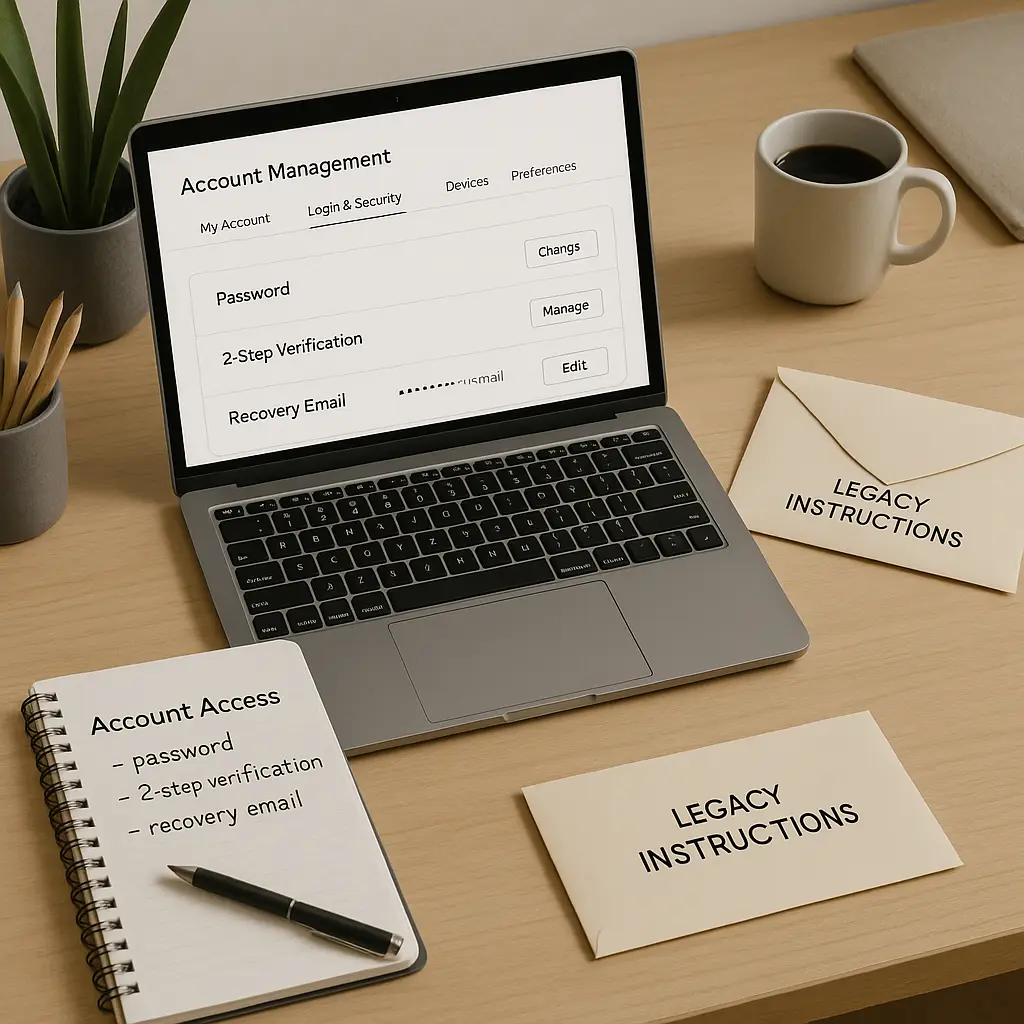
Email accounts: Primary email, recovery email, old accounts you still use occasionally. Email is the master key to everything else. Losing access to email means losing access to password resets for hundreds of other accounts.
Cloud storage: Google Drive, iCloud, Dropbox, OneDrive. These hold files, photos, and documents your family might need.
Social media: Facebook, Instagram, Twitter, LinkedIn, TikTok. These contain years of photos, messages, and connections.
Subscriptions: Netflix, Spotify, Amazon Prime, domain registrations, web hosting, software subscriptions. These keep billing until someone cancels them.
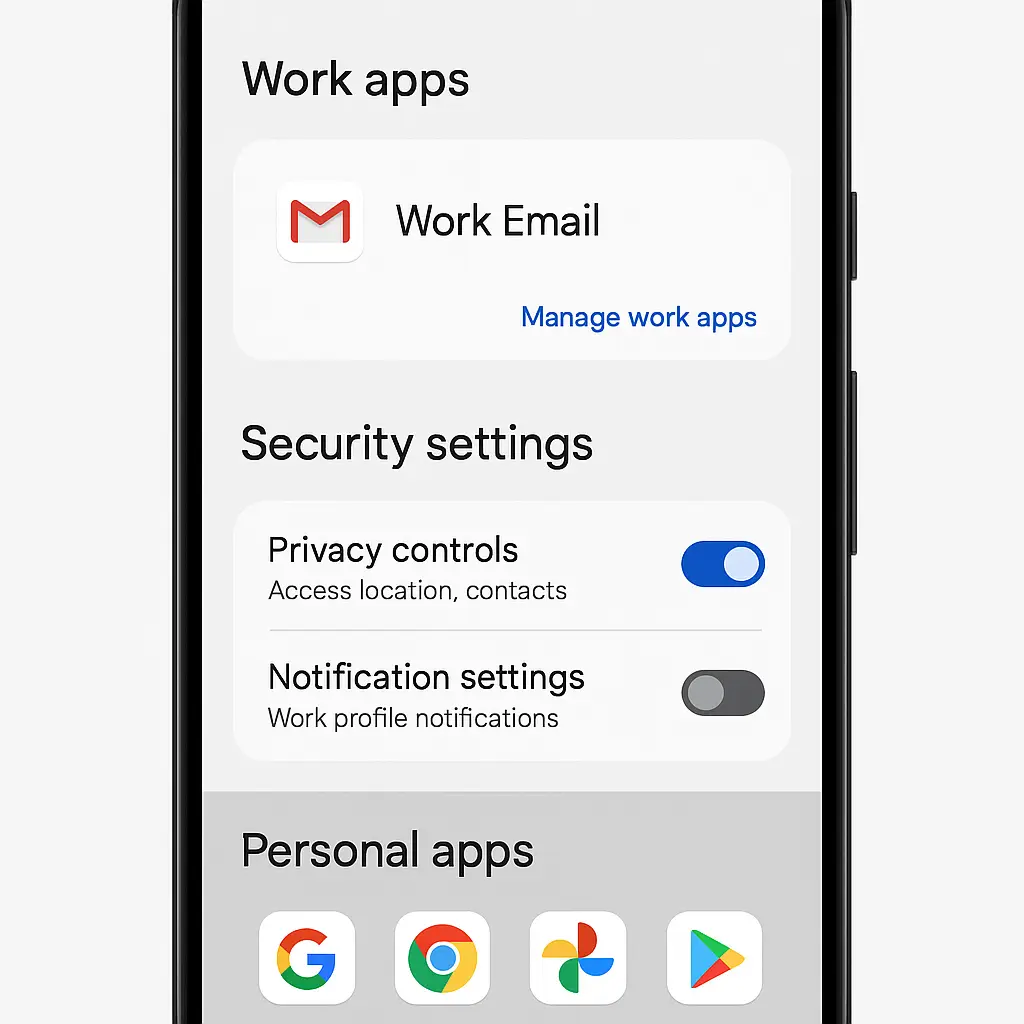
Work accounts: Company email, Slack, project management tools, client portals. These contain professional relationships and intellectual property.
Special cases: Photo libraries (Google Photos, Apple Photos), password managers, two-factor authentication apps, domain names, websites you own, business accounts.
Don't try to remember everything. Set aside two hours. Go through your password manager entry by entry. Check your email for confirmation messages from services you've signed up for. Look at your credit card statements for recurring charges.
You'll find accounts you forgot existed. That phpBB forum from 2005. That Flickr account with 800 photos. That domain name you registered for a project that never launched. Write them all down.
Decide what happens to each account
Not every account needs the same treatment. Some should be deleted immediately. Some should be memorialized. Some need to transfer to specific people. Some just need to be closed cleanly.
Go through your list and mark each account with one of these actions:
Delete immediately: Accounts with no lasting value. Shopping accounts, forum logins, trial subscriptions, old social media profiles you stopped using years ago. Your executor should close these as soon as possible.
Memorialize: Social media accounts that serve as a record of your life. Facebook and Instagram offer memorialization features that lock the account, prevent new logins, but keep the profile visible. Your family might want this for photos and memories.
Transfer to someone specific: Accounts that contain value for a specific person. Your photo library to your spouse. Your work files to a business partner. Your domain names to whoever will maintain your website.
Close cleanly: Accounts that need proper closure but don't transfer. Email accounts, subscriptions, loyalty programs, accounts tied to services that end with you.
Requires legal process: Financial accounts, cryptocurrency wallets, business accounts, anything with significant monetary value. These need estate executors and possibly lawyers.
Write the action next to each account. Be specific. "Transfer photo library to Sarah" is better than "give photos to family."
Set up platform legacy features where they exist
Several major platforms offer built-in legacy contact features. Use them. They're designed for exactly this situation.
Apple Legacy Contact: Apple lets you designate someone to access your iCloud data after your death. Here's how it works: you name a legacy contact in your Apple ID settings. Apple gives them an access key. When you die, they present the access key and a death certificate. Apple verifies and grants access to photos, files, notes, and most iCloud data. They can't access passwords, payment information, or licensed media.
To set this up: Settings → [Your Name] → Password & Security → Legacy Contact → Add Legacy Contact. Choose someone, share the access key with them, and tell them where you keep it.
Google Inactive Account Manager: Google lets you decide what happens when your account goes inactive for a specified period. You set the inactivity timeout (3 to 18 months). You name up to 10 people who get notified. You decide whether they get access to your data or just a notification that the account is closing.
To set this up: myaccount.google.com → Data & Privacy → More options → Make a plan for your digital legacy → Get started. Set your timeout, choose your contacts, decide what data they can access.
Facebook Memorialization: Facebook lets you choose a legacy contact who can manage your memorialized account. They can update your profile picture, respond to friend requests, pin a tribute post. They can't log in as you, read your messages, or remove content you posted.
To set this up: Settings & Privacy → Settings → Personal Information → Account ownership and control → Memorialization settings. Choose a legacy contact and decide whether to delete or memorialize your account.
Meta Accounts Center: If you use Instagram or other Meta properties, configure legacy settings through Accounts Center, which controls settings across Meta platforms.
These features exist because platforms recognize the problem. Use them. They're free, they're designed for this, and they work better than hoping your family can guess passwords or convince customer service to grant access.
Document access for everything else
Most platforms don't offer legacy features. For those accounts, you need to document how to access them.
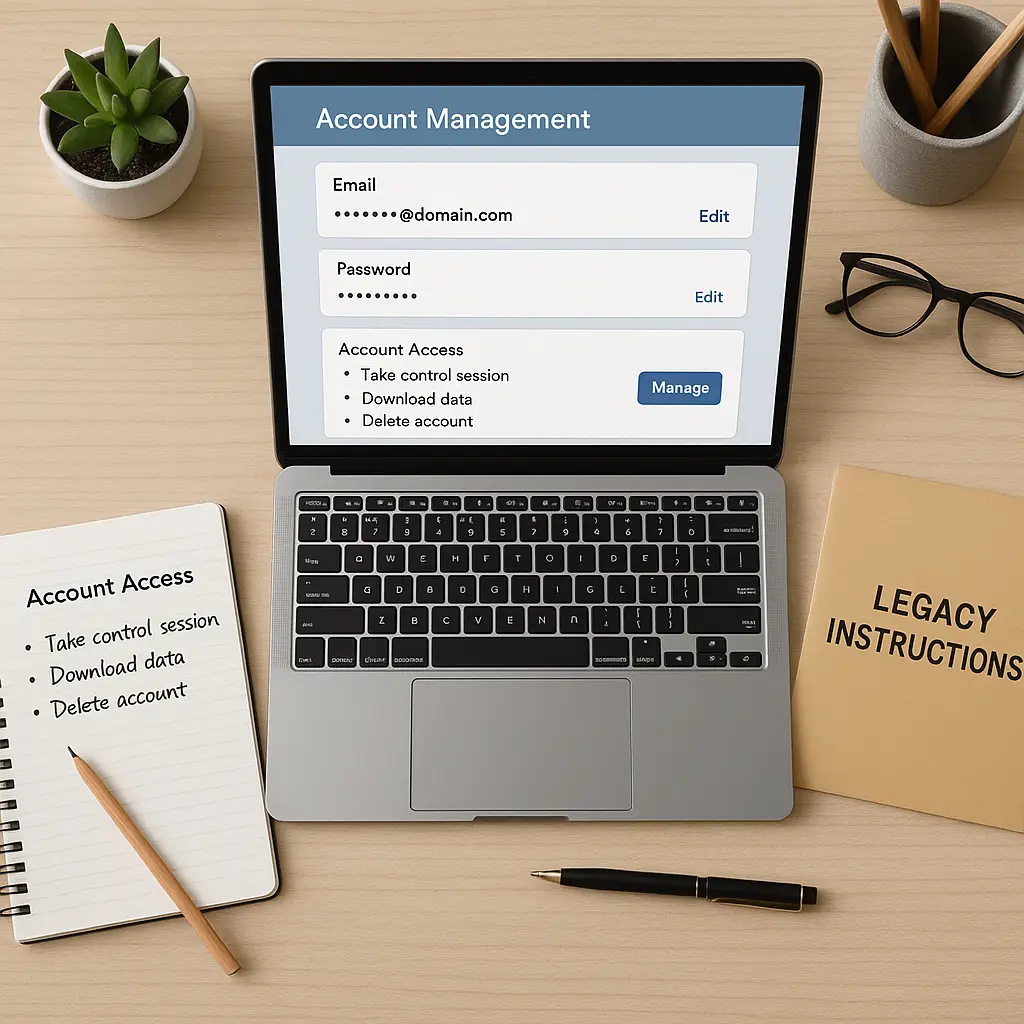
This is where things get tricky. You're creating a document that contains sensitive information. It needs to be secure enough that nobody accesses it while you're alive, but accessible enough that your executor can find it when you're dead.
Here's what to include in your digital legacy document:
Account name and URL: Exact login page. "Gmail" isn't specific enough. "https://mail.google.com" is.
Username or email: The exact credential used to log in.
Where to find the password: Don't write passwords in this document. Write "Password in 1Password vault" or "Password in family password manager" or "Password stored in safe deposit box envelope labeled 'Digital Access.'"
Two-factor authentication method: "Authenticator app on iPhone" or "SMS to 555-1234" or "Hardware key in desk drawer."
What to do with the account: "Close immediately," "Transfer to Sarah," "Download photos first, then close," "Keep active for 6 months to receive final bills."
Special instructions: Anything unusual. "This account auto-renews annually in March. Cancel before renewal." "This domain name is registered through this account. Transfer domain before closing account."
Recovery contacts already set up: "Google Inactive Account Manager configured, Sarah is legacy contact" or "Apple Legacy Contact is John, access key in safe."
Format this as a spreadsheet or a text document. Include a last-updated date at the top. Update it every six months.
Store the document securely
You've created a document that unlocks your entire digital life. Where does it go?
You have several options, each with tradeoffs:
Password manager secure note: Most password managers let you create secure notes. This keeps the document encrypted and accessible to anyone with emergency access to your password manager. The problem: if your password manager is the thing that needs accessing, this creates a circular dependency.
Physical safe or safe deposit box: Print the document, seal it in an envelope, store it somewhere secure. Your executor knows where to find it. The problem: updating it requires printing a new copy every time you add an account.
Encrypted file on a USB drive: Store the document in an encrypted file on a USB drive, keep the drive in a safe, and give the decryption password to your executor. The problem: executors need to know how to decrypt files, and the drive needs to stay readable as technology changes.
With your estate planning documents: If you have a will, a trust, or other estate planning documents, store your digital legacy document with them. Your executor already knows where those are. The problem: updating it requires accessing wherever you keep legal documents.
Combination approach: Store the master list of accounts with your estate documents. Store the actual access credentials in your password manager with emergency access configured. This separates the inventory from the keys.
I use the combination approach. My estate documents include a printed list of account categories and instructions for accessing my password manager. My password manager contains the actual credentials, and my spouse has emergency access configured with a 30-day waiting period.
The waiting period matters. If someone steals my password manager master password, they can't immediately use emergency access to take over my accounts. I have 30 days to notice and revoke the access. But if I die, the 30-day wait is irrelevant.
Configure password manager emergency access
Your password manager is the single most important piece of your digital legacy plan. It holds the keys to everything else. If your family can't access it, they can't access anything.
Most password managers offer emergency access features. Here's how they work:
1Password: Emergency Kit includes a Secret Key and master password. You can print this and store it physically. 1Password also offers family accounts where family members can request emergency access.
Bitwarden: Emergency Access lets you designate trusted contacts. They request access. You don't respond within a set waiting period (you configure this: 1 day to 90 days). They get access. While you're alive, you can deny the request instantly.
NordPass: Family plans include emergency access where family members can request access to your vault after a waiting period you configure.
LastPass: Emergency Access works like Bitwarden. Designate contacts, set waiting periods, they request access, you don't deny, they get in.
Dashlane: Emergency contacts can request access. You set the waiting period. If you don't deny within that period, they get access.
Set this up now. Choose someone you trust. Configure a waiting period that balances security and access. 30 days is common. Long enough that you'll notice if someone requests access inappropriately. Short enough that your family isn't locked out for months.
Tell the person you've designated. Give them the emergency access instructions. Make sure they know where to find the information they need to initiate the request.
Handle financial accounts separately
Financial accounts require legal processes that platform legacy features don't cover. Banks, investment accounts, retirement accounts, and cryptocurrency wallets need estate executors, death certificates, and sometimes court orders.
Your digital legacy plan should document these accounts, but don't expect your family to access them the same way they access your email. The process is different.
For financial accounts, your digital legacy document should include:
Institution name and account type: "Chase checking account," "Vanguard IRA," "Coinbase wallet."
Account number: Full account number. Your executor will need this.
Where to find statements: "Monthly statements in email," "Paper statements in filing cabinet," "Online access through bank website."
Approximate balance: Helps your executor prioritize. "Around $50,000" is enough. You don't need exact figures.
Special access requirements: "Requires medallion signature guarantee to transfer," "Joint account with spouse, no executor needed," "Trust account, trustee handles this."
Contact information: Phone number and website for the institution's estate services department.
For cryptocurrency, the stakes are higher. If you hold crypto in a hardware wallet or a self-custody wallet, losing access means losing the funds permanently. No customer service department can help. No legal process can recover it.
If you hold significant cryptocurrency:
Document the wallet type: "Ledger hardware wallet," "MetaMask software wallet," "Coinbase custodial account."
Store recovery phrases physically: Write the 12-word or 24-word recovery phrase on paper. Store it in a safe or safe deposit box. Never store it digitally. Never take a photo of it. Never type it into a computer.
Include instructions: Your family might not understand cryptocurrency. Write clear instructions: "This 24-word phrase unlocks the hardware wallet in the safe. Do not share this phrase with anyone. Contact [trusted crypto advisor] for help transferring funds."
Consider multisig: For large holdings, consider multisignature wallets that require multiple keys to access. This distributes risk but adds complexity.
The FTC provides guidance on protecting personal information, which includes securing financial account access information.
Plan for work accounts
Work accounts complicate digital legacy planning because you don't own them. Your employer owns your work email, your Slack messages, your files in the company Google Drive, your access to client systems.
When you die, your employer needs to secure those accounts immediately. They'll lock your email, revoke your access, and potentially transfer your files to your manager or team.
Your digital legacy plan should address work accounts differently:
Document them separately: List work accounts in a separate section of your digital legacy document. Mark them clearly as employer-owned.
Include work contacts: List your manager, HR contact, and IT contact. Your executor should notify these people immediately.
Identify personal data in work systems: If you stored personal files in your work Google Drive, if you used your work email for personal correspondence, if you have personal photos in Slack, note this. Your executor might be able to request copies before the accounts are closed.
Separate work and personal: This is prevention, not legacy planning. Don't use work email for personal accounts. Don't store personal files on work systems. Keep boundaries clear. It makes everything simpler when you leave a job or when you die.
Know your rights: Some states give families limited rights to access work accounts after death, but this varies. Your employer's policies matter more than state law in most cases.
If you run your own business, work accounts become business assets. Your digital legacy plan should address business continuity: who takes over the business email, who manages client relationships, who has access to business bank accounts, who owns the domain names and social media accounts.
Update the plan regularly
Digital life changes constantly. You open new accounts. You close old ones. You change passwords. You switch banks. You buy a new domain name. You start using a new cloud service.
Your digital legacy plan needs to change with you.
Set a recurring reminder every six months. Review your account inventory. Add new accounts. Remove closed accounts. Update instructions. Verify that legacy contacts are still the right people. Confirm that your password manager emergency access is still configured correctly.
This isn't a one-time project. It's ongoing maintenance. Like backing up your data or updating your will, it only works if you keep it current.
The review process takes around 30 minutes twice a year. That's 60 minutes annually to ensure your family can access what they need when you're gone.
Tell people the plan exists
You've built a comprehensive digital legacy plan. You've documented accounts, configured platform features, stored credentials securely, and set up password manager emergency access.
Now tell the people who need to know.
Your executor needs to know the plan exists and where to find it. Your legacy contacts need to know they've been designated and what that means. Your spouse or partner needs to know how to access the password manager in an emergency.
You don't need to share all the details. You don't need to give anyone your master password. You just need to make sure the right people know what to do when the time comes.
Have a conversation. "I've set up a digital legacy plan. If something happens to me, there's a document in the safe that lists all my accounts and explains how to access them. I've also set up emergency access to my password manager, and you're the designated contact. Here's what that means..."
Write down the basics and give them a copy: where the full plan is stored, how to access the password manager, who else to contact, what the first steps should be.
This conversation is uncomfortable. Nobody wants to think about their own death. But the alternative is worse: your family scrambling to access accounts, guessing passwords, calling customer service departments that can't help, losing access to photos and files that matter, watching accounts get hacked because they sat dormant and unmonitored.
The analogy that fits
In The Good Place, the characters spend the entire series trying to get into the Good Place, only to discover that the system is broken and nobody has gotten in for centuries. The problem isn't that people aren't good enough. The problem is that the complexity of modern life makes it nearly impossible to navigate the moral calculus correctly.
Digital legacy planning faces the same structural problem. It's not that people don't care about what happens to their accounts. It's that the system is fragmented across hundreds of platforms, each with different policies, different access mechanisms, different ideas about what happens when you die. There's no central registry. No universal standard. No single process that works everywhere.
You're not trying to get into the Good Place. You're trying to make sure your family can get into your email. But the complexity is real, the stakes matter, and the only solution is to work through it methodically, platform by platform, account by account.
Start with the accounts that matter most
You don't need to document every account immediately. Start with the accounts that matter most and work outward.
Begin with your primary email. This is the master key. Configure Google Inactive Account Manager or the equivalent for your email provider. Make sure someone can access it.
Next, your password manager. Set up emergency access. Test it. Make sure your designated contact knows how to use it.
Then your financial accounts. Document them. Store the information securely. Make sure your executor knows where to find it.
Then your photos and files. Configure Apple Legacy Contact or Google Inactive Account Manager to grant access to your cloud storage.
Then social media. Decide whether you want memorialization or deletion. Configure the settings.
Then everything else. Subscriptions, shopping accounts, forums, old services you barely use. Document them when you have time.
You won't finish this in one sitting. That's fine. Progress matters more than perfection. Every account you document is one less account your family has to figure out on their own.
The reality nobody mentions
Digital legacy planning assumes your family knows you had accounts, knows where to find the plan, knows how to execute it, and has the technical knowledge to follow through.
That's not always true.
If your designated legacy contact doesn't know how to use a password manager, your carefully configured emergency access doesn't help. If your executor doesn't know what two-factor authentication is, your instructions about authenticator apps won't make sense. If your family doesn't understand cryptocurrency, your recovery phrase is just a list of random words.
Part of digital legacy planning is education. The people you're counting on need to understand the basics. Not deeply. Not technically. Just enough to follow instructions.
Consider writing a "digital legacy primer" that explains the concepts they'll encounter: what a password manager is, how two-factor authentication works, why they can't just reset passwords without access to your email, what a recovery phrase does.
Include this with your digital legacy document. It turns "access my password manager" into something your family can actually do.
What this protects and what it doesn't
A digital legacy plan protects your family from being locked out of accounts they need to access. It protects your data from being lost or exposed. It protects your online identity from being hijacked after you die.
It doesn't protect you while you're alive. Emergency access features have waiting periods, but those waiting periods are measured in days or weeks, not months. If someone gets access to your digital legacy document, they have a roadmap to your entire digital life.
Store it securely. Treat it like you'd treat a list of all your passwords, because functionally, that's what it is.
It also doesn't replace legal estate planning. Digital legacy planning handles account access. Estate planning handles asset distribution, legal authority, and financial transfers. You need both.
Talk to an estate planning attorney about digital assets. Some states have laws that give executors authority over digital accounts. Some don't. Some platforms honor executor requests. Some don't. Legal advice helps navigate this.
The question everyone asks
"Should I just share my passwords with my spouse now?"
No.
Sharing passwords while you're alive creates security risks. If your spouse's device gets compromised, your accounts are compromised. If you later separate, you have to change every password. If you need to revoke access for any reason, you're stuck.
Password manager emergency access solves this better. Your spouse can request access if they need it. You get notified. You can approve immediately if it's legitimate, or deny if it's not. If you die, they get access automatically after the waiting period.
The waiting period is the key feature, not a bug. It protects you while you're alive while ensuring access when you're not.
For joint accounts, shared access makes sense. For individual accounts, emergency access is better.
Start today
You don't need to finish your digital legacy plan today. You need to start it today.
Open your password manager. Export your account list. Save it somewhere. That's step one.
Choose one person you trust. Configure emergency access in your password manager. That's step two.
Write down where you keep your estate planning documents. Add a note that says "Digital legacy plan: see password manager emergency access, contact [name]." That's step three.
Three steps. Thirty minutes. You've now done more than most people ever do.
The rest can happen gradually. Add accounts to your inventory when you think of them. Configure platform legacy features when you have time. Update your document when things change.
Digital legacy planning isn't a project with a finish line. It's a practice that runs parallel to your digital life. You're already managing accounts, passwords, and data. You're just adding one more layer: what happens to all of this when you're gone.
Your accounts don't close automatically. Your data doesn't disappear. Your passwords don't self-destruct. Without a plan, your family inherits a locked filing cabinet full of important documents they can't open.
Build the plan. Store it securely. Tell people it exists. Update it regularly.
That's digital legacy planning. Not perfect. Not comprehensive. Not foolproof. But infinitely better than nothing.