Signing Out of Old Devices: The Step-by-Step Security Audit You've Been Putting Off
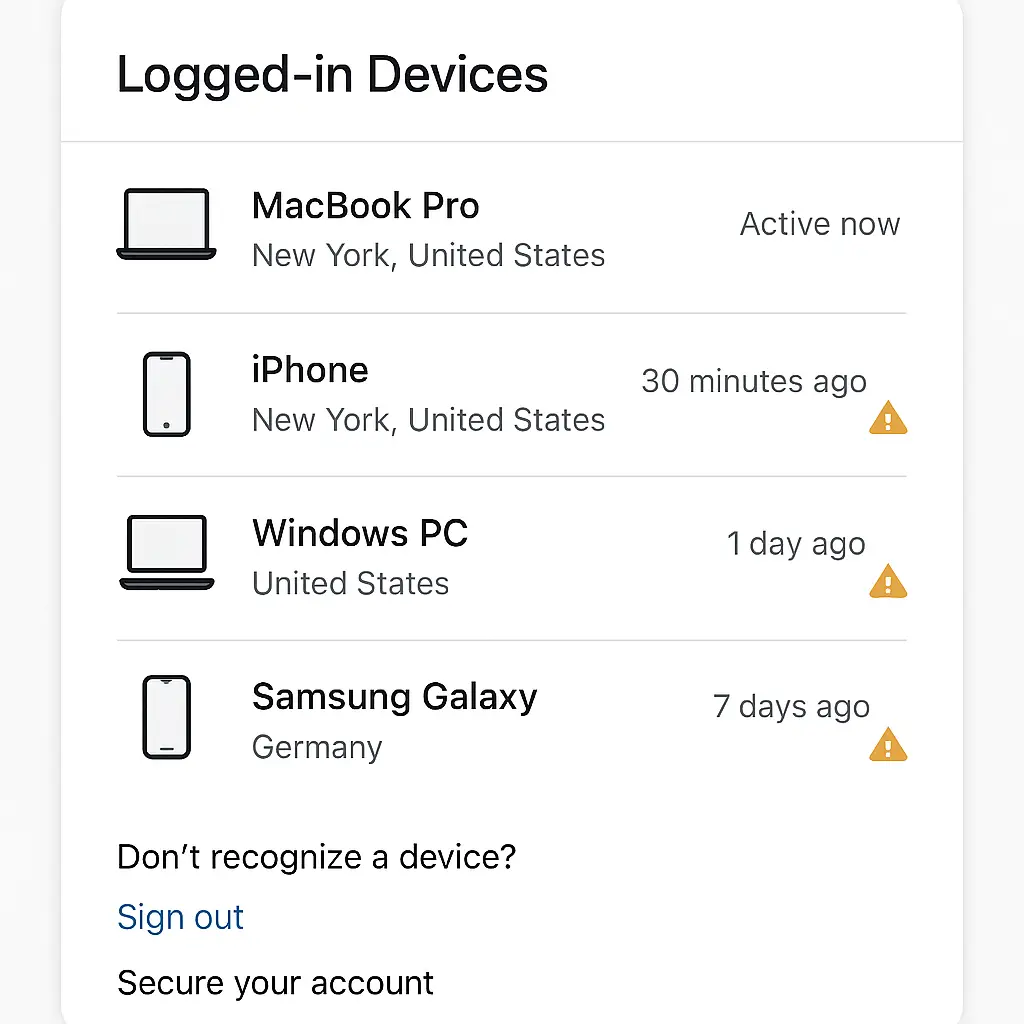
You sold your old laptop three years ago. You broke up with someone who knew your Netflix password. You left a job where you logged into personal email on the work computer. You upgraded your phone and handed the old one to your kid.
Every one of those devices might still have an active session to your accounts.
Most people never check. The device list sits buried in account settings, growing longer every year. Each entry represents a valid authentication token that works until you explicitly revoke it. Platforms don't automatically sign you out when you stop using a device. They wait for you to tell them.
This is the practical guide to auditing your active sessions across every platform that matters. Here's what to look for, how to remove what doesn't belong, and why this fifteen-minute task closes a gap most people don't know exists.
Why Device Sessions Persist After You Stop Using Them
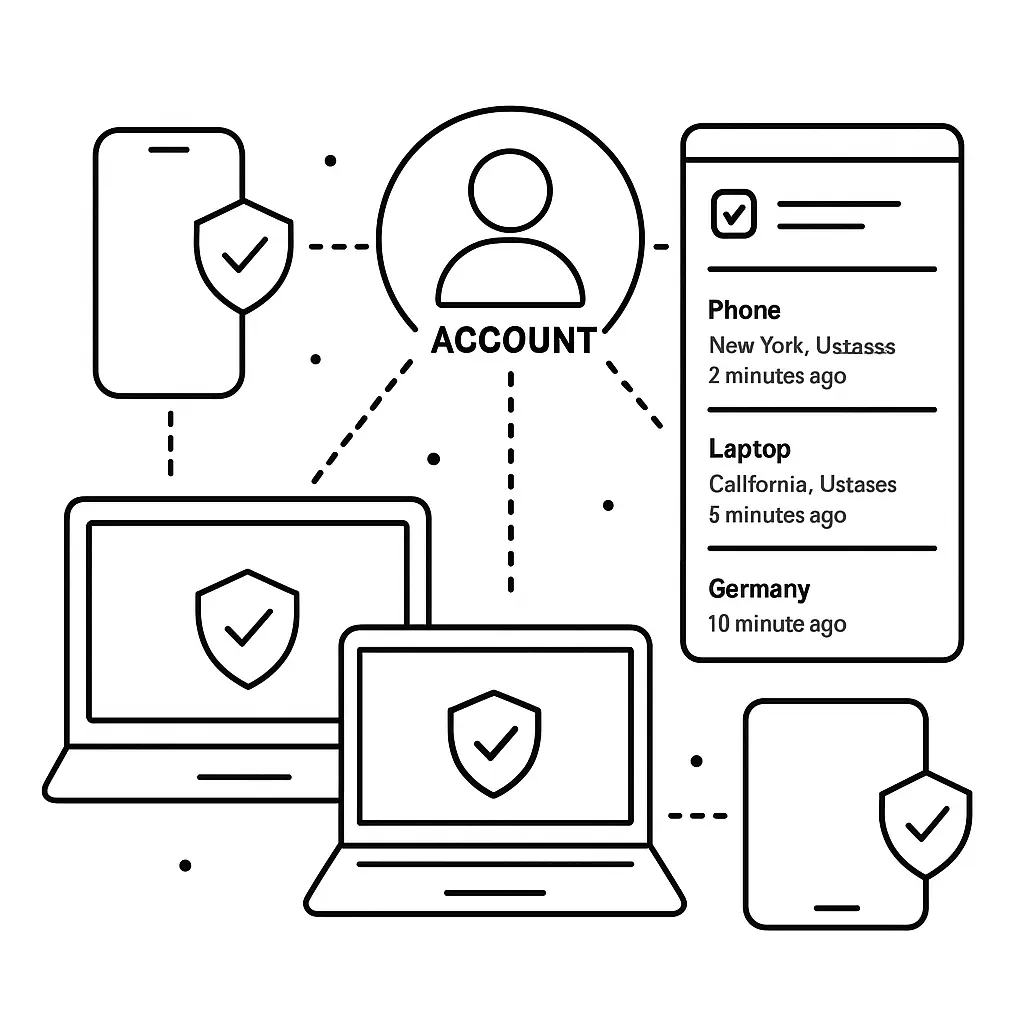
When you log into an account, the platform generates a session token and stores it on your device. That token proves you're you without requiring your password every time you open the app. It stays valid until one of three things happens: you log out manually, the platform expires it automatically, or you revoke it from another device.
The automatic expiration varies wildly. Some platforms expire sessions after 30 days of inactivity. Others keep them alive for a year. A few never expire them at all unless you force the issue.
That old laptop you sold? If you didn't wipe it properly, the buyer might still have a valid session token for your email, social media, or cloud storage. They don't need your password. They just open the app.
The work computer you left behind? IT might have wiped it, but if you logged into personal accounts and never signed out, those sessions could persist in ways the wipe didn't catch.
The phone you handed down? If you didn't sign out of iMessage, iCloud, or Google before the factory reset, remnants of your account might still be accessible.
CISA recommends reviewing active sessions regularly as part of basic account hygiene, particularly for accounts protected by multi-factor authentication. The logic is straightforward: two-factor authentication protects the login process, but it doesn't protect sessions that already exist.
How to Find Your Active Device List on Google
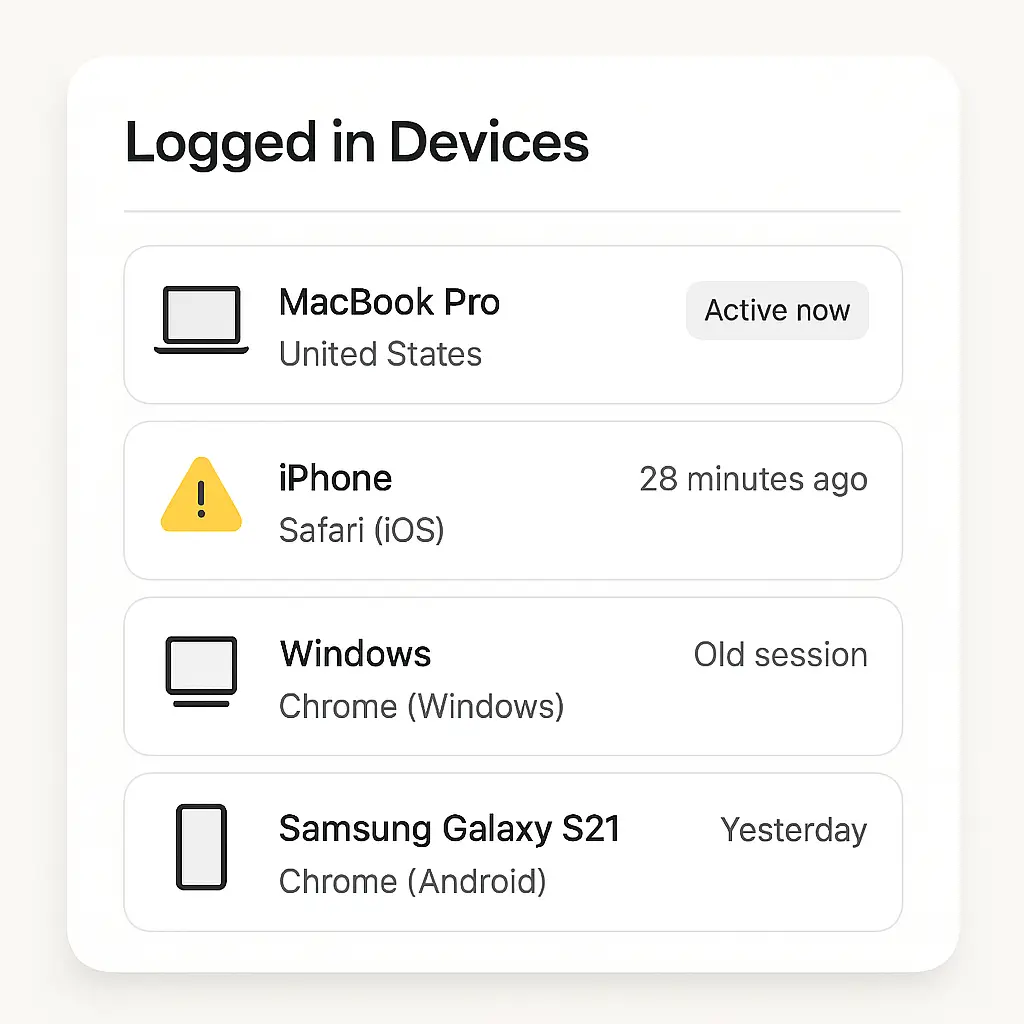
Google calls it "Your devices." It shows every phone, laptop, tablet, and browser that's logged into your Google account, along with the last time each one was active.
Open a browser and go to myaccount.google.com. Click "Security" in the left sidebar. Scroll down to "Your devices" and click "Manage all devices."
You'll see a list organized by device type. Each entry shows:
- Device name (usually the model or browser)
- Last active timestamp
- Approximate location based on IP address
- Operating system
Look for devices you don't recognize. Check the timestamps. If a device shows activity from a location you've never been, or at times when you weren't using it, that's a red flag.
Click any device to see more detail. Google shows you which apps and services were accessed from that device and when. If the pattern doesn't match your usage, sign it out.
To remove a device, click the three dots next to its name and select "Sign out." Google invalidates that session token immediately. The device loses access to Gmail, Drive, Photos, Calendar, and every other Google service until someone logs in again with the current password and two-factor code.
If you see something suspicious, don't just sign it out. Change your password immediately after removing the device. That forces all other sessions to re-authenticate, which gives you a chance to review the full list again.
Google also offers a nuclear option at the bottom of the device list: "Sign out of all devices." This logs you out of everything, including your current phone. Use it if you see multiple unfamiliar devices or if you've lost track of what's legitimate. You'll need your password and access to your two-factor method to log back in.
How to Find Your Active Device List on Apple
Apple splits device management across two places: iCloud devices and app-specific sessions.
For iCloud devices, open Settings on your iPhone or iPad, tap your name at the top, then scroll down to see every device signed into your Apple ID. Each entry shows the device model and when it was added to your account.
Tap any device to see more detail. Apple shows you whether Find My is enabled, when the device last backed up to iCloud, and which version of iOS or macOS it's running. If the details don't match a device you own, remove it.
To remove a device, tap it, scroll to the bottom, and tap "Remove from Account." Apple signs it out of iCloud, iMessage, FaceTime, and the App Store. The device can't access your iCloud data until someone logs in again.
For app-specific sessions, you need to check individual services. Go to appleid.apple.com in a browser, sign in, and click "Devices" in the sidebar. This shows the same list you see in Settings, but with more detail about which apps and services each device has accessed.
Apple also lets you review where your Apple ID has been used for sign-in across third-party apps. Go to Settings > [Your Name] > Password & Security > Apps Using Apple ID. This shows every app or website where you've used "Sign in with Apple." Each entry includes when you authorized it and what data it can access.
If you see an app you don't use anymore, tap it and select "Stop Using Apple ID." That revokes its access to your account data immediately.
How to Find Your Active Device List on Microsoft
Microsoft calls it "Account activity." It tracks every device, browser, and app that's logged into your Microsoft account, including Outlook, OneDrive, Office, Xbox, and Windows.
Go to account.microsoft.com and sign in. Click "Security" at the top, then "Advanced security options." Scroll down to "Account activity" and click "Review my activity."
Microsoft shows you a timeline of recent sign-ins, organized by date and location. Each entry includes:
- Device type and operating system
- Browser or app name
- IP address and approximate location
- Whether the sign-in succeeded or failed
Look for unfamiliar locations or devices. Microsoft flags unusual activity automatically, but it's not perfect. If you see a sign-in from a country you've never visited, or from a device type you don't own, investigate.
Click any entry to see more detail. Microsoft shows you which services were accessed during that session and whether two-factor authentication was used.
To sign out a device, go back to the Security page and click "View my activity" under "Unusual activity." Microsoft doesn't offer a one-click "sign out all devices" button in the same place. Instead, you need to change your password, which invalidates all active session tokens and forces every device to log in again.
If you use Microsoft Authenticator for two-factor authentication, check the app's settings for a list of devices where it's active. You can remove individual devices from there.
How to Find Your Active Device List on Social Media Platforms
Facebook, Instagram, Twitter, and LinkedIn all track active sessions, but they bury the settings in different places.
For Facebook, open the app or website, go to Settings & Privacy > Settings > Security and Login. Scroll down to "Where you're logged in." Facebook shows every device and browser with an active session, along with the location and last active time.
Click any session to see more detail. Facebook shows you the device type, operating system, and whether Messenger is active on that device. To remove a session, click the three dots and select "Log out."
Facebook also offers "Log out of all sessions" at the bottom of the list. This signs you out of every device except the one you're currently using. You'll need your password and two-factor code to log back in elsewhere.
For Instagram, go to Settings > Security > Login activity. Instagram shows recent logins with timestamps and locations. Tap any session to review details or log it out. Instagram doesn't have a "log out everywhere" option, so you need to remove sessions individually or change your password to force re-authentication.
For Twitter (X), go to Settings and Privacy > Security and account access > Apps and sessions > Connected apps. This shows third-party apps with access to your account, not active browser sessions. To see active sessions, go to Settings > Security and account access > Sessions. Twitter shows active browser and app sessions with timestamps and locations. Click any session and select "Log out" to revoke it.
For LinkedIn, go to Settings & Privacy > Sign in & security > Where you're signed in. LinkedIn shows active sessions with device type, location, and last active time. Click "Sign out" next to any session you don't recognize. LinkedIn doesn't offer a bulk sign-out option.
How to Find Your Active Device List on Email Providers
Gmail's device list is part of your Google account, covered earlier. For other email providers, the process varies.
For Outlook.com (personal Microsoft accounts), the device list is part of your Microsoft account security settings, also covered earlier.
For Yahoo Mail, go to Account Security in your Yahoo account settings. Click "Recent activity" to see a list of devices and locations where your account was accessed. Yahoo shows the device type, browser, and approximate location. Click "Sign out" next to any session you don't recognize.
Yahoo also offers "Sign out of all devices" at the bottom of the list. This logs you out everywhere, including your current browser. You'll need your password to log back in.
For ProtonMail, go to Settings > Security and privacy > Session management. Proton shows active sessions with timestamps, IP addresses, and device information. Click the trash icon next to any session to revoke it. Proton also offers "Revoke all other sessions" to sign out everything except your current browser.
For iCloud Mail, the device list is part of your Apple ID settings, covered earlier.
What to Look for When You Review the List
Every platform shows slightly different information, but the patterns are the same. Here's what matters:
Unfamiliar device types. If you only own iPhones but the list shows an Android device, that's a problem. If you only use Chrome but the list shows Safari, investigate.
Locations that don't match your travel history. IP-based geolocation isn't perfect. It can be off by a few hundred miles. But if you see a login from a different country, or a state you've never visited, that's worth checking.
Activity timestamps that don't match your usage. If a device shows activity at 3 AM when you were asleep, someone else might be using it. If a device shows activity every day but you haven't touched it in months, that's suspicious.
Old devices you've sold, donated, or lost. If you see your 2019 laptop on the list and you sold it in 2023, sign it out. If you see your old phone and you handed it to your kid, sign it out.
Work devices after you've left the job. If you logged into personal accounts on a work computer and you no longer work there, those sessions might still be active. Sign them out and change your passwords.
Devices belonging to people you no longer trust. If you shared passwords with an ex, a former roommate, or a friend you've had a falling out with, check the device list. If their devices are still logged in, sign them out and change your passwords.
Browser sessions you don't remember starting. Every browser tab counts as a session. If you see dozens of active sessions on the same device, you might have left yourself logged in across multiple browsers or profiles. Consolidate them.
The Specific Risk of Shared Devices
Shared computers create a specific problem: you might have logged in months ago, closed the browser, and assumed you were signed out. But many browsers save session tokens even after you close the tab. The next person who opens that browser might still have access to your account.
Public library computers, hotel business centers, and shared family devices all carry this risk. If you've ever checked email on a computer you don't own, assume the session is still active until you verify otherwise.
The fix is straightforward: after using a shared computer, go to the account's device list from your phone and sign out that session manually. Don't rely on closing the browser. Don't assume the next user will respect your privacy.
How Often to Review Your Device List
Set a calendar reminder for every six months. That's frequent enough to catch dormant sessions before they become a real problem, but not so often that it feels like busywork.
Review immediately after:
- Selling, donating, or losing a device
- Ending a relationship where you shared passwords
- Leaving a job where you used personal accounts on work devices
- Traveling internationally and using public or hotel computers
- Noticing suspicious account activity
If you enable two-factor authentication, review your device list as part of the setup process. Two-factor protects new logins, but it doesn't protect sessions that already exist. Signing out old devices before enabling two-factor ensures you're starting from a clean state.
What Happens When You Sign Out a Device Remotely
The platform invalidates the session token immediately. The device loses access to your account. If someone tries to use it, they'll see a login screen asking for your current password and two-factor code.
Any data that was cached on the device stays there. Emails downloaded to a mail client, files synced to a local folder, and photos stored in an app don't disappear when you sign out. Signing out stops new access, but it doesn't erase what's already on the device.
If you're worried about data left behind, signing out the session is step one. Step two is remotely wiping the device if the platform supports it. Apple, Google, and Microsoft all offer remote wipe through Find My Device or similar features. This erases everything on the device and makes it unusable until someone sets it up again.
Remote wipe is irreversible. Use it only if you've lost the device or if you're certain someone else has access to it. Don't use it on a device you still own and plan to use again.
The One Exception: Signing Out Can Lock You Out
If you lose access to your two-factor authentication method and you sign out all devices, you might lock yourself out of your account permanently.
Before you click "sign out everywhere," make sure you have:
- Access to your two-factor authentication app or hardware key
- Backup codes saved somewhere secure
- A recovery email or phone number that still works
If you've lost your phone and you don't have backup codes, signing out all devices makes recovery harder. Some platforms let you verify your identity through other methods, but not all of them do.
The safer sequence: regain access to your two-factor method first, then sign out old devices. If you can't regain access, go through the platform's account recovery process before you start revoking sessions.
In The Good Place, Chidi Anagonye Agonizes Over Every Decision
He spends hours deliberating whether to choose a muffin or a scone. The choice paralyzes him because he can't predict every consequence.
Signing out old devices is the opposite of that paralysis. The consequences are predictable. The decision is reversible. If you sign out a device by mistake, you log back in. If you miss a suspicious session, you catch it in six months.
The hardest part is starting. Open the settings page. Look at the list. Sign out anything that doesn't belong. Set a reminder to do it again in six months.
That's the whole process. No agonizing required.