Selling Your Phone Safely: Step-by-Step Factory Reset and Data Protection
You're selling your phone. You know you need to factory reset it, but the stakes feel higher than the settings menu suggests. That device holds years of photos, messages, banking apps, passwords, location history, and accounts you've logged into so many times you've forgotten they exist. A factory reset wipes the phone, but it doesn't wipe your cloud accounts, your SIM card data, or the traces left behind if you skip a step.
Here's the complete process to erase your phone, protect your data, and hand over a clean device. This is the step-by-step guide for selling safely, whether you're upgrading to a new phone or passing this one to a stranger on Craigslist.
Why factory reset alone isn't enough
Factory reset removes apps, settings, and local files. It returns the phone to the state it was in when you first turned it on. That sounds complete, but the reset doesn't touch everything.
Cloud-synced data stays in your accounts. If you're signed into Google Photos, iCloud, or Dropbox, those files remain accessible after the reset. The buyer can't see them on the phone, but you're still logged in on the cloud side. Same with email, social media, and any app that stores data remotely.
SIM cards and memory cards aren't erased by factory reset. If you leave them in the phone, the buyer gets your phone number, contacts stored on the SIM, and any files saved to the SD card. Remove them before you reset.
Factory Reset Protection (Android) and Activation Lock (iOS) can brick the phone if you don't sign out first. These features lock the device to your account after a reset, preventing anyone else from using it. If you factory reset while still signed in, the buyer gets a phone they can't activate. You'll need to provide your credentials to unlock it, which creates problems if you've already handed over the device.
Encryption matters. Modern phones encrypt data by default, which makes recovery difficult after a factory reset. But older devices or phones with encryption disabled leave data vulnerable to forensic tools. If your phone isn't encrypted, a factory reset doesn't guarantee that files are truly gone.
The process isn't just "Settings → Reset." It's a sequence: back up what you want to keep, sign out of accounts, remove physical media, verify encryption, reset, and check that the phone is truly clean before handing it over.
Step 1: Back up everything you want to keep
You're about to erase the phone. This is your last chance to save photos, contacts, app data, and anything else you'll regret losing.
iPhone backup options:
iCloud backs up automatically if you have enough storage and WiFi. Go to Settings → [your name] → iCloud → iCloud Backup. Tap "Back Up Now" and wait for it to finish. iCloud stores photos, messages, app data, device settings, and Health data. It doesn't back up content already stored in iCloud (like photos with iCloud Photos enabled) or data from apps that don't support iCloud backup.
If you're out of iCloud storage, use a computer. Connect the phone to a Mac or PC, open Finder (Mac) or iTunes (Windows), select your device, and click "Back Up Now." This creates a local backup on your computer that includes everything iCloud backs up, plus more. Encrypt the backup if you want to save passwords and Health data.
Android backup options:
Google backs up app data, call history, contacts, device settings, photos (if Google Photos is enabled), and SMS messages. Go to Settings → Google → Backup. Tap "Back up now" and wait for it to complete. Google Backup doesn't save everything, some apps don't support cloud backup, and large files might not sync if you're on a metered connection.
For a complete backup, use a computer. Connect the phone via USB, enable file transfer mode, and manually copy photos, videos, documents, and any other files you want to keep. This method is slower but guarantees you have everything.
What to check:
Photos and videos. Open your gallery app and scroll through. If you see anything you want to keep, make sure it's backed up. Cloud services sometimes skip large files or videos over a certain size.
Messages. If you use SMS or MMS (not iMessage or RCS), those messages aren't always backed up automatically. On iPhone, iCloud Backup includes messages. On Android, Google Backup includes SMS, but third-party apps may offer more control.
Authenticator apps. If you use Google Authenticator, Authy, or Microsoft Authenticator, back up your codes or transfer them to your new phone before resetting. Losing access to your authenticator app locks you out of accounts protected by two-factor authentication. Some apps support cloud backup; others require manual transfer.
App data. Games, notes apps, fitness trackers, and other apps store data locally. Check each app's settings to see if it syncs to the cloud. If not, you'll lose that data after the reset.
Downloads. Check your Downloads folder for files you've saved. These aren't always backed up automatically.
Once the backup completes, verify it. On iPhone, go to Settings → [your name] → iCloud → Manage Account Storage → Backups. You should see a recent backup with today's date. On Android, go to Settings → Google → Backup and check the timestamp.
Step 2: Sign out of all accounts
Factory Reset Protection (FRP) on Android and Activation Lock on iOS lock the phone to your account after a reset. If you don't sign out first, the buyer gets a phone they can't use.
iPhone:
Go to Settings → [your name] → Sign Out. You'll be asked to enter your Apple ID password. If Find My iPhone is enabled, you'll need to turn it off before signing out. Go to Settings → [your name] → Find My → Find My iPhone and toggle it off. Enter your password when prompted.
Signing out removes your iCloud account, iMessage, FaceTime, App Store, and all other Apple services from the phone. Your data stays in iCloud; it's just no longer synced to this device.
Android:
Go to Settings → Accounts (or Users & accounts, depending on your phone). Tap each account and select "Remove account." Start with your Google account, then remove any other accounts (email, social media, work accounts, and so on).
Removing your Google account disables FRP. If you factory reset without removing the account first, the phone will ask for your Google credentials during setup, and the buyer won't be able to proceed without them.
Other accounts to sign out of:
Email apps. If you use Outlook, Yahoo Mail, or any third-party email client, sign out or remove the account.
Social media. Facebook, Instagram, Twitter, TikTok, Snapchat, sign out of everything. Factory reset removes the apps, but signing out first ensures no lingering sessions.
Banking and payment apps. Sign out of your bank app, Venmo, PayPal, Cash App, and any other financial app. Factory reset should clear these, but signing out manually is safer.
Password managers. If you use Bitwarden, 1Password, or another password manager, sign out before resetting. Your passwords stay in the cloud, but the local session should be closed.
Streaming services. Netflix, Spotify, Hulu, Disney+, sign out of each one. Factory reset will remove the apps, but signing out prevents any chance of the buyer accessing your account if something goes wrong.
Step 3: Remove SIM card and memory card
Factory reset doesn't erase your SIM card or SD card. If you leave them in the phone, the buyer gets your phone number, contacts stored on the SIM, and any files saved to external storage.
SIM card:
Locate the SIM tray. On most phones, it's on the side. Use the SIM ejection tool (the tiny pin that came with your phone) or a paperclip to pop out the tray. Remove the SIM card and keep it. If you're switching to a new phone, you'll need it. If you're switching carriers, recycle the old SIM or destroy it.
Some phones use eSIM instead of a physical SIM card. If your phone has eSIM, you'll need to deactivate it before resetting. On iPhone, go to Settings → Cellular → [your plan] → Remove Cellular Plan. On Android, the process varies by carrier and phone model, but it's usually under Settings → Network & Internet → SIMs.
Memory card:
If your phone has a microSD card slot (common on Android, rare on iPhone), remove the card. It's usually in the same tray as the SIM card or in a separate slot. The SD card holds photos, videos, app data, and anything else you've saved to external storage. Factory reset doesn't touch it.
Keep the SD card if you want to use it in your new phone or another device. If you don't need it, format it or destroy it before discarding.
Step 4: Verify encryption is enabled
Encryption scrambles data so it's unreadable without the decryption key. When you factory reset an encrypted phone, the key is deleted, making the data effectively unrecoverable. If your phone isn't encrypted, a factory reset leaves data vulnerable to forensic recovery tools.
iPhone:
iPhones have been encrypted by default since iOS 8 (2014). If your phone runs iOS 8 or later, it's encrypted. You don't need to check or enable anything. Setting a passcode automatically encrypts the device.
Android:
Most Android phones running Android 6.0 (Marshmallow, 2015) or later are encrypted by default. To verify, go to Settings → Security (or Security & location) → Encryption. If you see "Encrypted," you're set. If you see an option to encrypt, tap it and follow the prompts. Encryption can take an hour or more, and the phone must be plugged in with at least 80% battery.
If your phone is older or runs a custom ROM, encryption might not be enabled. Check the settings. If encryption isn't available, factory reset still removes most data, but recovery is possible with the right tools.
Step 5: Factory reset the phone
Now you reset. This step is irreversible. Once you start, there's no undo.
iPhone:
Go to Settings → General → Transfer or Reset iPhone → Erase All Content and Settings. Enter your passcode and Apple ID password when prompted. The phone will restart and erase everything. This takes a few minutes.
When it finishes, you'll see the "Hello" setup screen, just like when the phone was new. Don't proceed with setup. Power off the phone and hand it over.
Android:
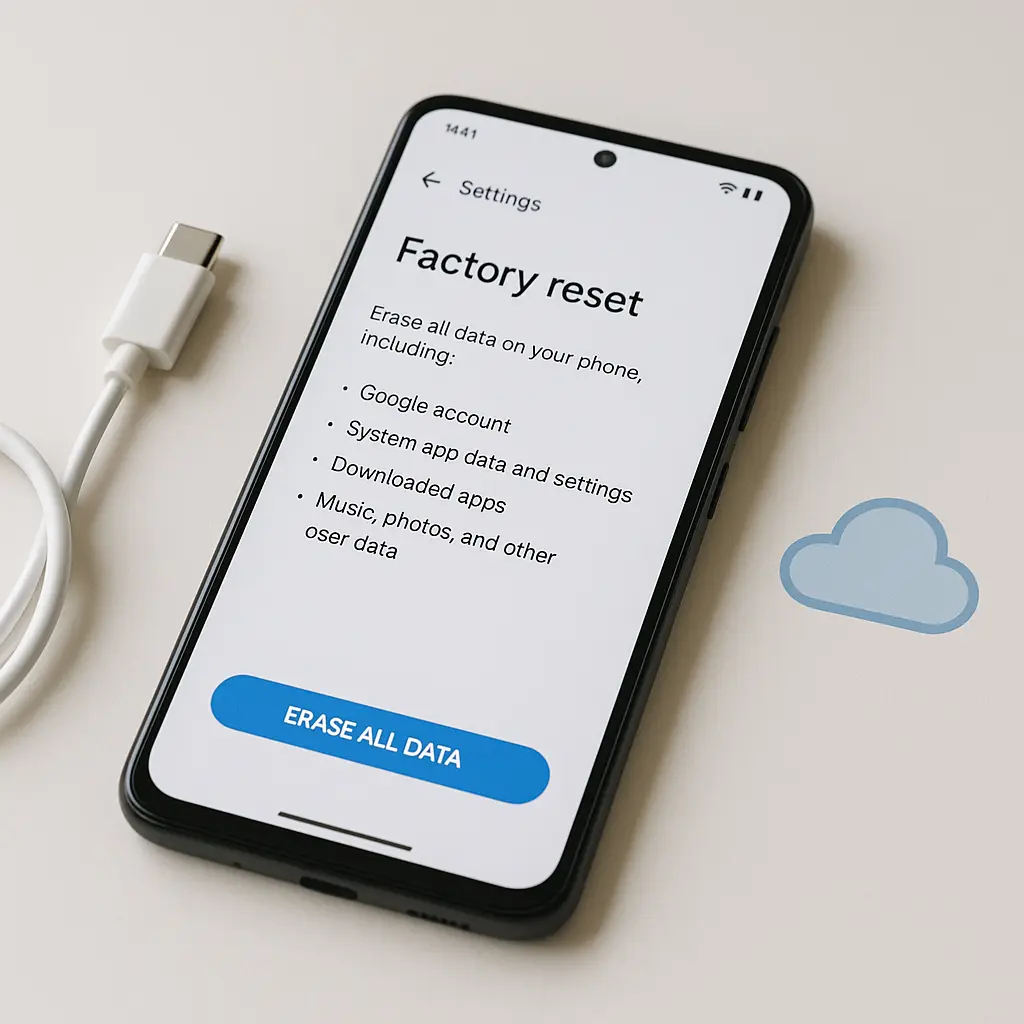
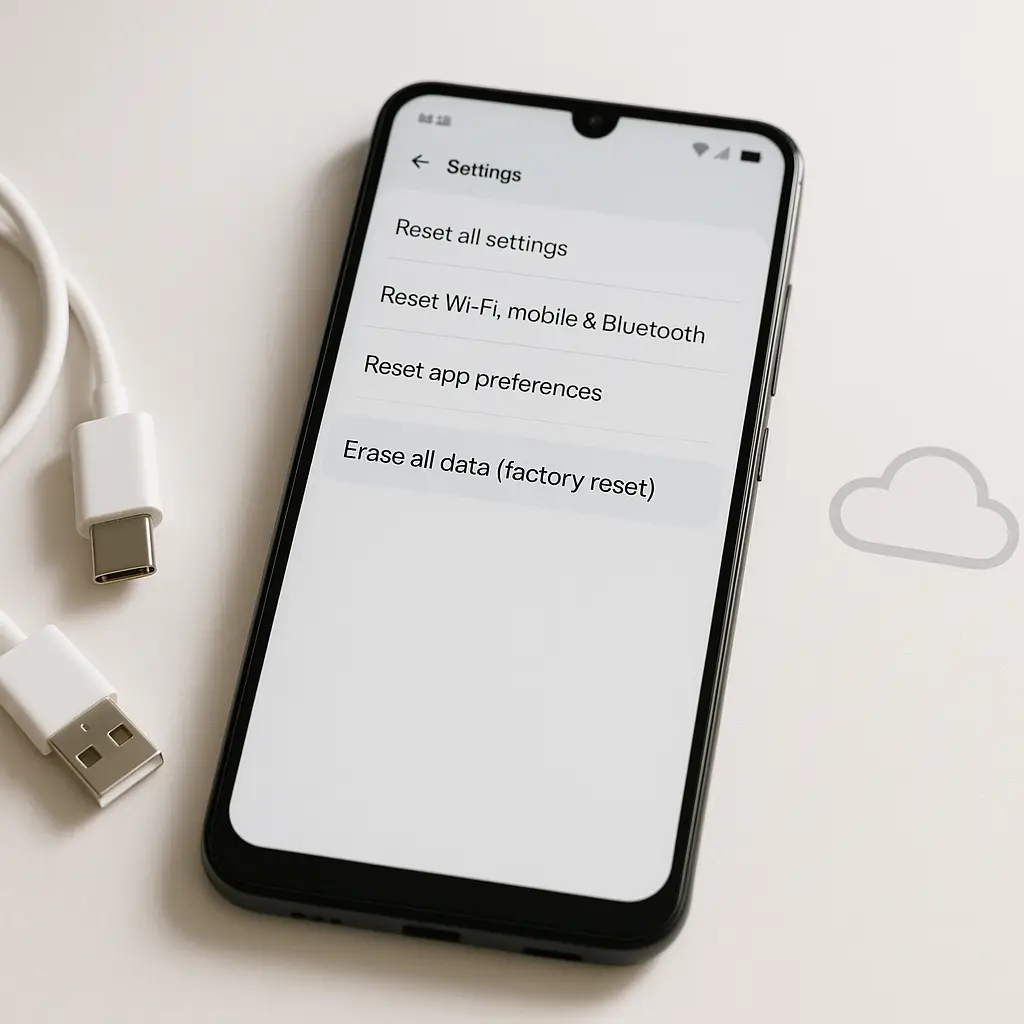
Go to Settings → System → Reset options → Erase all data (factory reset). You'll see a warning listing what will be deleted. Tap "Erase all data" or "Reset phone." Enter your PIN, password, or pattern when prompted. The phone restarts and erases everything. This takes a few minutes.
When it finishes, you'll see the setup screen. Don't proceed. Power off the phone.
Step 6: Verify the phone is clean
Before handing over the phone, turn it back on and check that it's truly reset.
What to check:
The setup screen should appear. On iPhone, you'll see "Hello" in multiple languages. On Android, you'll see the welcome screen asking you to select a language.
No accounts should be signed in. If you see your name, email, or any account information, the reset didn't complete. Go back to Step 5 and reset again.
Find My iPhone (iOS) or Find My Device (Android) should be disabled. On iPhone, try setting up the phone as new. If it asks for your Apple ID during setup, Activation Lock is still enabled. You'll need to sign in, disable Find My iPhone, and reset again. On Android, if the phone asks for your Google account credentials during setup, FRP is still active. Sign in, remove the account, and reset again.
The phone should feel empty. No apps beyond the preinstalled ones, no photos, no messages, no settings. If you see anything personal, reset again.
Step 7: Prepare for the sale
You've reset the phone. Now prepare it for handoff.
Clean the phone physically:
Wipe down the screen, back, and edges with a microfiber cloth. Remove any case or screen protector unless you're including them in the sale. A clean phone looks better and suggests you've taken care of it.
Gather accessories:
If you're selling the phone with the original box, charger, or cables, include them. Buyers pay more for complete packages. If you don't have the original accessories, that's fine, just be clear in your listing.
Meet in a safe location:
Sell in person at a public place: a coffee shop, library, or police station parking lot. Many police departments offer "safe exchange zones" for online sales. Avoid meeting at your home or the buyer's home.
Let the buyer inspect the phone before handing over payment. They should check that it powers on, the screen works, and the phone isn't locked. If they want to insert their SIM card and test it, that's reasonable.
Payment method:
Cash is safest. If the buyer wants to pay via Venmo, Zelle, or PayPal, wait for the payment to clear before handing over the phone. Avoid checks unless you trust the buyer, checks can bounce.
What not to do
Don't skip the backup. You'll regret it when you realize you've lost photos, contacts, or app data you can't recover.
Don't factory reset while signed into iCloud or Google. The phone will be locked, and the buyer won't be able to use it. You'll need to meet them again to unlock it, which is awkward and risky.
Don't leave the SIM card or SD card in the phone. The buyer doesn't need your phone number or your files.
Don't hand over the phone before verifying the reset. Power it on, check the setup screen, and confirm that no accounts are signed in.
Don't sell a phone that's still under contract or payment plan. If you're financing the phone through your carrier and you haven't paid it off, the carrier can blacklist the IMEI, making the phone unusable on their network. Pay off the phone before selling, or disclose the financing status to the buyer.
Don't sell a phone with a cracked screen, bad battery, or other damage without disclosing it. Buyers notice. Be honest in your listing.
The cultural reference: Office Space and the printer scene
In Office Space, the printer that torments the office workers doesn't just break, it betrays them. It jams, it refuses to print, it produces cryptic error messages, and eventually, the protagonags take it to a field and destroy it with baseball bats. The catharsis comes from the act of making sure it can never betray them again.
Selling your phone without wiping it properly is like handing that printer to someone else while it still holds every document you've ever printed. Factory reset is the baseball bat. You're not just clearing the device, you're making sure it can't betray you after you've let it go. The process is methodical, not because you distrust the buyer, but because you understand that once the phone leaves your hands, you lose control. The reset is your last act of control, the step that ensures the device you trusted with your data can't leak it to someone else.
After the sale
Once you've handed over the phone and received payment, you're done. But a few follow-up steps protect you further.
Check that Find My iPhone or Find My Device is truly disabled:
Log into iCloud.com (iPhone) or android.com/find (Android) and verify that the old phone no longer appears in your device list. If it's still there, the buyer might contact you saying the phone is locked. Remove it from your account remotely.
Change passwords for sensitive accounts:
If you used the phone to log into banking, email, or other high-value accounts, consider changing those passwords. Factory reset should have signed you out, but changing passwords adds a layer of security.
Monitor your accounts:
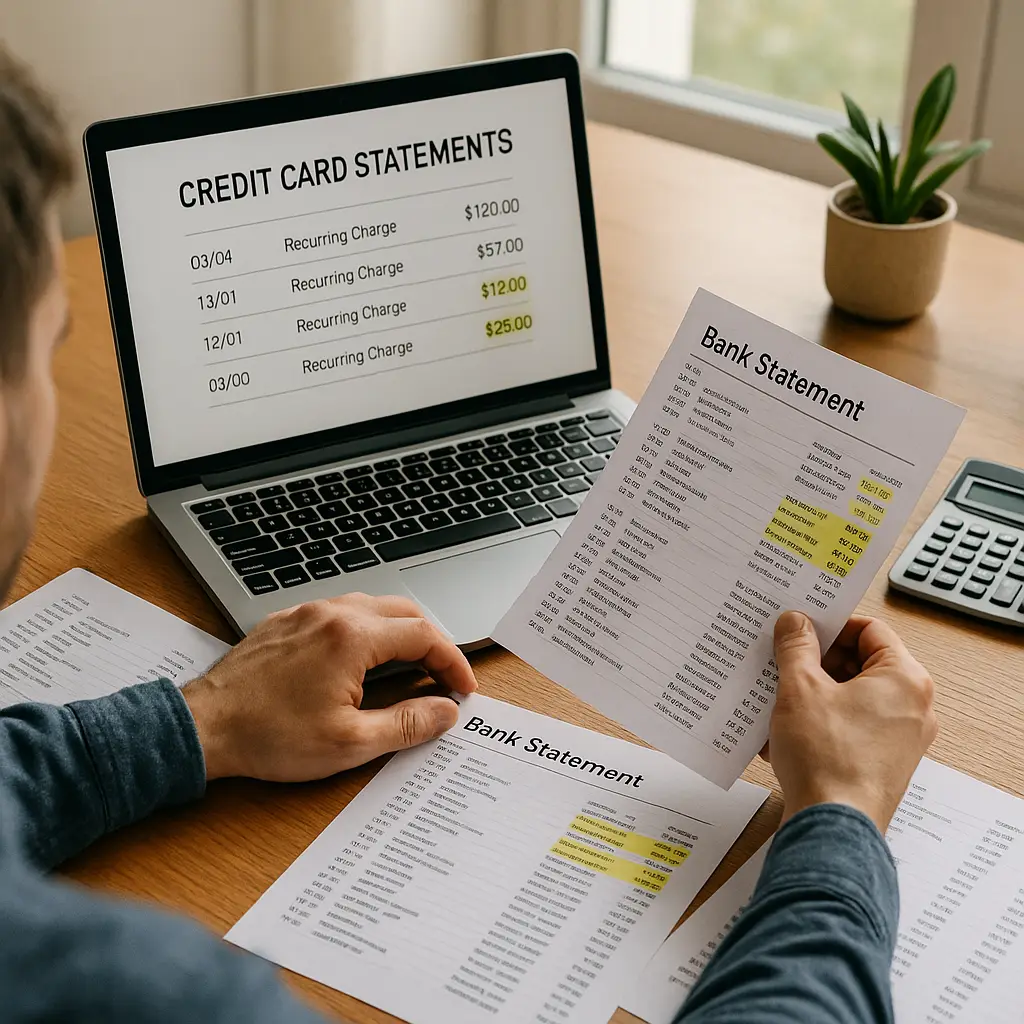
Keep an eye on your bank statements, credit card activity, and email for a few weeks after the sale. If anything unusual appears, act immediately. The risk is low if you followed the reset process, but vigilance costs nothing.
Recycle responsibly if the phone doesn't sell:
If you can't find a buyer, don't throw the phone in the trash. Electronics contain materials that shouldn't end up in landfills. Many carriers, manufacturers, and retailers offer trade-in or recycling programs. Apple, Samsung, Best Buy, and others accept old phones for recycling or credit toward a new device. CISA provides guidance on mobile device security, including disposal, for organizations and individuals.
Selling your phone safely isn't complicated, but it requires following the sequence. Back up, sign out, remove SIM and SD cards, verify encryption, reset, and check. Skip a step, and you risk handing over data you thought was gone. Follow the process, and the phone you sell is truly clean.