Securing Your Video Call Settings: The Step-by-Step Zoom Configuration Guide
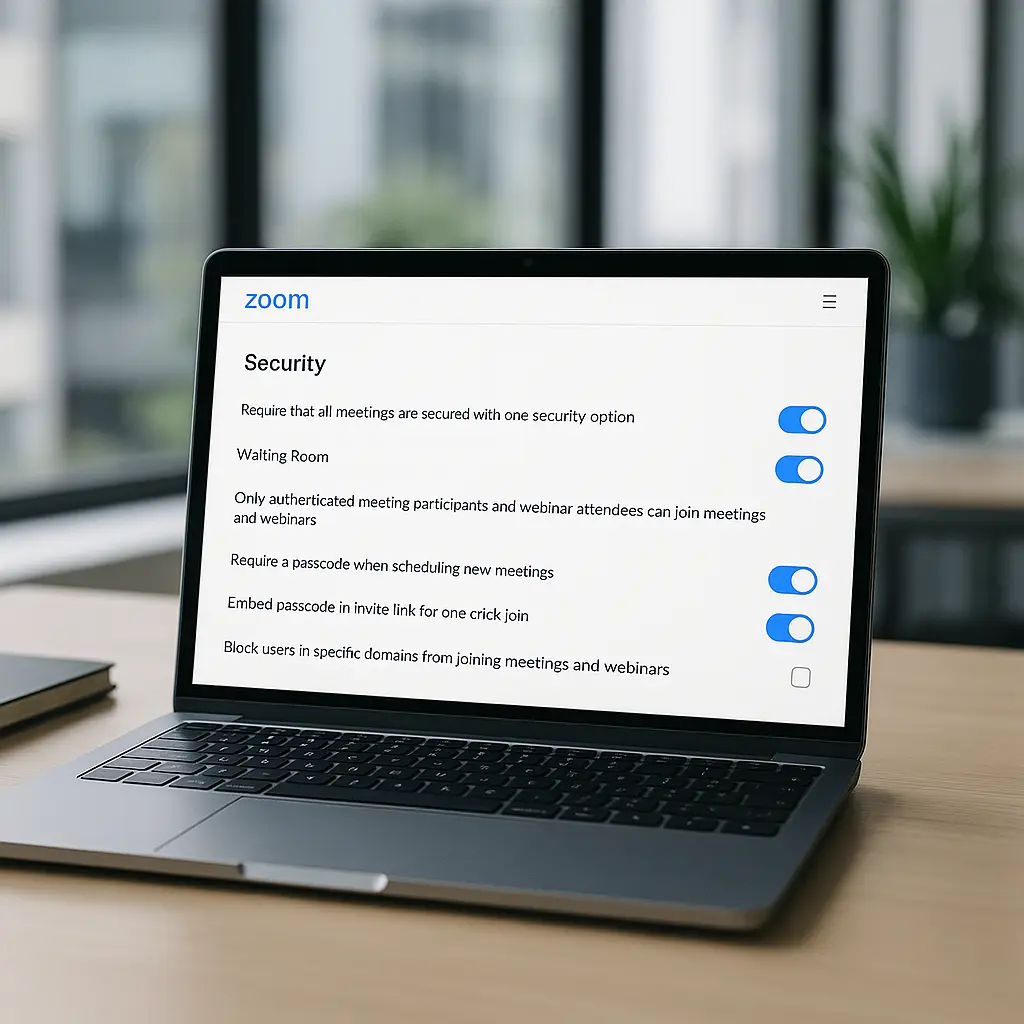
Zoom's default settings prioritize convenience over control. That's fine for casual calls with friends, but it creates real problems when you're discussing work projects, client information, or anything you wouldn't want strangers to hear. The good news: Zoom gives you the tools to lock down your meetings. The bad news: those tools are scattered across multiple settings pages, and most people never find them.
This guide walks through the exact configuration process to secure your Zoom calls. You'll learn what each setting does, why it matters, and how to configure your account so security becomes automatic instead of something you remember to check after the Zoombombing incident.
Understanding Zoom's Security Model
Zoom secures meetings through layers of access control. Think of it like a building with multiple doors: the front entrance, the reception desk, and the conference room itself. Each layer asks a different question. Do you have the link? Do you have the password? Should we let you in right now?
The platform uses end-to-end encryption for one-on-one calls and AES 256-bit encryption for group meetings. That protects your conversation from interception during transit, but it doesn't stop unauthorized people from joining if you've left the doors wide open. CISA's guidance on multifactor authentication applies here: security works best when you combine multiple barriers, not rely on one perfect lock.
Zoom's security settings live in three places: your web account settings (which apply to all meetings), individual meeting settings (which override account defaults), and in-meeting controls (which you use during the call itself). Most people only touch the in-meeting controls, which means they're making security decisions in the moment when they're least prepared to think clearly.
Configuring Account-Level Security Defaults
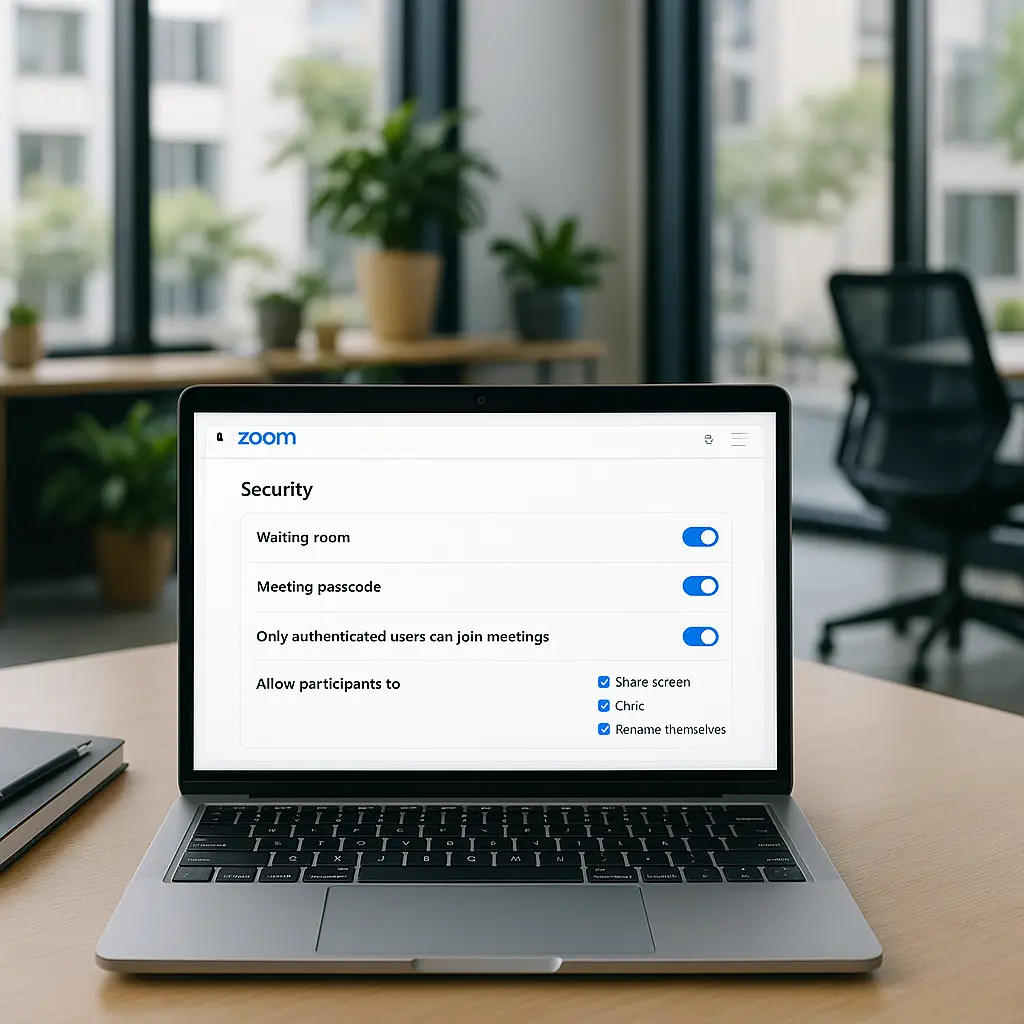
Log into the Zoom web portal at zoom.us. The settings you configure here become the baseline for every meeting you schedule going forward. Navigate to Settings in the left sidebar, then click the Meeting tab.
Enable waiting rooms. Scroll to the Security section and toggle on Waiting Room. This forces every participant to wait in a virtual lobby until you explicitly admit them. It's the single most effective control Zoom offers because it gives you manual approval over every person who enters.
The waiting room works like the reception desk at Gandalf's tower in The Two Towers: everyone who approaches gets stopped and identified before they're allowed in. Gandalf doesn't just let anyone wander up to Orthanc's door and walk through, he checks who they are first. Your Zoom meetings deserve the same scrutiny.
Require passwords for all meetings. In the same Security section, enable Require a password when scheduling new meetings and Require password for instant meetings. Zoom generates random passwords automatically, which is exactly what you want. Don't create custom passwords like "meeting123" or anything you'd be tempted to share publicly.
Disable join before host. Scroll down to find Allow participants to join before host and toggle it off. This prevents people from gathering in your meeting room before you arrive. Without this setting, participants can join early, see each other, and potentially share information before you're there to moderate.
Lock screen sharing to host only. Find the Screen sharing section and set Who can share? to Host Only. This prevents participants from taking over your screen to show unexpected content. You can always grant sharing privileges to specific people during the call, but starting with host-only control means you're making an active choice rather than accepting whatever happens.
Disable file transfer. In the In Meeting (Basic) section, find File Transfer and toggle it off. File sharing in Zoom creates a vector for malware distribution and inappropriate content. If you need to share files during a meeting, use a proper file-sharing service where you can control access and scan for threats.
Enable local recording restrictions. Scroll to Recording and toggle on Local recording. Set it to require host permission. This doesn't stop participants from using screen capture software outside Zoom, but it prevents them from using Zoom's built-in recording feature without your knowledge. CISA's recommendations on protecting sensitive information emphasize controlling what gets recorded and where those recordings live.
Configure meeting chat settings. In the In Meeting (Basic) section, find Chat and configure who participants can chat with. For most work meetings, set this to Host and all panelists so you can monitor all conversation. Private chats between participants create side channels you can't see, which is fine for social calls but problematic for professional contexts.
Setting Up Individual Meeting Security
Account defaults protect you most of the time, but individual meetings sometimes need tighter control. When you schedule a meeting through the Zoom web portal or app, you'll see security options specific to that session.
Use the waiting room strategically. For client calls or external meetings, keep the waiting room enabled and admit people one at a time. For internal team meetings where you recognize everyone, you might disable it to speed up the start. The key is making an active choice based on who's invited.
Customize the waiting room message. Click Waiting Room Options when scheduling a meeting. You can add a custom message that participants see while waiting. Use this to set expectations: "Please wait to be admitted. Have your video on and be ready to introduce yourself." This primes people to behave professionally before they enter.
Generate unique meeting IDs. Zoom offers two options: use your Personal Meeting ID (PMI) or generate a unique ID for each meeting. Your PMI is like your home address, it never changes, which makes it convenient but also means anyone who has it can attempt to join any meeting you host. Generate unique IDs for meetings with external participants or sensitive topics. Use your PMI only for recurring internal meetings with the same group.
Set registration requirements for large meetings. For webinars or large group calls, enable registration. This forces participants to provide their name and email before receiving the join link. You can review the registration list before the meeting starts and remove anyone who shouldn't be there. Registration also gives you an attendance record, which matters for compliance in some industries.
In-Meeting Security Controls
You've configured your defaults and set up your meeting. Now you're live, and someone you don't recognize just appeared in the waiting room. Here's what to do.
Review the participants list constantly. Click Participants in the meeting toolbar to see everyone currently in the call. Check this list every few minutes, especially in the first ten minutes of a meeting when people are still joining. Look for names you don't recognize, generic usernames like "iPhone" or "Guest," or duplicate names that might indicate someone joined twice.
Use the lock meeting feature. Once everyone you expect has joined, click Security in the toolbar and select Lock Meeting. This closes the door completely, no one else can join, even with the password. It's the equivalent of closing and locking the conference room door after everyone's seated.
Remove disruptive participants immediately. If someone joins who shouldn't be there, hover over their name in the Participants list, click More, and select Remove. This kicks them out and prevents them from rejoining. Don't hesitate. Don't negotiate. Remove first, investigate later.
Disable participant controls when needed. The Security button in the toolbar gives you quick access to disable screen sharing, chat, renaming, and unmuting. If a meeting starts to feel chaotic or someone's being disruptive, lock down these features. You can re-enable them later when things stabilize.
Monitor the chat actively. Keep the chat panel open during meetings. Watch for inappropriate messages, phishing links, or signs that participants are sharing information they shouldn't. You can delete individual messages by hovering over them and clicking the three dots, but if the chat becomes a problem, disable it entirely through the Security menu.
Protecting Meeting Links and Passwords
The most secure Zoom configuration in the world doesn't help if you post your meeting link and password on a public website or social media. Meeting credentials are access keys, and they need the same protection you'd give to any other password.
Share meeting links through private channels only. Email, direct messages, or calendar invites work. Public posts, forum threads, or shared documents don't. If you need to invite a large group, use registration instead of posting an open link.
Don't reuse meeting links. Generate a new meeting ID for each session, especially if you're meeting with different groups. Reusing the same link across multiple meetings means anyone who joined once can try to join again later.
Separate the link from the password. When you share meeting details, send the join link in one message and the password in a separate message. This creates a small barrier: someone who intercepts one message doesn't automatically have everything they need to join.
Revoke access after the meeting ends. If you scheduled a meeting with registration, go back into the Zoom portal after the session concludes and delete the registration list. This prevents people from using their registration confirmation to join future meetings if you accidentally reuse the same meeting ID.
Handling Recordings Safely
Zoom recordings capture everything: video, audio, chat messages, and shared screens. That makes them useful for documentation, but it also means they're sensitive data that needs protection.
Store recordings locally, not in the cloud. Zoom offers cloud recording, which is convenient but means your recordings live on Zoom's servers. Local recording saves files to your computer, where you control access. If you must use cloud recording, download the files immediately after the meeting and delete them from Zoom's servers.
Encrypt recorded files. If your recordings contain sensitive information, encrypt them before storing or sharing. Most operating systems include built-in encryption tools. On Windows, use BitLocker. On Mac, use FileVault. For individual files, tools like 7-Zip or WinRAR offer password-protected compression.
Control who receives recordings. Don't send recordings to everyone who attended the meeting by default. Share them only with people who need them, and use a file-sharing service that lets you set expiration dates or revoke access. Recordings sent via email live in inboxes forever, forwarded and downloaded without your knowledge.
Delete recordings when you're done with them. Set a retention policy for yourself: recordings older than 30 days (or whatever makes sense for your work) get deleted unless there's a specific reason to keep them. Old recordings accumulate, get forgotten, and eventually leak when someone's laptop gets stolen or their cloud account gets compromised.
Teaching Others to Use Zoom Securely
You've locked down your settings. Now your coworker schedules a meeting, forgets to enable the waiting room, and suddenly there's a stranger in your client call. Security works only when everyone on your team uses it consistently.
Document your security baseline. Write down the exact settings you use and why. Share this document with your team as a checklist they can follow when scheduling meetings. Include screenshots if that helps. The goal is to make it easy for people to replicate your setup without having to figure it out themselves.
Create meeting templates. Zoom lets you save meeting templates with pre-configured security settings. Create templates for different scenarios: external client calls, internal team meetings, large webinars. When someone schedules a meeting, they select the appropriate template instead of configuring settings from scratch.
Run periodic audits. Once a quarter, review your team's recent meetings to see if security settings are being used consistently. Look for patterns: are people forgetting to enable passwords? Skipping the waiting room? Sharing meeting links publicly? Address problems with training, not blame.
Make security the default, not the exception. Frame security settings as the normal way to run meetings, not as extra steps for sensitive calls. When security becomes the baseline, people stop thinking of it as optional.
What Zoom Security Doesn't Protect
Zoom's settings control access to your meetings and what happens during the call. They don't protect against everything.
Participants can still record using external tools. Screen recording software, phone cameras, and other capture methods work outside Zoom's control. Zoom's recording notification only triggers when someone uses Zoom's built-in recording feature. Assume anything said on a video call can be recorded, regardless of your settings.
Zoom has access to meeting metadata. Even with end-to-end encryption, Zoom's servers see who joined, when, and for how long. They don't see the content of encrypted calls, but they see the patterns. If that metadata matters, you need a different platform entirely.
Links shared in chat can be malicious. Zoom doesn't scan chat messages for phishing links or malware. If a participant shares a suspicious link, clicking it is on you. Treat chat links with the same skepticism you'd apply to email.
Zoom's security depends on your account security. If someone compromises your Zoom account through a weak password or lack of two-factor authentication, they can schedule meetings as you, access your recordings, and see your settings. Secure your Zoom account with a strong unique password and enable two-factor authentication immediately.
Troubleshooting Common Security Issues
You've enabled all the settings, but something still feels wrong. Here's how to diagnose and fix the most common problems.
Participants complain they can't join. Check if you've enabled the waiting room but forgot to admit people. Check if you've locked the meeting too early. Check if the meeting password isn't being communicated correctly. The most secure meeting is useless if legitimate participants can't get in.
Someone keeps rejoining after you remove them. Zoom's Remove function kicks someone out but doesn't ban them permanently if they have the meeting link and password. After removing someone, lock the meeting immediately to prevent them from rejoining. If they're persistent, end the meeting and start a new one with a different ID.
Screen sharing is disabled but you need someone to present. You set screen sharing to Host Only, which is correct for security. During the meeting, click Security, then Advanced Sharing Options, and temporarily change the setting to allow a specific participant to share. Change it back to Host Only when they're done.
Recordings aren't saving where you expect. Check your local recording path in Settings > Recording. Zoom defaults to saving in your Documents folder, but you might have changed it. If you're using cloud recording, check your Zoom web portal under Recordings to see where files are stored.
Moving Beyond Zoom's Built-In Security
Zoom's settings handle meeting access and basic controls, but some situations need more. If you're discussing truly sensitive information, legal strategy, medical records, classified material, Zoom might not be the right tool regardless of how you configure it.
Consider platforms with stronger encryption. Signal offers encrypted video calls for small groups. Jitsi Meet is open-source and can be self-hosted. Wire and Element provide end-to-end encryption for business communication. Each platform has tradeoffs in usability and features, but they offer stronger privacy guarantees than Zoom.
Use additional authentication for high-stakes meetings. For calls involving financial transactions or legal decisions, verify participants through a separate channel before the meeting starts. Call them on a known phone number. Send them a verification code via text. Don't rely solely on their presence in the Zoom call to confirm identity.
Separate sensitive discussions from routine meetings. Don't discuss confidential information on the same Zoom call where you're reviewing project timelines and scheduling next week's lunch. Use different platforms or different meetings for different security levels. Mixing sensitivity levels means your security is only as strong as your weakest setting.
The Ongoing Work of Meeting Security
You've configured your settings. You've locked down your meetings. You've trained your team. Now what?
Security isn't a one-time setup. Zoom updates its software regularly, adding features and changing interfaces. Settings you configured six months ago might have moved or been replaced. New attack patterns emerge. Your team grows and new people need training.
Review your settings quarterly. Set a calendar reminder to check your Zoom security configuration every three months. Look for new features you should enable, deprecated settings that no longer work, and changes Zoom made that affect your security posture.
Stay informed about Zoom security issues. Follow Krebs on Security, CISA's cybersecurity advisories, and Zoom's own security blog. When vulnerabilities are discovered, you need to know quickly so you can adjust your practices.
Adapt your security to your actual needs. If you're running a public webinar, you need different settings than a confidential client meeting. If you're hosting a social call with friends, you need different settings than a performance review. Security isn't about applying maximum restrictions everywhere, it's about matching your controls to your actual risk.
The waiting room stays on. The passwords stay random. The meeting gets locked once everyone's in. These aren't complicated steps, but they work because you do them consistently, every time, without exception. That's how you keep your Zoom calls secure: not through perfect technology, but through reliable habits that make security automatic instead of optional. For more on securing your video conferencing setup, see our guide on Zoom Security in 2026 and our comparison of FaceTime vs. Google Meet vs. Zoom.