Reviewing App Permissions on Android: Step-by-Step Security Walkthrough
Your Android phone holds years of location history, thousands of photos, complete contact lists, and microphone access for dozens of apps. Some of those apps need that access to function. Many don't. Most people grant permissions once during installation and never look back.
Here's the step-by-step process to review what you've granted, revoke what you shouldn't have given, and understand what each permission actually controls.
Why App Permissions Matter
Apps request permissions during installation or first use. You tap Allow because the app won't work otherwise, or because the request appears mid-task when you're focused on something else. Once granted, that permission stays active until you manually revoke it.
CISA's mobile device guidance recommends regular permission audits as a baseline security practice. The risk isn't that a legitimate app will suddenly turn malicious. The risk is that you granted access years ago to an app you no longer use, or that an app you still use harvests data far beyond what its core function requires.
Location is the obvious example. A weather app needs your location to show local forecasts. A flashlight app does not. But both might request it, and both requests look identical in the permission dialog.
The same pattern applies to contacts, camera, microphone, phone, SMS, storage, and every other permission category Android offers. Some apps need access. Some request it because data collection is part of their business model. Some request it because the developer included a third-party SDK that demands it.
You can't always tell which is which from the permission request alone. But you can review what you've granted and revoke access that doesn't make sense.
Finding the Permission Manager
Android's permission settings live in different places depending on your device manufacturer and Android version. The core structure is consistent, but the path varies.
Stock Android (Pixel, Android One): Open Settings → Privacy → Permission manager.
Samsung: Open Settings → Apps → (three-dot menu) → Permission manager. On newer One UI versions, it's Settings → Security and privacy → Permission manager.
OnePlus, Oppo, Realme (ColorOS/OxygenOS): Open Settings → Privacy → Permission manager.
Xiaomi (MIUI): Open Settings → Privacy protection → Permission manager. On some versions, it's Settings → Apps → Permissions.
Motorola: Open Settings → Privacy → Permission manager.
If your path differs, search "permission manager" in Settings. Every Android phone has this feature; the label and location vary by skin.
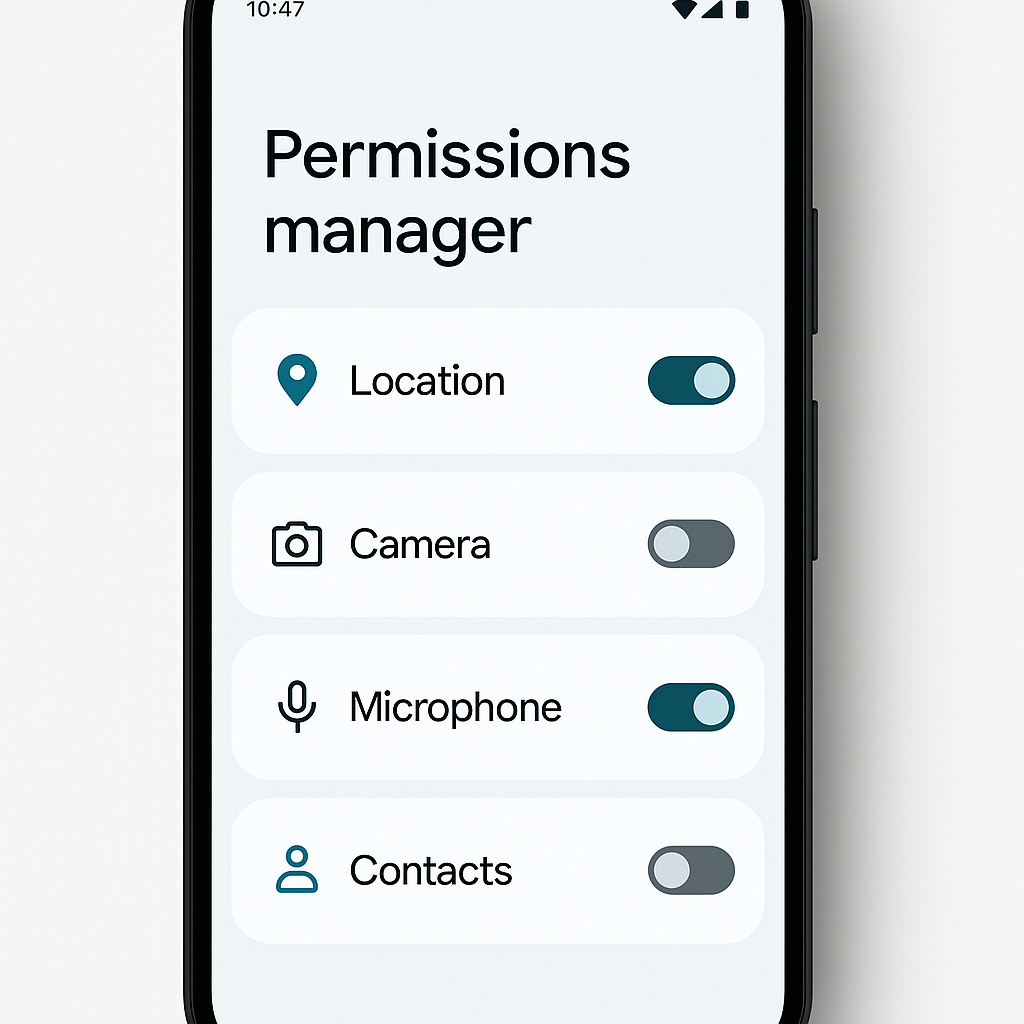
The Permission manager screen lists every permission type Android recognizes: Location, Camera, Microphone, Contacts, Phone, SMS, Storage, Calendar, Call logs, and more. Tap any category to see which apps have access.
Reviewing Location Access
Location is the most privacy-invasive permission on your phone. Apps use it to show nearby restaurants, track runs, tag photos, and build detailed movement profiles for advertising.
Open Permission manager → Location. You'll see three or four sections, depending on Android version:
- Allowed all the time: Apps that can track your location continuously, even when closed.
- Allowed only while using the app: Apps that can access location only when open and active.
- Ask every time: Apps that must request permission each time they need location.
- Not allowed: Apps denied location access.
Start with "Allowed all the time." This list should be short. Navigation apps (Google Maps, Waze) make sense here if you use them for turn-by-turn directions. Fitness trackers (Strava, Runkeeper) make sense if you record outdoor activities. Weather apps do not. Social media apps do not. Shopping apps do not.
Tap any app in this section and change the setting to "Allow only while using the app" unless you have a specific reason for continuous tracking. The app will still function. It just won't follow you around when closed.
Next, review "Allowed only while using the app." This list will be longer. Look for apps you don't recognize, apps you haven't opened in months, or apps whose core function doesn't require location. A rideshare app needs your location. A recipe app doesn't. A banking app doesn't. A flashlight app definitely doesn't.
Tap any questionable app and switch it to "Not allowed." If the app later requests location for a legitimate reason, you can grant it then. Revoking first and restoring later is safer than leaving access open indefinitely.
Reviewing Camera and Microphone
Camera and microphone permissions let apps capture photos, videos, and audio without additional prompts. Some apps need this to function, video calling, voice memos, barcode scanning. Others request it for features you might use once or never.
Open Permission manager → Camera. The layout mirrors Location: Allowed, Ask every time, Not allowed.
Social media apps (Instagram, Snapchat, TikTok) need camera access if you post photos or videos. Video calling apps (Zoom, Google Meet, WhatsApp) need camera access. Banking apps that use mobile check deposit need camera access. Games do not, unless they include AR features. Shopping apps might request camera for barcode scanning, but most people use that feature rarely enough that "Ask every time" makes more sense than "Allowed."
Review the list. Revoke camera access for apps you don't use or apps that don't need it. If you're unsure, revoke it. The app will request access again if it actually needs the camera for something you're trying to do.
Repeat the process for Microphone. Voice assistants, video calling apps, voice memo apps, and music identification apps (Shazam) need microphone access. Most other apps don't. Social media apps request it for video recording, which is legitimate if you post videos. If you don't, revoke it.
Reviewing Contacts
Contacts permission gives apps access to your entire address book: names, phone numbers, email addresses, and any notes or custom fields you've added. Some apps need this to function. Many request it to build social graphs for advertising or to nag your friends with invitations.
Open Permission manager → Contacts.
Messaging apps (WhatsApp, Signal, Telegram) need contacts to show you which of your contacts use the service. Email apps need contacts for autocomplete. Phone and dialer apps need contacts to display caller information. Social media apps request contacts to suggest people you might know, which is a feature you can live without.
Review the list. Revoke contacts access for any app that doesn't directly facilitate communication. If you're unsure whether an app needs it, revoke access and see what breaks. Most apps function fine without contacts. The ones that don't will tell you.
Reviewing Phone and SMS
Phone permission lets apps make calls, read call logs, and see who you're talking to. SMS permission lets apps read and send text messages.
These permissions are dangerous in the wrong hands. Malicious apps use phone access to make premium-rate calls or read call logs for surveillance. Malicious apps use SMS access to intercept two-factor authentication codes or subscribe you to paid services.
Open Permission manager → Phone, then Permission manager → SMS.
Your default phone app needs phone permission. Banking apps that use voice calls for verification need phone permission. Two-factor authentication apps that receive codes via SMS need SMS permission. Almost nothing else does.
If you see apps in these categories that aren't your dialer, banking, or 2FA apps, revoke access immediately. Games don't need phone or SMS. Social media apps don't need phone or SMS. Shopping apps don't need phone or SMS.
The exception is messaging apps that replace your default SMS app (Google Messages, Samsung Messages, Textra). These need SMS permission to function. Everything else should be set to "Not allowed."
Reviewing Storage and Files
Storage permission on older Android versions gave apps access to your entire file system: photos, videos, documents, downloads, everything. Android 11 and later replaced this with scoped storage, which limits apps to their own folders unless you explicitly grant broader access.
If you're running Android 10 or older, open Permission manager → Storage and review carefully. Apps that manage files (file browsers, backup tools, cloud storage apps) need storage access. Photo editing apps need storage access to read and save images. Most other apps don't need full storage access.
On Android 11 and later, storage is divided into more granular categories: Files and media, Music and audio, Photos and videos. Review each category separately. Revoke access for apps that don't need to read or write those specific file types.
Reviewing Other Permissions
The permission categories above cover the highest-risk access types. Android includes dozens of additional permissions, most of which matter less for privacy but still deserve review.
Calendar: Gives apps access to your calendar events. Calendar apps need this. Email apps that show meeting invitations need this. Social media apps do not.
Call logs: Gives apps access to your call history. Your phone app needs this. Call-blocking apps need this. Nothing else does.
Body sensors: Gives apps access to heart rate monitors, step counters, and other health sensors. Fitness apps need this. Games claiming to measure your heart rate do not.
Nearby devices: Lets apps discover and connect to Bluetooth and WiFi devices. Audio apps, smart home apps, and file-sharing apps use this legitimately. Revoke for apps that don't interact with external devices.
Notifications: Lets apps read notifications from other apps. This is a separate permission from displaying notifications. Smartwatch companion apps need this. Notification management apps need this. Nothing else should have it.
Walk through each category in Permission manager. The pattern is the same: identify apps that need access for their core function, revoke access for everything else.
Understanding Auto-Reset
Android 11 and later include a feature called permission auto-reset. If you don't open an app for several months, Android automatically revokes its permissions. You'll see a notification when this happens.
This feature is enabled by default, but you can check its status and configure exceptions. Open Settings → Apps → (three-dot menu or gear icon) → Special app access → Unused apps. You'll see a list of apps whose permissions have been auto-reset, along with a toggle to disable auto-reset for specific apps.
For most apps, auto-reset is exactly what you want. If you haven't opened an app in three months, it probably doesn't need ongoing access to your location, camera, or contacts. The exceptions are apps you use infrequently but still need to function when you do open them, authenticator apps, travel apps you only use a few times a year, or backup apps that run in the background.
Review the unused apps list. If you see apps you've forgotten about entirely, uninstall them instead of re-granting permissions.
What Happens When You Revoke Permissions
Revoking a permission doesn't break the app. It just removes the app's ability to access that specific data or hardware until you grant permission again.
When you revoke location, the app can't see where you are. Features that require location, maps, nearby search results, location tagging, won't work until you re-grant access. The app might show an error message or prompt you to enable location when you try to use those features.
When you revoke camera or microphone, the app can't capture photos, videos, or audio. Video calling won't work. Photo uploads won't work. Voice commands won't work. The app will tell you it needs access when you attempt those actions.
When you revoke contacts, the app can't read your address book. Contact suggestions disappear. Autocomplete stops working. The app can't invite your friends or suggest people you might know.
The key insight: revoking permissions is reversible. If you revoke something and later discover the app needs it, you can grant it again in seconds. The risk of leaving unnecessary permissions enabled is higher than the inconvenience of re-granting access when needed.
The Seinfeld Principle
In Seinfeld, George Costanza operates on the principle that every lie must be maintained indefinitely. One fabrication about being a marine biologist spirals into an elaborate performance that eventually collapses when he's called upon to save a beached whale. The longer the lie persists, the harder it becomes to walk it back.
App permissions work the same way. You grant location to a shopping app once because it promises to show nearby stores. You never use that feature. But the permission persists, and the app continues tracking your movements, building a profile, and sharing data with advertisers. The longer you leave it enabled, the more data accumulates. The longer the permission sits there, the easier it is to forget you granted it in the first place.
Revoking permissions is the equivalent of coming clean. It might feel awkward at first, what if the app really needed that access?, but the relief of knowing exactly what each app can and cannot do is worth the minor inconvenience of re-granting access if you were wrong.
Review your permissions. Revoke what doesn't make sense. If an app complains, you can always grant it back. The alternative is letting every app you've ever installed continue harvesting data indefinitely because you tapped Allow once in 2019.
Setting Up Regular Reviews
App permissions drift over time. You install new apps. You stop using old ones. Apps update and request new permissions. A one-time audit helps, but the real value comes from making permission review a recurring habit.
Set a calendar reminder for three months from now. Label it "Review app permissions." When the reminder fires, open Permission manager and walk through the same process: Location, Camera, Microphone, Contacts, Phone, SMS, and any other categories that matter to you.
Each review takes around 10 minutes if you're thorough, less if you've kept up with it. The goal isn't perfection. The goal is to catch apps that shouldn't have access before they've been harvesting data for years.
Between reviews, pay attention to permission requests when they appear. If an app asks for something that doesn't make sense, deny it. If the app stops working, you can grant it then. If the app works fine without it, you've just prevented unnecessary data collection.
What This Actually Protects
Reviewing app permissions doesn't stop a determined attacker. If someone has physical access to your unlocked phone, permissions won't save you. If you install malware that exploits an Android vulnerability, permissions won't stop it.
What permission reviews do protect against: apps that collect more data than they need, apps that track your location when you're not using them, apps that access your contacts to build social graphs, apps that listen through your microphone or watch through your camera without clear justification.
This is defense against routine overreach, not sophisticated attacks. It's the difference between an app knowing everywhere you've been for the last three years versus only knowing your location when you explicitly open the app and use a feature that requires it.
The threat model is advertising networks, data brokers, and companies that monetize user data. The defense is limiting what they can access in the first place.
When to Go Further
Permission review handles apps you've already installed. It doesn't address apps you shouldn't install in the first place, permissions you should never grant regardless of the app, or platform-level tracking that operates outside the permission system.
If you want deeper control, the next steps are: reviewing which apps you actually need, enabling Play Protect scanning, disabling advertising ID, restricting background data access, and understanding how Google's own services track you through Android itself.
Those are separate topics. This guide covers the baseline: reviewing what you've already granted and revoking what doesn't make sense.
The Fifteen-Minute Audit
You don't need to review every permission category in one sitting. Here's a condensed version that covers the highest-risk permissions in around 15 minutes:
- Open Settings → Privacy → Permission manager (or your device's equivalent path).
- Tap Location. Review "Allowed all the time." Change everything except navigation and fitness apps to "Allowed only while using the app."
- Review "Allowed only while using the app." Revoke location for apps you don't recognize or haven't used in months.
- Tap Camera. Revoke access for any app that isn't social media, video calling, or mobile check deposit.
- Tap Microphone. Revoke access for any app that isn't voice calling, voice memos, or music identification.
- Tap Contacts. Revoke access for any app that isn't messaging, email, or your phone dialer.
- Tap Phone and SMS. Revoke access for everything except your dialer, banking apps, and 2FA apps.
- Set a calendar reminder to repeat this process in three months.
That's it. You've just restricted the most invasive permissions on your phone. If an app complains later, you can grant access back. If it doesn't, you've reduced your data exposure without losing functionality.