Remote Workers and Public WiFi: The Security Setup That Actually Works
You're at the coffee shop. Laptop open, latte cooling, deadline approaching. The WiFi password is on the chalkboard. You connect.
What just happened to your work data?
Remote workers use public WiFi constantly. The security advice ranges from "never connect" to "it's totally fine." Neither is helpful when you're trying to get work done.
Here's what actually matters when you work from public spaces, what the real risks are, and the exact setup that protects you without killing productivity.
The Actual Threat Model for Remote Workers
Public WiFi creates three specific risks. Not dozens. Three.
First, unencrypted traffic. If the connection between your device and the service you're using isn't encrypted, someone on the same network can intercept it. This matters for older websites, some apps, and certain protocols that don't use HTTPS by default.
Second, fake networks. Attackers set up WiFi access points with names like "Starbucks Guest" or "Airport_Free_WiFi" to trick you into connecting. Once you're on their network, they control the traffic flow and can serve you malicious content or capture credentials.
Third, physical observation. Someone behind you can see your screen, watch you type passwords, and photograph sensitive documents. This isn't a technical attack, but it's the most common way confidential work data leaks in public spaces.
Those are the threats. Everything else, sophisticated packet sniffing, man-in-the-middle attacks on encrypted connections, targeted surveillance, exists, but it's not what happens to remote workers at coffee shops. The EFF's Surveillance Self-Defense guide covers threat modeling in depth, but for most remote workers, the three risks above are what you're actually defending against.
The VPN Layer: Your First Line of Defense
A VPN encrypts all traffic between your device and the VPN server. Someone on the coffee shop network sees encrypted gibberish, not your actual data.
This protects you from the first threat, unencrypted traffic. Even if an app doesn't use HTTPS, the VPN wraps it in encryption before it leaves your device.
Not all VPNs are equivalent. Free VPNs often log your activity, inject ads, or sell your data to offset the cost of running servers. You're trading one privacy risk for another.
Paid VPNs from reputable providers, NordVPN, ExpressVPN, Surfshark, Proton VPN, cost around ten dollars monthly and operate under no-log policies that independent audits verify. The CISA guidance on multifactor authentication doesn't explicitly recommend VPNs, but the principle is the same: add layers that make attacks harder.
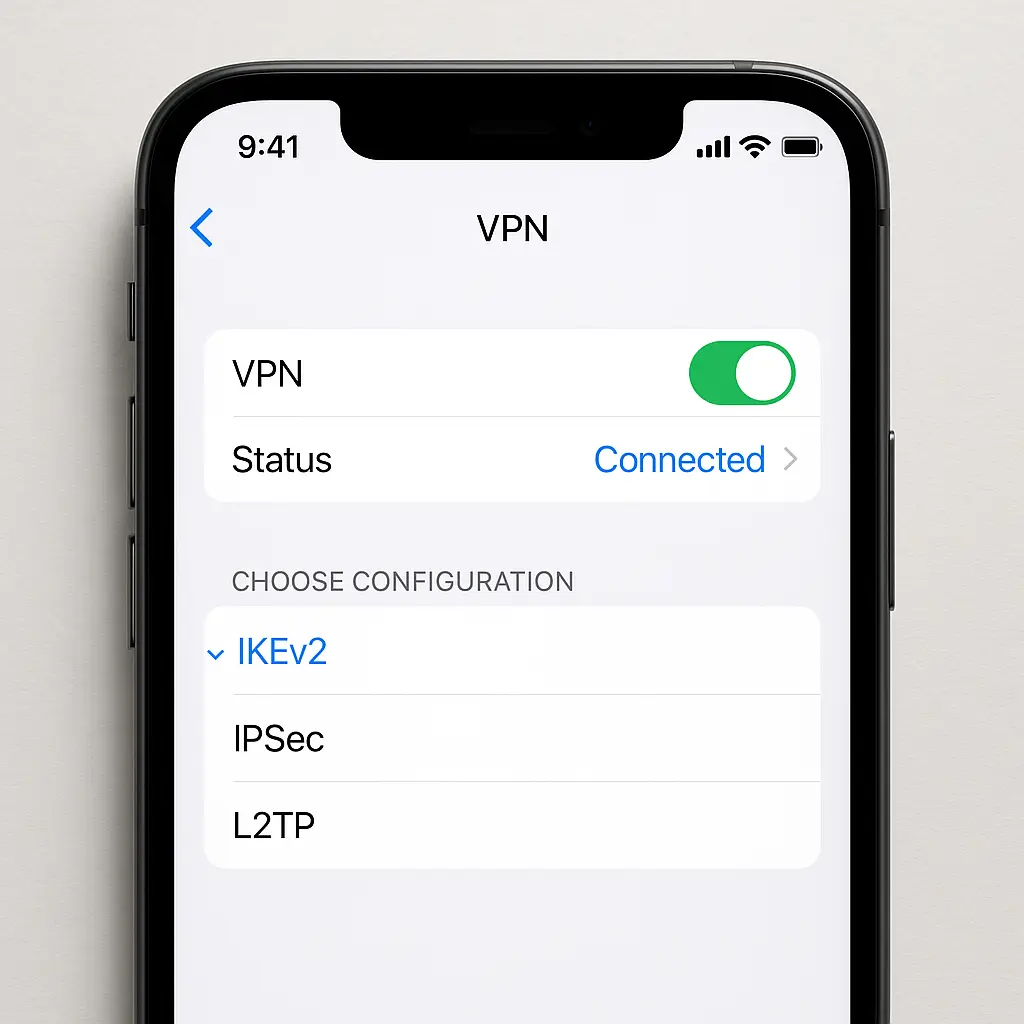
Set your VPN to auto-connect on untrusted networks. Most VPN apps detect when you join a new WiFi network and can automatically establish the encrypted tunnel before any other traffic flows. This eliminates the window where you're connected but unprotected.
VPNs don't solve everything. Your VPN provider sees your traffic instead of the coffee shop network, so trust matters. And VPNs don't protect against physical observation or fake networks that you willingly join. But for the unencrypted traffic problem, a VPN is the most effective single tool.
HTTPS Everywhere: The Protocol That Protects Most Traffic
HTTPS encrypts the connection between your browser and the website. The padlock icon in your address bar means the data flowing back and forth is unreadable to anyone intercepting it.
In 2026, most major websites default to HTTPS. Gmail, Slack, Microsoft 365, Google Docs, and nearly every professional tool you use encrypts traffic by default. This wasn't true a decade ago, but the web has shifted.
The EFF's HTTPS Everywhere project pushed this transition. Modern browsers now warn you when a site loads over unencrypted HTTP, and many refuse to load those sites at all without explicit override.
But not every connection your device makes goes through your browser. Desktop apps, mobile apps, and background services sometimes use unencrypted protocols. Your email client might fetch messages over IMAP without encryption. A chat app might send notifications in cleartext. A file sync service might upload documents without HTTPS.
This is where the VPN layer matters. HTTPS protects browser traffic. A VPN protects everything.
Check your critical work apps. Open settings and look for "secure connection," "use SSL/TLS," or "encrypt traffic" options. Enable them. Some apps default to unencrypted connections for speed or compatibility with older systems, but those defaults expose you on public networks.
Two-Factor Authentication: The Backup When Passwords Leak
Even if someone intercepts your password on public WiFi, two-factor authentication stops them from accessing your account.
2FA requires a second piece of evidence, usually a code from an app or a hardware key, to prove you're you. Passwords alone aren't enough. The CISA 2FA toolkit walks through implementation for organizations, but the same principles apply to individuals.
Authenticator apps like Google Authenticator, Microsoft Authenticator, or Authy generate time-based codes that expire every 30 seconds. These codes are mathematically tied to your account and can't be reused. Even if an attacker captures your password and the code you just used, the code is already expired by the time they try it.
SMS-based 2FA is weaker. Attackers can intercept text messages through SIM swapping or SS7 exploits, but it's still better than no second factor. Use authenticator apps when available, fall back to SMS when that's the only option.
Hardware security keys, physical devices you plug into your computer or tap against your phone, are the strongest form of 2FA. They're phishing-resistant because the key cryptographically verifies the site you're logging into. A fake login page can't trick the key into providing a code. YubiKeys and similar devices cost around 25 to 50 dollars and work across most major platforms.
Enable 2FA on every work account. Email, Slack, project management tools, cloud storage, VPN, password manager. If the account touches work data, it needs a second factor.
Verifying Network Legitimacy Before You Connect
Fake WiFi networks succeed because they look legitimate. "Starbucks_Guest" sits right next to "Starbucks Guest" in your network list. One is real. One routes your traffic through an attacker's device.
Ask the staff for the network name. Don't assume the strongest signal or the most obvious name is correct. Coffee shops, libraries, and coworking spaces usually post the official network name somewhere visible, but asking eliminates ambiguity.
Check the network security type. Open networks, no password required, are riskier than password-protected ones, but both can be malicious. An attacker can set up a fake network with a password just as easily as an open one. The password proves you're on the network the staff intended, but only if you verified the name first.
Avoid auto-connect for public networks. Your device remembers networks you've joined and reconnects automatically when it detects them. This is convenient at home. It's dangerous in public, because an attacker can create a network with the same name as one you've used before. Your device connects without asking, and you're on a malicious network before you realize it.
Disable auto-connect in your WiFi settings. Join networks manually. Delete public network profiles after you leave. This adds friction, but it prevents your device from silently connecting to a fake network while you're standing in line for coffee.
Physical Security: The Low-Tech Threat You Can't Encrypt Away
Someone behind you can see your screen. They can watch you type passwords. They can photograph documents. They can read emails over your shoulder.
Privacy screens, thin filters that attach to your laptop screen, limit viewing angles. From directly in front, the screen looks normal. From the side, it's dark and unreadable. They cost around 30 to 50 dollars and work on most laptop sizes.
Position yourself with your back to a wall. This eliminates the threat from behind and reduces the number of angles someone can observe from. Corner seats, booths, and tables against windows work well.
Use a password manager to avoid typing passwords. When you need to log in, the password manager fills the field automatically. No one can shoulder-surf a password you never typed. The EFF guide to password managers covers setup and selection.
Lock your screen when you step away. Even for 30 seconds to refill your coffee. Even if your bag is still at the table. Someone can access an unlocked laptop, plug in a USB drive, and copy files faster than you think. Most operating systems lock automatically after a few minutes of inactivity, but manual locking, Windows key + L on Windows, Control + Command + Q on Mac, is instant.
Don't leave devices unattended. This seems obvious, but coffee shop theft is common, and an unlocked device in a public space is an open invitation. If you can't take it with you, don't leave it.
The Seinfeld Problem
In the Seinfeld episode "The Parking Garage," Jerry, Elaine, George, and Kramer wander a massive parking structure for 23 minutes trying to find their car. They split up, regroup, argue about strategy, and eventually find the car, only to discover the battery is dead.
The problem wasn't that they lacked a strategy. They had several. The problem was that none of their strategies addressed the actual obstacle: they didn't write down where they parked.
Remote work security has the same dynamic. You can read a dozen guides on VPNs, HTTPS, and network verification, but if you don't actually enable 2FA on your work accounts, the rest doesn't matter. The sophisticated defenses are useless if the simple ones aren't in place.
The parking garage scene works because it's relatable. Everyone's been lost in a parking structure. Everyone's tried to solve a problem with increasingly complex strategies while ignoring the simple fix.
Public WiFi security is the same. The simple fixes, VPN, 2FA, HTTPS verification, handle the vast majority of real threats. The complex defenses, hardware keys, encrypted DNS, VPN kill switches, add layers, but they're not where you start.
Write down where you parked. Enable 2FA. Connect to the VPN. The rest builds from there.
App-Specific Risks: What Leaks When You're Not Browsing
Your browser uses HTTPS. Your VPN encrypts everything. But some apps bypass both.
Desktop apps often use custom protocols that don't route through your VPN by default. Certain file sync services, older email clients, and proprietary communication tools establish direct connections that ignore your VPN tunnel unless you configure split tunneling or force all traffic through the VPN.
Check your VPN's settings for "block connections without VPN" or "kill switch" options. These prevent any traffic from leaving your device if the VPN disconnects. Without a kill switch, your device might silently fall back to an unencrypted connection if the VPN drops, exposing traffic until you notice and reconnect.
Mobile apps are worse. Many mobile apps communicate with servers using protocols that aren't HTTPS, and mobile operating systems don't always respect VPN settings the way desktop systems do. Background app refresh, push notifications, and location services can leak data even when your VPN is active.
Disable background app refresh for work apps when you're on public WiFi. This stops apps from fetching data while you're not actively using them. You'll still get notifications, but the app won't silently sync files or download updates over an untrusted network.
Review app permissions. Location, contacts, calendar, and photo access create additional data exposure points. An app that uploads your location every few minutes is leaking information even if the connection is encrypted, because the metadata, where you are, when you connected, is visible to the network.
When Public WiFi Isn't Worth the Risk
Some work doesn't belong on public networks, even with a VPN and 2FA.
Accessing customer databases, handling payment information, or working with confidential legal or medical records creates liability that a coffee shop setup can't mitigate. The FTC's data security guidance emphasizes that reasonable security measures depend on the sensitivity of the data. Public WiFi isn't reasonable for highly sensitive data.
Use your phone's hotspot instead. Mobile data connections are encrypted between your device and the cell tower, and you're not sharing the network with strangers. Hotspots drain battery and cost data, but they eliminate the shared-network risk entirely.
Work offline when possible. Write documents, edit spreadsheets, review presentations, and organize files without connecting to WiFi. Sync when you're back on a trusted network. This isn't always feasible, cloud-based tools require connectivity, but offline work eliminates network risk entirely.
Some companies prohibit public WiFi use in their security policies. Check your employee handbook or IT policy before you assume coffee shop work is allowed. Violating a clear policy creates professional and legal risk that no VPN can fix.
The Long-Term Setup: Habits That Stick
Security isn't a one-time configuration. It's a set of habits that become automatic.
Auto-connect your VPN on untrusted networks. Most VPN apps can detect new networks and connect automatically. Set it up once, and you never have to remember.
Use a password manager to eliminate password reuse. When every account has a unique password, a breach on one site doesn't compromise others. The NIST password guidelines recommend length over complexity, and password managers handle both.
Review connected devices regularly. Your Google, Microsoft, and Apple accounts show every device that's logged in. Sign out of devices you don't recognize. Revoke access to apps you don't use. This limits the damage if one device is compromised.
Enable breach notifications. Have I Been Pwned emails you when your email address appears in a breach. Change passwords immediately when you get an alert.
Remote work creates flexibility. Public WiFi makes that flexibility possible. The security risks are real, but they're manageable. VPN, HTTPS, 2FA, and awareness handle the vast majority of threats. The rest is refinement.
You're at the coffee shop. Laptop open, latte cooling, deadline approaching. The WiFi password is on the chalkboard. You connect, through your VPN, with 2FA enabled, HTTPS verified, and your back to the wall.
What just happened to your work data? It stayed yours.