Password Managers Compared: What Features Actually Protect You
You've decided you need a password manager. Now you're staring at comparison charts that list dozens of features you don't understand, wondering which ones actually matter.
Most reviews focus on interface polish, browser extension convenience, and how many devices you can sync. Those things are fine. But they're not what protects you when your password manager gets breached, when you lose your phone, or when an attacker tries to crack your vault.
The features that actually secure your passwords are technical, often buried in documentation, and rarely emphasized in marketing. Here's how to evaluate what matters.
Zero-Knowledge Encryption: The Foundation That Can't Be Compromised
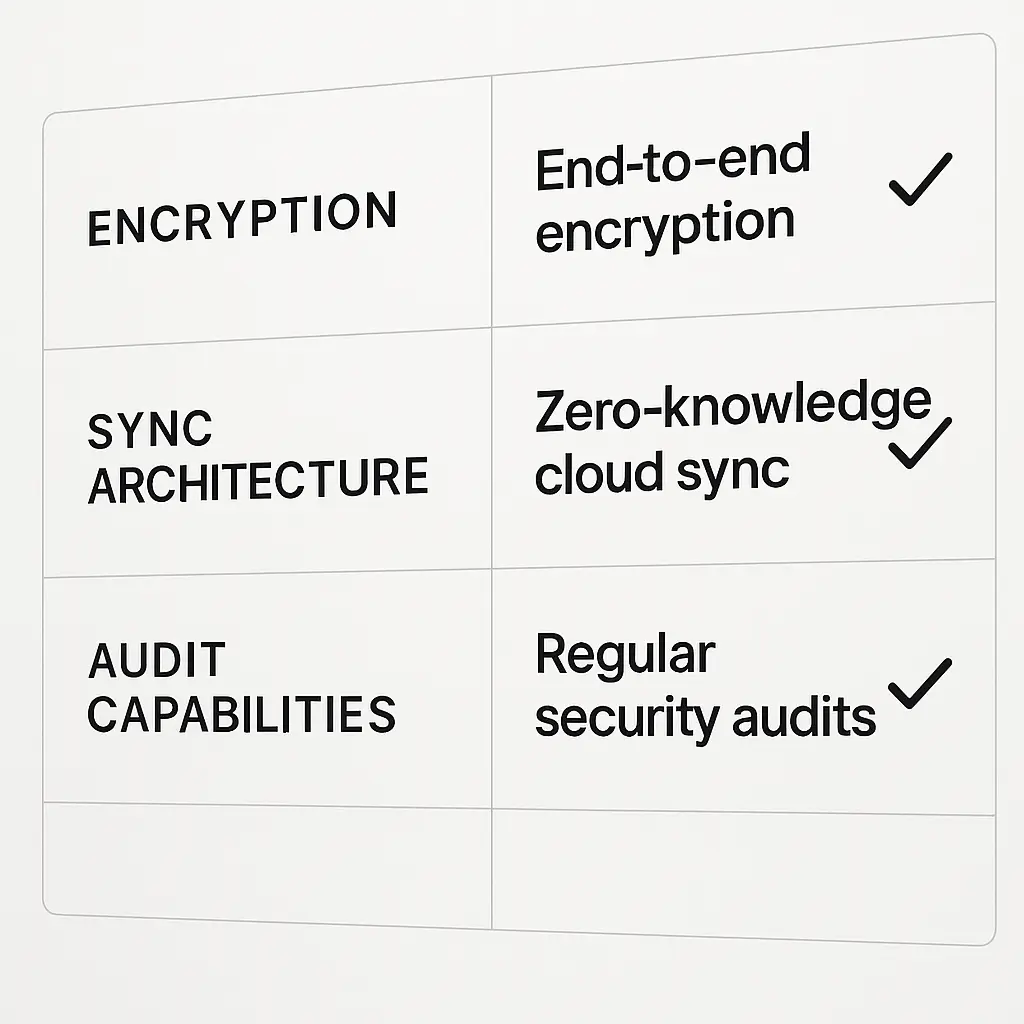
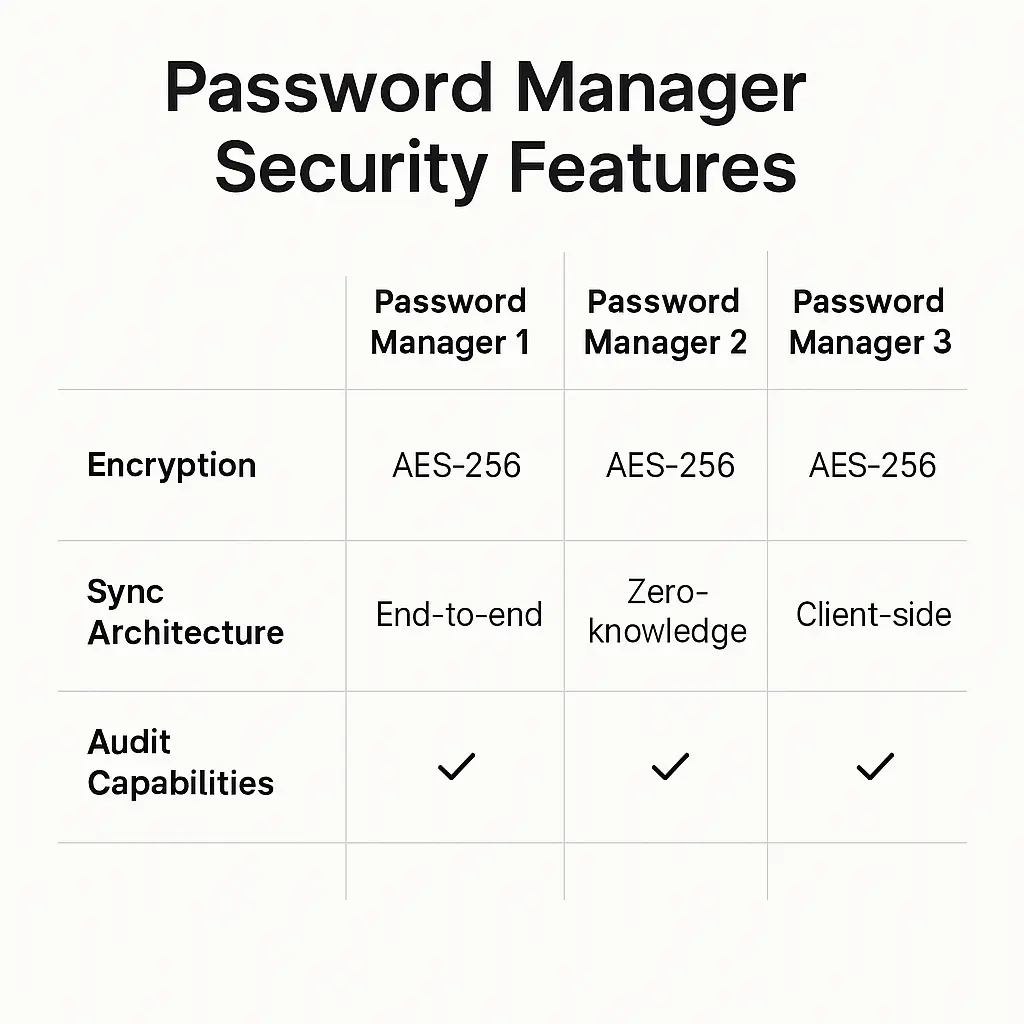
Zero-knowledge encryption means the password manager company cannot decrypt your vault. Ever. Not if they're served a warrant, not if an employee goes rogue, not if their servers get breached.
Your master password never leaves your device in a form the company can read. The encryption and decryption happen locally. The company stores an encrypted blob they can't open.
NIST's digital identity guidelines emphasize that authentication credentials should be protected using cryptographic techniques that prevent the authenticator from being used by an attacker who has gained unauthorized access to the system. Zero-knowledge architecture is one way to achieve this.
When you evaluate a password manager, the first question is: does the provider have the technical ability to decrypt my vault? If the answer is yes, walk away. It doesn't matter how trustworthy they are today. Systems change. Companies get acquired. Governments make demands.
1Password, Bitwarden, and NordPass all use zero-knowledge encryption. NordPass specifically implements the XChaCha20 encryption algorithm with Argon2 key derivation, meaning your master password goes through computationally expensive hashing before it's used to encrypt your vault. An attacker who steals the encrypted vault faces years of cracking time even with specialized hardware.
LastPass also claims zero-knowledge encryption, but the 2022 breach revealed that some metadata and vault copies were stored in ways that created risk. The technical implementation of zero-knowledge matters as much as the claim.
Browser-based password managers from Chrome, Firefox, and Safari encrypt your passwords, but the encryption keys sync through the same account you use for everything else. If someone gains access to your Google or Apple account, they can access your passwords. That's not zero-knowledge.
Breach Monitoring: The Alert System That Tells You When to Act
Breach monitoring checks if your email addresses, usernames, or passwords appear in known data breaches. When a breach happens, you get an alert telling you which account leaked and what to change.
This feature matters because breaches happen constantly, and you won't always hear about them. A forum you joined in 2009 gets breached in 2026, leaking your email and password. If you reused that password anywhere, attackers will test it. Breach monitoring tells you before they succeed.
The mechanism works by comparing your credentials against databases of leaked information. Services like Have I Been Pwned aggregate breach data from hundreds of sources. Password managers either integrate directly with these databases or run their own monitoring.
NordPass includes Data Breach Scanner, which checks your email addresses and passwords against known leaks. Bitwarden offers breach monitoring through integration with Have I Been Pwned. 1Password monitors the dark web for leaked credentials tied to your accounts.
Some password managers check only email addresses. Others check passwords too. The difference matters. An email appearing in a breach tells you that account exists. A password appearing in a breach tells you attackers have a credential they can test right now.
Browser-based managers don't include breach monitoring. Chrome will warn you if a password you've saved appears in a known breach, but only after you've already saved it and only if Google's database knows about that specific breach.
Cross-Platform Sync: The Feature That Protects You Everywhere or Nowhere
Cross-platform sync means your passwords work on your phone, laptop, tablet, and any browser you use. When you update a password on one device, it updates everywhere.
The security question isn't whether sync exists. It's how sync happens and what breaks when sync fails.
End-to-end encrypted sync means your vault encrypts on one device, travels encrypted to the cloud, and decrypts only on your other devices. The cloud storage provider sees only encrypted data. This is what zero-knowledge managers do.
Some managers sync through your existing cloud storage like iCloud or Google Drive. This is convenient but creates a dependency. If your iCloud account gets compromised, your password vault goes with it.
Bitwarden offers self-hosted sync, meaning you can run your own server and never send your encrypted vault to anyone else's cloud. This gives you complete control but requires technical setup and ongoing maintenance. Most people won't do this. But the option existing tells you something about the architecture.
1Password syncs through their own servers with end-to-end encryption. NordPass does the same. Both companies cannot decrypt the synced data.
Browser-based managers sync through your browser account. Safari syncs through iCloud. Chrome syncs through your Google account. Firefox syncs through your Firefox account. This ties your password security to the security of those accounts.
Security Audits: The Proof That Experts Actually Checked
A security audit is when an independent firm examines the password manager's code, architecture, and cryptographic implementation to find vulnerabilities. The audit results get published publicly.
This matters because marketing claims about security are easy. Proving those claims by letting experts inspect the code is hard.
Open-source password managers like Bitwarden publish their code for anyone to review. Proprietary managers like 1Password and NordPass hire third-party auditors and publish the reports.
The EFF's guide to password managers emphasizes that transparency through audits and open-source code gives users more confidence than marketing promises.
When you evaluate a password manager, look for recent audits. Not audits from 2018. Not vague claims about security. Published reports from firms like Cure53, NCC Group, or Trail of Bits that detail what they tested and what they found.
Bitwarden publishes annual security assessments. 1Password has undergone multiple third-party audits. LastPass had audits too, but the 2022 breach revealed gaps between what the audits covered and what the architecture actually protected.
Browser-based managers don't publish independent security audits of their password management features. The browsers themselves get audited, but the password storage and sync mechanisms are usually not the focus.
Master Password Recovery: The Tradeoff Between Access and Security
Master password recovery is the process for regaining access to your vault when you forget your master password. This feature creates a fundamental tradeoff.
If the password manager can recover your master password, they can decrypt your vault. That breaks zero-knowledge encryption. If they can't recover your master password, you're locked out forever if you forget it.
Most zero-knowledge managers offer account recovery through a recovery key, not password reset. You generate a long random string during setup, print it, and store it somewhere safe. If you forget your master password, you use the recovery key to regain access.
1Password calls this the Secret Key. Bitwarden offers a recovery code. NordPass provides a recovery key. All three work the same way: a second secret that exists outside the normal login flow.
Some managers offer social recovery, where trusted contacts can help you regain access. This is clever but introduces new attack surface. If an attacker compromises your trusted contact's account, they can potentially access your vault.
Browser-based managers tie password recovery to your browser account recovery. If you can reset your Google password, you can access your Chrome passwords. This is convenient but means your password security is only as strong as your Google account security.
The right answer depends on your threat model. If you're more worried about losing access than about attackers, you want easier recovery. If you're more worried about attackers than about lockout, you want harder recovery.
Autofill Security: The Feature That Stops Phishing or Doesn't
Autofill is when the password manager detects a login form and fills your credentials automatically. This is convenient. It's also a security feature, because password managers autofill based on the exact domain.
If you're on paypal.com, your password manager fills your PayPal password. If you're on paypa1.com (with a number one instead of the letter L), it doesn't. Your eyes might miss the difference. The password manager won't.
This protects you from phishing sites that look identical to real sites but use slightly different URLs. You might click through and start typing. The password manager stays silent because the domain doesn't match.
CISA's guidance on phishing-resistant authentication notes that credential managers that verify domain matching before autofilling provide a layer of defense against phishing attacks.
The security of autofill depends on how strictly the password manager checks domains. Some managers autofill on any subdomain. If you saved a password for mail.company.com, they'll autofill on evil.company.com. That's a problem.
Better managers require exact domain matching or let you specify which subdomains are allowed. Bitwarden lets you configure URI matching rules. 1Password defaults to strict matching. NordPass checks the full URL before autofilling.
Browser-based managers autofill based on saved form data, which is less strict than domain matching. They'll often autofill on any page that looks like a login form, even if the domain is wrong.
Password Generator Settings: The Feature That Creates Actual Randomness
A password generator creates random passwords for new accounts. The quality of that randomness determines how secure the passwords are.
Length matters more than complexity. A 16-character password of random lowercase letters is stronger than an 8-character password with uppercase, numbers, and symbols. The math is clear: each additional character multiplies the number of possible combinations.
NIST's password guidelines recommend passwords of at least 8 characters, but security researchers generally suggest 12-16 characters for passwords generated by managers.
Good password managers let you configure generator settings: length, character types, and whether to exclude ambiguous characters like 0 and O. They default to strong settings but let you weaken them when a site's password policy demands it.
1Password generates 20-character passwords by default. Bitwarden defaults to 14 characters. NordPass generates 16-character passwords. All three let you adjust length and complexity.
The generator should use cryptographically secure random number generation, not predictable algorithms. This is hard to verify without reading the code, but open-source managers like Bitwarden let you check. Proprietary managers should document their randomness source in security audits.
Browser-based managers generate passwords too, but the default settings are often weaker. Chrome generates 15-character passwords. Safari generates 20-character passwords but only when using iCloud Keychain. Firefox defaults to 15 characters.
Shared Vaults: The Feature That Lets You Share Without Leaking
Shared vaults let you share passwords with family, coworkers, or teams without sending passwords through email or text. You create a vault, invite people, and everyone with access can see and use the passwords.
The security question is: how does sharing work, and who can see what?
In zero-knowledge managers, shared vaults use public-key cryptography. You encrypt the vault with a key, then encrypt that key separately for each person who should have access. The password manager never sees the decrypted vault or the decryption key.
1Password supports shared vaults through families and teams plans. Bitwarden calls them Organizations. NordPass offers shared folders. All three encrypt shared vaults so the company can't decrypt them.
Some managers let you share individual passwords instead of entire vaults. This is more granular but creates more management overhead. You have to remember who you shared what with.
The risk with shared vaults is that everyone with access can export or copy passwords. If someone in your shared vault gets compromised, attackers gain access to everything in that vault. You're trusting everyone you share with.
Browser-based managers don't offer true shared vaults. You can share passwords by logging into the same browser account, but that gives the other person access to everything, not just selected passwords.
Two-Factor Authentication for the Password Manager Itself
Your password manager is the skeleton key to every account you have. Protecting it with only a master password is like protecting your house with only a lock on the front door.
Two-factor authentication adds a second layer. Even if someone steals your master password, they can't access your vault without the second factor.
Most password managers support authenticator apps, hardware keys, and biometrics. SMS-based 2FA is weaker because attackers can intercept texts through SIM swaps, but it's better than nothing.
CISA recommends phishing-resistant MFA, which means hardware keys or platform authenticators like Face ID, not SMS or authenticator apps.
1Password supports hardware keys and biometrics. Bitwarden supports authenticator apps, email, and hardware keys. NordPass supports authenticator apps and biometrics.
Browser-based managers tie 2FA to your browser account. If you enable 2FA on your Google account, it protects Chrome's password sync. Same with Apple and iCloud Keychain.
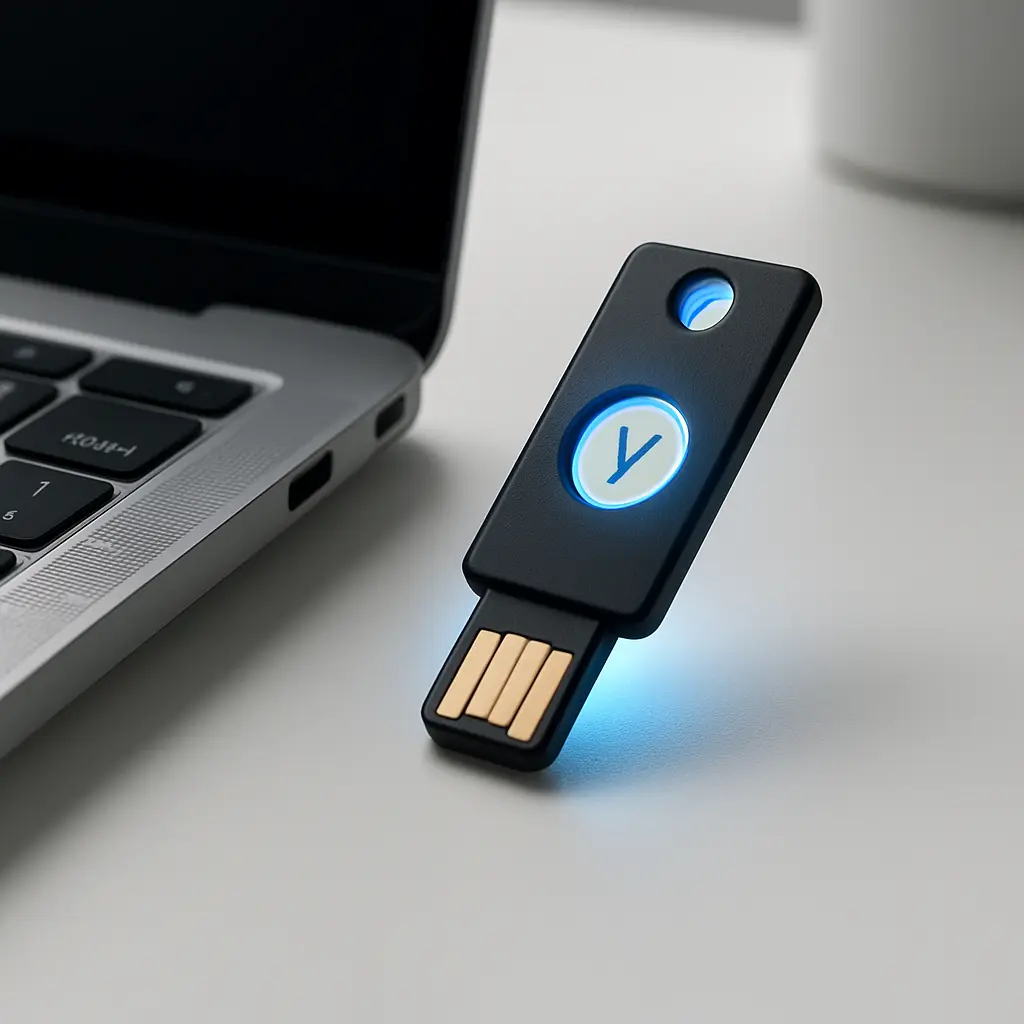
The strongest setup is a hardware key like YubiKey. The key is a physical device that must be present to authenticate. Attackers can steal your master password remotely, but they can't steal a physical key in your desk drawer.
Emergency Access: The Feature That Helps Someone When You Can't
Emergency access lets you designate someone who can access your vault if you die, become incapacitated, or lose access yourself. This is the opposite of security in some ways, but it's practical.
The mechanism varies. Some managers use time-delayed access: your designated person requests access, you get notified, and if you don't deny the request within a set period, they gain access. Others use recovery codes you give to someone in advance.
1Password offers Emergency Access through families plans. Bitwarden calls it Emergency Access and lets you set a wait period. NordPass doesn't currently offer this feature.
The security tradeoff is that emergency access creates a path into your vault that doesn't require your master password. If your designated person's account gets compromised during the wait period, an attacker could potentially gain access.
Browser-based managers don't offer emergency access features. Your family would need your browser account password to access your passwords, which means either sharing that password in advance or hoping they can reset it after you're gone.
Import and Export: The Feature That Prevents Vendor Lock-In
Import and export let you move passwords between managers. Import brings passwords from another manager or browser. Export creates a file of your passwords you can move elsewhere.
This matters because switching password managers should be possible. If a company changes their pricing, gets acquired, or suffers a breach that destroys your trust, you need an exit path.
Most password managers export to CSV (comma-separated values), a plain text format any manager can read. Some support encrypted export formats that preserve more metadata.
The security risk is that exported files contain all your passwords in one place. If you export to CSV and forget to delete the file, you've created a massive vulnerability. Encrypted exports reduce this risk but aren't universal.
1Password, Bitwarden, and NordPass all support import from major competitors and export to CSV. Bitwarden also supports encrypted JSON export.
Browser-based managers let you export passwords, but the process is often buried in settings. Chrome exports to CSV. Safari doesn't offer built-in export, but third-party tools can extract passwords from iCloud Keychain.
Password Health Reports: The Feature That Tells You What to Fix
Password health reports analyze your stored passwords and flag weak, reused, or old credentials. This is the feature that turns your password manager from a storage tool into an active security system.
The report typically shows:
- Weak passwords (short, common, or easily guessable)
- Reused passwords (same password on multiple sites)
- Old passwords (unchanged for months or years)
- Compromised passwords (appeared in known breaches)
1Password calls this Watchtower. Bitwarden offers a Vault Health Report. NordPass provides Password Health. All three scan your vault and prioritize what to fix first.
The value is that you can't remember which passwords you reused five years ago. The password manager can. It tells you exactly where the risk lives and what to change.
Browser-based managers offer limited health checks. Chrome will warn you about compromised passwords but doesn't analyze overall password strength or reuse patterns.
The Features That Don't Matter as Much as You Think
Some features get emphasized in marketing but don't significantly improve security:
Unlimited devices or storage. Once you're past around five devices and 500 passwords, the limits don't affect security. They affect convenience.
Dark web monitoring. This sounds impressive but often duplicates breach monitoring. If your password appeared in a breach, it's probably on the dark web already. Dedicated breach monitoring catches this.
VPN bundling. Some password managers bundle VPNs. The VPN might be good, but bundling doesn't make the password manager more secure.
Password strength meters. These are useful but not unique. Most managers have them. The differences between implementations are minor.
Secure notes storage. Storing your passport number or WiFi password in your password manager is convenient. But it's not a security feature; it's a feature that uses the security you already have.
In The Good Place, Michael Designs the Neighborhood
In The Good Place, Michael designs an entire neighborhood to torture four humans by making them torture each other. The genius is that the system looks perfect on the surface. The problems are architectural, built into the foundation.
Password managers are the opposite. The good ones are architecturally sound from the beginning. Zero-knowledge encryption, end-to-end sync, domain-strict autofill, cryptographically secure password generation. These aren't features you add later. They're design decisions that determine whether the system can protect you when everything else fails.
The features that matter are the ones you never see working. You don't notice when autofill refuses to fill on a phishing site. You don't notice when breach monitoring checks your credentials against new leaks every day. You don't notice when zero-knowledge encryption prevents the company from reading your vault during a breach.
You notice when these features are missing. You notice when you type your password into a fake site because autofill didn't stop you. You notice when you find out six months later that your credentials leaked and you never got an alert. You notice when a breach exposes your vault and the company's architecture means attackers can decrypt it.
What to Look for When You Choose
Start with zero-knowledge encryption. If the password manager can decrypt your vault, everything else is irrelevant.
Check for recent, published security audits. Not marketing claims. Actual reports from independent firms.
Verify that breach monitoring checks both email addresses and passwords against known leaks.
Confirm that autofill uses strict domain matching and won't fill credentials on similar-looking phishing sites.
Make sure the password generator defaults to strong settings and uses cryptographically secure randomness.
Enable two-factor authentication on the password manager itself, preferably with a hardware key.
Test the import and export process. You should be able to leave if you need to.
Review the password health reports to understand what you need to fix.
The password manager that checks all these boxes will protect you. The one that checks most of them will probably protect you. The one that checks none of them is a convenience tool pretending to be a security tool.
Your passwords are the keys to everything you own online. The manager you choose determines whether those keys stay yours or become someone else's.