Passkeys Explained: What They Are and How They Replace Passwords
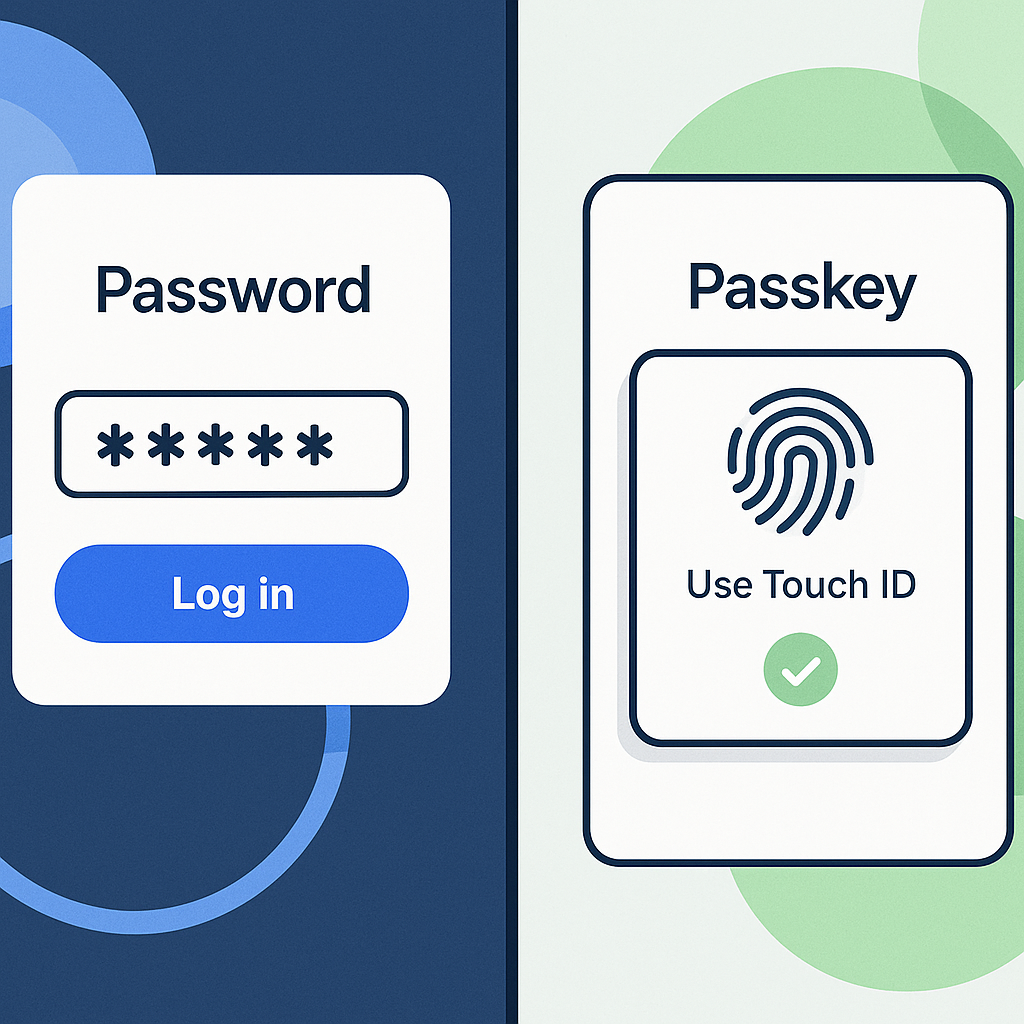
A passkey is a cryptographic credential that authenticates you to a website or app without requiring a password. You create it once, it lives on your device, and when you need to log in, you prove you have access to that device through biometrics, a PIN, or a security key. The website never sees a secret you could accidentally give to a phisher.
That's the summary. Here's the mechanism.
The cryptographic foundation
Passkeys use public-key cryptography, the same mathematical structure that secures HTTPS connections and encrypted messaging. When you create a passkey, your device generates two mathematically linked keys: a private key and a public key.
The private key stays on your device. It never leaves. The public key goes to the website.
When you log in, the website sends a challenge, a random string of data. Your device uses the private key to sign that challenge, creating a cryptographic proof that you possess the private key without revealing the key itself. The website verifies the signature using the public key it stored during registration. If the signature is valid, you're authenticated.
This is asymmetric cryptography. The same mathematical principle that lets you send encrypted messages to someone whose public key you know, applied to authentication instead of confidentiality.
What happens when you create a passkey
You visit a website that supports passkeys. You click "Sign up" or "Add passkey." The website generates a challenge and asks your device to create a credential.
Your browser or operating system prompts you: "Create a passkey for example.com?" You confirm, usually with Face ID, Touch ID, Windows Hello, or a PIN.
Your device generates a new key pair. The private key gets stored in your device's secure enclave, hardware-isolated storage that even the operating system can't directly access. The public key, along with a credential ID, gets sent to the website.
The website stores the public key and credential ID in its database, associated with your account. That's it. No password. No hash. No secret that could leak in a breach.
What happens when you log in
You visit the website. You enter your username or email. The website looks up your account, sees you have a passkey registered, and sends a challenge to your browser.
Your browser asks your device: "Authenticate for example.com using passkey [credential ID]?"
You confirm with biometrics or PIN. Your device retrieves the private key from the secure enclave, signs the challenge, and sends the signature back to the website.
The website verifies the signature using the public key it stored. If valid, you're in.
The entire exchange takes around two seconds. You never typed anything. You never saw a code. The private key never left your device.
Why passkeys resist phishing
Phishing works because passwords are secrets you can accidentally give away. You type your password into a fake login page, the attacker captures it, and now they have your credential.
Passkeys don't work that way.
When your device creates a passkey, it binds that credential to the website's domain. The private key will only sign challenges from example.com. If you visit examp1e.com (with a number instead of an L), your device won't even offer the passkey. The domain doesn't match. The credential doesn't activate.
You can't accidentally authenticate to the wrong site because the cryptography enforces the binding. There's no user decision to get wrong. The device checks the domain automatically.
This is what CISA calls phishing-resistant authentication. Even if an attacker tricks you into clicking a link, even if the fake page looks identical, even if you're tired and distracted, the passkey won't work on the wrong domain.
Passkeys and the WebAuthn standard
Passkeys implement the WebAuthn standard, a specification developed by the W3C and the FIDO Alliance. WebAuthn defines how browsers, operating systems, and websites interact during authentication.
When you create or use a passkey, your browser is speaking WebAuthn to the website. The website sends a challenge formatted according to the spec. Your device responds with a signature formatted according to the spec. The protocol is standardized, which is why passkeys work across Chrome, Safari, Edge, and Firefox without requiring website-specific implementations.
Microsoft describes FIDO2 as the umbrella term for WebAuthn plus CTAP (Client to Authenticator Protocol), which handles communication between your browser and external authenticators like hardware security keys. Passkeys are FIDO2 credentials. When you use a YubiKey, you're using FIDO2. When you use Face ID to authenticate, you're using FIDO2. Same underlying protocol, different authenticator.
Where passkeys live
Passkeys can live in three places, depending on how you set them up.
Platform authenticators are built into your device. iPhones store passkeys in the Secure Enclave and sync them through iCloud Keychain. Android phones store passkeys in the Android Keystore and sync them through Google Password Manager. Windows uses Windows Hello and stores credentials in the TPM (Trusted Platform Module). macOS uses Touch ID and the Secure Enclave.
When you create a passkey using Face ID or Touch ID, you're creating a platform passkey. It syncs across your devices signed into the same account. Lose your phone, and your passkeys are still available on your laptop.
Roaming authenticators are external hardware devices like YubiKeys or Titan Security Keys. You plug them into a USB port or tap them via NFC. The private key lives on the hardware token, not your device. These don't sync. If you lose the key, you lose the credential. But they're portable, you can use the same hardware key across any device with a USB port.
Password managers can store passkeys if they support the feature. NordPass, 1Password, Bitwarden, and Dashlane all added passkey support in the last few years. The private key gets encrypted and stored in your vault, syncing across devices just like your passwords. This gives you cross-platform portability without relying on Apple or Google's ecosystem.
Passkeys and account recovery
Here's the practical question: what happens if you lose access to all your devices?
With passwords, you reset through email or SMS. With passkeys, recovery depends on the platform.
Apple lets you recover passkeys through iCloud account recovery, which requires a trusted device or recovery contact. Google offers account recovery through backup codes and secondary authentication. Password managers typically require your master password and, in some cases, an account recovery kit you set up in advance.
Some websites let you register multiple passkeys, one on your phone, one on your laptop, one on a hardware key. If you lose your phone, you still have the laptop passkey. If you lose both, you fall back to account recovery, which usually means proving your identity through email, SMS, or customer support.
NIST's authentication guidelines acknowledge this tradeoff. Passkeys improve security, but they shift the recovery burden. You can't reset a passkey through "forgot password" because there's no password to reset. You're proving possession of a device or recovery credential instead.
The transition period
Passkeys don't replace passwords overnight. Right now, most websites support passwords and offer passkeys as an optional upgrade. You create a passkey, but the password still exists as a fallback.
Some sites let you delete the password after creating a passkey. Others keep both. A few require the password for certain actions even if you log in with a passkey, usually account deletion or security settings changes.
This creates a hybrid state where you're using passkeys for routine logins but passwords still exist in the background. It's not ideal, but it's the reality of a transition that will take years.
The EFF's guide to two-factor authentication predates widespread passkey adoption, but the principle holds: authentication is moving toward possession-based factors (something you have) and away from knowledge-based factors (something you know). Passkeys are the next step in that evolution.
Passkeys vs. hardware security keys
Hardware security keys like YubiKeys have been around longer than passkeys. They use the same FIDO2 protocol. So what's the difference?
A hardware key is a roaming authenticator. You carry it with you, plug it in when needed, and it works across any device. The private key lives on the hardware token. If you lose the key, you lose the credential.
A passkey is typically a platform authenticator. It lives on your phone or laptop, syncs across your devices, and uses biometrics you already set up. You don't carry a separate object. The tradeoff is that your passkey security depends on your device security and your cloud account security.
Both are phishing-resistant. Both use public-key cryptography. The difference is portability and recovery. Hardware keys don't sync, which is a feature if you want the credential isolated. Passkeys sync, which is a feature if you want convenience and automatic backup.
You can use both. Register a passkey on your phone for daily logins, and register a hardware key as a backup. If you lose your phone, you still have the hardware key. If you lose the hardware key, you still have the passkey on your laptop.
The cultural reference: Star Trek TNG's computer authentication
In Star Trek: The Next Generation, crew members authenticate to the ship's computer by voice. "Computer, Picard, authorization alpha-alpha-three-zero-five." The computer recognizes the voiceprint and grants access.
It's biometric authentication, but it's also vulnerable. In "Brothers," the android Data overrides the system by mimicking Captain Picard's voice perfectly. In "The Drumhead," a paranoid investigation hinges on who accessed what systems when, and voice authentication provides a weak audit trail because anyone who can mimic the voice can gain access.
Passkeys solve the problem Data exploited. A passkey doesn't rely on something you can mimic or reproduce. It's a cryptographic proof tied to a specific device. Even if an attacker perfectly replicates your biometrics, they can't authenticate without the private key stored in your device's secure enclave. The device checks your biometrics to unlock the key, but the authentication happens through cryptography, not voice patterns.
The analogy breaks down when you consider that the Enterprise computer also seems to lack any concept of phishing-resistant domain binding, crew members authenticate to "the computer" as a monolithic entity, not to specific subsystems with cryptographic verification. But the core insight holds: biometrics alone aren't enough. You need cryptographic proof of possession, and that's what passkeys deliver.
What passkeys don't solve
Passkeys eliminate password reuse, password breaches, and phishing. They don't eliminate every authentication problem.
Account takeover through session hijacking: Once you're logged in, your session is typically managed through cookies. If an attacker steals your session cookie, through malware, network interception, or XSS, they can impersonate you without ever touching your passkey. Passkeys authenticate you at login. They don't protect the session afterward.
Social engineering: An attacker can't phish your passkey, but they can still call you pretending to be tech support and convince you to approve a passkey registration on a device they control. If you create a passkey on an attacker's device, that device now has a valid credential for your account. The cryptography works exactly as designed. The failure is human.
Malware: If malware runs on your device with sufficient privileges, it can potentially extract or use your passkeys. The secure enclave makes this harder, but it's not impossible, especially if the malware runs at the OS level or exploits a hardware vulnerability. Passkeys raise the bar significantly, but they don't make your device invulnerable.
Recovery complexity: Losing access to all your devices creates a recovery problem that's harder to solve than "reset password via email." Some users will prefer that tradeoff. Others won't.
Adopting passkeys now
If you want to start using passkeys, here's the practical path.
Check which accounts support them. Google, Apple, Microsoft, GitHub, PayPal, and a growing list of major services offer passkey registration. Look for "passkeys," "security keys," or "FIDO2" in account security settings.
Decide where to store them. If you're all-in on Apple, iCloud Keychain works. If you're all-in on Google, Google Password Manager works. If you use multiple platforms, a password manager like NordPass gives you cross-platform sync.
Register a passkey. The process is usually: go to security settings, click "Add passkey," confirm with biometrics or PIN, done. The website will often let you name the passkey ("iPhone," "Work laptop") so you can identify it later.
Register a backup. Add a second passkey on another device, or register a hardware security key as a fallback. If your primary device fails, you still have access.
Don't delete your password immediately. Keep it as a fallback until you're confident the passkey works reliably and you understand the recovery process. Some websites require the password for certain actions even after you've set up a passkey.
Test the login flow. Log out, log back in using the passkey. Make sure you understand what happens, what prompts appear, and how long it takes. If something feels wrong, you want to discover that now, not when you're locked out.
What's next
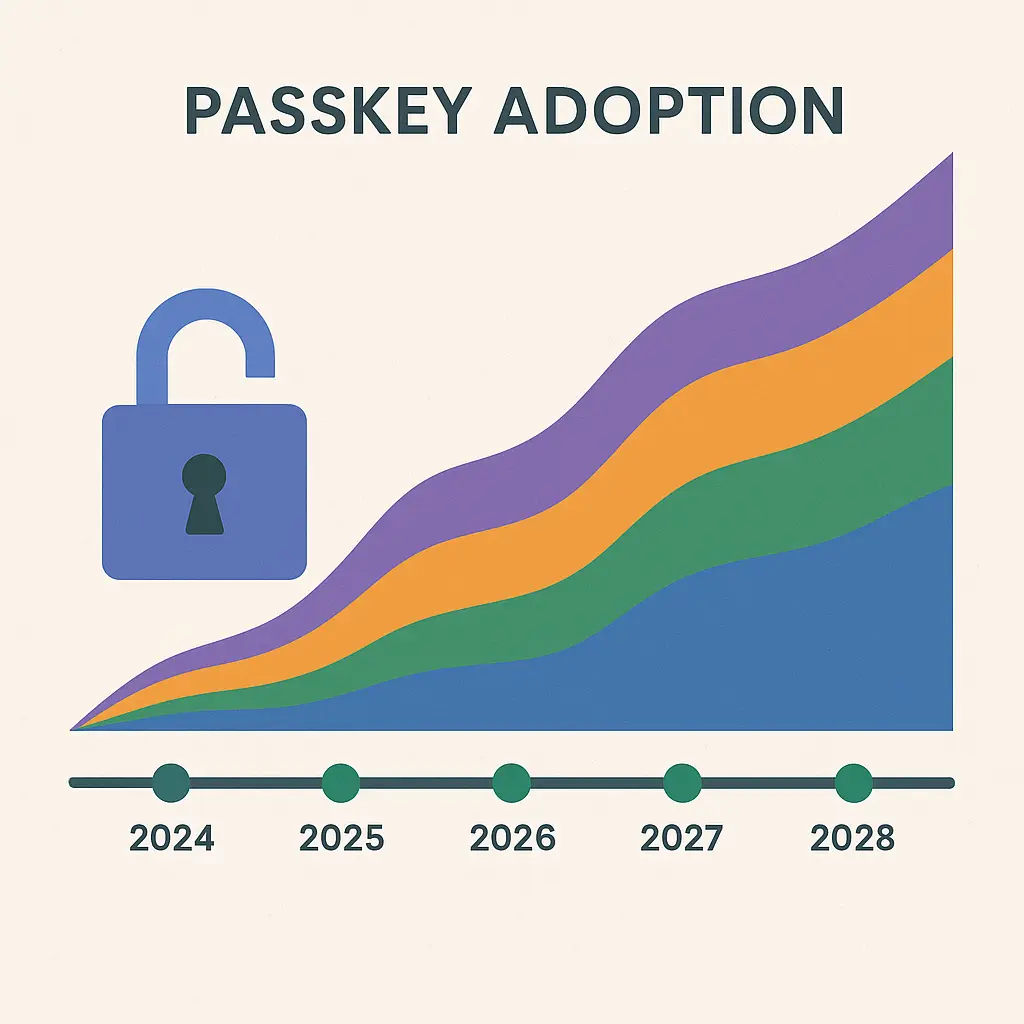
Passkeys are rolling out across major platforms and services, but adoption is uneven. Some websites support them fully. Others are in pilot. Many haven't implemented them at all.
The technical standard is stable. WebAuthn is a W3C recommendation, and the major browser vendors and OS makers have committed to supporting it. The question is how fast websites adopt it and how users respond.
The biggest barrier isn't technical. It's behavioral. People understand passwords, even if they use them badly. Passkeys require explaining public-key cryptography, secure enclaves, and domain binding to an audience that just wants to log in. The user experience is simpler, tap Face ID instead of typing a password, but the mental model is harder.
That gap will close as more people use passkeys without needing to understand the mechanism. You don't need to understand TLS to use HTTPS. You won't need to understand WebAuthn to use passkeys. But right now, we're in the transition, and understanding the mechanism helps you decide whether to adopt early or wait.
Passkeys won't eliminate authentication problems. They eliminate a specific, large category of problems: password reuse, credential stuffing, phishing, and password breaches. That's enough to matter.