Mac malware: yes, it actually exists

The "Macs don't get viruses" claim is security folklore that stuck around longer than it should have. It was roughly true in 2004. It's mythology in 2026.
I've watched this myth persist through two decades of Mac malware evolution. People buy Macs believing the marketing, skip basic precautions, then act surprised when their browser fills with adware or their files get encrypted. The reality is more nuanced than either the zealots or the skeptics admit.
Here's what actually happens on Macs, what threats exist, and what you need to do about it.
The origin of the myth
The "Macs are immune" narrative started with a kernel of truth. Early macOS malware was rare because the platform had single-digit market share. Attackers followed the numbers to Windows, where one exploit could compromise millions of machines.
Apple leaned into this advantage. The "Get a Mac" ads from 2006-2009 explicitly positioned Macs as virus-free. The messaging worked. It also created a generation of Mac users who believed security was something you bought with the hardware.
Market share changed everything. Macs crossed 15 percent of the U.S. desktop market around 2020. That's enough users to make malware development profitable. Attackers adapted. Mac-specific threats multiplied.
The technical architecture of macOS does provide real advantages. Unix-based permissions, app sandboxing, and code signing requirements create barriers that Windows historically lacked. But barriers aren't walls. Malware authors find gaps, exploit user trust, and bypass protections through social engineering.
The myth persists because most Mac malware doesn't behave like the Windows viruses of the 1990s. There's no Clippy asking if you want to format your hard drive. Modern Mac threats are quieter: adware that injects ads into your browser, spyware that harvests credentials, ransomware that encrypts files and demands payment. You might not notice until the damage is done.
What Mac malware actually looks like
Mac malware falls into five categories, each with different goals and distribution methods.
Adware is the most common. It bundles with legitimate software installers, usually for free utilities or media converters. You download what looks like a harmless app, click through the installer without reading, and suddenly your browser homepage changes, search results redirect, and ads appear on sites that shouldn't have them.
The CISA malware analysis service has documented dozens of Mac adware families. Most operate through browser extensions or system-level modifications that intercept web traffic. They're annoying more than dangerous, but they often open the door to worse threats.
Info-stealers target credentials, cryptocurrency wallets, and browser data. They disguise themselves as productivity tools, game cracks, or software updates. Once installed, they scrape saved passwords from Keychain, export browser cookies, and upload the data to attacker-controlled servers.
AMOS and Atomic Stealer are two prominent Mac info-stealers. Both spread through fake software downloads and compromised websites. Victims often don't realize they're infected until their accounts get taken over or their crypto disappears.
Ransomware on Mac is less common than on Windows, but it exists. KeRanger in 2016 was the first fully functional Mac ransomware, distributed through a compromised version of Transmission, a popular BitTorrent client. It encrypted user files and demanded Bitcoin payments.
More recent variants like EvilQuest combine ransomware with spyware functionality. They encrypt files, steal credentials, and establish persistence mechanisms to survive reboots. The CISA ransomware guide covers Mac-specific scenarios, though most ransomware still targets Windows.
Cryptocurrency miners hijack your Mac's CPU to generate cryptocurrency for attackers. They run silently in the background, maxing out processor usage and draining battery life. Some variants disguise themselves as legitimate apps; others exploit browser vulnerabilities to run without installation.
Banking trojans are the most sophisticated. They monitor browser activity, inject fake login forms into banking sites, and steal credentials in real time. OSX/Dok, discovered in 2017, was the first Mac malware to target multiple European banks simultaneously. It used phishing emails to trick users into installing a fake security certificate, then intercepted all web traffic.
How Mac malware spreads
The distribution methods matter more than the malware type. Understanding how infections happen is the first step to avoiding them.
Bundled installers are the primary vector. You download a free video converter, PDF editor, or system cleaner from a sketchy website. The installer works as advertised, but it also installs adware, browser hijackers, or worse. The FTC warns about bundled malware as a persistent consumer threat.
This works because people click through installers without reading. The malware isn't hidden, it's disclosed in screens most users skip. Legally, that's often enough to avoid liability.
Fake software updates exploit trust in the update process. A popup appears claiming Adobe Flash needs an update (even though Flash died in 2020). Or your browser warns that "Java is out of date." You click the button, download the file, and install malware disguised as a legitimate update.
These attacks succeed because the warnings look real. They mimic Apple's update UI, use official-looking language, and prey on the fear that outdated software creates security risks.
Pirated software is malware's best friend. Cracked apps, key generators, and pirated games often contain trojans, info-stealers, or adware. The economics are simple: people who pirate software are willing to disable security features and ignore warnings. That makes them ideal targets.
I'm not here to lecture about piracy. But understand the tradeoff: you're running code from anonymous sources who have every incentive to compromise your system.
Phishing emails deliver malware through attachments or links. An email claims to be from your bank, shipping company, or IT department. It includes a link to a fake website or an attachment that looks like a PDF but is actually an executable file.
macOS makes this harder by flagging files downloaded from the internet and requiring explicit user approval. But phishing works because it exploits urgency and authority. People override warnings when they believe the threat is real.
Supply chain compromises are rare but devastating. Attackers infiltrate legitimate software distribution channels, inject malware into trusted apps, and distribute the compromised versions through official channels. The Transmission ransomware incident was a supply chain attack. So was the XcodeGhost malware that infected hundreds of iOS apps through a compromised development tool.
These attacks bypass most defenses because the malware comes from sources users trust. Code signing and notarization reduce this risk but don't eliminate it.
What macOS actually protects against
Apple builds multiple layers of malware protection into macOS. They're effective against known threats and common attack patterns. They're not magic.
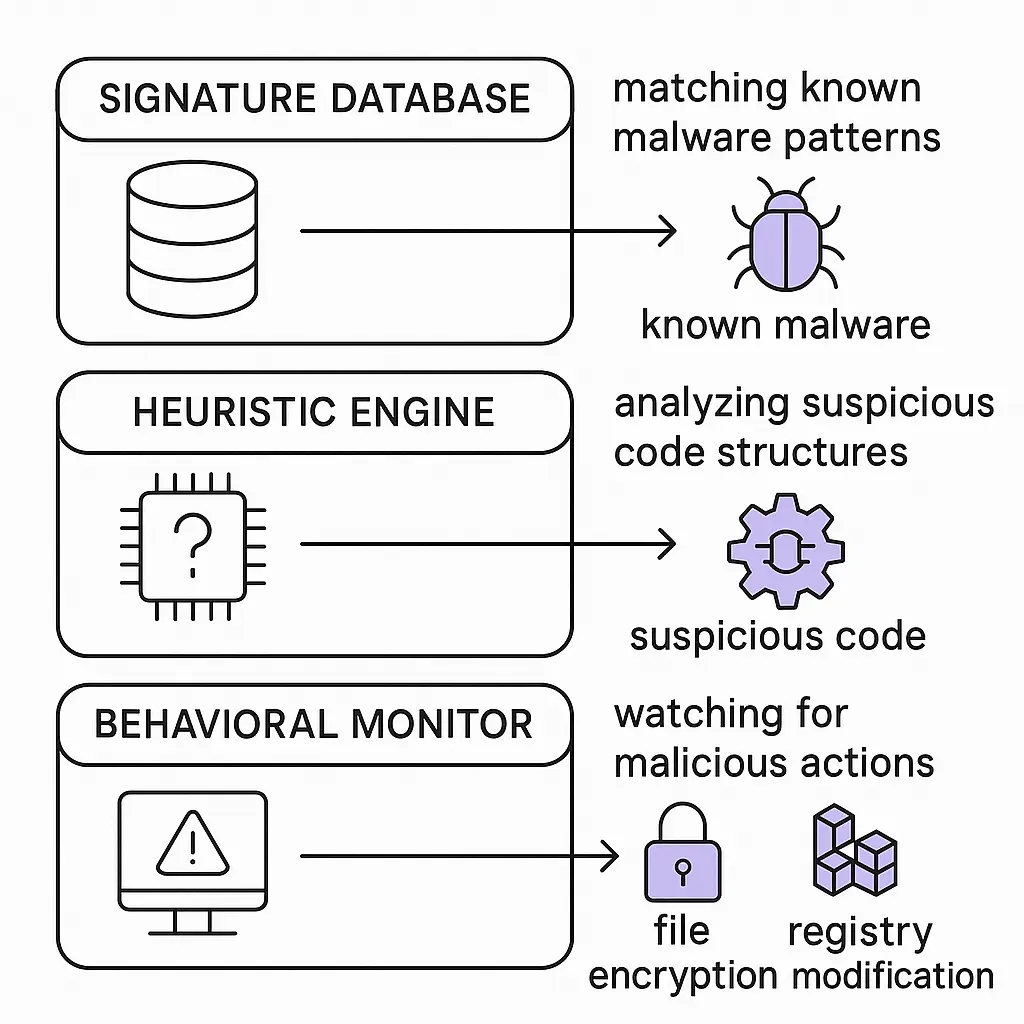
XProtect is Apple's built-in malware scanner. It runs automatically when you download files, open apps, or mount disk images. XProtect checks against a database of known malware signatures, blocks matches, and alerts you to the threat.
The catch: XProtect only detects malware Apple already knows about. Zero-day threats, custom malware, and newly developed variants slip through until Apple updates the signature database. Updates happen automatically, but there's always a lag between threat discovery and signature deployment.
Gatekeeper enforces code signing requirements. Apps must be signed by registered Apple developers to run without manual override. This prevents casual malware distribution, attackers can't just compile code and distribute it without some level of Apple scrutiny.
But Gatekeeper has exceptions. You can override it by right-clicking an app and selecting "Open" instead of double-clicking. Attackers know this. Fake installers often include instructions to bypass Gatekeeper, framed as necessary steps to run the software.
Notarization adds another layer. Developers submit apps to Apple for automated security scanning before distribution. Apple checks for known malware patterns, code signing issues, and suspicious behavior. Apps that pass get a notarization ticket; those that fail get rejected.
Notarization catches some threats, but it's not comprehensive. Apple's automated scans miss sophisticated malware, especially variants designed to evade detection. And notarization is required for apps distributed outside the Mac App Store, but enforcement isn't perfect.
Sandboxing limits what apps can do. Apps from the Mac App Store run in sandboxes that restrict file system access, network access, and system modifications. This contains damage if an app turns malicious, it can't reach beyond its sandbox to compromise the system.
The limitation: most Mac users install apps from outside the App Store. Those apps don't run in sandboxes unless developers voluntarily implement sandboxing. Few do, because it limits functionality.
System Integrity Protection (SIP) prevents modification of critical system files, even with admin privileges. Malware can't delete macOS components, replace system binaries, or install kernel extensions without disabling SIP first, and disabling SIP requires a reboot into recovery mode and manual intervention.
SIP protects the core system, but it doesn't prevent malware from running in user space. Adware, info-stealers, and ransomware operate within user permissions and don't need to touch system files.
The Succession problem
In Succession, Logan Roy's security team operates under the assumption that threats are everywhere, but they focus on the wrong threats. They obsess over physical security, bodyguards, secure locations, controlled access, while the real dangers come from betrayal, manipulation, and information leaks within the trusted circle.
Mac security follows the same pattern. Apple's protections focus on external threats: unsigned apps, known malware, suspicious downloads. They assume the danger comes from outside. But most Mac malware succeeds because users willingly install it, override warnings, and grant permissions.
The real threat isn't the sophisticated zero-day exploit. It's the fake Flash update you clicked because the popup looked official. It's the free video converter bundled with adware. It's the cracked Photoshop installer that came with a keylogger.
Apple can't protect you from yourself. Gatekeeper, XProtect, and notarization work when you let them. They fail when you click "Open Anyway" because you want the software to run.
Do you need antivirus on a Mac
This is the question everyone asks, and the answer is: it depends on what you're protecting and how you use your Mac.
If you browse carefully, download software only from official sources, keep macOS updated, and avoid pirated apps, the built-in protections are probably enough. XProtect and Gatekeeper catch most common threats. The risk you face is low, and adding third-party antivirus introduces its own complexity.
If you handle sensitive data, work in a high-risk environment, or regularly download software from diverse sources, additional scanning adds a layer of defense. Third-party antivirus tools like Malwarebytes detect threats that XProtect misses, scan for adware and potentially unwanted programs, and provide real-time monitoring beyond what macOS includes.
The tradeoff: antivirus software consumes system resources, sometimes conflicts with macOS features, and occasionally generates false positives. You're adding complexity to reduce risk. Whether that tradeoff makes sense depends on your threat model.
For most people, I'd say skip the paid antivirus subscription. Focus on safe browsing habits, software hygiene, and keeping macOS updated. If you want extra protection, Malwarebytes offers a free scanner that checks for threats on demand without the overhead of real-time monitoring.
How to check if your Mac has malware
Symptoms vary depending on the malware type, but here's what to look for:
Unexpected CPU usage. Open Activity Monitor (Applications > Utilities > Activity Monitor) and check the CPU tab. If you see processes consuming significant resources and you don't recognize the names, investigate. Cryptocurrency miners max out CPU usage. Info-stealers and adware sometimes spike processor load during data exfiltration.
Unfamiliar login items. Go to System Settings > General > Login Items. Check both "Open at Login" and "Allow in the Background." Remove anything you didn't install or don't recognize. Malware often adds itself to login items to survive reboots.
Browser extensions you didn't install. Check installed extensions in Safari, Chrome, and Firefox. Adware frequently installs browser extensions to inject ads and track browsing. If you see extensions you didn't add, remove them immediately.
Persistent ads or redirects. If ads appear on sites that shouldn't have them, search results redirect to unfamiliar search engines, or your homepage changed without your input, you likely have adware. This is the most common symptom of Mac malware.
Unfamiliar apps in Applications folder. Open Finder, go to Applications, and sort by date modified. Look for apps you didn't install. Some malware creates standalone applications; others hide in obscure system folders.
Unusual network activity. Open Activity Monitor, click the Network tab, and check which processes are sending or receiving data. Info-stealers and spyware communicate with remote servers to upload stolen data. If you see unfamiliar processes with high network usage, investigate.
If you find something suspicious, don't just delete the app. Malware often installs multiple components across different locations. Use a dedicated removal tool like Malwarebytes to scan the entire system and remove all traces.
Removing malware from your Mac
If you've confirmed infection, here's the removal process:
Disconnect from the internet. This prevents the malware from communicating with command-and-control servers, uploading stolen data, or downloading additional payloads. Turn off WiFi and unplug Ethernet.
Boot into Safe Mode. Restart your Mac and hold the Shift key during boot. Safe Mode loads only essential system components and disables login items. This prevents malware from running during cleanup.
Run a malware scanner. Malwarebytes for Mac is the most reliable free option. Download it on another device, transfer it via USB, and run a full system scan. The tool will identify malware, adware, and potentially unwanted programs. Follow the prompts to quarantine and remove threats.
Check and remove login items. Go to System Settings > General > Login Items and remove anything suspicious. Then check Library folders for launch agents and daemons. Malware often installs persistence mechanisms in ~/Library/LaunchAgents/ and /Library/LaunchDaemons/. Delete files you don't recognize.
Remove browser extensions. Open each browser and check installed extensions. Remove anything unfamiliar. Then clear browsing data, including cookies and cached files. Adware often modifies browser settings; resetting to defaults helps.
Review installed applications. Open Finder, go to Applications, and uninstall any apps you didn't install or don't recognize. Don't just drag them to the trash, use the app's uninstaller if available, or use a tool like AppCleaner to remove associated files.
Change passwords. If you had info-stealer malware, assume your saved passwords are compromised. Change passwords for important accounts, starting with email, banking, and any accounts with saved payment methods. Use a password manager to generate unique passwords for each account.
Monitor for reinfection. Malware sometimes leaves remnants that reinstall the main payload. Run periodic scans with Malwarebytes for the next few weeks. Watch for the symptoms that tipped you off initially.
For detailed removal steps, BleepingComputer's malware removal guides cover specific Mac threats and provide step-by-step instructions for manual cleanup.
Prevention is simpler than cleanup
Avoiding infection beats removing malware. Here's what actually works:
Download software only from official sources. Use the Mac App Store when possible. If you need software not available there, download directly from the developer's website. Avoid third-party download sites, torrent repositories, and sketchy software aggregators.
Read installer screens. Don't click "Next" repeatedly without reading. Bundled installers disclose adware in the fine print. Custom installation options let you deselect unwanted components. Take the extra 30 seconds.
Keep macOS updated. Apple patches security vulnerabilities in macOS updates. Enable automatic updates in System Settings > General > Software Update. Unpatched systems are easier targets.
Don't override Gatekeeper without reason. If macOS blocks an app, don't immediately right-click and select "Open." Understand why it's blocked. If you trust the developer and the source, proceed. If you're not sure, don't.
Use browser extensions cautiously. Only install extensions from official browser stores. Review permissions before installing. Remove extensions you no longer use. Browser extensions have broad access to your browsing data; treat them like apps.
Be skeptical of update prompts. Legitimate macOS updates come through System Settings, not browser popups. Adobe, Java, and Flash don't push updates through web ads anymore (Flash is dead, and the others use built-in updaters). If a website tells you to update software, close the tab and update through official channels.
Avoid pirated software. Cracked apps are malware's primary distribution channel on Mac. If you can't afford software, look for free alternatives or student discounts. Piracy isn't worth the risk.
The myth won't die, but you can act anyway
The "Macs don't get malware" myth survives because it's convenient. It lets people skip precautions, ignore warnings, and believe that buying Apple hardware is enough.
It's not enough. Macs face real threats. The malware is different from Windows malware, the infection rates are lower, and Apple's built-in protections work well against common attacks. But "lower risk" isn't "no risk."
You don't need to panic. You don't need to buy antivirus subscriptions or treat your Mac like a Windows XP machine from 2003. You need to understand that the threats exist, recognize how they spread, and take basic precautions.
Download carefully. Read installer screens. Keep your system updated. Don't override security warnings without understanding why they appeared. Check your Mac periodically for symptoms of infection.
That's it. That's the entire strategy. It's not complicated, and it doesn't require technical expertise. It just requires letting go of the myth that Macs are immune.
They're not. They never were. And pretending otherwise is the biggest security risk of all.