Removing existing malware from your computer: Step-by-step cleanup and prevention

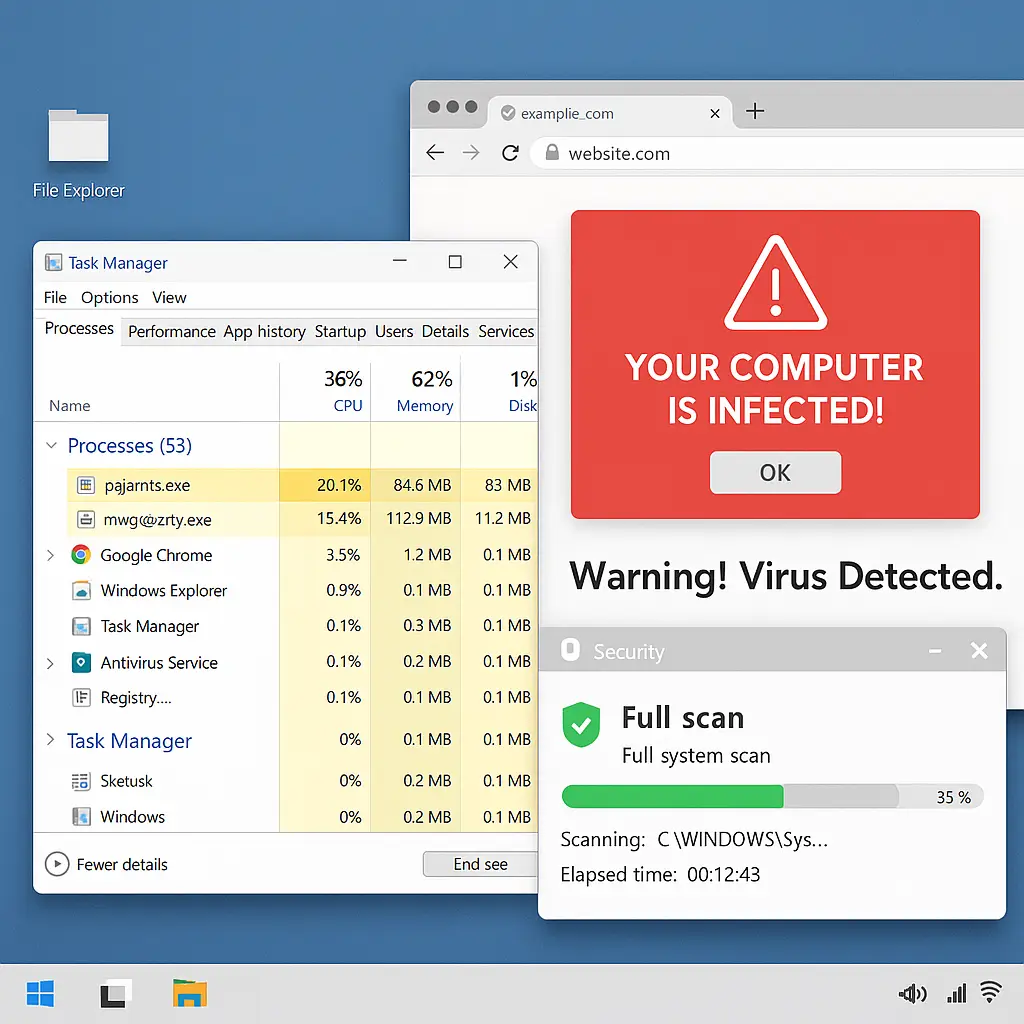
Your computer has malware. Maybe you clicked something you shouldn't have. Maybe a legitimate site served you a malicious ad. Maybe someone else used your machine and installed something toxic. The how doesn't matter right now. What matters is getting it off your system before it does more damage.
Here's the step-by-step process to remove malware yourself, verify it's actually gone, and prevent reinfection. No expensive cleanup services. No reformatting unless absolutely necessary. Just the method that works.
Disconnect from the internet immediately
The first thing you do, before anything else, is disconnect your computer from the internet. Pull the ethernet cable. Turn off WiFi. Unplug your router if you're not sure how to disable network connections properly.
Malware phones home. It downloads additional payloads. It spreads to other devices on your network. It exfiltrates data. Cutting the connection stops all of that. You're isolating the infection before you begin treatment.
Do not skip this step because you want to Google something or download a scanner. Disconnect first. You'll reconnect later, after you've cleaned the system.
Boot into Safe Mode with Networking
Safe Mode loads Windows with minimal drivers and services. Most malware doesn't run in Safe Mode because it relies on startup programs, background services, or specific system configurations that Safe Mode disables. This gives you a clean environment to work in while the malware sits dormant.
On Windows 10 or 11: hold Shift while clicking Restart from the Start menu. When the blue screen appears, select Troubleshoot → Advanced options → Startup Settings → Restart. When the system reboots, press 5 or F5 to select Safe Mode with Networking.
Safe Mode with Networking gives you internet access so you can download scanners and updates, but the restricted environment prevents most malware from interfering with the cleanup process. If you're dealing with a rootkit or particularly aggressive infection, you might need Safe Mode without networking and a USB drive with pre-downloaded tools, but start here.
Download and run Malwarebytes
Malwarebytes is the first scanner you run. It's free for on-demand scans, has strong detection rates for common threats, and doesn't require installation, you can run the portable version if your system is too compromised to install software normally.
Download Malwarebytes from the official site (not from a search result or third-party download site). Install it. Update the definitions before you scan. Then run a full system scan. This takes time, sometimes an hour or more, depending on how much data you have and how slow the infection has made your system.
When Malwarebytes finishes, review what it found. Quarantine everything it flags. Don't second-guess the results. If you're not sure whether something is a false positive, assume it's not. Malwarebytes is conservative about flagging legitimate software.
Restart the computer when prompted. Stay in Safe Mode. You're not done yet.
Run a second scanner
One scanner isn't enough. Different tools catch different threats. Malwarebytes uses behavioral detection and heuristics. Traditional antivirus uses signature databases. You need both approaches.
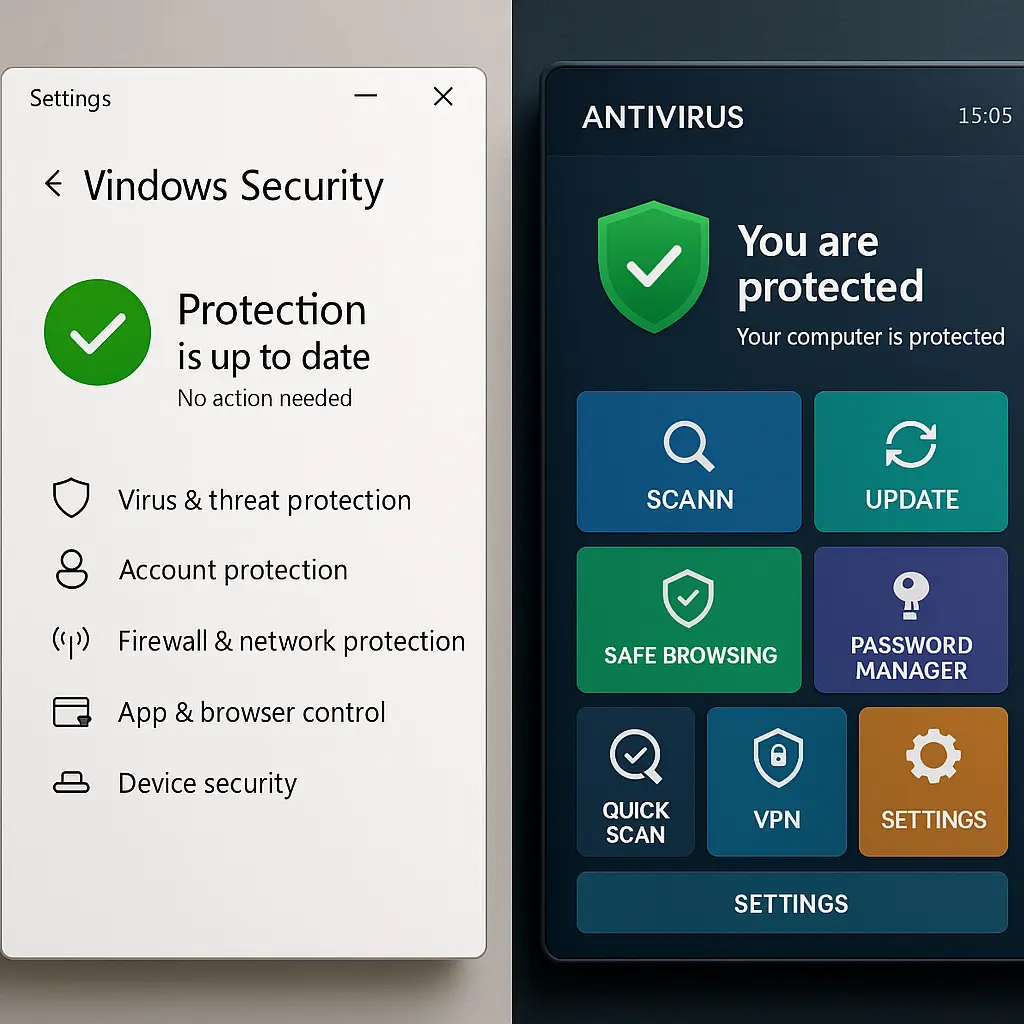
If you already have antivirus installed (Windows Defender, Bitdefender, Norton), update it and run a full scan. If you don't, download Bitdefender or use Windows Defender, which is built into Windows 10 and 11 and performs competently in independent tests.
Run the scan. Quarantine or delete everything it finds. Restart again if prompted. You're looking for anything the first scanner missed. Overlapping coverage matters here.
Some infections disable antivirus or prevent it from running. If your scanner won't start, won't update, or crashes immediately, you're dealing with something more aggressive. Skip to the manual removal section below.
Check for browser hijackers and unwanted extensions
Malware often installs browser extensions that redirect searches, inject ads, or monitor your browsing. These persist after you've cleaned the system files because they live in your browser's profile, not in Windows directories.
Open each browser you use (Chrome, Firefox, Edge, Safari on Mac). Go to the extensions or add-ons page. Remove anything you don't recognize or didn't intentionally install. If you're not sure what something does, remove it. Legitimate extensions are easy to reinstall. Malicious ones are not.
Reset your browser settings. In Chrome: Settings → Reset settings → Restore settings to their original defaults. In Firefox: Help → More troubleshooting information → Refresh Firefox. This removes hijacked homepages, search engines, and startup pages without deleting your bookmarks or passwords.
Check your browser's search engine settings. If something other than Google, Bing, or DuckDuckGo is set as the default, remove it. Check the homepage and new tab settings. Malware loves to redirect these to ad-laden search portals or fake security sites.
Manually remove persistent threats
Some malware survives automated scans by hiding in startup folders, scheduled tasks, or registry keys. You need to check these locations manually.
Open Task Manager (Ctrl+Shift+Esc). Go to the Startup tab. Look for unfamiliar programs set to run at startup. Disable anything suspicious. If you're not sure what something is, Google the filename. Legitimate Windows components are well-documented. Malware often uses names that sound official but aren't.
Open Task Scheduler (search for it in the Start menu). Look through the task list for entries you didn't create. Malware uses scheduled tasks to re-enable itself after reboots or to download additional payloads at specific times. Delete suspicious tasks. If you're worried about breaking something, disable the task first and see if your system still works normally.
Check your browser's shortcut properties. Right-click the browser icon on your desktop or taskbar, select Properties, and look at the Target field. It should end with the browser's executable name (chrome.exe, firefox.exe, msedge.exe). If there's anything after that, a URL, a command-line switch you didn't add, remove it. Malware appends URLs to shortcuts to force the browser to open specific pages.
Verify the cleanup worked
Restart your computer normally (not in Safe Mode). Reconnect to the internet. Open your browser and navigate to a few sites. Check your homepage and search engine. Open Task Manager and review what's running. Everything should feel normal, no unexpected pop-ups, no redirects, no sluggish performance.
Run Windows Defender or your antivirus one more time as a final check. If it finds nothing, you're probably clean. If it finds something, repeat the process. Some infections require multiple passes to fully remove.
Monitor your system for the next few days. If symptoms return, pop-ups, redirects, disabled antivirus, you missed something. Go back to Safe Mode and repeat the process, or consider the nuclear option: a full system reinstall.
The nuclear option: reinstalling Windows
If you've run multiple scanners, removed everything manually, and the infection keeps coming back, you're dealing with a rootkit or something similarly persistent. At this point, the cost-benefit calculation shifts. You can spend hours hunting for the last remnant of the infection, or you can wipe the drive and start fresh.
Reinstalling Windows is the only way to guarantee complete removal of deeply embedded malware. Back up your personal files to an external drive (documents, photos, videos, not programs or system files, which might be infected). Download a Windows installation USB from Microsoft's site. Boot from the USB and follow the installation process. Choose the option to erase everything.
This is overkill for most infections. Adware, browser hijackers, and typical trojans don't require a full reinstall. But rootkits, bootkit malware, and advanced persistent threats do. If your system is compromised at the firmware or bootloader level, no scanner will catch it. Reinstalling is the only reliable fix.
What happens if you skip this process
Leaving malware on your system isn't a neutral choice. The infection doesn't sit idle. It escalates. Adware installs more adware. Trojans download ransomware. Keyloggers harvest passwords and send them to attackers who sell them on criminal markets.
Your email gets compromised. Your bank account gets drained. Your identity gets stolen. Your computer becomes part of a botnet that attacks other systems. Every day you delay increases the damage and the cost of recovery.
You might think you can live with a few pop-ups or a slower system. You can't. The visible symptoms are the least of it. The real damage happens in the background, where you can't see it until it's too late.
Preventing reinfection
Cleaning malware is pointless if you reinfect yourself a week later. Prevention is a process, not a one-time fix.
Update everything. Windows, browsers, plugins, software. Enable automatic updates. Most malware exploits known vulnerabilities in outdated software. Patching closes those doors.
Use antivirus with real-time protection. Windows Defender is sufficient for most people. Bitdefender or Malwarebytes Premium add layers if you want them. The key is real-time protection, scanning files as you download them, not after they've already run.
Stop downloading software from sketchy sites. Torrents, warez sites, and freeware portals are malware distribution networks. If you need software, get it from the official publisher's site or a reputable source like the Microsoft Store. If a site offers you a "free" version of paid software, it's malware.
Be skeptical of email attachments and links. Phishing is still the primary malware delivery method. If you didn't expect an attachment, don't open it. If a link looks suspicious, don't click it. The FTC provides guidance on recognizing phishing attempts, and it's worth reviewing if you're not confident in your ability to spot them.
Back up your data regularly. Malware will eventually get through. When it does, backups are the difference between losing everything and losing an afternoon. Use an external drive or cloud service. Automate it so you don't forget.
The Ted Lasso principle
In Ted Lasso, the team's success doesn't come from one brilliant play or one star player. It comes from consistent effort, incremental improvement, and not giving up when things go wrong. Malware removal is the same. You don't need to be a security expert. You need to follow the process, check your work, and not skip steps because they feel tedious.
The first scan might not catch everything. The second scan might not either. You might need to manually hunt through startup folders and scheduled tasks. You might need to reset your browser three times before the hijacker finally gives up. That's normal. The process works if you stick with it.
When to call for help
If you've followed this process, run multiple scanners, manually removed persistent threats, and the infection keeps coming back, you're out of your depth. Some malware requires forensic-level analysis to remove. Some infections are so deeply embedded that only a professional with specialized tools can extract them without breaking the system.
If your computer is used for work and contains confidential data, consider professional help earlier in the process. The cost of a botched cleanup attempt is higher when business data is at risk. If you're dealing with ransomware that has encrypted your files, do not attempt removal yourself. Contact a professional immediately. Ransomware removal is a specialized field, and mistakes make recovery impossible.
What you've accomplished
You've disconnected the infection from the internet, booted into Safe Mode, run multiple scanners, manually removed persistent threats, verified the cleanup, and implemented prevention measures. Your system is clean. Your data is safe. You didn't pay for a cleanup service or waste a weekend reinstalling Windows.
Malware removal isn't glamorous. It's tedious, repetitive, and occasionally frustrating. But it's also straightforward. The process works. Follow the steps. Check your work. Don't skip the boring parts. You'll be fine.