Leaving a job: what to take and what to leave

You've given notice. You have two weeks to wrap up projects, say goodbye, and clean out your desk. You also have two weeks to separate your digital life from your employer's systems without creating problems for yourself or anyone else.
This matters more than most exit checklists acknowledge. The boundary between your data and your employer's data is real, but it's not always obvious. You probably have personal files on your work laptop, work accounts tied to your personal email, and passwords stored in your browser that unlock both. Getting this wrong creates risk on both sides: you could lose access to things you need, or you could walk out with things that don't belong to you.
Here's the step-by-step process to handle the transition correctly.
What belongs to you, what belongs to them
Start with the legal baseline. Most employment agreements include an intellectual property clause that assigns ownership of work product to the employer. That means anything you created as part of your job, documents, presentations, code, designs, spreadsheets, client lists, internal processes, belongs to the company, not to you. This applies even if you worked on it outside business hours or on your personal device.
Personal files are different. Photos of your kids, your resume, your grad school application, your side project that has nothing to do with work, those are yours. You can and should remove them from company systems before you leave.
The gray zone is anything that mixes the two. A portfolio piece that showcases your work but contains client data. A project you started before you were hired and continued on company time. A process document you wrote that could help you at your next job but also contains proprietary information. For anything in the gray zone, ask before you take it. Get the answer in writing.
Back up personal files first
Before you delete anything, back up the personal files you want to keep. Use your own device and your own storage. Do not email files to your personal account from your work email, that creates a record that looks bad even if the files are legitimately yours. Do not upload files to your personal cloud storage from a work computer, same problem.
The cleanest method: connect an external drive to your work laptop, copy your personal files directly, then disconnect the drive. If you don't have an external drive, use a USB stick. If your employer blocks external storage devices, ask IT for an exception or ask your manager for guidance. If neither works, you might not be able to retrieve those files. That's a risk of storing personal data on work systems.
Once you have the backup, verify it. Open a few files to make sure they copied correctly. Check the file count. Make sure nothing critical is missing.
Delete personal files from work systems
After you have your backup, delete the personal files from your work computer. This includes:
- Personal documents in your user folder
- Personal photos and videos
- Non-work-related downloads
- Personal bookmarks in your browser
- Saved passwords for personal accounts
- Personal browser extensions
- Personal email accounts configured in your work email client
- Personal messaging apps (Signal, WhatsApp, Telegram) if you installed them on a work device
- Personal cloud storage apps (Dropbox, Google Drive, iCloud) synced to your work computer
Empty the recycle bin. Clear your browser cache and history. If you used your work computer for online shopping, banking, or other personal tasks, log out of those accounts and clear saved credentials.
Do not delete work files. Do not delete shared documents. Do not delete emails. Those belong to the company, and deleting them could be considered destruction of company property. If you're unsure whether a file is personal or work-related, leave it.
Update recovery settings on personal accounts
Your work email is about to disappear. If you used it as a recovery email for personal accounts, your bank, your personal email, your social media, your password manager, those accounts will become harder to recover if you ever lose access.
Go through your personal accounts and update the recovery email to a personal address you control. This includes:
- Your personal email account (Gmail, Outlook, Yahoo, etc.)
- Your bank and credit card accounts
- Your password manager
- Your social media accounts
- Your shopping accounts (Amazon, eBay, etc.)
- Any subscription services
- Your phone carrier account
- Your health insurance portal
- Your retirement account
Some services send a confirmation email to the old address when you change recovery settings. If your work email is still active, check it and confirm the change. If your work email is already deactivated, you might need to contact customer support to update the recovery email without access to the old one.
Handle accounts you created using your personal email
This is the reverse problem. If you created work-related accounts, project management tools, vendor portals, client collaboration platforms, using your personal email address, you need to transfer them or change the email before you leave.
The cleanest option: change the account email to a work address or transfer ownership to a colleague. Most platforms allow this in account settings. If the platform doesn't support email changes or ownership transfer, document the account credentials and hand them off to your manager or IT.
Do not keep access to work accounts after you leave. It creates liability for you and security risk for your employer. Even if your intentions are helpful, "I'll just check in and make sure the transition goes smoothly", you're accessing company systems without authorization. That's a problem.
Remove work accounts from personal devices
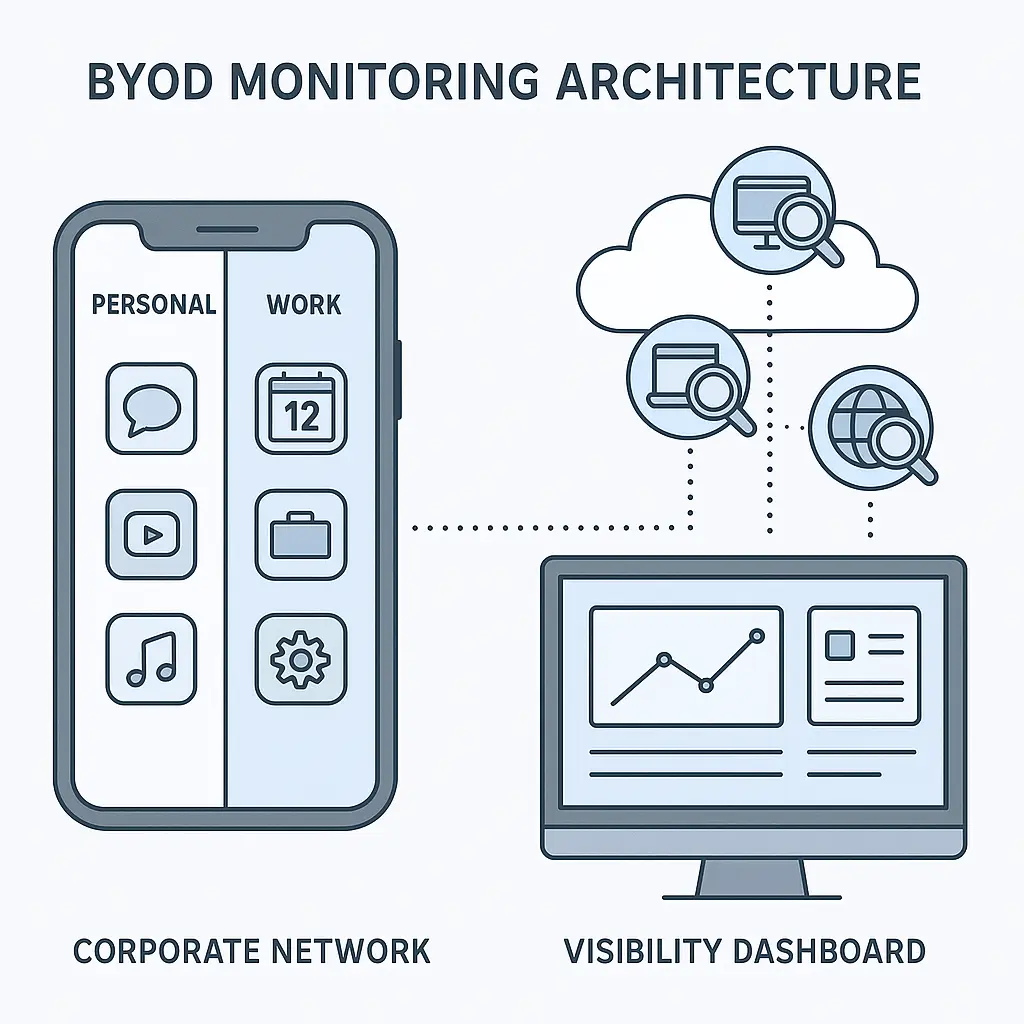
If you used your personal phone or laptop for work, remove the work accounts before you return company property or after your last day. This includes:
- Work email configured in your personal email app
- Work calendar synced to your personal calendar
- Work messaging apps (Slack, Teams, etc.)
- Work VPN profiles
- Work MDM (mobile device management) profiles if your employer required them
- Work cloud storage (OneDrive, Google Drive, etc.) synced to your personal device
- Any work apps you installed on your personal phone
For email and calendar, delete the account from the app. For messaging apps, sign out and delete the app if you won't use it elsewhere. For VPN profiles, delete them from your device settings. For MDM profiles, follow your employer's offboarding process, they might remove the profile remotely, or they might require you to remove it yourself.
If your employer installed an MDM profile on your personal device, removing it might wipe data the profile managed. Back up anything important first.
Return physical access and credentials
You probably have physical items that grant access to company systems or facilities:
- Office keys
- Access badges
- Laptop and charger
- External monitors, keyboards, mice
- Company phone
- Hardware security keys (YubiKey, etc.)
- Company credit card
- Parking pass
Return all of it. If you're working remotely and need to ship equipment back, ask your employer how they want to handle it. Get a tracking number. Keep records of what you returned and when.
For credentials stored in your head, building alarm codes, server passwords, admin credentials, document them and hand them off to your manager or IT. Do not keep copies for yourself. Do not assume someone else knows them.
Clear saved passwords from your work browser
Your work browser probably has saved passwords for work accounts. If you used your work computer for personal accounts, it might also have saved passwords for those.
Before you return your work laptop, clear saved passwords from your browser. In Chrome, Firefox, Edge, or Safari, go to settings, find the passwords section, and delete them. If you used a password manager extension on your work computer, remove the extension and make sure it's not syncing passwords to a work account.
If your employer uses a managed browser profile, they might wipe it remotely after you leave. But don't assume they will. Clear it yourself.
Sign out of personal accounts on shared devices
If you used a shared work computer, a lab machine, a conference room computer, a retail terminal, sign out of any personal accounts you accessed. Check:
- Social media
- Cloud storage
- Shopping sites
- Banking (if you accessed it, which you shouldn't have, but if you did, sign out)
Shared computers sometimes cache credentials or stay logged in across sessions. Don't leave your personal accounts accessible to the next person who uses the machine.
Document what you're taking
If you're taking anything with you, a portfolio piece, a reference letter, a copy of your performance reviews, document it. Send an email to your manager or HR listing what you're taking and why. Keep a copy of their approval.
This protects you if questions come up later. It also protects your employer by creating a record of what left the building and under what circumstances.
If you're not sure whether you're allowed to take something, ask. The answer might be no. That's better than taking it and finding out later that you shouldn't have.
What to do if you're locked out early
Some employers deactivate accounts immediately when you give notice, especially in industries where data security is critical or where employees have access to sensitive client information. If this happens, you lose access to work email, work files, and work systems before your official last day.
If you're locked out early and you have personal files on your work computer, ask IT or your manager for supervised access to retrieve them. Explain what you need and why. Most employers will accommodate reasonable requests.
If they won't, you might not get those files back. This is why you should never store anything critical on work systems that you can't afford to lose.
The Office Space problem
In the 1999 film Office Space, Peter Gibbons stops caring about his job and starts doing the bare minimum. He shows up late, ignores his boss, and eventually participates in a scheme to embezzle fractions of pennies from financial transactions. The embezzlement fails, but Peter's apathy succeeds, he gets promoted because his boss mistakes his indifference for confidence.
Leaving a job creates a similar dynamic. You've mentally checked out, but you're still physically present. You have access to systems, but you no longer have the same incentive to follow the rules. The temptation is to take things you think you deserve, client lists, project files, code you wrote, because you feel like you earned them.
The difference is that Peter's embezzlement was fictional and played for laughs. Taking company data when you leave is real and has real consequences. It's not about what you feel you deserve. It's about what you're legally allowed to take. The answer is usually less than you think.
After you leave
Once you're gone, you won't have access to work systems. If you forgot to update a recovery email, if you left a personal file behind, if you need a reference from a project you worked on, you'll have to ask your former employer for help. Sometimes they'll help. Sometimes they won't.
The best way to avoid this problem is to handle everything before your last day. Make a checklist. Work through it methodically. Don't assume you'll remember everything or that you'll have time to fix it later.
If you do need something after you leave, contact your former manager or HR. Be specific about what you need and why. Be polite. Understand that they're not obligated to help, especially if you left on bad terms or if the request involves accessing systems they've already deactivated.
The legal baseline
Employment law varies by state and by industry, but some principles are consistent. Your employer owns the work product you created as part of your job. Your employer can require you to return company property. Your employer can deactivate your access to company systems at any time, including before your official last day.
You own your personal data. You have the right to remove it from company systems, as long as doing so doesn't interfere with company operations or violate your employment agreement. You do not have the right to take company data with you, even if you created it.
If you're unsure about any of this, consult your employment agreement. If you don't have a copy, ask HR for one. If the agreement is unclear, ask a lawyer. The cost of getting it wrong is higher than the cost of getting advice.
What actually matters
The core principle is simple: separate your data from your employer's data, and do it cleanly. Don't take things that don't belong to you. Don't leave things behind that you'll need later. Don't create ambiguity about what went where.
This isn't about paranoia. It's about boundaries. You had a professional relationship with your employer. That relationship is ending. The digital artifacts of that relationship need to end too.
Most people leave jobs multiple times in their career. The process gets easier with practice, but the stakes don't change. Handle it correctly, and you walk away clean. Handle it poorly, and you create problems that follow you to your next job.
You have two weeks. Use them.