Freelancer security: protecting client data without corporate IT
You're a freelancer. You handle client data. You are the IT department.
No help desk. No security team. No policies written by someone else. Just you, your laptop, and the responsibility to protect information that isn't yours.
The stakes are real. A compromised client file can end a relationship, damage a reputation, or expose sensitive information that was never supposed to leave their organization. You signed an NDA. You promised to keep their data safe. Now you need to actually do it.
This guide walks through the practical steps to secure client data when you're working alone. Not enterprise-grade security theater. Not paranoid overkill. Just the baseline protections that matter when you're the only person standing between a client's confidential information and the internet.
Start with password management
Every client account, every service, every login needs a unique password. Not variations on a theme. Not "ClientName2026!". Unique means generated, random, and stored in a password manager.
Password managers generate strong passwords, store them encrypted, and fill them automatically. You remember one master password. The manager handles everything else.
The threat model is simple: if one account gets breached, the damage stays contained. Reused passwords turn a single breach into a skeleton key that unlocks multiple clients. A password manager prevents that.
Choose a reputable service. Bitwarden, 1Password, and NordPass all deliver strong encryption and cross-platform sync. The free tier of Bitwarden covers most freelancer needs. Paid tiers add features like encrypted file storage and priority support.
Set it up today. Import your existing passwords. Generate new ones for any account that matters. Enable two-factor authentication on the password manager itself, it's the master key to everything else.
Enable two-factor authentication everywhere
Two-factor authentication adds a second verification step beyond your password. Even if someone steals your credentials, they can't log in without the second factor.
Use an authenticator app, not SMS. Apps like Authy, Google Authenticator, or the built-in authenticator in Bitwarden generate time-based codes that expire every 30 seconds. SMS codes can be intercepted through SIM swaps or SS7 exploits. The mechanism is well-documented, and the risk is real enough that security professionals avoid SMS 2FA when better options exist.
Enable 2FA on every account that touches client data:
- Email (your primary communication channel)
- Cloud storage (where client files live)
- Project management tools (where client information flows)
- Payment processors (where financial data sits)
- Password manager (the master key)
Save backup codes when you set up 2FA. Print them. Store them somewhere physical and secure, a locked drawer, a safe, a file cabinet. If you lose your phone, backup codes are your only way back into your accounts.
Encrypt your devices
Full-disk encryption protects everything on your laptop if it gets stolen, lost, or seized at a border crossing. Without encryption, a thief with basic technical skills can pull your entire hard drive and read every file.
Modern operating systems make this straightforward:
- Windows: BitLocker (included in Windows Pro)
- macOS: FileVault (built into System Preferences)
- Linux: LUKS (usually offered during installation)
Turn it on. Set a strong password. Write down your recovery key and store it separately from your laptop, if you forget your password, the recovery key is your only way back in.
Encrypt your phone too. iOS encrypts by default if you set a passcode. Android offers encryption in Settings > Security. A stolen phone without encryption exposes your email, messages, photos, and any client data you've accessed on the device.
External drives need encryption if they hold client files. Use VeraCrypt for cross-platform encrypted volumes or the built-in encryption tools in your operating system. An unencrypted backup drive is a liability.
Secure your home network
Your home WiFi is your primary work environment. If it's compromised, everything you do online is visible to an attacker.
Change the default router password. Manufacturers ship routers with default credentials like "admin/admin" or "admin/password". Those credentials are public knowledge. Log into your router's admin panel and set a strong, unique password.
Use WPA3 encryption if your router supports it. WPA2 is acceptable if WPA3 isn't available. Anything older than WPA2 is a security hole. Check your router settings under WiFi or Wireless Security.
Disable WPS (WiFi Protected Setup). WPS was designed for convenience, press a button, connect a device, but the implementation has known vulnerabilities that make your network easier to crack. Turn it off.
Update your router firmware. Manufacturers release updates to patch security holes. Log into your router admin panel and check for updates. Some routers update automatically; others require manual intervention.
Consider a guest network for devices you don't fully trust, smart TVs, IoT gadgets, visitors' phones. Guest networks isolate those devices from your main network where client data lives.
Handle file storage carefully
Where you store client files matters. Local-only storage is risky, if your laptop dies, the data dies with it. Cloud-only storage is risky, if your account gets compromised, the attacker gets everything. You need both, with different purposes.
Use cloud storage with strong encryption for active projects. Google Drive, Dropbox, and OneDrive encrypt data in transit and at rest, but the provider holds the encryption keys. For highly sensitive client data, consider zero-knowledge providers like Tresorit or ProtonDrive, where only you hold the keys.
Back up locally to an encrypted external drive. Weekly backups are the baseline. Daily is better if client data changes frequently. Use Time Machine on macOS, File History on Windows, or rsync on Linux. Test your backups occasionally, a backup you can't restore is worthless.
Delete client data when the project ends. Your contract might specify retention periods. If not, 30-90 days after final delivery is reasonable. Keeping old client files indefinitely increases your exposure for no benefit. If you need portfolio samples, get written permission and strip out any sensitive information.
Protect email communications
Email is where client conversations happen, where files get shared, and where credentials sometimes flow despite everyone knowing better.
Use a reputable email provider with strong security. Gmail, Outlook, and ProtonMail all offer solid baseline protection. Enable 2FA. Review connected apps and revoke access to anything you don't actively use.
Be cautious with email attachments. Phishing emails often impersonate clients or collaborators. Before opening an attachment, verify the sender. If something feels off, unexpected file, unusual request, strange wording, contact the sender through a different channel to confirm.
Use encrypted email for truly sensitive information. ProtonMail and Tutanota offer end-to-end encryption by default. For occasional encrypted messages with non-technical clients, consider services like Virtru or Sendinc that integrate with standard email.
Avoid sending passwords via email. If a client needs credentials, use a password manager's sharing feature or a service like Bitwarden Send that creates time-limited encrypted links. Email is not a secure channel for secrets.
Secure your workspace
Physical security matters when you work from home, coffee shops, or client offices.
Lock your laptop when you step away. Windows: Win+L. macOS: Cmd+Ctrl+Q. Linux: varies by desktop environment. A locked screen prevents casual snooping and opportunistic access.
Use a privacy screen filter if you work in public spaces. Privacy filters limit viewing angles so people nearby can't read your screen. They're inexpensive and effective against shoulder surfing.
Don't leave devices unattended in public. That includes laptops, phones, tablets, and external drives. If you need to step away, pack up. A moment of convenience isn't worth the risk.
Store physical documents securely. If clients send you paper contracts, NDAs, or printed materials, keep them in a locked drawer or file cabinet. Shred them when you're done, don't just toss them in the trash.
Use a VPN for public WiFi
Public WiFi at coffee shops, libraries, airports, and hotels is convenient but risky. Attackers on the same network can intercept unencrypted traffic, inject malicious code, or impersonate legitimate services.
A VPN encrypts your connection between your device and the VPN server. Anyone monitoring the local network sees encrypted gibberish instead of your actual traffic. The mechanism is well-documented, and the protection is real.
Choose a reputable VPN provider. NordVPN, ProtonVPN, and Mullvad all have strong privacy policies and don't log your activity. Free VPNs often monetize through ads, data collection, or worse, pay for a service you can trust.
Enable the VPN before you connect to public WiFi, not after. Configure it to auto-connect on untrusted networks if your VPN client supports it. The goal is to make encryption automatic, not something you remember to do.
At home, you probably don't need a VPN. Your home network is already private, and your ISP sees your traffic whether you use a VPN or not. VPNs shine on public networks where strangers share the same infrastructure.
Separate work and personal
Mixing work and personal accounts creates security and liability risks. A compromised personal account can expose client data. A client breach can expose your personal information.
Use separate email addresses for work and personal communication. Route client emails to your work address. Keep personal correspondence separate. This makes it easier to maintain boundaries and reduces cross-contamination if one account gets breached.
Use separate browser profiles for work and personal browsing. Chrome, Firefox, and Edge all support multiple profiles with separate cookies, history, and saved passwords. Sign into work accounts in your work profile. Keep personal accounts in your personal profile.
Consider a separate device if you handle highly sensitive client data. A dedicated work laptop keeps client information physically isolated from personal files, family photos, and entertainment. It's overkill for most freelancers, but it's the cleanest separation if your clients demand it.
Audit your security regularly
Security isn't a one-time setup. Accounts accumulate. Permissions drift. Software goes unpatched. Regular audits catch problems before they become breaches.
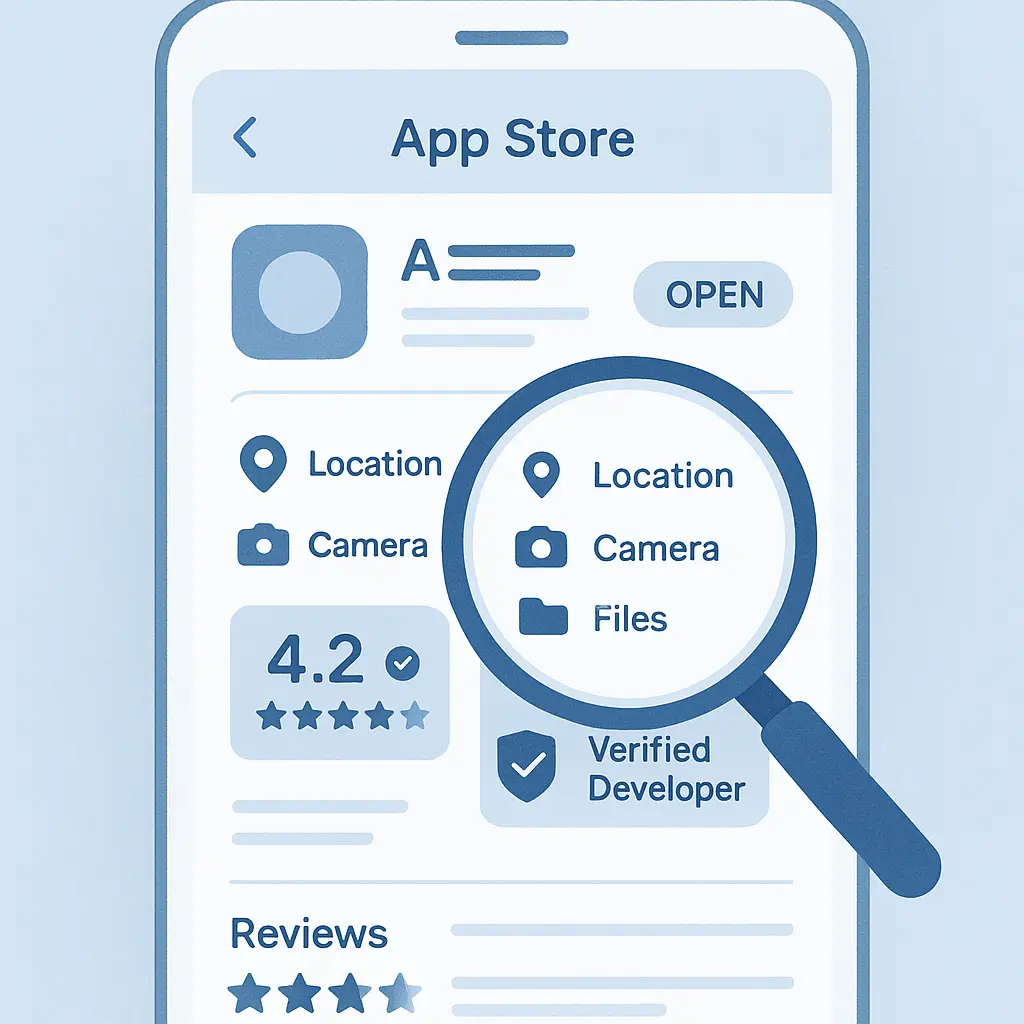
Review connected apps and services quarterly. Log into Google, Microsoft, Apple, and social media accounts. Check which third-party apps have access. Revoke anything you don't actively use. Old integrations are forgotten attack surfaces.
Update software promptly. Operating systems, browsers, password managers, and VPN clients all release security patches. Enable automatic updates where possible. For critical tools, check manually if auto-update isn't available.
Check for compromised passwords using Have I Been Pwned. Enter your email to see if your credentials have appeared in known breaches. Most password managers integrate breach monitoring, use it.
Review your backup routine every few months. Verify that backups are running. Test a restore to confirm the backup actually works. A backup strategy you haven't tested is a backup strategy that will fail when you need it.
Know what to do when something goes wrong
Breaches happen. Laptops get stolen. Accounts get compromised. You need a plan before the crisis hits.
If your laptop gets stolen, act immediately:
- Report the theft to local police
- Remotely wipe the device if you've enabled Find My (Mac) or Find My Device (Windows)
- Change passwords for every account you've accessed from that device
- Notify clients whose data was on the laptop
- File an insurance claim if you have coverage
If you suspect an account breach:
- Change the password immediately
- Review recent activity for unauthorized access
- Enable 2FA if it wasn't already active
- Check for forwarding rules, connected apps, and other persistence mechanisms
- Notify clients if their data may have been exposed
If a client's data gets exposed through your negligence, transparency matters. Tell them what happened, what data was affected, and what you're doing to prevent recurrence. Honesty preserves trust. Cover-ups destroy it.
Build security into your workflow
Security isn't a separate task you do once. It's part of how you work.
When you onboard a new client, create a secure folder structure. Use descriptive names. Store files in encrypted cloud storage or on an encrypted local drive. Set a reminder to delete the folder 90 days after project completion.
When you share files, use secure methods. Encrypted cloud links with expiration dates. Password-protected archives sent separately from the password. Services designed for secure file transfer, not email attachments.
When you communicate about sensitive topics, choose the right channel. Signal or WhatsApp for real-time chat. Encrypted email for formal documentation. Never discuss confidential client information in public Slack channels or on social media.
When you travel, prepare your devices. Back up everything before you leave. Enable full-disk encryption. Consider leaving sensitive client data at home if you don't need it on the road. Border agents can search devices without a warrant, the less you carry, the less you expose.
The cultural reference that fits
In You've Got Mail, Kathleen Kelly runs a small independent bookstore while competing against a corporate chain. She's scrappy, resourceful, and doing everything herself, ordering, merchandising, customer service, bookkeeping. There's no IT department. No security team. Just Kathleen and her staff, figuring it out as they go.
Freelancers operate the same way. You're the CEO, the IT department, the security team, and the janitor. Corporate security advice assumes resources you don't have, dedicated staff, enterprise tools, formal policies. You need the freelancer equivalent: practical steps that actually fit into a one-person operation.
Kathleen couldn't compete on scale, but she could compete on care. You can't match corporate security budgets, but you can match their baseline protections. Password managers, encryption, 2FA, backups, none of this requires a team or a budget. It just requires doing it.
What you can control
You can't prevent every attack. You can't eliminate every risk. But you can make yourself a harder target than the freelancer who reuses passwords, skips backups, and stores client files in plaintext.
Most breaches exploit basic failures. Weak passwords. No 2FA. Unencrypted devices. Outdated software. Fix those, and you're ahead of the majority.
Client data protection isn't about paranoia. It's about responsibility. You asked clients to trust you with their information. Securing it is how you honor that trust.
Set up a password manager today. Enable 2FA on your critical accounts this week. Turn on full-disk encryption this month. The steps are straightforward. The tools are accessible. The only barrier is deciding to start.