Email forwarding rules: a security risk most people miss
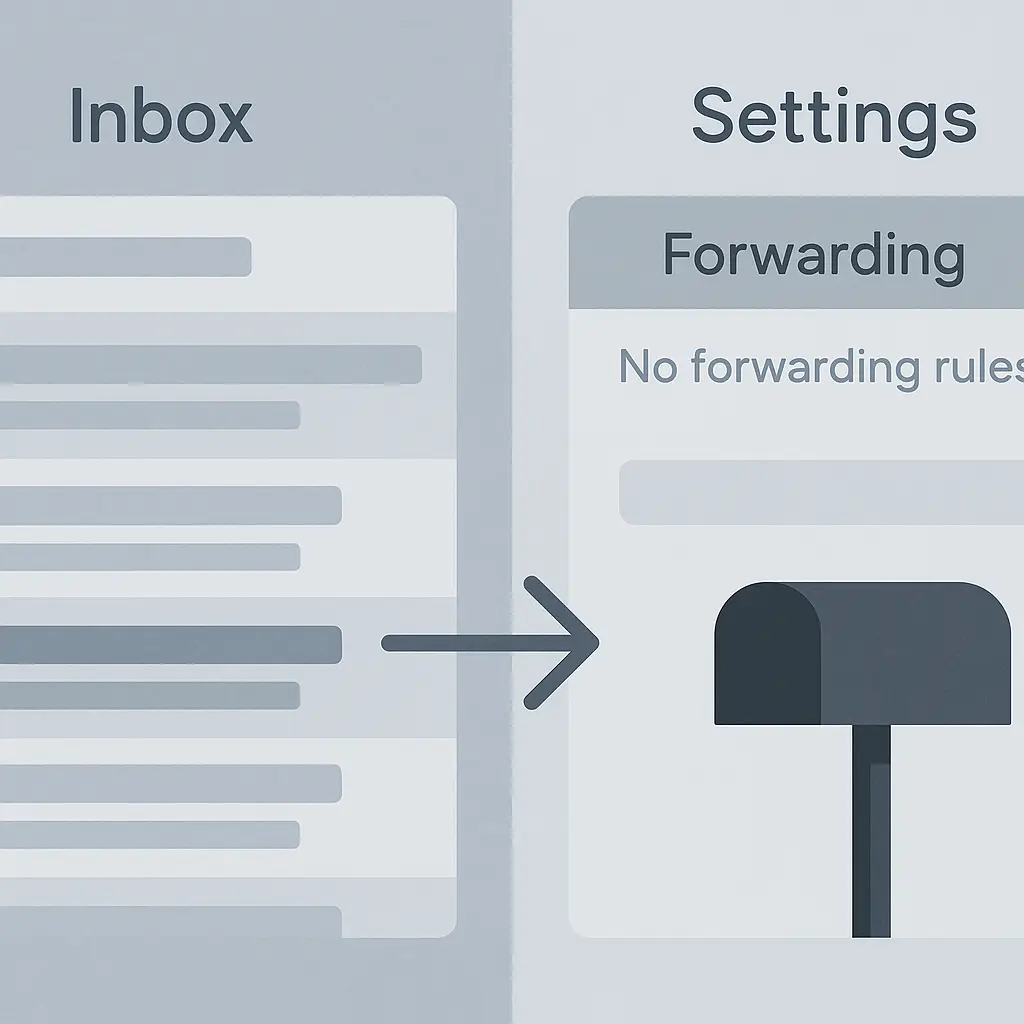
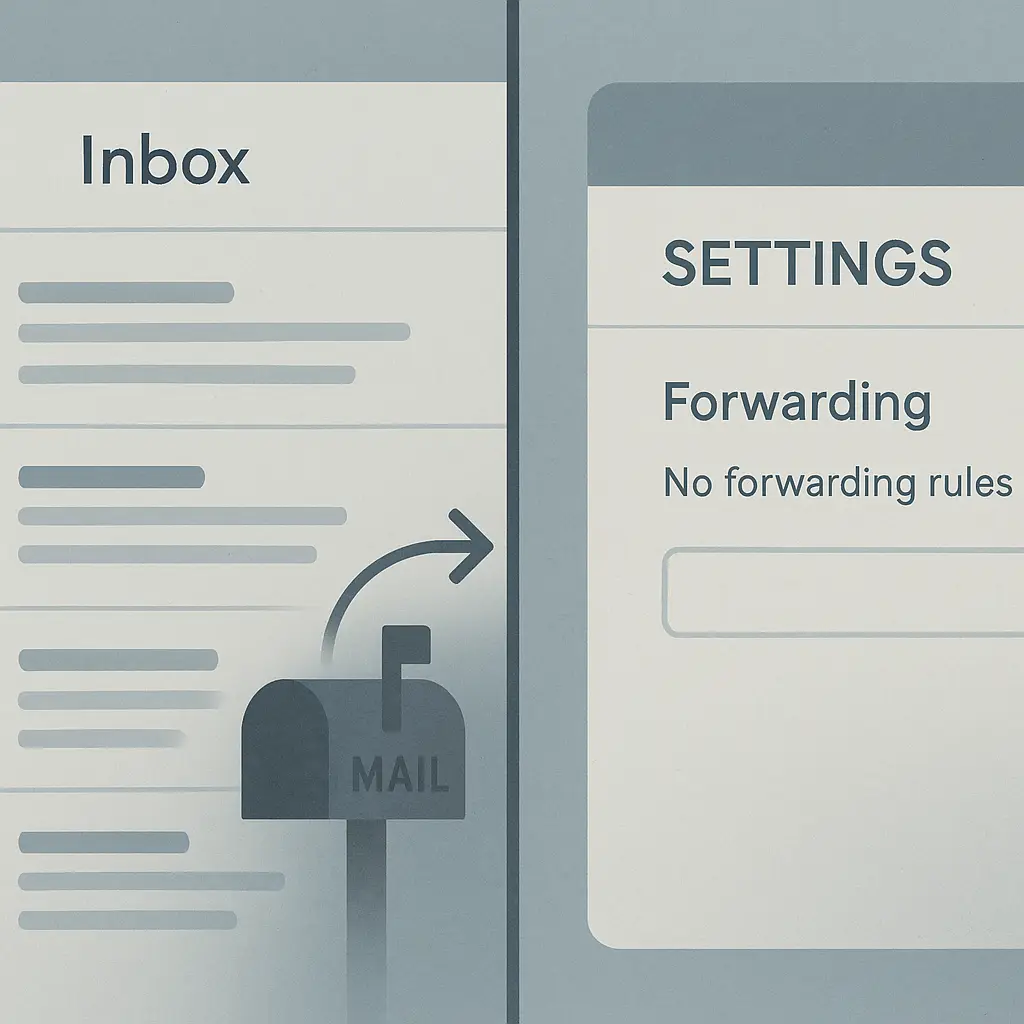
Email forwarding rules are one of the quietest, most persistent methods attackers use to maintain access to your communications after they've compromised your account. You change your password, enable two-factor authentication, and think you've locked them out. Meanwhile, a forwarding rule they installed three weeks ago continues copying every message you receive to an external address you've never heard of.
The mechanism is straightforward. An email forwarding rule is a configuration setting in your email account that automatically sends copies of incoming messages to another address. You can set one up yourself in around two minutes through your email provider's settings interface. Attackers do the same thing after gaining access through phishing, credential stuffing, or malware. Once the rule is active, it runs silently. No alerts. No notifications. Just a steady stream of your email flowing to someone else's inbox.
What makes forwarding rules particularly dangerous is their invisibility and persistence. Most people never check their forwarding settings because they never set up forwarding in the first place. The rule sits there, unnoticed, forwarding password reset emails, financial statements, work communications, and personal messages. Even after you've changed your password and kicked the attacker out of your account, the rule remains active until you manually delete it.
This isn't theoretical. Business email compromise attacks frequently rely on forwarding rules to monitor targets over weeks or months. The attacker gains access, installs a forwarding rule, then logs out. They don't need to stay logged in. They don't need to repeatedly breach your account. They just watch the forwarded messages arrive, learning your communication patterns, identifying who you work with, and waiting for the right moment to strike.
The technical mechanism: how forwarding rules actually work
Email forwarding operates at the server level, not the client level. When you create a forwarding rule through Gmail, Outlook, or Yahoo, you're instructing the email server to execute a specific action every time a message arrives. The rule specifies a condition (forward all messages, or forward messages matching certain criteria) and an action (send a copy to this address, or redirect the message entirely).
The distinction between copying and redirecting matters. A forwarding rule that copies messages sends a duplicate to the specified address while leaving the original in your inbox. You see the message. The attacker sees the message. A redirect rule moves the message to the external address without leaving a copy in your inbox. You never see it. The attacker gets everything.
Most attackers use copy rules because they're harder to detect. If messages start disappearing from your inbox, you'll notice. If a silent copy goes to an external address while you continue receiving mail normally, you won't.
The rule executes automatically. You don't click anything. You don't approve the forwarding. The server processes every incoming message according to the rule's logic. If the rule says "forward everything to attacker@external.com," then that's what happens, every single time, until you delete the rule.
Email providers don't send you alerts when someone creates a forwarding rule. They assume the person logged into your account is you. If you've enabled two-factor authentication, they assume you authorized the change. There's no secondary confirmation. No "Did you mean to forward all your email to this address?" prompt. The rule just activates.
This is why forwarding rules survive password changes. The rule isn't tied to your password. It's a configuration setting stored in your account's server-side preferences. Changing your password locks the attacker out of the login interface, but it doesn't touch the forwarding rule they installed while they had access.
How attackers use forwarding rules in practice
Forwarding rules show up most often in business email compromise scenarios. The attacker targets someone with financial authority, payment processing responsibilities, or access to sensitive communications. They gain access through phishing (a fake login page that captures credentials), credential stuffing (trying usernames and passwords leaked from other breaches), or malware (a keylogger that records what you type).
Once inside, they don't immediately drain accounts or send fraudulent payment requests. They install a forwarding rule and disappear. For weeks or months, they monitor your email. They learn who you communicate with, what your approval processes look like, when you're traveling, and what payment requests typically involve. They build a detailed picture of your work relationships and communication patterns.
When they're ready, they strike. They send a carefully crafted email to someone in your organization, impersonating you or a trusted partner, requesting a wire transfer or sensitive information. Because they've been monitoring your forwarded email, they know exactly how to phrase the request, who to target, and when to send it for maximum credibility.
The forwarding rule also lets them intercept password reset emails. If you try to change your password, the reset link arrives in your inbox. It also arrives in the attacker's inbox via the forwarding rule. They click the link, change your password before you do, and lock you out. This creates a cat-and-mouse dynamic where you're fighting for control of your own account.
In some cases, attackers use forwarding rules to monitor competitors, gather intelligence on business deals, or track personal communications for blackmail or harassment. The rule is just a tool. What they do with the forwarded messages depends on their goal.
The cultural reference: The Office and Jim's second desk
In The Office, Jim Halpert pulls a prank on Dwight by slowly moving Dwight's desk items to a second, identical desk across the room. Dwight doesn't notice at first because the transition happens incrementally. By the time Dwight realizes what's happening, Jim has built a complete duplicate workspace that mirrors the original in every detail.
Email forwarding rules work the same way. The attacker builds a second inbox that mirrors yours. You continue working normally, unaware that every message landing in your inbox is simultaneously landing in theirs. The duplicate workspace operates invisibly, and you have no reason to check for it unless you already suspect something's wrong.
The prank works because Dwight trusts that his workspace is singular and under his control. Email users operate under the same assumption. Your inbox is yours. The idea that someone might be receiving copies of your messages in real time, without your knowledge, doesn't register as a possibility until you're specifically told to check.
Where forwarding rules hide in major email services
Every major email provider offers forwarding functionality, but they bury it in different locations within their settings interfaces. Here's where to find it.
Gmail: Click the gear icon in the upper right, select "See all settings," navigate to the "Forwarding and POP/IMAP" tab. If a forwarding address appears in the "Forwarding" section, you have an active rule. If it says "Disable forwarding," no rule is active. You should also check the "Filters and Blocked Addresses" tab for rules that forward specific messages based on sender, subject, or keywords.
Outlook / Hotmail / Microsoft 365: Click the gear icon, select "View all Outlook settings," go to "Mail" > "Forwarding." If "Enable forwarding" is toggled on and an address appears, you have an active rule. Also check "Mail" > "Rules" for conditional forwarding based on message criteria.
Yahoo Mail: Click the gear icon, select "More Settings," go to "Mailboxes" and look for any forwarding addresses listed under your primary mailbox. Yahoo also supports filters, accessible under "More Settings" > "Filters," where forwarding can be configured based on message attributes.
Apple iCloud Mail: Log into iCloud.com, open Mail, click the gear icon, select "Preferences," then "Rules." Forwarding rules appear here. Apple also allows forwarding configuration through the main "Preferences" menu under "General."
ProtonMail: Go to "Settings" > "Filters," then check for any rules that include a "Forward to" action. ProtonMail's encryption model limits forwarding to addresses you've explicitly authorized, but the rule can still exist if you set it up or if someone with access to your account created it.
If you find a forwarding address you don't recognize, delete it immediately. If you find a filter or rule that forwards messages, delete that too. Don't assume it's a mistake or a legacy setting you forgot about. Treat any unexpected forwarding configuration as a potential compromise.
What forwarding rules reveal about email security's weak points
Email forwarding rules expose a fundamental tension in email security design. Email providers want to offer powerful automation features that let users manage their inboxes efficiently. Forwarding, filtering, and auto-replies are legitimate tools that millions of people use daily. But those same tools, in the hands of an attacker, become surveillance infrastructure.
The problem is that email providers can't easily distinguish between a user setting up forwarding for convenience and an attacker setting up forwarding for espionage. Both actions look identical from the server's perspective: someone logged in with valid credentials and changed a setting. Two-factor authentication helps, but if the attacker phished your credentials and your 2FA code in the same session, they can install the rule before you even realize you've been compromised.
Some enterprise email systems log configuration changes and alert administrators when forwarding rules are created, but consumer email services generally don't. Gmail, Outlook, and Yahoo treat forwarding as a routine user preference, not a security event. This makes sense for usability, but it also means you're responsible for auditing your own settings.
The persistence of forwarding rules after password changes is another design choice that prioritizes convenience over security. If changing your password automatically deleted all your filters, rules, and forwarding settings, it would be a nightmare for users who legitimately rely on those configurations. But it would also neutralize one of the most effective post-compromise surveillance techniques attackers use.
Email security in 2026 is better than it was a decade ago. Encryption in transit is standard. Two-factor authentication is widely available. Phishing detection has improved. But the underlying architecture of email, built in an era when trust was assumed and automation was limited, still carries vulnerabilities that modern security practices can't fully eliminate. Forwarding rules are one of those vulnerabilities.
How to audit your email for hidden forwarding rules
Checking for forwarding rules should be part of your routine email security hygiene, alongside password updates and two-factor authentication reviews. Here's the step-by-step process.
Step 1: Log into your email account on a trusted device. Use a computer or phone you control, on a network you trust. Don't check for forwarding rules from a public computer or an unfamiliar network.
Step 2: Navigate to your email settings. The exact path depends on your provider, but look for a gear icon, a settings menu, or a preferences link. This is usually in the upper right corner of the interface.
Step 3: Find the forwarding section. Look for labels like "Forwarding," "Forwarding and POP/IMAP," "Mail forwarding," or "Auto-forwarding." If your provider uses a tabbed settings interface, forwarding is often in the "Mail" or "General" tab.
Step 4: Check for active forwarding addresses. If you see an email address listed as a forwarding destination, and you didn't set it up, delete it. If the interface shows "Forwarding disabled" or "No forwarding addresses," you're clear.
Step 5: Check your filters and rules. Forwarding can also be configured through conditional rules that forward specific messages based on sender, subject, keywords, or other criteria. Look for sections labeled "Filters," "Rules," "Blocked Addresses," or "Automatic Replies." Open each rule and check the actions. If any rule includes "Forward to" or "Redirect to," and you don't recognize the destination address, delete the rule.
Step 6: Review your account activity. Most email providers offer a log of recent account activity, including login times, IP addresses, and device types. Look for logins from unfamiliar locations or devices. If you see access you don't recognize, change your password immediately and review your security settings.
Step 7: Enable two-factor authentication if you haven't already. This won't prevent an attacker who already has access from installing a forwarding rule, but it makes future unauthorized access significantly harder. Use an authenticator app or a hardware security key, not SMS.
Step 8: Set a calendar reminder to repeat this audit every three months. Checking once isn't enough. Forwarding rules can be installed at any time if your account is compromised. Routine audits catch rules before they've been active long enough to cause serious damage.
If you find an unexpected forwarding rule, assume your account has been compromised. Change your password, review your two-factor authentication settings, check for other unauthorized changes (like new recovery email addresses or phone numbers), and consider enabling login alerts if your provider offers them.
The broader context: why forwarding rules matter in 2026
Email forwarding rules aren't new. They've existed as long as email automation has existed. What's changed is the sophistication of attackers and the value of the data they're targeting. A decade ago, most email compromises were opportunistic: attackers breached accounts, sent spam, and moved on. Today, email compromise is often the first step in a longer campaign.
Business email compromise losses reported to the FBI's Internet Crime Complaint Center exceeded $2.9 billion in 2023. Many of those attacks relied on email access, and forwarding rules are a common technique for maintaining that access without triggering obvious alerts.
The shift toward remote work has made email even more central to business operations. Approvals, contracts, financial transactions, and sensitive communications all flow through email. Forwarding rules give attackers a window into all of it.
Consumer email accounts are also valuable targets. Your email is the recovery mechanism for nearly every other account you have. If an attacker controls your email, they can reset passwords for your bank, your social media, your cloud storage, and your work accounts. A forwarding rule lets them monitor those reset emails and intercept them before you do.
The FTC's guidance on protecting personal information emphasizes the importance of monitoring your accounts for unauthorized changes, but most people don't know that forwarding rules are a change worth monitoring. It's not intuitive. You think about passwords, login alerts, and suspicious emails. You don't think about invisible server-side configurations that copy your messages to someone else.
Security professionals have been talking about forwarding rules for years, but the advice hasn't reached general awareness. Part of the problem is that checking for forwarding rules requires navigating settings interfaces that most people never open. It's not as simple as "look at your inbox." You have to dig into configuration menus that aren't designed for routine inspection.
What email providers could do differently
Email providers could make forwarding rules more visible and harder to abuse. Here are a few changes that would help.
Mandatory alerts when forwarding is enabled. If someone creates a forwarding rule, the account owner should receive an email notification to a secondary address, or a push notification to a registered device. The alert should include the destination address and a link to disable the rule. This wouldn't stop a determined attacker, but it would give users a chance to catch unauthorized rules before they've been active for weeks.
Forwarding rule review during password changes. When you change your password, the email provider could display a summary of active forwarding rules and ask you to confirm or delete them. This would catch rules installed during a compromise and neutralize them at the moment when users are most likely to be thinking about account security.
Forwarding rule expiration. Consumer email accounts could require forwarding rules to be renewed every 90 days. If you don't actively confirm the rule, it disables automatically. This would limit the lifespan of attacker-installed rules without significantly inconveniencing legitimate users who rely on forwarding.
Clearer settings interfaces. Forwarding settings are buried in menus that most users never explore. Moving forwarding controls to a more prominent location in the settings interface, or adding a security dashboard that surfaces active rules, would make auditing easier.
None of these changes would eliminate the risk entirely, but they would shift the balance. Right now, forwarding rules are invisible by default and persistent until manually deleted. Making them visible by default and temporary unless actively maintained would reduce their usefulness as an attack tool.
What you should do right now
If you've never checked your email forwarding settings, do it today. It takes around five minutes. Log into your email account, navigate to settings, find the forwarding section, and verify that no unexpected addresses are listed. Check your filters and rules for conditional forwarding. If you find anything suspicious, delete it and change your password.
Set a recurring reminder to repeat this audit every three months. Email security isn't a one-time task. Accounts get compromised. Credentials get leaked. Forwarding rules get installed. Routine audits catch problems before they turn into disasters.
Enable two-factor authentication if you haven't already. Use an authenticator app or a hardware security key. CISA's multifactor authentication guidance walks through the setup process for major email providers.
If you manage email for other people (your family, your small business, your team at work), add forwarding rule audits to your security checklist. Show people where to find the settings. Explain what forwarding rules are and why they matter. Most people won't check unless someone tells them to.
Email forwarding rules are a quiet, persistent threat that most people don't know to look for. Now you do. Check your settings. Delete anything unexpected. And check again in three months.