Check Your Account Login History: The Step-by-Step Security Audit
Your email account logged in from Romania at 3 AM. Your bank shows a session from a device you've never owned. Your social media account accessed from two cities simultaneously.
These aren't hypothetical scenarios. They're the first signs of account takeover, and most people discover them weeks too late, or never.
Login history is the security feature everyone has and almost nobody checks. Every major service tracks when you log in, from where, and on what device. That data sits in your account settings, waiting for you to review it. Most of us never do.
Here's the practical guide to checking your account login history across every service that matters. What to look for, what each pattern means, and the exact steps to take when something looks wrong.
Why Login History Matters More Than You Think
Account takeover doesn't announce itself with dramatic warnings. Attackers don't want you to know they're inside your account. They log in quietly, browse your data, and leave. Sometimes they come back weeks later.
Login history is the paper trail they can't erase.
When someone uses your credentials to access your account, the service logs that session. The timestamp, IP address, device type, and approximate location all get recorded. That record persists even if the attacker changes your password, deletes emails, or covers their tracks inside your account.
Checking login history regularly turns account security from reactive to proactive. Instead of discovering fraud after money disappears or data leaks, you catch unauthorized access while you can still lock it down.
The FTC recommends monitoring account activity as a core defense against identity theft. CISA's security guidance emphasizes regular account reviews as part of basic cyber hygiene. These aren't advanced security measures. They're the baseline.
What Login History Actually Shows You
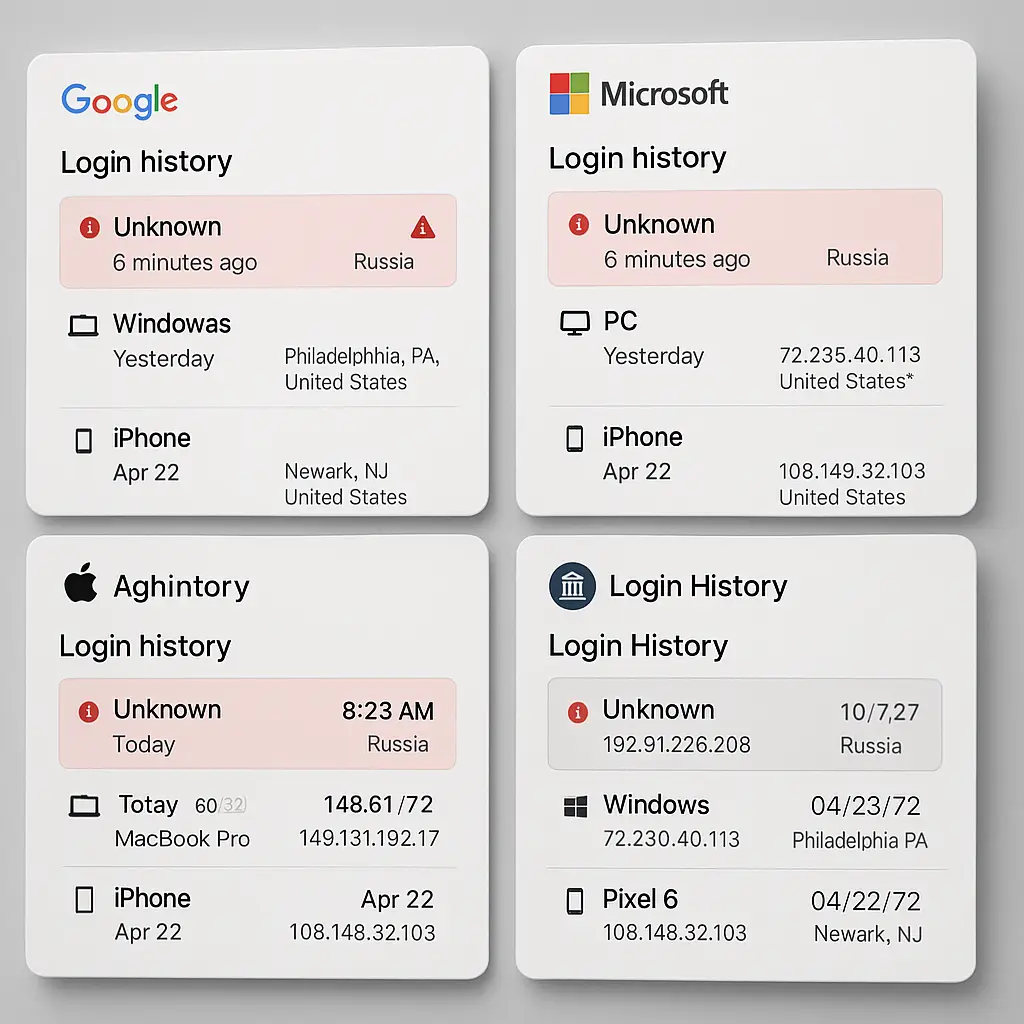
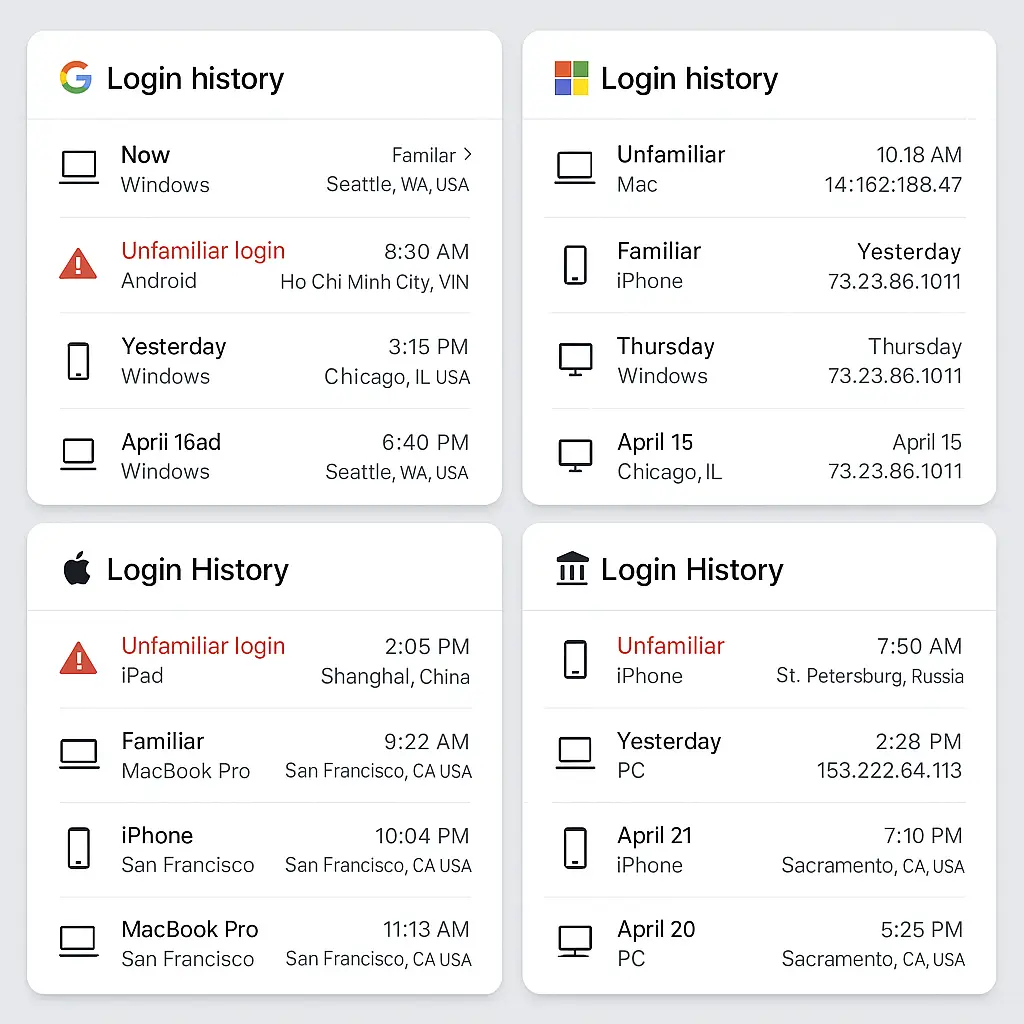
Login history records vary by service, but most include the same core data points:
Timestamp: When the login occurred, usually in your local time zone. Services typically show the date and time down to the minute.
Device information: The browser, operating system, and sometimes the device model. "Chrome on Windows" or "Safari on iPhone" tells you what was used to access your account.
IP address: The numerical address assigned to the device that logged in. Sometimes displayed in full, sometimes partially masked for privacy.
Location: An approximate geographic location derived from the IP address. This is usually accurate to the city level but can be wildly wrong depending on VPN use, mobile networks, or ISP routing.
Activity type: Some services distinguish between successful logins, failed attempts, password changes, and security setting modifications.
Not every service shows all of these fields. Banks tend to provide detailed logs for compliance reasons. Social media platforms often show less granular data. But the pattern is consistent enough that you can audit most accounts using the same mental checklist.
How to Check Login History on Google Accounts
Google accounts power Gmail, Drive, Photos, and dozens of other services. Unauthorized access here means exposure across your entire digital life.
Open your Google Account settings by visiting myaccount.google.com. Click "Security" in the left sidebar. Scroll down to "Your devices" and click "Manage all devices."
You'll see a list of every device that's currently signed into your Google account. Each entry shows the device name, last activity timestamp, and approximate location. Click any device to see more details: the specific Google services accessed, when it was added to your account, and the option to sign out remotely.
For a more detailed activity log, scroll further down the Security page to "Recent security activity." This shows login attempts, password changes, security setting modifications, and recovery email updates. Each event includes a timestamp and location.
Google also offers a separate "Security Checkup" that walks you through recent activity, connected devices, and third-party app permissions in one guided flow. It's worth running quarterly.
What to look for: Devices you don't recognize. Logins from countries you've never visited. Activity timestamps that don't match your actual usage patterns. Multiple failed login attempts followed by a successful one suggests someone guessed your password.
If you find something suspicious, click "Don't recognize this device?" Google will walk you through securing your account: changing your password, signing out all sessions, and reviewing recovery settings.
How to Check Login History on Microsoft Accounts
Microsoft accounts cover Outlook, OneDrive, Office 365, Xbox, and Windows itself. The login history interface is similar to Google's but organized differently.
Visit account.microsoft.com and sign in. Click "Security" at the top of the page, then "Sign-in activity" under the "Advanced security options" section.
Microsoft shows recent sign-ins with timestamps, locations, IP addresses, and device information. The interface groups activity by date, making it easier to spot patterns across multiple logins.
Click "Review activity" next to any entry for more details. Microsoft will show the specific app or service accessed, whether the login was successful, and the authentication method used.
Microsoft also maintains a separate "Devices" page under Security settings. This shows every device currently signed into your account, when it was added, and when it last synced. You can remove devices remotely from this page.
For work or school accounts managed by an organization, your IT department may have access to more detailed logs than you do. The activity you see in your personal view may be limited compared to what administrators can review.
What to look for: Sign-ins from unfamiliar devices or locations. Activity during hours you weren't using your account. Multiple failed attempts followed by success. Logins to services you don't use.
If something looks wrong, click "This wasn't me" next to the suspicious activity. Microsoft will guide you through password reset, session termination, and security review.
How to Check Login History on Apple Accounts
Apple's ecosystem spans iCloud, iMessage, FaceTime, App Store, and device backups. Account access here means visibility into your photos, messages, location history, and purchase records.
On an iPhone or iPad, open Settings and tap your name at the top. Scroll down to see a list of devices signed into your Apple ID. Tap any device to see when it was added and when it last accessed your account.
On a Mac, open System Settings, click your name, then "Password & Security." Scroll down to "Devices" to see the same list.
On the web, visit appleid.apple.com and sign in. Click "Devices" in the sidebar to see everything signed into your account.
Apple's device list shows the device name, model, and when it was added. It doesn't show detailed login timestamps or IP addresses like Google and Microsoft do. The focus is on device management rather than session-by-session activity.
For more granular activity, check your email for security notifications from Apple. The company sends alerts when your Apple ID is used to sign into a new device, when your password changes, or when account recovery settings are modified. These emails include timestamps and approximate locations.
What to look for: Devices you don't own or recognize. Old devices you've sold or given away still signed in. Devices listed in locations where you've never been.
If you find an unfamiliar device, tap it and select "Remove from Account." Then change your Apple ID password immediately and enable two-factor authentication if you haven't already. Apple's two-factor authentication is one of the stronger implementations available.
How to Check Login History on Banking and Financial Accounts
Banks maintain detailed login records for fraud detection and regulatory compliance. The interface varies by institution, but the data is usually more comprehensive than consumer services.
Most banks show login history under "Security Settings," "Account Activity," or "Profile." Some bury it in the help or support section. If you can't find it, search the bank's help documentation for "login history" or "account activity."
Bank login history typically includes timestamps, IP addresses, device types, and whether the login was through web, mobile app, or phone banking. Some banks also track ATM access and branch visits tied to your account number.
Financial institutions often separate successful logins from failed attempts, password changes, and security setting modifications. Failed login attempts are particularly important, they indicate someone is trying to guess your password.
Many banks send real-time alerts for suspicious activity: logins from new devices, transactions above certain thresholds, or access from unfamiliar locations. Configure these alerts in your security settings if they're not enabled by default.
What to look for: Logins you didn't initiate. Failed attempts that you didn't make. Access from locations you haven't visited. Logins immediately before or after unusual transactions.
If you spot unauthorized access, call your bank immediately. Don't just change your password online, an attacker who's already inside your account may have set up additional access methods. The bank needs to lock the account, review recent activity, and issue new credentials through a verified channel.
How to Check Login History on Social Media Accounts
Social media accounts hold years of personal information, private messages, and connections to your real-world identity. Unauthorized access can lead to impersonation, data theft, or social engineering attacks against your contacts.
Open Facebook and click the menu icon in the top right. Select "Settings & Privacy," then "Settings." Click "Security and Login" in the left sidebar.
Under "Where You're Logged In," you'll see a list of active sessions with device information, location, and last activity timestamp. Click the three dots next to any session to log out remotely.
Facebook also shows "Recent logins" further down the page, including failed attempts. This is where you'll spot someone trying to guess your password.
Open Instagram and go to your profile. Tap the menu icon, then "Settings and Privacy." Select "Security," then "Login Activity."
Instagram shows active sessions with device type, location, and timestamps. Tap any session to see more details or log out remotely.
Instagram's interface is less detailed than Facebook's, but it covers the essentials: where you're logged in and when.
Twitter/X
Open Twitter and click "More" in the left sidebar. Select "Settings and privacy," then "Security and account access." Click "Apps and sessions," then "Sessions."
Twitter shows active sessions with device information, IP addresses, locations, and timestamps. You can revoke any session individually.
Twitter also maintains a separate "Account access history" under the same menu that shows login attempts, password changes, and email updates.
Click your profile photo in the top right and select "Settings & Privacy." Click "Sign in & security" in the left sidebar, then "Where you're signed in."
LinkedIn shows active sessions with device type, location, and last activity. Click "Sign out" next to any session you don't recognize.
LinkedIn's activity log is less detailed than other platforms, but it covers the basics.
What Suspicious Activity Actually Looks Like
Not every unfamiliar entry in your login history means fraud. VPNs, mobile networks, and ISP routing create false positives. Here's how to separate real threats from benign anomalies.
Impossible travel: Logins from two distant locations within a timeframe that makes physical travel impossible. A login from New York at 2 PM followed by a login from Tokyo at 2:30 PM is physically impossible and indicates credential theft.
Unfamiliar devices: A device type you've never owned appearing in your login history. If you only use Apple products and see "Chrome on Android," that's suspicious.
Odd hours: Login activity during hours you're typically asleep or away from devices. This depends on your personal patterns, but a 3 AM login when you're consistently asleep by 11 PM warrants investigation.
Failed attempts followed by success: Multiple failed login attempts from the same location followed by a successful login suggests someone guessed or cracked your password.
Locations you've never visited: A login from a country or city you've never been to, especially if it's a known hotspot for cybercrime activity. Romania, Russia, China, and Nigeria appear frequently in fraud reports, though attackers operate from everywhere.
Multiple simultaneous sessions: Active logins from several devices at once when you typically use only one. This can happen legitimately if you're signed in on your phone, laptop, and tablet, but it's worth verifying.
Activity after password change: If you recently changed your password and see new logins immediately after, someone may have intercepted your reset email or is using a session that survived the password change.
What's usually not suspicious: Your city showing up as a neighboring city. Mobile networks and ISPs route traffic through regional hubs, making your location appear 50-100 miles away. This is normal.
What to Do When You Find Unauthorized Access
You've found a login you didn't make. Here's the exact sequence of steps to take immediately.
Step 1: Change your password right now. Don't wait. Don't investigate further. Open a new browser window, go directly to the service's password change page, and create a new password. Use a password manager if you have one. If not, make it long, 16 characters minimum.
Step 2: Sign out all other sessions. Every major service offers a "sign out everywhere" or "sign out all devices" option in security settings. Use it. This terminates every active session except the one you're currently using.
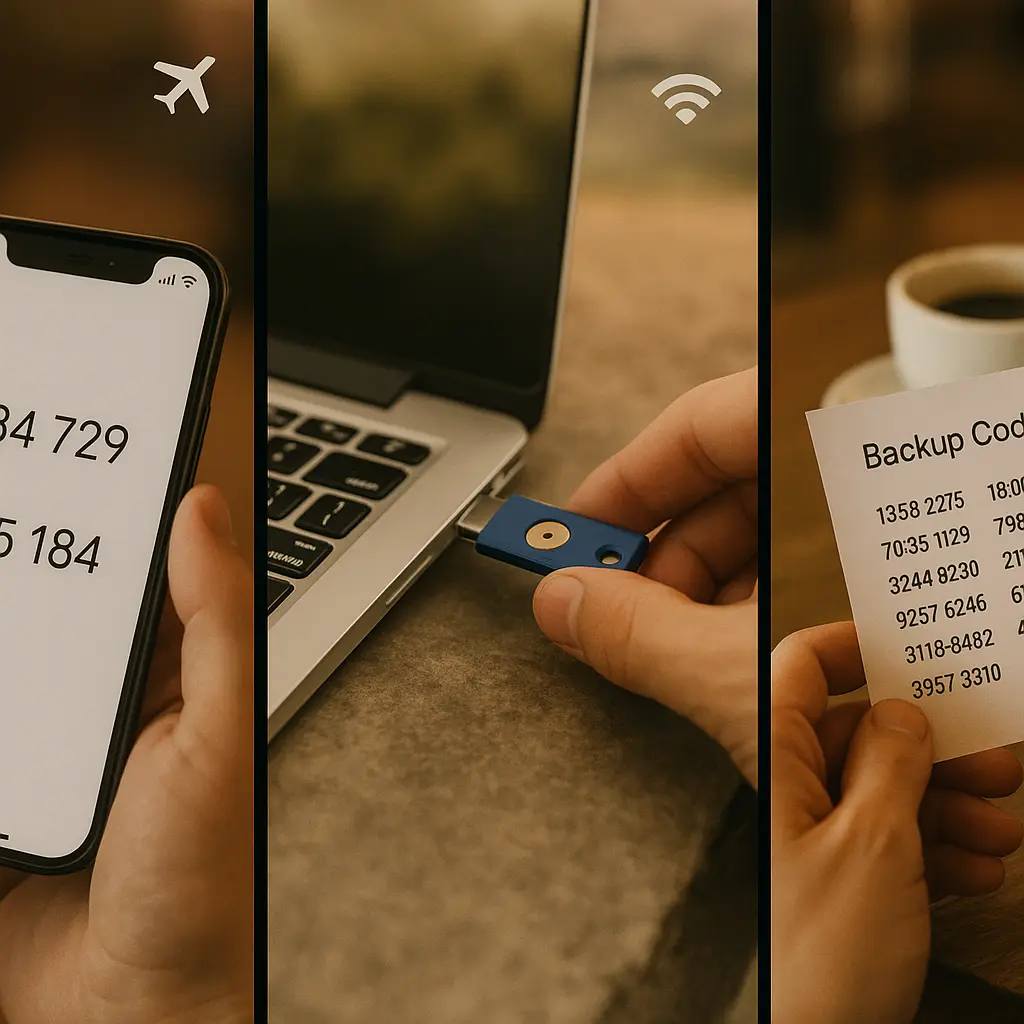
Step 3: Enable two-factor authentication. If you haven't already, turn on two-factor authentication immediately. Use an authenticator app like Authy or Google Authenticator, not SMS. Attackers can intercept text messages through SIM swapping.
Step 4: Review recovery settings. Check your recovery email, phone number, and security questions. Attackers often add their own recovery methods to maintain access after you change your password. Remove anything you don't recognize.
Step 5: Review connected apps and permissions. Third-party apps with access to your account can act as backdoors. Go to your account's app permissions page and revoke access to anything you don't actively use or recognize.
Step 6: Check for unauthorized activity. Look for sent emails you didn't send, messages you didn't write, purchases you didn't make, or settings you didn't change. Document everything for potential fraud reports.
Step 7: Notify your contacts if needed. If the compromised account was used to send phishing messages or spam, warn your contacts. A quick message explaining the compromise prevents them from falling for scams sent in your name.
Step 8: Monitor related accounts. If your email was compromised, assume every account using that email for password resets is at risk. Change passwords on your banking, social media, and other critical accounts.
Step 9: File reports if money was stolen. If the unauthorized access led to financial fraud, report it to your bank, file a complaint with the FTC at IdentityTheft.gov, and consider filing a police report for documentation.
Step 10: Set up monitoring. Enable login alerts on every service that offers them. Most platforms can email or text you when a new device signs in. This turns future unauthorized access into an immediate notification instead of something you discover weeks later.
How to Set Up Login Alerts for Future Protection
Manual login history checks catch problems, but automated alerts catch them faster. Most services offer notifications when suspicious activity occurs.
Google: In your Google Account security settings, scroll to "Your devices" and enable "Sign-in notifications." Google will alert you when a new device signs in or when someone tries to access your account from an unfamiliar location.
Microsoft: Under Security settings, click "Advanced security options," then "Sign-in alerts." Enable notifications for new sign-ins, unusual activity, and security changes.
Apple: Apple sends automatic security notifications when your Apple ID is used to sign into a new device or when account settings change. You can't disable these, they're mandatory for security.
Banks: Most banks offer customizable alerts for logins, transactions, and account changes. Enable all of them. The temporary annoyance of frequent notifications is worth the early warning.
Social media: Facebook, Instagram, Twitter, and LinkedIn all offer login alerts in their security settings. Turn them on for every platform.
These alerts won't catch everything, attackers who already have access to your email can delete the notifications, but they provide a critical early warning system for most unauthorized access attempts.
How Often Should You Actually Check Login History
Monthly reviews catch most problems early enough to prevent serious damage. Set a calendar reminder for the first of each month and check your most important accounts: email, banking, and any service with payment methods stored.
Quarterly reviews work for less critical accounts: social media, shopping sites, streaming services. These matter less for immediate financial impact but can still lead to identity theft or data exposure.
After major events, data breaches, suspicious emails, unexpected password reset requests, check immediately. Don't wait for your scheduled review.
The five-minute monthly habit of reviewing login history across your core accounts is one of the highest-value security practices available. It requires no technical expertise, costs nothing, and catches account takeover before it becomes identity theft.
What Login History Doesn't Show You
Login history is powerful, but it has blind spots. Understanding what it doesn't capture helps you build a complete security picture.
Third-party app access: Apps you've authorized to access your account don't show up in login history. They use API tokens, not traditional logins. You need to check connected apps separately in your account settings.
Session persistence: Some services keep you logged in for weeks or months. An old session from a device you no longer use might still be active even if it doesn't show recent activity. This is why "sign out everywhere" matters.
Password theft without login: If someone steals your password but hasn't used it yet, login history won't show anything. They're waiting for the right moment. Regular password changes and two-factor authentication protect against this.
Insider access: If someone with legitimate access to your account, a family member, coworker, or IT administrator, uses it, that activity might not look suspicious in login history. The device and location will be familiar.
Deleted sessions: Some services let users delete their own login history entries. If an attacker has deep enough access, they might erase evidence of their presence.
Login history is one layer of security, not the complete picture. Combine it with two-factor authentication, strong passwords, regular software updates, and careful handling of recovery settings.
The Bigger Picture: Login History as Part of Account Hygiene
In The Fellowship of the Ring, Gandalf examines the One Ring and sees the inscription that reveals its true nature. The ring was always dangerous, but most who possessed it never looked closely enough to understand what they held.
Your login history is similar. The data is always there, recording every access to your accounts. Most people never look. The information that could reveal unauthorized access sits unused in account settings, waiting for someone to check.
Reviewing login history isn't paranoia. It's basic account hygiene, like checking your bank statement or reviewing your credit report. The difference is that login history catches problems earlier, before money disappears, before data leaks, before identity theft cascades across your digital life.
The tools are built into every major service. The process takes minutes. The only missing piece is the habit.
Set the calendar reminder now. First of the month, every month. Five minutes to check Google, Microsoft, Apple, your bank, and your primary social media accounts. That's the entire practice.
Most months, you'll find nothing unusual. That's the point. You're looking for the exception, the anomaly, the login that doesn't belong. When you find it, you'll catch it early enough to lock it down before real damage occurs.
Your accounts are already tracking this data. All you have to do is look.
Protect your accounts with NordPass , a password manager that generates unique passwords for every account, stores them encrypted, and alerts you to breaches. The monthly review becomes faster when you're not juggling dozens of passwords across services.