Two-Factor Authentication Without Phone Service: Offline Methods That Work
You're twelve hours into a flight to Tokyo. Your phone's in airplane mode. You need to check your bank balance on the in-flight WiFi, but your account requires two-factor authentication. The SMS code won't arrive without cell service.
This scenario plays out thousands of times daily across international flights, cruise ships, remote hiking trails, and countries where your carrier doesn't operate. Two-factor authentication protects your accounts by requiring something you know (password) plus something you have (second factor). But when that second factor depends on phone service, travel creates a security gap.
The solution isn't to disable 2FA. It's to configure methods that work offline.
How Authenticator Apps Work Without Network Access
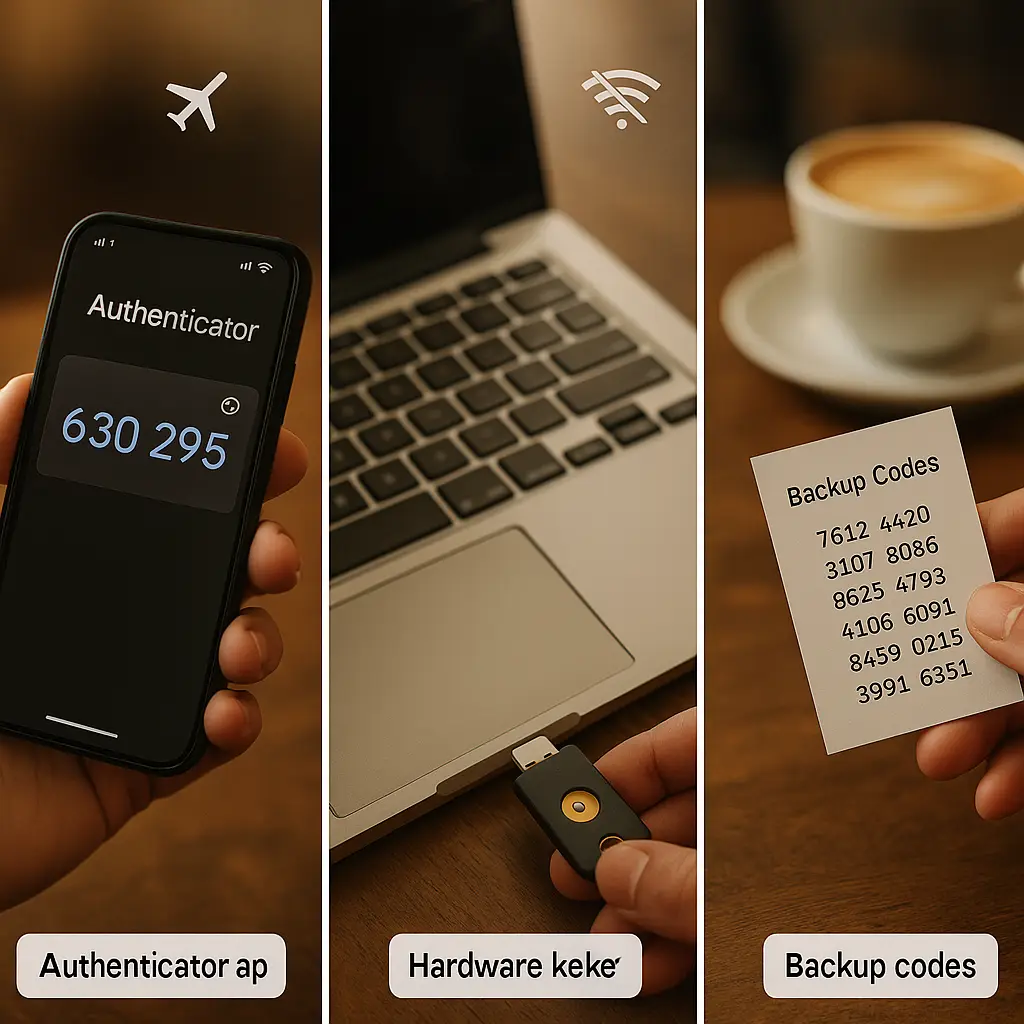
Authenticator apps generate six-digit codes that refresh every thirty seconds. The mechanism is time-based one-time passwords, or TOTP. When you set up an authenticator app, the service shares a secret key with your device. Your phone uses that key plus the current time to calculate a code. The server performs the same calculation. If the codes match, you're authenticated.
The critical detail: this calculation happens locally on your device. No network required. Your phone's clock provides the time component. The shared secret never leaves your device. The code generation works in airplane mode, underground, or anywhere your phone can display a screen.
Google Authenticator, Microsoft Authenticator, and Authy all use this TOTP standard. The apps differ on backup features and cross-device sync, but the core mechanism is identical. Install the app, scan the QR code when adding an account, and codes generate offline forever.
The tradeoff is clock accuracy. If your phone's clock drifts more than a minute or two from the server's clock, codes won't match. This rarely happens with modern smartphones that sync time automatically when connected, but it's worth knowing if you're troubleshooting failed logins after extended offline periods.
Setting Up Authenticator Apps Before You Travel
Start with your most critical accounts: email, banking, password manager, and work systems. Each service's security settings will have a section for two-factor authentication or two-step verification. Look for options labeled "authenticator app" or "time-based codes."
The setup process follows the same pattern across services:
Open your authenticator app and tap the option to add a new account. The service displays a QR code on screen. Your phone's camera scans that code, which contains the shared secret. The app immediately begins generating codes for that account. Enter the current code to verify the setup worked.
Some services offer a manual entry option instead of QR codes. You'll see a long alphanumeric string. Type that into your authenticator app under manual entry. This method works when you're setting up 2FA on one device but need codes on another.
After setup, the service typically displays backup codes. These are one-time-use codes that bypass the authenticator app. Print them. Store the printout somewhere separate from your phone. A backup code gets you into your account when your phone is dead, lost, or stolen.
Test everything before you leave. Enable airplane mode on your phone. Try logging into each account using only authenticator codes. If login succeeds, you've confirmed offline functionality. If it fails, you've discovered the problem while you still have time to fix it.
Hardware Security Keys: Physical Authentication That Never Needs Charging
A hardware security key is a small USB device that authenticates you through physical possession. You plug it into your laptop's USB port or tap it against your phone's NFC reader. The key performs a cryptographic handshake with the service. No batteries, no network, no codes to type.
YubiKey is the most common brand, but Google's Titan Security Key and others work on the same FIDO2 standard. The key contains a secure chip that stores cryptographic credentials. When you register a key with a service, the key generates a unique credential pair for that site. The private half never leaves the key. The public half goes to the service.
During login, the service sends a challenge. Your key signs that challenge with the private credential. The service verifies the signature using the public credential. If they match, you're authenticated. This happens in milliseconds through USB or NFC. No typing, no codes, no network dependency.
The security advantage over SMS or authenticator apps is phishing resistance. A credential created for gmail.com won't work on gmai1.com, even if the fake site looks identical. The key checks the domain cryptographically. If the domain doesn't match what was registered, the key refuses to respond. Attackers can't trick you into using your key on a fake site.
Hardware keys work offline by design. The cryptographic operations happen locally on the key and your device. No internet required. You can authenticate on a laptop with WiFi disabled, a phone in airplane mode, or a desktop that's never been online.
The practical limitation is compatibility. Not every service supports hardware keys yet. Email providers, password managers, and major platforms generally do. Smaller services often don't. Check your critical accounts before buying a key. If your bank and email support FIDO2, a hardware key makes sense. If they don't, you're carrying a device you can't use.
Backup Codes: The Unglamorous Failsafe That Actually Works
Backup codes are ten or twelve random strings of letters and numbers that services generate during 2FA setup. Each code works once. After you use it, that code becomes invalid. The remaining codes still work.
The mechanism is simple: the service generates codes, displays them on screen, and stores hashed versions in their database. You copy those codes somewhere safe. When you need to log in without your primary 2FA method, you enter one code. The service hashes what you typed, compares it to stored hashes, and authenticates you if there's a match.
Backup codes solve the scenario where you lose your phone, your hardware key breaks, or your authenticator app gets deleted. You're locked out of your primary 2FA method, but you still need access. One backup code gets you in. Once logged in, you can reconfigure 2FA with a new device or key.
Print them. Don't screenshot them. Don't email them to yourself. Don't store them in your password manager, because if you're locked out of your password manager, you can't access the codes to unlock it. Physical paper in a secure location separate from your devices.
I keep mine in a fireproof document box at home. Some people use a safe deposit box. The point is physical separation: if your phone and laptop are stolen together, the backup codes aren't in the same bag.
When you use a backup code, the service typically prompts you to generate new ones. Do it immediately. Backup codes are single-use, so your pool shrinks with each login. Regenerating codes replaces the old set with fresh ones and restores your emergency access.
Configuring Multiple 2FA Methods on the Same Account
Most services that support two-factor authentication let you enable multiple methods simultaneously. You can have an authenticator app, a hardware key, and backup codes all active on one account. During login, the service offers whichever methods you've configured.
This redundancy protects against single points of failure. Your phone dies mid-trip? Use your hardware key. Your key falls out of your pocket? Use your authenticator app. Both fail? Use a backup code.
The setup process varies by service, but the pattern is consistent. In your account's security settings, you'll see sections for each 2FA type. Enable authenticator app first. Then add a hardware key. Then generate and save backup codes. Each method gets configured independently, but they all protect the same account.
Some services designate one method as primary and others as fallback. Google, for instance, prompts for your phone's built-in security key first, then offers authenticator codes, then suggests backup options. Other services present all enabled methods as equal choices during login.
The practical advantage shows up when you're troubleshooting. If one method fails, you don't get locked out. You switch to another method, complete login, and then investigate why the first method stopped working. Without multiple methods, a single failure means account recovery flows, support tickets, and hours of downtime.
For accounts that hold financial data, communications, or access to other accounts (like email), configure at least two methods. Authenticator app plus backup codes is the minimum. Authenticator app plus hardware key plus backup codes is better.
What Happens When Your Phone's Clock Drifts Offline
Authenticator apps calculate codes using your phone's current time. If that time is wrong, codes won't match what the server expects. Most services allow a small window, typically thirty seconds to a minute, to account for minor clock differences. Beyond that, codes fail.
This rarely causes problems when your phone syncs time automatically over cellular or WiFi. But extended offline periods can cause drift. If you spend a week hiking with your phone in airplane mode, the internal clock might lag a few seconds behind real time. Usually not enough to break TOTP, but worth knowing.
The fix is straightforward: reconnect to a network. Your phone syncs time automatically. Authenticator codes immediately start working again. If you're in a situation where network access is impossible but you need to log in, try adjusting your phone's time manually to match a known accurate source. Codes should generate correctly once the clocks align.
Some authenticator apps display the time remaining until the current code expires. If you see codes refreshing every thirty seconds, your clock is working correctly. If codes seem to stick or refresh at irregular intervals, your clock has drifted.
The SMS Fallback Problem and Why It Defeats Offline 2FA
Many services offer SMS as a two-factor option. You enter your password, they text you a code, you type it in. Convenient when you have cell service. Useless when you don't.
SMS codes depend on cellular connectivity. No signal means no code delivery. International travel, flights, cruise ships, remote areas, and foreign carriers all break SMS-based 2FA. If SMS is your only configured method, you're locked out until you regain service.
The security community generally recommends against SMS for 2FA anyway. NIST's digital identity guidelines note that SMS is vulnerable to interception through SIM swapping and SS7 exploits. Authenticator apps and hardware keys provide stronger protection.
But the travel-specific problem is simpler: SMS requires the one thing you won't reliably have abroad. If your bank only supports SMS-based 2FA, you can't access your account from that cabin in the mountains or that flight over the Pacific. The account is effectively unavailable until you're back in coverage.
Check your critical accounts before traveling. If SMS is the only 2FA option, contact the service and ask about authenticator app support or hardware key compatibility. If they don't offer alternatives, consider whether you need access to that account while traveling. If you do, you'll need to plan around connectivity gaps.
The Cultural Reference: Ted Lasso and the Believe Sign
In Ted Lasso, the title character hangs a "BELIEVE" sign in the locker room. It's not a strategy. It's not a tactic. It's a reminder that the work happens before the game. Preparation creates confidence. Confidence creates performance.
Setting up offline 2FA is the same principle. You're not configuring authenticator apps and printing backup codes because you expect disaster. You're doing it because when you're 30,000 feet over the Atlantic and need to verify a suspicious bank transaction, you don't want to discover that your only 2FA method requires cell service you don't have.
The sign doesn't win games. But it reminds players they've done the work. Your printed backup codes and configured hardware key don't prevent account lockouts. But they remind you that you've prepared for the scenarios where primary methods fail.
Recovery Email: The Forgotten Backup Method
Most services let you configure a recovery email address during account setup. If you can't log in through normal methods, the service sends a reset link to that address. You click the link, set a new password, and regain access.
Recovery email works as a 2FA bypass in specific situations. If your authenticator app and backup codes both fail, the recovery flow gets you back in. The tradeoff is that anyone with access to your recovery email can also trigger this flow. That's why your recovery email should be a separate account with its own strong 2FA configuration.
I use a dedicated Gmail account as my recovery address for other services. That Gmail account has authenticator app 2FA, a hardware key, and printed backup codes. It exists solely for account recovery. I check it monthly to ensure it's still active and accessible.
The setup process: in each service's security settings, look for recovery email or account recovery options. Enter your dedicated recovery address. The service sends a verification email to confirm you control that address. Click the link to complete setup.
Test the recovery flow before you need it. Trigger a password reset on a non-critical account. Verify that the email arrives at your recovery address and that the reset link works. This confirms the mechanism functions and reminds you how the process works under pressure.
Setting Up 2FA on a New Device While Traveling
You're abroad. Your phone breaks. You buy a replacement. Now you need to set up authenticator apps on the new device, but you can't scan the original QR codes because those were one-time setup displays.
If you enabled cloud backup in your authenticator app, this scenario is straightforward. Authy and Microsoft Authenticator both offer cloud sync. Install the app on your new device, log into the same account, and your codes sync automatically. Google Authenticator added this feature in recent versions.
If you didn't enable cloud backup, you're using backup codes to log into each service, then reconfiguring 2FA from scratch. This is tedious but functional. Each service lets you disable 2FA temporarily (using a backup code to authenticate), then re-enable it with a new QR code scan.
The preventive measure is enabling cloud backup before you travel. In your authenticator app's settings, look for backup, sync, or cloud options. Enable it. Verify that your codes appear when you log into the app on a different device. This confirms the sync works.
Some security-focused users avoid cloud backup because it introduces a remote attack surface. If someone compromises your Google or Microsoft account, they could access your synced authenticator codes. The tradeoff is convenience versus risk. For most travelers, the convenience of automatic backup outweighs the marginal increase in attack surface, especially when your cloud account has strong 2FA itself.
Hardware Key Compatibility Across Devices
Hardware keys work through USB-A, USB-C, NFC, or Lightning connectors. Your laptop probably has USB-A or USB-C. Your phone might use Lightning (older iPhones) or USB-C (newer iPhones and most Android devices). A single key might not work across all your devices without adapters.
YubiKey offers models with multiple connectors. The YubiKey 5C NFC has USB-C and NFC, covering modern laptops and phones. The YubiKey 5Ci has USB-C and Lightning, covering iPhones and USB-C laptops. Check your devices before buying.
NFC-enabled keys work with phones that support NFC, which includes most smartphones from the last five years. You tap the key against the back of your phone during login. No cable required. This works well for travel because you're not carrying extra adapters.
The practical limitation is that some services only support hardware keys on specific platforms. A service might support hardware keys on desktop browsers but not on mobile apps. Check compatibility before relying on a key as your primary 2FA method while traveling.
What to Do When All Your 2FA Methods Fail
You've lost your phone. Your hardware key fell out of your pocket. Your printed backup codes are at home. You're locked out.
Most services offer account recovery flows for exactly this scenario. The process varies, but common elements include:
Answering security questions you set up during account creation. Verifying your identity through government ID upload. Receiving a recovery code at your registered email address. Waiting a mandatory delay period (often 24-72 hours) before access restores.
These flows exist because total lockout is a real risk with strong 2FA. The delay period protects against attackers who've gained partial access. If someone has your password and is trying to bypass 2FA through account recovery, the delay gives you time to notice and intervene.
The prevention is redundancy. Multiple 2FA methods on each account. Backup codes stored separately from devices. Recovery email configured and tested. These layers ensure that multiple failures must occur simultaneously before you're truly locked out.
For critical accounts like email and password managers, consider keeping a hardware key in a secure location at home as a backup. If your primary key is lost while traveling, you can ask someone to mail the backup key to your destination. This adds days to the recovery process but avoids complete lockout.
Testing Your Offline 2FA Setup Before Departure
Two weeks before your trip, run through this checklist:
Enable airplane mode on your phone. Open each critical account. Attempt login using only authenticator codes. Verify that codes generate and login succeeds.
If you have a hardware key, test it on each device you're bringing. Laptop, phone, tablet. Confirm that the physical connection works and that services recognize the key.
Locate your printed backup codes. Verify they're current. If you've used any codes since printing, regenerate the full set and print fresh copies.
Check your recovery email address. Send a test message to confirm it's active. Log into that account and verify its own 2FA is configured correctly.
If any test fails, fix it now. Discovering that your authenticator app isn't generating codes correctly is much easier to resolve at home than from a hotel room in another country.
The Bottom Line on Offline 2FA
Two-factor authentication protects your accounts. Phone service isn't guaranteed while traveling. The solution is configuring methods that work without connectivity.
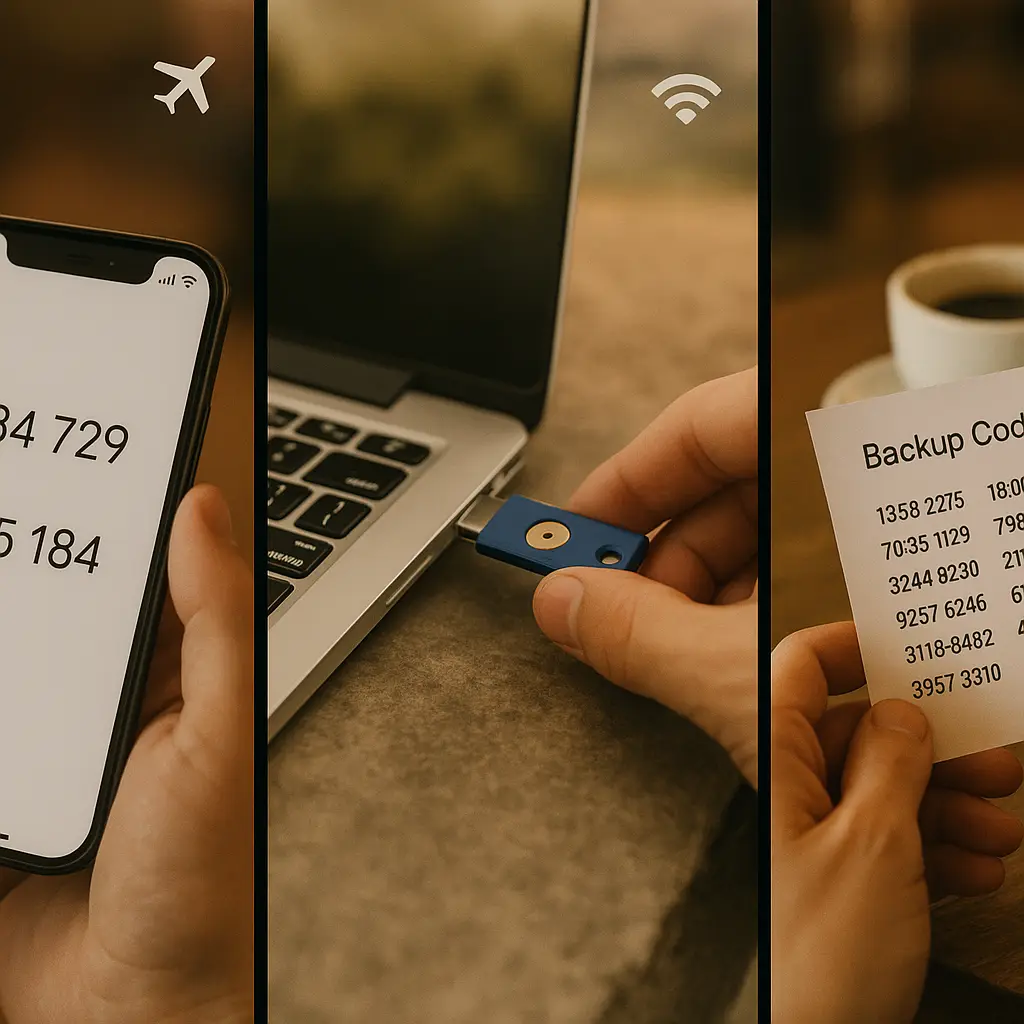
Authenticator apps generate codes locally using your phone's clock. Hardware keys perform cryptographic authentication through physical connection. Backup codes are printed text that work anywhere. All three methods function offline.
Set up multiple methods on critical accounts. Test them in airplane mode before you leave. Print backup codes and store them separately from devices. Configure a recovery email with its own strong 2FA.
The goal isn't perfect security. It's functional security that works when you're 30,000 feet up, deep underground, or in a country where your carrier doesn't operate. Offline 2FA gives you account access without depending on the one thing you can't guarantee: phone service.